
1. Storage Installation
This chapter describes installation and configuration of the VDURA V5000 storage appliance.
This chapter contains the following sections:
- V5000 JBOD Installation Requirements
- V5000 JBOD Overview
- Install the V5000 JBOD Enclosure
- V5000 Storage Node Installation Requirements
- V5000 Storage Node Overview
- Install the V5000 Storage Node
- Cable the Storage Node and JBOD
- Configure Storage Node IPMI Support
Important: Be sure to read the Safety Information. Failure to follow these safety guidelines can result in injury or damage to the equipment and may void your warranty.
This chapter assumes you are installing a standard rack configuration of Mixed Fleet Storage Nodes. Begin with the bottom-most JBOD and Storage Node and work your way up the rack. If you are installing All-Flash Storage Nodes, you may skip the steps related to JBOD installation.
1.1 V5000 JBOD Installation Requirements
A V5000 JBOD enclosure can be mounted in any rack that meets these requirements:
- Compliant with the Electronic Industry Alliance (EIA) 310-D specification.
- Cannot have solid or restricted airflow doors.
- Must have 4U available vertical rack space, plus 1U for the Storage Node directly above it.
- Both the 4U78 and 4U108 JBOD require a rack with mounting posts 19 in. (483 mm) apart.
- Both the 4U78 and 4U108 JBOD have a Cable Management Arm (CMA) that adds to the total depth of the enclosures. The 4U78 JBOD total depth with the CMA is 974.7 mm, and the 4U108 JBOD total depth with the CMA is 1273 mm.
- Some racks have rear doors with features that intrude into the space for the systems mounted in the rack. Review the drawings for your rack including the rear doors to determine if there is enough space for the JBOD.
The following tools and equipment are required to install and configure a V5000 JBOD:
- An electrostatic discharge (ESD) preventative wrist or ankle strap. See Safety Information.
- #2 Phillips screwdriver.
- Appropriate cabling to connect to the V5000 Storage Node. Cables will be in the accessory box in the JBOD packaging.
- Power cables included with the JBOD.
- A server lift is strongly recommended.
1.2 V5000 JBOD Overview
The following descriptions are generally accurate for both the 4U78 and 4U108 V5000 JBOD enclosures. Any exceptions will be noted below.
1.2.1 Control Panel and Drive LEDs
The front of each JBOD contains both internal drive indicator LEDS and a control panel for the enclosure.
Control Panel
Each V5000 JBOD enclosure contains a control panel located at the bottom right corner of the front of the unit. This control panel is used to power the JBOD enclosure on and off and indicate various hardware failures.
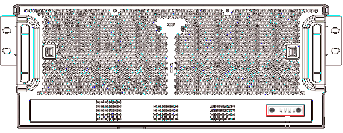
The figure above illustrates the 78-drive V5000 JBOD enclosure. The 108-drive JBOD is similar, but with one more LED bank.
The following table explains the items on the JBOD control panel. From left to right:
| Item | Description |
|---|---|
| Mute | - Press: Mute alert tone. |
| Fan fault LED | - Off: Normal. - Red: Fan failure. |
| Temperature LED | - Off: Normal. - Red: Overheat condition detected. |
| Power fail LED | - Off: Normal. - Red: PSU failure. |
| Power LED | - Blue: Enclosure powered on. - Off: Enclosure powered off. |
| Power button | - Press: Start system. - Long press: Shut down system. |
Drive Indicator LEDs
To the left of the control panel, banks of LEDs correspond to the drives inside the JBOD enclosure. Each bank corresponds with a section of drives under part of the top cover of the JBOD. The first drive in the JBOD corresponds with the bottom left-most LED in the left-most bank. Drives increment left to right, bottom to top in each bank, and banks increment left to right.
Note: The first bay is numbered “1”, not “0” as with some other JBODs.
Drive LEDs appear dark blue when a drive is in the slot and functioning normally. A lighter blue or bright purple LED indicates a failed drive in the slot. An unlit LED means no drive is detected in the slot.
1.2.2 Rear Components
The diagram and labels below describe the rear of the V5000 JBOD enclosure.
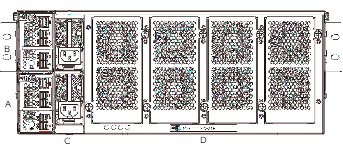
| Label | Description |
|---|---|
| A | Primary SAS IO Module |
| B | Secondary SAS IO Module (only installed for some configurations) |
| C | 78-drive JBOD: 2x 1600 W PSUs 108-drive JBOD: 2x 2000 W PSUs |
| D | 8x cooling fans |
Each SAS adapter has the following ports (from top to bottom):
| Item | Description |
|---|---|
| BMC LAN port | Labeled “M” |
| 4x Mini SAS HD ports | Labeled “1”, “2”, “3”, and “4” from top to bottom |
| BMC console port | Labeled “BC” |
1.3 Install the V5000 JBOD Enclosure
Preinstallation Information
There are two JBOD options available for the V5000 system: 4U78 and 4U108. These instructions apply to both the 4U78 and 4U108 JBOD enclosures. Be aware that the 4U108 JBOD weighs significantly more than the 4U78 and that the 4U108 needs a 1.2-meter space in front of the rack for service, while the 4U78 needs a 1-meter space.
Before installing the 4U108 enclosure, ensure that the rear of the enclosure does not block the rack power outlets when the enclosure is fully inserted in the rack.
During installation, references to left and right are as seen from the front of the enclosure unless otherwise noted.
When pulled out, each rail is marked on the inside to indicate which end is the rear. Also, the rear of each rail is easily identified by the blue release tab on the arm.
IMPORTANT NOTES REGARDING DRIVES:
- Drives are shipped separately from the JBOD enclosure. DO NOT INSTALL THE DRIVES BEFORE MOUNTING THE ENCLOSURE IN THE RACK.
- Drive location does not matter for a first-time installation. However, if you are moving the VDURA system, or it has been set up at another location before installation at your site, then all drives from a given JBOD must be reinserted into that same JBOD.
IMPORTANT NOTE REGARDING FRONT BEZEL:
The front bezel is held in place by two small posts and two sliding catches. Consider removing the bezel before working with the JBOD enclosure to prevent damaging it or the enclosure itself.
Step 1: Install clip nuts in the rack
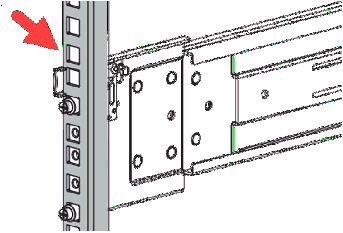
Clip nuts are required for the screws that lock the enclosure into the rack. It is typically easiest to install them before any other parts get in the way.
Insert each clip nut in the bottom hole of the topmost rack unit of the enclosure. For example, if an enclosure is mounted with its bottom at RU 14, count up the three more rack units and install the clip nut in the bottom hole of RU 17. The clip nuts should align with the top hole on each side of the server.
Step 2: Install the outer rail
- Pull the front back slightly to find identifying marks on the outside for both front and left/right.
- The rail system does not have an adjustment at the rear for adjusting the total length. There are no screws to undo to mount the rails in the rack; simply pull the rail out to the correct distance.
- While one person can install the shorter rail in a rack by themselves, two people will make it easier. For the longer version of the rail for a 1.2-meter rack, two people may be required.
- Starting with the rail completely folded up, use your thumb to guide the outer part of the rail to about the distance between the front and rear rack posts.
- Line up the bottom stud with the bottom rack unit in the rack where you want to place the rail.
- Insert the stud into the bottommost space in the rack unit and then gradually raise the rail until the blue top clip engages.
- At the front, pull the rail forward and engage the tail studs with the holes in the rack.
The rail kit comes with three types of screws to install the JBOD enclosure. Inside the bag of screws are four baggies. The largest screws are for locking the enclosure against the rack posts. The four smaller screws with triangular heads are used for securing the rails and are matched with a washer to help make sure the screw does not slip through the rack post. The final screws are used for attaching the rail to the chassis.
- To prepare the screws used to hold the rail against the rack posts, add one washer to each triangular-headed screw. The washer should cup the head of the screw.
- Insert the screw with the washer into the middle hole of the rail to secure the rail to the rack post.
- Tighten the screw by hand with a #2 Phillips screwdriver until snug. Make sure that when you finish tightening the screw, the posts on the end of the rail are fully pushed through the rack.
- Attach another screw and washer in the same middle hole position at the rear of the rail.
- When you are finished attaching the rail on one side, follow the same process to attach the other rail on the other side.
Step 3: Install the inner rail
- Remove the inner rail before attaching to the chassis.
- Slide the middle rail out.
- Slide the inner rail out until it clicks.
- Release the inner rail by pushing from the outside on the tab and sliding it all the way out.
- To move the rail back into the rack, push on the tab next to the blue mark to unlock the rail.
To determine correct orientation, the inner rails are stamped L and R to show side of the chassis the inner rail attaches. The clamps to attach the Cable Management Arm (CMA) are on the rear of the inner rails.
- Align the inner rail with the mushroom studs on the chassis.
- Fit the rail through all the matching keyholes in the rail.
- Make sure all holes are lined up and gently push the rail towards the rear. A clip automatically engages to secure the rail in place.
- Attach three screws on each side to lock in the inner rail to the enclosure. Tighten until snug.
- When you are finished attaching the rail on one side, follow the same process to attach the other rail on the other side.
Step 4: Engage the middle rail
If the enclosure and the rack are not perfectly aligned, and you cannot get the enclosure at the same height as the rails, try to get one side lined up as closely as possible to start and leave the other side a little lower.
During these steps, it may be necessary to slightly lift each side as you join the inner and middle rails.
If the sides of the enclosure are significantly different in alignment, letting it sit could twist the rail too much. Therefore, you may need to use two people to engage both middle rails at the same time.
- To attach the rail, make sure the enclosure is close to the rack.
- Pull the middle rail out.
- There is a ball bearing race on the inside of the middle rail that can move back and forth. Make sure that the race is all the way forward and ready to engage with the rail as you slide the rail over it; otherwise, the enclosure can knock it loose, and the ball bearings will fall out. Best practice is to wrap your thumb around the middle rail to prevent the race from moving.
- Either slide the inner rail over the middle rail or slide the inner rail inside the middle rail. Note that the end of the middle rail is painted to make it easy to spot that the rail lips at the top and the bottom are fully engaged.
- While continuing to grip the ball bearing race with your thumb, push everything forward until the middle rail locks.
- When you are finished attaching the rail on one side, follow the same process to attach the other rail on the other side.
- At this point, the chassis is firmly in the middle rail.
If it is difficult to extend the middle rail, that may be because the chassis is out of alignment. Try raising the chassis a bit to align it better.
- Lower the server lift just enough so that you can move the server back and forth freely.
- The clips on the inner rail are not yet engaged with the middle rail. Gently move the server forward along the rails until these clips are engaged. Make sure that the enclosure locks in the service position.
Step 5: Slide the enclosure into the rack
- Hold the clips on both sides at the same time and push the enclosure in a small amount to make sure it moves freely and then continue to move the enclosure until it’s fully inserted into the rack.
- Slide the enclosure in and out of the rack at least three times to make sure that it is properly installed on the rails.
- Gently wiggle the enclosure side to side and up and down to make sure that it stays in place. If you push too hard, you will break the rail.
- Clip nuts are required for the screws that lock the enclosure into the rack. If you have not already done so, install the clip nuts now. See the “Step 1: Install clip nuts in the rack” section at the beginning of these instructions.
Step 6: Insert the drives
- Before installing the drives, pull the server all the way out until it locks into position.
- Make sure a server lift is still positioned underneath the enclosure to catch the enclosure if it falls while installing drives.
- Open the drive covers by sliding their latches and lifting their front edges.
- Gently lower the drives into the bays. Due to manufacturing tolerances, some bays may be a tighter fit than others.
- As you insert each drive, make sure to push it all the way down and continue to push it while you close the latch, since the latch itself will not pull the drive into position; it only locks it in place.
- Firmly push down while closing the latch to make sure the drive is properly seated. As you push the drive down to close the latch, make sure to push on the black plastic, not the button.
- When finished, check all the drives to ensure that no drive is higher than the others.
- Lower the covers.
- Once all drives are in place and the covers are lowered, slide the enclosure in and out of the rack several times to make sure all is working properly with the rails. With the full weight of the drives, you may notice that the chassis does not move as easily in and out of the enclosure; this is normal.
Note: Due to close rack tolerances, the top JBOD covers may catch on the bottom of the server above it when sliding the JBOD into the rack. If this occurs, best practice is to pull the JBOD back out, then pull the server above it out. While pushing up slightly on the server, push the JBOD into the rack. After the JBOD is in place, push the server in, as well.
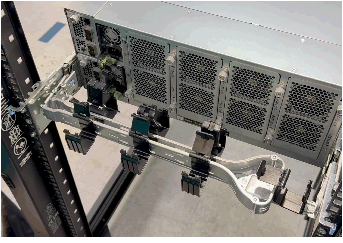
Step 7: Install the Cable Management Arm (CMA)
The CMA is attached to the rails at the rear of the JBOD. It holds all cables neatly in place and prevents issues while the unit slides in and out of the rack.
- Make sure the enclosure is slid all the way in to the rear of the rack.
- Before installing, the clip on the support arm under the CMA must first be flipped to the opposite direction. Push the silver button to disengage the small lever. Rotate the lever 180 degrees until it snaps into position on the other side.
- At the rear of the JBOD, each rail has two C-shaped clamps attached to the ends of the inner and middle rails. As viewed from the rear, slide the CMA clip that you rotated in the previous step (with a small blue tab on it) onto the C-shaped clamp located on the middle rail of the right side. The correct clamp protrudes further to the rear than the one on the inner rail.
- The other side of the CMA has two arms and two attachments. Make sure the CMA is slid shut to its shortest length so these arms fit inside the rack.
- Slide the outer arm onto the outer (middle rail) C-shaped clamp. Slide the inner arm onto the inner rail C-shaped clamp.
- The CMA will now open and close with a scissor-like motion as the enclosure is slid in and out of the rack, supporting the cables and preventing tangles and snags.
The distance between the last cable cage on the CMA and the PSUs and IOMs increases a bit as the enclosure slides out. This is important for gauging how much slack to leave in the cables at this end; you do not want to route the cable so tightly that as the enclosure is moved forward, it pulls on the cables and makes it difficult to pull the enclosure all the way out of the rack.
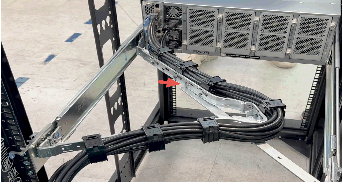
The figure above shows a CMA installed and partially extended. Note the short vertical post on the support arm that holds the CMA up as the JBOD extends; this post points up when the CMA is installed correctly.
Step 8: Connect and route the cables
- Open all the cages or baskets that hold the cables.
- Connect the power cables to the PSUs at the rear of the JBOD.
- Attach the cable retention strap so that the power cord does not accidentally pull out of the PSU.
- Pull the tab on the cable retention clip ring to open it.
- Fit the ring around the cable.
- Close the cable retention ring clip, but not tightly yet.
- The clip ring slides on a strap connected to the PSU. There is a second tab on the clip ring that allows the ring to slide on the strap. Move this tab to loosen it, then push the clip ring snugly against the power cord plug.
- Release the tab and make sure the ring remains snugly in place.
- Squeeze the ring until it is tightly fitted around the cord. You may need to push and pull the ring catch a little bit to properly squeeze the retention cord.
- Repeat this process for the other power supply’s cord.
- Lay the cables in the baskets and route the cables through until their entire length is supported. Make sure there is enough slack at the final bend where cords plug into the PSUs and the middle joint of the CMA so that when the enclosure is pulled all the way out, the cables do not want to pull out of the PSUs.
- Attach the SAS cables. For enclosures with dual-actuator drives, all eight cables will get connected to both IOMs. For other drives, only four cables will get connected to a single IOM.
When you connect the cable to the IOM, you will notice that the cables are stiff and have a sharp bend as they connect to module. This bend is expected and within the bend tolerance of the cables.
- As with the power cables, route the SAS cables through the baskets, leaving some slack in the middle.
- Lay the SAS cables above the power cables to keep the baskets neat. With eight cables, the baskets are full and leave little room for cable movement. However, with careful placement and the correct amount of slack, everything will work correctly. Try to lay multiple neat layers of cables within the baskets to give as much room as possible for the cables to slide back and forth.
- Make sure to give some extra bend radius where the SAS cables leave the last basket and connect to the IOMs, as some of them need to bend upwards to reach their ports.
- At this point, the provided zip tie may be useful to relieve the strain on the final basket, as the clips on the baskets are only so strong and may pop open. Make sure the zip tie is not so tight that it prevents the cables from moving back and forth.
- When you have all the cables installed and arranged, close the baskets.
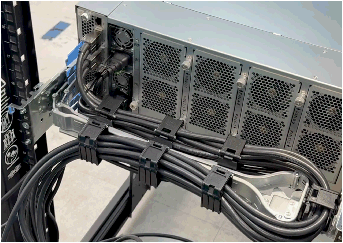
- Pull the enclosure out slowly and carefully to test the cabling. Monitor the cables to make sure they are not pulling too hard.
Warning: If the cables do not have enough slack before the CMA or inside the CMA, they can pull out connectors or, in the case of the power cord, the retention strap.
- If needed, adjust the cable slack at the joints so that the enclosure can be fully extended into the service position, and make sure that the cables are aligned appropriately.
- Monitor the enclosure again as you push it back into the rack to make sure that the cables fold into their correct positions.
Step 9: Secure the enclosure to the rack
- Use the largest installation screws provided to lock the enclosure in the rack.
- Insert the screws into the cage nuts at the rear of the rack and tighten until snug.
Step 10: Install the front bezel
If you removed the bezel, you can reinstall it after finishing the steps above.
- There are two pins and two catches on the front of the JBOD enclosure. Match these to their corresponding locations on the rear of the bezel.
- Push the bezel until it clicks in place.
1.4 V5000 Storage Node Installation Requirements
A V5000 Storage Node can be mounted in any rack that meets these requirements:
- Compliant with the Electronic Industry Alliance (EIA) 310-D specification.
- Cannot have solid or restricted airflow doors.
- Must have 1U available rack space, plus 4U for the JBOD directly below it for a Mixed Fleet Storage Node.
- The V5000 Storage Node requires a rack with mounting posts 19 in. (483 mm) apart and with at least 1000 mm available depth.
The following tools and equipment are required to install and configure a V5000 Storage Node:
- An electrostatic discharge (ESD) preventative wrist or ankle strap. See Safety Information.
- #2 Phillips screwdriver.
- Power cables included with the V5000 Storage Node.
- Data and management network cables to connect the V5000 Storage Node to the switches are not included and must be provided for the installation.
1.5 V5000 Storage Node Overview
This section applies to installation of both Mixed Fleet Storage Nodes (those with JBODs) and All-Flash Storage Nodes (server-only). All steps are the same for both types of node, except that All-Flash Storage Nodes do not have an SAS HBA and do not need to be installed above a JBOD. Therefore, if you are installing All-Flash Storage Nodes, you may ignore the Cable the Storage Node and JBOD section below.
1.5.1 Control Panel
The front of each Storage Node contains a control panel on the right edge. The control panel is used to power the node on and off, reset it, identify it, and display the status of the node.
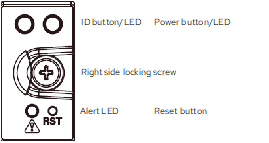
The following table explains the items on the control panel for each node.
| Item | Description |
|---|---|
| Power button/LED | - Green: Node is powered on. - Unlit: Node is powered off. - Press to turn power on and off. Note that when off, the node still receives standby power as long as it is plugged in. - If the node loses all power, when power is restored, the node will revert to its last power state, i.e. power back on if it was on prior to power loss or stay off if it was already turned off when power was lost. |
| ID button/LED | - Blue: Lights up in response to the IPMI ID command, helping you locate a chassis. |
| Alert LED | - Red: Lights whenever the BMC detects a failure. |
| Reset button | - Press to reboot the node. |
1.5.2 Bezel Power
The front of the node contains a USB port located on the left side. This port is used to power the LED in the bezel and is not visible or usable when the bezel is in place.
1.5.3 Drive Bay Status LEDs
Each drive bay in a Storage Node has three LEDs.
| Status LED | Activity Description |
|---|---|
| Blue Drive Activity Indicator | - Solid: SSD is installed. - Blinking: Drive activity detected. - Off: No drive detected. |
| Yellow Drive Failure Indicator | - Solid: Drive fault. - Blinking: Drive rebuild. - Off: Normal. |
| Green Location Indicator | - Solid: Drive location activated. - Off: Normal. |
1.5.4 Rear Ports
The rear of the Storage Node contains several ports for connectivity:

| Label | Port |
|---|---|
| A | 1 GbE IPMI |
| B | 2x USB 3.2 |
| C | 2x 1 GbE RJ45 for VDURA use only |
| D | 2x 10 GbE RJ45 for VDURA use only |
| E | VGA monitor |
| Slot 1 | See Node Connectivity Configurations below. |
| Slot 2 | See Node Connectivity Configurations below. |
| Slot 3 | See Node Connectivity Configurations below. |
| OCP 3.0 Slot | See Node Connectivity Configurations below. |
1.5.5 Node Connectivity Configurations
Nodes can have either Ethernet or InfiniBand HPC network cards, but not both. Ports will run at 2x200 GbE, but can run at 2x100 GbE, if needed.
Storage Node with Ethernet Option
| Port Type | Device | Purpose | Location |
|---|---|---|---|
| SAS HBA | 4-port SAS PCIe HHHL | JBOD connectivity | Slot 1 or 2 |
| Ethernet | 2-port 200 GbE PCIe HHHL | HPC network connectivity | Slot 3 |
| Ethernet | 2-port 200 GbE OCP SFF | HPC network connectivity | OCP slot |
Storage Node with NDR200 InfiniBand Option
| Port Type | Device | Purpose | Location |
|---|---|---|---|
| SAS HBA | 4-port SAS PCIe HHHL | JBOD connectivity | Slot 1 or 2 |
| InfiniBand | 2-port QSFP112 200 GbE / NDR200 PCIe HHHL | HPC network connectivity | Slot 3 |
| InfiniBand | 2-port QSFP112 200 GbE / NDR200 PCIe OCP SFF | HPC network connectivity | OCP slot |
Storage Node with NDR400 InfiniBand Option
| Port Type | Device | Purpose | Location |
|---|---|---|---|
| SAS HBA | 4-port SAS PCIe HHHL | JBOD connectivity | Slot 1 or 2 |
| InfiniBand | 1-port OSFP NDR400 PCIe HHHL | HPC network connectivity | Slot 3 |
| InfiniBand | 1-port OSFP NDR400 PCIe OCP | HPC network connectivity | OCP slot |
1.5.6 NIC Status LEDs
Storage Nodes have either Ethernet or InfiniBand NICs installed in the rear of the unit. All Mixed Fleet Storage Nodes also contain an SAS card.
Ethernet-Based Systems
PCIe slot 3 contains a Broadcom dual-port 200/400 GbE NIC. These LEDs are located on the outer edges of each port.
| Status LED | Activity Description |
|---|---|
| Activity | - Off: No activity. - Green blinking: Link is up; traffic flowing. |
| Link | - Off: No link. - Green: 200 GbE or 400 GbE link. - Yellow: 100 GbE link. |
The OCP slot contains a slightly different Broadcom dual-port 200/400 GbE NIC. Link LEDs are located on the left side of each port, while the Activity LEDs are on the right.
NDR200 InfiniBand-Based Systems
PCIe slot 3 contains an NVIDIA dual-port NDR200 InfiniBand NIC with two LEDs per port. LED 1 (green/yellow/off) is located closest to each port; LED 2 (green/off) is located to the outside of LED 1.
| LED 1 | LED 2 | Activity Description |
|---|---|---|
| - Blinking green at 1 Hz: full port speed - Blinking yellow at 1 Hz: less than full port speed |
- Off | - Location mode to identify NIC. |
| - Blinking yellow at 4 Hz | - On | Error: - I2C access to the networking ports failed. Blinks until error is fixed. - Over-current condition of the networking ports. Blinks until error is fixed. |
| - Solid green: Full port speed - Blinking yellow: Less than full port speed |
- Blinking: This LED blinks green when data is being transferred at full port speed. | - Activity. |
| - Solid green: Full port speed - Blinking yellow: Less than full port speed |
- On: This LED lights solid when the server is powered on and a cable is plugged into the port with the other end of the cable plugged into a functioning port. | - Link is up. |
| - Solid yellow | - Off | - Physical up. |
The OCP slot contains an NVIDIA dual-port NDR200 InfiniBand NIC with two LEDs per port. The LEDs are located between the ports, with LED 0 (green/yellow/off) on the left side of each pair and LED 1 (green/off) on the right.
| LED 0 | LED 1 | Activity Description |
|---|---|---|
| - Blinking yellow at 1 Hz | - Off | - Location mode to identify NIC. |
| - Blinking yellow at 4 Hz | - On | Error: - I2C access to the networking ports failed. Blinks until error is fixed. - Over-current condition of the networking ports. Blinks until error is fixed. |
| - Blinking green | - Blinking: This LED blinks green when data is being transferred at full port speed. | - Activity. |
| - Solid green: Full port speed - Solid yellow: Less than full port speed |
- On: This LED lights solid when the server is powered on and a cable is plugged into the port with the other end of the cable plugged into a functioning port. | - Link is up. |
NDR400 InfiniBand-Based Systems
PCIe slot 3 contains an NVIDIA single-port NDR400 InfiniBand NIC. LED 1 (green/yellow/off) is located directly to the left of the port; LED 2 (green/off) is located to the left of LED 1.
| LED 1 | LED 2 | Activity Description |
|---|---|---|
| - Blinking green at 1 Hz: full port speed - Blinking yellow at 1 Hz: less than full port speed |
- Off | - Location mode to identify NIC. |
| - Blinking yellow at 4 Hz | - On | Error: - I2C access to the networking ports failed. Blinks until error is fixed. - Over-current condition of the networking ports. Blinks until error is fixed. |
| - Solid green: Full port speed - Blinking yellow: Less than full port speed |
- Blinking: This LED blinks green when data is being transferred at full port speed. | - Activity. |
| - Solid green: Full port speed - Blinking yellow: Less than full port speed |
- On: This LED lights solid when the server is powered on and a cable is plugged into the port with the other end of the cable plugged into a functioning port. | - Link is up. |
| - Solid yellow | - Off | - Physical up. |
The OCP slot contains an NVIDIA single-port NDR400 InfiniBand NIC with two LEDs. LED 0 (green/yellow/off) is on the left; LED 1 (green/off) is on the right.
| LED 0 | LED 1 | Activity Description |
|---|---|---|
| - Blinking yellow at 1 Hz | - Off | - Location mode to identify NIC. |
| - Blinking yellow at 4 Hz | - On | Error: - I2C access to the networking ports failed. Blinks until error is fixed. - Over-current condition of the networking ports. Blinks until error is fixed. |
| - Blinking green | - Blinking: This LED blinks green when data is being transferred at full port speed. | - Activity. |
| - Solid green: Full port speed - Solid yellow: Less than full port speed |
- On: This LED lights solid when the server is powered on and a cable is plugged into the port with the other end of the cable plugged into a functioning port. | - Link is up. |
SAS Card
All Mixed Fleet Storage Nodes above contain a Broadcom SAS card in PCIe slot 1 or 2 to connect to the JBOD. There are two LEDs located on the board that can be seen through the screen.
| Status LED | Activity Description |
|---|---|
| Green | Operating status: - Blinking: Normal operation. - Off: Potential problem. |
| Yellow | Temperature status: - On: Temperature sensor is over threshold. - Off: Normal operating temperature. |
1.5.7 Power Supply Status LED
Each power supply has a status LED.
| Status LED | Activity Description |
|---|---|
| Green | - Solid: Powered and functioning normally. - Off: No power to both PSUs. - Blinking: Standby; AC power connected. |
| Red | - Solid: Critical event. PSU shutdown: failure, OCP, OVP, fan failure. - Blinking: Non-critical event. PSU continues to operate: high temp, high power, high current, slow fan. |
| Red and green alternating | - Blinking alternate colors: Warning event. PSU continues to operate: high temp, high power, high current, slow fan. |
1.6 Install the V5000 Storage Node
Follow the steps below to install a V5000 Storage Node in a rack.
Preinstallation Information
IMPORTANT NOTE REGARDING FRONT BEZEL:
The front bezel is held in place by two small posts and two sliding catches. Consider removing the bezel before working with the node to prevent damaging it or the enclosure itself.
Step 1: Unpack Storage Node
- Unpack the Storage Node and rails from the shipping kit. Place the enclosure on a smooth stable surface.
- Remove any protective film from the top of the enclosure.
- Verify that all ventilation openings in the enclosure are clear and unobstructed.
Step 2: Install rails in the rack
The rail kits require no tools to install; they slide and snap into place.
- Remove the inner rail from the outer rail. Press the latch inside the rail assembly to allow the inner rail to fully slide out.
- Attach the inner rail to the Storage Node. Align the holes in the rail to the studs on the side of the node. Once all studs are in their holes, slide the rail to the rear to lock it in place.
- Attach the outer rail to the rack. Align the front and rear of the outer rail with the correct holes in the rack posts. The rear connector fits over the outside of the rack post.
- Push front and rear rack studs into the rack post holes until they click in place.
- Repeat the steps above for the other rail.
Step 3: Install the enclosure in the rails
- Make sure the ball bearing races located in the middle rails are all the way forward.
- Pull the middle rails all the way out until they lock.
- Align the rear of the node with the front of the middle rails and push the inner rails into the middle rails.
- Slide the release latch and push the node into the rack.
- Secure the node in the rack by inserting the Phillips-head screws on the left and right sides of the front of the node. Tighten until snug.
Step 4: Attach power cables
Each Storage Node is equipped with two power supply units (PSUs) to provide redundant power to the system. These PSUs are located on the left of the rear of the node.
Plug one end of each provided power cable into a PSU and the other end into an AC outlet. VDURA recommends that each PSU be plugged into a different circuit or a UPS to protect against power failures.
Step 5: Attach network cables
Connect network cables from the high-speed ports to your uplink switches.
Step 6: Install the front bezel
If you removed the bezel, reinstall it after finishing the steps above.
- There are two pins and two catches on the front of the Storage Node. Match these to their corresponding locations on the rear of the bezel.
- Push the bezel until it clicks in place.
Warning: Due to close tolerances, it is possible to press the power button with the bezel during installation.
1.7 Cable the Storage Node and JBOD
Once you have installed a Mixed Fleet Storage Node/JBOD pair in a rack, you must connect them with SAS cables. JBODs have four cables leading to one HBA on the corresponding Storage Node.
- If you have not done so already, install the SAS cables on the rear of the JBOD per the instructions in Install the V5000 JBOD Enclosure.
- Connect the other ends of the SAS cables to the Mixed Fleet Storage Node. Make sure that you are pairing the JBOD to the correct node.
- Attach the SAS cables such that the top-most cable on the JBOD connects to the left-most port on the Storage Node.
- Connect the rest of the cables, moving top to bottom on the JBOD and left to right on the Storage Node; i.e. the top-most JBOD cable matches the left-most location on the Storage Node.
1.8 Configure Storage Node IPMI Support
While IPMI is not required for proper realm functionality, you may wish to use this feature for remote power control, remote sensor monitoring, or the serial-over-LAN console. Users may also consider setting up the BMC network before setting up PanFS.
To use IPMI with your VDURA system, you must first configure it using the ipmi_setup configuration script. Ipmi_setup is a script inside of PanFS and can only run after the realm is configured and online. After connecting a USB keyboard and VGA monitor to the node, use the /pan/bin/ipmi_setup script to configure IPMI. See IPMI Configuration for instructions on using the script.
IPMI passwords must meet the following criteria:
- Length must be between 8 to 20 characters.
- Cannot be reverse of username.
- Must include characters from at least three of these classes: A-Z, a-z, 0-9, special characters.
Note: You can use the PanCLI ipmitool command to further customize IPMI.
From the factory, V5000 Storage Nodes are set with IPMI enabled with DHCP. You can verify with the following commands:
[pancli] support servicemode yes
[pancli_service] diag_exec -timeout 0 "ipmitool lan print 1"