
2. Director Node Installation
This chapter describes installation and configuration of the VDURA V5000 Director Nodes.
This chapter contains the following sections:
- Installation Requirements
- V5000 Director Node Overview
- Install the V5000 Director Node
- Connect to the Console
- Configure Director Node IPMI Support
Important: Be sure to read the Safety Information. Failure to follow these safety guidelines can result in injury or damage to the equipment and may void your warranty.
2.1 Installation Requirements
A V5000 Director Node can be mounted in any rack that meets these requirements:
- Compliant with the Electronic Industry Alliance (EIA) 310-D specification.
- Cannot have solid or restricted airflow doors.
- Must have 1U available rack space.
- The V5000 Director Node requires a rack with mounting posts 19 in. (483 mm) apart and with at least 1000 mm available depth.
The following tools and equipment are required to install and configure a V5000 Director Node:
- An electrostatic discharge (ESD) preventative wrist or ankle strap. See Safety Information.
- #2 Phillips screwdriver.
- Power cables included with the V5000 Director Node.
- Data and management network cables to connect the V5000 Director Node to the switches are not included and must be provided for the installation.
2.2 V5000 Director Node Overview
VDURA V5000 Director Nodes are the control plane of the storage system, handling metadata, data reconstruction, and non-DirectFlow connectivity tasks. Director Nodes can have either Ethernet or InfiniBand HPC network cards, but not both. Depending on the specific hardware configuration, each port may support a speed of 400 Gb, 200 Gb, or 100 Gb.
Note that the 25 GbE network port will be connected to a different network fabric than the HPC network. This port is most often used to connect to a corporate network instead of the compute cluster high-speed data network. Most customers will open PanActive Manager through the corporate port. Customers using NFS, SMB, and S3 connections will likely use this port, as well.
2.2.1 Control Panel
The front of each Director Node contains a control panel on the right edge. The control panel is used to power the node on and off, reset it, identify it, and display the status of the node.
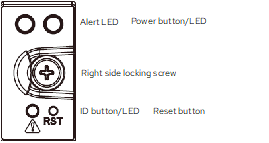
The following table explains the items on the control panel for each node.
| Item | Description |
|---|---|
| Power button/LED | - Green: Node is powered on. - Unlit: Node is powered off. - Press to turn power on and off. Note that when off, the node still receives standby power as long as it is plugged in. - If the node loses all power, when power is restored the node will revert to last power state, i.e. power back on if it was on prior to power loss or stay off if it was already turned off when power was lost. |
| ID button/LED | - Blue: Lights up in response to the IPMI ID command, helping you locate a chassis. |
| Alert LED | - Red: Lights whenever the BMC detects a failure. |
| Reset button | - Press to reboot the node. |
2.2.2 Bezel Power
The front of the node contains a USB port located on the left side. This port is used to power the LED in the bezel and is not visible or usable when the bezel is in place.
2.2.3 Drive Bay Status LEDs
Each drive bay in a Director Node has three LEDs.
| Status LED | Activity Description |
|---|---|
| Blue Drive Activity Indicator | - Solid: SSD is installed. - Blinking: Drive activity detected. - Off: No drive detected. |
| Yellow Drive Failure Indicator | - Solid: Drive fault. - Blinking: Drive rebuild. - Off: Normal. |
| Green Location Indicator | - Solid: Drive location activated. - Off: Normal. |
2.2.4 Rear Ports
The rear of the Director Node contains several ports for connectivity:

| Label | Port |
|---|---|
| A | 1 GbE IPMI |
| B | 2x USB 3.2 |
| C | 2x 1 GbE RJ45 for VDURA use only |
| D | 2x 10 GbE RJ45 for VDURA use only |
| E | VGA monitor |
| Slot 1 | See Node Connectivity Configurations below. |
| Slot 2 | See Node Connectivity Configurations below. |
| Slot 3 | See Node Connectivity Configurations below. |
| OCP 3.0 Slot | See Node Connectivity Configurations below. |
2.2.5 Node Connectivity Configurations
Director Nodes can have either Ethernet or InfiniBand high-speed data network cards, but not both. Ethernet ports will run at 2x200 GbE, but can run at 2x100 GbE, if needed. This single dual-port card is located in either a PCIe HHHL slot or the OCP slot. For NDR400, the Director will always have two single-port cards.
Director Node with Ethernet Option (Single NIC)
| Port Type | Device | Purpose | Location |
|---|---|---|---|
| Ethernet | 2-port 25/10 GbE PCIe HHHL | Corporate network connectivity | Slot 2 |
| Ethernet | 2-port 200 GbE PCIe OCP | HPC network connectivity | OCP slot |
Director Node with Ethernet Option (Dual NIC)
| Port Type | Device | Purpose | Location |
|---|---|---|---|
| Ethernet | 2-port 25/10 GbE PCIe HHHL | Corporate network connectivity | Slot 2 |
| Ethernet | 2-port QSFP112 200/400 GbE PCIe HHHL | HPC network connectivity | Slot 3 |
| Ethernet | 2-port QSFP112 200/400 GbE PCIe OCP | HPC network connectivity | OCP slot |
Director Node with NDR200 InfiniBand Option (Single NIC)
| Port Type | Device | Purpose | Location |
|---|---|---|---|
| Ethernet | 2-port 25/10 GbE PCIe HHHL | Corporate network connectivity | Slot 2 |
| InfiniBand | 2-port QSFP112 NDR200 PCIe OCP | HPC network connectivity | OCP slot |
Director Node with NDR200 InfiniBand Option (Dual NIC)
| Port Type | Device | Purpose | Location |
|---|---|---|---|
| Ethernet | 2-port 25/10 GbE PCIe HHHL | Corporate network connectivity | Slot 2 |
| InfiniBand | 2-port QSFP112 NDR200 PCIe HHHL | HPC network connectivity | Slot 3 |
| InfiniBand | 2-port QSFP112 NDR200 PCIe OCP | HPC network connectivity | OCP slot |
Director Node with NDR400 InfiniBand or 400 GbE OSFP Option (Dual NIC)
| Port Type | Device | Purpose | Location |
|---|---|---|---|
| Ethernet | 2-port 25/10 GbE PCIe HHHL | Corporate network connectivity | Slot 2 |
| InfiniBand/Ethernet | 1-port OSFP NDR400/400 GbE PCIe HHHL | HPC network connectivity | Slot 3 |
| InfiniBand/Ethernet | 1-port OSFP NDR400/400 GbE PCIe OCP | HPC network connectivity | OCP slot |
2.2.6 NIC Status LEDs
Each Director Node has Ethernet and/or InfiniBand NICs installed in the rear of the unit. All Director Nodes contain a 25 GbE NIC for corporate network connectivity.
Ethernet-Based Systems
PCIe slot 3 or the OCP slot contains a Broadcom dual-port 200 GbE NIC. These LEDs are located on the outer edges of each port.
| Status LED | Activity Description |
|---|---|
| Activity | - Off: No activity. - Green blinking: Link is up; traffic flowing. |
| Link | - Off: No link. - Green: 200 GbE or 400 GbE link. - Yellow: 100 GbE link. |
NDR200 InfiniBand-Based Systems
PCIe slot 3 contains an NVIDIA dual-port NDR200 InfiniBand NIC with two LEDs per port. LED 1 (green/yellow/off) is located closest to each port; LED 2 (green/off) is located to the outside of LED 1.
| LED 1 | LED 2 | Activity Description |
|---|---|---|
| - Blinking green at 1 Hz.: Full port speed. - Blinking yellow at 1 Hz: Less than full port speed. |
- Off | - Location mode to identify NIC. |
| - Blinking yellow at 4 Hz | - On | Error: - I2C access to the networking ports failed. Blinks until error is fixed. - Over-current condition of the networking ports. Blinks until error is fixed. |
| - Solid green: Full port speed. - Blinking yellow: Less than full port speed. |
- Blinking: This LED blinks green when data is being transferred at full port speed. | - Activity. |
| - Solid green: Full port speed. - Blinking yellow: Less than full port speed. |
- On: This LED lights solid when the server is powered on and a cable is plugged into the port with the other end of the cable plugged into a functioning port. | - Link is up. |
| - Solid yellow | - Off | - Physical up. |
The OCP slot contains an NVIDIA dual-port NDR200 InfiniBand NIC with two LEDs per port. The LEDs are located between the ports, with LED 0 (green/yellow/off) on the left side of each pair and LED 1 (green/off) on the right.
| LED 0 | LED 1 | Activity Description |
|---|---|---|
| - Blinking yellow at 1 Hz | - Off | - Location mode to identify NIC. |
| - Blinking yellow at 4 Hz | - On | Error: - I2C access to the networking ports failed. Blinks until error is fixed. - Over-current condition of the networking ports. Blinks until error is fixed. |
| - Blinking green | - Blinking: This LED blinks green when data is being transferred at full port speed. | - Activity. |
| - Solid green: Full port speed. - Solid yellow: Less than full port speed |
- On: This LED lights solid when the server is powered on and a cable is plugged into the port with the other end of the cable plugged into a functioning port. | - Link is up. |
NDR400 InfiniBand-Based Systems
PCIe slot 3 contains an NVIDIA single-port NDR400 InfiniBand NIC with two LEDs per port. LED 1 (green/yellow/off) is located closest to each port; LED 2 (green/off) is located to the outside of LED 1.
| LED 1 | LED 2 | Activity Description |
|---|---|---|
| - Blinking green at 1 Hz.: Full port speed. - Blinking yellow at 1 Hz: Less than full port speed. |
- Off | - Location mode to identify NIC. |
| - Blinking yellow at 4 Hz | - On | Error: - I2C access to the networking ports failed. Blinks until error is fixed. - Over-current condition of the networking ports. Blinks until error is fixed. |
| - Solid green: Full port speed. - Blinking yellow: Less than full port speed. |
- Blinking: This LED blinks green when data is being transferred at full port speed. | - Activity. |
| - Solid green: Full port speed - Blinking yellow: Less than full port speed |
- On: This LED lights solid when the server is powered on and a cable is plugged into the port with the other end of the cable plugged into a functioning port. | - Link is up. |
| - Solid yellow | - Off | - Physical up. |
The OCP slot contains an NVIDIA single-port NDR400 InfiniBand NIC with two LEDs per port. The LEDs are located between the ports, with LED 0 (green/yellow/off) on the left side of each pair and LED 1 (green/off) on the right.
| LED 0 | LED 1 | Activity Description |
|---|---|---|
| - Blinking yellow at 1 Hz | - Off | - Location mode to identify NIC. |
| - Blinking yellow at 4 Hz | - On | Error: - I2C access to the networking ports failed. Blinks until error is fixed. - Over-current condition of the networking ports. Blinks until error is fixed. |
| - Blinking green | - Blinking: This LED blinks green when data is being transferred at full port speed. | - Activity. |
| - Solid green: Full port speed. - Solid yellow: Less than full port speed. |
- On: This LED lights solid when the server is powered on and a cable is plugged into the port with the other end of the cable plugged into a functioning port. | - Link is up. |
Corporate Network
All systems above contain a Broadcom dual-port 25 GbE NIC in PCIe slot 2 to connect to the corporate network. These LEDs are located beside each port.
| Status LED | Activity Description |
|---|---|
| Activity | - Off: No activity. - Green blinking: Link is up; traffic flowing. |
| Link | - Off: No link. - Green: 25 GbE link. - Yellow: 10 GbE or 1 GbE link. |
2.2.7 Power Supply Status LED
Each power supply has a status LED.
| Status LED | Activity Description |
|---|---|
| Green | - Solid: Powered and functioning normally. - Off: No power to both PSUs. - Blinking: Standby; AC power connected. |
| Red | - Solid: Critical event. PSU shutdown: failure, OCP, OVP, fan failure. - Blinking: Non-critical event. PSU continues to operate: high temp, high power, high current, slow fan. |
| Red and green alternating | - Blinking alternate colors: Warning event. PSU continues to operate: high temp, high power, high current, slow fan. |
2.3 Install the V5000 Director Node
Preinstallation Information
IMPORTANT NOTE REGARDING FRONT BEZEL:
The front bezel is held in place by two small posts and two sliding catches. Consider removing the bezel before working with the node to prevent damaging it or the enclosure itself.
Step 1: Unpack Director Node
- Unpack the Director and rails from the shipping kit. Place the enclosure on a smooth stable surface.
- Remove any protective film from the top of the enclosure.
- Verify that all ventilation openings in the enclosure are clear and unobstructed.
Step 2: Install rails in the rack
The rail kits require no tools to install; they slide and snap into place.
- Remove the inner rail from the outer rail. Press the latch inside the rail assembly to allow the inner rail to fully slide out.
- Attach the inner rail to the Director Node. Align the holes in the rail to the studs on the side of the node. Once all studs are in their holes, slide the rail to the rear to lock it in place.
- Attach the outer rail to the rack. Align the front and rear of the outer rail with the correct holes in the rack posts. The rear connector fits over the outside of the rack post.
- Push front and rear rack studs into the rack post holes until they click in place.
- Repeat the steps above for the other rail.
Step 3: Install the enclosure in the rails
- Make sure the ball bearing races located in the middle rails are all the way forward.
- Pull the middle rails all the way out until they lock.
- Align the rear of the node with the front of the middle rails and push the inner rails into the middle rails.
- Slide the release latch and push the node into the rack.
- Secure the node in the rack by inserting the Phillips-head screws on the left and right sides of the front of the node. Tighten until snug.
Step 4: Attach power cables
Each Director Node is equipped with two power supply units (PSUs) to provide redundant power to the system. These PSUs are located on the left of the rear of the node.
Plug one end of each provided power cable into a PSU and the other end into an AC outlet. VDURA recommends that each PSU be plugged into a different circuit or a UPS to protect against power failures.
Step 5: Attach network cables
- Connect network cables from the high-speed ports to your uplink switches.
- Connect network cables from the 25 GbE corporate network ports to your uplink switches.
Step 6: Install the front bezel
If you removed the bezel, you can reinstall it after finishing the steps above.
- There are two pins and two catches on the front of the Director Node. Match these to their corresponding locations on the rear of the bezel.
- Push the bezel until it clicks in place.
2.4 Connect to the Console
Make the following connections to the Director Node to connect to the console.
- 25 Gb Ethernet ports: Connect cc0 and cc1 to infrastructure switches.
- VGA port: Optional port to connect a monitor to manage the node locally.
- USB ports: Optional ports to connect a keyboard and mouse to manage the node locally.
- IPMI port: Optional RJ45 connection to connect to your Ethernet switch for remote IPMI access.
- 1 Gb Ethernet ports: VDURA use only.
Prior to configuring Intelligent Platform Management Interface (IPMI), connect to the Director Node’s console via KVM or the admin port.
Connect via KVM
Follow the steps below to connect to the console via KVM.
- Attach a monitor via the VGA port and a keyboard and mouse via the USB ports.
- Once connected, refer to Configure Director Node IPMI Support for information on configuring IPMI.
Connect via Admin Port
Follow the steps below to connect to the console via the admin port.
- Attach an Ethernet cable from a laptop to the 1 Gb admin port 1.
- Configure that NIC with any IP address in 169.254.0.0/16 except 169.254.12.34.
- Open your SSH client and connect to the Director Node:
ssh admin@169.254.12.34- Once connected, refer to Configure Director Node IPMI Support for information on configuring IPMI.
2.5 Configure Director Node IPMI Support
While IPMI is not required for proper realm functionality, you may wish to use this feature for remote power control, remote sensor monitoring, or the serial-over-LAN console. Users may also consider setting up the BMC network before setting up PanFS.
To use IPMI with your VDURA system, you must first configure it using the ipmi_setup configuration script. Ipmi_setup is a script inside of PanFS and can only run after the realm is configured and online. After connecting a USB keyboard and VGA monitor to the node, use the /pan/bin/ipmi_setup script to configure IPMI. See IPMI Configuration for instructions on using the script.
IPMI passwords must meet the following criteria:
- Length must be between 8 to 20 characters.
- Cannot be reverse of username.
- Must include characters from at least three of these classes: A-Z, a-z, 0-9, special characters.
Note: You can use the PanCLI ipmitool command to further customize IPMI.