
2. Getting Started
2.1 Accessing VDURA Sentinel
VDURA Sentinel is a single cloud-hosted site; there is nothing to install and no realm address to know. Visit:
https://sentinel.vdura.dev/2.2 Signing In
VDURA Sentinel authenticates through Okta single sign-on using the visitor’s VDURA account; there is no separate VDURA Sentinel username/password to manage. Visiting any VDURA Sentinel URL without a valid session redirects to VDURA’s Okta sign-in page. After signing in, Okta returns you to the page you originally requested.
2.3 Layout Overview
Every page in VDURA Sentinel shares the same frame.
Top bar, left to right:
| Element | Function |
|---|---|
| VDURA logo | Click to return to the Fleet page. |
| Breadcrumb | Shows where you are: Global VDURA Cloud Fleet at the top level or a realm/site name when drilled in. On a realm-scoped page, clicking the realm name opens a dropdown to jump directly to any other realm without returning to Fleet first (see 10.1). |
| Alert count | A warning-triangle icon and a number: the total active-alert count in the current scope (fleet-wide on Fleet, realm-only when drilled into a realm). |
| Freshness indicator | A colored dot plus a relative time, e.g. “Live · 2m ago”: how recently telemetry was last received for the current scope. |
Mode badge (e.g. S3) |
Indicates the backend API mode VDURA Sentinel is reading this data through (matches the “API mode” reported on the About page). |
| User menu | Shows the signed-in account’s email and access level (see 2.4); click it for a Sign out link. |
| Clock | Current local time. |
Left sidebar (global, icon-only rail):
| Icon | Function |
|---|---|
| Fleet | The global fleet dashboard; see 4. |
| Ask Sentinel | The natural-language Q&A page; see 6. |
| Support tickets | The fleet-wide ticket list; see 7. |
| Ingest tokens | Operator-only token management; see 11. |
| Site deployment | Operator-only site package builder; see 12. |
| Get Help | Help resources; see 13.2. |
| About | Version/build info; see 13.3. |
Drilling into a realm (either the AI realm-detail page or the device view) replaces this rail with a realm-scoped one; see 5 and 10.
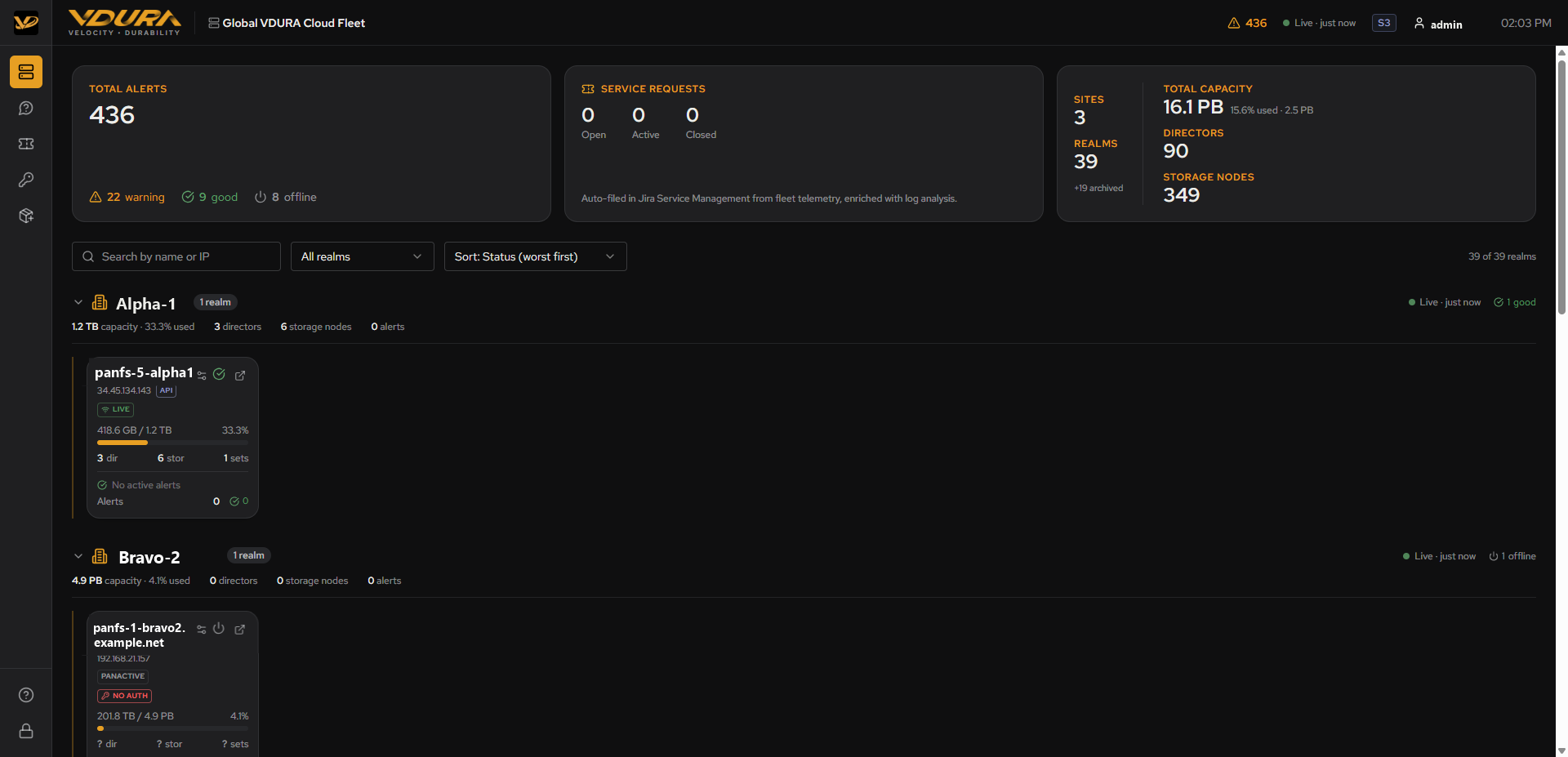 Figure 2.1. The top bar and the global left sidebar, as seen at the top and left of the full Fleet page (see also Figure 4.1).
2.4 Access Levels
VDURA Sentinel has at least two access levels:
- Standard access: The default. Can view the fleet, realms, tickets, and diagnostics, and use Ask Sentinel. This is what the user menu shows for a typical signed-in account.
- Operator access: Required for anything that changes fleet configuration: managing ingest tokens (11) and building site deployment packages (12). Both are gated behind a separate VDURA Sentinel admin token, entered per-browser-tab and kept only in that tab’s session storage; it is not the same credential as your Okta login.