
4. Fleet
The Fleet page is VDURA Sentinel’s landing page and global dashboard: a fleet-wide health summary followed by every site and realm, grouped and sortable.
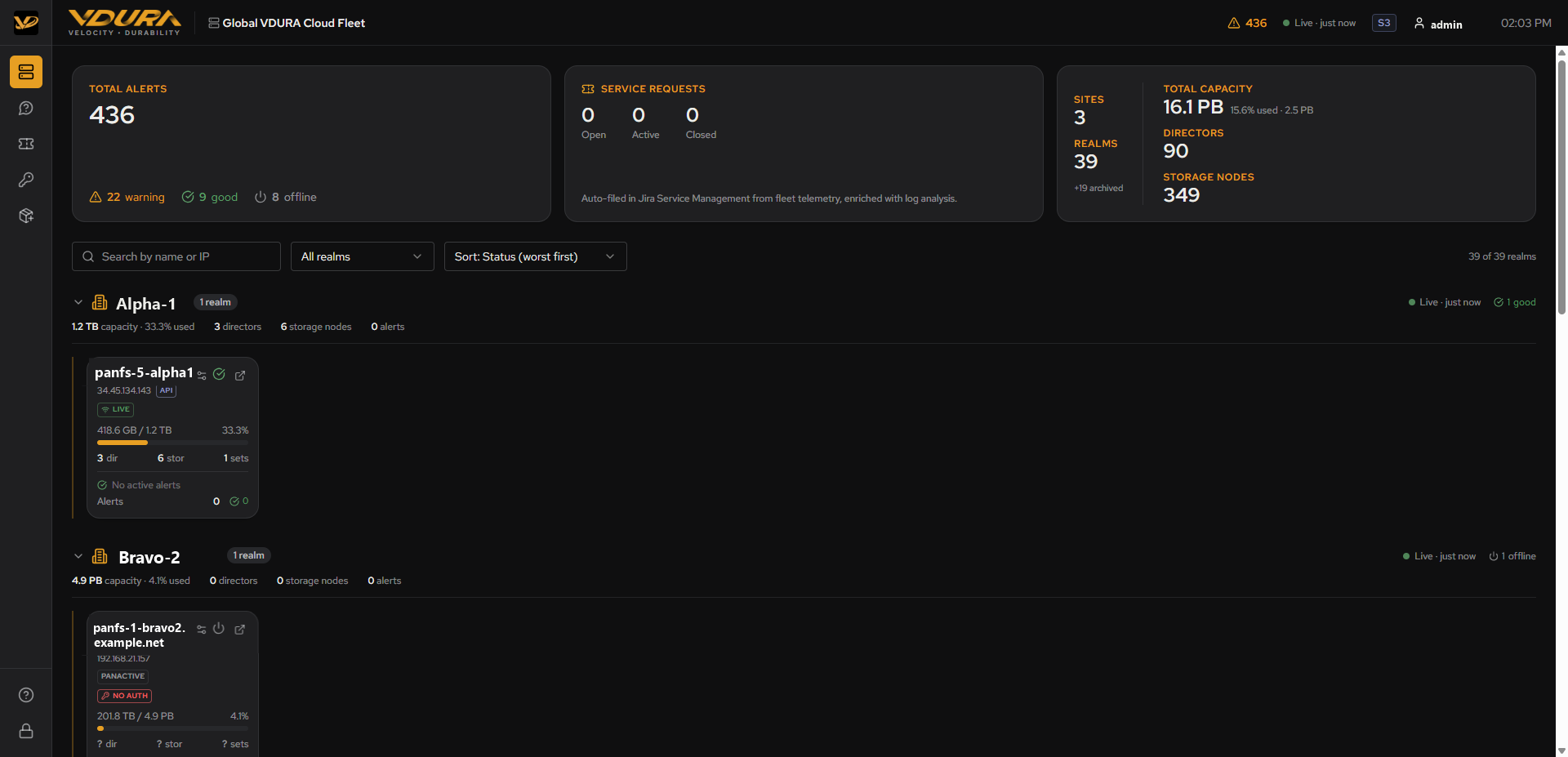 Figure 4.1. The whole Fleet page: three summary cards plus the site/realm list below.
4.1 Summary Cards
Three cards span the top of the page:
| Card | Contents |
|---|---|
| Total Alerts | The fleet-wide active-alert count, broken into warning / good / offline realm counts underneath (these are realm counts, not alert counts; see 3.2). |
| Service Requests | Open / Active / Closed ticket counts. Caption: “Auto-filed in Jira Service Management from fleet telemetry, enriched with log analysis.” |
| Sites / Realms / Capacity | Sites and Realms counts (with an “+N archived” note if any realms are archived; see 4.5), plus Total Capacity (with %/amount used), Directors, and Storage Nodes counts, all summed across the fleet. |
The warning / good / offline counts under Total Alerts are clickable buttons; clicking one filters the realm list below to just that status.
4.2 Site and Realm List
Below the summary cards:
- A search box (“Search by name or IP”) filters realms by name or IP as you type.
- An “All realms” filter dropdown narrows to Needs attention or Healthy only.
- A sort dropdown orders the list by Status (worst first) (default), Name, Capacity, or Alerts.
- A running count on the right (“39 of 39 realms”) reflects the current filter.
Realms are grouped under their site (e.g. “Alpha-1”, “Bravo-2”, “VDURA Lab”). Each site heading shows a realm count badge, its own freshness indicator, a combined capacity/usage line, and a collapse/expand chevron.
Figure 4.2. The site group (“Alpha-1”) and its realm card, as seen in the site/realm list of the full Fleet page (see also Figure 4.1).
4.3 Realm Card
Each realm appears as a card inside its site group:
- Name (e.g.
panfs-5-alpha1), its IP address, a product-type badge (API for Observability-API-integrated realms, PANACTIVE for realms only reporting through the legacy path), and a LIVE/offline badge. - A capacity bar (used/total) with the percentage.
- Director and storage-node counts, and a StorageSet (“sets”) count.
- A one-line alert summary (e.g. “No active alerts”) and an Alerts row with critical/warning counts.
Clicking a realm’s name opens its Realm Detail Page.
4.3.1 Realm Card Actions
Each card has three small icons top-right: a settings icon, a status icon, and an external-link icon (opens the same Realm Detail Page). Click the settings icon to open a menu of three fleet-management actions:
| Action | Effect |
|---|---|
| Mute service requests | Stops VDURA Sentinel opening new tickets for this realm. Already-open tickets stay open and still close on their own. |
| Stop tracking this realm | Drops its alerts and capacity from the fleet totals and suppresses tickets. |
| Archive this realm | Hides it everywhere (view, totals, alerts, tickets). Its telemetry is still stored, and it can be found under “Archived” at the bottom of the Fleet page. |
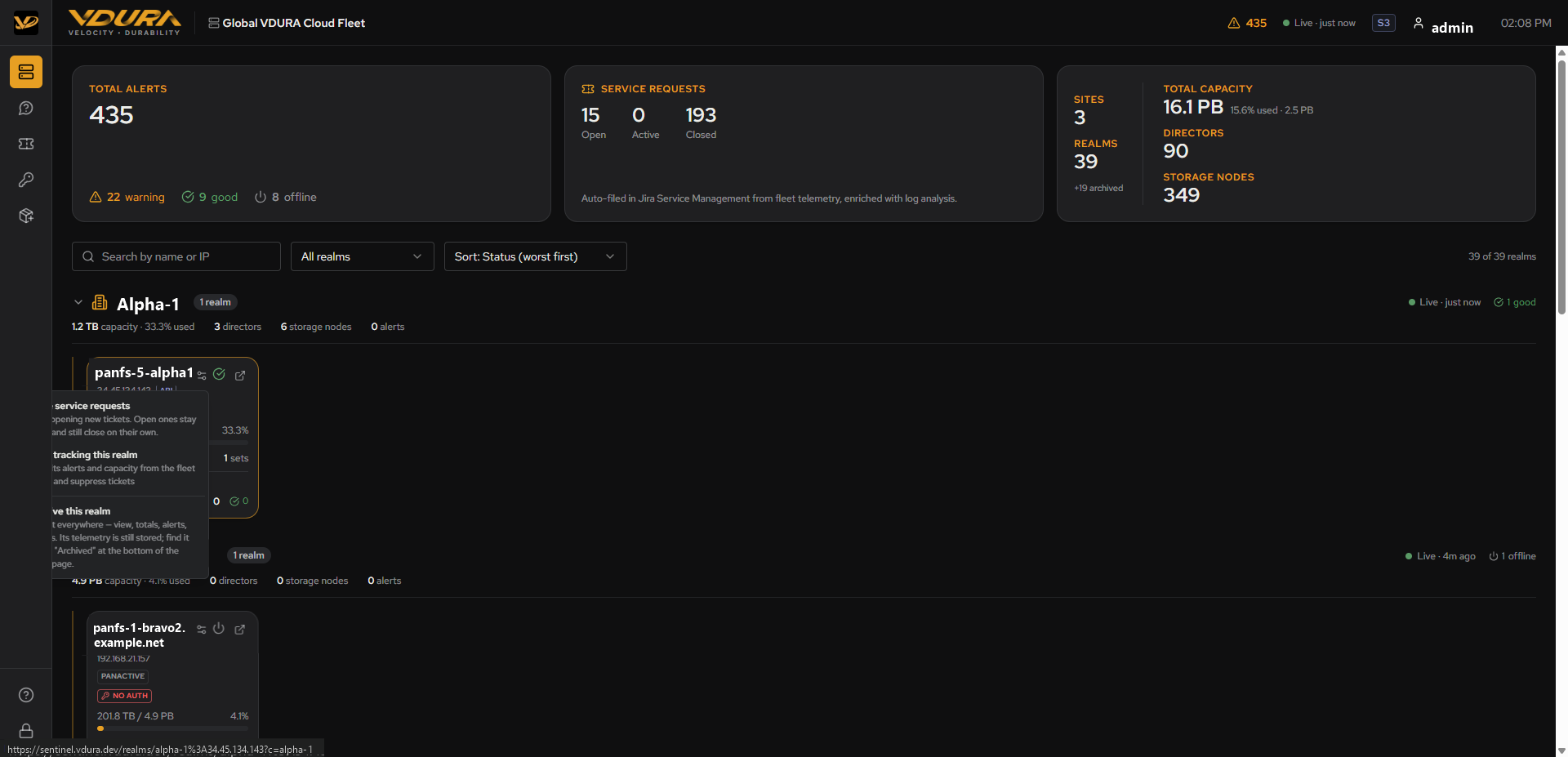 Figure 4.3. A realm card’s settings menu open. The three actions are “Mute service requests,” “Stop tracking this realm,” and “Archive this realm” in that order, matching the table above.
To mute, stop tracking, or archive a realm: 1. On the Fleet page, locate the realm’s card. 2. Click the settings icon in the card’s top-right corner. 3. Choose Mute service requests, Stop tracking this realm, or Archive this realm from the menu.
4.4 Realm Card Badges: Product Type
The API vs PANACTIVE badge on a realm card (and the equivalent badge on the Realm Detail Page header, labeled OBSERVABILITY API vs PANACTIVE) reflects which integration path that realm’s telemetry arrives through, the newer Observability API or the older PanActive-only reporting path. This affects which detail-page cards have real data (see 5.3, 5.7, and 5.9).
4.5 Archived Realms
Realms archived via 4.3.1 are excluded from the main list and its totals, and are counted separately (the Sites/Realms card’s “+N archived” note). A link or section at the bottom of the Fleet page surfaces them for review.