
10. Device View
The device view is a second, realm-scoped way to look at a realm inside VDURA Sentinel. Rather than an AI-summarized overview, it mirrors a slice of that realm’s own Vantage/PanActive screens (dashboard, volumes, alerts, nodes, diagnostics), read-only, sourced from the same pushed telemetry.
Reached by clicking a realm’s name from certain contexts (e.g. the Fleet page’s realm-switcher dropdown); its URLs live under /devices/<site>:<address>/... rather than /realms/....
10.1 Overview and Realm Switcher
A realm-scoped left rail replaces the global sidebar, with icons for Dashboards, File System, Alerts, Realm Nodes, and Diagnostics (plus a Back to Fleet arrow at the top). Clicking the realm name in the top breadcrumb opens a dropdown listing every other realm with its own status icon, letting you jump directly between realms without returning to Fleet.
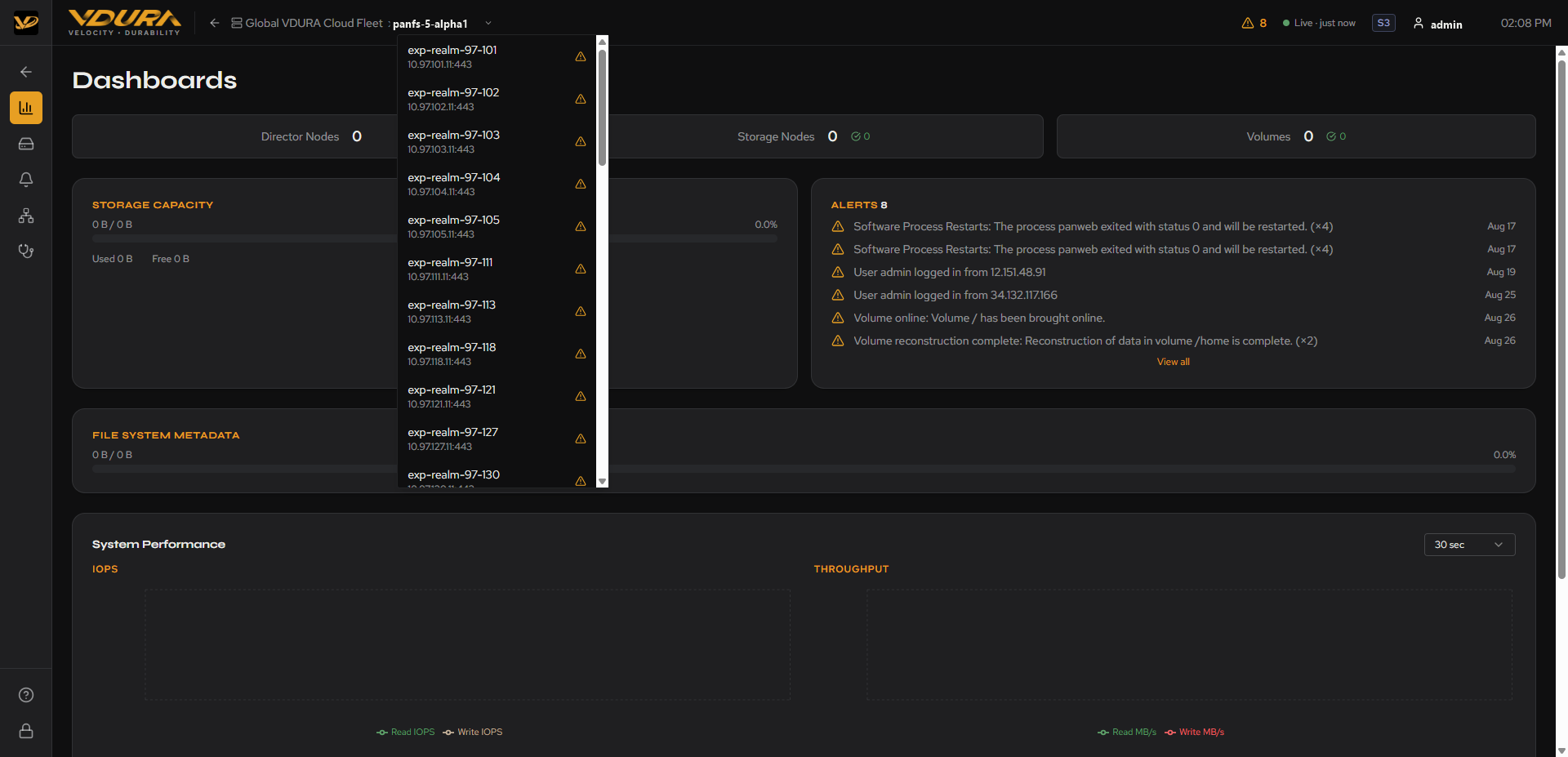 Figure 10.1. The device view’s realm-switcher dropdown open, showing multiple realms with status icons.
10.2 Dashboards
A Vantage-style dashboard: Director Nodes/Storage Nodes/Volumes summary tiles, a Storage Capacity bar, an Alerts list (with a View all link), a File System Metadata bar, and a System Performance section with IOPS/Throughput/Latency chart placeholders (read/write series legends are present, but as of this writing the charts themselves render empty; see 5.9).
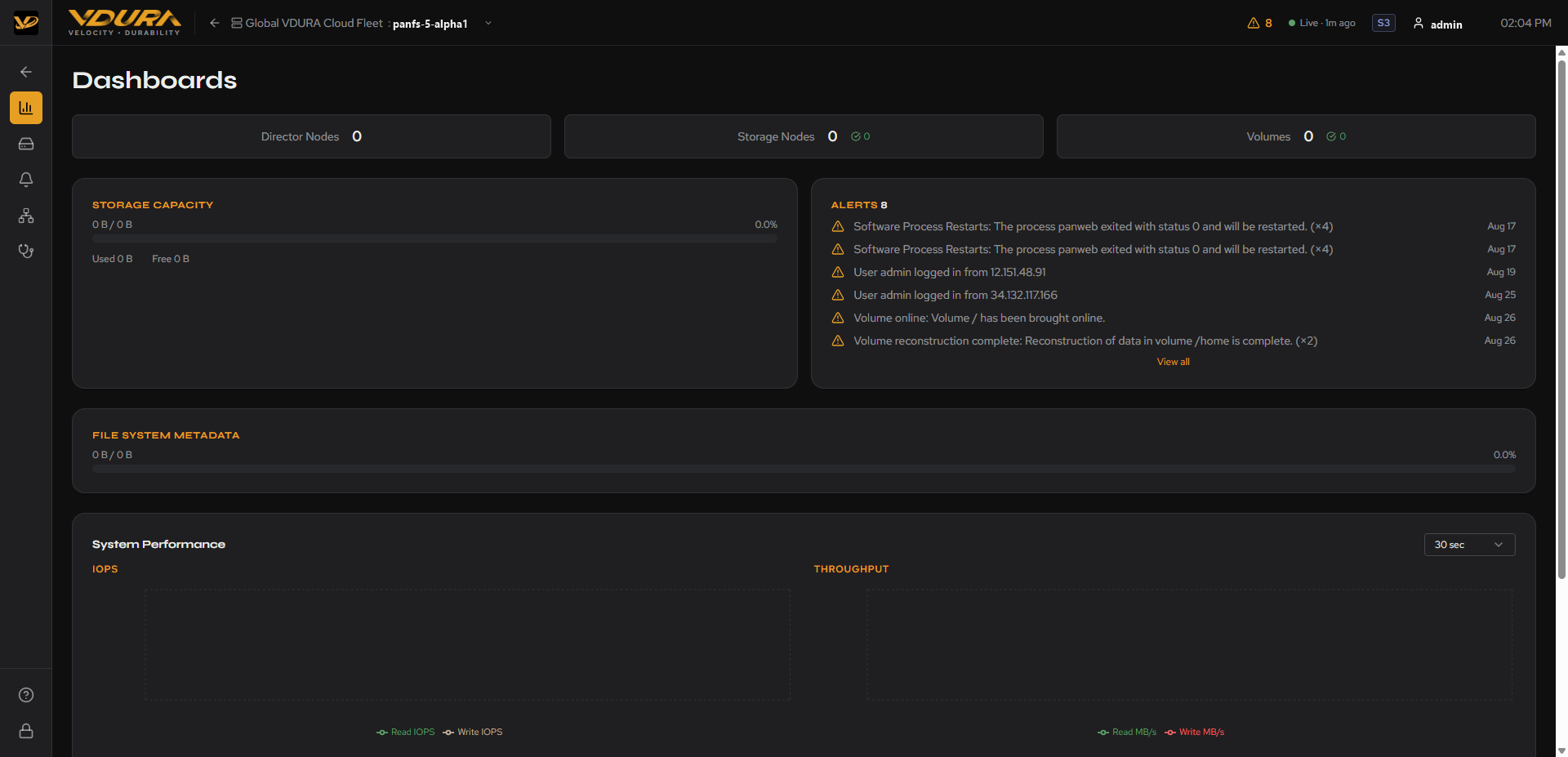 Figure 10.2. The device view Dashboards page: summary tiles, Storage Capacity, Alerts list, File System Metadata, and empty System Performance chart placeholders.
10.3 File System (Volumes)
Despite the sidebar calling this section “File System,” the page itself is titled Volumes: a table (Component / Storage Pool / RAID / Capacity Used / Available / Reduction Ratio / Status) and a + Create button that opens a Create Volume form (Name, Capacity (GB), Storage Pool). As of this writing, realms tested here show no rows and an empty Storage Pool dropdown.
Caution: the Create Volume form appears to be a live, functional action, not a mockup. Do not submit it against a real realm unless you specifically intend to provision a volume there.
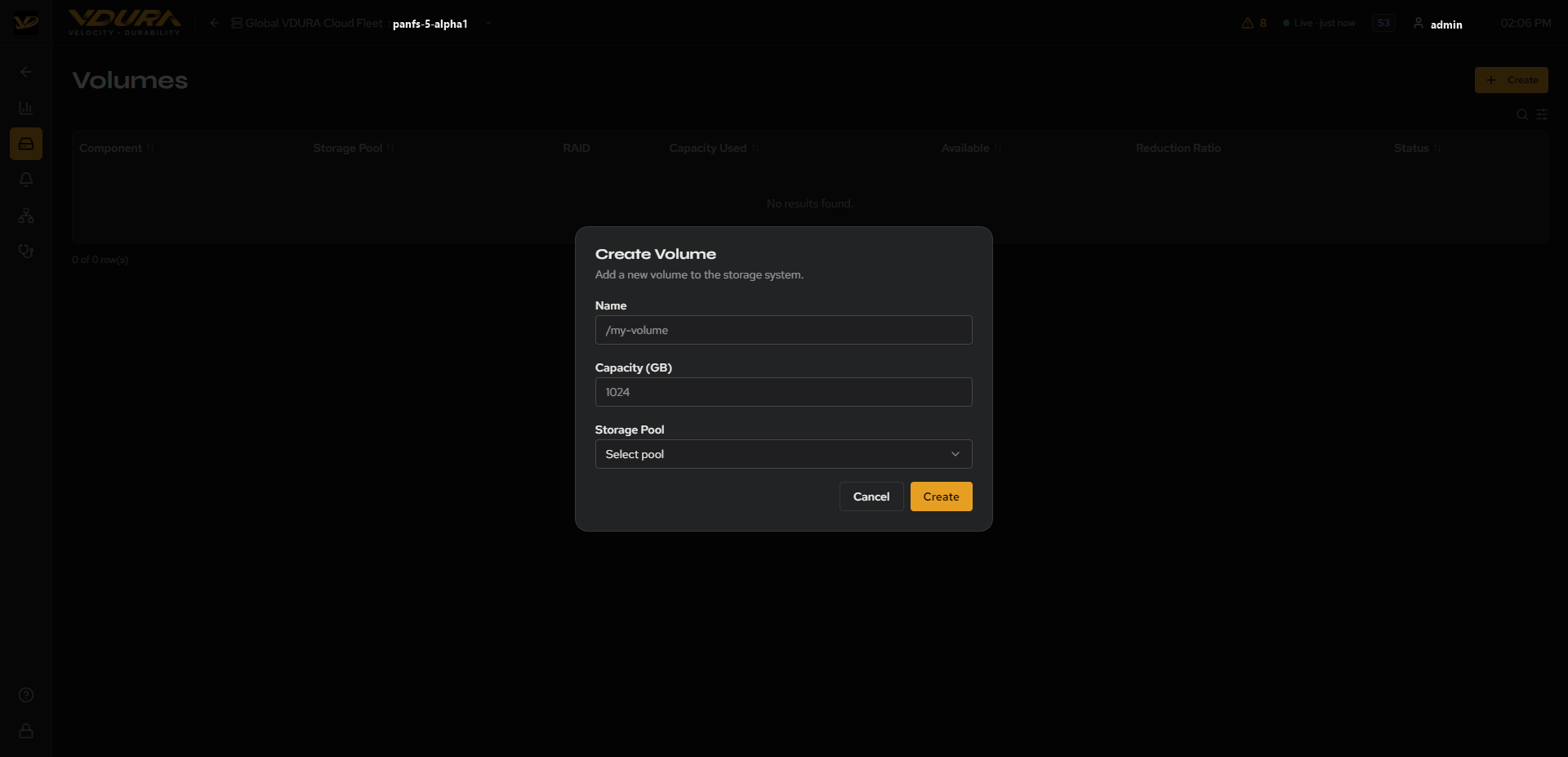 Figure 10.3. The device view’s Volumes page with the Create Volume modal open (Name/Capacity/Storage Pool fields).
10.4 Alerts (Device View)
Critical/Warning/Info summary tiles followed by a table (Severity / Status / Message / Source / Time), each row with an Acknowledge button.
Caution: Acknowledge appears to be a live action that changes the alert’s status. Avoid clicking it unless you intend to acknowledge that alert.
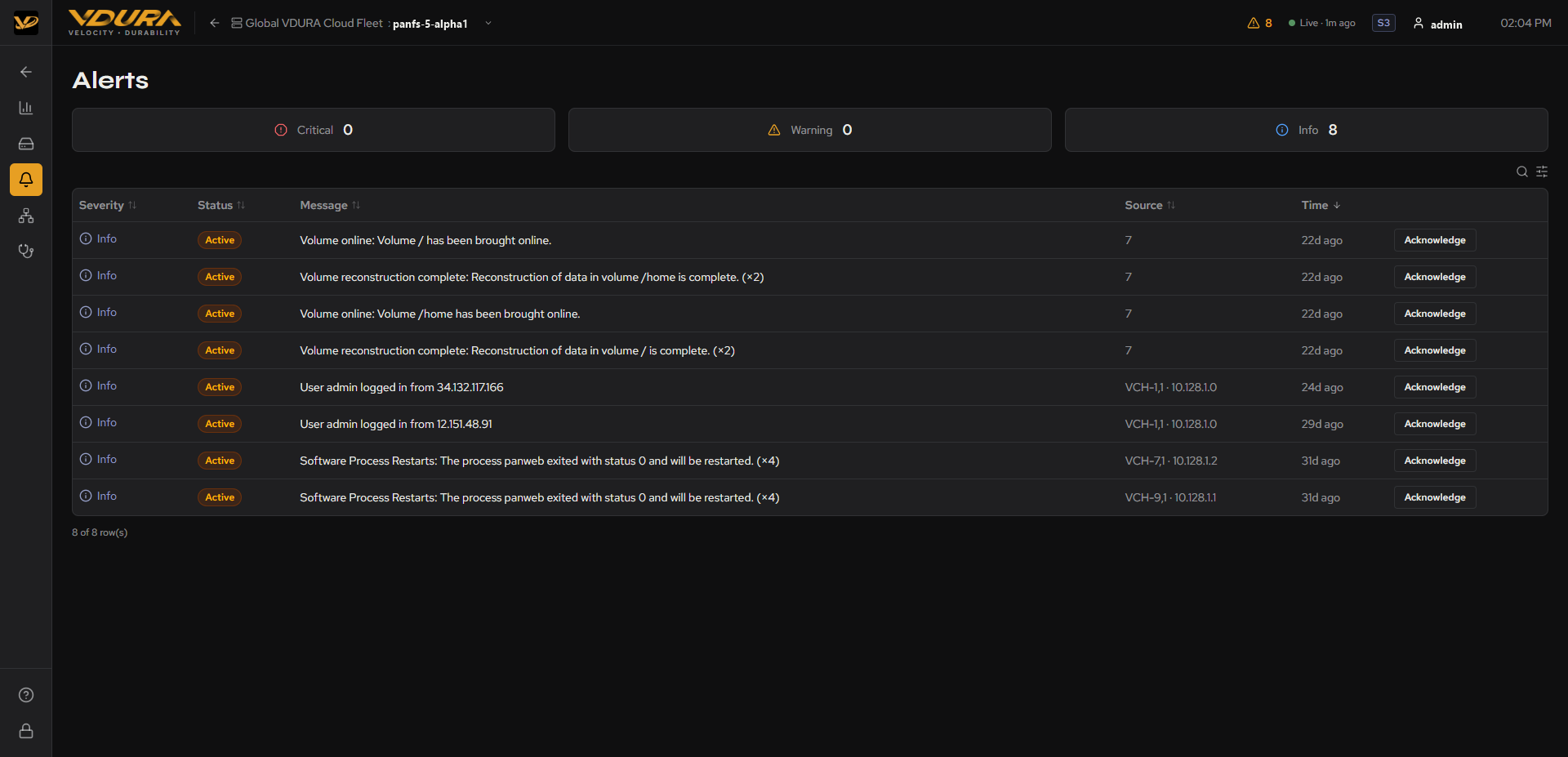 Figure 10.4. The device view Alerts page: Critical/Warning/Info tiles and the alert table with Acknowledge buttons.
10.5 Realm Nodes (Device View)
Director Nodes / Storage Nodes / VPOD Containers / VPODs summary tiles and a node table (Name / IP / Model / Storage Pool / Data Space / Metadata Space / Status / Serial). As of this writing, every realm checked here shows all-zero tiles and “No results found”. This section does not yet appear to be populated, unlike the equivalent Node Health table on the AI realm detail page, which does show real data for the same realms.
10.6 Diagnostics (Device View)
Same diagnostics list and Analysis Report detail described in 8, reached from this realm-scoped nav instead of the realm detail page’s link.
10.7 Known Gaps
Two device-view sections currently show placeholder/empty data regardless of the realm selected: Realm Nodes (10.5) and the System Performance charts on Dashboards (10.2). Don’t read a realm’s true node/performance state off these two panels; use the Node Health table on the AI realm detail page instead.