
5. Realm Detail Page
Clicking a realm anywhere in VDURA Sentinel (its Fleet card, an Ask Sentinel citation, a ticket’s Realm column) opens its Realm Detail Page, an AI-assisted, read-only health summary for that one realm.
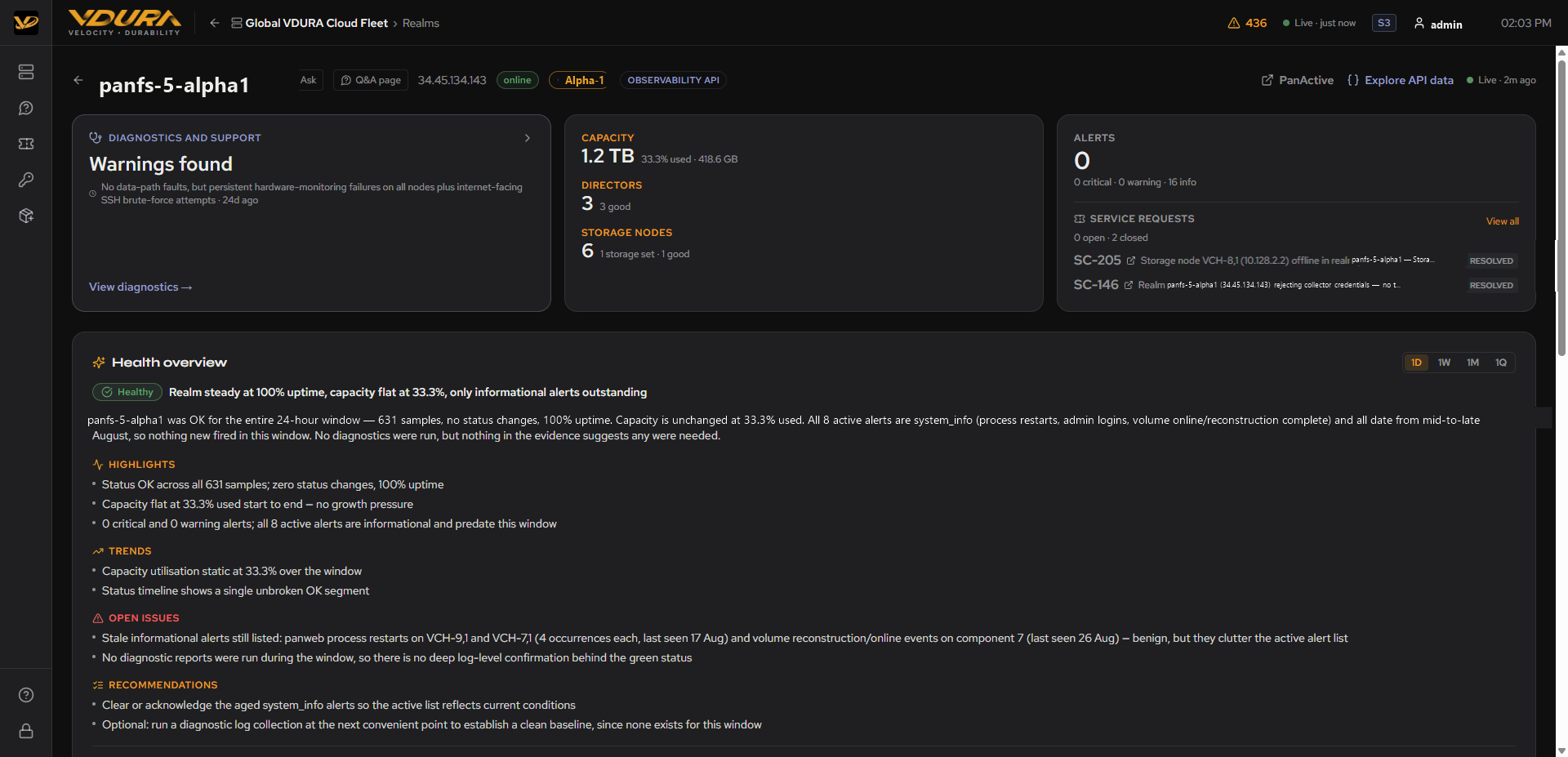 Figure 5.1. Full realm detail page for
 panfs-5-alpha1: header badges, Diagnostics/Capacity/Alerts/Service Requests cards, and the generated Health Overview.
5.1 Page Header
The header shows the realm’s name, quick links to Ask (opens Ask Sentinel pre-scoped to this realm) and Q&A page (same destination), its IP address, a status badge, a site badge, a product-type badge (OBSERVABILITY API or PANACTIVE, see 4.4), and a “served by <address>” badge. To the right: an external PanActive link (opens that realm’s own legacy UI directly, in a new tab; requires separate credentials to that realm) and an Explore API data link (opens the API Explorer), plus the realm’s own freshness indicator.
5.2 Diagnostics and Support Card
Summarizes the realm’s most recent diagnostic capture (e.g. “Warnings found” or “No diagnostics yet” for a realm that hasn’t sent one) with a one-line synopsis and a View diagnostics → link into the full list.
5.3 Capacity, Alerts, and Service Requests Cards
Three cards alongside Diagnostics and Support:
- Capacity: total capacity plus director/storage-node counts and their own health-bucket breakdowns. Shows “not reported” if this realm’s product-type integration doesn’t report capacity (see 4.4).
- Alerts: the realm’s active-alert count, split into critical/warning/info.
- Service Requests: open/closed counts and a View all link or “None for this realm. Sentinel files one automatically when it detects a fault.” if none exist yet.
5.4 Health Overview
An AI-generated narrative summary of the realm’s condition over a selectable window (1D / 1W / 1M / 1Q toggle, top-right of the card). Generation happens on demand; a realm you haven’t recently viewed shows “Sentinel is reading this realm’s history for last _ hours… This usually takes under a minute” while it works.
Once generated, the summary includes:
- A status badge (e.g. Healthy) and one-line verdict.
- A paragraph of plain-language analysis.
- Highlights: Bullet facts about uptime, status changes, and capacity.
- Trends: Capacity and usage trend commentary.
- Open Issues: Anything still outstanding.
- Recommendations: Suggested next actions.
- A footer: sample count, uptime %, active alert count, and “Generated _ ago”.
(See Figure 5.1 above. The Health Overview card’s Highlights/Trends/Open Issues/Recommendations are visible in that same capture.)
To check a realm’s health for a specific window: 1. Open the realm’s Realm Detail Page. 2. In the Health Overview card, click 1D, 1W, 1M, or 1Q. 3. Wait for the narrative to (re-)generate if it says it’s still reading history.
5.5 Errors & Alerts
A scrollable list of the realm’s active alerts (severity icon, message, source component, and relative time), matching the count on the Alerts card.
5.6 Logs
Shows how many diagnostic captures VDURA Sentinel has received from this realm. If none have arrived yet, it explains why VDURA Sentinel can’t simply go get one: “This realm has not sent any captures. Sentinel cannot request them — the appliance only pushes — so either ask the customer to send one from their Sentinel GUI or wait for their automatic diagnostics to fire on a new alert.” This is a direct consequence of the push-only telemetry architecture described in 1.2; see also 8.3.
5.7 Node Health
A table of every node in the realm: Node name, Role (Quorum/Storage (VOSD)), Status, IP Address, Capacity, and Set number. Populated for realms reporting through the Observability API integration.
5.8 Hardware
Cards for each distinct hardware model in the realm (e.g. VCH-5000-D1N), showing rated power draw, CPU, drive configuration, memory, and platform string.
5.9 Performance Metrics
A placeholder card at the bottom of the page. As of this writing it reads “Metrics backend is online — charts coming next”; historical IOPS/throughput/latency charting for this view is not yet built (compare the empty charts in the device view’s Dashboards page, which has the chart layout in place but no data plotted yet either).