
5. Signing In
5.1 Opening the Portal
Go to https://support.vdura.com. If you are not signed in, the page shows a Login required message. Click Log In.
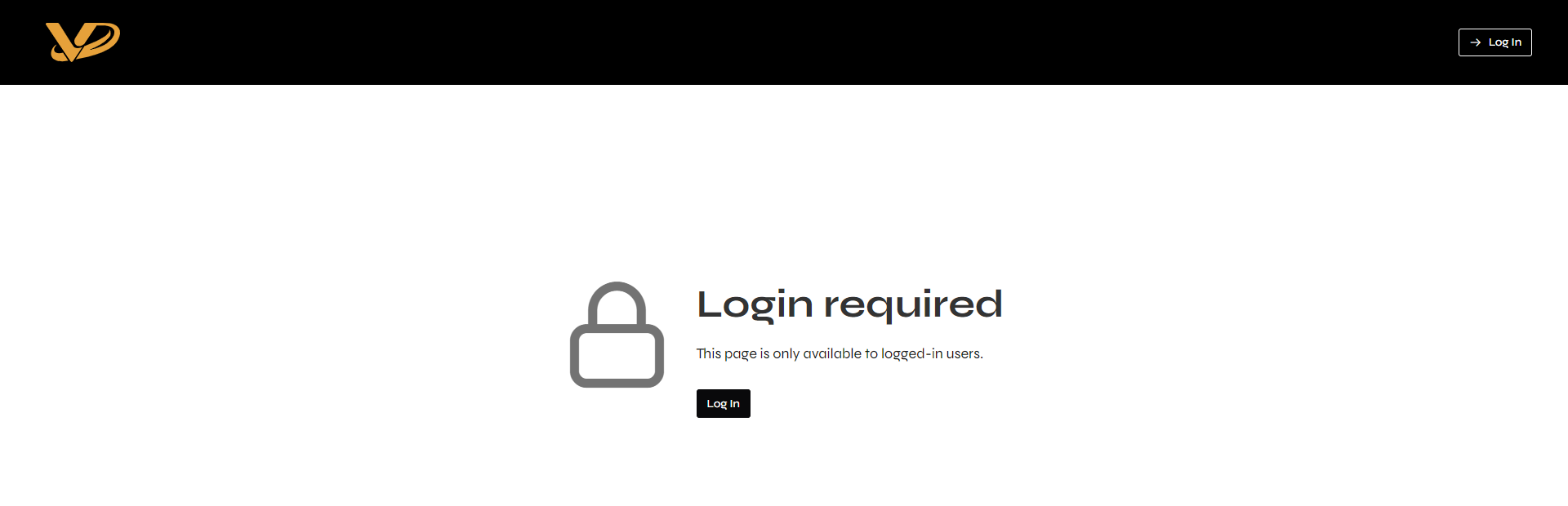 Figure 5.1. The Login required page.
5.2 Enter Your Email
The same page serves new and returning users.
- Type your email address in the Email address field.
- Click Next.
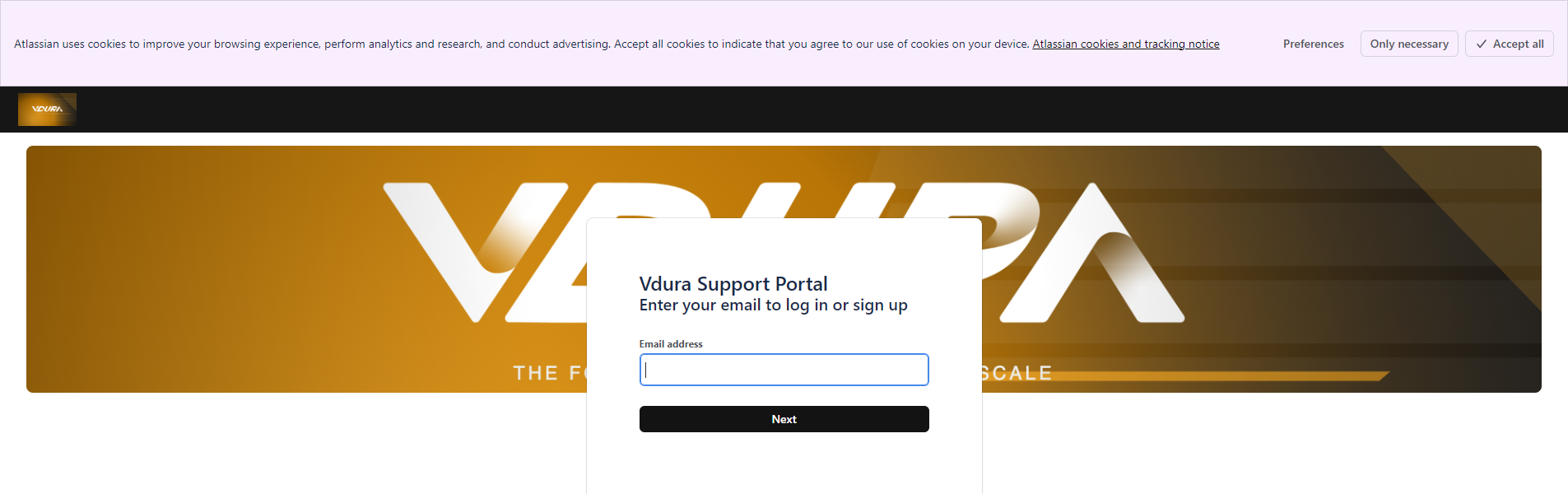 Figure 5.2. The email page.
The first time you visit, a cookie notice from Atlassian, which hosts the sign-in, appears across the top of the page. Choose Preferences, Only necessary, or Accept all.
5.3 Enter Your Password
The eye icon in the Password field shows or hides what you type.
- Type your password.
- Click Continue.
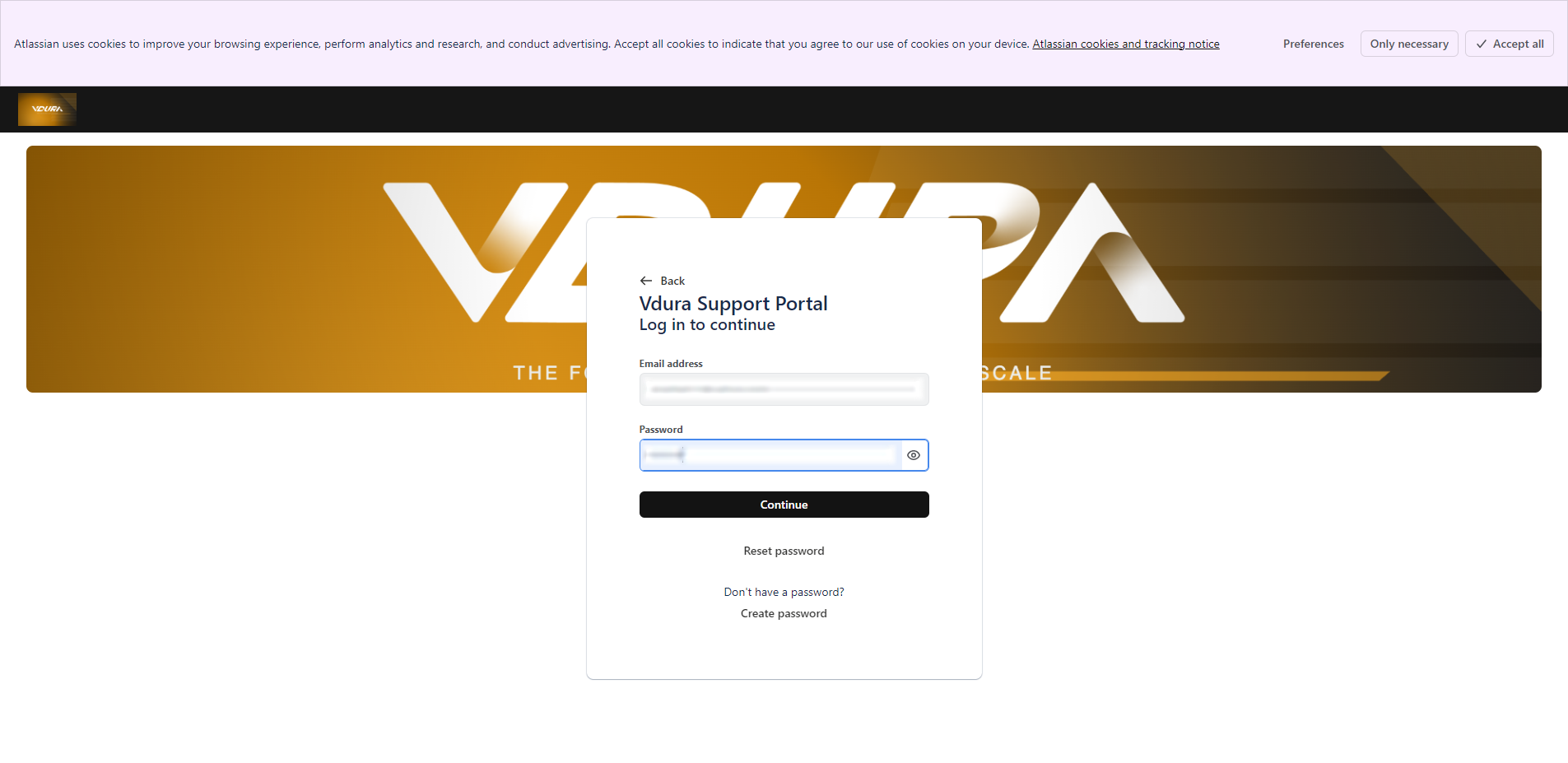 Figure 5.3. The password page.
The page has three other controls:
| Control | What it does |
|---|---|
| Back | Returns to the email page. |
| Reset password | Starts a password reset. |
| Create password | Appears under “Don’t have a password?”. Use it the first time you sign in. |
5.4 Finish Signing In
After your password is accepted, the portal opens on the home page (see chapter 6).
If you sign in once, close the window, and come back to the portal later, your browser may still hold your sign-in. In that case a VDURA SUPPORT page with a single Log In button can appear instead of the sign-in pages. Click Log In to continue.
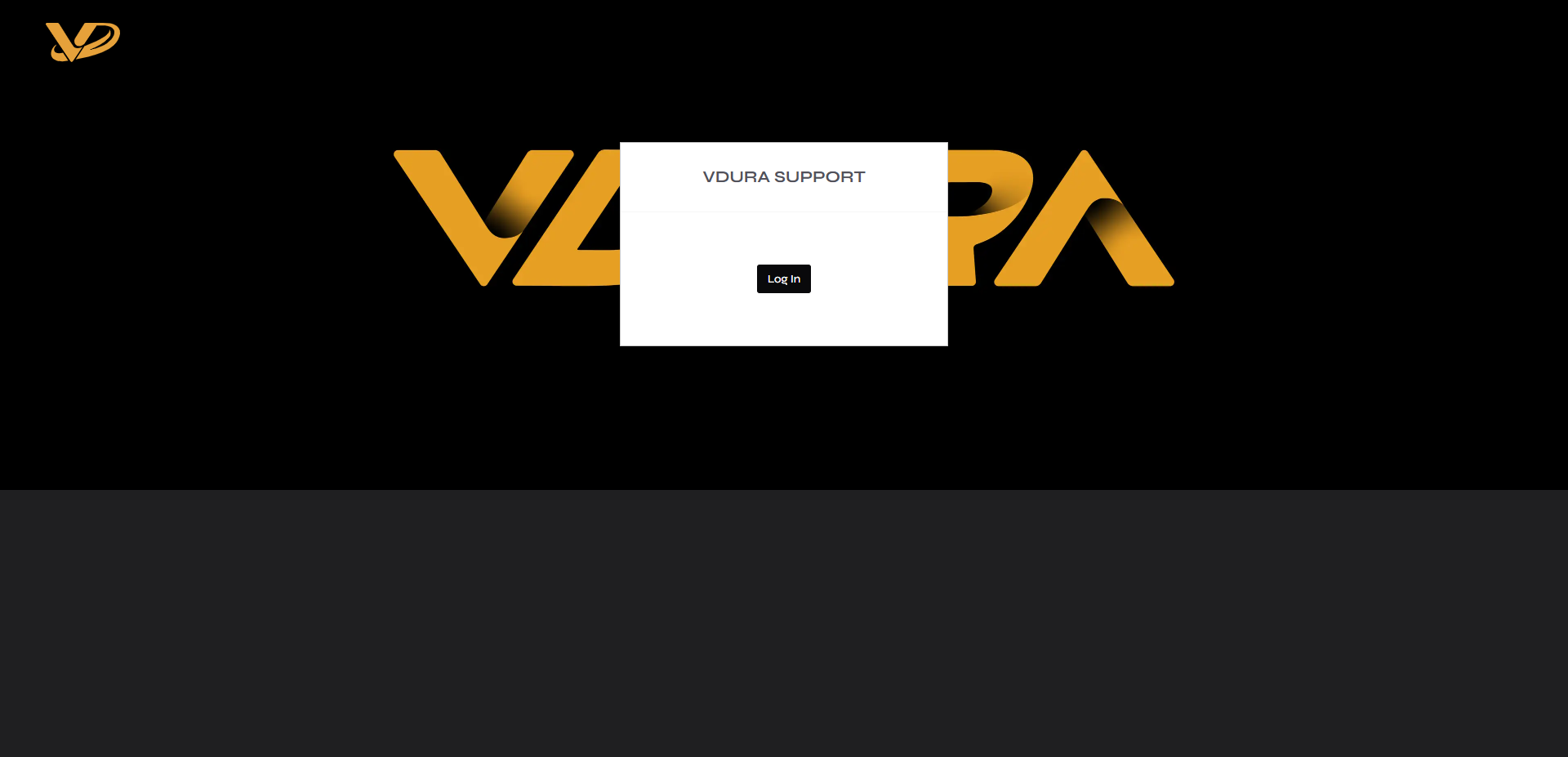 Figure 5.4. The VDURA SUPPORT page.
5.5 If You Are Already Signed In to Another Atlassian Product
The portal reuses an existing Atlassian sign-in in the same browser. If you are signed in to another Atlassian product, such as Jira or Confluence, the portal may try to use that account without showing the sign-in pages. If that account is not a portal customer, you see a No access message saying that your account does not have access to the help center, and suggesting you contact your admins.
To sign in with your portal account instead, do one of the following:
- Open the portal in a private (incognito) browser window and sign in with the email address you use for the portal.
- Sign out of the other Atlassian product, then open the portal again.
5.6 Signing Out
- Click your account icon in the top-right corner of any page.
- Click Log out.
See 12.1.