
6. The Home Page
After you sign in, the portal opens on its home page at https://support.vdura.com.
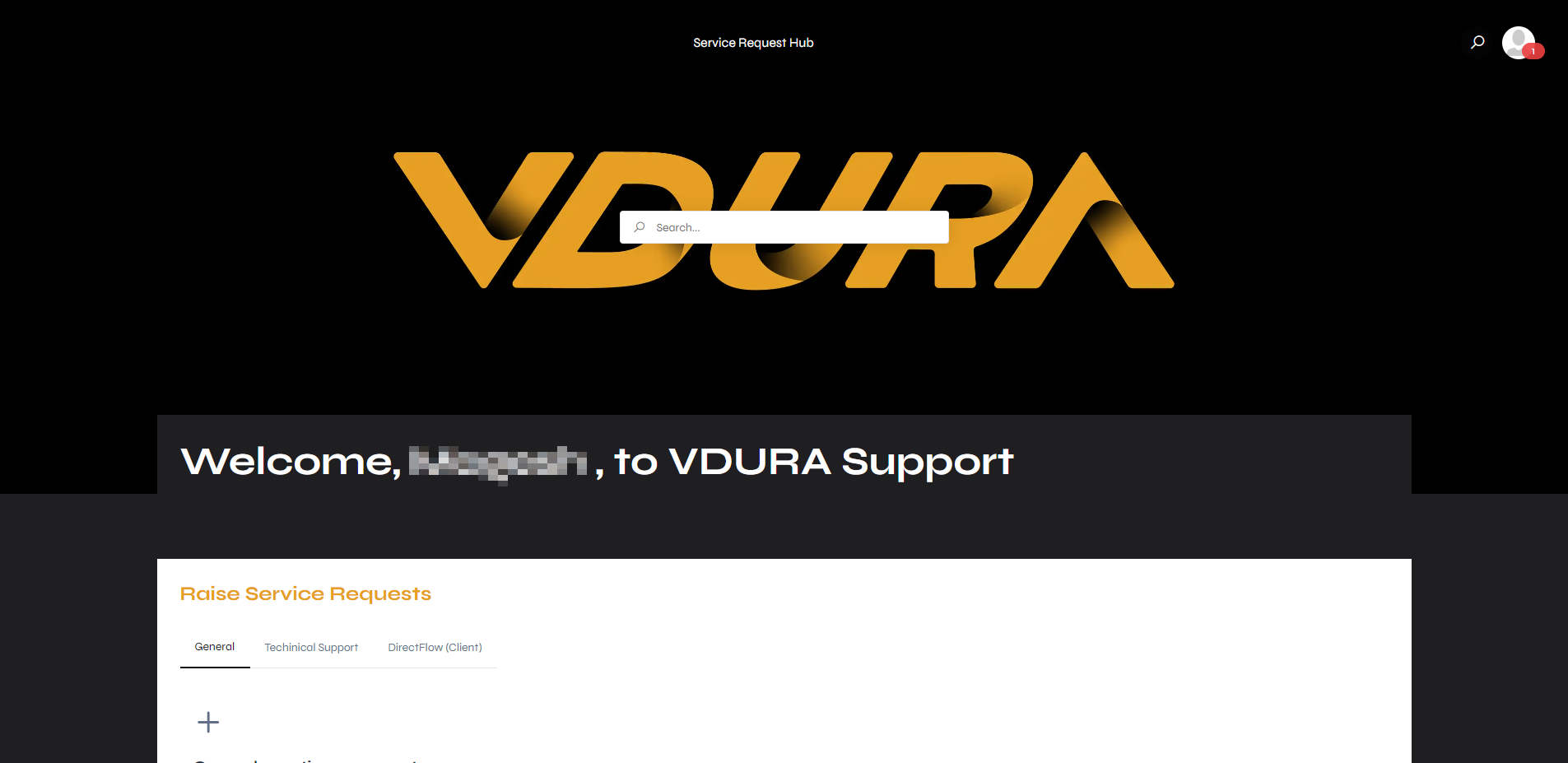 Figure 6.1. The top of the home page.
6.1 Page Layout
From top to bottom:
| Element | What it is |
|---|---|
| Top bar | The Service Request Hub label, a search icon, and your account icon, which shows a red badge with a count when there are requests for you to review. |
| Raise Service Requests | Tabs of request types you can raise. See chapter 7. |
| Request tracking | A table of your requests with filters. See 9.1. |
| Resource sections | Service Advisories, Release Notes, and Product Documentation, each with a button. See chapter 10. |
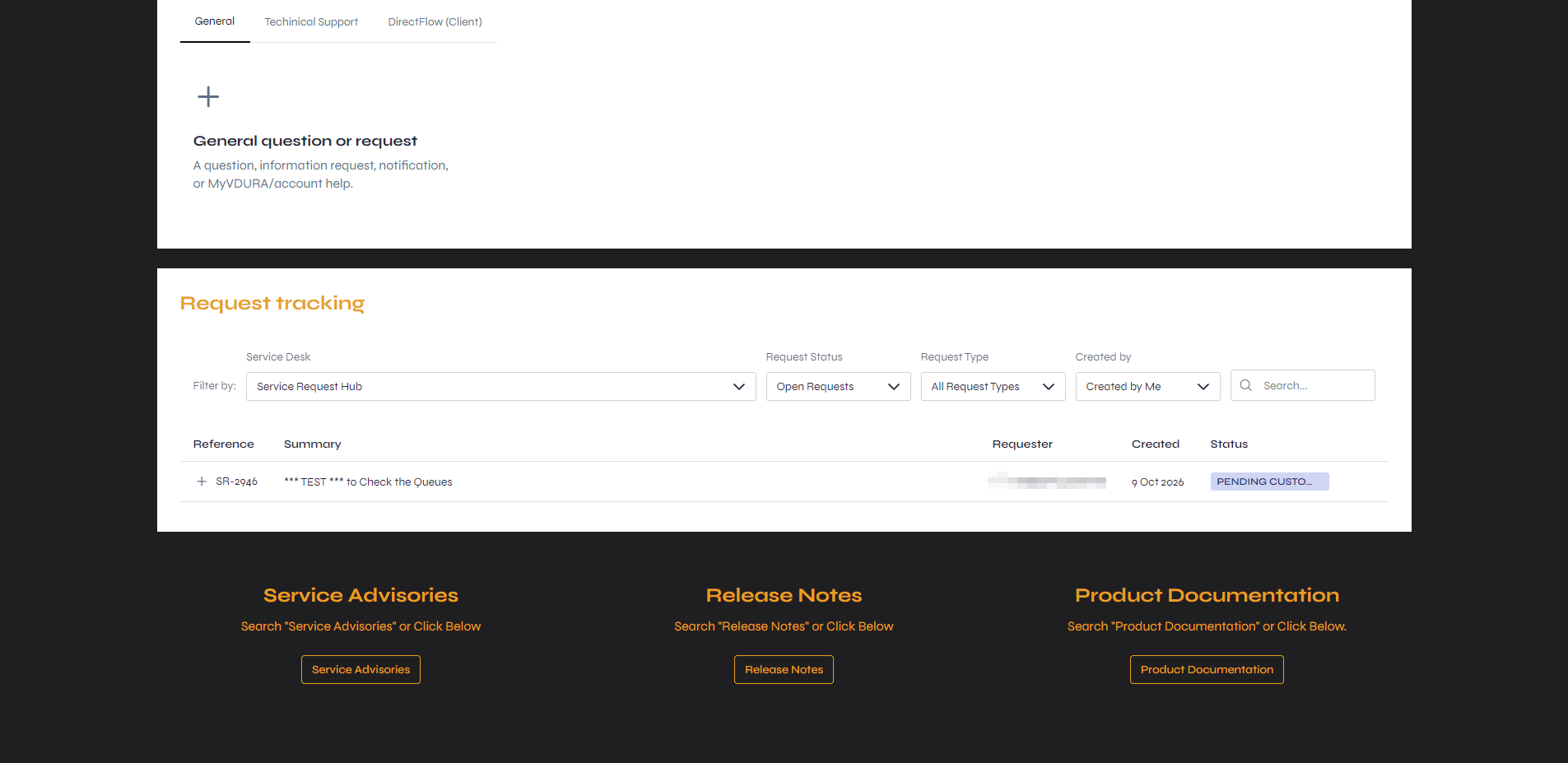 Figure 6.2. The lower part of the home page.
6.2 The Top Bar
| Control | What it does |
|---|---|
| Service Request Hub | Opens the Service Request Hub page (see 6.3). |
| Search icon | Opens the search pop-up (see chapter 11). |
| Account icon | Opens the account menu (see 12.1). |
The top bar has no VDURA logo to click, and a request’s own page shows no top bar content at all.
6.3 The Service Request Hub Page
Clicking Service Request Hub in the top bar or in the breadcrumb at the top of a request’s page opens a second page, at https://support.vdura.com/portal/1007. It has the same top bar and banner as the home page, but no welcome heading and no tabs:
- Request Types: All nine request types in one grid of tiles, instead of three tabs.
- My open requests: Your open requests, with the same filters and columns as Request tracking.
- The three resource sections, as on the home page.
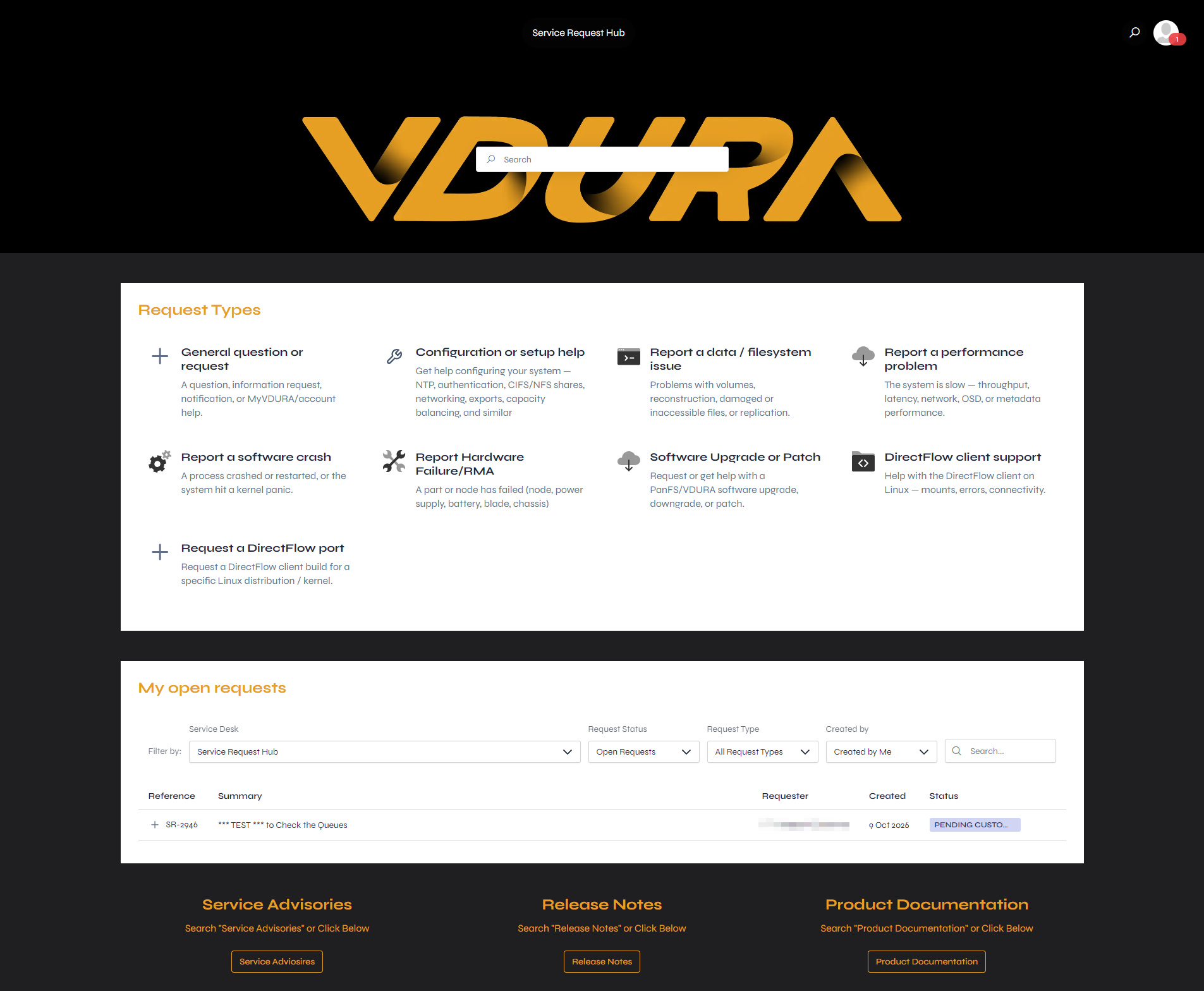 Figure 6.3. The Service Request Hub page.
The Service Request Hub page has no link back to the home page. Type support.vdura.com in your browser’s address bar or use its Back button.