
8. Submitting a Request
VDURA addresses all customer and partner related technical questions for products under valid entitlement and/or current support contracts using our SR process. The portal is the fastest way to start one, and it is available 24x7.
8.1 Open a Request Form
- On the home page, find Raise Service Requests.
- Click the tab that matches your need: General, Techinical Support, or DirectFlow (Client).
- Click the tile for the request type. Its form opens in a pop-up window on top of the page.
8.2 The Request Form
A star after a field’s name means the field is required.
The fields you may see are:
| Field | What to enter |
|---|---|
| Summary field | One line describing the request. Its label differs by form (see 8.3). |
| Attach Systat | A sysstat file. See 8.5. |
| Description | Details of the request. |
| Priority | How urgent the request is. See 8.4. |
| Serial Number | The serial number of the affected equipment. It appears only on the configuration form. |
8.3 Request Types and Their Forms
The forms differ slightly. This table lists the fields on each. An asterisk means the field is required.
| Request type | Summary field label | Attach Systat | Description | Priority | Serial Number |
|---|---|---|---|---|---|
| General question or request | General / information request* | Yes | Yes | Yes* | No |
| Configuration or setup help | General / information request* | Yes | Yes | Yes* | Yes |
| Software Upgrade or Patch | General / information request* | Yes | Yes | Yes* | No |
| Report a software crash | Report a software crash* | Yes | Yes | No | No |
| Report a performance problem | Report a performance problem* | Yes* | Yes | Yes* | No |
| Report a data / filesystem issue | Summary* | Yes | Yes | Yes* | No |
| Report Hardware Failure/RMA | Report Hardware Failure/RMA* | Yes (labeled Attach Systat File) | No | Yes* | No |
| Request a DirectFlow port | Request a DirectFlow port* | Yes | No | Yes* | No |
| DirectFlow client support | DirectFlow client support* | Yes | Yes | Yes* | No |
The pictures below show each form. On the longer forms, the left image is the top of the pop-up and the right image is what you see after scrolling to the bottom.
General question or request
Use this for general questions, information requests, system notifications, SNMP queries, or portal and account help. Tell VDURA the product or area and your question.
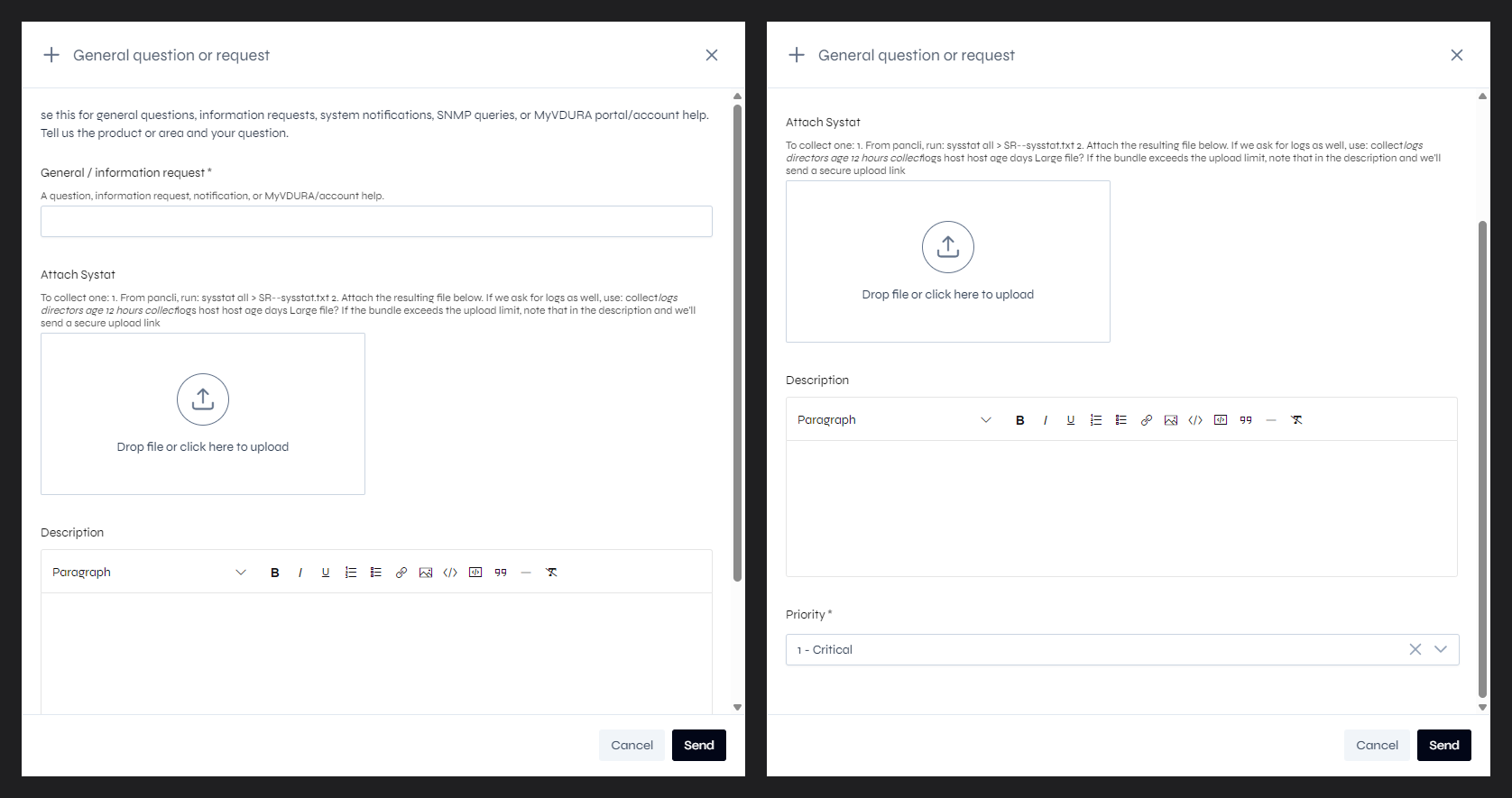 Figure 8.1. The General question or request form.
Configuration or setup help
Describe what you are configuring and the systems involved, and attach a sysstat if relevant.
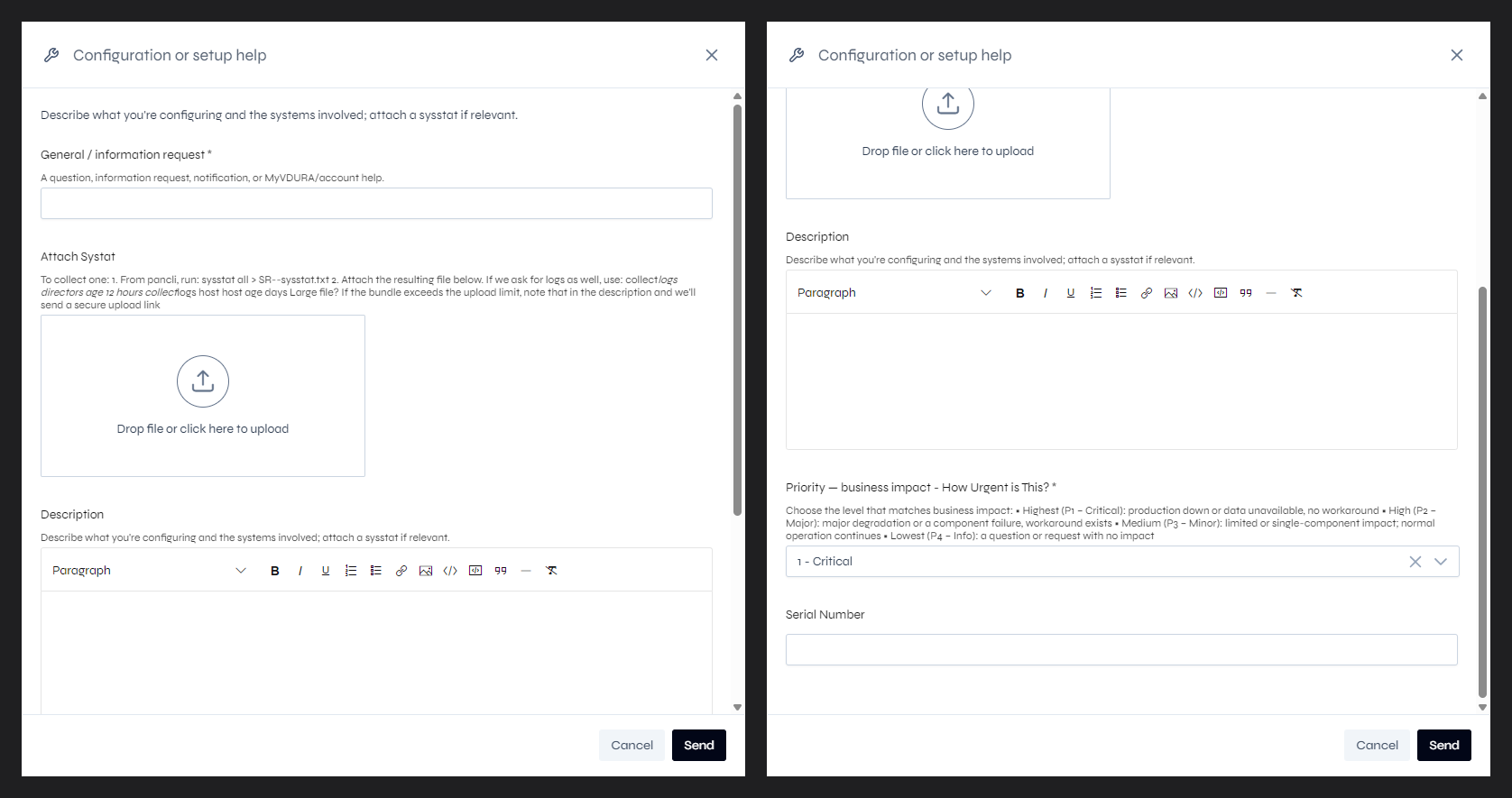 Figure 8.2. The Configuration or setup help form.
Software Upgrade or Patch
Tell VDURA your current version, your target version, and your preferred maintenance window, and attach a current sysstat. Before any upgrade, review the release notes for your target release in detail, so that you are aware of any issues for that specific release (see chapter 10).
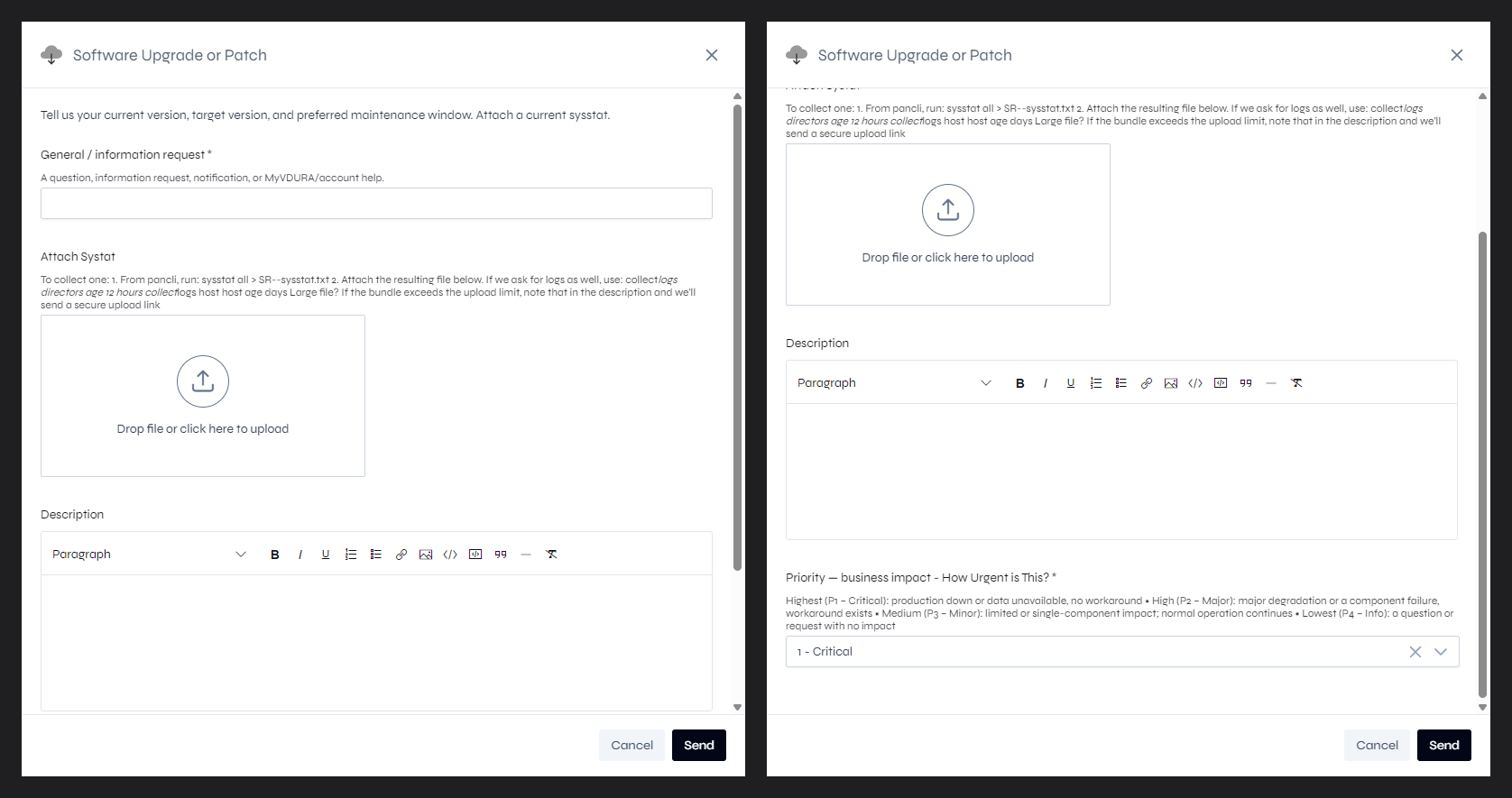 Figure 8.3. The Software Upgrade or Patch form.
Report a software crash
Use this to report a crash, core, process restart, or kernel panic. Describe what happened and when, and attach the sysstat and any core files. This form has no Priority field.
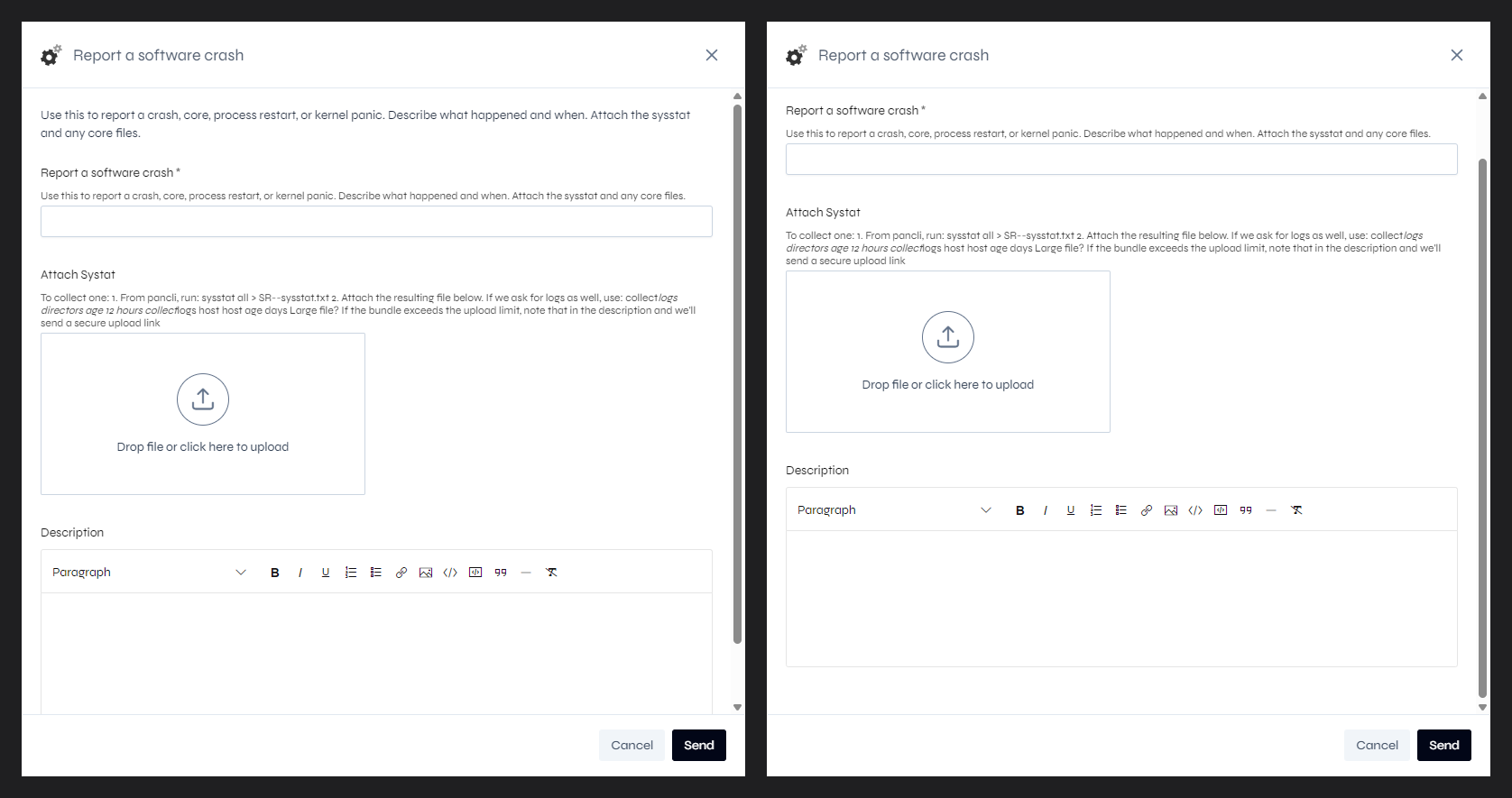 Figure 8.4. The Report a software crash form.
Report a performance problem
Describe the symptom (when it started and what is slow) and the workload and context (clients, job type, timeframe). The sysstat is required here, so that VDURA can analyze load.
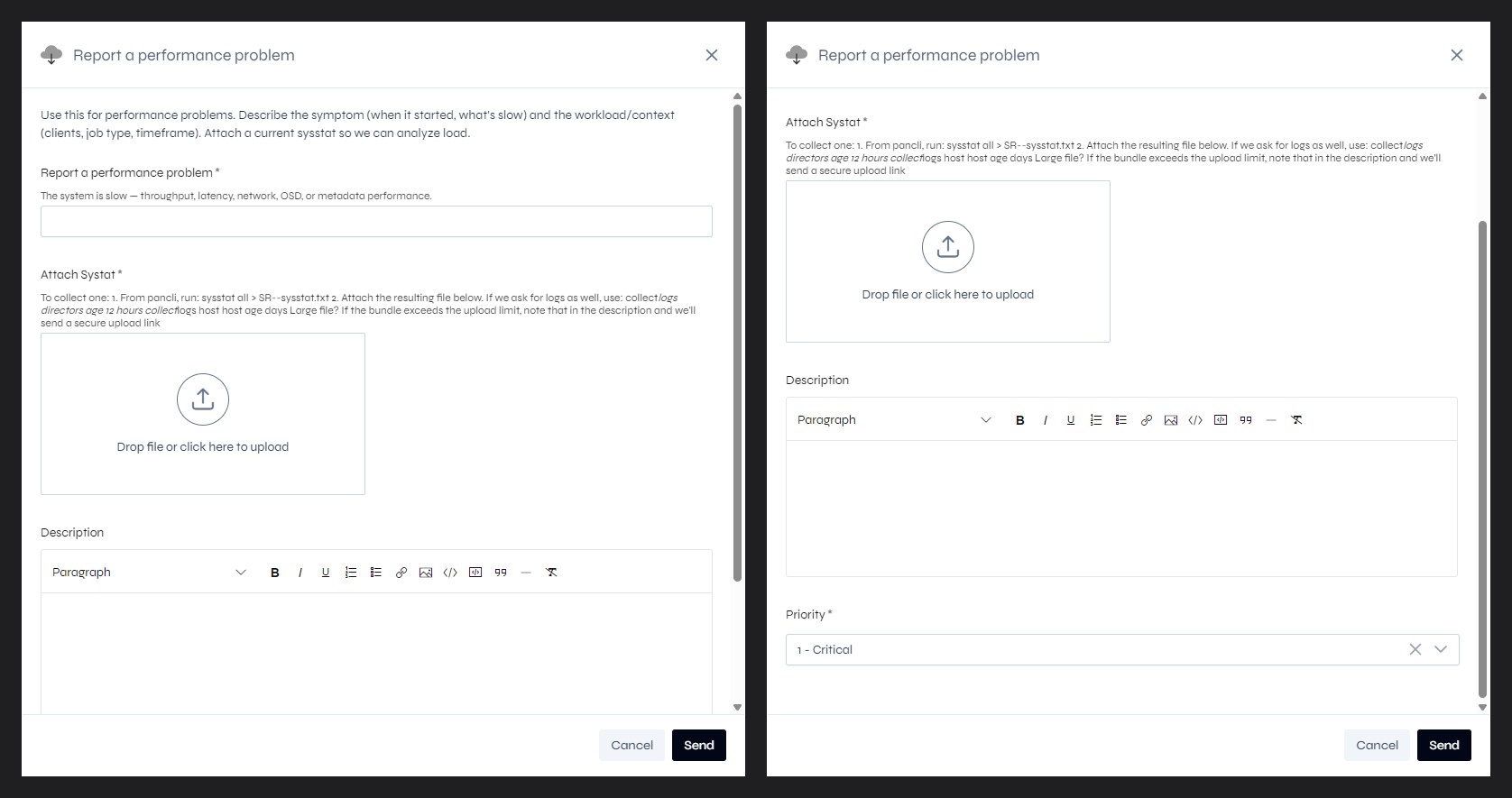 Figure 8.5. The Report a performance problem form.
Report a data / filesystem issue
Use this for failed reconstruction, damaged or inaccessible files, volume failover, FSRC, or replication. Describe what you see and list the affected volumes or paths. The form text says a current sysstat is required so that VDURA can begin immediately, although the Attach Systat field is not marked with an asterisk.
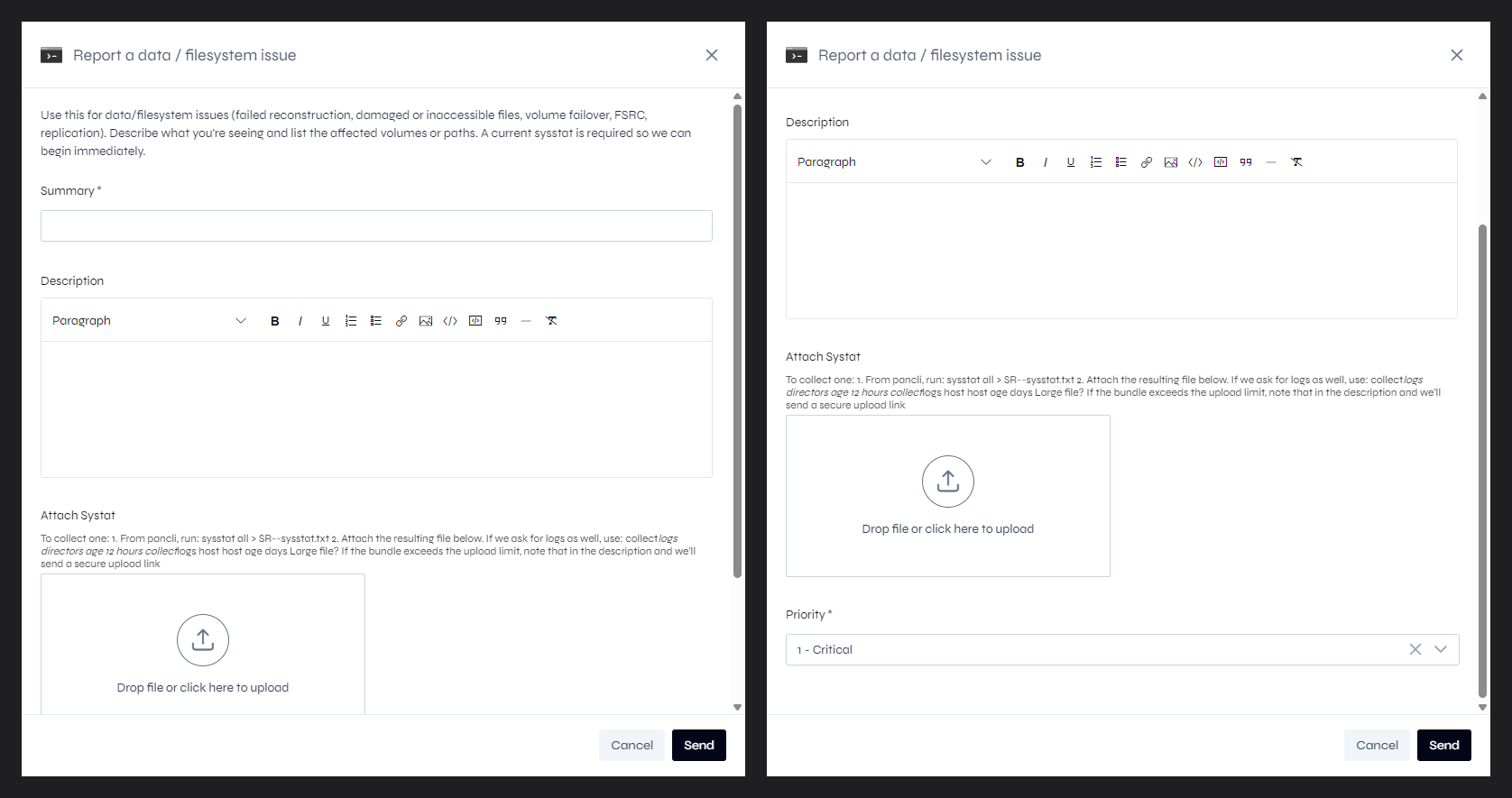 Figure 8.6. The Report a data / filesystem issue form.
Report Hardware Failure/RMA
Use this when a part or node has failed. This form has no Description box; the summary field and the sysstat carry the report. To process an RMA, VDURA needs the failed part’s serial number and the delivery address (see chapter 14).
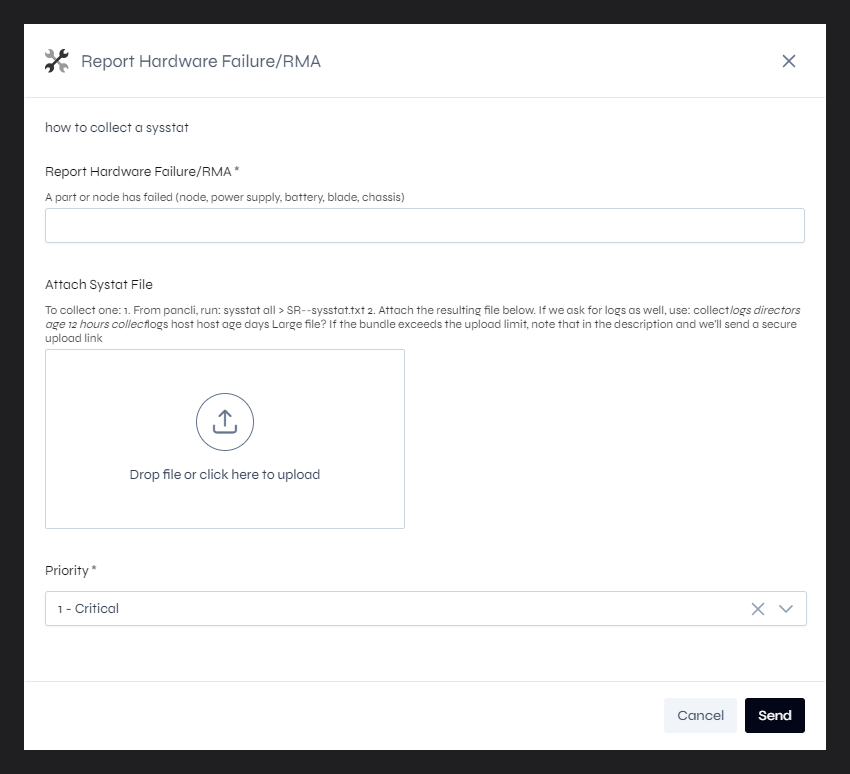 Figure 8.7. The Report Hardware Failure/RMA form.
Request a DirectFlow port
Use this to request a DirectFlow client build for a new Linux distribution or kernel. Provide the exact distribution and kernel version and when you need it. This is a build request, not a fault report.
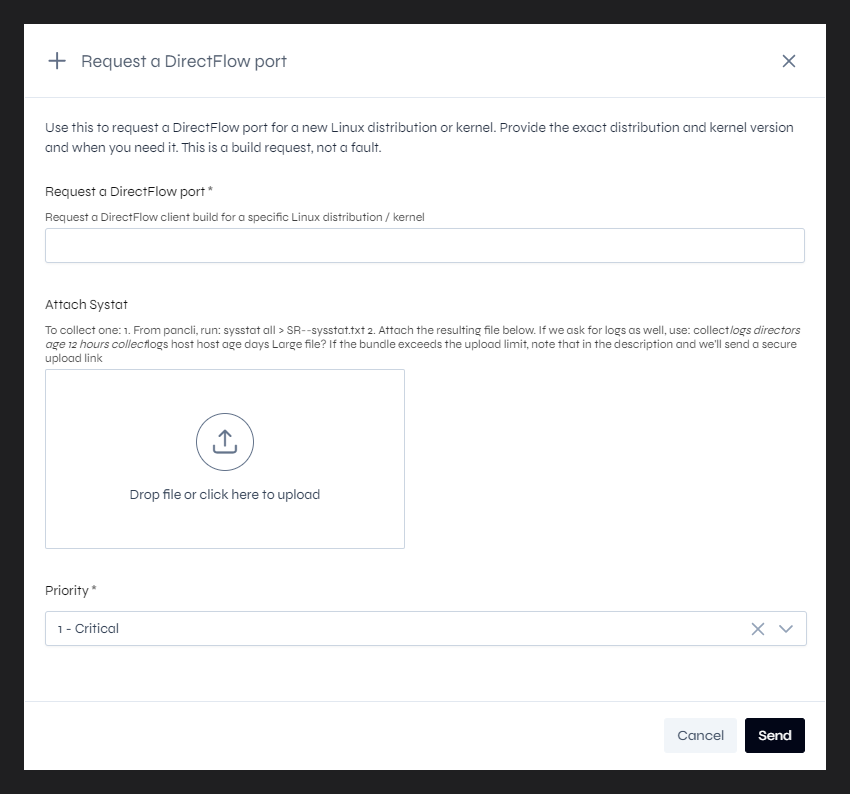 Figure 8.8. The Request a DirectFlow port form.
DirectFlow client support
Tell VDURA your Linux distribution and kernel version, describe the problem, and attach relevant client logs.
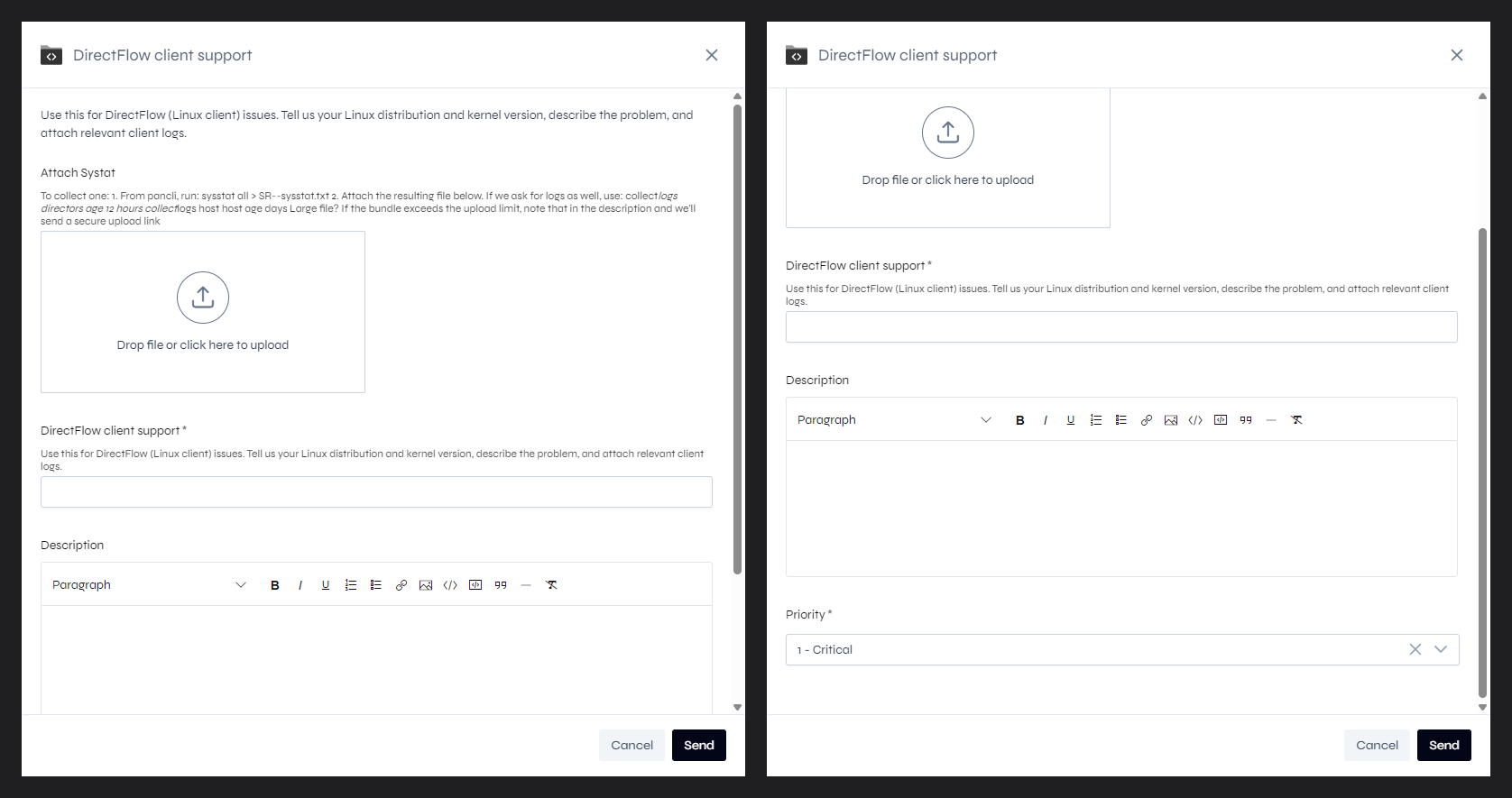 Figure 8.9. The DirectFlow client support form.
8.4 Choosing a Priority
When you open a new SR, you must set the appropriate priority to reflect the impact of the issue on your environment. The Priority drop-down starts at “1 - Critical” on every form that has it, so check it before you send. The levels are:
| Level | Business impact | Typical situations |
|---|---|---|
| Priority 1: Critical | Critical business impact | The product does not start or boot up. Data appears to be in danger of being lost or damaged. Data volumes are inaccessible, or product use stops. |
| Priority 2: Major | Significant business impact | The product fails to work as designed for a significant feature, causing a major restriction to product use. System performance is degraded by a significant amount. The product requires a major intervention to work around the problem. |
| Priority 3: Minor | Some business impact | The product fails to work as designed for a minor feature, causing a slight restriction to product use. System performance is degraded to some degree. A workaround is available, but it is not the desired solution. The product routinely reports erroneous messages or errors. |
| Priority 4: Information Request | No business impact | General questions about the product. New features or requested enhancements. |
These descriptions are guidelines for setting the priority. VDURA’s response commitments depend on the priority you choose (see 13.3).
8.5 Collecting and Attaching a Sysstat
A sysstat is a file of system information that helps VDURA engineers analyze your system. To collect one:
- From
pancli, runsysstat alland save the output to a file, for examplesysstat all > SR-<your-SR-number>-sysstat.txt. - Attach the resulting file by dropping it on the Attach Systat box or by clicking the box and choosing the file.
If VDURA also asks for logs, it will tell you which collect_logs command to run. If the bundle is larger than the upload limit, say so in the Description, and VDURA sends you a secure upload link. See 13.5 for more about both commands and about uploading large files.
8.6 Send the Request
- Fill in the required fields (marked with a star).
- Check the Priority.
- Click Send.
Click Cancel or the X in the corner to leave without raising the request. After a request is raised, it appears in your request list (see chapter 9). You can also submit a request by calling the toll-free phone number in 3.3.