
12. Your Account
12.1 The Account Menu
Click the account icon in the top-right corner to open the account menu. When there are requests for you to review, the icon carries a small red badge with their number.
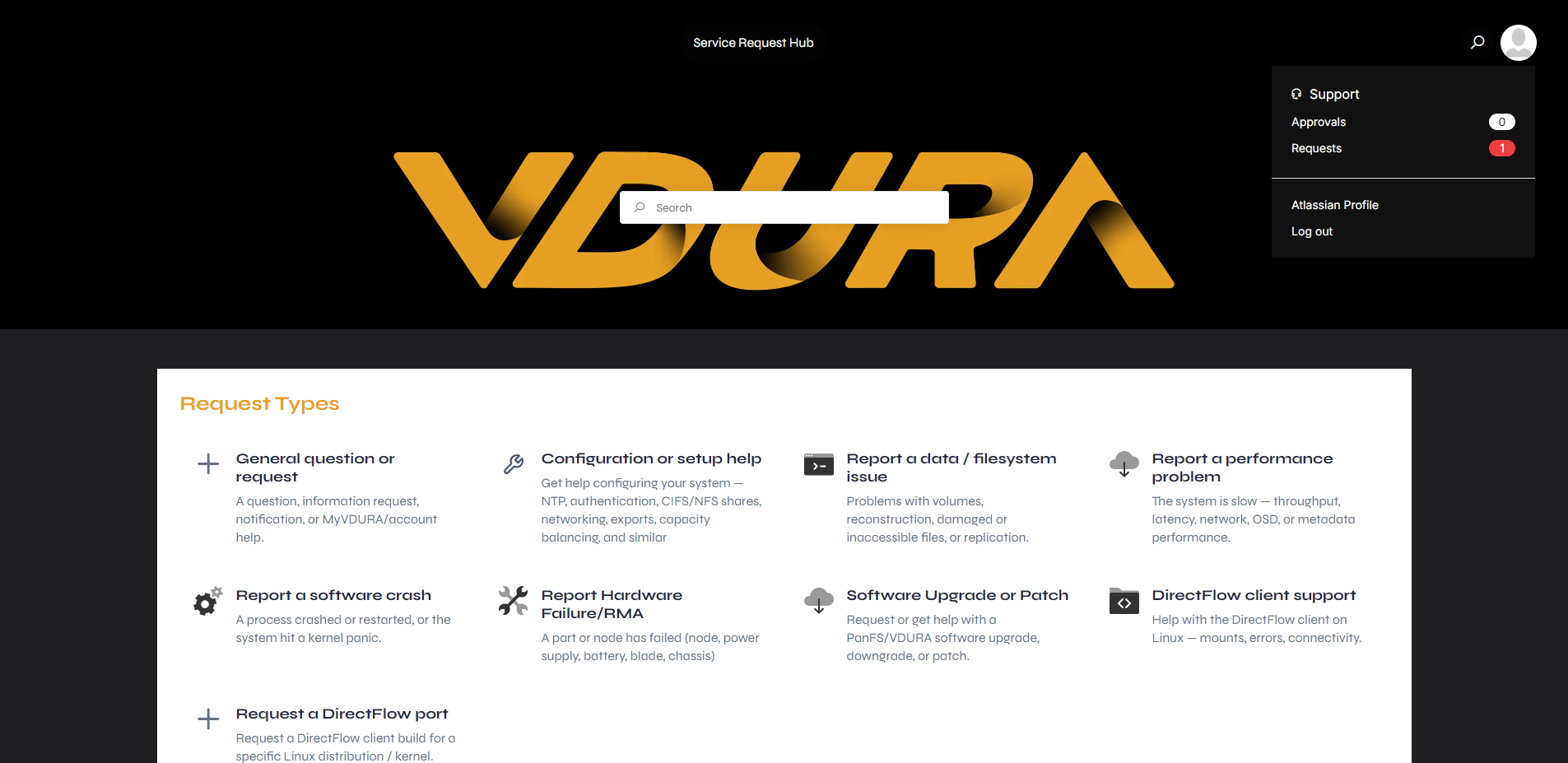 Figure 12.1. The account menu.
| Item | What it does |
|---|---|
| Approvals | Opens the Approvals page (see 9.2). The badge counts approvals waiting for you. |
| Requests | Opens the Requests page. The badge counts your requests. |
| Atlassian Profile | Opens your profile (see 12.2). |
| Log out | Signs you out. |
12.2 Your Profile
Atlassian Profile opens a Profile page. It is titled “Vdura Support Portal / Profile” and has its own look, which differs from the rest of the portal. A blue note says: “Your changes may take up to five minutes to appear. If you log in with single sign-on, your name will be automatically updated to match the single sign-on provider.”
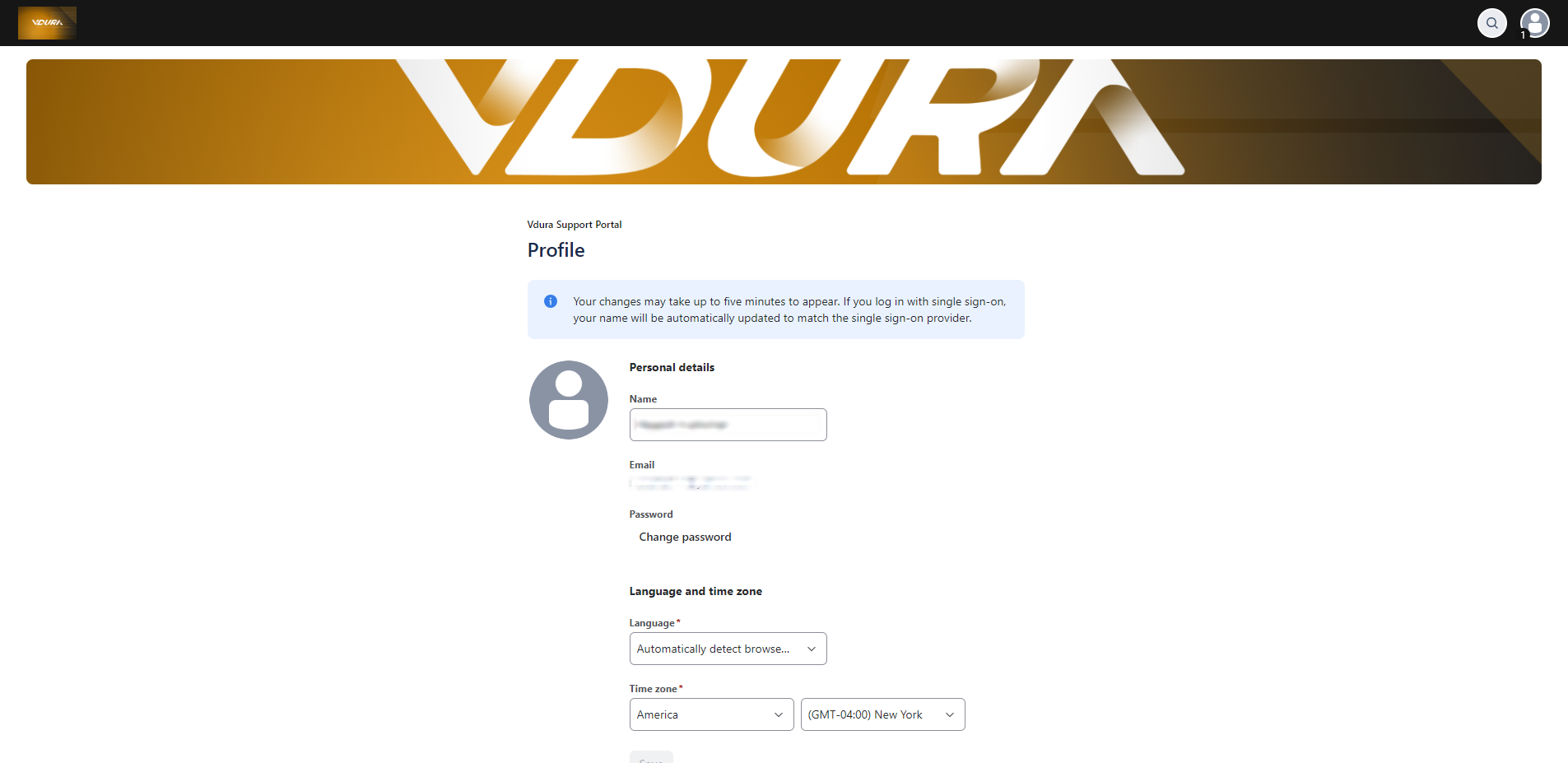 Figure 12.2. The Profile page.
| Section | Field | Notes |
|---|---|---|
| Personal details | Name | You can edit it. |
| Personal details | Shown as text. | |
| Personal details | Password | Change password changes your password. |
| Language and time zone | Language | Required. It starts on automatic detection of your browser’s language. |
| Language and time zone | Time zone | Required. Two drop-downs, a region and a zone, for example “America” and “(GMT-04:00) New York”. |
Save is greyed out until you change something.
To change your time zone:
- Open Atlassian Profile from the account menu.
- Under Time zone, choose a region and then a zone.
- Click Save.