
9. Tracking Your Requests
9.1 Request Tracking on the Home Page
The Request tracking section on the home page lists your requests (on the Service Request Hub page the same table is headed My open requests). A Filter by row narrows the list:
| Filter | What it does |
|---|---|
| Service Desk | Chooses which service desk’s requests to show. At the time of writing there is one, Service Request Hub. |
| Request Status | Starts on Open Requests. |
| Request Type | Starts on All Request Types. |
| Created by | Starts on Created by Me. |
| Search… | Type text to find requests whose content matches. |
The table shows each request’s reference (such as SR-2946), summary, requester, created date, and status. The status is a colored label such as PENDING CUSTO…; long status names are cut off with an ellipsis, so Pending Customer Action reads that way. See 13.7 for what each status means.
Click a request’s reference to open it (see 9.3).
9.2 The Requests and Approvals Pages
The account menu links to two fuller lists (see 12.1).
The Requests page has the same filters and columns as Request tracking, with one difference: Created by starts on Created by Any… instead of Created by Me.
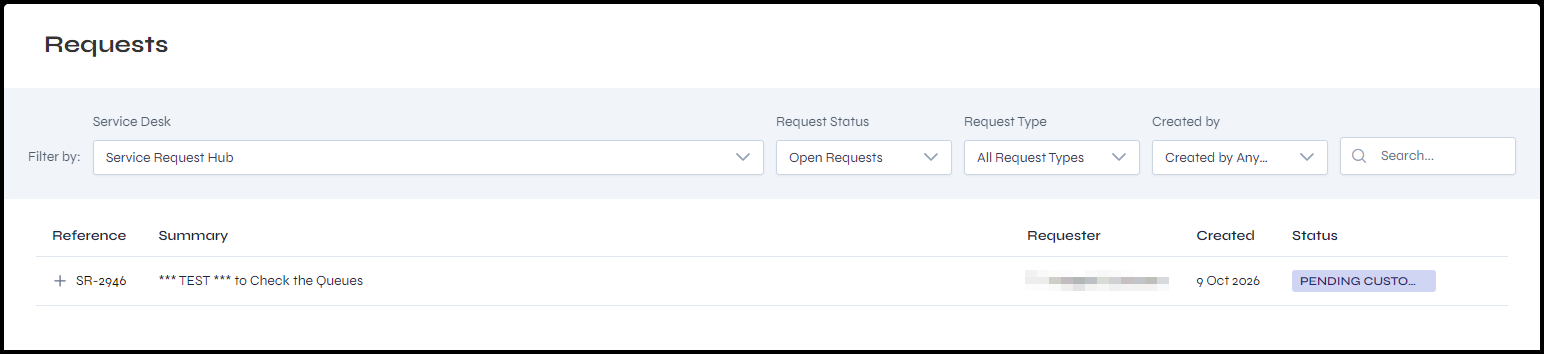 Figure 9.1. The Requests page.
The Approvals page lists requests that are waiting for your approval. Its filters are Service Desk, Approval Status (it starts on “Waiting for my appr…”), Request Type, and Search…. When nothing is waiting, it reads “No requests found”.
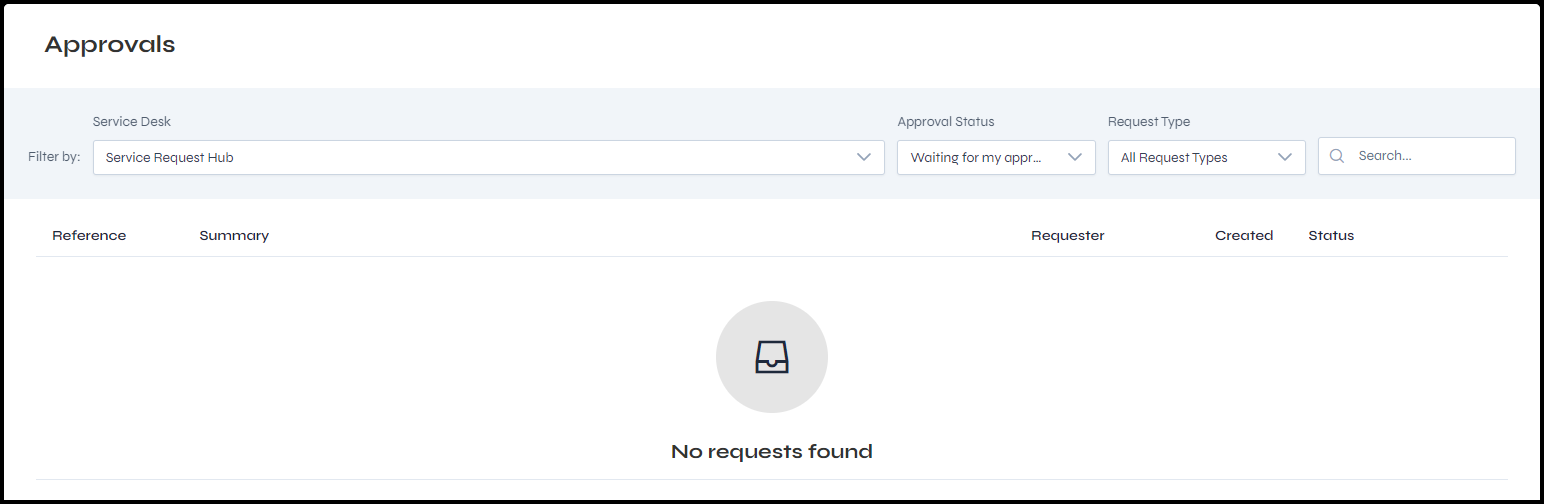 Figure 9.2. The Approvals page.
9.3 A Request’s Details
A request’s page shows the request in full. A breadcrumb at the top, such as “Service Request Hub > SR-2946”, leads to the Service Request Hub page (see 6.3).
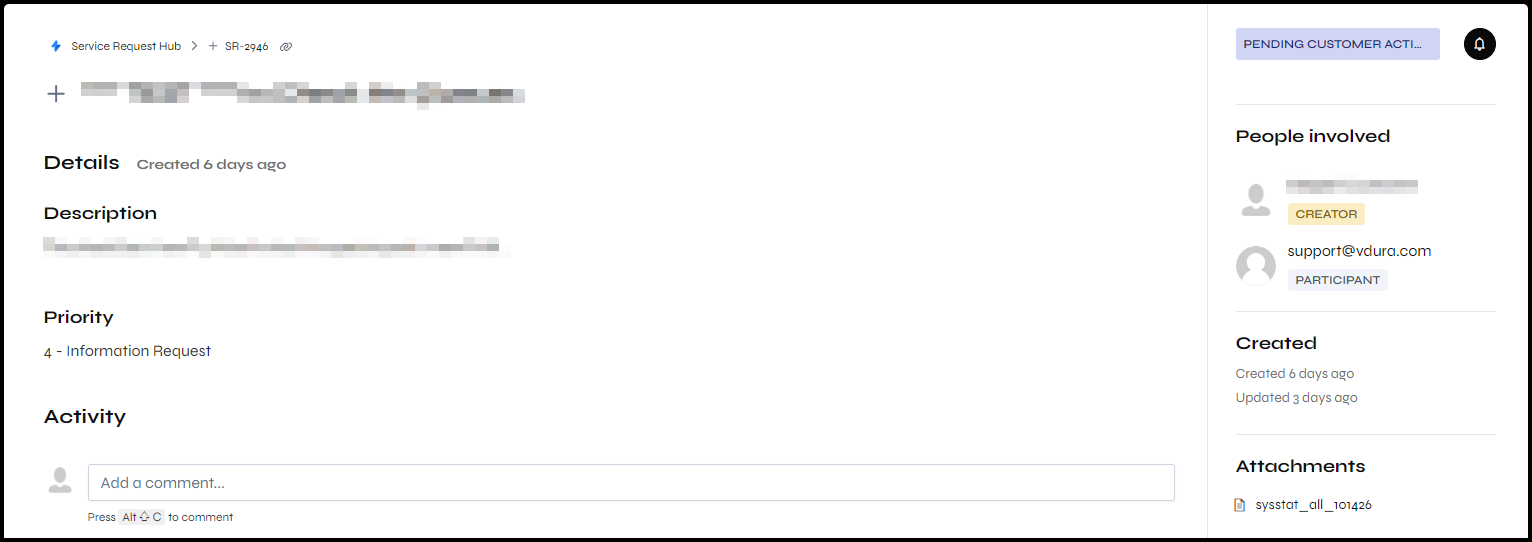 Figure 9.3. A request’s detail page.
The main area shows the request’s description and priority, then its activity: comments and status notes such as “Your request status changed to Pending Customer Action, 3 days ago”. A comment can carry an attached file, shown as a paperclip and the file name above the comment text. When a request has many comments, a Load remaining N activities button loads the rest.
To add a comment, click Add a comment…. To send a file to VDURA after a request is raised, click Add Attachment in the comment editor, choose the file, and click Post comment. The file appears on your comment and in the Attachments panel.
All phone conversations, case updates, emails, and remote troubleshooting sessions are documented using the SR process. You receive an email copy of all updates, and you can review the entire case history at any time in the portal.
The panel on the right shows:
| Item | What it shows |
|---|---|
| Status | The request’s current state. Long names are cut off with an ellipsis, such as PENDING CUSTOMER ACTI…. |
| People involved | Everyone on the request. The person who raised it is labeled CREATOR, and others are labeled PARTICIPANT. |
| Created | How long ago the request was created, and, once it has changed, how long ago it was last updated. |
| Attachments | The files attached to the request, including files attached to comments. It is a list only; it has no upload button. |