
1. Introduction
Welcome to the VDURA Data Platform User Guide. This introduction includes the following sections:
1.1 About This Guide
The VDURA Data Platform User Guide describes how to use PanActive Manager™ to monitor and manage your VDURA® system. This guide is written for system and network administrators who are familiar with Network Attached Storage (NAS) systems and Storage Area Networks (SANs). Users should also be familiar with administering and managing file systems. A working knowledge of network protocols, network administration and management, and the Linux®, UNIX®, and/or Windows® operating systems is also required.
1.1.1 Organization of This Guide
The VDURA Data Platform User Guide includes the following chapters:
- Chapter 1, “Introduction” is an introduction to the rest of the VDURA Data Platform User Guide.
- Chapter 2, “Overview of the VDURA System” provides an introduction to the VDURA Data Platform™.
- Chapter 3, “PanActive Manager” provides an introduction to PanActive Manager, which enables you to monitor and manage performance of your VDURA system.
- Chapter 4, “Network Access” describes how to configure network administration and management settings and how to set up DirectFlow® clients to access the system.
- Chapter 5, “Configure Storage Data” describes how to create and monitor StorageSets and volumes, configure RAID, set user and group quotas, perform disk migration, and configure realm management.
- Chapter 6, “Security Enhanced Linux in VDURA Systems” explains the VDURA implementation of Security Enhanced Linux (SELinux).
- Chapter 7, “Manage Storage Hardware” describes how to manage nodes.
- Chapter 8, “Monitor Performance” describes how to use PanActive Manager to display status summaries, event listings, and reports to monitor performance of the VDURA system.
- Chapter 9, “Upgrade VDURA Software” describes how to maintain and upgrade VDURA system software.
- Chapter 10, “End-to-End Encryption” provides information about and instructions for managing VDURA’s end-to-end encryption implementation.
- Chapter 11, “Kubernetes CSI Driver for PanFS” explains how to configure and use CSI with PanFS.
- Chapter 12, “Remote Direct Memory Access in VDURA Systems” explains the VDURA implementation of Remote Direct Memory Access (RDMA).
- Chapter 13, “Troubleshoot Your System” describes how to run diagnostics and troubleshoot problems you might experience with your system.
- Chapter 14, “PanMove Sync” describes how to use PanMove Sync, a Linux-based client-side parallel data replication tool that allows customers to replicate and migrate data across a LAN.
- Chapter 15, “System Limits and Requirements” describes system limits and requirements.
- Chapter 16, “VDURA System Error Messages” provides details about VDURA system error messages.
1.1.2 Document Conventions
This manual uses the following standard set of typographical conventions to introduce new terms, illustrate screen displays, and describe command syntax.
| Convention | Meaning |
|---|---|
| boldface | Identifiers (names of classes, objects, constants, events, functions, program variables, forms, labels, and reports), environment variables, filenames, table names, column names, icons, menu items, command names, and other similar terms appear in boldface. |
courier |
Information that the product displays and information that you are instructed to enter appear in a courier typeface. |
1.1.3 Navigation Instructions
VDURA user documentation uses a simple, consistent format to tell you how to get to the correct PanActive Manager page for the task described. Navigation instructions adhere to the following format:
Click a tab > click a left menu item > click a specific page.
For example, to generate a capacity report, this guide will use Status & Reports > Reports > Capacity to navigate you to the correct page.
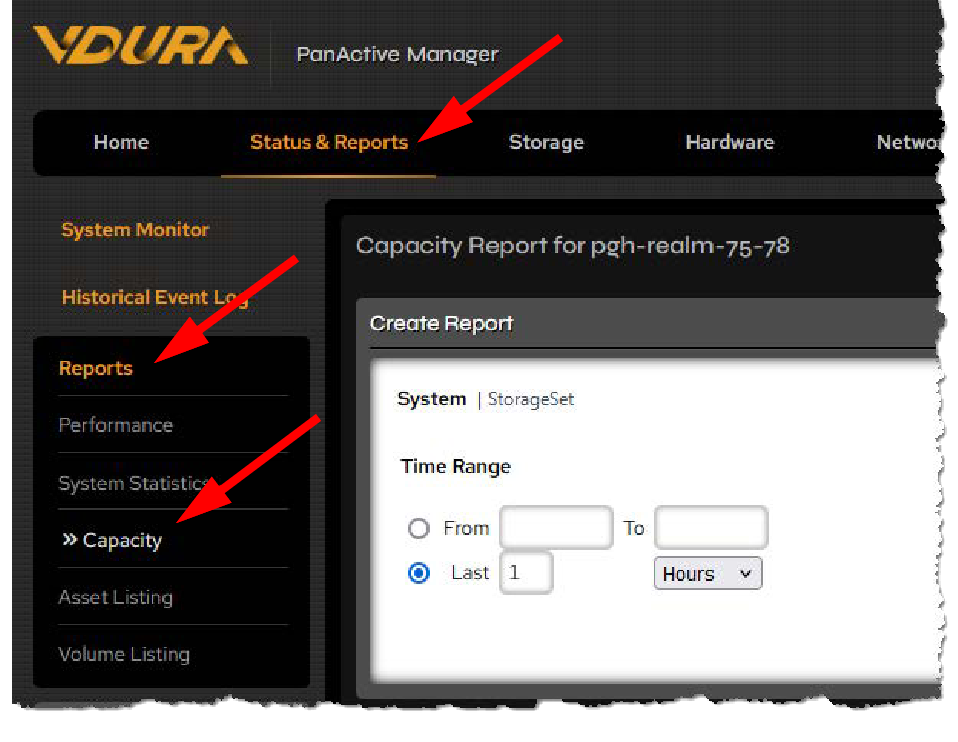 Figure 1-1. Example navigation.
An exception to the navigation rules occurs when a left menu item does not have pages listed under it. Some left menu items have only one page that appears by navigating to tab > left menu item. For example, Status & Reports > Historical Event Log.
NOTE: Clicking a left menu item will by default open the first page in that category. For example, Storage > Volumes > Listing takes you to the same page as Storage > Volumes.
1.2 Additional Resources
1.2.1 Online Help
Online help is available in PanActive Manager in two ways:
- Entire online help contents: From the Welcome page, click the Help link to view the entire online help contents.
- Page-level help: From a particular page in PanActive Manager, click the Help link to view help for that page.
1.2.2 Product Documentation
The full customer documentation set for VDURA products is available at vdura.com/resources/documentation.
1.2.3 Release Notes
Release notes supplement the information in this manual by describing new features, identifying fixed issues, and explaining known problems and their workarounds. Release notes are available at vdura.com/resources/documentation. Be sure to look for the correct version(s) by noting the version number in the release notes file names.
Be sure to examine the release notes before you begin the installation and setup process, as they contain important information.
1.3 Contact VDURA
There are several ways to contact VDURA, depending on your needs:
| Internet | The support.VDURA.com website provides access to submit a service request and track orders online. Support.VDURA.com also offers access to custom software downloads. |
| Technical Support | Get technical support and file service requests using any of these methods: • Telephone—North America: 1-888-726-2727 • Telephone—International: 1.412.323.6439 • Email: technical-support@vdura.com |
| File a Service Request | support.VDURA.com |