
4. Network Access
This chapter describes how to use PanActive Manager to configure and manage network access to your system. It contains the following sections:
- Configure System Settings
- Configure VDURA System Access
- Permissions
- UNIX Name Resolution Services
- SSH Key Management
4.1 Configure System Settings
Network and administrator settings for your VDURA system are initially configured during installation using the Install Wizard. To modify the initial settings, use PanActive Manager or PanCLI. You can reconfigure the following network and administrator settings:
- Administrator Access
- System Name, IP Addresses, and Network Information
- IP Address Ranges for Nodes
- IP Aliases
- Default Routers
- Static Routes
- Subnets
- NIC Configuration
- NTP and Time Zone Settings
- DNS Settings
- DNS Delegation
- Lock Management
- Configure Notification Services
- Configure SNMP
4.1.1 Administrator Access
Click Configuration > Security > Administrator.
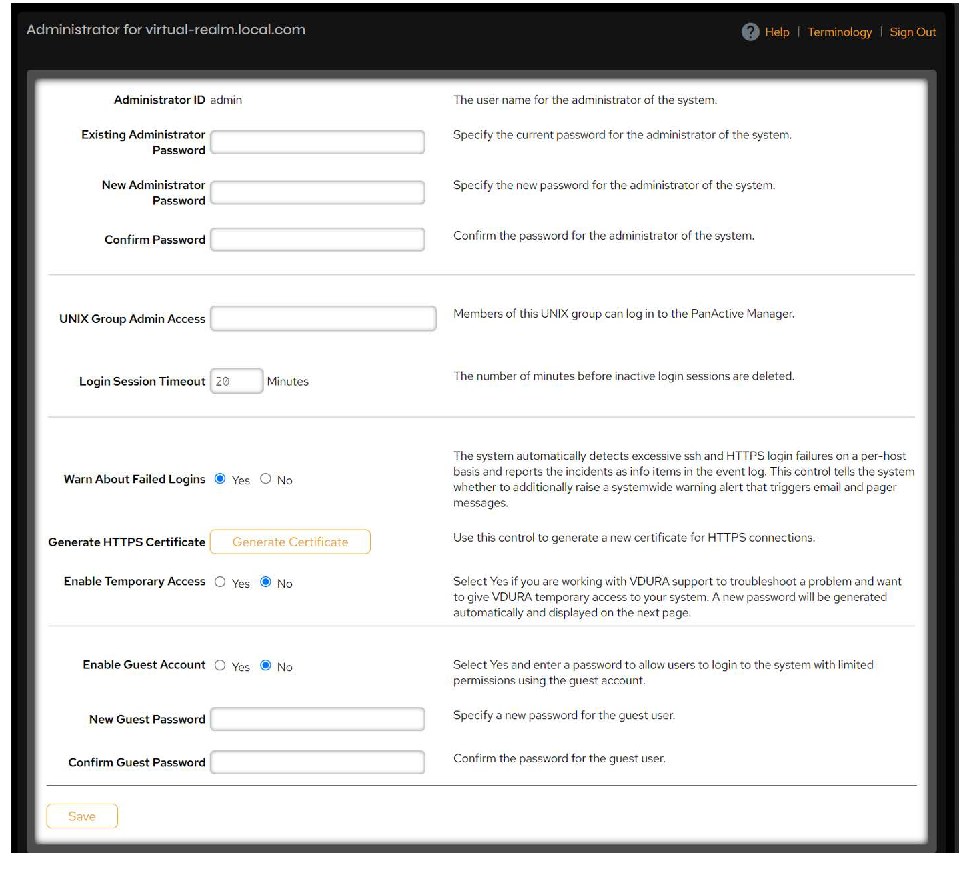 Figure 4-1. Administrator page.
Use the following controls to change administrator settings.
| Control | Description |
|---|---|
| Administrator ID | The user name for the administrator of the VDURA system. The Administrator ID is hard-coded as “admin”. You cannot change this ID. |
| Existing Administrator Password | Enter the existing administrator password. |
| New Administrator Password | Enter the new password. VDURA recommends the administrator password contain at least six characters, with at least one letter and at least one number or symbol. The special characters ?, |, <, >, & are not allowed, nor are empty passwords allowed. |
| Confirm Password | Enter the new administrator password again for confirmation. |
| UNIX Group Admin Access | Members of this UNIX group can log in to PanActive Manager using their UNIX user name and password. If this field is blank, you can only log in using the default administrator ID. |
| Login Session Timeout | The number of minutes before inactive login sessions are deleted. |
| Warn About Failed Logins | The system automatically detects excessive ssh and HTTPS login failures on a per-host basis and reports the incidents as items in the Historical Event Log. When set to Yes, this control tells the system whether to additionally raise a system-wide warning alert that triggers email and pager messages. |
| Generate HTTPS Certificate | Click Generate Certificate to generate a new security certificate for HTTPS access. For more information, see HTTPS Security Certificate. |
| Enable Temporary Access | Select Yes if you are working with VDURA Technical Support to troubleshoot a problem and want to give VDURA temporary access to your system. The temporary user name and password are displayed on the screen when you save your changes. This account is automatically disabled 48 hours after you click Yes. |
| Enable Guest Account | Select Yes, then enter and confirm a password in the New Guest Password and Confirm Guest Password fields, to allow users to log in to the system with limited permissions. For more information, see Guest Accounts. |
Click Save to commit your changes when finished.
NOTE: For information on changing administrator settings with the command-line interface, see the PanCLI admin command in the VDURA PanCLI Reference Guide.
NOTE: For information regarding login failure warnings and security logging, see View Events and Monitor Login Activity with the Historical Event Log.
HTTPS Security Certificate
With the Generate Certificate button, PanActive Manager can generate a security certificate that clients must accept whenever connecting to PanActive Manager via HTTPS. The first time clients connect to PanActive Manager by HTTPS, they are prompted to accept a certificate. The prompt indicates that the certificate was not signed by a trusted issuer and may not be authentic. Users can ignore the warning and safely accept the certificate.
Guest Accounts
Using PanActive Manager, system administrators can provide limited access for specific users by creating a guest account. This account permits read-only access to the system through PanActive Manager and PanCLI. Users assigned a guest account can view data and system configurations, but are not allowed to modify or change system configurations.
4.1.2 System Name, IP Addresses, and Network Information
Click Network > Network Configuration > Summary.
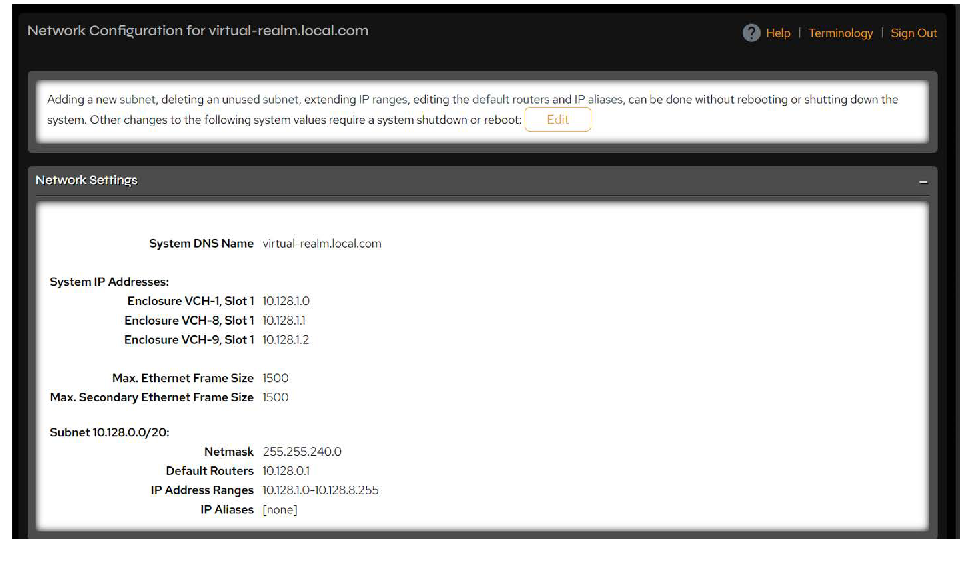 Figure 4-2. Network Configuration page.
Click the Edit button to open the Edit Networking page and revisit the settings that were initially configured using the Install Wizard, as well as other settings.
Changes made using the Edit button require a system shutdown or reboot. Changes to individual configurations are more easily accomplished by going directly to the relevant page. Use the pages under Network Configuration in the left menu instead of the Edit button to make changes directly to those areas without needing to reboot or shut down the system.
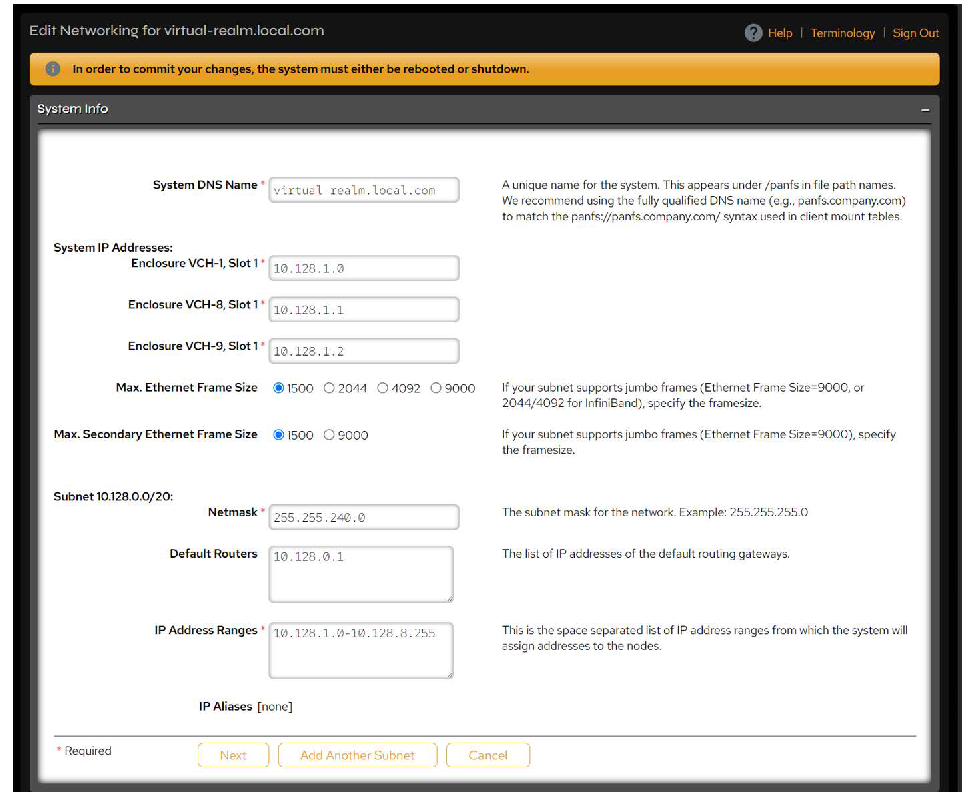 Figure 4-3. Edit Networking page.
Use the following controls to change settings.
| Control | Description |
|---|---|
| System DNS Name | Specify a unique name for the system. This appears under /panfs in file path names. VDURA recommends using the fully qualified DNS name (e.g., panfs.company.com) to match the panfs://panfs.company.com/ syntax used in client mount tables. |
| System IP Addresses Enclosure VCH-1, Slot 1 |
Specify the IP addresses for the system. These are the IP addresses you configured for the first director installed on your system. If you have enabled realm management, a separate System IP Address field is displayed for each director in the system. You must specify an IP address for each director in the realm. See Realm Management for more information. |
| Max. Ethernet Frame Size | If your subnet supports jumbo frames, select a size (1500, 2044, 4092, or 9000). Extending the frame size reduces server overhead and increases data throughput. To enable jumbo frames, you must restart the realm in PanActive Manager. CAUTION: If you enable jumbo frames and there are clients that access the VDURA system across links that do not support jumbo frames, the system will be inaccessible to those clients. |
| Max. Secondary Ethernet Frame Size | This option applies to the secondary interface. If your subnet supports jumbo frames, select a size (1500 or 9000). Extending the frame size reduces server overhead and increases data throughput. To enable jumbo frames, you must restart the realm in PanActive Manager. CAUTION: If you enable jumbo frames and there are clients that access the VDURA system across links that do not support jumbo frames, the system will be inaccessible to those clients. |
| Netmask | Specify the subnet mask for the network. Example: 255.255.255.0 |
| Default Routers | Specify the IP address(es) of the default routing gateway(s). Example: 10.10.10.1 |
| IP Address Ranges | This is the list of IP address ranges from which the system will assign addresses to the nodes. Addresses must be separated by spaces. Example: 10.1.45.11-10.1.45.114 NOTE: PanActive Manager will not allow an IP address that is in use to be removed. Any changes that force a node to get a new IP address will require a system reboot. |
| IP Aliases | If IP aliases have been assigned, they will appear here. Otherwise, the field will display [none]. Radio buttons beneath the IP aliases allow you to keep or clear them. |
NOTE: For information on configuring this information with the command-line interface, see the netconfig PanCLI command in the VDURA PanCLI Reference Guide.
Add or Remove Subnets
To add another subnet, click the Add Another Subnet button, then complete the information for Netmask, Default Routers, and IP Address Ranges for the subnet marked “Subnet ???”.
Click the Remove a Subnet button to remove a subnet. This button only appears when there is more than one subnet.
You can also add a new subnet from the Network > Network Configuration > Subnets page by completing the information for Netmask, Default Routers, and IP Address Ranges, and then clicking Add. If you add a subnet from this page, a system reboot is not required.
DNS, NIS, HTTP, SMTP, and NTP Server Information
Click the Next button to view pending changes and to make additional changes using the following controls.
| Control | Description |
|---|---|
| DNS Domain Names | The text box provides a search list of DNS domain names. Modify as needed. Although a domain name is not required, its absence will prevent use of DNS delegation. |
| DNS Server IP Addresses | Enter IP addresses for DNS servers that the system uses for host name lookups. Although the DNS server is not required, its absence will prevent the use of hostnames for NTP, SMTP, NIS, and secure web proxy servers, as well as DNS delegation. |
| Enable DNS Delegation | Delegation gives control over a subset of the DNS namespace to a DNS server running on the VDURA system. The VDURA system DNS server resolves DNS names for system entities and provides intelligent load balancing. For more information, see DNS Delegation. |
| Zone Name | Specify the root of the DNS namespace being delegated. |
| NIS Domain Name | Specify the Network Information Service (NIS) domain name. |
| NIS Server Name | Specify the NIS server name or IP address. |
| NIS Hostname Resolution | Select Enable or Disable. |
| Secure Web Proxy Server | Specify the name or IP address of a secure web proxy server to be used to make outbound HTTPS requests to VDURA servers if you have chosen to enable PanActive Link. For information about PanActive Link, see Configure PanActive Link. |
| Secure Web Proxy Port | Specify the secure web proxy port number. |
| SMTP Server | Specify the name or IP address of the mail server. |
| Administrator Email | Specify a single email address for the administrator. |
| NTP Servers | Specify a space-separated list of Network Time Protocol (NTP) server names and/or IP addresses. Two or three servers are recommended for redundancy. A list of NTP servers is available at https://tf.nist.gov/tf-cgi/servers.cgi. For a randomly chosen public server, specify “pool.ntp.org”. If no NTP servers are specified, local timing takes over. One Director is automatically chosen to operate as a stratum 0 time source for the system. |
To implement the changes, click the Commit Changes button. In order to commit your changes, the system must either be rebooted or shutdown.
4.1.3 IP Address Ranges for Nodes
The VDURA system uses DHCP to assign IP addresses to nodes within the system. As your system grows or network infrastructure changes, you can use PanActive Manager to add or modify the address ranges assigned to nodes.
NOTE: The VDURA system’s DHCP server listens on a non-standard port number and assigns IP addresses only to nodes on the system. It will not conflict with any other DHCP server that might be running on your network.
Click Network > Network Configuration > IP Ranges.
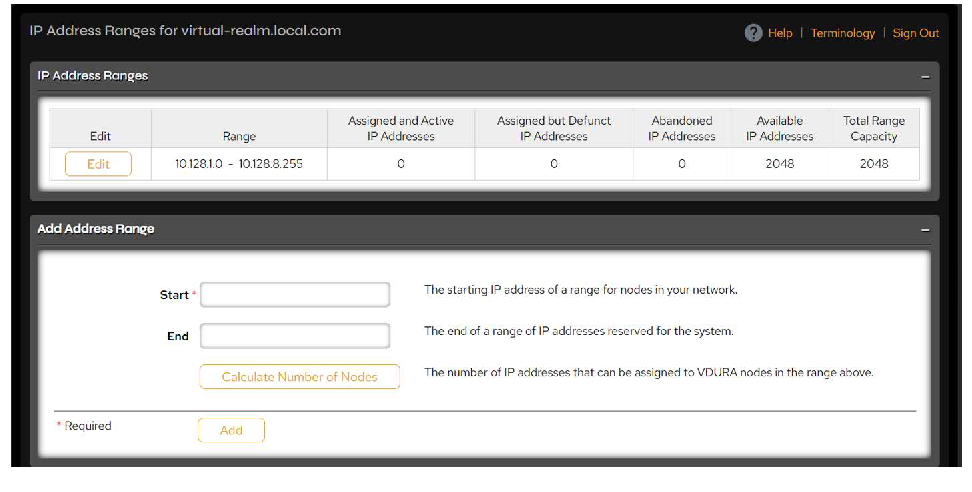 Figure 4-4. IP Address Ranges page.
To add a range of IP addresses, complete the Add Address Range fields and click Add.
| Field | Description |
|---|---|
| Start | Specify the start of a range of IP addresses for the VDURA system. VDURA recommends that you assign the VDURA system its own IP subnet with at least as many available addresses as the maximum predicted number of nodes in the storage system. By default, the Start address is the address that you entered when you configured the first director. |
| End | Specify the end of a range of IP addresses for the VDURA system. The End address indicates the last address in a block of IP addresses that you preassign for the VDURA system. Make sure that you plan for growth in the system. For example, if your system will include 100 nodes, your start IP address would be 10.10.10.2 and the end IP address would be 10.10.10.102. If the end address is not specified, only one IP address is added to the range. |
| Calculate Number of Nodes | Click the Calculate Number of Nodes button to have PanActive Manager count the number of IP addresses in the new address range before you add it to your system configuration. |
To edit IP ranges, click the Edit button and either edit, split, or delete an existing IP address range. All nodes using addresses within the selected range are displayed, along with MAC addresses, assigned IP addresses, and expiration dates. Click Submit to implement the changes.
Be sure not to overlap your existing IP range, as this will produce an error.
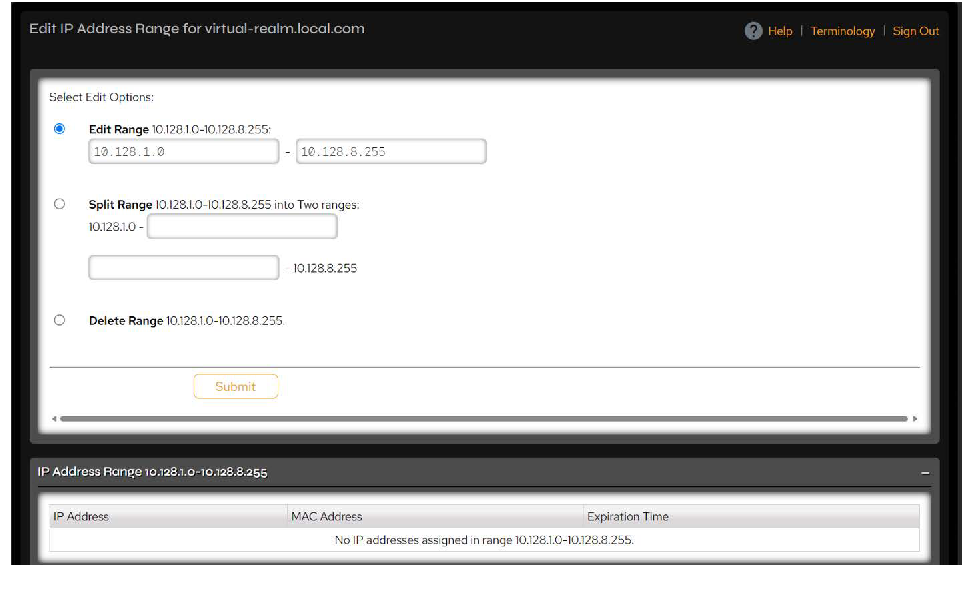 Figure 4-5. Edit IP Address Range page.
NOTE: For information on changing these settings with the command-line interface, see the netconfig PanCLI command in the VDURA PanCLI Reference Guide.
4.1.4 IP Aliases
Use IP aliasing to assign multiple IP addresses on different subnets to the same network interfaces on the Directors. Remote clients on different subnets can then access the Director. This address range can be configured on the primary or secondary network. See IP Alias Failover.
NOTE: Name resolution for ACLs assigned to files and directories that are accessed from the secondary network will fail if a subset of the Directors that manage volumes are not directly connected to the secondary network.
Please check the VDURA V5000 Certified Platform Installation and Service Guide, available at vdura.com/resources/documentation, for more details on how to configure IP aliases.
Add an IP Alias
Click Network > Network Configuration > IP Aliases.
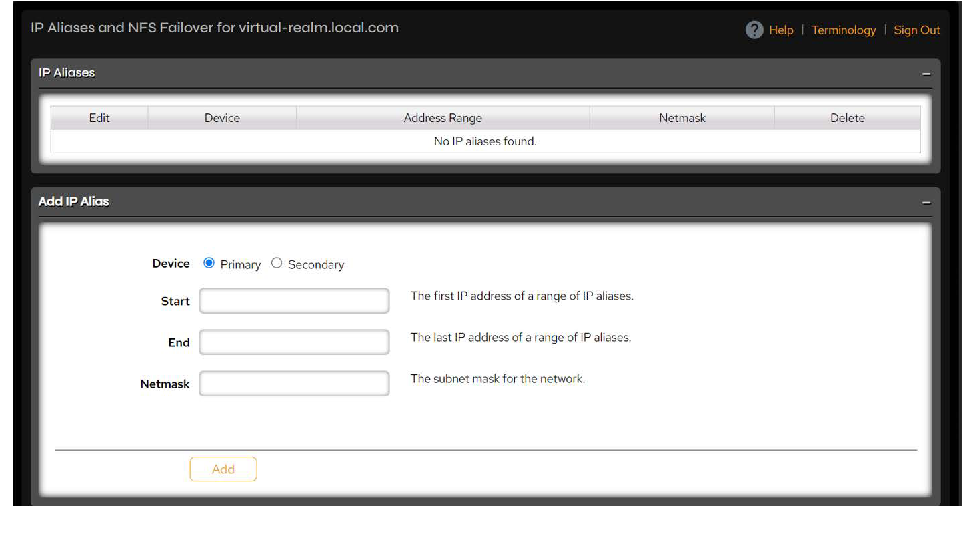 Figure 4-6. IP Aliases and NFS Failover page.
NOTE: The title of this page refers to NFS failover. CIFS and NFS have been deprecated in PanFS as of 12.0.0.
To add primary or secondary IP aliases, select the Device (Primary or Secondary) and use the fields provided to specify the start and end of the IP range. If the End field is left blank, the system will assume that there is only one IP address in the range.
Enter the netmask and click Add to save the changes. A message will appear at the top of the page confirming that the IP alias was successfully added.
Edit an IP Alias
If you wish to modify existing IP aliases, click the Edit button next to the range to modify the configuration. Click Submit to save the new configuration.
Delete an IP Alias
To delete IP aliases, click the Delete button. A message will appear at the top of the page confirming that the IP alias was successfully deleted.
IP Alias Failover
IP alias failover can prevent clients from hanging indefinitely when the IP address they have mounted becomes unavailable due to the failure of a Director. If IP alias failover is configured, detection of a Director failure will automatically cause the system to reassign the IP aliases previously assigned to that Director to other Directors in the system. After the IP address is reassigned, clients can reestablish their connections to the new Director handling that address.
To use IP alias failover, the administrator must configure an additional range of IP addresses described in IP Aliases. The additional range can also be configured using the netconfig alias command in PanCLI.
Although access is still available through addresses in the PanDHCP-managed primary address range(s) typically used for DirectFlow and management access, these PanDHCP-managed IP addresses are not failed over in the event of a Director failure. Clients that have mounted a PanDHCP-managed primary address will hang if the Director to which that address is assigned crashes or fails.
4.1.5 Default Routers
Click Network > Network Configuration > Default Routers to change or add IP addresses to the default routing gateways.
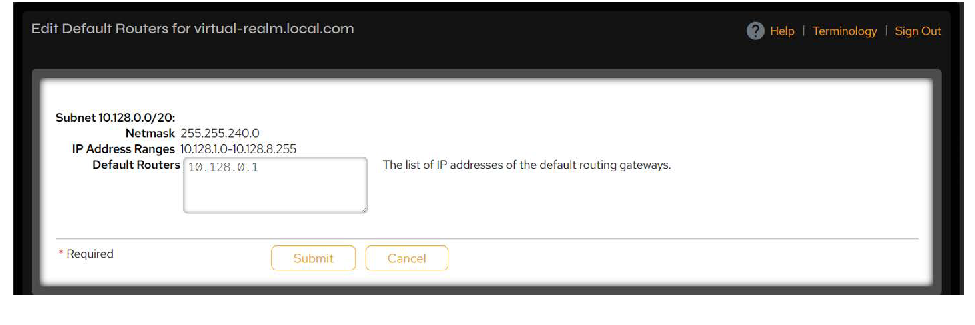 Figure 4-7. Edit Default Routers page.
Add or change IP address(es) in the Default Routers text box for the appropriate subnet, then click Submit to save your changes.
4.1.6 Static Routes
Static routes allow manual manipulation of the routing table. You can use this option to add or delete a route or to connect to remote networks.
Click Network > Network Configuration > Static Routes.
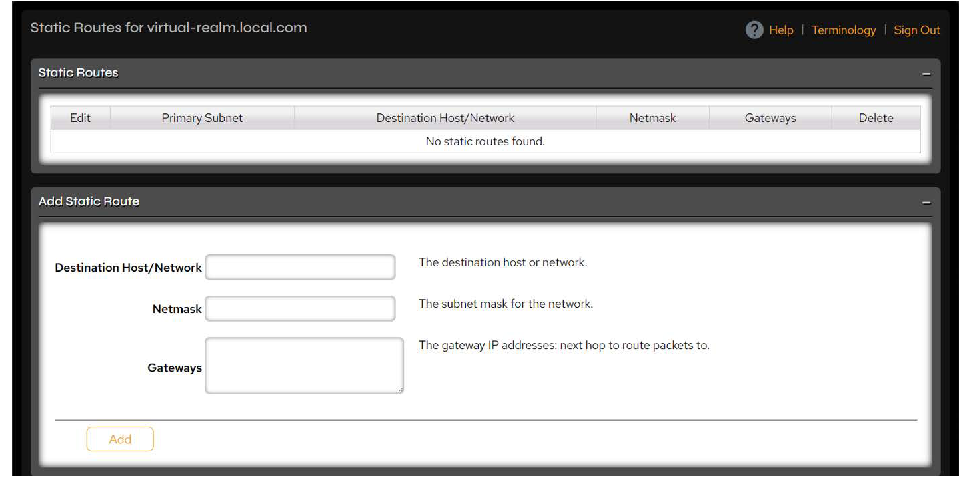 Figure 4-8. Static Routes page.
To add a new static route, complete the Destination Host/Network, Netmask, and Gateways fields and click Add. To edit an existing static route, click the Edit button next to the static route you want to change, make your changes, and click Submit.
NOTE: For information on configuring this information with the command-line interface, see the netconfig staticroute PanCLI command in the VDURA PanCLI Reference Guide.
4.1.7 Subnets
Click Network > Network Configuration > Subnets.
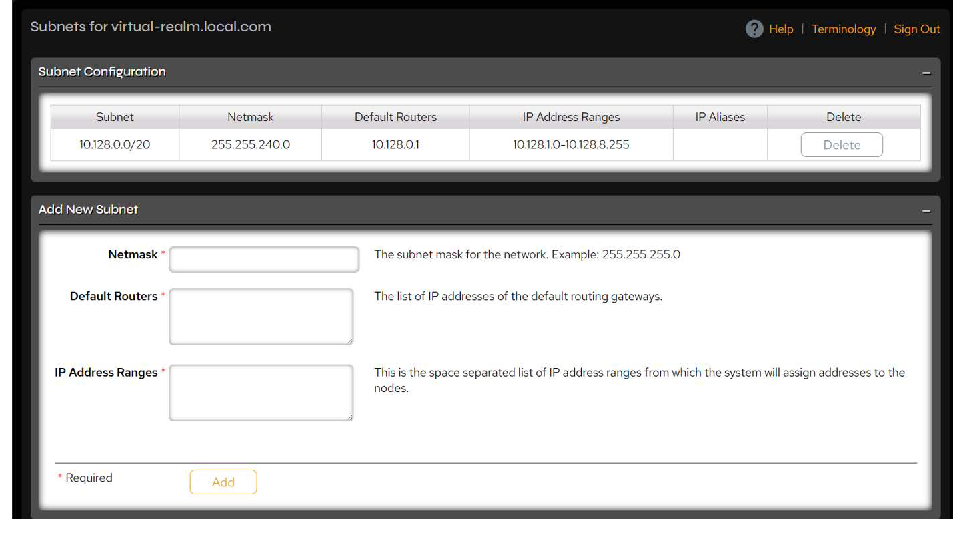 Figure 4-9. Subnets page.
Add a Subnet
To add a subnet, complete the information required in the following fields.
| Control | Description |
|---|---|
| Netmask | Specify the subnet mask for the network. Example: 255.255.255.0 |
| Default Routers | Specify the IP address(es) of the default routing gateway(s). Example: 10.10.10.1 |
| IP Address Ranges | Specify a space separated list of IP address ranges from which the system will assign addresses to the nodes. Example: 10.1.45.11-10.1.45.114 |
When finished, click Add. The realm does not require a reboot when adding a new subnet from this page.
Delete a Subnet
To delete a subnet, click the Delete button next to the subnet to be removed in the Subnet Configuration table.
4.1.8 NIC Configuration
Use the NIC Configuration page to configure the network interfaces of an enclosure. Select the enclosure, make your changes, and click Save Configuration or click Cancel to discard them.
Click Network > Network Configuration > NIC Configuration.
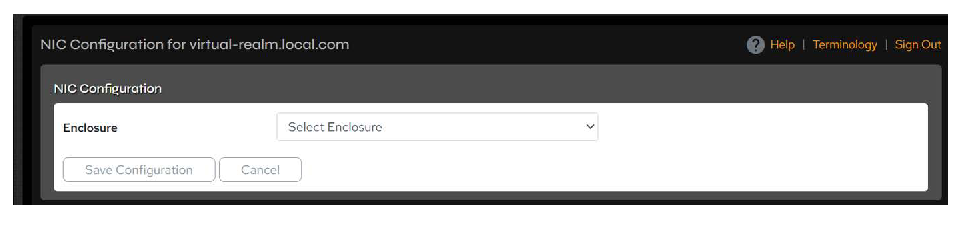 Figure 4-10. NIC Configuration page.
4.1.9 NTP and Time Zone Settings
The VDURA system can access Network Time Protocol (NTP) servers to synchronize its time setting with other systems. Because system operation requires an NTP server, in the absence of an external NTP server, one Director will be automatically chosen to operate as a stratum 0 time source for the system. To intentionally implement “local timing”, leave the NTP server field blank to allow a Director to automatically be chosen. Do not enter the IP address of a specific Director.
NOTE: When configuring NTP, be aware that NTP server time on a client and the VDURA system must be no more than ten minutes apart, and that closer is better.
NOTE: For information on changing this setting with the command-line interface, see the ntp PanCLI command in the VDURA PanCLI Reference Guide.
Click Network > NTP & Time Zone.
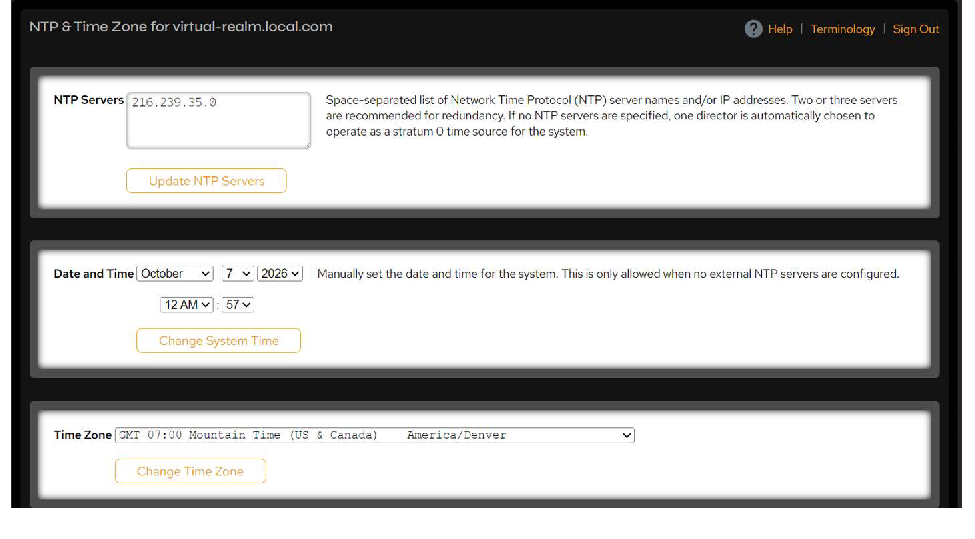 Figure 4-11. NTP & Time Zone page.
Use the following controls to change time settings.
| Control | Description |
|---|---|
| NTP Servers | Specify a space-separated list of Network Time Protocol (NTP) server names and/or IP addresses. Two or three servers are recommended for redundancy. A list of NTP servers is available at https://tf.nist.gov/tf-cgi/servers.cgi. For a randomly chosen public server, specify pool.ntp.org. If no NTP servers are specified, local timing takes over. One Director is automatically chosen to operate as a stratum 0 time source for the system. To implement local timing, leave the NTP server field blank and a director will automatically be chosen. Do not enter the IP address of a specific Director. Click the Update NTP Servers button to save the server list. |
| Date and Time | Manually set the date and time using the drop-down menus provided. Use the manual date and time setting only if there is no external NTP server available. Click the Change System Time button to save your changes. |
| Time Zone | Specify the time zone for your network clock. Click the Change Time Zone button to save your changes. |
4.1.10 DNS Settings
The VDURA system uses the standard Domain Name Server (DNS) protocol to map names to IP addresses and vice versa. Although you are not required to configure DNS server information for your VDURA system, not doing so prevents the use of hostnames for NTP, SMTP, NIS, and HTTP proxy servers, as well as preventing the use of DNS delegation.
A maximum of three DNS server IP addresses is supported.
NOTE: For information on changing these settings with the command-line interface, see the dns PanCLI command in the VDURA PanCLI Reference Guide.
Valid System and DNS Names
Valid DNS names are currently defined as:
- containing a maximum of 255 characters.
- composed of one or more nonempty DNS components separated by “.” characters. A DNS component is defined as:
- having a maximum of 63 characters.
- using ASCII characters (rule imposed by RM).
- not using the following characters:
/ @ , . " < > \t \n \r
Change DNS Settings
Click Network > DNS.
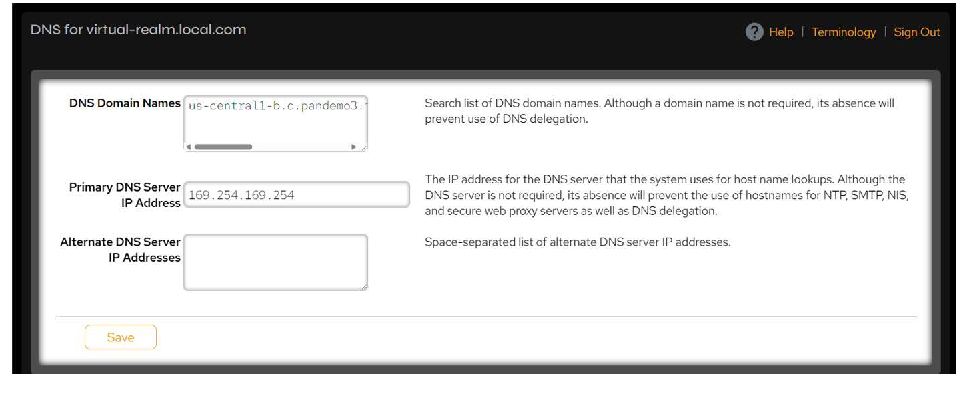 Figure 4-12. DNS page.
Use the following controls to modify DNS settings, then click Save when finished.
| Control | Description |
|---|---|
| DNS Domain Names | Specify a space-separated list of domain names to search. Although a domain name is not required, its absence will prevent use of DNS delegation. Example: mycompany.com example.com |
| Primary DNS Server IP Address | Specify the IP address for the DNS server that the system uses for host name lookups. Although the DNS server is not required, its absence will prevent the use of hostnames for NTP, SMTP, NIS, and secure web proxy servers, as well as DNS delegation. Example: 10.10.10.1 |
| Alternate DNS Server IP Addresses | Specify a space-separated list of alternate IP addresses for DNS servers that the system can use for host name lookups. The order you specify sets the order in which servers are consulted for lookups. You can specify up to two IP addresses. Example: 10.10.10.2 10.10.10.3 |
4.1.11 DNS Delegation
DNS delegation allows the VDURA system to serve as a DNS server, resolving DNS names for devices and services in your system. Enabling DNS delegation provides several benefits:
- When IP aliases and dynamic DNS are configured, DDNS distributes mounts over all IP aliases. Those addresses transfer transparently from a failed Director to another Director. When IP aliases are not configured, DDNS distributes mounts over all of the service addresses. Please check the VDURA V5000 Certified Platform Installation and Service Guide, available at vdura.com/resources/documentation, for more details on how to configure IP aliases and Configure the DNS Server with DNS Delegation Enabled, for information on configuring DNS to allow DDNS updates.
- Changes to your system (for example, adding more Directors) require no changes to your site’s DNS servers or clients that access the system, unless you change the address of one or more repset members.
Some sites have policies restricting DNS delegation. If DNS delegation is not available at your site, you can disable the DNS delegation feature. However, doing so then requires you to manually reconfigure your DNS server when you add, remove, or reconfigure directors in your system.
The DNS delegation option you select determines the proper configuration of your site’s DNS server(s) and the clients that access the system. Remember that changing the DNS delegation settings on the VDURA system also requires changes to your site’s DNS server configuration and potentially the clients that access the system. Improper DNS server or client configuration can significantly decrease the performance of your VDURA system.
NOTE: For information on changing DNS delegation settings with the command-line interface, see the dns PanCLI command in the VDURA PanCLI Reference Guide.
Enable DNS Delegation
Enabling DNS delegation on the VDURA system makes the system responsible for a sub-zone of your domain. Typically, the sub-zone should be your VDURA system name followed by the local domain name (for example, system.mycompany.com). Properly configuring the environment involves the following steps:
- Enable DNS delegation on the VDURA system and specify the name of the sub-zone for which it is responsible.
- Configure the authoritative DNS server for the zone containing the system to delegate responsibility of the sub-zone to the system.
- Configure clients of the VDURA system to access the system appropriately.
Enable DNS Delegation on the VDURA System
Prior to this step, follow the instructions in DNS Settings to properly configure your DNS settings. Be sure that the first entry in DNS Domain Names is the name of the zone in which the system is installed (for example, mycompany.com) and that the primary DNS server IP address is the IP address of the authoritative DNS server for the zone
Click Network > DNS > DNS Delegation.
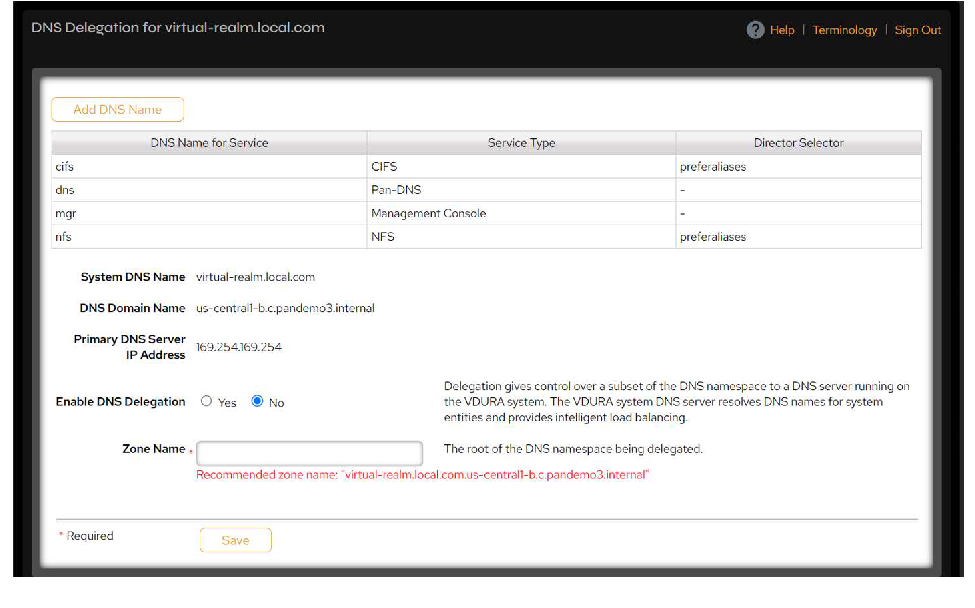 Figure 4-13. DNS Delegation page.
NOTE: The DNS service table on this page lists default cifs and nfs entries. You do not need to use or modify these entries. CIFS and NFS have been deprecated in PanFS as of 12.0.0.
In the Zone Name field, enter the name of the DNS zone you want to delegate to the system. Typically, this should be your VDURA system name followed by the local domain name (for example, system.mycompany.com). The system will typically suggest a zone name. When finished, click Save.
Next, add a DNS service. Click the Add DNS Name button at the top of the page to open the Add DNS Service page.
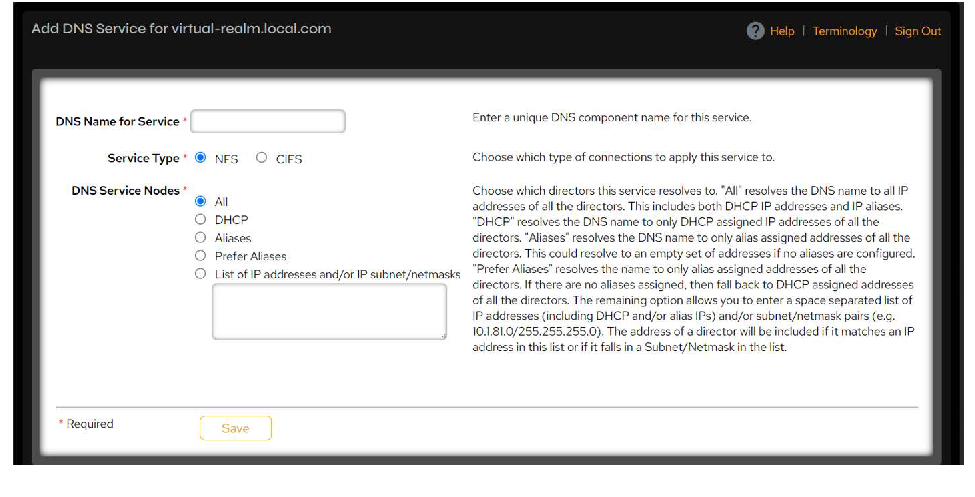 Figure 4-14. Add DNS Service page.
NOTE: The Service Type options on this page include NFS and CIFS. CIFS and NFS have been deprecated in PanFS as of 12.0.0.
Use the following controls to add a DNS service, then click Save when finished.
| Control | Description |
|---|---|
| DNS Name for Service | Enter a unique DNS component name for this service. |
| Service Type | Choose which type of connections to apply this service to: NFS or CIFS. CIFS and NFS have been deprecated in PanFS as of 12.0.0. |
| DNS Service Nodes | Choose which directors this service resolves to: • All: Resolves the DNS name to all IP addresses of all Directors. This includes both DHCP IP addresses and IP aliases. • DHCP: Resolves the DNS name only to DHCP-assigned IP addresses of all Directors. • Aliases: Resolves the DNS name only to alias-assigned addresses of all Directors. This could resolve to an empty set of addresses if no aliases are configured. • Prefer Aliases: Resolves the name only to alias-assigned addresses of all Directors. If no aliases assigned, then fall back to DHCP-assigned addresses of all Directors. • The remaining option allows you to enter a space separated list of IP addresses (including DHCP and/or alias IPs) and/or subnet/netmask pairs (e.g., 10.1.81.0/255.255.255.0). The address of a Director will be included if it matches an IP address in this list or if it falls in a subnet/netmask in the list. |
Configure the DNS Server with DNS Delegation Enabled
The next step is to configure the DNS server to delegate responsibility for the specified sub-zone. The examples in this section assume that you are using the BIND DNS server.
- In the DNS server’s configuration file, add an NS record to delegate the zone, and an A record to specify the address of the VDURA system.
- You must precede the system name with ns. when configuring the NS and A records for the system. The ns. service name identifies the single Director in the system running the DNS service. The system name itself can resolve to multiple Directors if you have enabled realm management, providing transparent load balancing of system services.
- VDURA suggests a value of 86,400 seconds (1 day) as the Time to Live (TTL) value, but you can adjust the value in accordance with your local policies.
Example DNS configuration lines may look like the following:
system    86400 IN NS ns.system.mycompany.com
ns.system 86400 IN A  10.1.1.11
With realm management configured, system DNS resolution services can transfer transparently from a failed Director to another Director in the system. (See Realm Management for more information.) However, this feature also requires you to configure your DNS server to allow Dynamic DNS Updates (DDNS) from the VDURA system. You can do so by either allowing updates from the system’s entire subnet or by allowing updates explicitly from all Directors in the system. For example, to allow updates from all Directors in the 10.1.1.0 subnet:
zone "mycompany.com" in {
    type master;
    file "db.mycompany";
    allow-update {
        10.1.1/24;
    };
};
If you decide not to enable DDNS, and the Director hosting the DNS delegation service fails, you must reconfigure your DNS server to delegate your system’s sub-zone to the IP address of the Director now hosting the DNS delegation service. Until you reconfigure your DNS server, existing client mounts may continue to work, but new clients will not be able to mount system volumes.
When finished, reload your DNS server with the new configuration information. Use kill -HUP, rndc reload, or whatever is appropriate for your DNS server.
Configure Clients to Access the System with DNS Delegation Enabled
DirectFlow clients should use the system name in their mount point specifications, not the system’s IP address. For example, the mount entry in /etc/fstab should be of the form:
panfs://system.mycompany.com:global /panfs panfs ...instead of the form:
panfs://10.1.1.11:global /panfs panfs ...Delete a DNS Name
On the Network > DNS > DNS Delegation page, click the Delete button in the row of the DNS name you want to delete.
You can only delete a DNS name that was previously manually added. The default named DNS services are not deletable and will never display a delete button.
Disable DNS Delegation
Disabling DNS delegation on the VDURA system means either that your site’s DNS server must take responsibility for resolving names when accessing the system, or that you must hard-code system IP addresses in your client configurations. Properly configuring the environment requires the following steps:
- Disable DNS delegation on the VDURA system.
- Configure the authoritative DNS server for the zone containing the system to resolve system names for client access.
- Configure clients of your VDURA system to access the system appropriately.
Detailed steps are provided below.
Disable DNS Delegation on the VDURA System
On the Network > DNS > DNS Delegation page, select the No radio button next to Enable DNS Delegation, then click Save.
Configure the DNS Server with DNS Delegation Disabled
Configure your DNS server to resolve system names for client access. The examples in this section assume that you are using the BIND DNS server.
In the DNS server’s configuration file, add an A record to specify the address of the VDURA system. If you have enabled realm management, you can add an A record for each Director in the system. With this configuration, you can still access system services if a system Director fails. VDURA suggests a value of 86,400 seconds (1 day) as the Time to Live (TTL) value, but you can adjust the value in accordance with your local policies. For example:
system    86400 IN A  10.1.1.11
system    86400 IN A  10.1.1.12
system    86400 IN A  10.1.1.13
If you configure your DNS server with multiple A records for realm Directors, you must manually update the DNS server configuration when you add or remove Directors from the realm or if the IP address of a realm Director changes.
When finished, reload your DNS server with the new configuration information. Use kill -HUP, rndc reload, or whatever is appropriate for your DNS server.
Configure Clients to Access the System with DNS Delegation Disabled
How you access system volumes depends on the type of client and how you configured your site’s DNS server.
DirectFlow clients should do one of the following:
Mount the system using its DNS name. For example, the mount entry in /etc/fstab should be of the form:
panfs://system.mycompany.com:global /panfs panfs ...If you are not using DNS, you must use the system’s IP address. For example:
panfs://10.1.1.11:global /panfs panfs ...If you are not using DNS and the VDURA system has realm management enabled, you can use the rmlist mount option to specify the IP addresses of all Directors in the realm. For example:
panfs://10.1.1.11:global /panfs panfs rw,noauto,
rmlist=(10.1.1.11;10.1.1.12;10.1.1.13)  0  0
4.1.12 Lock Management
Shared files can be read by multiple users, but are locked for writes to only one user at a time. Normally, when a client machine shuts down gracefully, all file locks are released. However, if the client panics or shuts down ungracefully, the locks may not release properly. To break a file lock using PanActive Manager, thus making it available for write by another user, follow the process below.
Click Advanced Tools > Lock Management. Any locked files will appear in the Lock Management table.
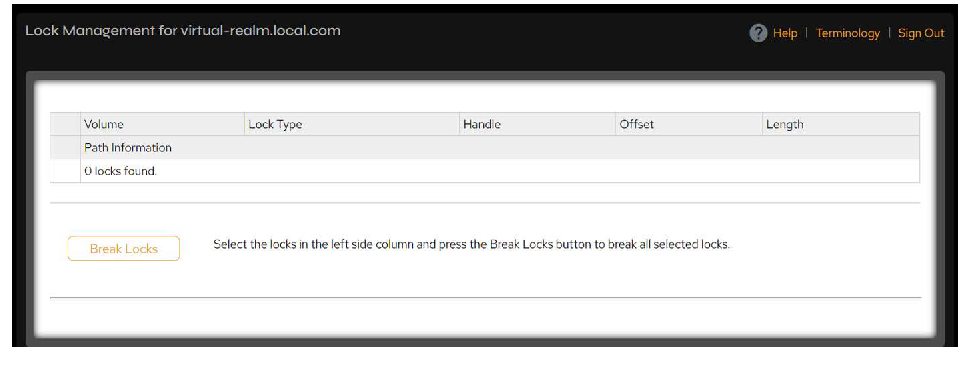 Figure 4-15. Lock Management page.
This page provides information about the system’s locked files.
| Column | Description |
|---|---|
| Volume/path | Volume and path (where known) to the locked file. |
| Lock Type | Either byte_lock read or byte_lock write. |
| Handle | Name of the locked file. |
| Offset | Part of the file that is locked. |
| Length | Number of bytes between the offset and the end of the file. |
Put a check in the boxes next to the files you want to unlock and click the Break Locks button.
4.1.13 Configure Notification Services
The VDURA system creates alerts with two levels of priority and provides several ways to view them. Critical alerts generate if system availability or data integrity is at imminent risk, while Warning alerts generate when there is a developing problem that might lead to impairment of system availability or data integrity. You can configure PanActive Manager to send email and/or pager notifications to users for these alerts, as well as notify VDURA Technical Support. Periodic status emails can also be configured that provide text data for parsing. Aside from email, alert data can be sent to a remote syslogging facility (see Set Remote Syslog Collectors and Facility). The system keeps an event history that can be reviewed and exported by the system administrator (See View Events).
IMPORTANT: All email notifications require access to an SMTP mail server.
NOTE: For information on changing these settings with the command-line interface, see the notify PanCLI command in the VDURA PanCLI Reference Guide.
Configure Email (SMTP Server) Settings
Click Configuration > Notification > Email Settings.
The Recent Email Events table at the top of the page lists recent email notification events, with columns for event category, code, time, user name, component, type, node serial, enclosure, hardware serial, IP address, StorageSet, volume service, and volume.
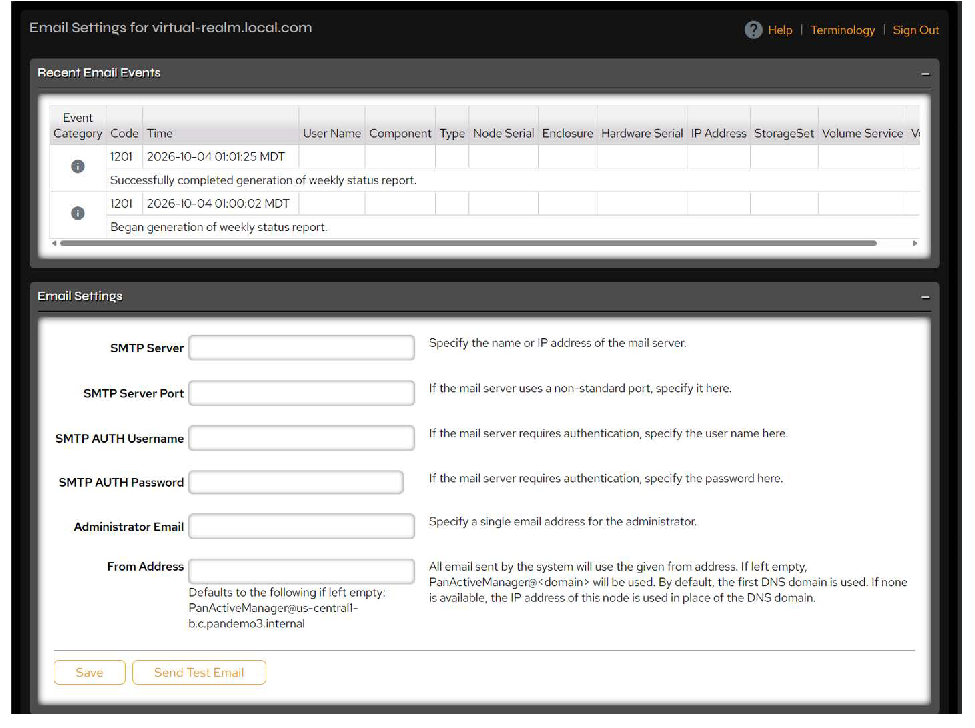 Figure 4-16. Email Settings page.
Use the following controls to configure the SMTP server and administrator email address:
| Control | Description |
|---|---|
| SMTP Server | Specify the name or IP address of the mail server. The system uses the Simple Mail Transport Protocol (SMTP) to send mail about problems it encounters. For example: mail.yournetwork.com. Note: The VDURA system does not use an internal SMTP server. Depending on your SMTP server, you may need to update your SMTP server to accept email requests coming from repset IP addresses. |
| SMTP Server Port | If the mail server uses a non-standard port, specify it here. |
| SMTP AUTH Username | If the mail server requires authentication, specify the user name here. |
| SMTP AUTH Password | If the mail server requires authentication, specify the password here. |
| Administrator Email | Specify a single system administrator’s email address, including the full domain name. For example: joe@yournetwork.com. If left blank, your Administrator ID forms the first part of the email address. For example: admin@yournetwork.com. |
| From Address | All email sent by the system will use the given “From” address. If left empty, PanActiveManager@<domain> will be used. By default, the first DNS domain is used. If none is available, the IP address of this node is used in place of the DNS domain. |
When finished, click Save, then click Send Test Email to confirm the settings.
NOTE: Whenever you add or remove a node from the replication set, make sure the SMTP server configuration is updated to allow email requests from the new repset IP address list.
Set Alert Recipients
You can configure PanActive Manager to email event notices to network administrators.
Click Configuration > Notification > PanActive Alerts.
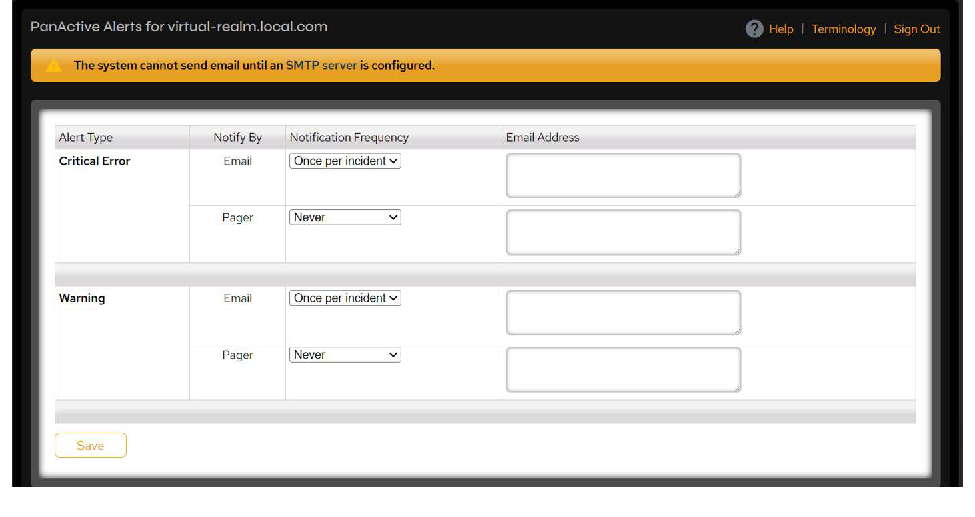 Figure 4-17. PanActive Alerts page.
Use the controls to add alerts and alert recipients to the notification list.
| Control | Description |
|---|---|
| Alert Type | • Critical Error: Errors are critical if system availability or data integrity is at imminent risk. • Warning: Warnings indicate a developing problem that might lead to impairment of system availability or data integrity. |
| Notify By | Select Email or Pager (an email address configured for paging). |
| Notification Frequency | Select Once per incident, Once a day, Once an hour, Every 5 minutes, or Never. |
| Email Address | A comma-separated list of recipients. For example: admin@vdura.com, syslist@vdura.com. |
When finished, click Save.
Set Status Recipients
You can configure PanActive Manager to email periodic status reports with information about StorageSets, volumes, nodes, and gateway performance to network administrators.
Click Configuration > Notification > Periodic Status Email.
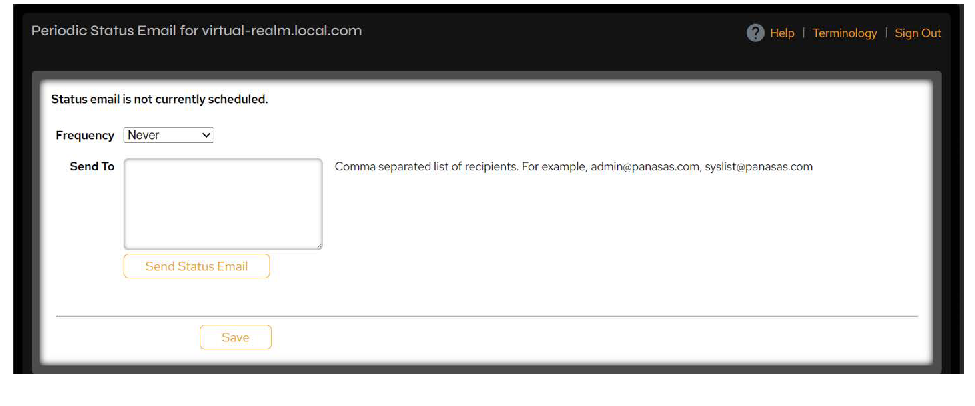 Figure 4-18. Periodic Status Email page.
Use the following controls to configure the frequency of status emails and add recipients to the notification list.
| Control | Description |
|---|---|
| Frequency | Select Once a week, Once a day, Once an hour, or Never. |
| Send To | A comma-separated list of recipients email addresses. For example: admin@yourcompany.com, syslist@yourcompany.com. |
| Send Status Email | Click Send Status Email to send a status email immediately to all listed recipients. |
When finished, click Save.
Warn About AWOL Clients
PanActive Manager automatically detects the failure of clients to respond and reports those failures in the Historical Event Log. However, you can also customize the notifications to additionally raise a system-wide alert that triggers email and pager messages when clients do not respond.
Click Configuration > Notification > Customize Warnings and select the Yes radio button next to Warn about AWOL Clients.
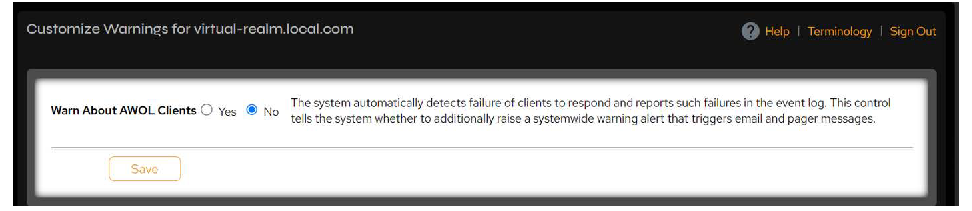 Figure 4-19. Customize Warnings page.
When finished, click Save.
Set Remote Syslog Collectors and Facility
Alerts in the Historical Event Log can be sent to remote syslog collectors.
Click Configuration > Notification > Remote Syslog.
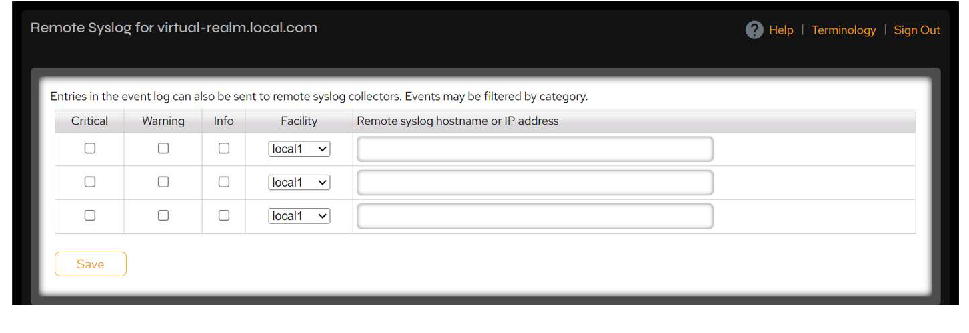 Figure 4-20. Remote Syslog page.
Use the following controls to configure which entries in the Historical Event Log to send to the remote syslog collectors:
| Control | Description |
|---|---|
| Alert Criteria | Place a check in the boxes beneath the type of alert data you want to be sent: • Critical: Errors are critical if system availability or data integrity is at imminent risk. • Warning: Warnings indicate a developing problem that might lead to impairment of system availability or data integrity. • Info: Informational messages about the system. If no boxes are checked, the remote syslog collector will be unfiltered, and all events in the Historical Event Log will be sent to that host. |
| Facility | Select the facility from the list (auth, authpriv, console, cron, daemon, ftp, kern, lpr, mail, news, ntp, security, syslog, user, uucp, or local0 through local7). The default facility is local1. |
| Remote Syslog Hostname or IP Address | Specify the hostname or IP address of the remote syslog collector. If the host is already listed, the facility and event categories for this host will be updated. If the host is not already listed, it is added, along with the specified facility and event categories. |
When finished, click Save.
If you are using either rsyslogd(8) on a Linux system or syslogd(8) on a Linux or other Unix-like system, you should include the following configuration in your /etc/rsyslog.conf (or /etc/syslog.conf, as appropriate) file:
local1.* /var/log/panasas.logIf you do not specify a facility, the system will use the default local1. You may choose a different file name for logging for your environment, if needed. For backwards compatibility with syslog(8), ensure that the specified log file exists and is writable by the user under which the rsyslogd/syslogd daemon runs.
If you are using some other logging solution that understands how to consume and process syslog data, you must specify some valid disposition for syslog data sent for the local1 facility.
Configure PanActive Link
When enabled, PanActive Link allows the system to contact VDURA Technical Support engineers to assist in monitoring and maintaining your VDURA system. Enabling PanActive Link also facilitates software updates, provides up-to-date system information and error reports, and ensures optimal system performance, up-time, and reliability.
NOTE: If the system is behind a firewall, you may need to specify a web proxy host and port.
PanActive Link can be configured for email with or without HTTPS functionality. Depending upon how it is configured, PanActive Link will contact VDURA for the following reasons:
- By email:
- Send alert (error/warning) emails in batches every five minutes.
- Send stack trace email when a crash is detected.
- Send weekly status emails.
- By HTTPS:
- Fetch the latest available upgrade information (currently not available).
- Download software images (currently not available).
NOTE: These HTTPS features are currently not available: the system cannot download from VDURA. Download software from support.VDURA.com instead.
Click Configuration > Notification > PanActive Link.
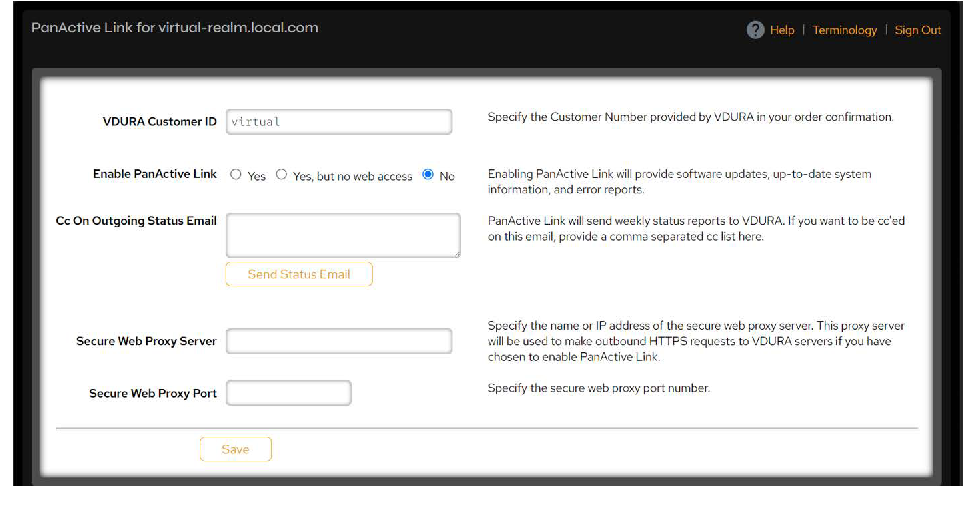 Figure 4-21. PanActive Link page.
Use the following controls to configure PanActive Link.
| Control | Description |
|---|---|
| VDURA Customer ID | Specify the Customer ID number provided by VDURA in your order confirmation. You can find your customer ID by clicking the About link in the upper right corner of each PanActive Manager page. |
| Enable PanActive Link | • Yes: Enable PanActive Link support (both email and web). • Yes, but no web access: Enable PanActive Link support (email only). • No: Do not enable PanActive Link. |
| Cc On Outgoing Status Email | PanActive Link will send weekly status reports to VDURA. To be cc’ed on this email, provide a comma separated cc list here. |
| Secure Web Proxy Server | Specify the name or IP address of the secure web proxy server. This proxy server is used to make outbound HTTPS requests to VDURA servers if you have chosen to enable PanActive Link with web access. |
| Secure Web Proxy Port | Specify the secure web proxy port number. |
When finished, click Save.
4.1.14 Configure SNMP
Simple Network Management Protocol (SNMP) is a UDP-based network protocol management system. VDURA currently supports SNMP v1. In the VDURA system, this protocol provides a means to monitor and control network devices and to manage configurations, statistics collection, performance, and security. Administrators can use PanActive Manager to change SNMP settings or define new traps, which are notifications that report events to the SNMP manager with a specified message.
The target for SNMP queries should be the mconsole node. The mconsole node can be identified by issuing the PanCLI command syscontrol realmmgr and looking for the mconsole service running on one of the replication set members.
To enable SNMP on the system, click Configuration > SNMP.
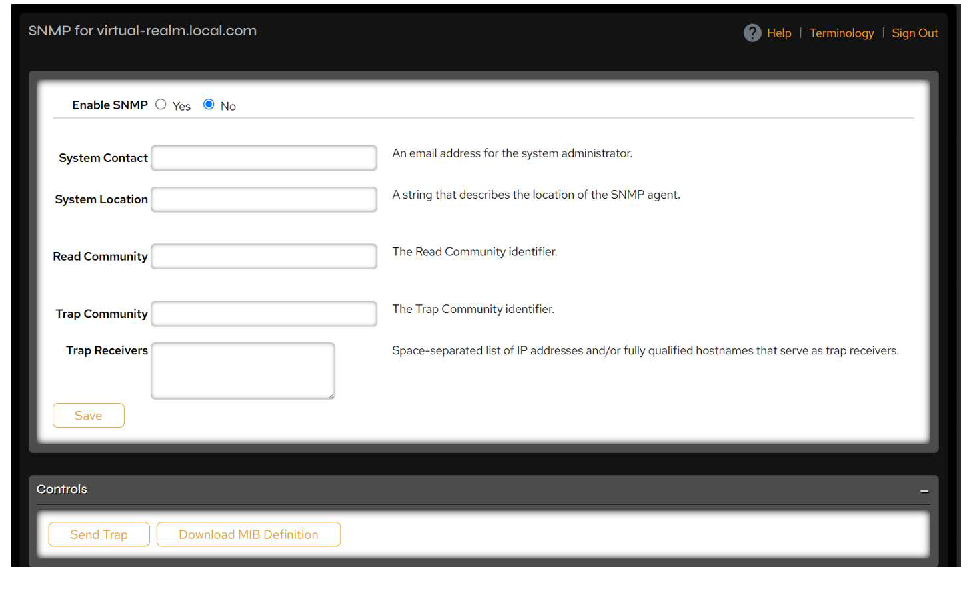 Figure 4-22. SNMP page.
Click the Yes radio button for Enable SNMP at the top of the page, then use the following controls to enter required SNMP configuration values:
| Control | Description |
|---|---|
| System Contact | Enter an email address for the system administrator. |
| System Location | Enter a string that describes the location of the SNMP agent. |
| Read Community | Enter the Read Community (RC) identifier. |
| Trap Community | Enter the Trap Community identifier (SNMP TRC). |
| Trap Receivers | Enter a space-separated list of IP addresses and/or fully qualified host names that serve as trap receivers; these are intelligent network devices used to validate SNMP requests. |
When finished, click Save.
Send Traps
Once the SNMP values have been saved, you can send SNMP traps.
From the Controls field at the bottom of the page, click the Send Trap button. A message confirming that your trap was sent will appear at the top of the page.
SNMP MIBs
SNMP uses an extensible design where the available information is defined by management information bases (MIBs). MIBs describe the structure of the management data of a device subsystem. There are currently ten VDURA MIB definitions along with the PANASAS-MIBS-README file, which defines the order in which the MIBs are to be loaded.
IMPORTANT: Read the PANASAS-MIBS-README file before loading MIBs into your SNMP system!
To download the MIB definitions, click Configuration > SNMP, then click Download MIB Definition in the Controls section. A dialog box opens asking whether you want to save or open the PANASAS-MIBS.tgz file.
4.2 Configure VDURA System Access
This section contains information about the following topics for accessing the VDURA system:
4.2.1 DirectFlow Client Support
DirectFlow for Linux enables direct access to the VDURA system from supported hosts, improving performance and availability by providing direct and highly parallel access to the Director and Storage Nodes in the VDURA system. DirectFlow for Linux provides unmatched performance for Linux clusters of all sizes and is ideal for the high-performance Linux clusters deployed in technical computing environments.
DirectFlow software supports fully parallel reads and writes from DirectFlow clients to Storage Nodes. It is a loadable kernel module that plugs into the standard kernel infrastructure, allowing the user to mount a VDURA file system. Therefore, you interact with a mounted VDURA file system just like any other kernel file system.
To use the DirectFlow Client, ensure that the following ports are open and accessible:
| Client | Direction | Server |
|---|---|---|
| * | <–> | 3095 |
| * | <–> | 10622 |
| * | <–> | 3260 |
| 3095 | <–> | * |
| ICMP | <–> | ICMP |
NOTE: The seclabel mount option is needed for DirectFlow to support SELinux in enforcing mode and is automatically added by SELinux. For example:
$ mount | grep panfs panfs://192.168.91.1:global on /panfs type panfs(rw,relatime,seclabel,callback-network-allow=192.168.100.0/24,rmlist (192.168.91.1;192.168.91.2;192.168.91.3))
DirectFlow Client Ports
DirectFlow Client ports are built to match Linux distribution, kernel, and processor types. For distributions and kernels that do not support weak-module loading, the DirectFlow port kernel, processor type, and distribution must match exactly. Distributions and kernels that support weak-module loading (such as RHEL 7 and SLES 12) may be able to use a single port on a variety of kernel versions. Upon installation of the software, the package automatically checks that the software is compatible with the kernel.
Supported Distributions
DirectFlow for Linux supports the following distributions:
- RHEL 8.10 and higher, including the following derivatives:
- Rocky Linux
- Alma Linux
- SLES 15 SP7 and higher
- Ubuntu 22.04 and higher
- Debian 13 and higher on x86_64 architecture
OS support is for both x86_64- and ARM-based systems.
All distributions except Ubuntu and Debian support RPM for package management and have known software development tool versions. Ubuntu and Debian support DEB for package management. In addition, weak module loading is supported on RHEL 8.10 and above and SLES 15 and above.
In addition, please be aware of the following compatibilities for users wishing to implement VDURA’s E2EE feature:
- RHEL on x86 architecture: Supported
- Ubuntu on x86 architecture: Supported
- Any distributions on ARM architecture: Not Supported
Download the DirectFlow Client
This feature has been deprecated in PanActive Manager as of PanFS 12.0.0 but has not yet been removed from the UI. Contact VDURA Technical Support to obtain upgrade images.
You can use PanActive Manager to download DirectFlow Client software from support.VDURA.com to your local computer. PanActive Link must be enabled and have web access in order for downloads and version information to be available via PanActive Manager or PanCLI. In addition, if the system is behind a firewall, you may need to specify a web proxy host and port.
NOTE: For information on downloading software images with the command-line interface, see the directflow PanCLI command in the VDURA PanCLI Reference Guide.
Click Advanced Tools > Software Management > DirectFlow Client to view the list of versions available for download.
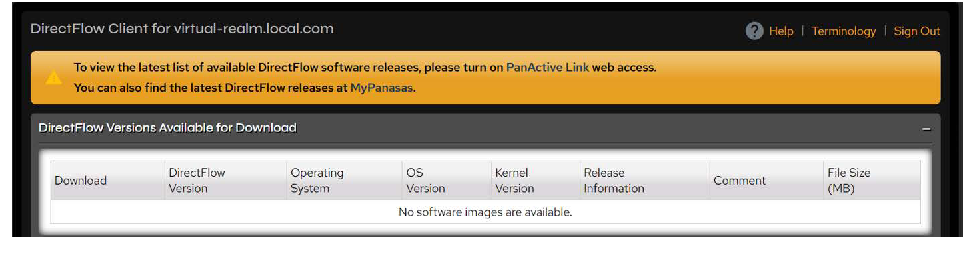 Figure 4-23. DirectFlow Client page.
All released versions compatible with your system software will be displayed as follows:
- If PanActive Link is enabled, the table will be populated with available DirectFlow Client versions. Pay particular attention to the columns that indicate compatibility with your system. Click the Download button to save DirectFlow Client software to your local computer.
- If PanActive Link is disabled, either enable it from Configuration > Notification > PanActive Link or go to the Downloads page of support.VDURA.com, click DirectFlow Client for Linux in the left pane, and select a compatible version to download.
If necessary, copy the software to the machine you want to install it on.
Install the DirectFlow Client
Unmount the realm from the client machine using umount /panfs.
For RPM installations with a previous version of DirectFlow installed, uninstall the old module before installing the new one with rpm -e [panfs-*], where [panfs-*] is the currently installed module.
NOTE: The rpm -U command is not supported; rpm -e will delete all VDURA mount lines from the /etc/fstab file, but will backup the file.
Install the DirectFlow Client software:
- For RPM files, where [panfs*.rpm] is the name of the RPM file you downloaded, use rpm -hiv [panfs*.rpm].
- For DEB files, where [path/to/deb] is the name and location of the DEB file you downloaded, use apt install /[path/to/deb].
NOTE: When installing DirectFlow on SLES 11, the kernel will not allow the DirectFlow module to load. To allow loading, go to /etc/modprobe.d/unsupported-modules and set allow_unsupported_modules to 1.
Configure Secure Boot Client (Optional)
If secure boot is enabled on the client, the kernel prompts you to enroll the public PanFS key to the shim security keyring. Secure boot is provided by a BIOS and kernel supporting UEFI 2.3.1 Errata C or higher specification. When the client boots, the shim bootloader must authenticate the operating system for the OS to load. The kernel then only loads kernel modules that it can authenticate using the shim security database. The Machine Owner Key utility allows the root user to manage the public keys for installed kernel modules.
Once DirectFlow is installed, register the DirectFlow key with the following command:
# mokutil --import /etc/pki/panfs/panfs-mok.derYou will be prompted to enter the client root user password twice. The command will not run without entering the root password. If you get a prompt to run mokutil and cannot run it, DirectFlow will not load. To avoid this issue, do not run config_panfs until you have the client root password.
Once the command is run, the output indicates that the key was successfully enrolled.
Subsequent DirectFlow installations on this client should not require a public key enrollment, as the public key for any DirectFlow port is the same.
Configure the DirectFlow Client
Before configuring the DirectFlow Client, make sure the client’s system is synchronized with the same time server as the VDURA system (e.g., via NTP).
Once the software is successfully installed, configure it:
/usr/local/sbin/config_panfsYou will be prompted for the DNS name or IP address of the VDURA system. Typically, you should provide the DNS name unless your site’s DNS server is not configured to resolve the system name. If you have configured your VDURA system for realm management with multiple Directors and you decide to provide the IP address, enter the IP address of the president Director.
The configuration script loads the DirectFlow kernel module and creates a VDURA mount entry in /etc/fstab. For example:
# cat /etc/fstab | grep panfs

panfs://service-45:global   /panfs  panfs   rw,noauto 0 0
The panfs specification in /etc/fstab is set to noauto by default. If you want this file system to automatically mount at boot, change the noauto switch to noauto,panauto for all installations except Ubuntu and Debian. To configure automount for an Ubuntu or Debian installation, use _netdev rather than panauto (e.g., rw,_netdev in the example above).
Once mounted, you can access the VDURA file system on your system through the /panfs mount point. In the path, follow /panfs with the DNS name or IP address of your system to access the root volume. If your site has multiple systems, you can access them through the same global /panfs mount point by specifying the appropriate DNS name or IP address.
Customize the Number of Asynchronous Writepages
The DirectFlow Client’s writepages function is used by the Linux kernel to write dirty pages to storage. Writepages are allowed to begin writing pages to storage and return to the calling function before writes have completed. An application writing a file can be copying data into the page cache and writing dirty pages to storage simultaneously.
Single-client and multi-client workloads tend to need different optimizations. Single-client workloads require more asynchronous work to improve performance. Multi-client workloads usually need throttling mechanisms to prevent the system from becoming overloaded. As a result, a single-client optimization is not necessarily a good multi-client optimization.
The default number of asynchronous writepages is set to zero. To customize the system to your particular requirements, add the following mount option text to config_panfs, where n is the number of writepages you want to allow (see Configure the DirectFlow Client):
max-async-writepages=nVDURA recommends that the number of asynchronous writepages be set to 2, with a maximum of 32. Higher values may cause the DirectFlow Client to hang.
Global Versus Local Mounts
The default mount point /panfs created by the configuration script is a global mount. It mounts the root volume of a system, providing access to all volumes on a system. You can mount multiple systems through the global /panfs mount point.
You can also create local mounts. You can mount a specific volume from a system, and you can mount the volume at any path on the client.
For example:
panfs://10.1.3.11/home /myhome panfs rw 0 0NOTE: For more information on mount options, refer to the mount.panfs man page, which is installed in /usr/local/man/man8.
IP-Based Access Control for DirectFlow
IP-based access control allows administrators to grant or deny access to hosts on a per-volume basis (including the root volume) based on their IP addresses when accessing the file system via DirectFlow. Clients accessing storage from an authorized IP address are granted read-write or read-only access, or they are denied access depending on the rules specified by the system administrator. Different IP addresses and subnets can be granted different levels of access to the same volume based on their configuration.
IP-based access for DirectFlow can be configured using either PanActive Manager or PanCLI commands. Configuration of per-volume rules up to the maximum number of volumes (1200) is supported. Each volume supports 128 rules matching client IP addresses or subnets. The limit on rules per volume applies to all types of rules for that volume in aggregate (sum of read-write, read-only, and deny rules). Similarly, 128 volume wildcard rules (which apply to all volumes without specific rules) are supported.
Important Rules for Determining Client Access
The allowed level of access for a particular client to a volume is determined as follows:
- If no rules for a volume are found for a particular client or for a realm default wildcard client, but there are any rules at all for the volume in question, then the volume wildcard rules are never used.
- If no rules for a volume are found for a particular client or for a realm default wildcard client, and there are no rules at all for the volume in question, then the volume wildcard rules are used.
- In both of the above cases, the first matching rule determines whether access is granted read-only, granted read-write, or denied.
- See “Using the Client Wildcard” and “Using the Volume Wildcard” for important instructions on configuring and using wildcards.
- If no volume-specific or realm default rules are found for a client, access is denied.
NOTE: For more information about export file rules, see DirectFlow Exports File Realm Default Rules.
If an administrator attempts to load a new exports file with rules that do not match any existing volumes, the system warns the administrator about these rules, but it does not require additional confirmation nor does it prevent the installation of the new exports. This allows an administrator to configure export rules for a volume before creating that volume and preventing it from being undesirably exposed to realm-wide defaults at any time during its lifecycle.
When DirectFlow exports are installed, they are immediately propagated through the system. The administrator does not need to perform any server-side restarts, nor does the administrator need to remount any clients. The changes, however, will not take effect until any outstanding capabilities time out (for example, in moving from read-write or read-only to deny access, the change will not take effect until the current capabilities expire).
Configure IP-Based Access
Click Storage > DirectFlow.
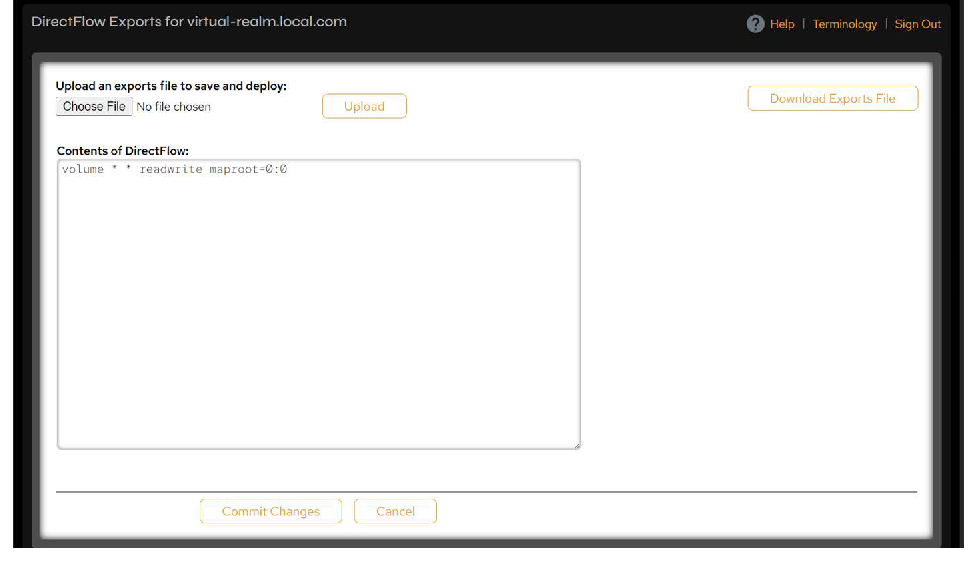 Figure 4-24. DirectFlow Exports page.
You have three options for creating or modifying an exports file:
- Edit the exports definition in the Contents of DirectFlow: text box, then click Commit Changes to save the new definition.
- Edit the exports file offline by clicking the Download Exports File button. This will download the current exports file as a TXT file. Make your changes, then upload the updated file by browsing to it with the Browse button and clicking Upload.
- Upload a new exports file by clicking the Browse button and navigating to it, then clicking the Upload button.
To configure the exports file with PanCLI, use the following command:
realm exports upload [file]The exports file is in ASCII format, consistent with many UNIX configuration files. The sections below provide detailed examples of various supported file configurations.
DirectFlow Exports File Realm Default Rules
The default exports file contains lines using the following format:
volume * * readwrite maproot=0:0| * | Volume wildcard that grants access to all volumes without explicit rules. |
| * | Client wildcard that grants access to all clients. |
| readwrite | Specifies the type of access. (Other options include readonly and deny.) |
| maproot=0:0 | Specifies the UID and GID mappings for incoming requests for UID 0. The general form of this directive is maproot=<uid>:<gid>. The maproot directive may be replaced with the mapall directive, which specifies a UID:GID mapping for all incoming requests matching this rule. |
A simple example configuration file using this format is:
volume "/home" 10.65.0.0/16 readwrite maproot=0:0 # lets the work cluster read and write as root

volume "/home" 10.67.121.3 readwrite maproot=65534:65534 # specifies that Bob needs to write from his desktop

volume "/home" * readonly  maproot=65534:65534 # gives everyone else readonly access with root squashed

volume * * readonly maproot=0:0 # everything else is read-only
DirectFlow Exports File Formatting Rules
General formatting rules for the DirectFlow exports file include:
Each line (as separated by a new line and/or carriage return) is parsed independently.
Empty lines or lines that contain only white space are ignored.
Comments are denoted by # characters. When a # is encountered outside a quoted string, that character and everything after it is treated as a comment, meaning that it is completely ignored by the parser.
Rules begin with a keyword denoting the target of the rule. At this time, the only supported target is volume, meaning the rule applies to DirectFlow client access.
The format of a volume rule is:
volume "<volume_name>" <subnet> <permission> [<id_option>]
The literal string volume denotes that this is a volume rule.
- The volume name is contained in quotes (volume names may not themselves contain quotes), so there is no need for escaping within the quoted volume name. Using an asterisk in place of a quoted volume name denotes a realm-wide default (see “Using the Volume Wildcard”). Note that the volume name is either a realm-wide default or an exact match; no regular expressions or wildcards are supported.
DirectFlow Exports File Access Control Rules
Read access to the root volume (/) must always be configured in order to mount subvolumes (/vol1). Because mount.panfs does lookups and reads on directories and links in the root volume in order to locate the root object for /vol1, if it has no access to the root volume, then it cannot navigate to /vol1.
Per Volume (including root volume)
In the following example, all groups of clients have read-only access to the root volume. In addition, each of the compute clusters owns its own volume, and none of the other client groups can read the volume of another group.
volume "/" 192.168.0.0/16 readonly # root volume read-only for all clients in 192.168 class B subnet

volume "/vol1" 192.168.1.0/24 readwrite

volume "/a/vol2" 192.168.2.0/24 readwrite

volume "/a/vol3" 192.168.3.0/24 readwrite
Because the absence of a matching rule means access is implicitly denied, clients in the subnets 192.168.0.0/16 but outside of groups 1, 2, and 3 have read-only access to files and directories of the root volume (/) but no access to /vol1, /a/vol2, or /a/vol3.
Suppose that clients in groups 192.168.2.0/24 and 192.168.3.0/24 need to be able to read the other groups’ files. This is accomplished by listing the volume multiple times, adding access rules for a different set of clients.
volume "/" 192.168.0.0/16 readonly

volume "/vol1" 192.168.1.0/24 readwrite

volume "/a/vol2" 192.168.2.0/24 readwrite

volume "/a/vol2" 192.168.3.0/24 readonly # share read-only with 192.168.3.0/24

volume "/a/vol3" 192.168.3.0/24 readwrite

volume "/a/vol3" 192.168.2.0/24 readonly # share read-only with 192.168.2.0/24
When determining the allowed level of access for a particular client to a volume, the set of rules pertaining to the volume are evaluated as follows:
- The rules pertaining to the volume are evaluated in order. The first matching rule determines whether access is granted read-only, granted read-write, or denied.
- If no rules for the volume are found for this client, then the realm default rules are evaluated in order. The first matching rule determines whether access is granted read-only, granted read-write, or denied.
- If no volume-specific or realm default rules are found for this client, access is denied.
An advantage of the first matching rule semantic is that it allows carving out a subset within a subnet and granting the subset read-write access, while the outer subnet gets a lesser level of access, as shown in the following example:
volume "/" 192.168.0.10 readwrite # admin workstation .10

volume "/" 192.168.0.11 readwrite # admin workstation .11

volume "/" 192.168.0.0/16 readonly
Using the Client Wildcard
In the following example, each group of clients has read-write access to its own volume, but every other group is given read-only access to the volume. This is done by using a wildcard (*) client IP specification that implies “all clients”.
volume "/" 192.168.1.0/24 readonly
volume "/" 192.168.2.0/24 readonly
volume "/" 192.168.3.0/24 readonly
volume "/vol1" 192.168.1.0/24 readwrite
volume "/vol1" * readonly # all other clients
volume "/a/vol2" 192.168.2.0/24 readwrite
volume "/a/vol2" * readonly # all other clients
volume "/a/vol3" 192.168.3.0/24 readwrite
volume "/a/vol3" * readonly # all other clients
Because the client wildcard matches any IP address, subsequent rules for the volume will never be evaluated. For example:
volume "/a/vol2" 192.168.2.0/24 readwrite
volume "/a/vol2" * readonly # all other clients
volume "/a/vol2" 192.168.0.10 readwrite # not evaluated
Administrators are allowed to create these situations because they may find it desirable to temporarily insert such rules at the beginning or in the middle of a file and later remove them. This allows them to preserve the rules within their realm’s configuration.
Using the Volume Wildcard
The volume wildcard (*) can be used to establish a default access policy for all volumes without enumerating them explicitly. Perhaps the administrator anticipates adding volumes and wants them to be covered by some access control rules without manual updates to the DirectFlow exports configuration. In the following example, the group of clients are granted read-write access to all volumes:
volume * 192.168.1.0/24 readwrite
volume * 192.168.2.0/24 readwrite
volume * 192.168.3.0/24 readwrite
Volume wildcard (*) rules apply only to volumes without any explicit rules. One can get the effect of a read-only root volume with all other volumes shared read-write with:
volume * 192.168.1.0/24 readwrite
volume * 192.168.2.0/24 readwrite
volume * 192.168.3.0/24 readwrite
volume "/" 192.168.1.0/24 readonly
volume "/" 192.168.2.0/24 readonly
volume "/" 192.168.3.0/24 readonly
Every volume will either have some volume-specific rules or not. If there are one or more volume-specific rules for the volume, then those rules govern access. If there are none, access is governed by the volume wildcard (*) rules. There is no automatic fallback to wildcard rules when a volume specific rule exists.
NOTE: If there is a rule for a specific volume, that volume will not be evaluated in any rule that uses * as the volume specification.
Negative Rules
System administrators may wish to carve out exceptions, denying access to one or more clients that would match a subsequent rule.
volume "/" 192.168.1.0/24 readonly
volume "/" 192.168.2.0/24 readonly
volume "/" 192.168.3.0/24 readonly
volume "/vol1" 192.168.1.0/24 readwrite
volume "/vol1" 192.168.2.1 deny
volume "/vol1" 192.168.3.1 deny
volume "/vol1" * readonly # all other clients
volume "/a/vol2" 192.168.2.0/24 readwrite
volume "/a/vol2" 192.168.1.1 deny
volume "/a/vol2" 192.168.3.1 deny
volume "/a/vol2" * readonly # all other clients
volume "/a/vol3" 192.168.3.0/24 readwrite
volume "/a/vol3" 192.168.1.1 deny
volume "/a/vol3" 192.168.2.1 deny
volume "/a/vol3" * readonly # all other clients
Here, three specific clients (192.168.1.1, 192.168.2.1, and 192.168.3.1) which would otherwise fall in a subnet allowed read-only access by the client wildcard (*) are denied access. Specifically, 192.168.1.1 is denied access to /a/vol2 and /a/vol3, 192.168.2.1 is denied access to /vol1 and /a/vol3, and 192.168.3.1 is denied access to /vol1 and /a/vol2.
Identity Mapping Options
In the situation where each group of clients has read-write access to its own volume, we can grant every other group limited read-write access by mapping all remote users to a <user>:<group> of 65534:65534:
volume "/" 192.168.0.0/16 readonly

volume "/vol1" 192.168.1.0/24 readwrite

volume "/vol1" 192.168.0.0/16 readwrite mapall=65534:65534

volume "/a/vol2" 192.168.2.0/24 readwrite

volume "/a/vol2" 192.168.0.0/16 readwrite mapall=65534:65534

volume "/a/vol3" 192.168.3.0/24 readwrite

volume "/a/vol3" 192.168.0.0/16 readwrite mapall=65534:65534
NOTE: When mapping identity options, the numerical form of the UID/GID is supported, but the user/group name is not (e.g., mapall=65534:65534 is supported; mapall=nobody:nobody is not).
maproot=65534:65534 is the default behavior for all DirectFlow exports, assuming no other maproot or mapall directive was specified. To allow each group of clients read-write access (as root) to its own volume:
volume "/" 192.168.0.0/16 readonly

volume "/vol1" 192.168.1.0/24 readwrite maproot=0:0 # root access 1

volume "/vol1" 192.168.0.0/16 readwrite mapall=65534:65534

volume "/a/vol2" 192.168.2.0/24 readwrite maproot=0:0 # root access 2

volume "/a/vol2" 192.168.0.0/16 readwrite mapall=65534:65534

volume "/a/vol3" 192.168.3.0/24 readwrite maproot=0:0 # root access 3

volume "/a/vol3" 192.168.0.0/16 readwrite mapall=65534:65534
If an existing export entry contains a host IP address, it is flagged as a conflict for a new export containing a different volume name, but the same host IP address. Use the following export entry:
/<original_volume> <options> /<new_volume> <options> <IP
address>
The DirectFlow exports configuration language does not support rules that only determine access permission or identity mapping. DirectFlow exports rules have effect on both, even if that effect is the default effect, read-write access or root-squashing to 65534:65534.
When handling a request from a client to access a volume, the previously described matching process is performed once, yielding both an access permission for the client (read-write, read-only, deny) and an identity mapping policy for the access (different accesses from the same client will be mapped differently when maproot is in play).
4.2.2 Configure Netgroups
Use netgroups to group a number of hosts under a netgroup name.
Click Storage > Netgroups.
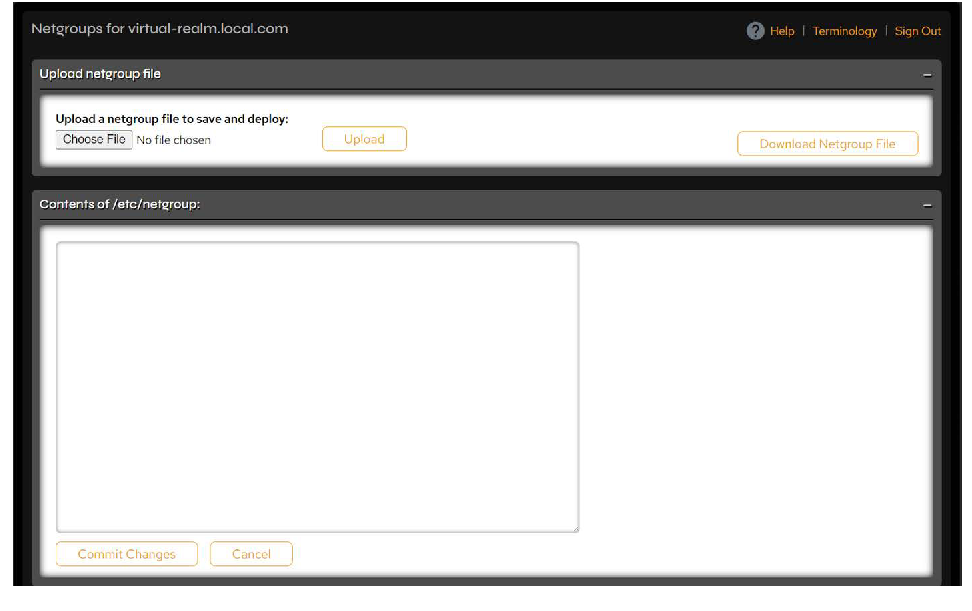 Figure 4-25. Netgroups page.
Create or modify the /etc/netgroup file to specify netgroups (sets of host, user, and domain) that are to be given similar network access.
Each line in the file should consist of a netgroup name, followed by a list of the members of the netgroup:
myNetGroup1 (hostname1,user1,my.company.com)Each member can be either the name of another netgroup or a specification such as (host, user, domain) where the host, user, and domain are character string names for the corresponding component:
myNetGroup2 myNetGroup1 (hostname3,user3,my.company.com)Any of the comma-separated fields may be empty to specify a wildcard value or may be “-” to specify no valid value:
myNetGroup1 (hostname1,,)The members of the list may be separated by whitespace or commas, and the “\” character can be used at the end of a line to indicate line continuation.
You have three options for creating/modifying an /etc/netgroup file:
- Edit the netgroup definition in the Contents of /etc/netgroup: text box, then click Commit Changes to save the new definition.
- Edit the netgroup file offline by clicking the Download Netgroup File button. This will save the current netgroup file as a TXT file. Make your changes, then upload the updated file by using the Browse button to navigate to it and clicking the Upload button.
- Upload a new netgroup file by clicking the Browse button and navigating to it, then clicking the Upload button.
If you do not specify host or network information in the /etc/netgroup file, PanActive Manager assumes that you want no access restrictions on client mounting and configures the system accordingly. If you specify an invalid host or network in the /etc/netgroup file, PanActive Manager rejects your update to the file and informs you of the error.
WARNING: Netgroup files must be 53999 bytes or smaller to successfully deploy. File sizes of 54000 bytes or larger will result in an error and fail to deploy.
4.2.3 S3 Connectivity
As of PanFS 12.0.0, S3 configuration is done through PanCTL. The PanCTL s3 command group enables or disables the S3 gateway for the realm, sets the gateway port range and path prefix, and configures S3 per tenant. For details, see the s3 command group in the PanCTL User Guide.
4.3 Permissions
4.3.1 VDURA ACL-Based Permissions
VDURA uses a rich Access Control List-based (ACL-based) permissions model, intended to provide both flexible access control and compatibility with other systems. Interoperating well with other permission models is a primary goal. Additionally, the system is intended to be flexible enough to allow users to directly specify what they want without being overly complex or cumbersome.
VDURA allows ACLs on both directories and file objects. Every object has an ACL that contains an ordered list of Access Control Entries (ACEs), each specifying a type of permission, optional inheritance flags, an identity to grant permissions to, and a bitmask of permissions to grant.
ACEs with inheritance control flags (any flag but the Inherited flag) are called inheritable ACEs. ACEs that do not have any inheritance flags are called explicit ACEs. Inherited ACEs are inherited from the parent directory and have the Inherited flag set. Effective ACEs affect access to the object and do not have the Inherit Only flag set. PanFS defines canonical mappings between PanFS ACLs and the permissions models of client systems.
NOTE: VDURA recommends inheritable ACEs be limited to 125 within a volume. This allows for the additional ACEs added automatically during other processes to not exceed the VDURA limit of 128 ACEs.
VDURA ACL Structure
A VDURA ACL is an ordered list of items called ACEs: <type, inheritance flags, identity, permissions>. Each ACE represents the set of rights of a given type that a VDURA identity holds, and does not necessarily encapsulate that identity’s overall rights on the object. The following are the main characteristics of ACLs:
Uniqueness: The ACEs in an ACL shall be unique. No ACL may contain more than one ACE for a given <type, inheritance flag, identity> combination.
Ordering: ACEs are ordered as follows:
- Explicit deny ACEs
- Explicit allow ACEs
- Inherited deny ACEs
- Inherited allow ACEs
Permissions: ACLs should not contain conflicting permissions for a given identity (e.g., both positive and negative read permissions), but in practice this is hard to enforce, so ACL parsing rules handle conflicting permissions in a consistent manner according to the required ordering. While some permissions apply only to certain types of objects, any ACE may contain any of the permissions, since it is legal to specify a directory-only permission in a file ACL and vice versa. Permissions in an ACE that do not apply to the object’s type are ignored. The VDURA permission set supports the full permission set as that of Windows.
Object creation: All file system objects in VDURA have an ACL. If an ACL is not specified at creation time, objects receive a copy of the ACEs that have inheritance flags set from the parent directory. The ACEs are ordered at the time of creating the object. It is also possible to have objects that have an ACL but no ACEs; this is called an empty ACL. In this case, the owner of the object shall have implicit permissions to modify the ACL.
VDURA ACE Types
VDURA defines the following four ACE types:
- Positive (+): rights that are specifically given to an entity.
- Negative(~): rights that are specifically denied an entity.
- Audit(@): provided for Windows compatibility and intentionally not interpreted or given any specific meaning by VDURA.
- Alarm(!): also provided for Windows compatibility and intentionally not interpreted or given any specific meaning by VDURA.
VDURA ACL Inheritance Types
The ACL inheritance feature is based on Windows semantics. When objects are created in any directory, the ACEs that have inheritance flags set are applied to the object being created. The various inheritance flags are defined below. Each one has different semantics based on the object type that is being created.
| Inheritance Flag | Meaning |
|---|---|
| Object Inherit (OI) | Non-container child objects inherit the ACE as an effective ACE. For child objects that are containers, the ACE is inherited as an inherit-only ACE unless the No Propagate Inherit flag is also set. |
| Container Inherit (CI) | Child objects that are containers, such as directories, inherit the ACE as an effective ACE. The inherited ACE is inheritable unless the No Propagate Inherit flag is also set. |
| No Propagate Inherit (NP) | If the ACE is inherited by a child object, the system clears the Object Inherit and Container Inherit flags in the inherited ACE. This prevents the ACE from being inherited by subsequent generations of objects. |
| Inherit Only (IO) | Indicates an inherit-only ACE that does not control access to the object to which it is attached. If this flag is not set, the ACE is an effective ACE which controls access to the object to which it is attached. Both effective and inherit-only ACEs can be inherited depending on the state of the other inheritance flags. |
| Inherited (ID) | Indicates that the ACE was inherited. The system sets this flag when it propagates an inherited ACE to a child object. |
VDURA ACE Identities
The identity component of an ACE is a UNIX identity (UID or GID), a Windows identity (SID), or a special VDURA identity.
Some identities are treated specially by the VDURA access control model in order to allow general ACL settings such as “give read permission to any user” or “only allow read for administrative users”. The only defined special identity is the group “everybody”, which corresponds to all users in the realm.
NOTE: All Directors require access to the NIS and/or LDAP identity mapping servers (see UNIX Name Resolution Services).
The table below describes the string format for the types of identities supported by VDURA.
| String Format | Description |
|---|---|
| uid:uid | UNIX user with ID uid |
| gid:gid | UNIX group with ID gid |
| user_sid:sid | Windows user with SID sid |
| group_sid:sid | Windows group with SID sid |
| pan_gid:1 | Everyone or Other group |
VDURA Permissions
VDURA permissions are a bitmask specifying the access given to a specific identity. Since VDURA ACLs may be applied to both directory and file objects, the permission set includes permissions for both directory content manipulation/access and object manipulation/access.
Other systems overload permission bits to have meaning in both contexts, but the VDURA ACL inheritance model, wherein objects by default inherit a copy of their parent directory’s ACL, prevents this from being a suitable solution. The intent of the VDURA permissions model is that a permission bit’s meaning should be unambiguous: either it only applies in a specific context, or it has exactly the same meaning in every context.
Directory-only permissions may be specified on a non-directory object and will have no effect. Due to the inheritance model a file could easily inherit a parent ACL with directory permissions, so there is no reason to prohibit this on file ACLs.
VDURA defines the following permissions:
| Permission | Abv. | Effect on Object | Effect on Directory |
|---|---|---|---|
| read/list directory | r | read data of object | list directory |
| write | w | modify data of object | n/a |
| execute | x | execute object | list directory |
| append | a | append data to object | n/a |
| create | c | n/a | create files in the directory |
| delete | d | delete files | delete directory |
| lock | k | lock | n/a |
| change ACL (permissions) | p | modify ACL | modify ACL |
| take ownership (owner) | o | change owner | change owner |
| sandbox (see below) | s | n/a | see below |
| create dir | C | n/a | create subdirectories in directory |
| read named attributes | n | read named attributes of an object | n/a |
| write named attributes | N | modify the named attributes of an object | n/a |
| delete child | D | n/a | delete file or subdirectory within a directory |
| read attributes | R | read attributes of an object | read attributes of an object |
| write attributes | W | write attributes of an object | modify attributes of an object |
| read ACL | P | read the ACL of an object | read the ACL of an object |
| synchronize | S | n/a | n/a |
| write retention | h | n/a | n/a |
| write retention hold | H | n/a | n/a |
Sandbox permission is a special case intended to provide an equivalent to the UNIX sticky bit on directories. It allows users to delete files and subdirectories that they own from a directory, but not those owned by other users. Essentially, it acts as a more limited version of the delete permission more suitable for shared directories. If a user has both sandbox and delete permissions on a directory, the delete permission takes precedence; sandbox should be interpreted as a permission grant (the permission to delete files you own) and not a restriction (a restriction from deleting files owned by other users).
The string format of the ACE permission field is the concatenation of the ACE’s permission abbreviations. The strings :all: and :none: represent all the permissions and none of the permissions, respectively.
Modify ACLs with PanCLI
An administrator can view and modify ACLs using the PanCLI objutil listacl and objutil setacl commands respectively. The objutil setacl command may add, remove, or modify an ACE depending on whether the ACL contains an ACE with a matching type, identity, and inheritance flags. If no matching ACE is found, a new ACE will be added to the ACL. If a match is found, the permissions will be updated unless :none: is specified, as :none: will delete the ACE from the ACL.
NOTE: For more information and an example of modifying a VDURA ACL using PanCLI, see the objutil command in the VDURA PanCLI Reference Guide.
Modify VDURA ACLs from Clients
VDURA ACLs may be modified from certain clients.
DirectFlow Clients
The ACL can be viewed and modified using the getfattr and setfattr utilities. The ACL is stored in the user.panfs.acl attribute. The format of the attribute is a space-separated list of ACEs. The format of the ACE is:
[type]identity,permissions[,inheritance flags][*]. The ACE type is assumed to be positive if no type is specified. Setfattr will replace the current ACL with the provided ACL. The asterisk (*) indicates the ACE is for the owner or primary group and should only be used for one of the owner and primary group ACEs.
The example below demonstrates removing the everyone ACE and adding an inheritable ACE for UID 640 with all permissions.
[root@pa-quad-15d ~]# getfattr -d /panfs/REALM114/home
getfattr: Removing leading '/' from absolute path names
# file: panfs/REALM114/home
user.panfs.acl="v2: +pan_gid:1,rxnRP,I:OICI
+gid:0,rxnRP,I:OICI* +uid:0,:all:,I:OICI* +group_sid:S-1-5-
21-1214440339-1390067357-682003330-512,:all:,I:OICI"
user.panfs.agg_layout_info="RAID-1 replicas=2"
user.panfs.agg_layout_info_files="NULL map"
user.panfs.flags="volume_root"
[root@pa-quad-15d ~]# setfattr -n user.panfs.acl -v "v2:
+gid:0,rxnRP,I:OICI* +uid:0,:all:,I:OICI* +group_sid:S-1-5-
21-1214440339-1390067357-682003330-512,:all:,I:OICI
+uid:640,:all:,I:OICI" /panfs/REALM114/home
[root@pa-quad-15d ~]# getfattr -d /panfs/REALM114/home
getfattr: Removing leading '/' from absolute path names
# file: panfs/REALM114/home
user.panfs.acl="v2: +gid:0,rxnRP,I:OICI*
+uid:640,:all:,I:OICI +uid:0,:all:,I:OICI* +group_sid:S-1-5-
21-1214440339-1390067357-682003330-512,:all:,I:OICI"
user.panfs.agg_layout_info="RAID-1 replicas=2"
user.panfs.agg_layout_info_files="NULL map"
user.panfs.flags="volume_root"Merge ACEs
When adding an explicit ACE to an ACL where the type and identity match and the inheritance flags and permissions are a subset of another ACE, the two ACEs may be merged into a single ACE. However, because some versions of Windows do not support the merging of inherited ACEs when an object is created, VDURA will not merge inherited ACEs.
Inheritable ACEs and Chmod
To support mixed Windows and POSIX environments where objects have inheritable ACEs, VDURA adds the Inherit Only flag to any inheritable ACE for the owner, primary group, and everyone. This gives the POSIX user the desired chmod behavior while allowing inheritable ACEs to be inherited by child objects.
Default ACL for a New Volume
When a volume is created, the ACL contains inheritable ACEs for owner, primary group, and everyone.
For example, the ACL list for /home looks like this:
[pancli_service] objutil listacl /home

ACL for /home is:

1  +uid:0,:all:

2  +gid:0,rxnRP

3  +pan_gid:1,rxnRP
NOTE: For more information and an example of modifying a VDURA ACL using PanCLI, see the objutil PanCLI command in the VDURA PanCLI Reference Guide.
Access Permissions in a VDURA ACL
The following table shows the VDURA permissions and the characters by which they are represented when an ACL is displayed.
| Windows Permissions | VDURA Permissions | VDURA Display Char | VDURA Value | Object Type |
|---|---|---|---|---|
| FILE_ |
PAN_ |
r | 0x00000001 | Directory |
| FILE_ |
PAN_ |
r | 0x00000001 | File |
| FILE_ |
PAN_ |
x | 0x00000002 | File, Directory |
| FILE_ |
PAN_ |
w | 0x00000004 | File |
| FILE_ |
PAN_ |
a | 0x00000008 | File |
| FILE_ |
PAN_ |
c | 0x00000010 | Directory |
| DELETE | PAN_ |
d | 0x00000020 | File, Directory |
| — | PAN_ |
k | 0x00000040 | — |
| WRITE_ |
PAN_ |
p | 0x00000080 | File, Directory |
| WRITE_ |
PAN_ |
o | 0x00000100 | File, Directory |
| — | PAN_ |
s | 0x00000200 | — |
| FILE_ |
PAN_ |
C | 0x00001000 | Directory |
| FILE_ |
PAN_ |
n | 0x00002000 | File, Directory |
| FILE_ |
PAN_ |
N | 0x00004000 | File, Directory |
| FILE_ |
PAN_ |
D | 0x00008000 | Directory |
| FILE_ |
PAN_ |
R | 0x00010000 | File, Directory |
| FILE_ |
PAN_ |
W | 0x00020000 | File, Directory |
| READ_ |
PAN_ |
P | 0x00040000 | File, Directory |
| SYNCHRONIZE | PAN_ |
S | 0x00080000 | File |
| — | PAN_ |
h | 0x00100000 | — |
| — | PAN_ |
H | 0x00200000 | — |
For example, the command
panfs_getattr /panfs/REALM#/home/foo.txtdisplays the ACL permissions as:
ACL identity: +user_sid:S-1-5-21-1214440339-1390067357-
682003330-1104,rwxadponNDRWP

ACL identity: +group_sid:S-1-5-21-1214440339-1390067357-
682003330-512,:all:,I:ID

ACL identity: +uid:0,:all:,I:ID

ACL identity: +gid:0,rxnRP,I:ID

ACL identity: +pan_gid:1,rxnRP,I:ID
4.4 UNIX Name Resolution Services
The system uses information obtained from the NIS and/or LDAP servers for the following authentication purposes:
- User information: Used for specifying the initial owner for a new volume.
- Group information: Used to determine group membership for file access checks, authorize PanActive Manager logins, and specify the initial group for new volumes.
- Netgroups: Used to group hosts under a netgroup name.
NIS and LDAP can both be used alone, or a resolution order can be configured to search multiple services in a specified order. Setting a resolution order can aid in migration where a secondary source is still in use for users not yet migrated.
LDAP services may be hosted either on UNIX systems or on Windows systems configured to support Unix users.
4.4.1 Configure Name Service Preferences
Name resolution service preferences set the order of priority in which your authentication services should be used by the system. A name resolution service must be enabled to be used by the system for authentication.
Click Network > Authentication Services > Name Services.
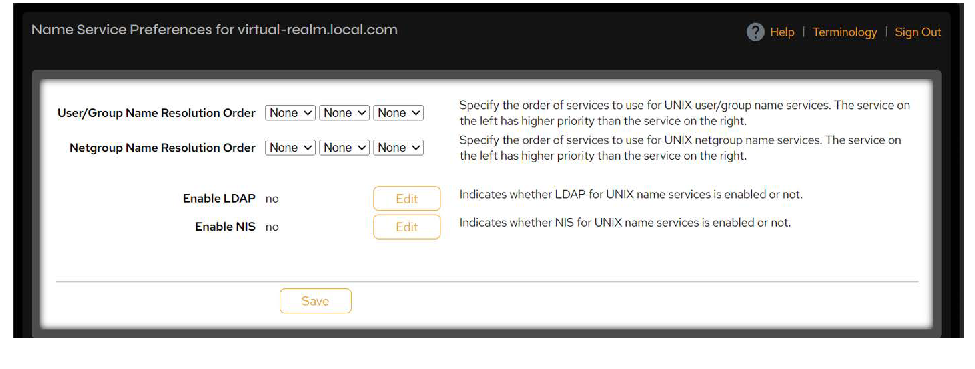 Figure 4-26. Name Service Preferences page.
Use the following controls to set the Name Service Preferences values.
| Control | Description |
|---|---|
| User/Group Name Resolution Order | Specify the order of services to use for UNIX user/group name resolution services. The service on the left has higher priority than the service on the right. |
| Netgroup Name Resolution Order | Specify the order of services to use for UNIX netgroup name resolution services. The service on the left has higher priority than the service on the right. Unless a name resolution service has been enabled, it will not be used for authentication even though it is in the Netgroup Name Resolution Order list. |
| Enable LDAP | Indicates whether LDAP is enabled or not. Use the Edit button to modify. |
| Enable NIS | Indicates whether NIS is enabled for UNIX user/group/netgroup name resolution services. Use the Edit button to modify. |
When finished, click Save.
4.4.2 Configure NIS
Click Network > Authentication Services > NIS.
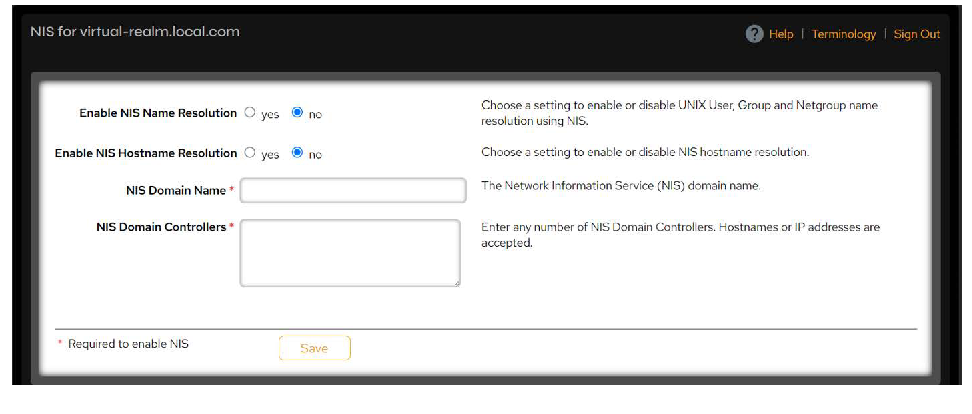 Figure 4-27. NIS page.
Use the following controls to configure NIS settings.
| Control | Description |
|---|---|
| Enable NIS Name Resolution | Choose to enable or disable UNIX User, Group, and Netgroup name resolution services using NIS. |
| Enable NIS Hostname Resolution | Choose to enable or disable NIS hostname resolution. |
| NIS Domain Name | Specify the Network Information Service (NIS) domain name. Example: mycompany.com |
| NIS Domain Controllers | Specify any number of NIS server names or IP addresses separated by spaces. Example: 172.10.102.17 nis-ca.vdura.com nis-mycompany.com |
When finished, click Save. The system will confirm your configuration with a message at the top of the page.
4.4.3 Configure LDAP
VDURA supports servers that comply with the Lightweight Directory Access Protocol (LDAP) v3 standard (RFC 4510 and related). The LDAP schema defaults to the schema defined in RFC 2307/2307bis. VDURA does not support LDAP v2.
If you have restricted the set of IP addresses that can access the LDAP server, you must allow all addresses in the system’s DHCP range, since each director will make its own queries to your site’s LDAP server.
Click Network > Authentication Services > LDAP.
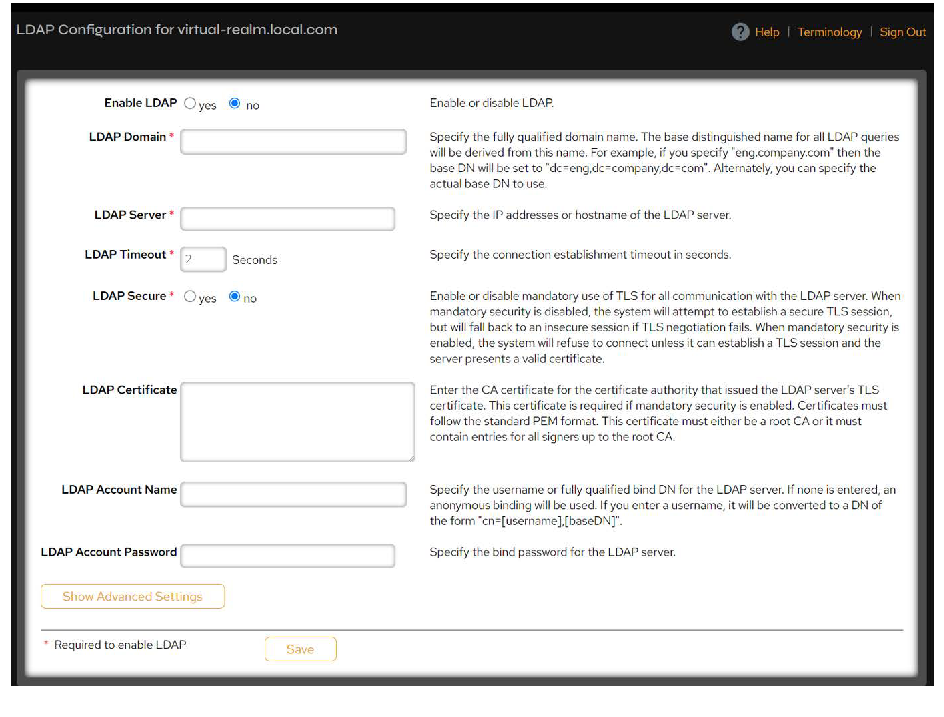 Figure 4-28. LDAP Configuration page.
Configure the following controls for LDAP settings:
| Control | Description |
|---|---|
| Enable LDAP | Select Yes or No to enable or disable LDAP. |
| LDAP Domain | Specify the fully qualified domain name. The base distinguished name (DN) for all LDAP queries will be derived from this name. For example, if you specify eng.company.com, then the base DN will be set to dc=eng,dc=company,dc=com. Alternately, you can specify the actual base DN to use. VDURA uses the same base DN for all searches (users, groups, and netgroups). The search scope is always set to subtree. |
| LDAP Server | Specify the IP address or hostname of the LDAP server. The name specified must be resolvable in DNS but does not have to be the fully qualified name of the server. For secure LDAP setups, this should be the name as specified in the LDAP servers certificate. |
| LDAP Timeout | Specify the connection establishment timeout in seconds. |
| LDAP Secure | Enable or disable mandatory use of TLS for all communication with the LDAP server. When mandatory security is disabled, the system will attempt to establish a secure TLS session, but will fall back to an insecure session if TLS negotiation fails. When mandatory security is enabled, the system will refuse to connect unless it can establish a TLS session and the server presents a valid certificate. |
| LDAP Certificate | Enter the CA certificate for the certificate authority that issued the LDAP server’s TLS certificate. This certificate is required if mandatory security is enabled. Certificates must follow the standard PEM format. Important: This certificate must either be a root CA or it must contain entries for all signers up to the root CA. |
| LDAP Account Name | Specify the username or fully qualified bind DN for the LDAP server. If none is entered, an anonymous binding will be used. If you enter a username, it will be converted to a DN of the form cn=[username],[baseDN]. |
| LDAP Account Password | Specify the bind password for the LDAP server. Since the SIMPLE bind method sends the bind password in the clear over the network, VDURA recommends using TLS for non-anonymous connections. |
To configure query/search attributes, click the Show Advanced Settings button and proceed to the next section. Otherwise, click Save to commit your changes. The system will confirm your configuration with a message at the top of the page.
The default LDAP parameters are suitable for a server that uses the RFC2307 schema for user accounts, groups, and netgroups. If your LDAP server uses a different or nonstandard schema, you can configure the object class and attribute names for each type of record. These settings are presented when you click the Show Advanced Settings button on the LDAP Configuration page and are preconfigured by the system.
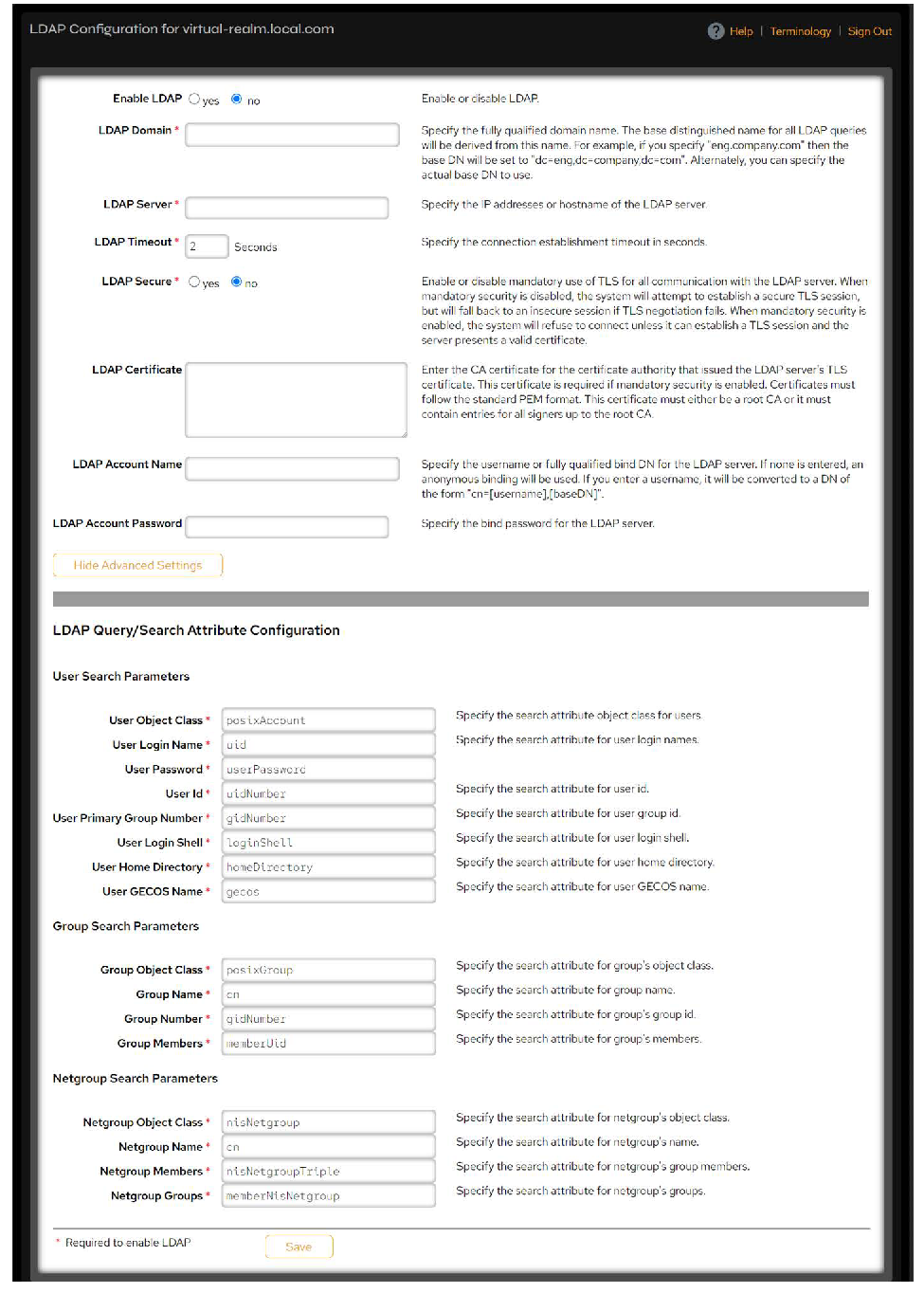 Figure 4-29. Advanced LDAP Configuration fields.
User Search Parameters
The default search attributes for user accounts are:
| Parameter | Description |
|---|---|
| User Object Class | posixAccount |
| User Login Name | uid |
| User Password | userPassword |
| User ID | uidNumber |
| User Primary Group Number | gidNumber |
| User Login Shell | loginShell |
| User Home Directory | homeDirectory |
| User GECOS Name | gecos |
Group Search Parameters
The default search attributes for groups are:
| Parameter | Description |
|---|---|
| Group Object Class | posixGroup |
| Group Name | cn |
| Group Number | gidNumber |
| Group Members | memberUID |
Netgroup Search Parameters
The default search attributes for netgroups are:
| Parameter | Description |
|---|---|
| Netgroup Object Class | nisNetgroup |
| Netgroup Name | cn |
| Netgroup Members | nisNetgroupTriple |
| Netgroup Groups | memberNisNetgroup |
Normally, these default settings are not changed. However, you can make modifications and click Save to commit your changes.
4.5 SSH Key Management
IMPORTANT: SSH v2 is required. SSH v1 is not supported.
The VDURA system automatically generates a permanent public/private SSH key pair so that nodes can access external hosts safely and securely via ssh and scp without having to provide a password. In order for nodes to have password-free access to the root account on an external host, the administrator must copy the system public key to the file on that external host:
/root/.ssh/authorized_keysSSH keys may be used to log into all directors and OSDs in the system. This feature does not compromise the security of the VDURA system, as it only allows outbound access to the system and never inbound access.
4.5.1 Generate a New System Public SSH Key
The administrator can generate a new public SSH key for the system at any time by navigating to Configuration > Security > System Public SSH Key and clicking the Generate New System Public SSH Key button. When a new key is generated, the old one is automatically no longer valid.
To view and generate the system public SSH key using PanCLI, enter the following command:
netconfig sshkey publickey4.5.2 Configure Admin and Guest User SSH Keys
Employing administrator and guest user SSH keys is useful for administrators who wish to automate the running of periodic PanCLI scripts to monitor their system remotely without supplying passwords.
In order to use password-free ssh/scp access to PanCLI, the user’s public SSH key must be present in the VDURA system’s authorized keys list, and their SSH client must be configured to use the corresponding private key when authenticating to the VDURA system. There are separate authorized keys for the admin and guest accounts.
To configure admin or guest user access, click Configuration > Security > Admin SSH Key.
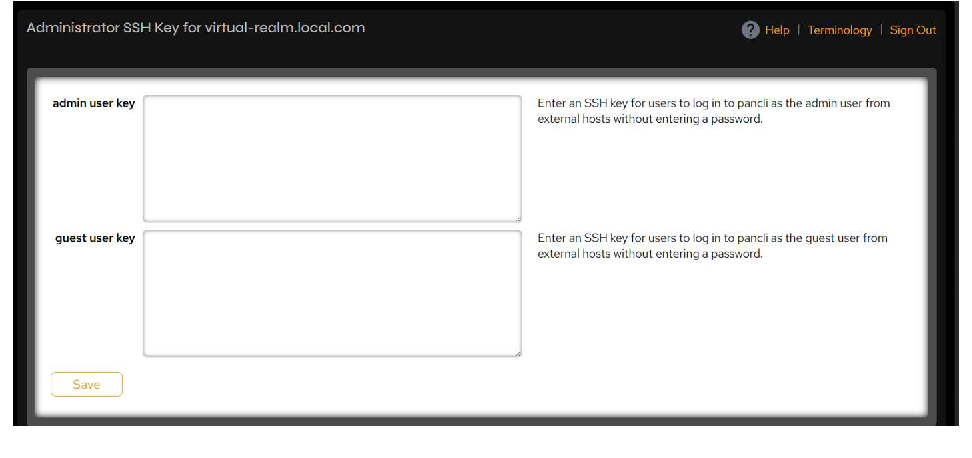 Figure 4-30. Administrator SSH Key page.
You can enable or disable access for admin and guest users. To enable access for an admin or guest user, add their SSH public key to the corresponding authorized key list. To disable access for an admin or guest user, remove their SSH public key from the corresponding authorized key list. When finished, click Save. Removing a user’s public key does not terminate any active login sessions by that user.
NOTE: The PanCLI command to control admin/guest SSH keys is netconfig sshkey.
The OpenSSH tool ssh-keygen or other commonly available tools can be used to generate a key pair for a user for whom password-free access to PanCLI is desired. Once the public/private key pair is generated, the system can be configured to allow access from users using the private key that matches the given public key. In order to maintain the security of PanCLI, the generated private key should never be placed on shared storage or in other locations that are not secure. The private key should be protected in the same way as a file containing your password.
SSH also provides the ability to encrypt the private key file with a passphrase and to require the user to provide this passphrase before using the key. VDURA recommends administrators require the use of this capability to enhance the security of their system.
After entering admin/guest SSH keys, if the SSH login continues to request a password, try logging in with ssh -v to see debugging information.