
14. PanMove Sync
PanMove Sync is a Linux-based client-side parallel data replication tool that allows customers to replicate and migrate data across a LAN. This chapter explains how to configure and use PanMove Sync. It contains the following sections:
14.1 PanMove Sync Basics
PanMove Sync is a Linux-based client-side parallel data replication tool that allows customers to replicate and migrate data across a LAN. It is included as part of every panfs-apps.rpm package. Use cases for PanMove Sync include:
- One-time movement of data from one VDURA volume to another VDURA volume
- One-time movement of data from third-party storage to a VDURA volume
- One-time movement of data from a VDURA volume to third-party storage
- Replication of data between two or more file systems for disaster recovery or latency reduction purposes
As shown in the following illustration, the existing rsync open source utility is leveraged as part of PanMove Sync to perform the actual synchronization of files and directories. Because Linux systems administrators are most likely familiar with rsync and its options, PanMove Sync follows rsync’s syntax and usage where possible.

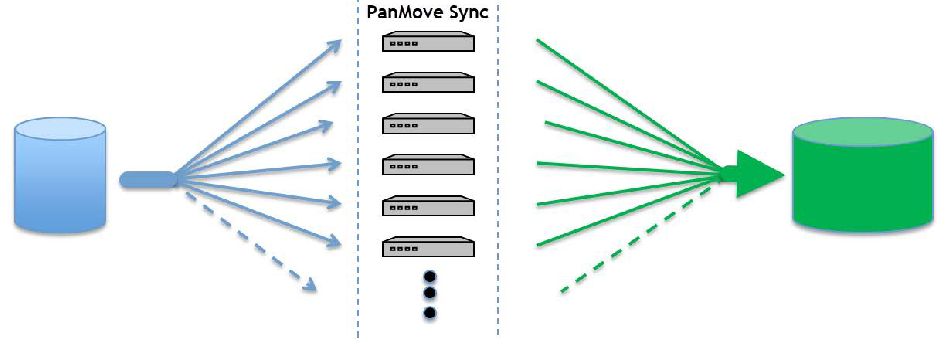 Figure 14-1. The rsync utility as part of PanMove Sync.
PanMove Sync has several advantages over rsync, particularly when working with large datasets. PanMove Sync offers:
- Scalable performance: PanMove Sync scales with multiple clients (tested with up to 64 worker processes).
- Can be interrupted and resumed: PanMove Sync periodically saves the replication and can resume from the last saved point.
- Fast start: PanMove Sync begins copying data virtually immediately. For very large datasets, rsync can take hours analyzing the directory structure before moving any data.
- Automatic load-balancing: PanMove Sync automatically redistributes workload evenly across the available workers. Thus, faster workers are automatically given more work.
14.1.1 Operation
PanMove Sync copies an existing directory tree to a new location, using a parallel, multi-client process that preserves permissions, attributes, ownership, sparseness, and hardlink relationships of the original files.
You initiate operation by starting the PanMove Sync manager, which controls the overall process; see Start PanMove Sync Manager for more information. The PanMove Sync manager can perform the replication operation independently or can call up to 64 worker processes to assist using the –client-list=<file> option.
NOTE: More than one worker process can be run on a single worker machine. The number is controlled through the –workers-per-client option. The default number is 4, however you may try changing from the default to maximize performance.
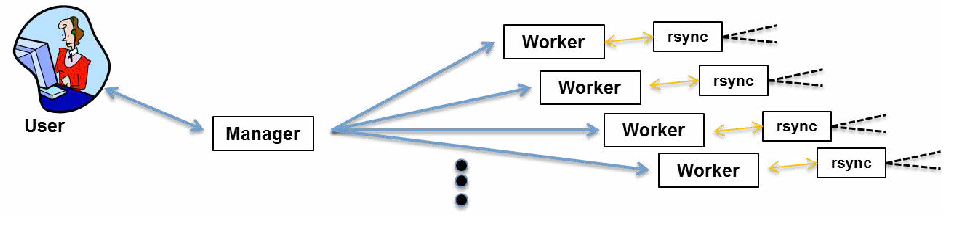 Figure 14-2. Worker processes.
During operation, PanMove Sync determines the directories and/or files to be synchronized and queues instructions for the workers to handle the copying. Unless given an explicit list of items to replicate (using –files-from, –exclude-from, or –include-from options), PanMove Sync begins with the top-level source directory and traverses the tree in a depth-first manner. For each directory visited, the manager queues an instruction for one of the workers to replicate the directory and its contained files. In this way, the manager visits the entire source directory tree structure, while the tree content is replicated by the workers. The workers operate in parallel (independent of each other) to create and copy directories, files, and links.
PanMove Sync may be interrupted and resumed without starting over by using the –resume option. During operation and when terminating in a controlled fashion, the manager periodically saves the current state of the operation to a temporary directory, so that if the operation is terminated before completion, it can be later resumed from the last saved state. By default, the temporary directory is located in the replication destination directory. Use the –temp-dir option to direct PanMove Sync to place the temporary directory in a different location.
In addition, if a replication operation runs to completion but fails to replicate some files due to errors, the operation can be retried using the –retry option to attempt to replicate the failed files without performing the entire replication operation over.
Once the replication operation is complete, the manager will output to the console a summary of the results. The results can also be copied to a designated log file using the –log-file=<file> option. These results include the number of files replicated, total number of bytes transferred, and the number of files and/or directories that failed to replicate. If any files or directories failed to replicate, the manager sends out a notice instructing the user to examine the log for the names of failed items, and also reminding the user that the –retry option can be used to retry the failed items.
NOTE: If the –temp-dir-del option is used and set to always, the temporary directory is deleted and the –retry option is not possible.
14.1.2 Compatibility
PanMove Sync is supported on all versions of the Linux operating system supported by DirectFlow. A complete list of supported client distributions and kernels can be found at support.VDURA.com on the Download > DirectFlow Client for Linux page.
The utility also supports third-party file storage, providing that the file systems are accessible to the clients running PanMove Sync.
All PanMove Sync workers must run the same PanMove Sync version as the manager. If the manager sees that the worker does not have an acceptable version, it tells the worker to terminate.
All PanMove Sync workers must run rsync version 2.6.8 or later to ensure proper operation.
Best performance is obtained when using PanFS mounts for both source and destination directories.
NOTE: You can check client compatibility when you first set up PanMove Sync. See Verify Client Setup for more information.
14.1.3 Operation Requirements
The operation of PanMove Sync assumes the following points are true. If any one of these requirements is not met, PanMove Sync may fail to replicate all directories and files as expected.
- The source directory must be mounted on all clients at the same mountpoint.
- The destination directory must be mounted on all clients at the same mountpoint.
- All clients must have an appropriate version of the rsync utility available.
- The panfs-apps.rpm is installed on all clients.
- The user has the proper permissions on the source and destination directories to replicate the files.
- The source directory is not being modified during operation.
- No other clients will be writing to the destination directory at the same time that PanMove Sync is running.
- The destination directory is not contained within the source directory. Otherwise, an infinite recursion may result which will consume all space on the source directory volume.
- PanMove Sync is able to reach workers using the IP address or hostname and user ID provided via SSH. This is necessary to auto-start workers. We recommend key-based SSH access between PanMove Sync and workers.
- There is sufficient space on the destination volume or another volume shared between manager and worker clients, to hold temporary transaction data.
14.2 Configuration and Use
The PanMove Sync manager controls the copying process by traversing the directory tree, distributing instructions to worker clients, providing control, and reporting status during the processing.
This section contains the following sections:
- Before Using PanMove Sync Manager
- Start PanMove Sync Manager
- Verify Client Setup
- Create a Client-List File
- Specify the Number of Processes to Start on Each Client
- Replicate or Exclude Specific Files
- Resume an Interrupted Replication
- Retry Replication of Failed Files
- Terminate a Replication Process
- Manually Start a Worker
- Specify a Log File Location
- Example Scenarios
14.2.1 Before Using PanMove Sync Manager
Verify the following two points before starting the PanMove Sync manager:
Before using the PanMove Sync manager, make sure that panfs-apps is installed on the master node and each worker client. The panfs-apps RPM is available at support.VDURA.com on the Downloads tab > DirectFlow Client page. While on this page, search for panfs-apps and select the correct version for your system.
The master node must have root SSH keys configured to itself and to each worker node. The SSH keys must not require pass phrases, so that they can be used without a password or pass phrase prompt. Test SSH access from the master node to itself:
# ssh localhost
Test SSH keys to any worker nodes:
# ssh root@{node name or IP}The SSH command should succeed without a password prompt.
14.2.2 Start PanMove Sync Manager
To start the PanMove Sync manager, enter the following command:
pan_sitesync [options] <src_dir> <dst_dir>- <src_dir> is source directory to replicate data from. This can be any arbitrary directory.
- <dst_dir> is destination directory to replicate data to. This can be any arbitrary directory not residing within the source directory tree.
The table below explains command options.
| Option | Description |
|---|---|
-h, --help |
Display a brief help page describing PanMove Sync options. |
--addr=<IP> |
Use the specified IP address for worker communications. This option allows selection of the host address and the attached subnet for exchanging messages with workers. Generally, this is only needed with multi-homed hosts when there is no routing between attached subnets. By default, PanMove Sync will use the first routable interface address. |
--client-list=<FILE> |
Specify a file with the list of clients to start as workers. The total number of workers will be the number of clients specified times the value of the workers-per-client option. Changes to this file that occur once processing has started are ignored until the next restart or resume. See Create a Client-List File for more details about the content of this file. If not specified, workers are created on the manager’s host machine as the current user, using the localhost as the client. The worker executable and a proper version of rsync must be found in the default PATH for this to work properly. |
--delete |
Delete files and directories that exist only on destination, for any directory being replicated. |
-n, --dry-run |
Operate as usual, except do not copy any directories or files. Instead, PanMove Sync will determine which files to copy and obtain statistics about the replication. A dry-run operation may be interrupted and resumed just like a regular operation. |
--eta |
Perform a dry-run in order to gather statistics before starting replication. During replication, PanMove Sync will compute estimates for completion (ETA) which are included in progress messages. This command implies –progress. Use of this option will extend the time it takes to perform a replication, since it adds a dry-run before starting updates. |
--exclude-from=<FILE> |
Specify a file that contains rsync exclude patterns (one per line). Blank lines in the file and lines starting with “;” or “#” are ignored. FILE cannot be “-” (i.e., the list cannot be read from standard input as with regular rsync). |
--files-from=<FILE> |
Specify optional file containing an exact list of files and directories to be replicated. Unlike –include-from, this file cannot contain wildcards. Each directory or file listed must be specified with a path relative to the source directory. All directory names must end with a slash delimiter. When using this option, directory recursion is disabled. |
-I, --ignore-times |
Do not skip files that match size and time. This forces all files to be updated regardless of the last-changed time or file size. |
--include-from=<FILE> |
Specify a file that contains rsync include patterns (one per line). Blank lines in the file and lines starting with “;” or “#” are ignored. FILE cannot be “-” (i.e., the list cannot be read from standard input as with regular rsync). |
--log-date |
Add the current date to log timestamps (dd-MM-yy, HH:MM:SS). Default is HH:MM:SS. |
--log-file=<FILE> |
Specify the path and name of the PanMove Sync log file to create. Default is “-” to write log output to stdout. The log file size is usually in the 5-10 MB range, but if verbose logging is requested, the size can become much larger. |
--log-msec |
Extend log timestamps to millisecond accuracy (HH:MM:SS.mmm). Default is HH:MM:SS. |
--modify-window=<NUM> |
Compare last-modification times with reduced accuracy; allows a difference of NUM seconds to be considered equal. |
--no-itemize |
Skip generating ITEM log messages. Normally when any verbose options are specified, PanMove Sync will produce a log message for every file and directory examined or updated. Use of this option suppresses these itemized messages while still allowing other verbose log messages to appear. This can greatly reduce log size and processing overhead if such individual messages are not needed. |
--no-xattrs |
Omit the -X parameter to rsync (i.e., do not copy or update xattrs on the destination). PanFS ACLs are stored as extended attributes, so they will not be preserved when running PanMove Sync with the –no-xattrs option. |
--port-m=<NUM> |
Set the port number to use for the manager XML-RPC service. Default is 9980. |
--port-w=<NUM> |
Set the base port number to use for the worker XML-RPC service. Default is dynamic. |
--progress |
Periodically show a progress message to stdout. The message will look similar to this: [10:15:33] NOTICE: Processed 0 files (0B) in 2 directories in 00h:00m:04s |
-r, --resume |
Resume a previous incomplete operation. If –resume is specified, a valid temporary directory must exist and contain the state from a previous operation. Similarly, if –resume is not given, the temporary directory must not already exist. If a migration has been begun and interrupted, you can only resume the migration using the version with which you began. For example, if you began a migration using PanFS 5.5.x, you cannot resume that migration using PanFS 6.0.x or later. |
--retry |
Only used to restart a replication which completed with one or more file/directory errors. Only the failed items will be retried, and no other options specifying which files to replicate (e.g., include/exclude, files-from, etc.) are allowed. If a migration ends with failures, you can only retry the migration using the version with which you began. For example, if you began a migration using PanFS 5.5.x you cannot retry that migration using PanFS 6.0.x or later. |
--save-period=<MINUTES> |
Specify how long to wait in minutes between periodic updates of the saved state in the temporary directory. Increasing this value may cause more reprocessing when resuming PanMove Sync. Default value is 5. |
--size-only |
Skip files that match in size regardless of whether the source and destination have matching last-modified times. |
--stats-only |
Only used to display statistics of an interrupted replication without resuming the operation. |
--sync-size=<SIZE> |
Set the threshold for processing a single directory by multiple clients. Larger values allow for greater use of single-client processing, which is more efficient but may reduce the overall performance due to decreased use of parallel processing. Default value is 5 GB. |
--sync-tax=<SIZE> |
Control file batch sizes for replication. Larger values will decrease the number of files handled at one time, which is less efficient but helps distribute workloads more evenly across workers. Default value is 1 MB. The value of sync-size divided by the value of sync-tax sets the maximum number of files to be handled at one time by a single worker. If this ratio is set too high, excessive delays and/or errors during processing may occur. |
--temp-dir |
Set the temporary directory used for status and communications. This directory allows the replication to be interrupted and resumed later without starting over or losing all progress or performance statistics. Default is <dest_dir>/.pps_temp. |
--temp-dir-del=<WHEN> |
Specify whether to delete the temporary directory when PanMove Sync exits. Choices are: • always: always delete the temporary directory • never: never delete the temporary directory • success: delete upon successful completion only Default value is success. When using –temp-dir-del=always and PanMove Sync is interrupted, the temp directory will only be removed if PanMove Sync is interrupted with Ctrl-C from the command line or kill -SIGINT. It will be left intact if PanMove Sync is killed with SIGKILL (kill -9). |
--test-workers |
Do not perform replication. Instead, test the ability of the manager to start the specified workers, and test each worker’s access to the file system directories. All other options and arguments are ignored except –client-list. |
--timeout=<SECONDS> |
Set the rsync I/O timeout. In order to prevent worker processes from running indefinitely when waiting for blocked I/O, the timeout default is not zero (infinite) as it usually is for rsync. Therefore, on congested file systems or networks where I/O timeouts may be more likely, this option can be used to increase the timeout duration and reduce or eliminate rsync timeout errors. Default value is 300. |
-u, --update |
Skip files that are newer on the destination. |
--use-rsync=<FILE> |
Tell PanMove Sync to use the specified executable as rsync. Default is rsync in standard search path. |
-v, --verbose |
Increase the amount of information output to the log. By default, PanMove Sync outputs only warnings and errors. A single -v will add information about what files are being transferred and a brief summary at the end. Two -v options (–vv) will add additional information about PanMove Sync operation. Three or more -v options are only needed for debugging PanMove Sync. CAUTION! Even a single -v will cause PanMove Sync to generate ITEM log messages for every file handled. This can have adverse effects, such as greatly increasing log size and network traffic. In extreme cases, the excess network traffic can cause the temporary loss of one or more workers. Use the –no-itemize option to suppress such messages. |
--version |
Display current version of PanMove Sync. All other arguments are ignored. |
-w, --workers-per-client=<NUM> |
Specify the number of worker processes to start on each worker client. The PanMove Sync utility has been tested running up to 64 processes. Default value is 4. |
| The following options are passed as-is to rsync. See the rsync man page for more information. | |
--delete --exclude-from --ignore-times --include-from --modify-window --size-only --update |
14.2.3 Verify Client Setup
When setting up PanMove Sync for the first time, use the –test-workers option to verify your client setup. This option checks:
- NAS access at all clients
- SSH access from PanMove Sync to workers
- RPC connectivity to all workers
- PanMove Sync and rsync availability and versions
14.2.4 Create a Client-List File
At startup, PanMove Sync may be given a file containing a list of available worker clients by using the –client-list=<file> option. Any valid host can be used as a worker and listed in this file, including the host on which PanMove Sync is run.
With no client-list, PanMove Sync uses localhost with the current user ID, SSH keys for authentication, and expects executables to be in the user’s PATH. An empty client-list can also be used if it is desirable to start workers manually.
Each line in the client-list file takes the following form:
IP_address_or_hostname userID <pw> <pan_sitesync_worker>
<rsync>- userID: the ID for SSH to use to access the client machine. A single dot can be used for the userID to represent the current user at the time PanMove Sync is started (see examples below). The userID (or current user if a dot is specified) must have at least read access to the source directory and read+write+execute access to the destination directory.
- <pw>: optional password in open text. If using key-based SSH, leave this field empty.
- <pan_sitesync_worker>: optional executable for each worker client.
- <rsync>: optional rsync executable to use.
Each optional item is enclosed in angle brackets; these angle brackets must always be present. Paths to the executables may be included, as well, as either absolute or relative to the userID home directory. For any executable not specified, the default executable names are used, and it is assumed they will be found in the default search path for the SSH userID.
A few examples of client-list files:
ssh to 169.132.32.10 using the current userID and key-based access and run pan_sitesync_worker and rsync from default PATH:
169.132.32.10 . <> <> <>ssh to the host as the current user, with key-based access and run pan_sitesync_worker from root PATH and use specific rsync:
169.132.32.10 . <> <> </test/bin/rsync>ssh to the host as rnwp with a password and run /global/utilities/pan_sitesync_worker:
169.132.32.4 rnwp <password> </global/utilities/
pan_sitesync_worker> <>
ssh to the host as ssikah with a password and run ~/tbin/pan_sitesync_worker:
169.132.32.4 ssikah <password> <tbin/pan_sitesync_worker> <>ssh to the host as root with key-based access and run pan_sitesync_worker from root PATH and use specific rsync:
169.132.32.10 root <> <> </test/bin/rsync>
NOTE: The client-list provides PanMove Sync with available workers. However, the distribution of replication work to multiple workers depends on the data layout and parameters such as sync_size and sync_tax. In some cases (e.g., smaller datasets), PanMove Sync may not need to use all available workers.
14.2.5 Specify the Number of Processes to Start on Each Client
PanMove Sync can support up to 64 worker processes running across the hosts specified in your client list. You can specify the number of processes to run on a worker by using the –workers-per-client=<NUM> option. For example, the following command tells PanMove Sync to start two worker processes for each entry found in the client list file client_list.txt:
pan_sitesync --workers-per-client=2 --client-list=client_list.txt
src_dir dst_dir
In this example, if the client list file has five clients specified, a total of 10 worker processes would be started.
14.2.6 Replicate or Exclude Specific Files
If an operation is started with the –files-from <file> option, the manager does not traverse the source directory tree. Instead, it simply iterates the specified replication list, generating work orders for each item (file or directory) it finds.
The example below replicates the directory tree from /vol1/src to /vol3/archive3 using the workers that are defined in the file /usr/foo/sync_workers:
pan_sitesync --client-list=/usr/foo/sync_workers /vol1/src /
vol3/archive3
If either the –include-from <file> or –exclude-from <file> option is used, PanMove Sync will traverse the source directory as usual, but will include or exclude the files stipulated.
If PanMove Sync is initially started with either the –include-from <file>, –exclude-from <file>, or –files-from <file> options, the corresponding files are copied to the temporary directory. If the operation is interrupted and restarted, the cached versions of the files are used. To change the contents of the include-from, exclude-from, or files-from options, you will need to rerun the operation with the updated files.
To create a file for the files-from, include-from, or exclude-from option, list the path of each file to be included or excluded on a separate line.
NOTE: Only files can be excluded, not subdirectories.
14.2.7 Resume an Interrupted Replication
If a replication is interrupted before completion, it can be resumed at the point where it was interrupted as long as PanMove Sync was not started with the –temp-dir-del=always option.
The example below resumes an interrupted replication from /vol1/src to /vol3/archive3:
pan_sitesync --resume /vol1/src /vol3/archive3If a migration has been begun and interrupted, you can only resume the migration using the version with which you began. For example, if you began a migration using PanFS 5.5.x, you cannot resume that migration using PanFS 6.0.x or later.
14.2.8 Retry Replication of Failed Files
If a replication completes successfully, but with failed files or directories, PanMove Sync sends a notice instructing the user to examine the log identifying the failed files. Those files or directories can be retried using the –retry option.
The example below retries replication of the files that failed during the /vol1/src to /vol3/archive3 replication:
pan_sitesync --retry /vol1/src /vol3/archive3Retry works from an internally saved list of failed files. No other options are needed with the –retry option.
If a migration ends with failures, you can only retry the migration using the version with which you began. For example, if you began a migration using PanFS 5.5.x, you cannot retry that migration using PanFS 6.0.x or later.
14.2.9 Terminate a Replication Process
If the replication process must be interrupted, use the Ctrl-C key combination or the system command kill -SIGINT <procID> in order to ensure an orderly termination and save the latest progress. If the replication is interrupted with the SIGKILL command, no termination handling will occur.
14.2.10 Manually Start a Worker
The PanMove Sync worker is the worker client tool and is usually started automatically by the PanMove Sync manager. You can also start a worker directly as follows:
pan_sitesync_worker [options] <managerURL>The <managerURL> parameter is the hostname or IP address and port where PanMove Sync RPC services can be found. The manager must be initialized before starting a worker. For example:
pan_sitesync_worker http://10.75.1.134:9980Available options include:
| Option | Description |
|---|---|
--index=<n> |
The index of this worker process as defined by the PanMove Sync manager. This option is not normally used when starting a worker manually. |
--log-level=<level> |
The level of verbosity in the worker log. This option is not normally used when starting a worker manually. |
--port=<n> |
Port number for worker’s RPC service. Default value is dynamic. |
--report-rsync-version=<x.y.z> |
Force worker to report its rsync version as x.y.z. This option is not normally used when starting a worker manually. |
--signature=<n>: |
The worker’s unique signature provided by PanMove Sync. This option is not normally used when starting a worker manually. |
--spawn |
Start worker as background process. This option is not normally used when starting a worker manually. |
--use-rsync=<FILE> |
The rsync executable for worker to use. The default is rsync on the standard search path. |
--version |
Report the version of PanMove Sync worker and exit. |
Manually started workers can be added to an in-progress replication or removed from participation at any time.
14.2.11 Specify a Log File Location
By default, all messages are sent to stdout. However, you can specify a log file to hold messages by using the –log-file=<file> option. The example below replicates the directory tree from /vol1/src to /vol3/archive3 and sends all log output including periodic progress messages to /usr/foo/psync.log:
pan_sitesync --progress --log-file=/usr/foo/psync.log /vol1/
src /vol3/archive3
For information on the contents of the log file, see Logging and Error Handling.
14.2.12 Example Scenarios
The following command replicates the directory tree from /vol1/src to /vol3/archive3 using localhost workers. Note that if files are found in /vol3/archive3 that do not exist in /vol1/src, they are left untouched.
pan_sitesync /vol1/src /vol3/archive3The following command replicates the directory tree from /vol1/src to /vol3/archive3 and displays the name of each file replicated. In this case, if any files or directories exist in /vol3/archive3 that are not found in /vol1/src, they are deleted.
pan_sitesync -v --delete /vol1/src /vol3/archive3The following command replicates the directory tree from /vol1/src to /vol3/archive3 using the workers that are defined in the file /usr/foo/sync_workers.
pan_sitesync --client-list=/usr/foo/sync_workers /vol1/src /
vol3/archive3
The following command replicates the directory tree from /vol1/src to /vol3/archive3, including only those files stipulated in /usr/foo/myincludes.
pan_sitesync --include-from=/usr/foo/myincludes /vol1/src /
vol3/archive3
14.3 Logging and Error Handling
PanMove Sync creates a log file for every operation. Log entries are labeled with a timestamp, originator, and one of several severity levels, in this format:
<timestamp> <severity> [workerID] : <message>Severity levels are as follows:
- NOTICE: Important user information (always shows)
- STAT: Operational statistic (always shows)
- FATAL: Unexpected error, terminating (always shows)
- ERROR: Unexpected error, operation may fail (always shows)
- ITEM: File or directory being replicated (-v and above, unless –no-itemize specified)
- WARN: Unexpected event, operation proceeding (–vv and above)
- INFO: Generally used for debugging PanMove Sync operation (–vvv and above)
- ALL: Low-level information used for debugging only (–vvvv)
Below are some example log file entries:
[11:35:52] INFO: Completing: WorkQueue now has 24 WorkOrders
[11:35:53] ERROR [w(0):compute-5-6]: FILE: SubDir1/file0.dat:
ERROR: Update missed (rsync error)
[11:36:07] STAT: Elapsed operational time: 00h:00m:17s
[11:36:07] STAT: Number of directories visited: 30
[11:36:07] STAT: Files updated: 129
14.4 Limitations
The following table lists known limitations with this release of PanMove Sync:
| Issue | Description |
|---|---|
| symlinks | If a symlink was constructed using a full path to another location in the directory being replicated, such links may end up broken. |
| Non-default layouts | Non-default PanFS layouts are not preserved. In particular, the PanFS attributes agg_type_files and agg_layout_info_files are not preserved across the replication. If you wish to have child files that use non-default layouts, you will need to exclude any directories containing such files from the process and perform the copy of those directories and their contents manually. |
| CW mode setting | Copying CW mode setting is not handled. This must be done manually after the data replication process completes. |
| Timestamp synchronization | On some versions of Linux, it is not possible for rsync to synchronize the timestamp of a replicated symlink. In such cases, the replicated symlink has a timestamp equal to its creation time instead of the original symlink’s timestamp. |
| Excluding replication of subdirectories | Unlike rsync, PanMove Sync does not support excluding replication of subdirectories by naming them in an exclude file. Only files can be specified for exclusion in an exclude file. |
| Extremely long pathnames | PanMove Sync is unable to replicate directories which have a path longer than the OS maximum pathlength (usually 256 characters on Linux). Unlike regular rsync, this limit applies even to files within deeply nested subdirectories, whose full pathname exceeds this limit. |