
5. Configure Storage Data
This chapter describes how to use PanActive Manager to configure and manage storage data. It includes the following sections:
- StorageSets and Volumes
- Configure and Manage StorageSets
- Configure and Manage Volumes
- Volume Data Compression
- Configure Erasure Coding with a RAID Layout
- Horizontal Parity
- Multi-Level Erasure Coding
- User and Group Quotas
- Enclosure Migration
- Realm Management
5.1 StorageSets and Volumes
VDURA provides two mechanisms to manage capacity and the namespace: StorageSets and volumes.
5.1.1 About StorageSets
The StorageSet is a physical mechanism that groups Storage Nodes into a uniform storage pool. It is a collection of one or more enclosures grouped together to store data.
You can grow a StorageSet by adding more hardware, and you can migrate data within a StorageSet from older hardware to newer hardware with our data migration tool (see Enclosure Migration).
The VDURA system automatically creates the first StorageSet during initial installation. When you add more storage to your system, it remains unassigned and unused until you assign it to a StorageSet.
Two major factors must be considered when choosing the size of a StorageSet:
- Performance: The size of the StorageSet affects the maximum stripe width of data objects. A larger stripe width allows higher per-file bandwidth and faster reconstruction. Thus, larger StorageSets tend to provide better performance.
- Data Security: A StorageSet may contain one or more volumes. If one or more Storage Nodes fail in the StorageSet, the effects of the failure are evaluated for each volume in the StorageSet. RAID 6+ volumes can recover from up to two overlapping OSD failures in the StorageSet, while RAID 5+ volumes can recover from only a single failure in the StorageSet. If a RAID+ volume has exceeded its fault tolerance by one, EFSA keeps the volume online, but some of the objects may not be available. If a RAID+ volume exceeds its fault tolerance by more than one, the volume becomes unavailable. Thus, dividing up your storage into smaller StorageSets may decrease the likelihood of data loss or unavailability.
5.1.2 About Volumes
A volume is a logical mechanism, a sub-tree of the overall system directory structure. A read-only top-level root volume (/), under which all the other volumes are mounted, is created during setup. A /home volume is also created during setup. All other volumes are created by the user on a particular StorageSet. A volume cannot span multiple StorageSets, nor can it be moved from one StorageSet to another. The exception to this rule is the root volume, which can be moved to another StorageSet. For more information about moving the root volume, see Move the “/” Root Volume. Note that a realm can contain up to 1200 volumes, however additional volumes can be added with low-level system commands.
A volume does not have a fixed space allocation, but instead has an optional quota which can, in effect, set a maximum size on the volume. You can think of a volume as a flexible container for files and directories, and the StorageSet as a fixed size container for multiple volumes.
Because volumes cannot span multiple StorageSets, the size of a StorageSet determines the maximum amount of data that can be stored in the volumes it contains. However, you can increase the size of a StorageSet by adding new enclosures.
Planning Volume Creation
Several considerations should be taken into account when planning volume creation:
- Use volumes to manage capacity: Create volumes based on projects, users, or groups. You can then manage capacity by applying quotas to limit usage.
- Create volumes to complement your backup strategy: Use multiple volumes to facilitate multiple simultaneous backup streams, reducing overall backup time. If recovering from tape, you can recover critical volumes first.
- Enhance performance by assigning volumes to different Directors: Each Director runs a metadata service that manages one or more volumes; the responsibility for a volume is not spread across multiple Directors. If your system has several Directors, you should define a like number of volumes to each Director to ensure that all Directors can be assigned some of the metadata workload.
5.1.3 Understanding Capacity in StorageSets and Volumes
Available capacity in a StorageSet is shared by all volumes in it. Used capacity, however, is individual for each volume. As a result, it is possible to oversubscribe the available capacity on the StorageSet if the sum of the quotas for all volumes in the StorageSet is more than its available capacity. Care should be taken to manage the hard quotas per volume and monitor the total used capacity. Setting hard quotas on each volume can prevent this condition by ensuring that the sum of the available capacity of all the volumes is not larger than the available capacity on the StorageSet. For more information on setting hard quotas, see Create Volumes.
Capacity also includes the overhead associated with RAID 5+ and RAID 6+ parity data. RAID 6+ files offer greater protection from failures, but have a higher capacity overhead than RAID 5+ files. This should be kept in mind when calculating capacity usage and quotas in your system.
Two utilities are available for examining capacity information. The Unix df utility is commonly used by end users from DirectFlow file system client machines, but is restrictive in terms of what type of information can be reported. VDURA also supplies the pan_df utility as part of each DirectFlow package, which returns more information than the df utility. When using pan_df, be aware that the information will differ depending upon whether it is a global (overall system) mount or a volume-level mount.
Both utilities report the same three values: total capacity, capacity used, and capacity available. However, they differ on what information they use to compute those three values. The df utility uses the information returned by statfs(), which is total capacity and available capacity, and then calculates used capacity based on those two values. While the values returned through the df utility are intended to enable programs and scripts that run on DirectFlow clients to operate correctly, they cannot capture the full picture. On the other hand, the pan_df utility interacts with DirectFlow and gets data about the global mount or the volume level, depending upon what the customer is using. Hence, the values used by pan_df for total capacity and available capacity are different from what df would use.
For example, using the pan_df utility, the reported value for total capacity is calculated as the sum of the used and free capacity data. For a given volume (or for the overall system), the used capacity is unambiguous.
However, free capacity is more complex because there is more than one type of free capacity. There is the per-volume free capacity that relates only to the given volume. There is also the overall system free capacity that is the sum over all volumes. The sum of the reported free capacity over all volumes will typically exceed the true free capacity in the overall system. This occurs because some free capacity will be counted twice, since free capacity is associated with each StorageSet, rather than each volume.
Capacity information reported by PanActive Manager can also be obtained via the command-line interface using the pan_pm_report_space command. This command can produce information for the overall system or for a particular volume and StorageSet(s).
Capacity information is reported in bytes or using suffixes such as KB, MB, etc. In the latter case, the command allows for the suffixes to be defined as KB = 1000 (base 10) or KB = 1024 (base 2).
Example of pan_pm_report_space for Overall System
[pancli_service] diag_exec "pan_pm_report_space"
Mon Apr 21 23:12:46 GMT 2014: Executing
"pan_pm_report_space"...
Mon Apr 21 23:12:46 GMT 2014: Executed "pan_pm_report_space"
successfully:
PM 0x0500000000000002(PM) reports space (all) over 30 blades
Total Capacity: 230730033070080 bytes
Total Available Capacity: 230605356498944 bytes
Total Used Capacity: 124676571136 bytes
Usable Capacity (bucket 0):
Total: 207657029468160 bytes
Available: 207532352897024 bytes
Used: 124676571136 bytes
Reserved Capacity (bucket 1):
Total: 23073003601920 bytes
Available: 23073003601920 bytes
Used: 0 bytes
Example of pan_pm_report_space for a Particular Volume
[pancli_service] diag_exec "pan_pm_report_space -v 3"
Mon Apr 21 23:15:05 GMT 2014: Executing "pan_pm_report_space
-v 3"...
Mon Apr 21 23:15:05 GMT 2014: Executed "pan_pm_report_space -
v 3" successfully:
PM 0x0500000000000002(PM) reports space (volume) over 30
blades
Total Capacity: 230730033070080 bytes
Total Available Capacity: 230605356498944 bytes
Total Used Capacity: 124676571136 bytes
Usable Capacity (bucket 0):
Total: 207657029468160 bytes
Available: 207532352897024 bytes
Used: 124676571136 bytes
Reserved Capacity (bucket 1):
Total: 23073003601920 bytes
Available: 23073003601920 bytes
Used: 0 bytes
storageset: 1; snapshot count: 0; vol state: 3; vol flags:
0x0
live: 393216 bytes
snapshot: 0 bytes
parity: 0 bytes
hard quota: 0 bytes
soft_quota: 0 bytes
Usable Capacity (bucket 0)
free min: 6917744951296 bytes
free max: 6917745131520 bytes
percent imbalanced: 0
amount imbalanced: 1111969792 bytes
max amount imbalanced: 74166272 bytes
The live, snapshot, parity, hard_quota, and soft_quota lines are the actual volume-level capacities. Free min refers to the free usable (bucket 0) capacity on the most-full individual Storage Node in the StorageSet, while free max is correspondingly the most-empty individual Storage Node.
5.2 Configure and Manage StorageSets
Before configuring StorageSets, be sure to read StorageSets and Volumes. Always make sure the system is online via the Hardware Management page before completing any of the following procedures.
This section includes the following topics:
- List StorageSets
- Create StorageSets
- Manage StorageSets
- Reconstruct Failed Storage Nodes in a StorageSet
5.2.1 List StorageSets
Click Storage > StorageSets.
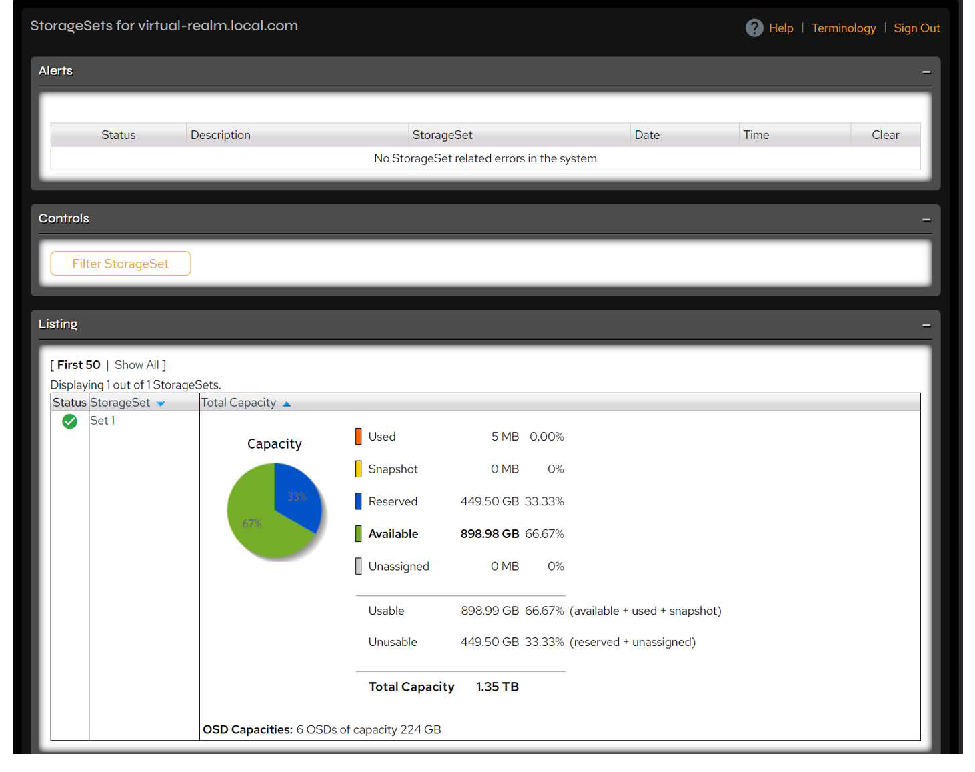 Figure 5-1. StorageSets page.
NOTE: Capacity information in the GUI is reported using base 10. For example, a number optionally followed by KB, MB, GB, TB, PB or EB where KB = 1000, MB = 1000 * KB, etc.
The StorageSets page includes the following statistics and controls.
Alerts
| Column | Description |
|---|---|
| Status | Shows an icon depicting error level. Click the icon to see a full description of the error. |
| Description | Brief textual description of the error state. |
| StorageSet | StorageSet containing error(s). Click the name for details. |
| Date | Date of error. |
| Time | Time of error. |
| Clear | Some non-critical errors and information messages can be removed by checking the box and clicking the Clear button. |
Controls
| Control | Description |
|---|---|
| Create StorageSet | Click to open the Create StorageSet page. For information on creating StorageSets, see Create StorageSets. This control will only be available if there is free hardware from which a new StorageSet can be created. |
| Filter StorageSet | Click to display filter fields where you can specify patterns and display/sort options to find a particular StorageSet. The following wildcards can be used in the StorageSet Glob Pattern field: * — Match any number of any set of characters. ? — Match exactly one character. [chars] — Match any character enclosed in brackets. \ — Match a literal *, ?, or bracket (used to escape wildcards). |
Listing
| Column | Description |
|---|---|
| Status | Displays an icon depicting error level. |
| StorageSet | Click the StorageSet name to view details about it and to perform functions such as editing or adding storage. See Manage StorageSets for more information. |
| Total Capacity information: | |
| Used | Utilized capacity of a StorageSet. |
| Snapshot | Snapshots are not currently supported in this release. They will be reimplemented in an upcoming release. Capacity consumed by snapshots of StorageSet data. |
| Reserved | Capacity reserved for use by reconstruction. |
| Available | Capacity ready to be consumed by growth in either Used or Snapshot capacity for any volume. |
| Unassigned | Total capacity minus space assigned to quotas on volumes or reserved. |
| Usable | Available plus Used plus Snapshot. |
| Unusable | Reserved plus Unassigned. |
| Total Capacity | Total amount of space in a StorageSet. |
| OSD Capacities | The number of Storage Nodes in the StorageSet and their capacities. |
5.2.2 Create StorageSets
Use PanActive Manager to create a new StorageSet when new storage devices are added to the system. This is the only time you can increase the number of spares allotted to the system.
NOTE: For information on configuring and managing StorageSets using the command-line interface, see the storageset command in the VDURA PanCLI Reference Guide.
Click Storage > StorageSets. PanActive Manager automatically detects free enclosures. If any are available, the Create StorageSet button appears under Controls. Click Create StorageSet to display the Create StorageSet page.
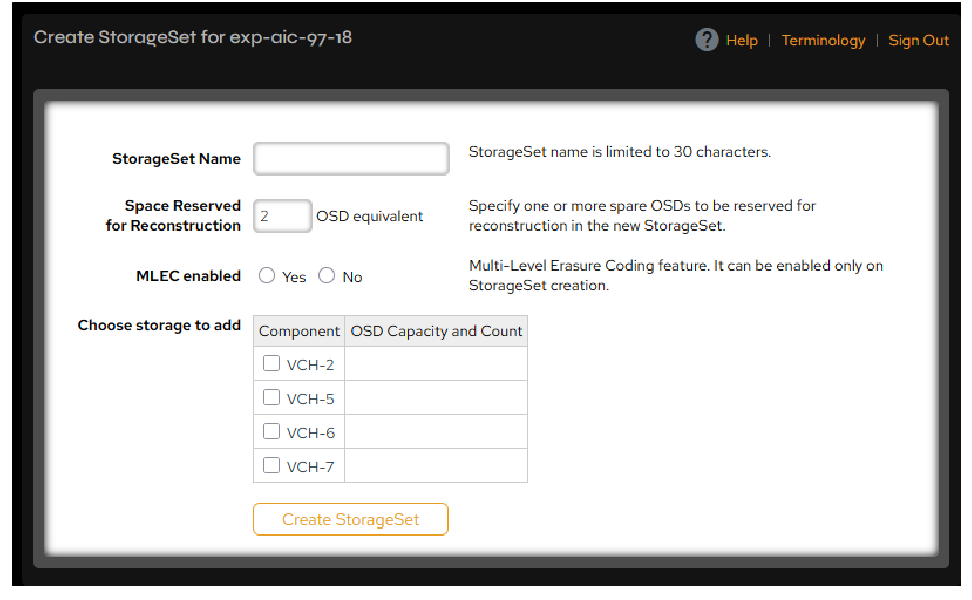 Figure 5-2. Create StorageSet page.
Enter a descriptive name up to 30 characters in length for the StorageSet in the StorageSet Name text box. All characters must be ASCII characters.
Enter the amount of space in OSDs (VPODs) to be reserved for reconstruction. The amount of space you reserve for reconstruction determines the number of consecutive VPOD failures the StorageSet can withstand while still providing data redundancy. Be sure to reserve sufficient space when you create the StorageSet, because additional space can only be configured when you add additional storage. For more information, see Edit a StorageSet.
If desired, enable Multi-Level Erasure Coding (MLEC). This feature provides a second layer of erasure coding and reconstruction inside VPODs. This setting cannot be changed after the StorageSet is created. For more information, see Multi-Level Erasure Coding.
Select available storage from the Component list and click Create StorageSet when finished.
5.2.3 Manage StorageSets
In the Listing section on the StorageSets page, click a name in the StorageSet column to open the StorageSet Detail page. This page contains additional information and the following controls:
| Control | Description |
|---|---|
| Add Storage | Click to open the Add Storage page where you can add storage to the StorageSet. For more information, see Add Storage to a StorageSet. This button only appears when there is unused storage available. |
| Create Volume | Click to open the Create Volume page where you can create a new volume on the StorageSet. For more information, see Create Volumes. |
| Volume Recovery Priority | Click to open the Volumes Listing page where you can set the recovery priority for a volume in the Listing table. For more information, see Set Volume Recovery Priority. |
| Edit StorageSet | Click to open the Edit StorageSet page, where you can update specific attributes of the StorageSet. For more information, see Edit a StorageSet. |
| Merge StorageSets | Click to merge a StorageSet into the selected StorageSet. For more information, see Merge StorageSets. This button only appears when there are StorageSets that can be merged. |
| Turn Off/On Capacity Balancing | By default, capacity balancing is enabled on all StorageSets, but you can turn off capacity balancing on individual StorageSets as needed. If you have capacity balancing turned off, PanActive Manager generates a warning when a StorageSet’s capacity is unbalanced. For more information, see Balance StorageSet Capacity. |
| Delete StorageSet | Click to delete the StorageSet. For more information, see Delete StorageSets. This button only appears when there is a StorageSet that can safely be deleted (i.e., a StorageSet with no volumes). |
| Reconstruct | Click to reconstruct data on reserved OSD (VPOD) space after a failure. For more information about reconstructing a StorageSet, see Reconstruct Failed Storage Nodes in a StorageSet. Note: Reconstruction runs on the live file system and snapshots. |
Additional information field in the Detail area:
| Additional Field | Description |
|---|---|
| Status Icon | Displays an icon depicting error level. |
| Set Name | Displays StorageSet name. |
| Status | Displays number of OSDs (VPODs) online out of total available. |
| View Volumes in StorageSet | Click to view the Volumes page for the StorageSet. |
| Historical Event Log | Click to go to the Historical Event Log page. |
| Spare OSDs for Reconstruction | Displays amount of requested and available OSDs (VPODs) for reconstruction. |
| Capacity Imbalance | Current Imbalance: Amount of imbalance. Balancing rate: Rate at which system is correcting imbalance, if in progress. |
| MLEC | Enabled or disabled. |
| Enclosure with OSDs in this StorageSet: | Displays names of enclosure names with OSDs (VPODs) in the current StorageSet. |
Avoid filling any StorageSet to more than 90 percent of capacity.
PanActive Manager issues warnings if a Storage Node or StorageSet exceeds 90 percent of capacity. Should the data on a VPOD or StorageSet approach 90 percent of capacity, consider adding storage capacity to your StorageSet or removing unneeded data.
Add Storage to a StorageSet
You can increase the capacity of an existing StorageSet by adding new, unassigned components to it. If there are unassigned VPODs available in the system, PanActive Manager displays an Add Storage button on the Edit StorageSet page. Click this button to open the Add Storage window.
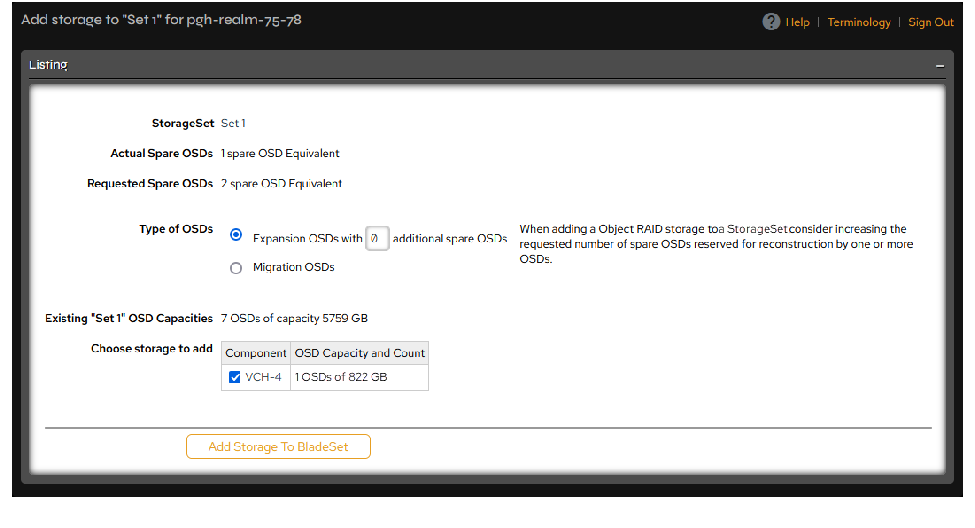 Figure 5-3. Add Storage page.
Select whether the storage will be used for expansion or migrating data from other nodes. If you will use the storage for expansion, consider assigning additional OSDs as spares reserved for reconstruction. If you are migrating data, follow the instructions in Enclosure Migration.
Unassigned storage discovered by PanActive Manager is shown in the Choose Storage to Add table. Select the storage you want to add, then click the Add Storage to StorageSet button to add it.
Edit a StorageSet
You can use PanActive Manager to edit characteristics of an existing StorageSet.
Click Storage > StorageSets, then click the name of the StorageSet you want to edit. The corresponding StorageSet Detail page appears. Click the Edit StorageSet button to display the Edit StorageSet page. This page allows you to change the StorageSet name and other characteristics described below. When finished, click Update StorageSet.
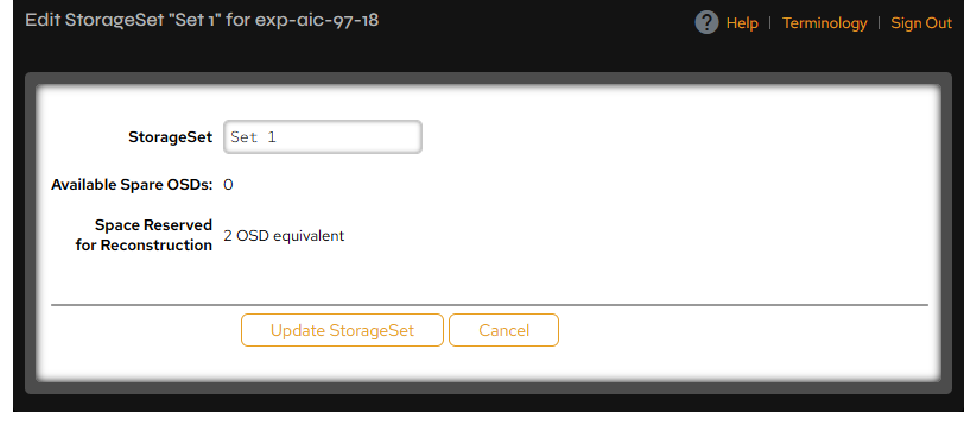 Figure 5-4. Edit StorageSet page.
The Available Spare OSDs field displays the current amount of space, in units of equivalent OSDs (VPODs), reserved for reconstruction. The reserved space is distributed over all OSDs in the StorageSet, rather than being restricted to individual OSDs. This is called distributed sparing.
The system will reserve the space equivalent of two OSDs for reconstruction per StorageSet by default. It is recommended that you increase the total reserved space as your system grows, using the guidelines and factors outlined below as you add hardware to the system.
The number of OSDs reserved determines the number of OSD failures that the StorageSet can automatically reconstruct from before you must physically replace an OSD. For example, if you reserve two OSDs of space, the StorageSet will be able to automatically reconstruct from up to two OSD failures before you must physically replace an OSD. If you have larger StorageSet, statistically you are more likely to lose more than one OSD at a time, so more reserved space than just the default is recommended.
The number of OSDs reserved also independently affects the ability of each volume in the StorageSet to reconstruct. If OSD failures overlap or are simultaneous, the availability of each volume in the StorageSet is evaluated independently for data reconstruction. Object RAID 6+ volumes can reconstruct from up to two overlapping OSD failures, so at least two OSDs worth of reserved space is recommended to allow the system to automatically reconstruct an Object RAID 6+ volume from such a failure.
The EFSA feature (see Extended File System Availability (EFSA)) available with RAID+ volume layouts can also be affected by the number of OSDs that you reserve. During EFSA, reconstruction is stopped, but the system must reconstruct any file that you attempt to modify. At least one additional spare may be necessary in order to perform this on-demand reconstruction. Therefore, if you have an Object RAID 6+ volume, it is recommended that you have at least three reserved OSDs to satisfy the EFSA feature.
Note that you may also decrease the number of OSDs reserved for reconstruction. When changed, this takes effect immediately. However, attempts to increase the amount of space reserved will not be implemented until you add additional storage to the system.
To change the amount of space reserved for reconstruction, enter the new amount of space, in units of OSDs, in the Space Reserved for Reconstruction field. Again, the recommended minimum number is two for StorageSets with RAID 6+ volumes and one for StorageSets with only RAID 5+ or 10+ volumes.
Merge StorageSets
This operation results in a single StorageSet that combines the components from the merged StorageSets and contains the volumes from both. You may want to merge StorageSets that share a common purpose, ownership, or management approach.
WARNING: You cannot undo the merge operation.
On the StorageSet Detail page, click the Merge StorageSets button. This button only appears if there are StorageSets that can be merged. The Merge a StorageSet into “Current StorageSet” page appears; do the following:
- Modify the Requested Spare OSD Count, if desired. When merging StorageSets, consider increasing the requested number of spare nodes reserved for reconstruction to the sum of requested spares of the two StorageSets.
- Select the StorageSet you want to merge.
- Click the Merge StorageSet button.
Balance StorageSet Capacity
In normal operation, the system stripes data evenly across OSDs in a StorageSet. However, operations such as the ones listed below can result in unbalanced capacity across OSDs:
- Adding a Storage Node to a StorageSet’s enclosure
- Adding a new enclosure to a StorageSet
- Merging StorageSets
- Reconstructing volumes
The system cannot provide maximum performance if a StorageSet is significantly unbalanced. To remedy this, the system can perform capacity balancing, redistributing data evenly on the OSDs in a StorageSet. However, capacity balancing consumes system processing resources and network bandwidth as data is moved between OSDs.
Capacity balancing attempts to evenly distribute the amount of free space over all OSDs in the system. If you have Storage Nodes with different capacities in your realm, the ones with larger capacities will be filled with data to even the amount of free space available to those with lesser capacity.
By default, capacity balancing is enabled on all StorageSets, but you can turn off capacity balancing on individual StorageSets as needed. If you have capacity balancing turned off, PanActive Manager generates a warning when a StorageSet’s capacity is unbalanced. In response, you can turn on capacity balancing for that StorageSet.
Click Storage > StorageSets, then click the name of a StorageSet to display its StorageSet Detail page.
Click the Turn Off/On Capacity Balancing button to toggle capacity balancing off or on for the StorageSet.
Delete StorageSets
You might want to delete a StorageSet if you created it in error, if it is not used any longer, or if you want to increase space in other StorageSets. When you delete a StorageSet, the OSDs in that StorageSet become unavailable.
You can delete a StorageSet when the following two conditions have been met:
- There are no volumes in the StorageSet. Before trying to delete a StorageSet, make sure any volumes have first been deleted. Since the root volume cannot be deleted, you cannot delete a StorageSet that hosts the root volume. You must first move the root volume to another StorageSet. For more information, see Move the “/” Root Volume.
- This is not the only StorageSet in the system. If all enclosures in the system are part of this one StorageSet, the system must be reinitialized.
Click Storage > StorageSets, then click the name of a StorageSet to display its StorageSet Detail page.
Click the Delete StorageSet button to delete the StorageSet. The Delete StorageSet button will only appear when there is a StorageSet that can safely be deleted.
5.2.4 Reconstruct Failed Storage Nodes in a StorageSet
When a Storage Node within a StorageSet fails, the data on it is reconstructed using parity information and data from the other parts of the file to recreate it. The recreated data is then stored on another OSD. This process causes the volumes to transition through various states and can impact the performance and responsiveness of the system. An available spare is required for reconstruction to proceed. The availability of each volume in the StorageSet is evaluated independently for reconstruction. Volumes eligible for reconstruction are reconstructed in order of recovery priority.
In general, access to files not impacted by the failure (i.e., not on the failed OSD) is still normal. Once reconstruction starts, access to files impacted but already reconstructed is also normal. In addition, reads to files impacted but not yet reconstructed should progress, but at a slower rate. Writes to impacted but unreconstructed files will stall.
If there is an available spare, reconstruction of a failed Storage Node usually happens automatically. However, if manual intervention is required, a Reconstruct button will appear on the StorageSet Detail page. Reconstruction can be monitored in PanActive Manager under Storage > Volumes > Listing, in the Tasks in progress column.
5.3 Configure and Manage Volumes
Before configuring volumes, be sure to read StorageSets and Volumes.
This section includes the following topics:
NOTE: For information on creating and managing volumes with the command-line interface, see the PanCLI volume command in the VDURA PanCLI Reference Guide.
5.3.1 List Volume Details
The Storage > Volumes > Listing page displays a list of all volumes in your system.
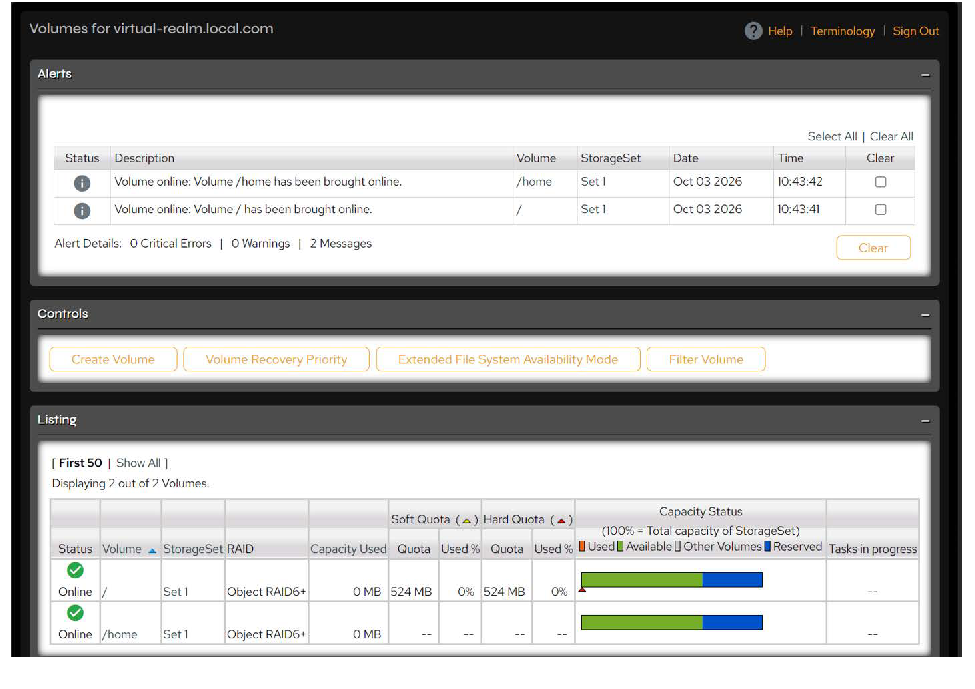 Figure 5-5. Volumes page.
The Volumes page includes the following information about volumes in each StorageSet.
Alerts
| Column | Description |
|---|---|
| Status | Shows an icon depicting the error level. Click the icon to see a full description of the error. |
| Description | Brief textual description of the error state. |
| Volume | Name of volume with errors. Click the name to get details about the volume. |
| StorageSet | StorageSet containing error volume. Click the name to get details about the StorageSet. |
| Date | Date of error. |
| Time | Time of error. |
| Clear | Remove some non-critical errors and information messages by checking the box and clicking the Clear button. |
Controls
| Control | Description |
|---|---|
| Create Volume | Click to open the Create Volume page. For information on creating volumes, see Create Volumes. |
| Volume Recovery Priority | Click to display the Recovery Priority column in the Listing table where you can set the recovery priority for a volume. For more information, see Set Volume Recovery Priority. |
| Extended File System Availability Mode | Click this button to view or modify the Extended File System Availability setting. For more information, see Set the Extended File System Availability Mode. |
| Filter Volume | Click to display filter fields where you can specify patterns and display/sort options to find a particular volume. The following wildcards can be used in the Volume Glob Pattern and StorageSet Glob Pattern fields: * — Match any number of any set of characters. ? — Match exactly one character. [chars] — Match any character enclosed in brackets. \ — Match a literal *, ?, or bracket (used to escape wildcards). |
Listing
| Column | Description |
|---|---|
| Status | • Online: The system is operating normally. • Warning: There are system warnings that indicate a developing problem that might impair system availability or data integrity. • Error: The system is experiencing difficulty that might imminently impair system availability or data integrity. |
| Volume | Volume name. |
| StorageSet | Name of the StorageSet containing the volume. |
| RAID | RAID level for the volume (Object RAID 6+, RAID 5+, or RAID 10+). |
| Capacity Used | Amount of space used. |
| Soft Quota | The soft quota for the volume, if set. If the amount of data stored on the volume exceeds the soft quota, PanActive Manager sends an email notification to recipients identified when you set the quota but continues to allow data to be written to the volume. Note: Soft quotas are set when you create a volume or changed later on the Edit Volume page. |
| Hard Quota | The hard quota for the volume, if set. If the amount of data stored on the volume exceeds the hard quota, PanActive Manager sends an email notification to recipients identified when you set the quota and prevents any additional data from being written to the volume. Note: Hard quotas are set when you create a volume or changed later on the Edit Volume page. |
| Capacity Status | A band chart shows volume capacity in relation to the total capacity of the StorageSet. The bands on the chart indicate the space used by this volume, the space used by other volumes in the StorageSet, the space available, and the space reserved for reconstruction and other system use. |
| Tasks in Progress | Describes various tasks being performed, such as FSRC or reconstruction. User quota calculations are also listed in this column. |
5.3.2 Create Volumes
Two volumes are automatically created during setup:
- The / root volume, under which all other volumes are mounted. The root volume is designed only to be used as an attachment point for the rest of the volumes and should never be used for storing files.
- The /home volume for file storage.
To create additional volumes, click Storage > Volumes > Create.
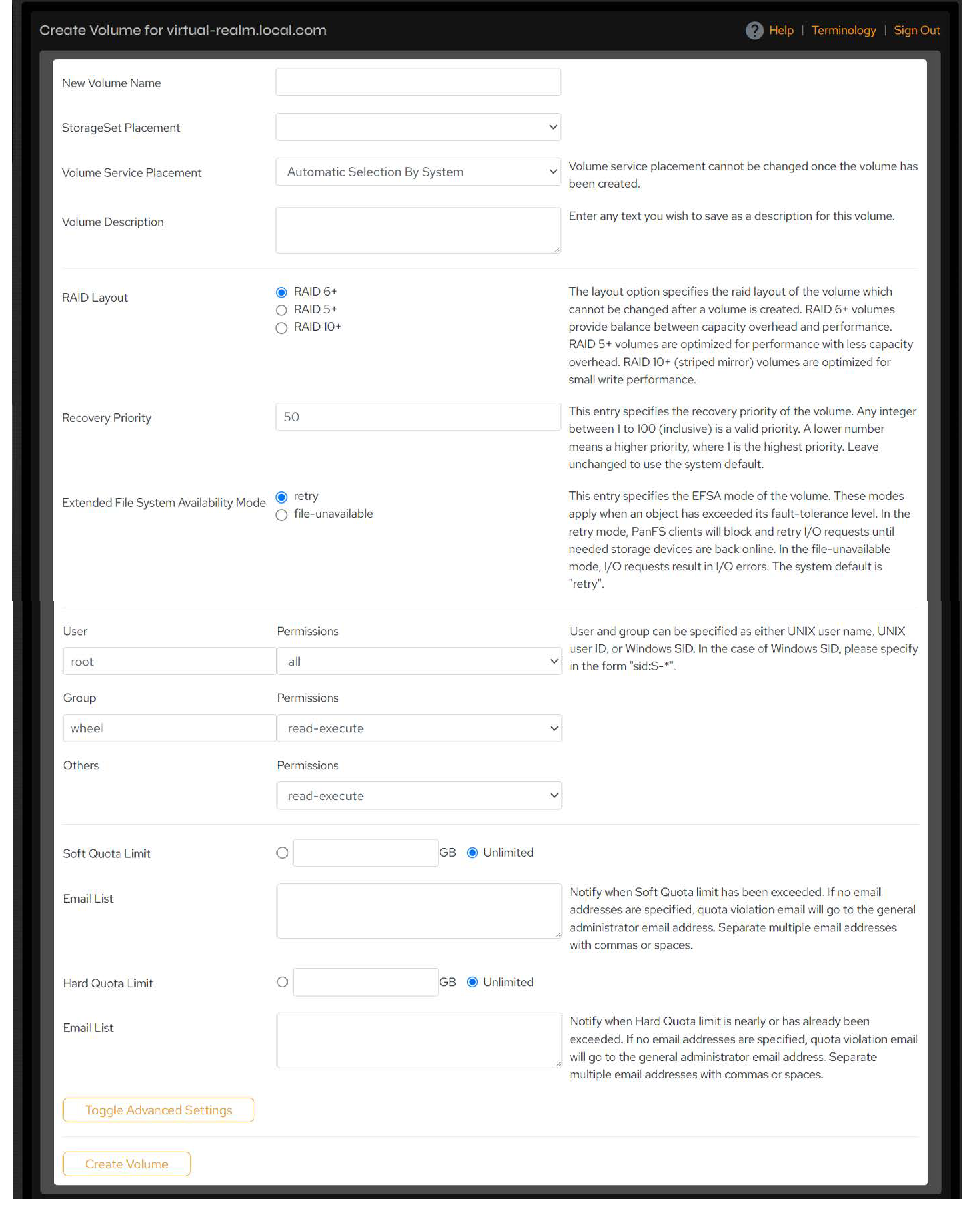 Figure 5-6. Create Volume page.
Use the controls below to set volume properties. Click Create Volume when finished.
| Control | Description |
|---|---|
| New Volume Name | Enter a descriptive name for the volume. The following restrictions apply to volume names: • Volume name cannot be empty. • Neither . nor .. can be volume name. • Volume name cannot start with ^. • Volume name cannot contain \ or ? or more than one semicolon. • Volume names have a maximum of 255 characters. |
| StorageSet Placement | Select placement from the drop-down menu options. If there is only one StorageSet, it will automatically be listed. StorageSet placement cannot be changed once the volume has been created. |
| Volume Service Placement | This option provides some control over volume management load balancing across Directors. Each Director runs a metadata service that manages one or more volumes. The responsibility for a volume is not spread across multiple Directors. If your system has several directors, you should define a like number of volumes to ensure that all Directors can be assigned some of the metadata workload in order to enhance performance. Select Automatic Selection by System or select the placement manually from the drop-down list. Volume service placement cannot be changed once the volume has been created. |
| RAID Layout | The layout option specifies the RAID layout of the volume. This option cannot be changed after the volume is created. • RAID 6+: Volumes provide balance between capacity overhead and performance. • RAID 5+: Volumes are optimized for performance with less capacity overhead. • RAID 10+ (striped mirror): Volumes are optimized for small write performance. For more information on RAID configuration, see Configure Erasure Coding with a RAID Layout. |
| Recovery Priority | Specify the recovery priority of the volume. Any integer from 1 to 100 is a valid priority. A lower number means a higher priority, where 1 is the highest priority. Leave unchanged to use the system default of 50. For more information, see Set Volume Recovery Priority. |
| Extended File System Availability Mode | Select the path to pursue when an object has exceeded its fault-tolerance level: • retry: VDURA clients will block and retry I/O requests until needed storage devices are back online. • file-unavailable: I/O requests result in I/O errors. The system default is retry. For more information, see Set the Extended File System Availability Mode. |
| User and Group | Set the initial ownership for the volume’s root user. After creation, any client with proper permissions can mount the volume and change these settings with standard commands, such as chown and chmod. User and group can be specified as either Unix user name, Unix user ID, or Windows SID. In the case of Windows SID, please specify in the form sid:S-*. |
| User/Group/Others Permissions | Permission settings include: • None: Specified user cannot access this volume. • Read-only: Specified user can read files in the volume. • Write-only: Specified user can create, link, remove, unlink, and rename files in the directory. • Execute-only: Specified user can run executables in the directory. • Read-write: Specified user can read, create, link, remove, unlink, and rename files in the directory. • Read-execute: Specified user can read files and run executables. • Write-execute: Specified user can create, link, remove, unlink, rename files in the directory, and run executables. • All: Specified user has full access to this volume. |
| Soft Quota Limit* | Enter a soft quota limit in gigabytes or click the Unlimited checkbox to place no limits on the volume. When the amount of data on the volume exceeds the soft quota limit, PanActive Manager sends a notification email to the people listed in the Email List field, but continues to allow data to be written to the volume. |
| Hard Quota Limit* | Enter a hard quota limit in gigabytes or click the Unlimited checkbox to place no limits on the volume. When the amount of data on the volume exceeds the hard quota limit, PanActive Manager sends a notification email to the people listed in the Email List field and prevents any additional data from being written to the volume. Note: The aggregate quotas of all volumes on a StorageSet can exceed the size of the StorageSet. For example, five volumes can each have a 2 TB hard quota on a 5 TB StorageSet. |
| *These quota limits apply to volume quotas only. For information on assigning user quotas, see Configure User and Group Quotas. |
Click the Toggle Advanced Settings button to customize the RAID striping, if desired.
| Control | Description |
|---|---|
| Maximum Width | Specifies the maximum number of OSDs to stripe over. Any integer 1 or greater is a valid width. Leave empty to allow striping across the entire StorageSet. |
| Stripe Unit | Specifies the number of bytes written to an OSD before advancing to the next OSD in the stripe. Enter a numeric value and select KB or MB, such that the stripe unit is divisible by 16KB, with a minimum of 16KB and a maximum of 4MB. Leave empty to use the system default. For RAID 5+/RAID 6+, default is 64K. |
| RAID Group Width | Specifies the number of OSDs to stripe over in a single RAID group. Any integer between 3 and 20 (inclusive) is a valid width. Leave empty to use the system default. The default value is between 8 and 11 OSDs for RAID 5+ volumes and between 10 and 11 OSDs for RAID 6+ volumes. This option is only available for volumes with a RAID 5+ or RAID 6+ layout. |
| RAID Group Depth | This entry specifies the number of stripes written to a RAID parity group before advancing to the next parity group. Any integer 1 or greater is a valid depth. Leave empty to use the system default (16384 stripes). This option is only available for volumes with a RAID 5+ or RAID 6+ layout. |
Set Volume Recovery Priority
When creating a new volume from the Create Volume page, you can set the recovery priority for that volume from 1 to 100, with 1 being the highest priority and 50 as the default. At any time, you can specify or change the priority with which volumes should be recovered. However, the root volume is hard-coded with a recovery priority of 1 and cannot be changed.
If two or more volumes have the same recovery priority, ties are broken using these rules in the following order:
- The volume closest to exceeding its fault tolerance will be recovered first (only valid for reconstruction).
- The volume with the lowest volume ID number will be recovered first.
You can also change the recovery priority from the Storage > StorageSets > StorageSet Detail page or from the Storage > Volumes > Listing page by clicking the Volume Recovery Priority button. A Recovery Priority column will appear in these pages’ Listing tables, where you can either enter a number or click the Default button to return the volume to the default setting. The checkbox next to each number will automatically be marked to indicate that you have changed a value and need to save for it to be applied. Once you are finished setting recovery priorities, click Save Changes at the bottom of the listing to implement the settings.
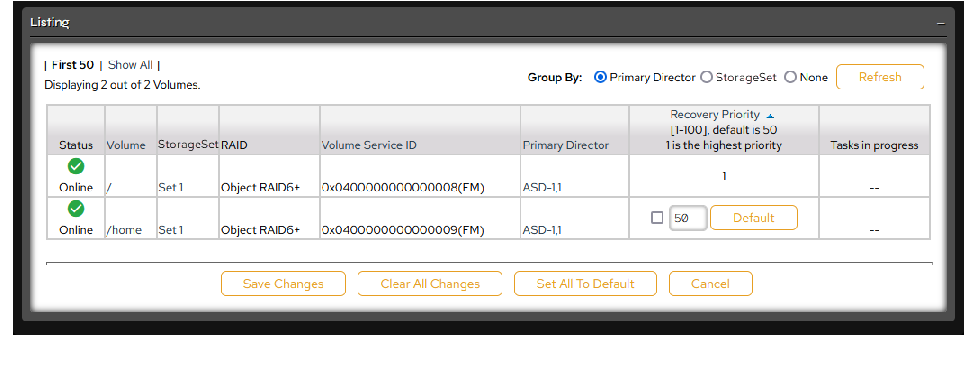 Figure 5-7. Listing page with Volume Recovery priority column.
Set the Extended File System Availability Mode
Extended File System Availability (EFSA) is defined by the ability of a RAID+ volume to remain available for reading and writing even when the fault tolerance of the volume has been exceeded by one.
- RAID 6+ volumes remain available even after three failures.
- RAID 5+ and RAID 10+ volumes remain available even after two failures.
WARNING: The ls command may hang during an EFSA event. This command behaves differently on different platforms during EFSA. The ls command is often aliased in a way that makes it automatically stat files. You can run unalias to prevent this aliasing. Any time the client attempts to stat a file that has suffered one too many failures, it is subject to the EFSA mode for the volume (retry or file-unavailable). Therefore, any unintended stat-ing of a file as described here could trigger the designated behavior.
When a volume has exceeded its fault tolerance by one, you can expect the following behaviors from the file system due to EFSA:
- Volume reconstruction will stop.
- File creates and operations on newly created files will continue.
- Attempts to read or write to files whose fault tolerance have not been exceeded will also continue. However, files that have suffered one or more faults will be reconstructed on-demand before write access can be granted.
- Attempts to read or write to files whose fault tolerance have been exceeded will return an error. The error can be configured via the CLI or GUI as described in the following procedure.
Two EFSA modes can be set for a volume: retry or file-unavailable. These modes apply when an object has exceeded its fault-tolerance level.
To set or change the EFSA mode, click the Extended File System Availability Mode button in Storage > Volumes. The Extended File System Availability Mode column appears in the Listing table.
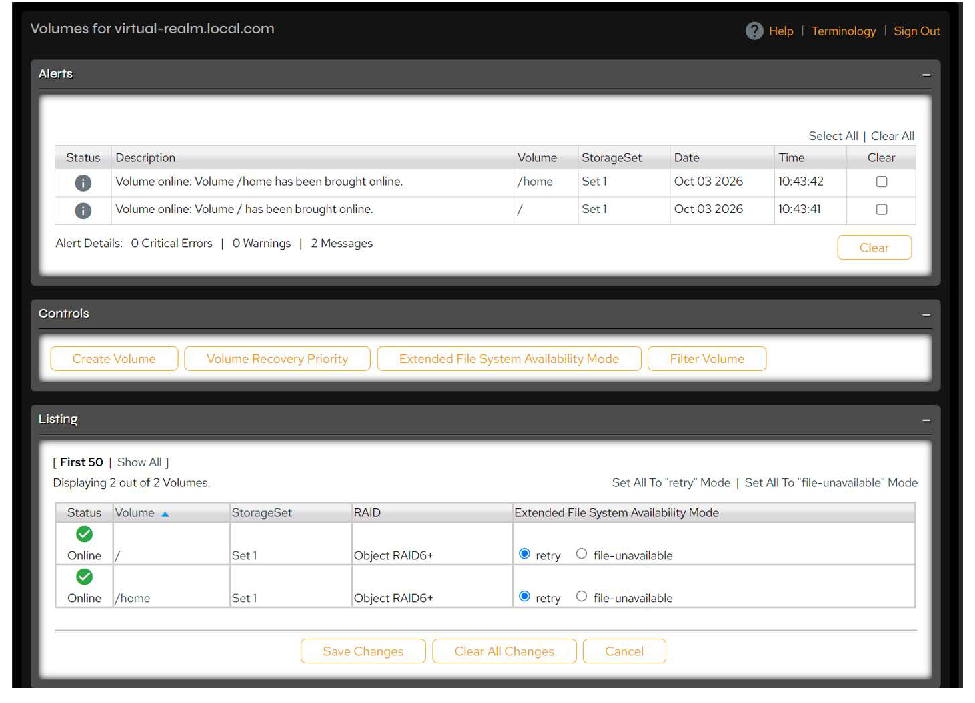 Figure 5-8. Volumes page with Extended File System Availability Mode column.
Each volume has two options in the Extended File System Availability Mode column:
- retry: VDURA clients will block and retry I/O requests until needed storage devices are back online. This is the default setting. Volumes configured for retry mode cause clients to get a retry-able error upon accessing a file that has exceeded its fault tolerance while in EFSA. When configured in this mode, access to a file that has exceeded its fault-tolerance level will appear to hang until the issue is resolved. With the retry setting, a DirectFlow client will continue to retry as long as it continues to get delay-and-retry from the software.
- file-unavailable: I/O requests result in I/O errors. Volumes configured with the file-unavailable error mode will cause client access to fail with a permanent error when attempting to access a file that has exceeded its fault tolerance during EFSA. When configured in this mode, access to a file that has exceeded its fault-tolerance level will result in an immediate failure, such as an I/O error, until the issue is resolved.
Select each volume as appropriate. To set all volumes to retry or file-unavailable, click the desired link on the right above the table. When finished, click Save Changes.
NOTE: The EFSA mode can also be set while creating a volume in Storage > Volumes > Create Volume or from the CLI using the volume create command.
5.3.3 Manage Volumes
Use PanActive Manager to perform a number of management tasks on a selected volume.
Edit Volume Settings
Click Storage > Volumes, then click the name of the volume you want to manage in the Listing table Volume column to display its Edit Volume page.
Use this page to modify a number of volume settings, including volume name, access permission settings, and volume quota settings. You can also navigate to the User and Group Quotas Enforcement Policy page from this page to modify the user quota settings, as well as go back to the Volume page to modify the recovery priority.
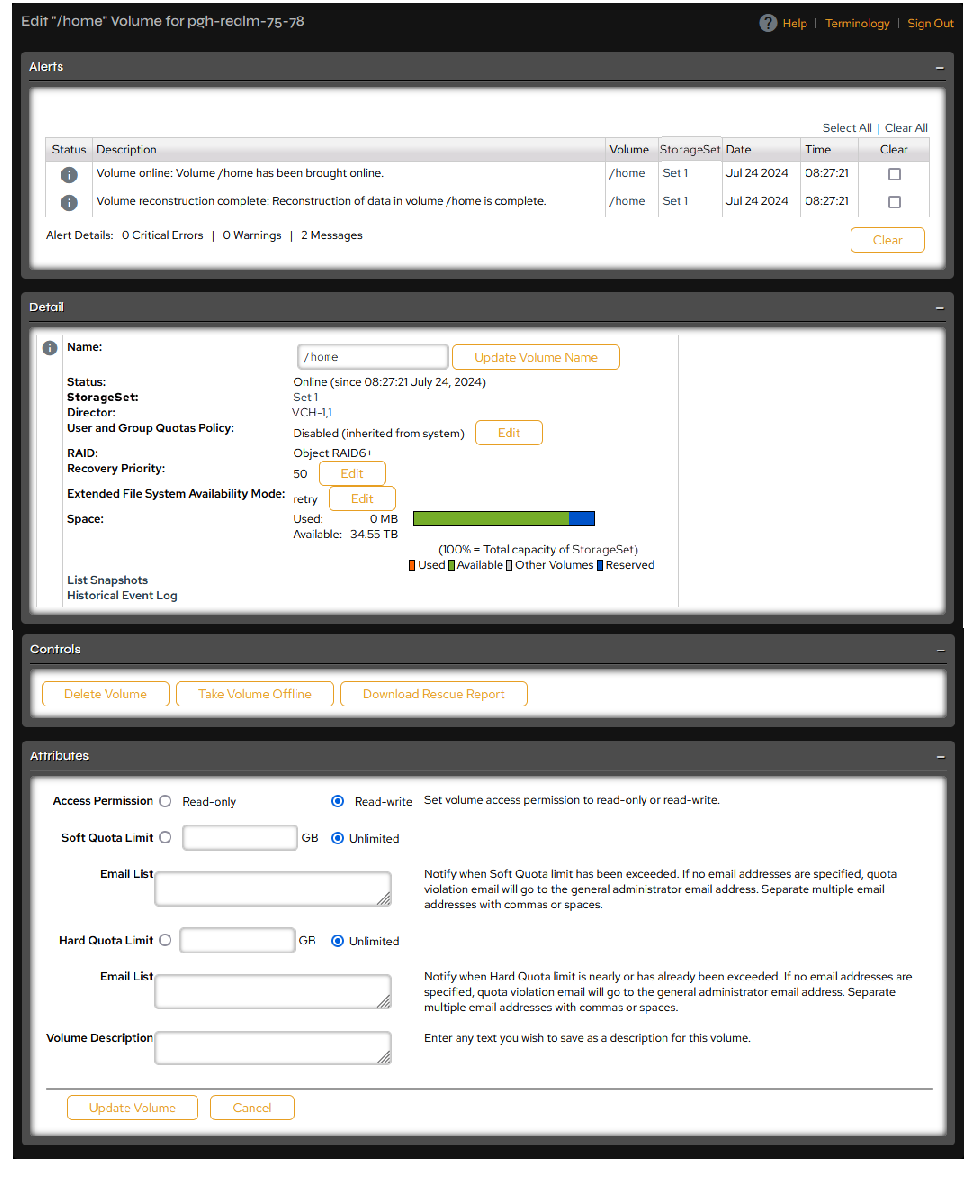 Figure 5-9. Edit Volume page.
| Action | Procedure |
|---|---|
| Change volume name | In the Name field of the Detail table, enter the new name of the volume, then click Update Volume Name. A message at the top of the page will confirm that the volume name has been changed successfully. |
| Change user and group quotas policy | Click the Edit button next to the User and Group Quotas Policy field in the Detail table. On the User and Group Quotas Enforcement Policy page that opens, modify settings as desired, then click Save. For more information on user and group quotas, see Configure User and Group Quotas. |
| Change volume recovery priority | Click the Edit button next to Recovery Priority in the Detail table. On the Volumes page that opens, scroll to the Listing table and modify the recovery priority for the volume you want to change, then click Save Changes. |
| Change Extended File System Availability mode | Click the Edit button next to the current Extended File System Availability mode in the Detail table. On the Volumes page that opens, change the EFSA mode for the appropriate volume in the Listing table, then click Save Changes. |
| Change access permission | In the Attributes table, click the desired radio button next to the Access Permission field to change the permissions to that state. Click Update Volume when finished. |
| Change volume quota limit settings and email recipients of quota violations | Soft and hard quota limits are not dependent on each other. You can set a soft quota limit without setting a hard quota limit, and vice versa. In the Attributes table: • Enter a soft quota limit in gigabytes or click the Unlimited checkbox to exempt the volume from soft quota limits. When the amount of data on the volume exceeds the soft quota, PanActive Manager sends a notification email to the people listed in the Email List field, but continues to allow data to be written to the volume. • Enter a hard quota limit in gigabytes or click the Unlimited checkbox to exempt the volume from hard quota limits. When the amount of data on the volume exceeds the hard quota, PanActive Manager sends a notification email to the people listed in the Email List field and prevents any additional data from being written to the volume. |
Click Update Volume when finished.
Delete a Volume
When you delete a volume, all data is lost. Make sure you have backed up the data or that you absolutely no longer need it. This process may take a significant amount of time to complete.
From the Edit Volume page, click the Delete Volume button. In the dialog box that opens, type YES and click OK in order to delete the volume and all of its data.
Take a Volume Offline/Online
From the Controls table of the Edit Volume page, click the Take Volume Offline/Take Volume Online toggle button to take the volume offline or bring it back online. Click OK in the dialog box to confirm your action.
Download a Volume Rescue Report
After a volume has exceeded its fault-tolerance level, the volume rescue feature can be used to clean up the volume and provide a damage report. This feature is destructive, as files that have exceeded their fault tolerance are deleted and the namespace is modified. Therefore, it is only available as a CLI service mode command. However, the report can be downloaded from PanActive Manager.
The volume rescue feature functions in two phases:
- First, a rescue reconstruction is performed on the volume. This special mode of reconstruction reconstructs all files and directories that have not exceeded their fault tolerance, and deletes all objects that have exceeded their fault tolerance. The rescue reconstruction is an offline process.
- Second, a mandatory rescue FSRC repairs the namespace of the volume and creates a log file containing the full path and file name of every object that was lost. In some cases, the full path and file name are not attainable, i.e. if a directory was lost. In these cases, the object ID is added to the log file.
Volume rescue may only be performed on a volume that has exceeded its fault-tolerance level. The system enforces this behavior.
If you are rescuing a RAID+ volume and have only exceeded the volume’s fault tolerance by one, then no directories will be lost and the system will be able to give you the full path and file name of every file that was lost.
To download a volume rescue report, click the Download Rescue Report button on the Edit Volume page.
Move the “/” Root Volume
The root (/) volume is the exception to the rule that volumes cannot be moved to a new StorageSet. There are times when it is desirable to move the root volume, such as removing an old StorageSet that contains the root volume. Note that this is not truly moving a volume, but rather deleting the root volume and creating a new root volume on a different StorageSet. Therefore, keep in mind that moving the root volume automatically deletes all files, symbolic links, and directories that are not parts of paths to other volumes’ mountpoints. Other volumes will not be affected.
Click Storage > Volumes, then click the root volume name / in the Listing table Volume column to display the Edit “/” Volume page.
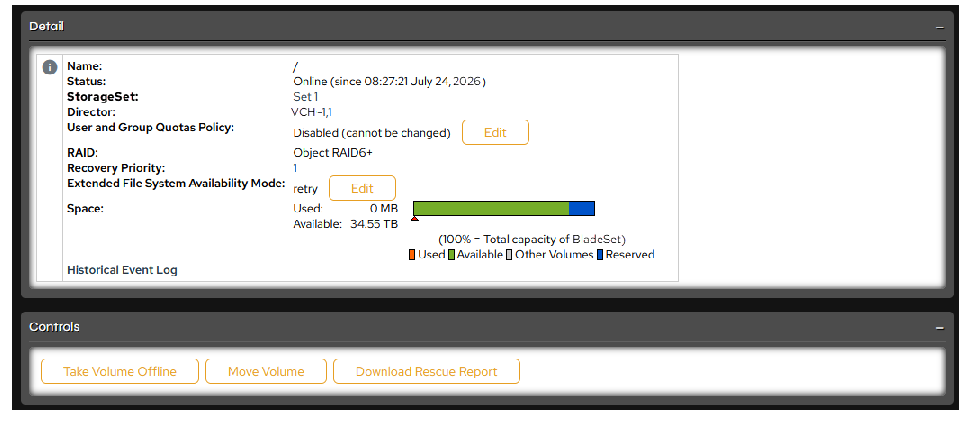 Figure 5-10. Edit “/” Volume page.
Click the Move Volume button to open the Move “/” Volume page.
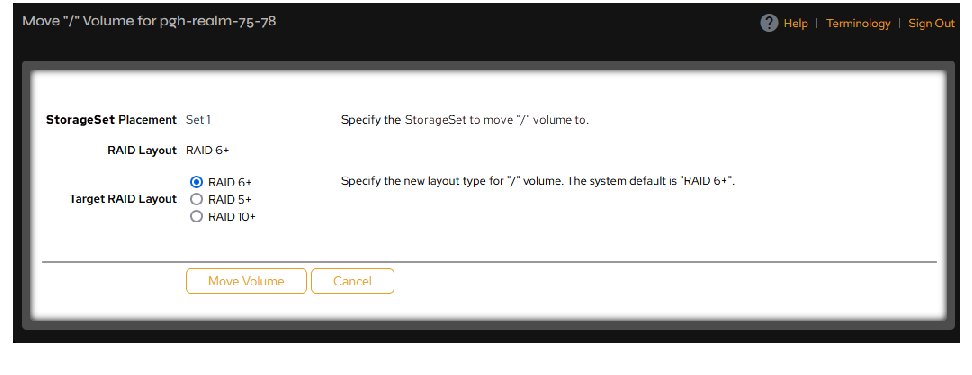 Figure 5-11. Move “/” Volume page.
Specify the new StorageSet (if appropriate) and the RAID layout for the volume, then click Move Volume. A warning will appear to remind you that this operation automatically deletes all files, symbolic links, and directories in the root volume that are not parts of paths to other volume mountpoints. To continue, type YES and click the OK button.
NOTE: This function may also be performed using the volume moveroot CLI command.
If you have volumes named /directory/vol0 and /directory/vol1, and the root volume is moved via the volume moveroot command or within the application, the permission on /directory will likely change after using the moveroot command, and you may not be able to access the volume. After the moveroot, modify the permissions on directories of this type to allow access to the volume.
Recover Volumes
You can use PanActive Manager to start a file system recovery (FSRC) on a volume to perform an integrity check on it. However, a file system recovery should never be performed unless requested by the system or a VDURA service representative.
Recovered files and directories are linked to a subdirectory of the volume root directory named Lost+Found.n, where n is a number that increases incrementally each time the volume is recovered.
WARNING: The volume is taken offline to recover data. Data services will not be available on this volume for some time during FSRC.
Click Storage > Volumes then click the name of the volume you want to recover in the Listing table Volume column to display its Edit Volume page. The Recover Volume button will only be displayed if a volume needs recovery. Click Recover Volume to recover the volume.
Handle Damaged Files
The Edit Volume page also allows you to take corrective action should your system detect any damaged files associated with the volume during FSRC. Files can be damaged in rare circumstances, typically when a client application exits abnormally while writing or modifying a file stored on the volume. If the system detects a file with damaged data or attributes, it locks the file to prevent clients from accessing it and logs a warning in the error table on the volume.
When a volume has damaged files associated with it, the Edit Volume page includes a Damaged Files in Volume link. Click the link to display a list of all damaged files associated with the volume.
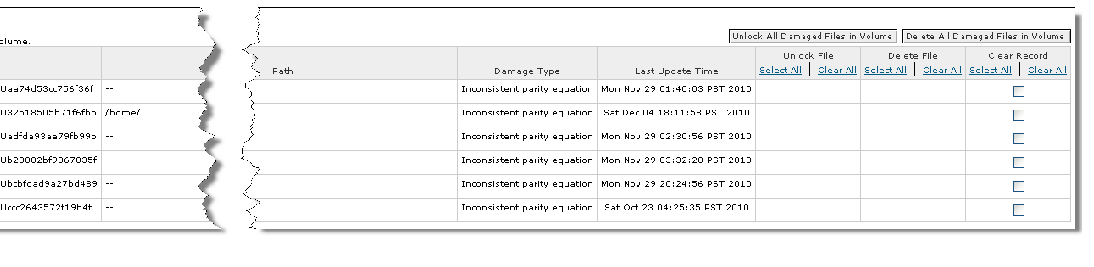 Figure 5-12. Damaged files in volume.
If some of the data might be retrievable, an Unlock File checkbox appears next to the file. Select this control to allow client applications to access the file again. You can then inspect the file and determine whether or not you can salvage information from the damaged file.
A Delete File checkbox appears next to all damaged files. If no data from the file is retrievable, it is the only control that appears next to the file name. Select this control to delete the damaged file.
After you have salvaged or deleted the damaged file(s), select the Clear Record box to clear the record of the damaged file.
Once you have taken corrective action on damaged files, the Edit Volume page includes a History of Damaged Files link. Click it to display a log of corrective actions taken for all damaged files that have been associated with the volume. This control does not appear if no corrective actions have been taken on this volume.
5.3.4 Configure Automatic Volume Services Failover
Each data service has responsibility for a set of volumes, and each Director can host one or more data services. Data services can be moved from both failed and running Directors to another Director. This moves the metadata management responsibility for all volumes controlled by the data service; there is no data movement.
Click Storage > Volumes > Service Configuration. Select the Enabled radio button, then click Change Volume Service Failover. The following message will appear: “Successfully enabled volume services failover. Backup services should come online shortly.“
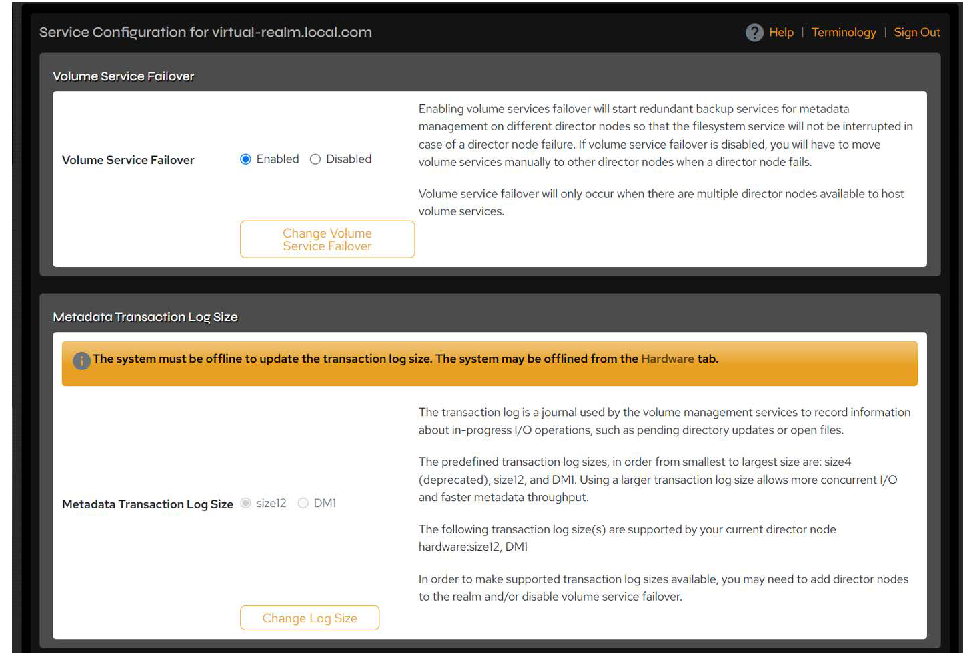 Figure 5-13. Service Configuration page.
In the Volumes menu, select Service Ownership to open Volume Services Ownership page. Under the Volume Services Listing, the Backup Director Node and Backup Director Node IP columns will populate as backups are created for the volume services.
PanActive Manager will automatically create the most efficient load balancing scenario for your system. However, you can also manually move volume services and/or backups using the fields on this page.
At least two Directors must be eligible to host volume services in order to support the volume services failover feature.
Metadata Transaction Log Size
The transaction log is a journal used by the volume management services to record information about in-progress I/O operations, such as pending directory updates or open files. This setting affects all volume services in the system.
The available journal sizes are size4 (deprecated), size12, and DM1; the sizes supported depend on the Director hardware. Using DM1 allows high concurrent I/O and faster metadata throughput. The system must be offline to change this setting. Select a size and click Change Log Size.
Move a Volume Service Manually
For users who have disabled automatic Volume Services Failover, volume services may be moved manually. Click Storage > Volumes > Service Ownership and scroll to Move A Volume Service Manually at the bottom of the page.
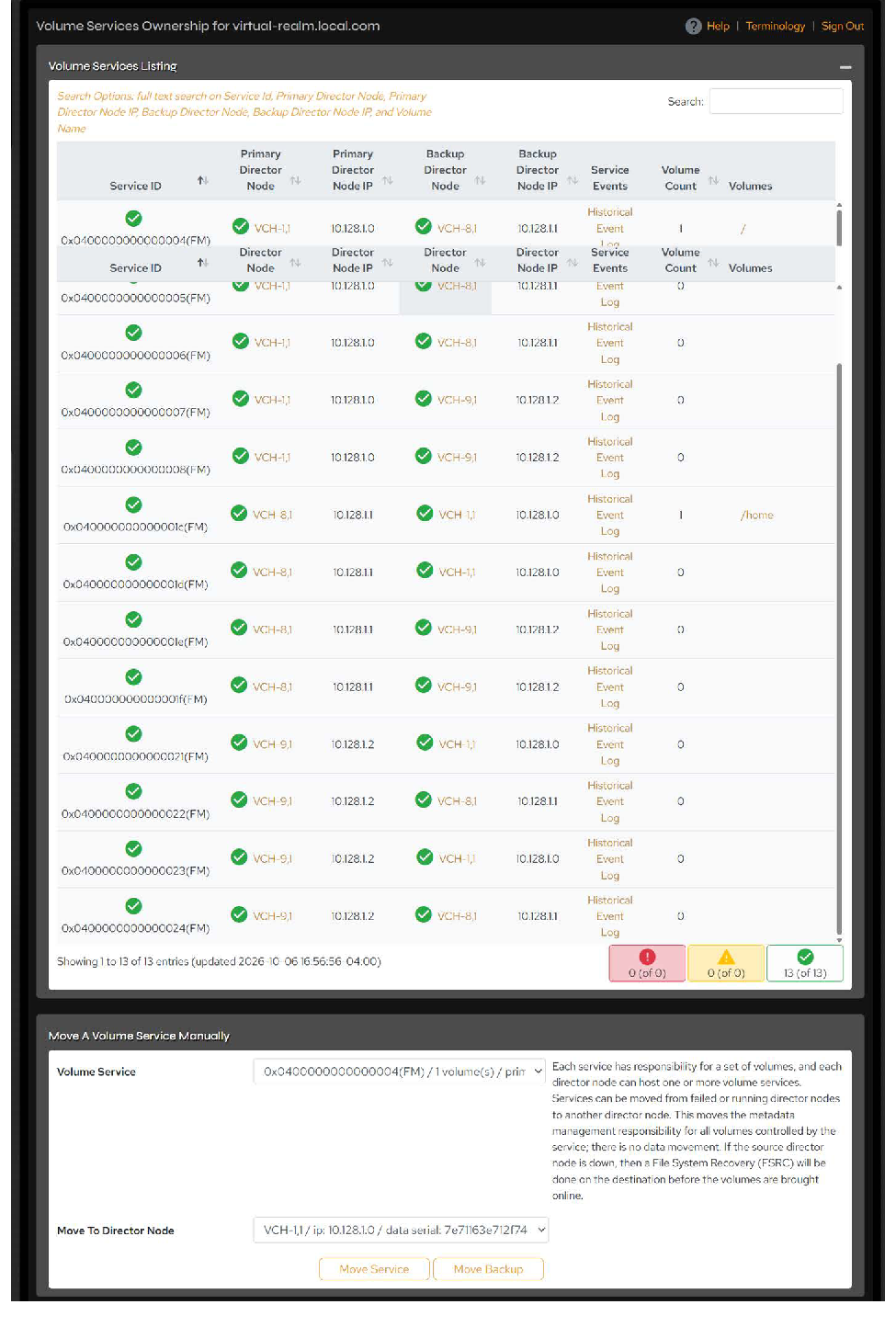 Figure 5-14. Volume Services Ownership page.
Select the service you want to move from the Volume Service field. In the Move To Director Node field, select the new Director location for the service. When ready, click the Move Service button to transfer management of the volume service to the selected Director. If Automatic Volume Service Failover is configured, you can also move the backup that was created by clicking the Move Backup button.
If all volume services have been removed from a node in the past, the system disables volume service creation for the source Director. A list of those Directors for which volume service creation has been disabled is shown on Storage > Volumes > Service Ownership page in the Enable Automatic Volume Service Creation table. To re-enable a Director for automatic volume service creation, mark the Enable checkbox, then click Enable Automatic Volume Service Creation for Selected Node(s).
WARNING: If a volume service is moved from a failed Director, the volume will run FSRC before coming online. This may take considerable time depending on the number of files in the volume. If the source Director is online, no FSRC is required.
Enable Automatic Volume Service Creation
A list of Directors off of which all volume services have been moved appears at the bottom of the Storage > Volumes > Service Ownership page in the Enable Automatic Volume Service Creation table. To re-enable a Director for automatic volume service creation, mark the Enable checkbox, click Enable Automatic Volume Service Creation for Selected Node(s), and click Save Changes.
5.4 Volume Data Compression
NOTE: This feature is currently only available as a PanCLI command. The ability to manage volume compression in PanActive Manager will be included in a forthcoming release.
VDURA performs data compression on the Storage Nodes, ensuring zero impact on client-side CPU or memory resources. Unlike architectures that shift compression tasks to the client, consuming valuable compute and memory, VDURA handles all compression operations within the storage layer itself. This design keeps GPU and application nodes fully dedicated to user workloads, maximizing performance and system efficiency. The data compression feature can be toggled on or off at any time via PanCLI.
Use the volume compression PanCLI command to display whether compression is currently enabled or disabled on a volume and to enable or disable data compression on a volume.
View compression status for a volume:
volume compression [volumename]If no option is given, the command displays whether compression is currently enabled or disabled for the specified volume.
Example usage:
volume compression vol1Change compression status for a volume:
volume compression [volumename] ?enable|disable?To specify a volume, use its name. Enabling compression may improve storage efficiency but could affect performance, depending on workload and hardware.
Disabling compression will stop further data from being compressed, but existing compressed data will remain compressed until it is rewritten.
Example usage:
volume compression vol1 enable
volume compression vol1 disable
5.5 Configure Erasure Coding with a RAID Layout
Instead of relying on hardware RAID controllers that protect data at a drive level and computing RAID on the disks themselves, PanFS implements patented client-based per-file object erasure coding. Implemented in software, erasure coding is used across distributed Storage Nodes with RAID layouts, resulting in increased data reliability, fault tolerance, and performance.
NOTE: PanFS provides unique file-level flexibility enabling files, including a single file, in the same StorageSet, volume, or even directory to have different erasure-coded RAID levels and other specific layout properties.
Because of the way data is distributed with PanFS erasure coding, reliability increases with scale rather than decreasing, as is the case with traditional storage systems. In addition, VDURA uses a distributed hot-sparing model for added recoverability, where the space needed to recover from a failure is distributed among all of the Storage Nodes in the StorageSets, rather than being centralized on a single spare node.
There is no restriction to the setting of a specific RAID layout for files created in a volume or directory. That is, the user is free to set the RAID layout on each file as it is created, no matter what the default value might be, or whether that default is inherited from the volume or from the directory.
NOTE: A file can be seen as a single virtual object that is sliced into multiple component objects, where one component object is stored on each Storage Node. Components are created only as needed, as the file is written. See Overview of the VDURA System for more information.
Users have three RAID levels available: RAID 6+, RAID 5+, and RAID 10+. As described in the Extended File System Availability (EFSA) section below, the “+” after the RAID level indicates that the redundancy of directories exceeds the redundancy of files in the volume by one. Thus, RAID 5+ and RAID 10+ have triple-replicated directories, and RAID 6+ has quadruple-replicated directories.
In addition, small virtual objects are simply double-replicated in RAID 5+ and RAID 10+ and triple-replicated in RAID 6+ for efficiency. As an object extends in size, it is automatically converted to either a RAID 5+ or 6+ layout, depending on configuration preferences.
Thus, you can mix RAID 10+, RAID 5+, and RAID 6+ levels, as well as any legacy volume layouts, together in the same StorageSet. When the system suffers failures, the availability status of each file is evaluated independently for reconstruction.
NOTE: Volumes that existed in a realm prior to PanFS OS 6.0.0 continue to use their current redundancy for directories; they cannot be converted to a RAID+ volume level.
5.5.1 Extended File System Availability (EFSA)
Extended File System Availability (EFSA) is a proprietary VDURA feature that provides increased availability of a RAID-level volume for reading and writing when the RAID-level protection of the volume has been exceeded. With EFSA, the directory tree is replicated multiple times, allowing the volume to remain fully intact even when a failure exceeds the RAID level of that volume. VDURA notates EFSA-enabled volumes with a “+” after the RAID level.
For example, with four or more Storage Nodes, RAID 6+ directories are quadruple replicated, while the directories in all other volume configurations are triple replicated. Thus with EFSA, PanFS RAID 6+ level volumes with four or more Storage Nodes remain available even after three failures, while all other volumes configurations remain available after two failures.
PanFS volumes that have exceeded their availability levels are listed as degraded in management interface tools. Appropriate alerts indicate to the administrator that the volume has exceeded its availability level and requires attention; the PanFS system does not attempt to automatically reconstruct volumes that have exceeded their fault tolerance levels. If reconstruction is in progress when a RAID+ volume exceeds its fault tolerance level, it is stopped. If any of the above volume types suffer additional failures, they become unavailable.
EFSA is only available in PanFS RAID 6+, RAID 5+, and RAID 10+ volume layouts; it is not supported on legacy volume layouts.
Your system must have at least four Storage Nodes to use EFSA. With four or more nodes, the system will have quadruple-replicated directories.
5.5.2 RAID 6+
RAID 6+ is the default RAID layout for all volumes. RAID 6+ volumes provide a balance between performance, capacity overhead, and RAID protection. RAID 6+ volumes provide protection against one additional Storage Node failure than RAID 6 or against three simultaneous whole-Storage-Node failures. RAID 6+ also provides approximately a 150x improvement in reliability over RAID 5+. In the case of a catastrophic failure (e.g., three simultaneous Storage Node failures in RAID 6+ layout with a minimum of four nodes), EFSA keeps the file system online and accessible, except for the small fraction of specific files affected by the three failures. In most cases, it is possible for PanFS to provide the storage administrator with a list of affected files, including full path names. This limits disaster recovery to restoring a specific list of damaged files, as opposed to the entire file system. If the user sets a lower-reliability RAID layout on any file(s) in this volume, there may be data loss even with two VPOD failures.
5.5.3 RAID 5+
RAID 5+ layout volumes are optimized for performance and capacity overhead. With RAID 5+ and EFSA, volumes have protection against one additional Storage Node failure than with RAID 5 or two Storage Node failures.
5.5.4 RAID 10+
Users can also create a volume that uses a RAID 10+ layout as the default RAID level. RAID 10+ combines striping and mirroring to provide high performance for applications that perform small random writes, while at the same time providing support for EFSA and resiliency against a single disk failure. Unlike RAID 6+ or RAID 5+, which require more operations to perform writes smaller than one stripe unit, RAID 10+ always performs only two I/O operations regardless of the size of the write. However, with a 100 percent overhead, data stored with RAID 10+ uses more space for redundancy than data stored with RAID 5+ or RAID 6+.
As a result, a RAID 10+ level yields significant performance gains for small random write workloads and for n-to-1 write workloads that are not page- or stripe-aligned. However, this comes with a significant decrease in performance for sequential read and write workloads.
5.6 Horizontal Parity
VDURA offers horizontal parity for end-to-end data redundancy and integrity. Horizontal parity is essentially the traditional use of RAID, where either data is duplicated on multiple independent disk drives or some extra amount of parity data is stored, allowing the data to be rebuilt in the face of a specified number of failures. RAID 10+, RAID 6+, and RAID 5+ layouts are examples. This concept is similar to erasure coding with RAID levels, where data is duplicated on multiple networked Storage Nodes.
As in a traditional RAID system, data is distributed across multiple independent disks. When one or more of those disks fails, or when a single sector on one of those disks cannot be read, the data can be recreated by reading the data and parity from each of the other disks, reconstructing the missing data and/or parity, and writing the missing data/parity out to an available disk not already holding data/parity for the file.
5.7 Multi-Level Erasure Coding
As part of overall system functionality, PanFS uses per-file erasure coding, which is performed at the client. The client determines the number of RAID stripe components necessary, either using cluster-wide defaults or another specification for that file object.
Multi-Level Erasure Coding™ (MLEC) refers to a second level of erasure coding that is done inside a VPOD. Each VPOD consists of enough disks to be able to stripe the data given to it for storage across these disks. Using RAID 5, the VPOD will calculate the local data and parity components of a stripe and will write them as needed. This allows a VPOD to be able to recover from a physical drive failure and continue operating by calculating contents of the missing drive.
MLEC can be configured for use during StorageSet creation or when storage is first being activated; it cannot be adjusted afterwards. However, since MLEC is set per StorageSet, StorageSets with different MLEC settings can coexist in the same realm.
Enabling this second level of RAID (erasure coding) will consume some amount of performance and will reduce usable capacity by one drive per VPOD.
Failed drives will have an indicator LED turned on. The failed drive can be pulled and replaced with a new drive. Reconstruction internal to the VPOD will then automatically start.
5.8 User and Group Quotas
IMPORTANT: Do not confuse user and group quotas with volume quotas. Volume quotas are assigned to each volume when it is created as a way to track or limit the volume size. User and group quotas are assigned to limit or track usage by users and groups.
Because storage is usually a shared resource between multiple users and groups, administrators need to be able to define how the resource is divided between various users. User and group quotas accomplish this by allowing the administrator to limit the amount of storage space and/or number of files a specific user or group may use per volume. Using the following options, the administrator can also define what will occur if a user exceeds the quota limit:
- Assign a soft quota limit: When a soft quota limit is set, an email alert is sent to listed recipients when the soft quota has been reached, but the user or group can continue to create files and/or use storage space beyond the soft quota limit.
- Assign a hard quota limit: When a hard quota limit is set, an email alert is sent to listed recipients when the hard quota has been reached, and the user or group is prohibited from creating files or using storage space beyond the hard quota limit.
- Track usage only: Instead of setting quota limits, the administrator can configure either system level or volume level tracking to only monitor usage. The results are available as reports.
User and group quotas track the number of files and directories and the capacity consumed by those files and directories for each user and group. The capacity includes the RAID parity overhead used by object RAID for the files and directories in the volume. Parity overhead will vary depending on the volume layout you choose (RAID 6+, RAID 5+, or RAID 10+) and the types and sizes of files that exist in the volume.
The system-level user quota feature is disabled by default, since there is a slight decline in performance when user quotas are enabled, even if quotas are set to Tracked.
Before user quota limits or monitoring can be activated for a volume or system, you must enable them on that volume or system from the Policy Configuration page.
5.8.1 Configure User and Group Quotas
When enabled, User and Group Quotas Enforcement Policy can be configured either to enforce a policy or simply to track user quotas for reporting purposes. When the User and Group Quotas Enforcement Policy configuration is set at the system level, all volumes will inherit the system default settings unless overrides are specified.
The root volume cannot be configured to enforce user quotas. It is automatically set to Disabled and cannot be changed.
Quota limits cannot be modified while the user quotas policy is disabled. If you accidentally update the limits in these circumstances, you should deploy a temporary limit (for example, by updating the soft quota), and then redeploy the actual limit.
Group quota hard byte limits can be overrun. It is possible to successfully change group ownership of a set of files to another group, thereby placing the new group over its group quota hard byte limit.
Click Storage > User & Group Quotas > Policy Configuration.
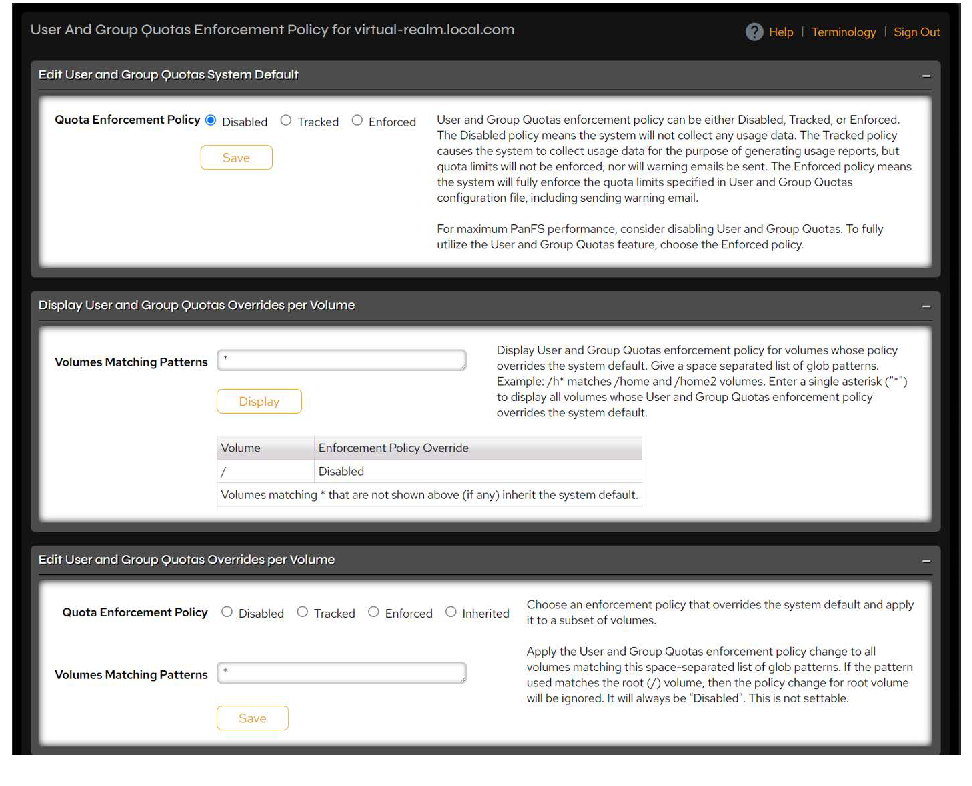 Figure 5-15. User and Group Quotas Enforcement Policy page.
Edit Default Quota Enforcement Policy
Edit the User and Group Quotas System Default field’s Quota Enforcement Policy, if desired, and click Save.
- Disabled will disable user quotas on all volumes in the system. You may then enable user quotas on specific volumes in the Overrides section. For maximum performance, consider disabling user and group quotas.
- Tracked collects usage data but does not enforce any limits. You may then modify this setting on specific volumes in the Overrides section.
- Enforced enables user quotas on all volumes in the system. You may then disable user quotas on specific volumes in the Overrides section.
Refine Volume-Level Quota Settings
You can override the system default settings above with volume-level settings. For example, to apply user quotas to only certain volumes, set the system default to either Enforced or Disabled, then specify the volumes you wish to include or exclude in the Edit User and Group Quotas Overrides per Volume text box.
Display current volume user quota settings by entering the volumes you want to display in the Display User and Group Quotas Overrides per Volume text box and clicking the Display button. The current policy settings will be listed for volumes matching the specified pattern. To change these settings, enter the volumes you want to change in the Edit User and Group Quotas Overrides per Volume text box, select the radio button for the appropriate setting, and click Save.
The Tracked option collects usage data, but does not enforce any limits. Choosing the Inherited option causes the specified volumes to inherit the system default setting. The Inherited option is useful if you have at some point chosen to override the system default setting on a volume and then want to return that volume to the system default.
Set Individual User and Group Quotas
Click Storage > User & Group Quotas > Limits Configuration.
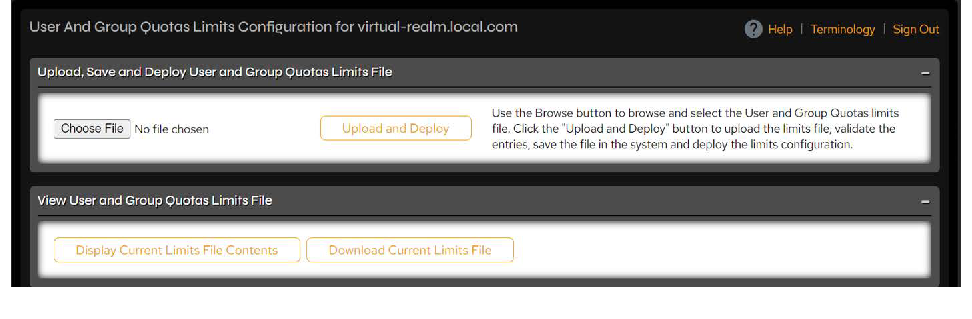 Figure 5-16. User and Group Quotas Limits Configuration page.
You have three options to enter user and group quota information:
- Upload a preconfigured limits file of user and group quotas by browsing to the limits file and clicking the Upload and Deploy button. See the table below for a description of the syntax, rules, and options for the User and Group Quotas Limits file.
- Click the Display Current Limits File Contents button to show the current quota file in the text box. If there is none, the syntax required for the quota limits file is displayed. Make your changes using the syntax, rules, and options described in the table below. Click Save and Deploy Changes to implement the quota limits.
- Click Download Current Limits File to download an editable version of the file. Make your changes using the syntax, rules, and options described in the table below and save it locally when finished. Browse to it in the Upload, Save and Deploy User and Group Quotas Limits File box, then click Upload and Deploy.
Example limits file:
user aadams /Vol1 100M 100M 0 0 admin@yourcompany.com =
user ssmith /Vol1 50M 1T 0 0 admin@yourcompany.com =
user ddoe /Vol1 0 0 2 3 admin@yourcompany.com =
group users /Vol2 10M 20M 5 10 admin@yourcompany.com =
Syntax:
<User/Group> <ID> <Volume> <SoftByteLimit> <HardByteLimit> <SoftFileLimit> <HardFileLimit> <SQViolationEmail> <HQViolationEmail>
Syntax rules:
- One entry per line.
- Separate entries for user quotas and group quotas.
- Separate entries for system level and volume level defaults.
- All fields except email address fields are required. If email address field is missing, it will default to none.
- Delimiter is whitespace.
- Any field containing a space must be nested in double quotes (“ “).
- For a multiple line entry, use the escape “\” character at end of line.
The table below explains how to use the fields.
| Field Option | Usage |
|---|---|
| <User/Group> | • User: keyword to set quota for user • Group: keyword to set quota for group |
| <ID> Example: jjones |
• User or group ID • An asterisk (*) indicates all users or groups. Use this to set volume-level defaults. • If the value is a text string and prefixed with a domain (e.g., domain1\user_1), it will be treated as a Windows user or group name. Otherwise, it will be treated as a Unix user or group name. • If the value starts with S-, it will be considered as a Windows SID. • If the value starts with either uid: or gid: followed by a number, it will be treated as a Unix user or group ID. • If the value starts with either user_sid: or group_sid: followed by a SID, it will be treated as a Windows user or group SID. |
| <Volume> Example: /Vol1 |
• Volume name • An asterisk (*) indicates all volumes. This will set the system default. • If the volume is an asterisk, the ID field must also be an asterisk. You cannot set a default for a user across all volumes. This must be set with an entry for each volume. |
| <SoftByteLimit> <HardByteLimit> <SoftFileLimit> <HardFileLimit> Example: 100M 100M 0 0 |
• Use a hyphen (-) to indicate inherit and a zero (0) to indicate unlimited. • Use up to two decimal places for byte limits. Use only whole numbers for file limits. Use a minimum of 10 M for byte limits. • Use suffixes K, M, G, T or P to indicate kilo-, mega-, giga-, tera-, or peta-bytes (power of 10): ex: 800K, 200M, 10G 12.8T etc. K suffix will multiply the number by 1,000 M suffix will multiply the number by 1,000,000 G suffix will multiply the number by 1,000,000,000 T suffix will multiply the number by 1,000,000,000,000 P suffix will multiply the number by 1,000,000,000,000,000 • For quota bytes, the minimum is 10M and the maximum is approximately 9223 PB. Use a zero (0) for unlimited, which is approximately 9223 PB. • For quota files, the minimum is 1 and the maximum is approximately 9223 P. Use a zero (0) to indicate unlimited, which is approximately 9223 P files. |
| <SQViolationEmail> <HQViolationEmail> Example: admin@yourcompany.com |
Email address for soft_quota_violation_notification. Email address for hard_quota_violation_notification. • Comma-separated list of email IDs or may be empty. • Use $user for Unix email address of user. • Use $LDAP@<yourcompany.com> for email address to be fetched from LDAP. • Use a hyphen (-) to inherit from volume. • If email ID contains spaces, they must be nested in double quotes (“ “). • Use an equals character (=) character by itself as the field value if the email list entered for the other email field is to be used for this also. Do not use an equals character in both email fields in the same entry. • Use the word none to explicitly indicate no email is to be sent. |
| Additional Examples | • Set system default quota and email address list for users: user * * 100G 110G 500K 600K $LDAP@<yourcompany.com>,admin@<yourcompany.com> - • Set system default quota and email address list for groups: group * * 500G 550G 800K 2M - - • Set default quota for users for /home1 volume: user * /home1 100G 110G 200K 300K $user $user • Set default quota for groups for /home2 volume: group * /home2 0 0 600K 700K - - Note: Zero (0) is used to indicate unlimited limit for soft and hard byte limits. • Set user specific quota for usr_1 in /home2 volume: Unix login name usr_1: user usr_1 /home2 20G 25G 200K 250K admin@company.com \ guest@company.com,admin@company.com Windows login name: user mydomain\usr_1 /home2 20G 25G 200K 250K admin@company.com \ guest@company.com,admin@company.com |
The system will automatically validate the User and Group Quotas Limits file before it deploys it. If the file is valid, it will be saved and, if possible, deployed. If the file contains errors, they will be displayed ten at a time so they can be corrected and the changes deployed.
Administrators may not be able to deploy a file if a previous deploy operation is in progress or other failures are reported. If the file was previously validated by the system, it has already been saved so there is no need to upload the file again.
If the deploy operation has failed to deploy the User and Group Quotas Limits file, the user will see a Redeploy button. When pressed, the Redeploy button will deploy a previously saved User and Group Quotas Limits file.
Edit Quota Thresholds
By default, the system clears the soft quota violations as soon as storage space and/or the number of files are under the soft quota limits. However, hard quota violations are cleared when they are sufficiently under the hard quota limits (default setting is five percent).
You can configure the thresholds for soft and hard quota limits through the CLI in service mode as follows:
Hard quota threshold percentage for storage space consumption:
[pancli_service] pan_rm_configdb_util -s
uint16:smm_clear_hard_quota_thrshld:5
Hard quota threshold percentage for number of files:
[pancli_service] pan_rm_configdb_util -s
uint16:smm_clear_hard_quota_files:5
Soft quota threshold percentage for storage space consumption:
[pancli_service] pan_rm_configdb_util -s
uint16:smm_clear_soft_quota_thrshld:0
Soft quota threshold percentage for number of files:
[pancli_service] pan_rm_configdb_util -s
uint16:smm_clear_soft_quota_files:0
5.8.2 Common User Quota Limit Configurations
The table below displays some common user quota limit configurations.
| Configuration | Steps |
|---|---|
| No user or group quotas and no tracking | On the User & Group Quotas > Policy Configuration page, select Disabled as the system default. |
| Collect usage data for tracking purposes only | On the User & Group Quotas > Policy Configuration page, select Tracked as the system default. |
| Apply the same user and group quota limits to all users and groups on all volumes | On the User & Group Quotas > Policy Configuration page, select Enforced as the system default. On the User & Group Quotas > Limits Configuration page, create a User and Group Quotas Limits file. |
| Enforce user or group quotas only for a few volumes on the system | On the User & Group Quotas > Policy Configuration page, select Disabled as the system default. Under Edit User and Group Quotas Overrides per Volume, enter the volumes on which you want to enforce quotas in the Volumes Matching Patterns text box, then select Enforced or Tracked as the Quota Enforcement Policy. On the User & Group Quotas > Limits Configuration page, create a User and Group Quotas Limits file specifying the limits for the volumes where user quotas will be enforced. NOTE: A limits file does not need to be created for Tracked volumes. |
| Enforce user or group quotas for most volumes on the system, but disable user quotas on a few volumes | On the User & Group Quotas > Policy Configuration page, select Enforced or Tracked as the system default. Under Edit User and Group Quotas Overrides per Volume, enter the volumes on which you want to disable quotas in the Volumes Matching Patterns text box, then select Disabled as the Quota Enforcement Policy. On the User & Group Quotas > Limits Configuration page, create a User and Group Quotas Limits file specifying the limits for the volumes where user quotas will be enforced. NOTE: A Limits file does not need to be created for Tracked volumes. |
5.8.3 Monitor User and Group Quotas
Click Storage > User & Group Quotas > Usage Report.
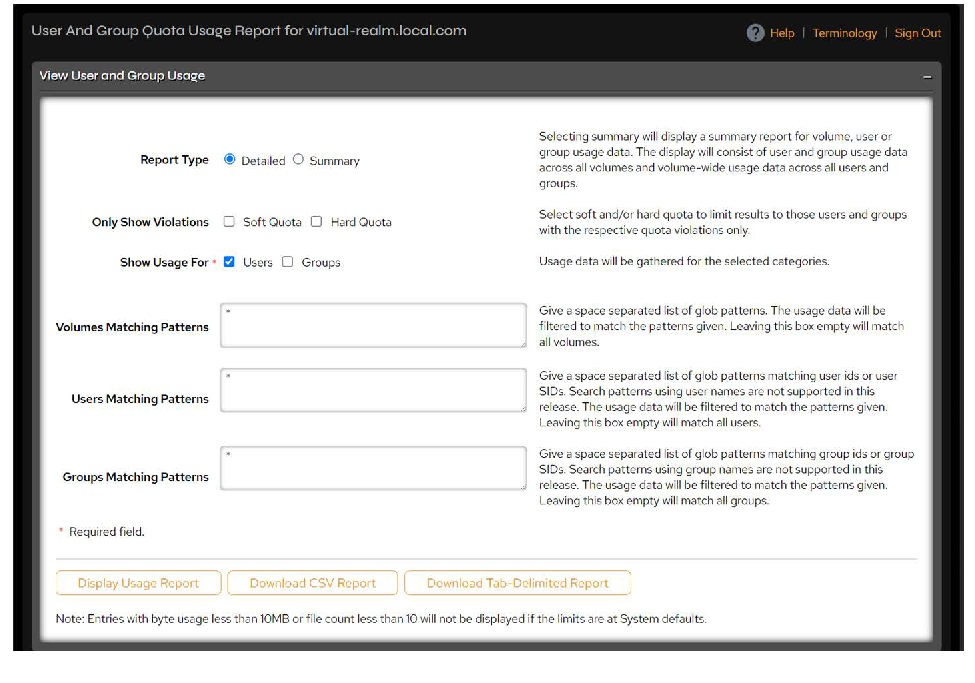 Figure 5-17. User and Group Quota Usage Report page.
Select the controls for the Quota Usage Report you wish to display.
| Control | Description |
|---|---|
| Report Type | Selecting Summary displays a summary report by volume, user, or group usage data. The display consists of user and group usage data across all volumes and volume-wide usage data across all users and groups. Selecting Detailed displays a detailed report by volume for matching users or group usage data. The report includes byte and file quota usage data, including bytes used and file count, soft and hard quota limits and percent used, and quota violation information by user and volume. |
| Only Show Violations | Select soft and/or hard quota to limit results to those users and groups with the respective quota violations only. Select both to show both. To show all usage data regardless of whether there are any quota violations, remove any check marks. |
| Show Usage For | Usage data will be displayed for the selected categories. |
| Volumes Matching Patterns | Enter a space-separated list of glob patterns. The usage data will be filtered to match the patterns given. Leaving this box empty will match all volumes. |
| Users Matching Patterns | Enter a space-separated list of glob patterns matching user IDs or user SIDs. Search patterns using user names are not supported in this release. The usage data will be filtered to match the patterns given. Leaving this box empty will match all users. |
| Groups Matching Patterns | Enter a space-separated list of glob patterns matching group IDs or group SIDs. Search patterns using group names are not supported in this release. The usage data will be filtered to match the patterns given. Leaving this box empty will match all groups. |
View the Quota Usage Report by clicking the Display Usage Report button located at the bottom of the Quota Usage Report screen.
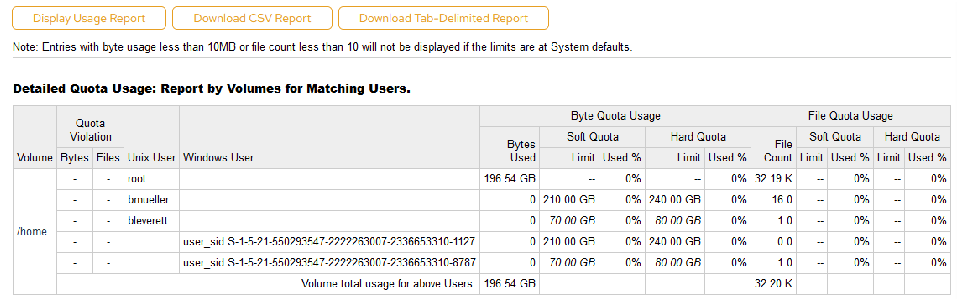 Figure 5-18. Usage Report output.
- Click the Download CSV Report button to download the specified Quota Usage Report to your computer in a CSV file format.
- Click the Download Tab-Delimited Report button to download the specified Quota Usage Report to your computer in a tab-delimited file format.
If either the system or the root volume is offline, requests for User Quota Usage Reports will be rejected.
5.9 Enclosure Migration
Use the instructions below to migrate from one VDURA enclosure to another.
5.9.1 Before You Begin
Before beginning a migration, be aware of the following considerations:
- At least one new hardware enclosure must be installed before data can be migrated.
- Multiple Storage Nodes can be drained at the same time. However, for every Storage Node that will be drained, there must be an equivalent migration/spare Storage Node to receive the data.
- Migrations in different StorageSets are independent of each other.
- Migration cannot be used to reduce the number of Storage Nodes in a StorageSet or to move a volume from one StorageSet to another.
- It is possible to migrate more than one enclosure at a time if more than one enclosure has been added.
Take Realm Offline
Take the realm offline:
[pancli] syscontrol offline
Are you sure you want to take the system offline? (yes/no): yes
System offline received.
Taking the realm offline will pause all volumes until the system is brought back online.
Verify the realm is offline:
[pancli] syscontrol
The system is offline
The system is locked. New enclosures will not be automatically
discovered.
Power Off Nodes
Power off every node in the enclosure chassis to be replaced. Use the command below for each node in the enclosure to be replaced.
[pancli] syscontrol node {name or IP} haltExample:
[pancli] syscontrol node VCH-1,7 haltIf a node in the enclosure cannot be reached over the network, or the command above does not work, connect to the node out-of-band. Log in and run halt:
[pancli] support servicemode yes
[pancli_service] halt -p
Once each node is powered off, proceed to the next step.
NOTE: If you are unsure about how to remove/insert enclosures and their components, consult the VDURA V5000 Certified Platform Installation and Service Guide.
Empty Enclosure
Remove all components from the enclosure following normal hardware replacement procedures:
- Remove the power cords from both power supplies.
- Remove all network cables. Best practice is to label where each belongs (switch and port) to aid re-installation.
- Remove each power supply, if needed.
- Remove each node, labeling each with its appropriate physical slot number.
- Remove the old enclosure from the rack.
Install Replacement Enclosure
Install the replacement enclosure into the rack and re-install the enclosure nodes and components into it.
- Insert the new enclosure chassis into the rack.
- Insert each power supply into the replacement enclosure, if needed.
- Insert each node into its corresponding slot number in the replacement enclosure.
- Insert the network cables in their appropriate node ports. Insert the power cables into their respective power supplies.
Monitor Nodes
Monitor the nodes in the enclosure to make sure they come online.
Once nodes power up and report the replacement enclosure to the realm president Director, the president will assign the replacement enclosure a new name. Find the new name:
[pancli] sysmap enclosures allcolumnsIn this example, the failed enclosure was VCH-1. The realm has named the replacement enclosure VCH-5, which is the only enclosure shown in the sample output.
[pancli] sysmap enclosures allcolumns
NAME  SERIAL             STATUS NODES (ON/OFFLINE) STORAGESET STATIC LINK
                 DIRECTOR STORAGE              AGGREGATION
VCH-5 27b31362400001001 good   1/0      10/0      Set 1      disabled
Monitor the node state:
[pancli] sysmap nodes enclosure {enclosure name}Example:
[pancli] sysmap nodes enclosure VCH-5If all nodes do not come online, contact VDURA Technical Support before proceeding.
Rename Replacement Enclosure
Rename the replacement enclosure to that of the failed enclosure. Fill in the new enclosure’s current and desired name:
[pancli] syscontrol enclosure {current name} rename {desired
name}
Example:
[pancli] syscontrol enclosure VCH-5 rename VCH-1Verify the results:
[pancli] sysmap enclosures allcolumns
NAME  SERIAL             STATUS NODES (ON/OFFLINE) STORAGESET STATIC LINK
                 DIRECTOR STORAGE              AGGREGATION
VCH-1 27b31362400001001 good   1/0      10/0      Set 1      disabled
Bring Realm Online
Bring the realm back online:
[pancli] syscontrol online
System online received.
Verify the results:
[pancli] syscontrol
The system is online.
The system is locked. New enclosures will not be automatically
discovered.
Verify Online Status
Make sure all volumes are online.
[pancli] volume listNOTE: If the enclosure to be replaced contains only OSDs that are not in the StorageSet containing the root volume, it may be possible to take the volumes in that StorageSet offline and leave volumes in other StorageSets online. Contact VDURA Technical Support for this modified procedure.
IMPORTANT: The following steps assume that you have installed the proper number of hardware enclosures using the procedures described above.
Add Migration Hardware to the StorageSet
From the Storage > StorageSets page, select the StorageSet to which you want to add the new enclosure. On the StorageSet Detail page, click the Add Storage button.
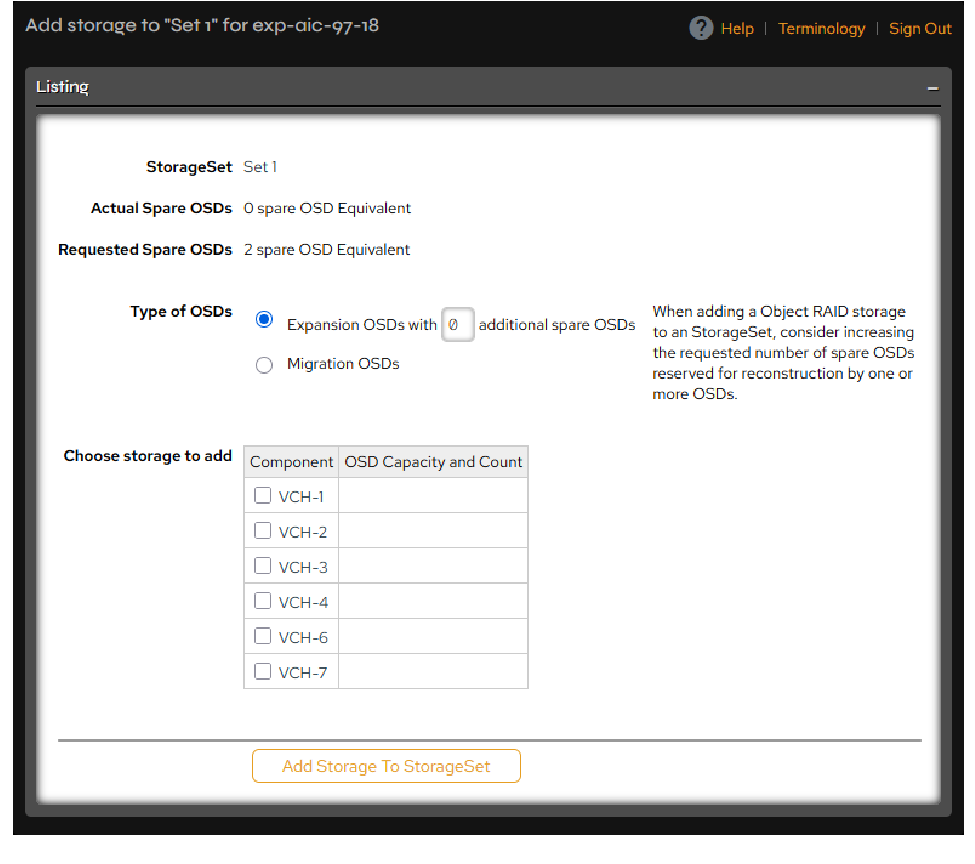 Figure 5-19. Add Storage page.
On the Add Storage page:
- Under Type of OSDs, select Migration OSDs.
- Next to Choose Storage to Add, check the box with the storage you will use for the migration.
- Click the Add Storage to StorageSet button. You can verify that the enclosure was added to the correct StorageSet from the StorageSet Details page. Once sufficient hardware has been added, the migration process can begin.
Drain Storage Nodes
Drain the Storage Nodes in the enclosure from which you are migrating the data. From the Details section of the Hardware > Hardware Management > Hardware Listing page, click the name of the enclosure you want to migrate. At the bottom of its page, click the Start Draining OSDs button. You can monitor the progress of the storage drain from the Hardware > Drain Status page.
Move Director Services
After or during the drain, migrate the volume management (FM/SM) and realm management (RM) services to the new Director(s). From the Storage > Volumes > Service Ownership page, move the volume services to the new Director via the Move A Volume Service Manually field, then click Move All Volume Services from Director. If the Director also had realm management services, add the new Director to the repset and remove the old Director by going to the Hardware > Realm Management page, adding the new Director and clicking Remove in the Remove from Replication Set column in the row of the old Director.
Once the Storage Nodes have completed the drain, click the Clear Record of Node button from the OSD listed in the Drained OSDs section of the Hardware > Hardware Management > OSD Drain Status page. At this point, you can either safely remove the drained enclosure or you can reinitialize it by going to the Hardware > Hardware Management > Hardware Listing page and selecting the link for the enclosure you have drained. On the Enclosure Management page, click the Reinitialize System button.
The system will lock as part of the migration process. A message will appear stating that when the enclosure no longer appears, the user must unlock the system. Unlock the system from the Hardware > Hardware Management > Hardware Listing page by clicking the Unlock System button at the bottom of the page.
5.10 Realm Management
A set of Directors can be configured to host critical system services and replicate system configuration data. Replicated services include the primary system control service, the management console, and supporting services like DHCP and delegated DNS.
An odd number of Directors, greater than two, is required for redundancy. A three-Director configuration provides a single-fault tolerant system realm. A five-Director configuration provides a two-fault tolerant system realm.
When adding or removing Directors from the realm, it can take as long as five minutes for this information to propagate to all Directors in the cluster. Other actions during this intermediate stage, such as changing other system settings or failure of the president Director, may lead to hard-to-diagnose errors.
Click Hardware > Realm Management.
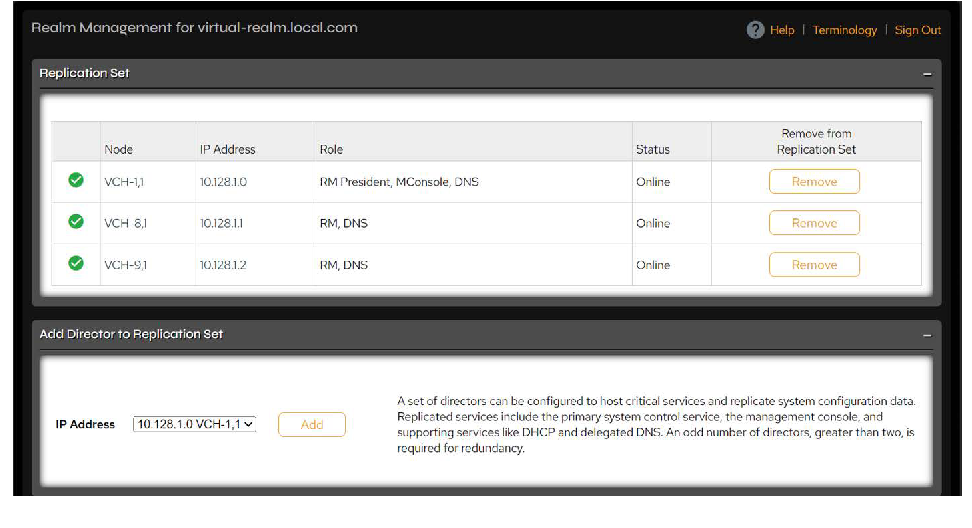 Figure 5-20. Realm Management page.
The Realm Management page includes the following information and controls:
Replication Set Table
| Field | Description |
|---|---|
| Node | Enclosure containing the Director that is a member of realm management. |
| IP Address | IP address of the Director. |
| Role | Role taken by the Director in the realm. |
| Status | Status of the Director. |
| Remove from Replication Set | In the row containing the Director you want to remove, click Remove to remove it from the realm. |
Add Director to Replication Set Table
| Field | Description |
|---|---|
| IP Address | List of the IP addresses of all Directors in the system. Select a Director from this list to add it to the realm. |
| Add button | After you have selected a Director from the list, click the Add button to add it to the realm. |
5.10.1 Add a Director to the Repset
Use the IP address drop-down list to select a Director you want to add to the repset. Click the Add button to add the Director to the repset.
If you do not have at least three Directors configured as members of the repset, a message will appear at the top of the screen telling you to add additional repset members.
Remove a Director from the Repset
In the row containing the Director you want to remove, click Remove in the Remove from Replication Set column.