
8. Monitor Performance
This chapter describes how to use PanActive Manager to monitor performance and generate reports for your VDURA system. It includes the following sections:
8.1 Display Performance Status
You can use PanActive Manager to display summaries of current system performance:
8.1.1 System-At-A-Glance
Click Status & Reports > System Monitor > System-At-A-Glance.
The System-At-A-Glance page is the default page for the Status & Reports tab and provides a capsule of data about the entire system. You can also click the System Status icon in the left pane of any page to view System-At-A-Glance.
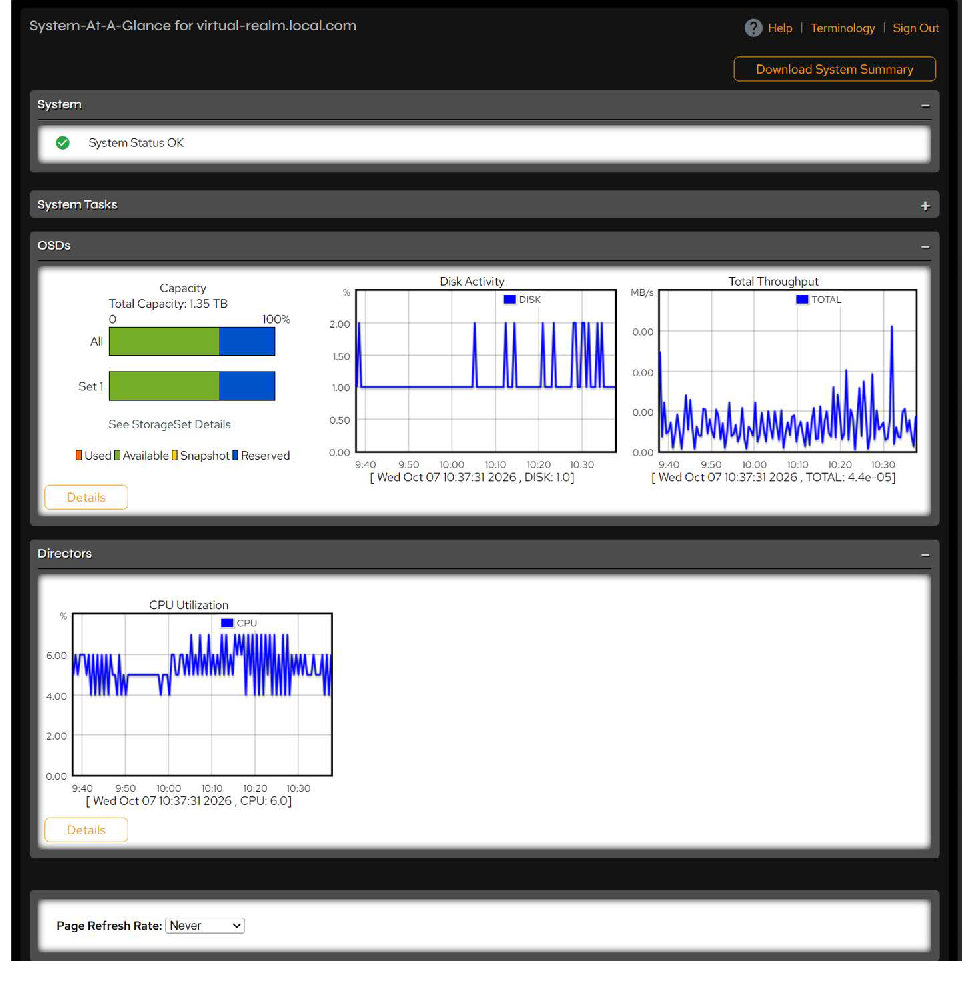 Figure 8-1. System-At-A-Glance page.
The System-At-A-Glance page provides an aggregate status for the VDURA system.
| Metric | Description |
|---|---|
| Download System Summary | Click to download a system summary in TXT format. |
| Hardware | Summary of hardware errors. Click the icon(s) for details. For a description of error messages, see VDURA System Error Messages. |
| Volumes | Storage warnings and errors. Click the icon(s) for details. For a description of error messages, see VDURA System Error Messages. |
| StorageSets | StorageSet warnings and errors. Click the icon(s) for details. For a description of error messages, see VDURA System Error Messages. |
| System Tasks | Click the plus icon in the right corner of the System Tasks heading to display any system tasks that are in progress, such as diagnostic processes. Overhead processes can explain unidentifiable spikes in performance and use. |
| OSDs | Statistics are averages of all Storage Nodes during the past hour. To display detailed information about individual nodes, click the Details button. VDURA uses some disk space to store internal data, such as object metadata. This overhead is responsible for the fact that the available node capacity is lower than its total disk capacity. Capacity: Distribution of storage capacity for all StorageSets combined and for each StorageSet. • Used: Disk space allocated to data objects. • Available: Disk space not allocated to data objects. • Snapshot: Disk space used by snapshots. • Reserved: Space reserved for reconstruction. See StorageSet Details: Click the link to display the StorageSet Listing page. Disk Activity: Percent of time the disk is busy with storage operations. Total Throughput: MB of data read from or written to disk per second. |
| Directors | Statistics are averages of all Director Nodes during the past hour. To display detailed information about individual nodes, click the Details button. CPU Utilization: Percent of time the CPU is busy with storage operations. |
8.1.2 Storage Statistics
Click Status & Reports > System Monitor > Storage Statistics.
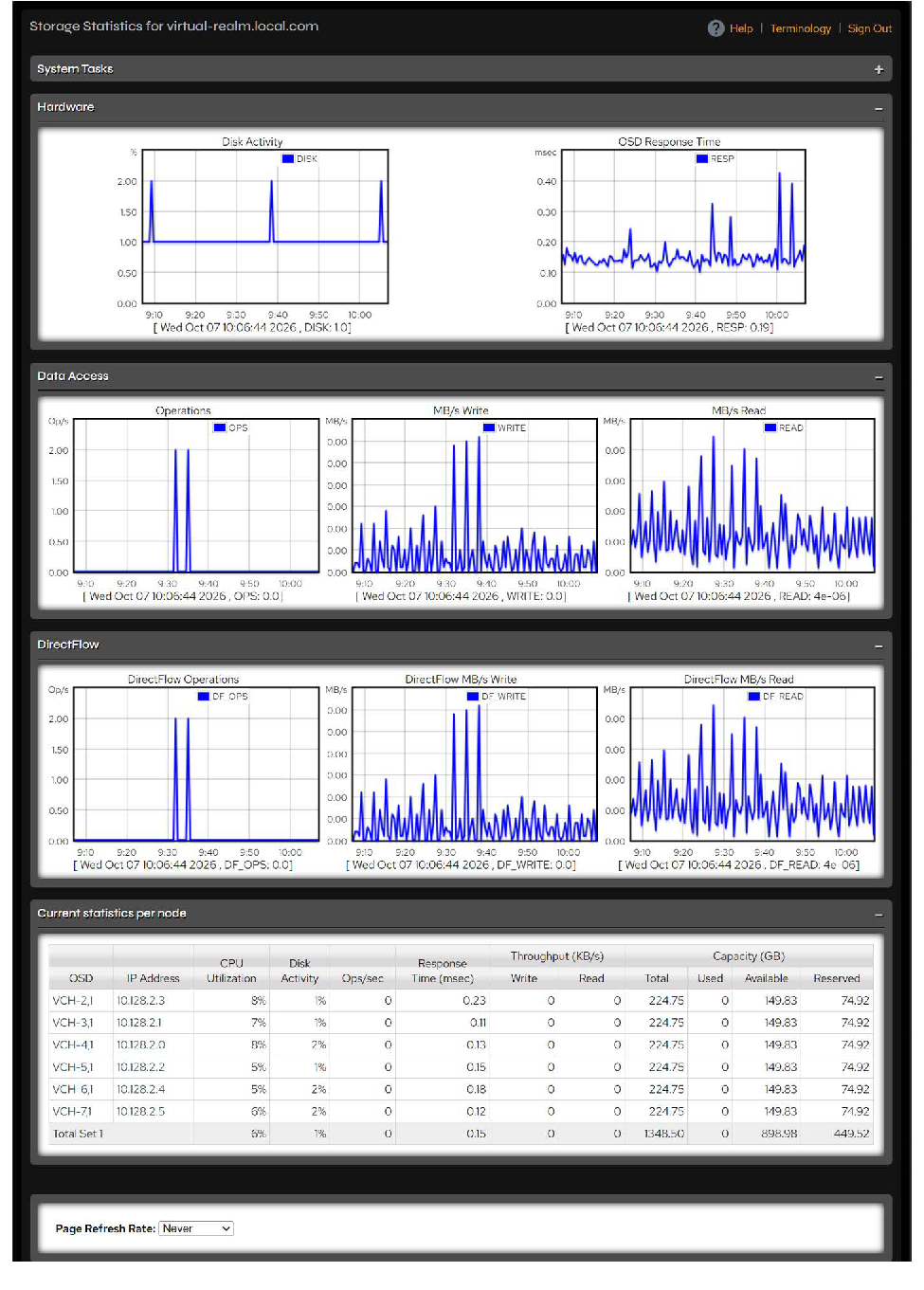 Figure 8-2. Storage Statistics page.
The Storage Statistics page provides a performance summary of Storage Nodes in your system.
| Metric | Description |
|---|---|
| System Tasks | Click the plus icon in the right corner of the System Tasks heading to display any system tasks that are in progress, such as diagnostic processes. Overhead processes can explain unidentifiable spikes in performance and use. |
| Hardware (aggregated for all Storage Nodes) | Disk activity: Percent of time the disk is busy with storage operations. OSD Response Time: Response time of the OSDs in milliseconds. |
| Data Access (aggregated for all Storage Nodes) | Operations: Number of operations per second. MB/s Write: MB of data written to disk per second. MB/s Read: MB of data read from disk or cache per second. |
| DirectFlow (aggregated for all Storage Nodes) | DirectFlow Operations: Number of DirectFlow operations per second. DirectFlow MB/s Write: MB per second of data written to disk via DirectFlow access. DirectFlow MB/s Read: MB per second of data read from disk or cache via DirectFlow access. |
| Current statistics per node | OSD: Click to open the Node Management page for the node. IP Address: Click to open the Node Management page for the node. CPU Utilization: Percent the CPU is busy with storage operations. Disk Activity: Percent the disk is busy with storage operations. Ops/sec: Number of storage operations per second. Response Time: Response time in milliseconds. Throughput: KB per second of data written to and read from disk, shown in separate Write and Read columns. Capacity: Total, used, available, and reserved capacity for the node, in GB. VDURA uses some disk space to store internal data, such as object metadata. This overhead is responsible for the available node capacity being lower than the total disk capacity. |
8.1.3 Drive Statistics
The Drive Statistics page provides a summary of drive statistics for your system. For each node, information is included about status, node and StorageSet, drive number, drive name, drive type, drive serial number, LUN, total capacity, data capacity used, metadata capacity used, total capacity used, free capacity, total inodes, reallocation count, reads since boot, and writes since boot. Use the Search box to filter the list. For SSDs, remaining lifetime is also listed.
Click Status & Reports > System Monitor > Drive Statistics.
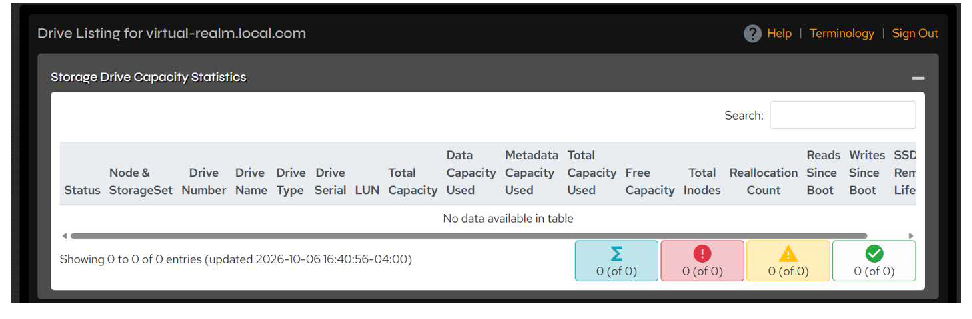 Figure 8-3. Drive Listing page with capacity statistics.
NOTE: Capacity information is reported using base 10, not base 2; i.e. KB = 1000, not 1024.
NOTE: For capacity expansion nodes, the drives associated with the node in the JBOD are listed with the node’s internal drives.
8.1.4 Director Statistics
Click Status & Reports > System Monitor > Director Statistics.
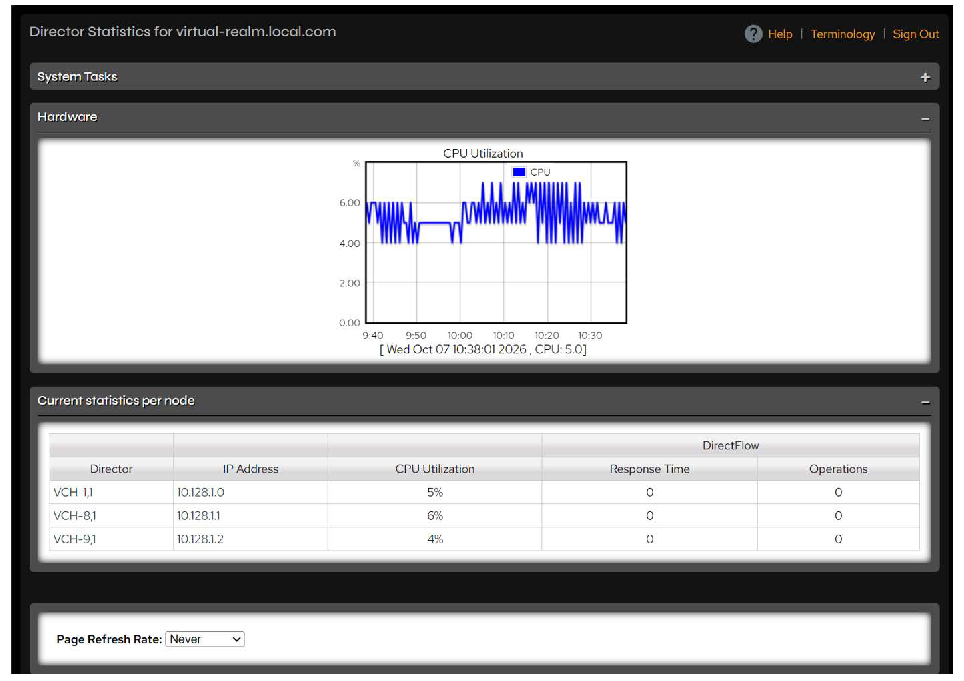 Figure 8-4. Director Statistics page.
The Director Statistics page provides the following information for Directors in your system.
| Metric | Description |
|---|---|
| System Tasks | Click the plus icon in the right corner of the System Tasks heading to display any system tasks that are in progress, such as diagnostic processes. Overhead processes can explain unidentifiable spikes in performance and use. |
| Hardware (aggregate for all Director Nodes) | CPU Utilization: Percent of time the CPU is busy with storage operations. |
| Current statistics per node (last 30 seconds) | Director: Click to open the Node Management page for the node. IP Address: Click to open the Node Management page for the node. CPU Utilization: Percent of time the CPU is busy with storage operations. The page displays the following DirectFlow statistics: Response Time: Response time in milliseconds for requests. Operations: Number of DirectFlow operations per second. |
8.1.5 DirectFlow Clients
You can monitor abnormal or excessive usage patterns of DirectFlow clients. This feature is useful for determining which clients have been most active recently.
Click Status & Reports > System Monitor > DirectFlow Clients.
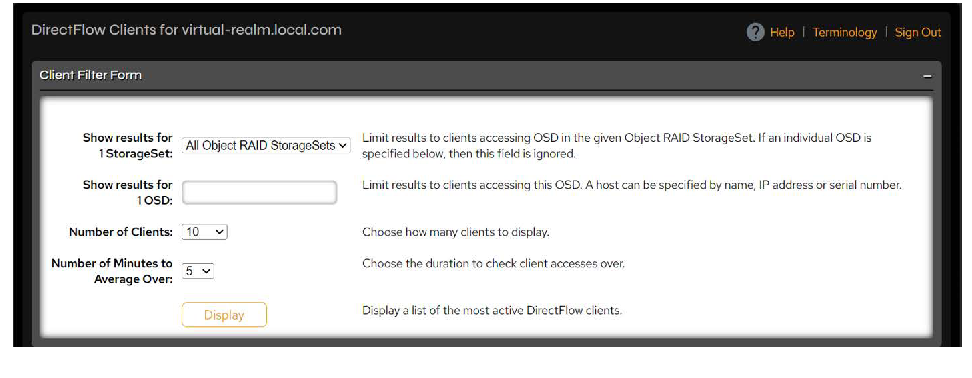 Figure 8-5. DirectFlow Clients page.
Using the Client Filter Form, select:
- The StorageSet to show results for, or an OSD name, IP address, or serial number to show results for a single OSD (the StorageSet selection is ignored if you enter an OSD).
- The number of clients to display (10, 20, 50, 100, 200, 500, or 1024).
- The number of minutes to average over (5, 10, 15, 30, or 60).
Click the Display button to display a list of the most active DirectFlow clients. Results appear below the Client Filter Form.
8.2 Create Reports
PanActive Manager provides the following reports that summarize current and historical system information:
VDURA uses industry standard metrics, such as operations per second, throughput, and response time, to measure the performance of the system. Users must be familiar with these performance metrics to interpret and use the reports.
8.2.1 Report Intervals
Most reports allow you to select a time interval for the report period. One method of specifying the interval is to select an integer number of hours, days, weeks, or months; the report will contain data for the most recent period selected (for example, the last six hours). A second method is to enter the start and end times of the interval. You can use any of the following date/time formats:
- A date in one of these forms:
- mm/dd/yy (06/05/25)
- monthname dd, yyyy (June 05, 2025)
- dd monthname yyyy (05 June 2025)
- day, dd monthname yyyy (Thursday, 05 June 2025)
- yyyymmdd (20250605)
- yyyy-mm-dd (2025-06-05)
The default year is the current year. If no time is specified, midnight is used.
- The time in the form hh:mm:ss or hh:mm followed by am or pm (2:30pm). If no am or pm is specified, hh is interpreted on a 24-hour clock. If no date is specified, the current date is used.
- A combination of date and time in any of the above forms (2:00pm 06/05/25).
- A date and time expressed in ISO 8601 point-in-time specification, such as yyyymmddThhmmss (“20250605T023000”), yyyymmdd hhmmss, or yyyymmddThh:mm:ss.
Export or Print Reports
Most reports allow you to export the report data as a comma-separated value (CSV) file, and some also offer a printable view. After generating the report, click the Export button to download the CSV file or, where available, the Printable View button to print the report.
TIP: Depending on your browser settings, your browser might attempt to display the CSV file directly. If the CSV data does not display properly in your browser, use your browser’s save-as feature to save the file.
8.2.2 Performance Report
The System Performance Report and Director Performance Report features have been deprecated. They have not yet been removed from PanActive Manager, so the Performance page is still displayed, but these reports are no longer supported.
The Performance page is available at Status & Reports > Reports > Performance.
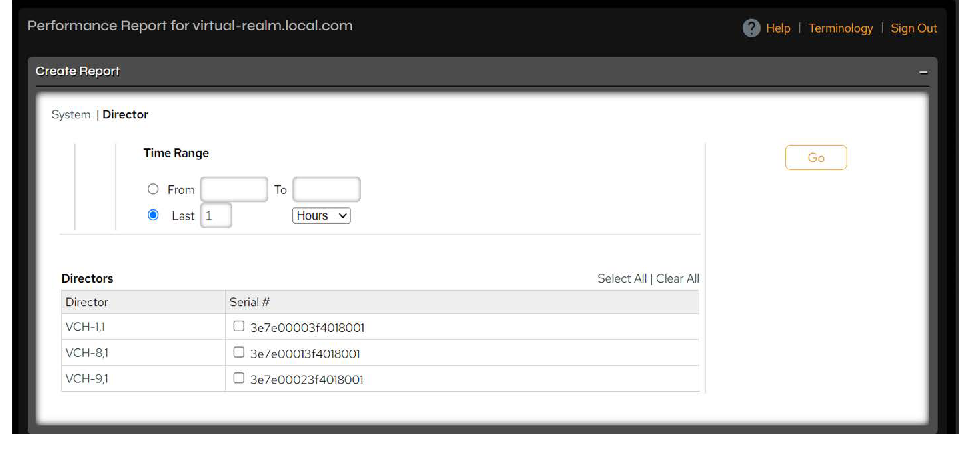 Figure 8-6. Performance Report page for a Director.
8.2.3 System Statistics Report
Use PanActive Manager to create a System Statistics report that can include the following metrics:
- CPU Utilization: Percent of time the CPU is busy with storage operations.
- Disk Activity: Percent of time the disk is busy with storage operations.
- Operations: Total number of operations per second.
- OSD Response Time: Response time in milliseconds of OSDs.
- Total Throughput: MB of data read from or written to disk or cache per second.
- MB/s Write: Total MB of data written to disk per second.
- MB/s Read: Total MB of data read from disk or cache per second.
- DirectFlow Operations: Number of DirectFlow operations per second.
- DirectFlow MB/s Write: MB of data written to disk per second.
- DirectFlow MB/s Read: MB of data read from disk or cache per second.
Click Status & Reports > Reports > System Statistics.
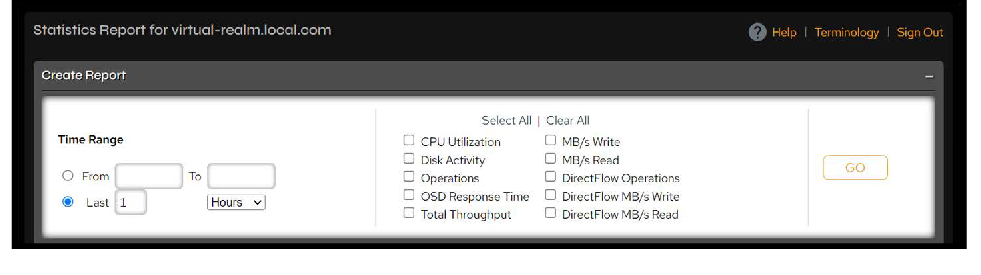 Figure 8-7. System Statistics Report page.
Select statistics information and time interval for your report. For information on allowable date/time formats, see Report Intervals.
Click Go to display your report.
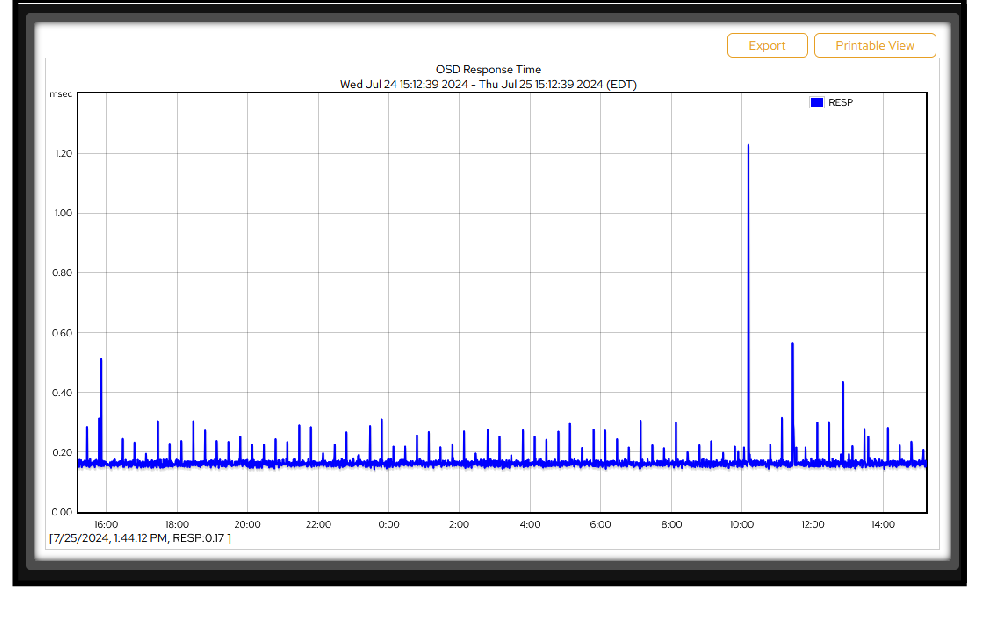 Figure 8-8. System Statistics – OSD Response Time output.
8.2.4 Capacity Report
Use PanActive Manager to create System Capacity and StorageSet Capacity reports including the following metrics:
- Total Space: Total capacity of the system or a StorageSet.
- Used Space: Utilized capacity of the system or a StorageSet.
- Reserved Space: Capacity reserved for use by reconstruction (related to the current spare count in each StorageSet).
- Snapshot Space: Capacity consumed by snapshots.
NOTE: The VDURA operating system uses some disk space to store internal data, such as object metadata. This overhead is responsible for the fact that the available node capacity is lower than its total disk capacity.
Click Status & Reports > Reports > Capacity.
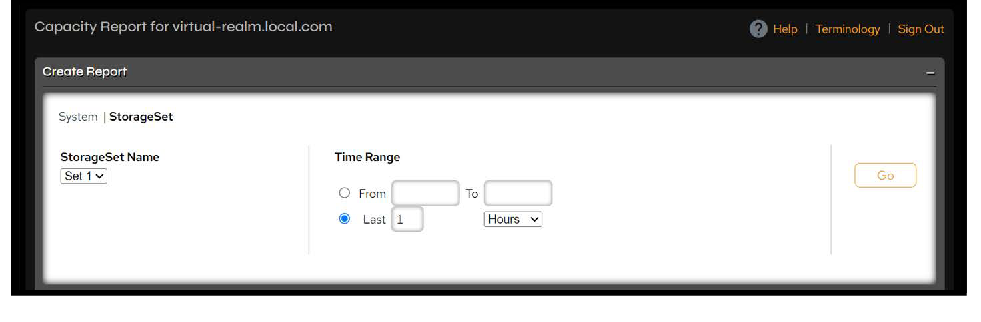 Figure 8-9. Capacity Report page for a StorageSet.
Make the following selections:
- System | StorageSet: Click to select report level.
- StorageSet Name: For StorageSet report, select a StorageSet.
- Time Range: For information on allowable date/time formats, see Report Intervals.
Click Go to display the report.
NOTE: All capacity information is reported using base 10, not base 2; i.e., KB = 1000, not 1024.
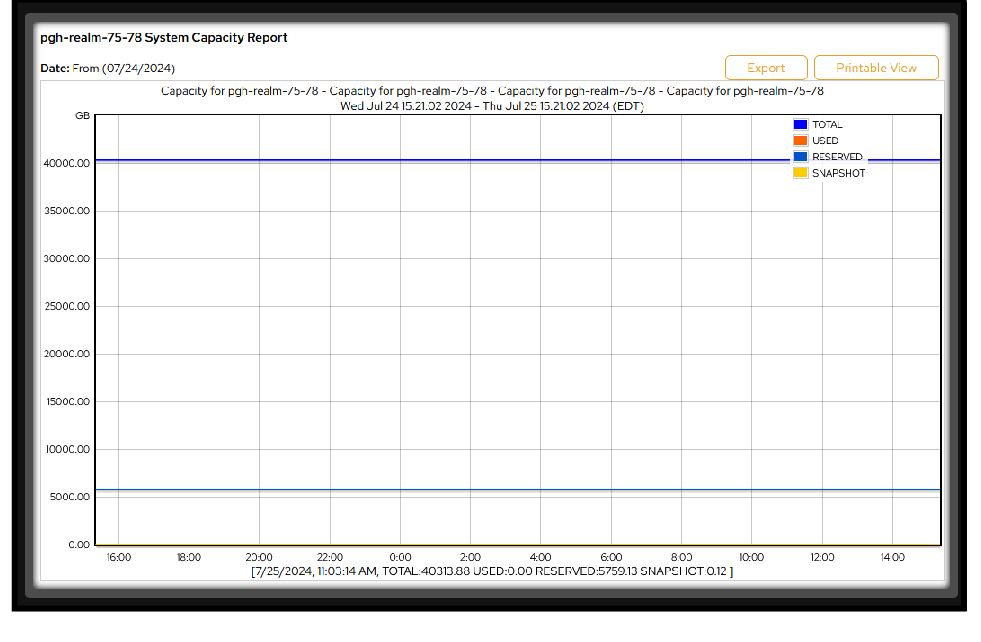 Figure 8-10. System Capacity Report output.
8.2.5 Asset Report
Use PanActive Manager to create a report of the hardware assets in your system.
Click Status & Reports > Reports > Asset Listing or Hardware > Hardware Management > Asset Report.
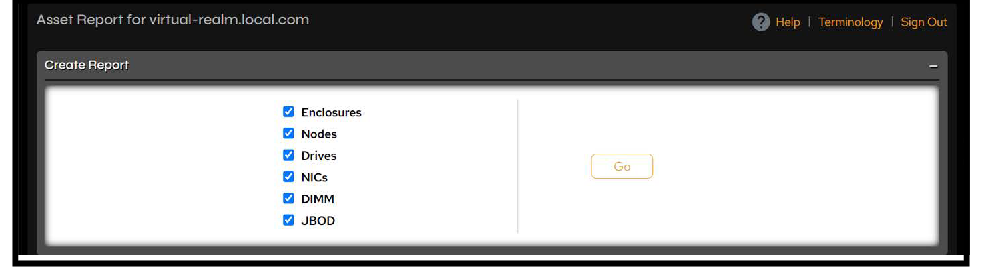 Figure 8-11. Asset Report page.
Select the assets to display (Enclosures, Nodes, Drives, NICs, DIMM, and JBOD), then click Go to display the report.
8.2.6 Volume Report
Use PanActive Manager to generate a report of the system’s space allocation.
Click Status & Reports > Reports > Volume Listing.
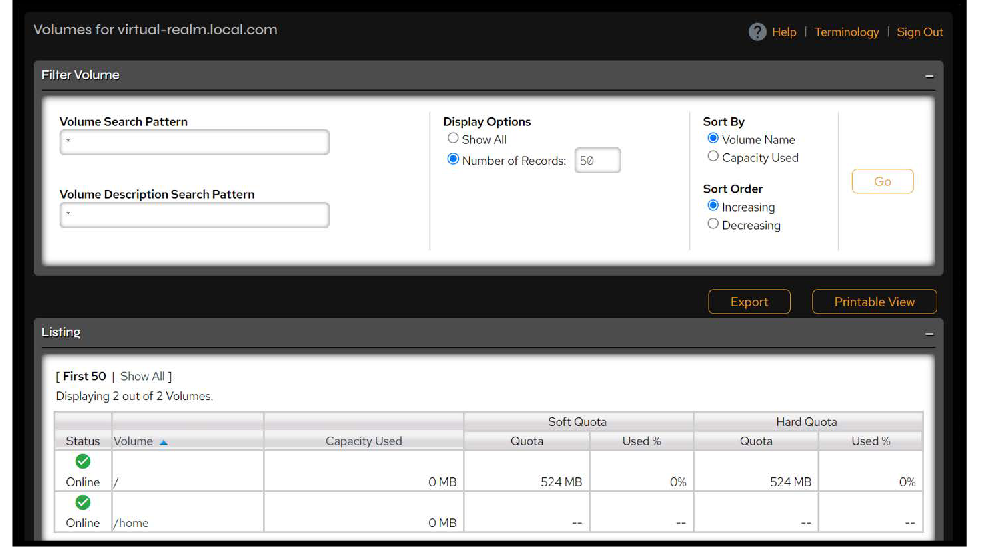 Figure 8-12. Volumes Report page.
Enter search strings and select display and sort options, then click Go to display the report.
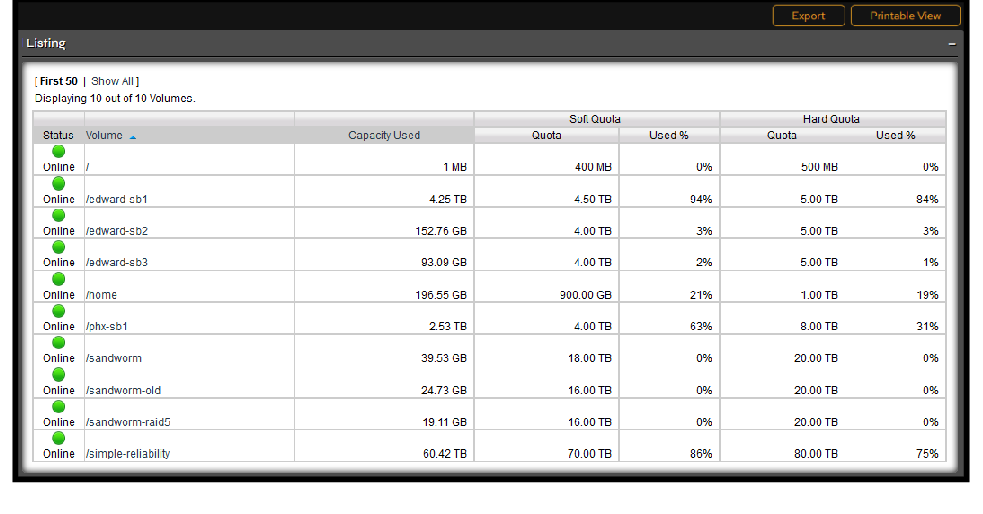 Figure 8-13. Volume Report output.