
13. Troubleshoot Your System
This chapter describes how to use the diagnostic and troubleshooting tools in PanActive Manager to troubleshoot your system. It includes the following sections:
- System Registration
- View Events
- Perform Network Diagnostic Tests
- Perform System Diagnostics
- Troubleshooting
13.1 System Registration
If you did not complete the registration of your system during installation, you can register using PanActive Manager.
Navigate to Configuration > Registration to fill out the registration form in PanActive Manager or confirm registration by phone.
- Select the Register by Phone (1-888-726-2727) radio button and click Save.
- Select the Register Now radio button. Fill in all required fields on the form and click Save.
NOTE: Once registration is completed, the Registration item will no longer be visible in the Configuration menu.
13.2 View Events
PanActive Manager’s Historical Event Log allows the user to view historical events such as system errors, warnings, system changes, and administrator actions.
NOTE: For information on viewing events with the command-line interface, see the eventlog command in the VDURA PanCLI Reference Guide.
Events displayed in the Historical Event Log are categorized as follows:
| Icon | Status | Description |
|---|---|---|
 |
Information | Error recovery messages, system changes, and administrator actions. |
 |
Warning | Developing problems that might impair system availability or data integrity. For information on setting email recipients for warning messages, see Set Status Recipients. |
 |
Critical | Problems that are an imminent risk to system availability or data integrity. For information on setting email recipients for critical messages, see Set Alert Recipients. |
For a description of VDURA information and error messages, see VDURA System Error Messages.
Click Status & Reports > Historical Event Log.
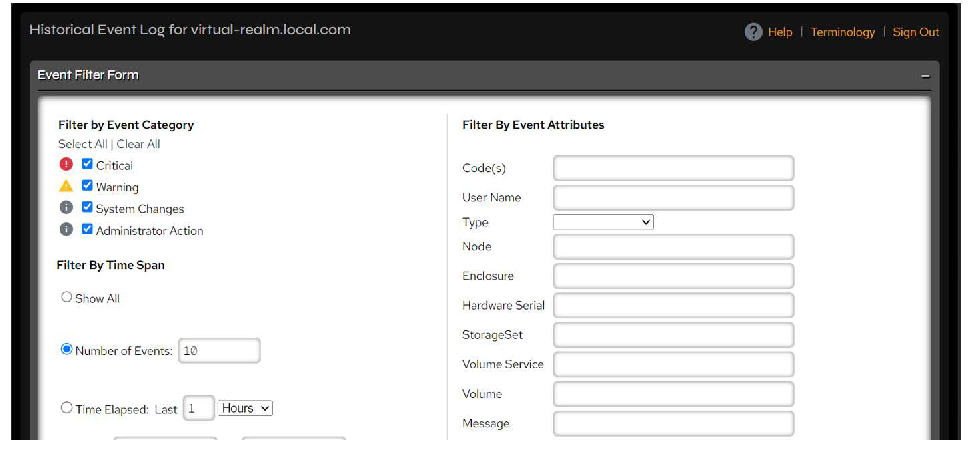 Figure 13-1. Historical Event Log page.
Use the filter options to customize the view:
| Filter | Description |
|---|---|
| Filter by Event Category | Critical: View critical errors. Errors are critical if system availability or data integrity is at risk. Warning: View error warnings. Warnings may indicate a developing problem. System Changes: View system changes such as reconfigurations. Administrator Action: View administrator actions such as logins. |
| Filter By Time Span | Show All: View errors, warnings, system changes, and administrator actions. Number of Events: Enter a number of events to display beginning with the most recent. Time Elapsed: Enter a number of the past hours, days, or weeks for which to display events. From/To: Enter a date interval, using one of the formats described in Report Intervals. |
| Filter By Event Attributes | Code(s): Limit results to events with the given event code. Multiple code options may be used to show multiple codes. User Name: Limit results to events attributed to the given user. Type: Limit results to events for the given component type. Node: Limit results to events for the given node. Enclosure: Limit results to events for the given enclosure. Hardware Serial: Limit results to events that occurred on the given piece of hardware. The serial can identify a node, enclosure, etc. StorageSet: Limit results to events for the given StorageSet. Volume Service: Limit results to events attributed to the given volume service. Volume: Limit results to events for the given volume. Message: Limit results to events whose message matches the given glob pattern. |
Click Search to display the customized list of events.
Click the icon in the Event Category column to display detailed error messages. Click the linked names of components, enclosures, or IP addresses to display the Enclosure Management or Node Management page for the affected hardware. For more information, see Manage Storage Hardware.
To export all Historical Event Log data, click the Export button.
13.2.1 Monitor Login Activity with the Historical Event Log
By checking to view the Administrator Action Event Category, you can view both successful and unsuccessful login attempts. This information is useful for administrators responsible for monitoring storage enclosure access and can help determine if someone is trying to compromise the storage system through an unauthorized entry.
As a login security feature, the syslog_watcher daemon will report a message to PanActive Manager when there are ten failed login attempts over a five minute timespan or 30 failed login attempts over a 60 minute period. After the first report, syslog_watcher will report additional problems as often as once every 60 minutes. Each message will include the number of failures, the types (ssh/http/https), and the number of minutes between the first and last message. For each such report, the system will trigger a current Administrator Action item for the node on which it was reported. That item will expire in 60 minutes or can be cleared manually. If the node already has an Administrator Action item for failed logins, the new info message will replace the old one. All reports from syslog_watcher are logged as info items in the Historical Event Log linked to the reporting node.
The Warning icon will appear when the system detects too many recent login failures. Clicking the warning icon displays a message alerting the user to the excessive login failures.
If the user has enabled the Warn About Failed Logins feature in Configuration > Security > Administrator, then the system will also trigger a realm-wide warning alert that will send email and pager messages as well as create an Historical Event Log warning entry. The realm-wide warning allows the administrator to clear the event once rather than for each node.
13.3 Perform Network Diagnostic Tests
PanActive Manager includes an interface for network diagnostic tests you can use to gather and process information about network failures.
Click Network > Network Status > Network Diagnostics.
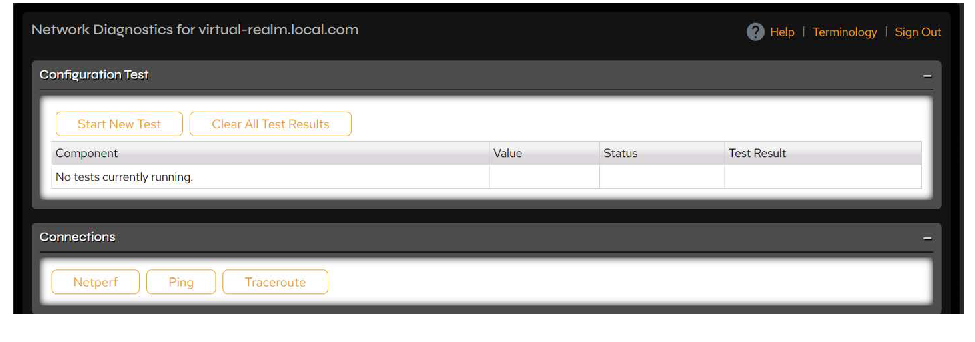 Figure 13-2. Network Diagnostics page.
Click the Start New Test button to test that the following components are configured and responsive: SMTP mailserver, default router, DNS server, NIS server, LDAP server, NTP server, secure web proxy server, and remote syslog collector. Once the test is completed, the page will show the name/ID, status, and test results for each of the above components (if configured), including response time.
Click the Connections controls to perform specific tests:
| Control | Description |
|---|---|
| Netperf | Turns the netperf daemon on/off on all nodes in the system. Netperf is a benchmark that can be used to measure various aspects of networking performance. Its focus is on bulk data transfer and request/response performance using either TCP or UDP and the Berkeley Sockets interface. When enabled, the netperf server will run on port 4005. |
| Ping | Pings from the node to a specified IP address with two retry attempts. |
| Traceroute | Shows IP addresses for up to five hops from the node to a specified IP address; waits two seconds for a response. |
Use the Clear All Test Results button to clear all network diagnostic test results.
13.4 Perform System Diagnostics
PanActive Manager includes an interface for system diagnostic tests used to gather and process information about your system. This information can be used by VDURA Technical Support to help diagnose problems with your system. Typically, you will not run these diagnostic tests unless directed to by VDURA Technical Support.
13.4.1 Select a Diagnostic Test
Click Hardware > Hardware Diagnostics > Select Diagnostic. This page contains a list of tests that can be performed against the hardware, approximate run time for each test, and detailed test descriptions.
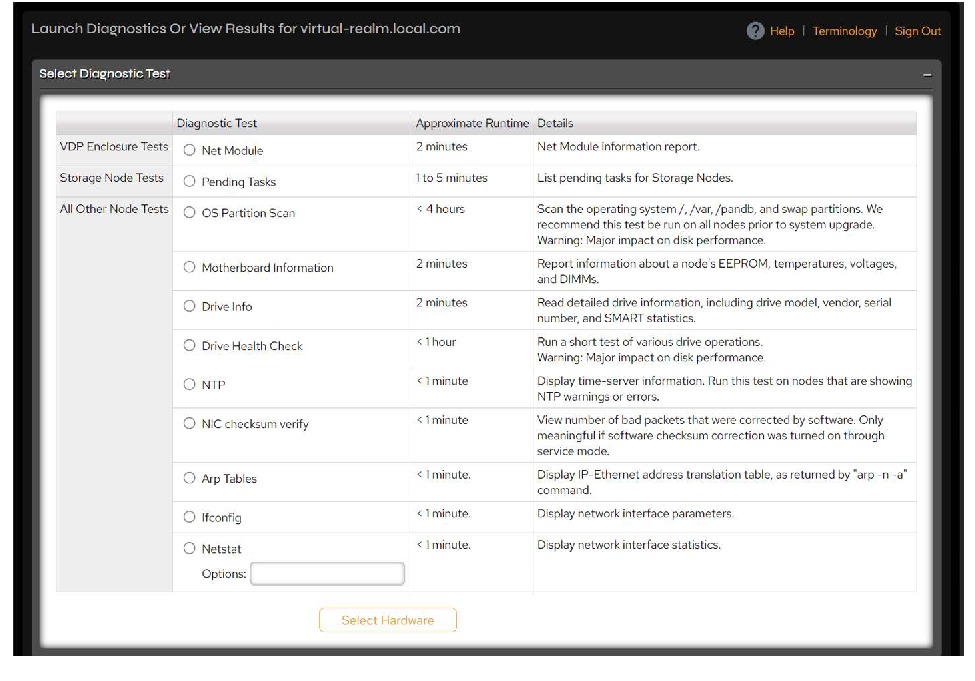 Figure 13-3. Launch Diagnostics Or View Results page.
Select a diagnostic to run, then click the Select Hardware button to choose hardware.
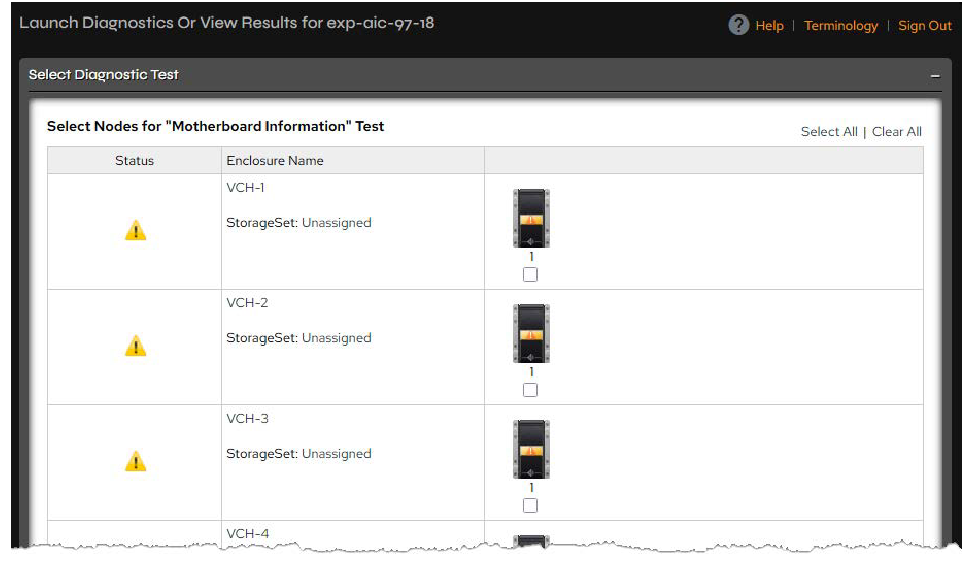 Figure 13-4. Hardware selection fields.
Use the check boxes next to the nodes to select which ones to test, then click the Launch New Diagnostic button. When complete, the system will display the test results.
You can view any existing tests on selected hardware by clicking the View Results for Diagnostics button on the Select Hardware page. If there are no test results for the hardware or test type you have chosen, you can use the Run Test Now link from the Diagnostic Results screen.
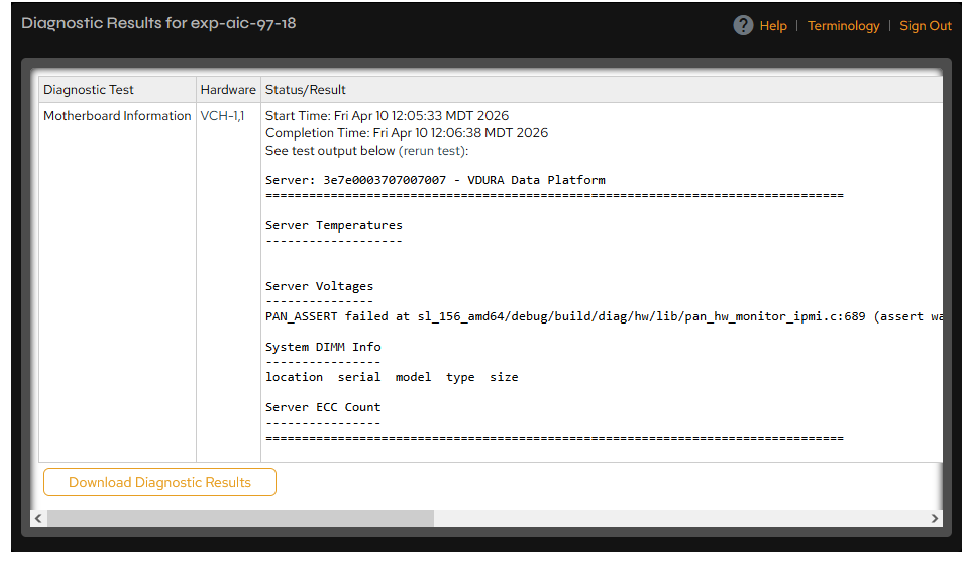 Figure 13-5. Diagnostic Results page.
13.4.2 Download a Diagnostic Test
Once the test has completed and the results are displayed, you can download the results by clicking the Download Diagnostic Results button at the bottom of the Diagnostic Results page. A compressed file containing your report will be downloaded to the location you provide.
13.5 Troubleshooting
PanActive Manager detects system and hardware errors, summarizes them in reports, collects them in the Historical Event Log, and distributes them to system administrators in email alerts and status summaries. These messages provide information about self-healing corrective actions and actions the system administrator can take to prevent or correct the problems.
In some cases, such as a shutdown caused by power failure, PanActive Manager messages are unavailable. Correct any obvious hardware issues, reboot the system, and review the event listings to be informed of self-healing processes that have been implemented or for guidance on system administrator actions.
If problems persist, contact VDURA Technical Support.
PanActive Manager includes networking troubleshooting tools that can be used to gather log and process information about network failures. Use the Collect State Information and Enable Diagnostic Tracing tools to troubleshoot problems with the help of VDURA Technical Support.
You can also use the panfs_trace CLI command to collect DirectFlow Client trace data.
NOTE: If you prefer to troubleshoot using a command-line interface, see the VDURA PanCLI Reference Guide for details on additional VDURA command-line interface commands.
13.5.1 Collect State Information
State information can be used to help understand what happened just before a failure or problem occurred.
Click Advanced Tools > Trace Collection.
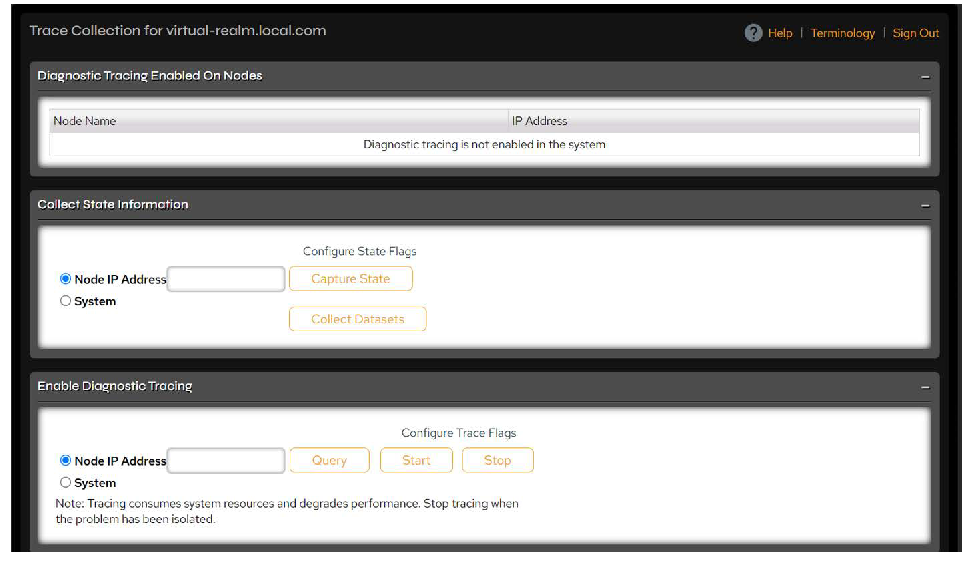 Figure 13-6. Trace Collection page.
Fill in the Node IP Address field for the node experiencing problems. For VDURA system problems, select System. If instructed by VDURA Technical Support staff, click Configure State Flags.
Click Capture State to save a compressed state information file to your local system. Click Collect Datasets to write datasets for all Directors in the system or given host to a local disk. Send the file(s) to VDURA Technical Support to analyze failures.
13.5.2 Enable Diagnostic Tracing
Use Diagnostic Tracing to help recreate the cause of system problems, such as the following:
- Unresponsive or slow system
- Incorrect data (wrong file size, premature end of file, wrong attributes, wrong time stamp, etc.)
- Functionality issues such as an attempt to remove a file without proper permissions or a file that cannot be removed even with permission
- Components crashing with similar debug information
Click Advanced Tools > Trace Collection.
Fill in the Node IP Address field for the node experiencing problems. For VDURA system problems, select System. If instructed by VDURA Technical Support, click Configure Trace Flags and follow further instructions.
Click Start to begin diagnostic tracing and recreate the problem you want to trace.
Click Stop to end diagnostic tracing and save the tracing file to your local host. Send this file to VDURA Technical Support to analyze failures.
If you are not sure if tracing is currently enabled, click Query. PanActive Manager will indicate whether or not tracing is currently enabled.
13.5.3 Collect DirectFlow Client Traces
The DirectFlow Client writes trace data for some operations into a circular trace buffer in memory. As more trace data is added to the trace buffer, the oldest data is pushed out of the buffer. VDURA Technical Support may request a panfs_trace command to collect this trace data from the trace buffer for troubleshooting. Follow the instructions in Knowledge Base article KB-300915, “How do I collect long-term DirectFlow Client traces?” to use the CLI panfs_trace command.