
7. Manage Storage Hardware
This chapter describes how to use PanActive Manager to manage VDURA hardware at the system, enclosure, and node level. It includes the following topics:
- Monitor and Manage the VDURA System
- Monitor and Manage Enclosures
- Monitor and Manage Nodes
- Network and NIC Status
For information on monitoring and managing hardware with the command-line interface, see the VDURA PanCLI Reference Guide. For information on installing hardware and the network configurations possible for your VDURA system, see the VDURA V5000 Certified Platform Installation and Service Guide.
7.1 Monitor and Manage the VDURA System
You can use PanActive Manager to monitor VDURA hardware at the system level. You can also perform a number of system-level tasks, including taking the system on- or offline, powering it down, and rebooting it.
Click Hardware > Hardware Management > Hardware Listing.
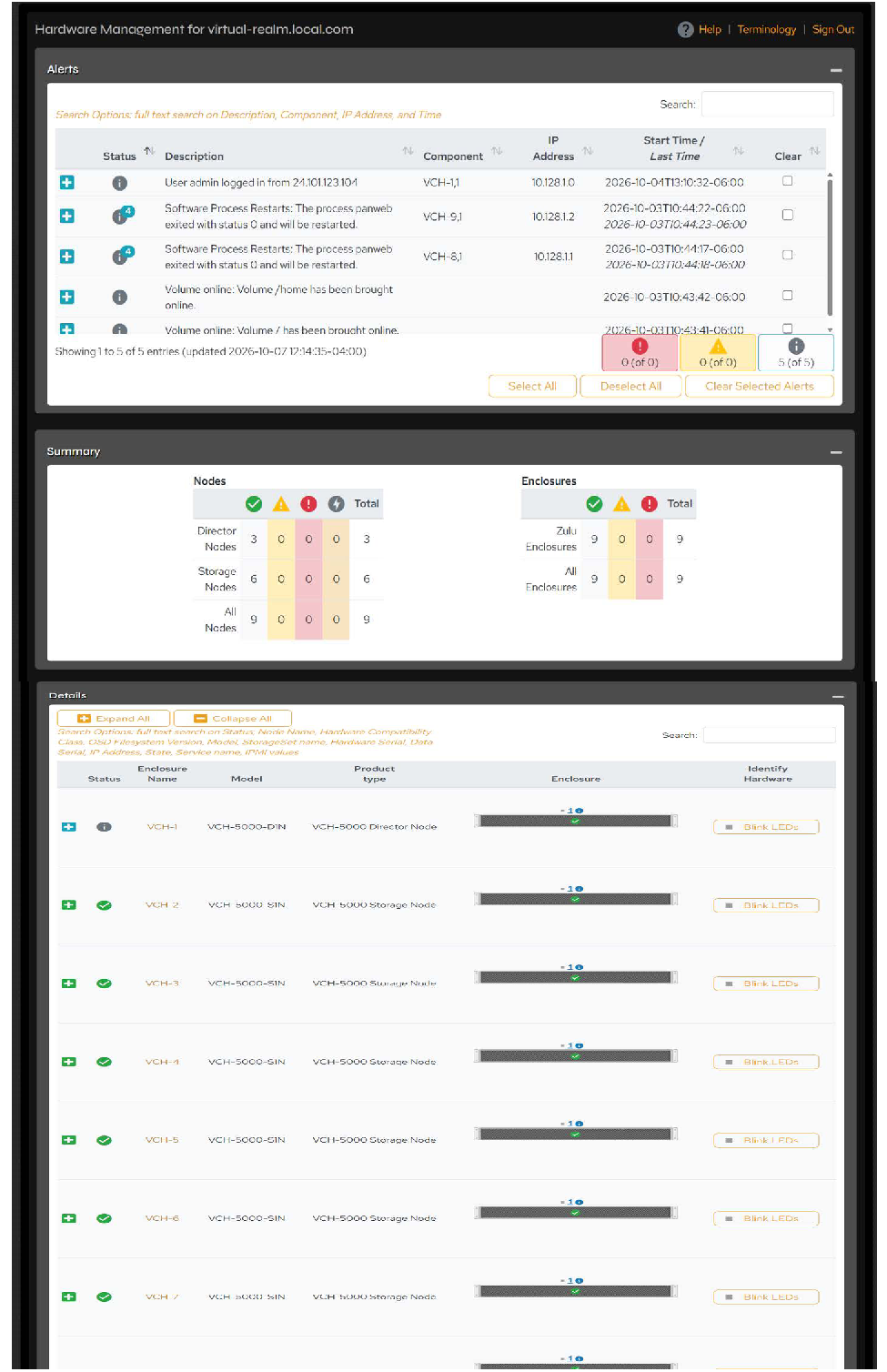 Figure 7-1. Hardware Management page.
The system-level Hardware Management page includes the following status tables and controls.
| Statuses & Controls | Description |
|---|---|
| Alerts | Search: Use this field to filter alerts by Description, Component, IP Address, and Time fields. Clear the box to return to the full view. Status icon meanings: • OK/Online: The component is online and functioning normally. • Warning: A problem is developing that might impair system availability or data integrity. • Error: The system is experiencing difficulty that might imminently impair system availability or data integrity. Description: Displays summarized error messages. Click the plus icon to the left of the Status icon to display a detailed description. Component: Click the link to display the node detail page for the troubled node. IP Address: IP address of the problem node. Start Time/Last Time: Date and time of the error. Clear: Check boxes individually or click the Select All/Deselect All buttons. Click the Clear Selected Alerts button to clear selected alerts. |
| Summary | Nodes: Shows a summary of the status of all nodes in the realm. Enclosures: Shows a summary of the status of all enclosures in the realm. |
| Details | Provides a total count of nodes by status and role and enclosures by hardware class and status. Search: Use this field to filter alerts by Description, Component, IP Address, and Time fields. Clear the box to return to the full view. Status icon meanings: • OK/Online: The component is online and functioning normally. • Warning: A problem is developing that might impair system availability or data integrity. • Error: The system is experiencing difficulty that might imminently impair system availability or data integrity. • Click the plus icon to the left of the Status icon to display a detailed description. Enclosure Name: Click a link to go to the item’s Enclosure Management page. Model: Displays the model of each enclosure. Enclosure: Provides a graphical representation of the contents and status of each enclosure in the realm. Click an image to go to its Node Management page. Identify Hardware: Click the Blink LEDs button to flash the status lights of the nodes in the enclosure. |
| Take System Offline/Bring System Online | Online: Activate all file services. Offline: Disable client access to data but leave the system active so you can manage it with PanActive Manager. For more information, see Manage System-Level Hardware. |
| Lock System/Unlock System | Lock: Lock the system. Some processes, such as migration, require a locked system. Unlock: Unlock a locked system. If the system is locked, this status will appear in the System Status box in the left pane. For more information, see Lock/Unlock the System. |
| System Shutdown | Shut down the system. Once the shutdown process is complete, you can turn off the power supplies. For more information, see Shut Down the System. NOTE: You must power down and restart hardware from its physical location. IMPORTANT INFORMATION REGARDING SHUTDOWN/RESTART: Powering on a JBOD must be done by pressing its power button. If you need to power on a JBOD remotely, VDURA can provide instructions for connecting the JBOD BMC. At Installation When installing a V5000 system that includes JBODs, each JBOD must be powered on before powering on its attached Storage Node. VDURA recommends powering on all JBODs, then waiting at least 60 seconds before powering on the Storage Nodes. During Operation If the realm is shut down from either PanActive Manager or PanCLI, JBODs will not shut down automatically and must be powered off by hand. JBODs can be powered off by holding down the JBOD enclosure power button located on the front of the unit. Storage Nodes should be powered off prior to shutting down the JBODs. When powering on the realm after a shutdown, JBODs should be powered on before their associated Storage Nodes because the nodes must be able to see their JBOD drives as part of the power-on process. VDURA recommends powering on all JBODs, then waiting at least 60 seconds before powering on the Storage Nodes. Use PanActive Manager or PanCLI to power down Storage and Director Nodes; do not remove power at the PDU. |
| System Reboot | Reboot all hardware components. Hardware and software will come online in a few minutes. For more information, see Reboot the System. |
| Battery Override | This is a legacy system control and is not used with V5000 hardware. |
7.1.1 Manage System-Level Hardware
Several system-wide hardware functions can be controlled from the Hardware Management page.
Take the System Offline/Bring the System Online
This procedure disables client access to data but leaves the system active so it can be accessed through PanActive Manager. When the system is brought online again, all file services are reactivated.
From the Hardware Management page Controls section, click the Take System Offline/Bring System Online button. You will be prompted to confirm the offlining action. Click Yes to continue.
Lock/Unlock the System
Some processes, such as enclosure migration, require that the system be locked before the procedure can be performed.
From the Hardware Management page Controls section, click the Lock System button (or Unlock System if the system is locked).
When the system is locked, a message link appears in left pane System Status box. Click that link to go to the Hardware Management page where you can unlock the system.
Shut Down the System
Shutting down the system powers down the Storage Nodes.
From the Hardware Management page Controls section, click the System Shutdown button. Select Yes when asked if you want to shut down the system.
Once the shutdown process is complete, you can turn off the power supplies. All hardware must be powered down and restarted from its physical location.
Reboot the System
Rebooting the system will reboot all hardware components. Hardware and software will come back online in a few minutes.
From the Hardware Management page Controls section, click the System Reboot button. You will be prompted to confirm your choice. Select Yes to continue.
7.2 Monitor and Manage Enclosures
You can use PanActive Manager to monitor VDURA hardware at the enclosure, edit VDURA system names, and drain all Storage Nodes in an enclosure.
Click Hardware > Hardware Management > Hardware Listing. In the Details section, click the name of the enclosure you want to work with to display its Enclosure Management page.
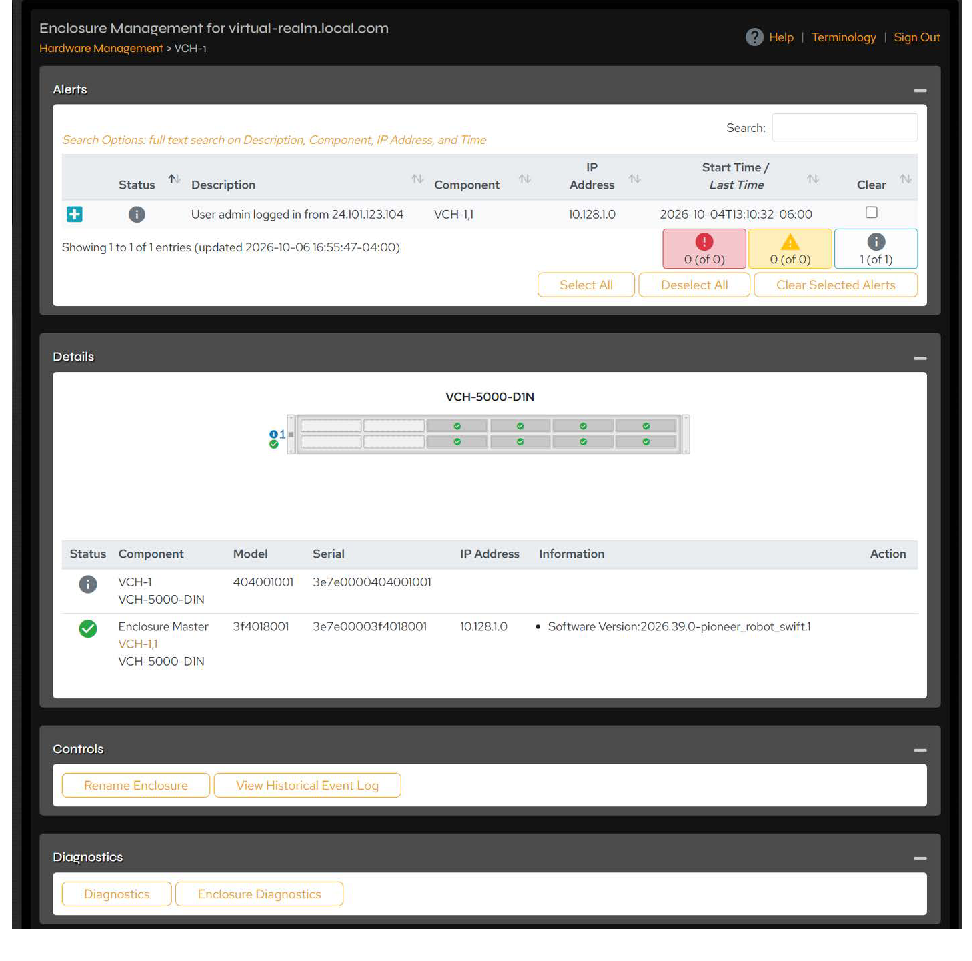 Figure 7-2. Enclosure Management Details, Director Node.
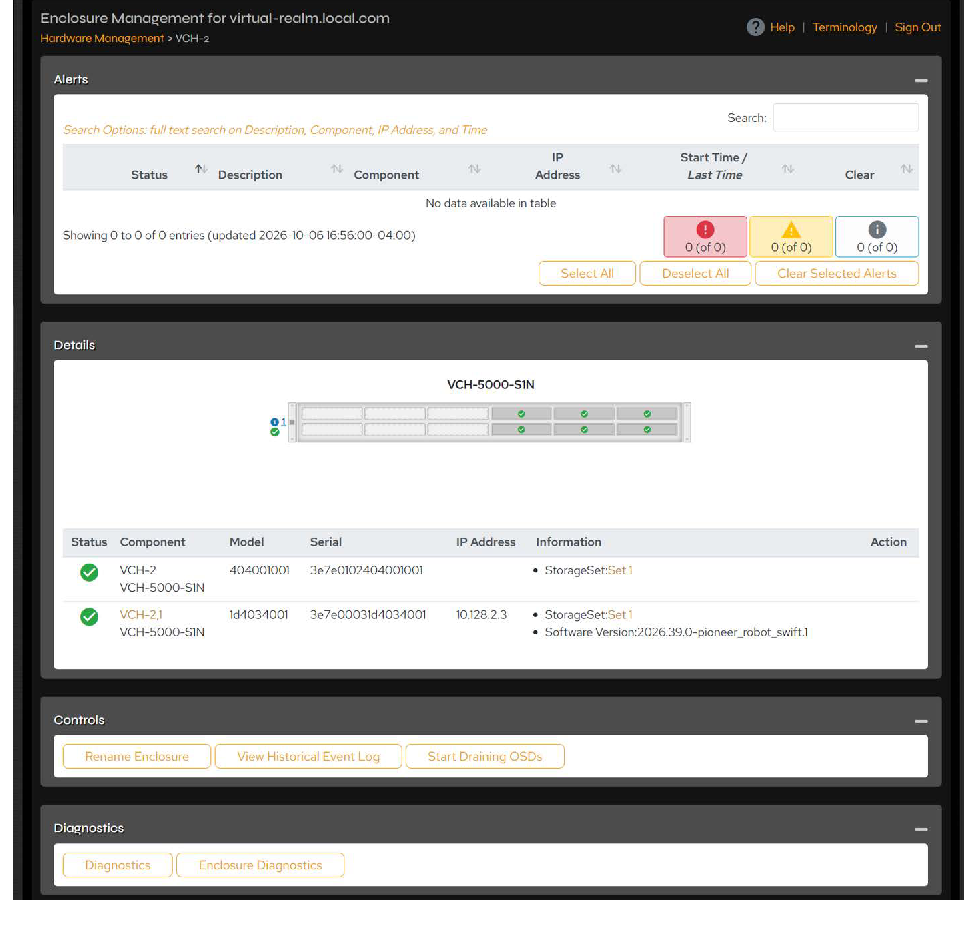 Figure 7-3. Enclosure Management Details, Storage Node.
The Enclosure Management page includes the following status tables, controls, and diagnostics.
| Statuses & Controls | Description |
|---|---|
| Alerts | Search: Use this field to filter alerts by Description, Component, IP Address, and Time fields. Clear the box to return to the full view. Status icon meanings: • Online: The item is online and functioning normally. • Warning: A problem is developing that might impair system availability or data integrity. Click a link to go to an enclosure’s management page. • Error: The system is experiencing difficulty that might imminently impair system availability or data integrity. Description: Error messages appear in summary. Click the plus icon to the left of the Status icon to display a detailed description. Component: Click the link to display the node detail report for the troubled node. IP Address: The IP address of the problem node. Start Time/Last Time: Date and time of the error. Clear: Check boxes individually or click the Select All/Deselect All buttons. Click the Clear Selected Alerts button to clear selected alerts. |
| Details | Hardware diagrams: Hover mouse icon over a node to view its name. Click a node to open its Node Management page. Status icon and node graphic LED meanings: • OK/Online: The component is online and functioning normally. • Warning: A problem is developing that might impair system availability or data integrity. • Error: The system is experiencing difficulty that might imminently impair system availability or data integrity. Component: Name of the component. If component is a node, click the link to go to its Node Management page. Model: Displays the model of each component. Serial: Serial number of the component. IP Address: IP address of the node. Information: Displays relevant facts about the component. If component is a node, click the StorageSet link to go to its StorageSet Detail page. Action: If component is a blade or node, click the Blink LEDs button to flash its status light. |
| Controls | Rename Enclosure: Click to rename the enclosure. View Historical Event Log: Click to display the Historical Event Log page for the enclosure. Start Draining OSDs: This button begins the draining of data from all eligible Storage Nodes in the enclosure. Draining data will move all data to other Storage Nodes. This process can take several days. To drain all data from this enclosure, type YES and click OK in the dialog box that opens. This type of drain is used when migrating data from an old enclosure to a new one. For more information, see Enclosure Migration. To drain a single storage node, use the procedure in Drain a Storage Node instead. Clear Record of Enclosure: Click to remove all nodes within the specified enclosure. |
| Diagnostics | Diagnostics: Click to open the Launch Diagnostics page where you can select diagnostics to perform. Enclosure Diagnostics: Click to run enclosure-level diagnostic tests. |
7.3 Monitor and Manage Nodes
Each Director and Storage Node has a Node Management page from which you can monitor and manage the hardware at the node level.
Click Hardware > Hardware Management > Node Listing to display a list of all Director and Storage Nodes in your system.
In the example below, nodes VCH-1,1, VCH-8,1, and VCH-9,1 are Directors. Each Storage Node is listed as its own enclosure (VCH-2,1 through VCH-7,1).
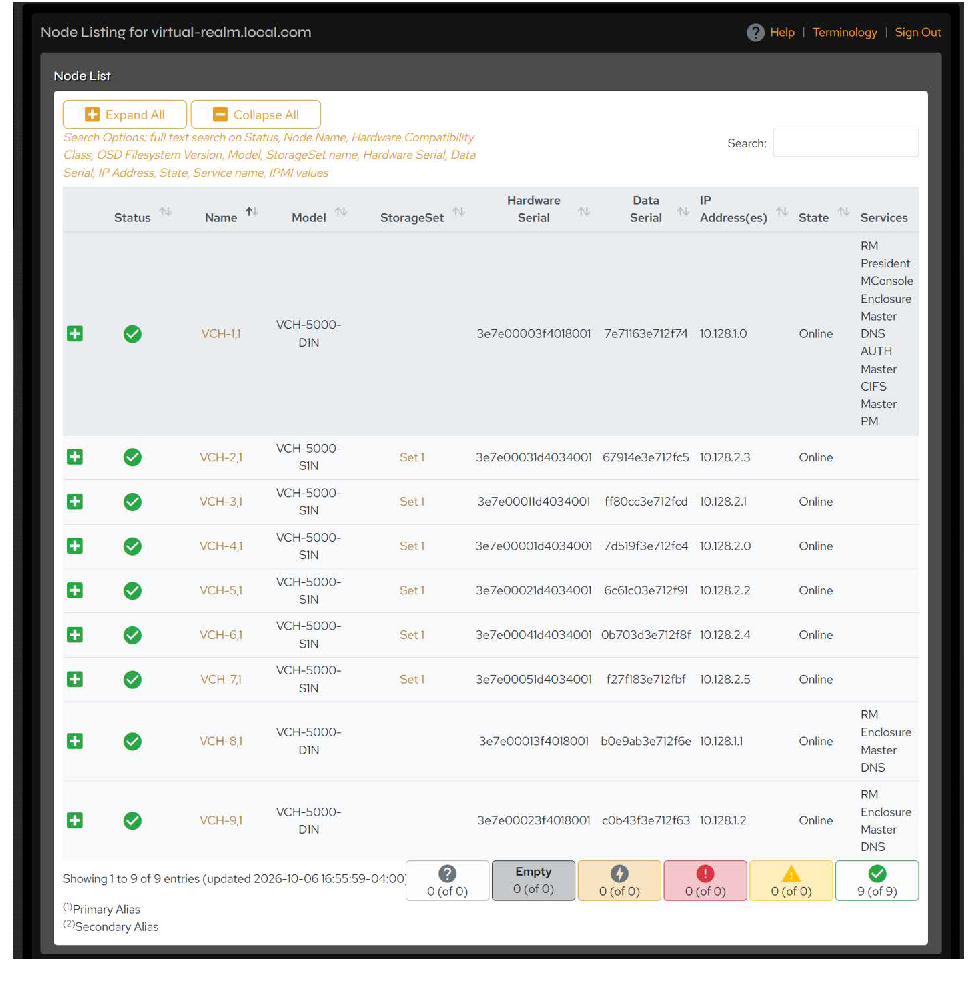 Figure 7-4. Node Listing page.
This page provides high-level information about the nodes in your system, including node status, name, model, StorageSet, hardware and data serial numbers, IP addresses, state, and services provided by Directors. A footnote below the table identifies the primary alias (1) and secondary alias (2) addresses.
To open a specific node, click its Name link in the table. You can also open Node Management for a specific node from the Hardware Management page by clicking the icon for the node in the enclosure’s graphical representation.
7.3.1 Manage Node-Level Hardware
The Node Management page provides detailed information about errors and node statistics, including drive assets and NIC status. From this page, you can also perform node procedures, set networking preferences, and gather information about the node.
From the Node Listing page, click the name of a node to view its Node Management page.
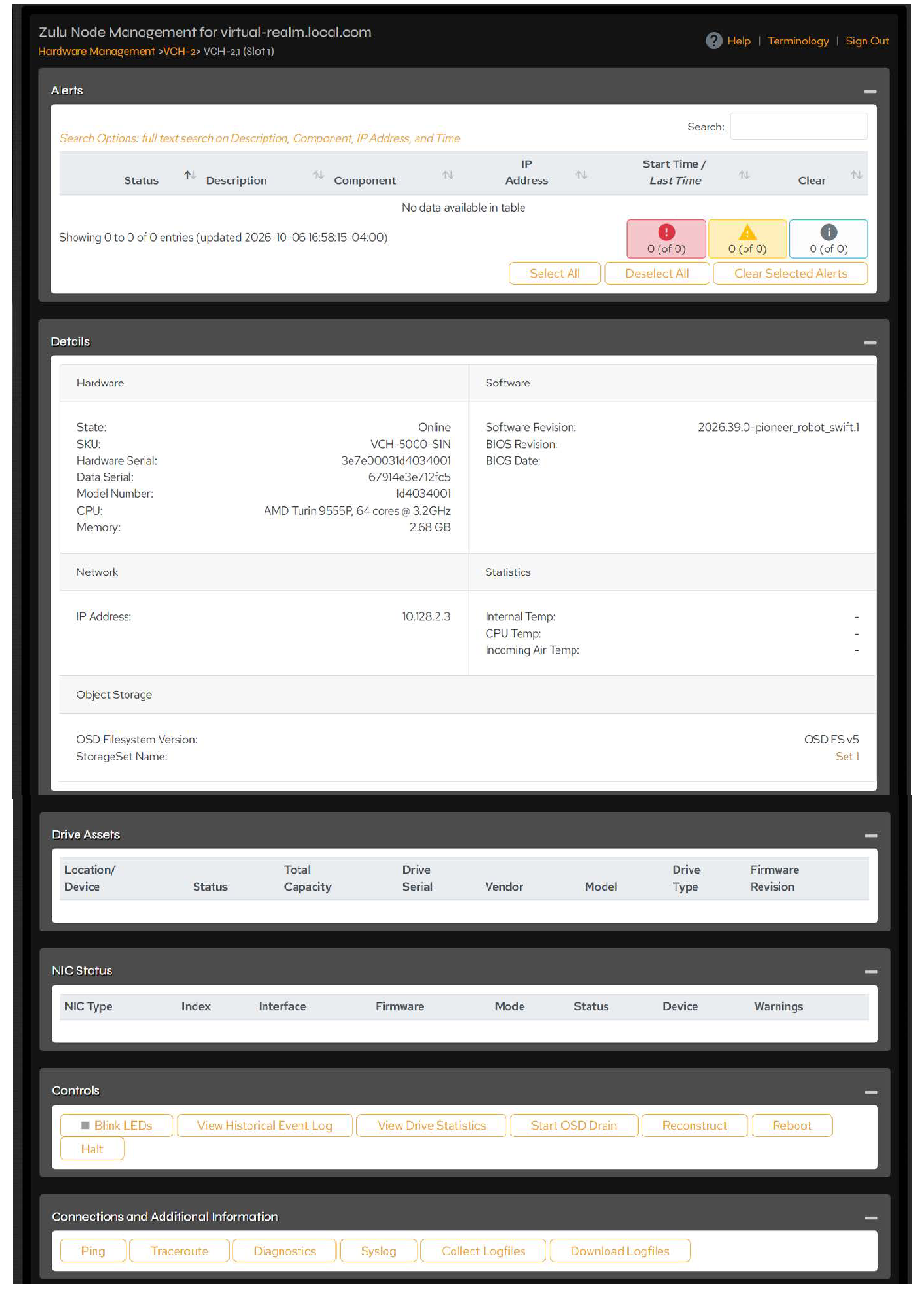 Figure 7-5. Node Management page.
The following tables and controls appear on the Node Management page:
| Statuses & Controls | Description |
|---|---|
| Alerts | Search: Use this field to filter alerts by Description, Component, IP Address, and Time fields. Clear the box to return to the full view. Status icon meanings: • Online: The item is online and functioning normally. • Warning: A problem is developing that might impair system availability or data integrity. • Error: The system is experiencing difficulty that might imminently impair system availability or data integrity. Description: Error messages appear in summary. Click the plus icon to the left of the Status icon to display a detailed description. Component: Click the link to display the node detail report for the troubled node. IP Address: The IP address of the problem node. Start Time/Last Time: Date and time of the error. Clear: Check boxes individually or click the Select All/Deselect All buttons. Click the Clear Selected Alerts button to clear selected alerts. |
| Details | Provides a variety of statistics and information about the node, including state, physical characteristics, serial and part numbers, IP address, primary and secondary aliases (Directors only), object storage details (Storage Nodes only), hardware temperatures, and additional hardware and software statistics. The following list describes the possible node states: • Joining: The node is performing the initial handshake to join the system. This state occurs following reboot. • Online: The node is online. • Needs Upgrade: The node has a different version of software from the rest of the system and must be upgraded before it can be used. This is typically a transient state for new nodes, as the system will automatically attempt to upgrade the new off-version node to the version of the rest of the system. If the attempt to upgrade an off-version node fails, it remains in this state awaiting remedy. • Needs Reinitialization: The node already has data on it that might have come from a different system. • Offline: The node is offline. • FSCK: The node is performing a file system check (fsck). This state is transient and usually happens following a reboot. • Not Responding: The node cannot be contacted. The cause is unknown. The node may be rebooting or temporarily disconnected. • Not Responding, Lost: A node has been physically replaced or reinitialized but not removed from the software, so the system is looking for the old one. See Remove a Lost Node for more information. • Failed: Data from a failed node is getting or has been reconstructed from parity. The node should be removed and its records cleared from the system. • Rejected: The node has been rejected from the system and powered down. A new node can be rejected if it has an invalid serial number or if its capacity differs from the rest of the enclosure. |
| Details, cont. | • Draining: The transparent drain operation moves all Storage Node data to other storage nodes and removes it from the system. • Needs Repair: Needs attention. Call VDURA support for the best course of action. • Upgrading: If a new node is added to the system with a different software version, the system will automatically upgrade the new off-version node to the version of the rest of the nodes in the system. • Clock Sync: The node is performing clock synchronization. This transient state follows reboot. • Booting: Node is rebooting. • Shutdown: Node is shutting down. • Secure Erase: Node is undergoing secure erasure of data, as requested by the admin. Node state modifiers include: • Not Activated: The node has joined the system but is not yet active. For Storage Nodes, this means the admin needs to add the node to a StorageSet. For Directors, this means the admin must activate it. • Draining: Data is being moved from this node to other nodes. Once this action is completed, the node should be removed from the system. • Drain suspended: Drain activity was requested, but has been temporarily suspended. |
| Drive Assets | Provides information about the drives, including location, status, total capacity, serial number, vendor, model, drive type, and firmware revision. For usage information, click the View Drive Statistics button in the Controls section. |
| NIC Status | Provides information about the network interface cards, including NIC type, index, interface, mode, status, device type, and warnings. |
| Controls | The buttons described below only appear if the function can be performed. • Blink LEDs/Stop LEDs: Click to flash the status lights on a node when you need to locate it in a machine room. Click Stop LEDs to stop the flashing. • Clear Record of Node: Use this button on a Storage Node that has completed draining (Drained state) or has completed reconstruction (Failed state). Clearing is also appropriate for removing a rejected node or a new node that still has data from another system (Needs Reinit state) without erasing the existing data. • Halt: Click to halt activity on individual nodes. For the procedure to halt a node, see Halt a Node. • Reboot: Click to reboot individual nodes. For the procedure to reboot a node, see Reboot a Node. • Reconstruct: Click to start reconstruction of a Storage Node from parity. This action causes all volumes in that node’s StorageSet to be in Degraded mode until reconstruction of those volumes completes. The node will immediately transition to the Failed state, and the admin should subsequently clear the record of the node. For more information, see Reconstruct Failed Storage Nodes in a StorageSet. • Reinitialize Node: This control appears only when reinitialization is required. If a new node is added to the system but still has data on it from a previous system (Needs Reinit state), it must be reinitialized before it can be brought online. • Remove from Replication Set: Click to remove a node from the software that has been physically replaced in the enclosure. See Remove a Lost Node. |
| Controls, cont. | • Start OSD Drain/Stop OSD Drain: This option allows users to drain or stop draining all data from a Storage Node. The transparent drain operation does not require the corresponding StorageSet to be offline and does not put the StorageSet into a degraded operation. For more information, see Drain a Storage Node. • View Drive Statistics: Click to view data on all drives in the realm. • View Historical Event Log: Click to display the Historical Event Log page for the enclosure. |
| Networking Preferences | These controls are specifically for Director Nodes. • Enable/Disable Aliases: Use this button to decide whether a Director should have IP aliases assigned to it. By default, all Directors can receive aliases. It may be useful to disable alias assignment for a handful of Directors if they are busy with other specific system tasks. For more information about IP aliases, see IP Aliases. |
| Connections and Additional Information | The buttons described below only appear if the function can be performed. • Ping: Use this button to attempt a handshake from the node to a specified IP address with two retry attempts. • Traceroute: Use this button to show IP addresses for up to five hops from the node to a specified IP address with a two second wait for response. • Diagnostics: Opens the Launch Diagnostics page, from which you can select diagnostic tests to run or results to view. • Syslog: Generates a system log file for the node. • Collect Logfiles: Click to generate all log files for the node. • Download Logfiles: Downloads the logs to your local host. You can then send the log files to VDURA Technical Support for troubleshooting. |
7.3.2 Node Management Tasks
You can perform the following tasks from the Node Management page.
Halt a Node
Nodes can safely be removed after they are halted.
Click Hardware > Hardware Management > Node Listing, then click the name of the node you want to halt. The Node Management page opens.
In the Controls section, click the Halt button to start the halt process. A warning dialog box asks you to confirm your request. Click OK to confirm the request. The system will display a message at the top of the screen indicating that the halting activity is underway.
NOTE: This operation can also be performed using the PanCLI halt command.
Reboot a Node
Click Hardware > Hardware Management > Node Listing, then click the name of the node you want to reboot. The Node Management page opens.
In the Controls section, click the Reboot button to start the process. A warning dialog box asks you to confirm your request. Click OK to confirm. The system will display a message at the top of the screen indicating that the rebooting activity is underway.
NOTE: This operation can also be performed using the PanCLI reboot command.
Drain a Storage Node
Users can drain (migrate) all data from a Storage Node. The transparent drain operation does not require the corresponding StorageSet to be offline and does not put the StorageSet into a degraded state of operation. This feature allows users to proactively drain a Storage Node when hardware failures are predicted, but the node is still in an Online state.
Draining a Storage Node will move all its data to other nodes and will remove it from the system. Once the drain operation is complete, it can be physically removed from the system.
To drain a node, follow these steps:
From Hardware > Hardware Management > Node Listing, click the name of the node you want to drain. In the Controls section of the Node Management page that opens, click the Start OSD Drain button. A message will appear asking you to confirm that you want to drain. Click Yes.
You can monitor the drain status either from the Details section of the Node Management page or from the Hardware > Hardware Management > Drain Status page (see Monitor or Cancel a Drain).
If progress seems to stop after draining more than 95 percent of the data, it is safe to physically remove the node. Failure to drain completely is not uncommon and is caused by damaged objects that remain on the node. The system will reconstruct whatever remaining data it was unable to drain. Instead of removing the node, you can also click the Reconstruct button to trigger a reconstruction. For more information on reconstructing storage nodes, see Reconstruct Failed Storage Nodes in a StorageSet.
The storage node may appear in the Not Responding, Lost state during reconstruction. Once reconstruction completes, the system will remove the node automatically; no manual intervention is needed.
Monitor or Cancel a Drain
You can monitor the status of nodes being drained or cancel an in-progress drain from the Hardware > Hardware Management > Drain Status page. This page also presents a list of previously drained or reconstructed nodes in the system.
7.3.3 Remove a Lost Node
When a Director has been physically replaced but has not been removed from the software, it will appear in the Not Responding, Lost state, as the system is looking for the “lost” node. To remove the node from the software in this specific case, click the Remove from Replication Set button, then use the Clear Record of Node button to remove the director from PanActive Manager.
Storage Nodes undergoing reconstruction after a drain may also appear as Not Responding, Lost. Once reconstruction completes, the system will remove the node automatically; no manual intervention is needed.
7.3.4 Disk Firmware
VDURA system administrators can update node drive firmware using PanActive Manager. VDURA recommends planning firmware updates in advance. If necessary, contact VDURA Technical Support for consultation or assistance with firmware updates.
Update Disk Firmware
Click Hardware > Hardware Management > Drive Listing to display information about the system nodes and disks, as well as recent disk firmware updates.
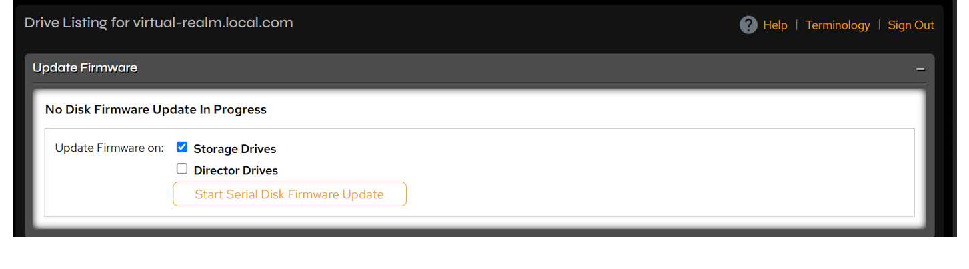 Figure 7-6. Drive Listing page with Update Firmware field.
Select the drives you wish to update by marking either the Storage Drives box, the Director Drives box, or both.
Click the Start Serial Disk Firmware Update button. The Start Serial Disk Firmware Update button will toggle to the Cancel Disk Firmware Update button.
Firmware updates will occur one node at a time. The system will wait for a node to return to the Online state before starting to update the next one. The system may wait as long as 20 minutes for a node to come back online. If the node does not come back online in this time, the system will not continue with further firmware updates, and a warning will be sent to the administrator. When a node is unavailable, a “Node is unavailable” error message will appear on the Hardware Management page.
Cancel a Disk Firmware Update
Cancel an in-progress firmware update by clicking the Cancel Disk Firmware Update button.
If a disk firmware update is canceled by the user, the system will finish processing the update of any node that is in progress. As soon as the firmware update on that node has finished, the update will stop.
Restart a Disk Firmware Update
A canceled disk firmware update may also be restarted by performing the procedure Update Disk Firmware. If the update was canceled and started again, the system will go through each node to check its firmware version, but no updates will be performed on disks that have already been updated to the current version of firmware.
7.3.5 Node Temperature
To monitor the temperatures of nodes, click Hardware > Hardware Management > Temperature. You can view internal, CPU, and incoming air temperatures from this page.
7.3.6 Replace a Node
The procedures to replace Director and Storage Nodes are documented in the VDURA V5000 Certified Platform Installation and Service Guide. It is not recommended to replace nodes without the assistance of a qualified VDURA representative.
7.4 Network and NIC Status
You can view the NIC status of any specific node via that node’s Node Management page.
To obtain detailed information about the NIC status of all nodes in the system, navigate to Network > Network Status > NIC Status.
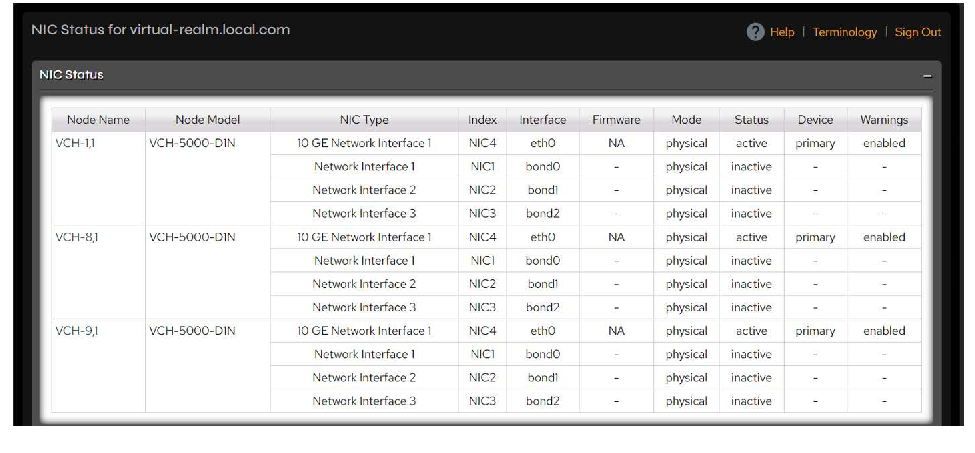 Figure 7-7. NIC Status page.
The following table explains the NIC status fields and their values.
| Field | Description |
|---|---|
| Node Name | Link to node’s management page. |
| Node Model | Brief description of hardware. |
| NIC Type | Type of NIC. |
| Index | Identification of NIC for tracking purposes. This number is referred to in Historical Event Log and system log messages. |
| Interface | Type of NIC interface. |
| Firmware | Firmware version. |
| Mode | Operating mode of the NIC: • Failover: This NIC is part of “LAG Network Interface 1/2” and is operating in failover mode. When a LAG is operating in failover mode, only one NIC will be used for communication. • Physical: This NIC is not part of any LAG and is operating standalone. • No Warn: The system admin has chosen not to be warned about any error seen on this NIC. • Disabled: This interface is not intended to be used. For example, if storage-failover/secondary-alias is not configured, then a second interface on the nodes will be disabled. |
| Status | Operational state of interfaces: • Active: Link on the interface is up. • Inactive: Link on the interface is down. |
| Device | Type of IP address configured on this interface: • Primary: Configured with primary address and primary alias. • Secondary: Configured with secondary alias. |
| Warnings | Displays whether or not warnings are enabled for the NIC. |