
9. Upgrade VDURA Software
This chapter describes how to use PanActive Manager to upgrade your VDURA software. It includes the following topics:
9.1 Upgrade System Software
VDURA provides two methods for accessing system software upgrades. PanActive Link automatically provides upgrade files. For instructions on activating PanActive Link, see Configure PanActive Link. If PanActive Link is not enabled, software can be downloaded from support.VDURA.com to a directory on your VDURA system for installation or to a remote host, then uploaded to your system and installed.
9.1.1 Before You Begin
The realm should be manually taken offline before starting an upgrade and should be manually brought back online when the upgrades for Directors, VPOD Containers, and all VPODs are complete. If this is not done, PanFS may attempt to start volume services while VPODs are updating, which can lead to extra errors in event log, alerts, and potentially false triggering of reconstruction.
From the Hardware Management page Controls section, click the Take System Offline/Bring System Online button. You will be prompted to confirm the action. Click Yes to continue.
The overall sequence is: take the system offline, install the upgrade, verify that all nodes have been upgraded, then bring the system back online.
NOTE: For information on upgrading system software with the command-line interface, see the upgrade command in the VDURA PanCLI Reference Guide.
NOTE: A VPOD Container is the part of a Storage Node that represents its hypervisor role and main OS (see VPODs). VPODs will be off-version upgraded after VPOD Container and Director upgrades are complete.
Access Available Upgrades
This feature has been deprecated in PanActive Manager as of PanFS 12.0.0 but has not yet been removed from the UI. Contact VDURA Technical Support to obtain upgrade images.
Click Advanced Tools > Software Management > Upgrade PanFS.
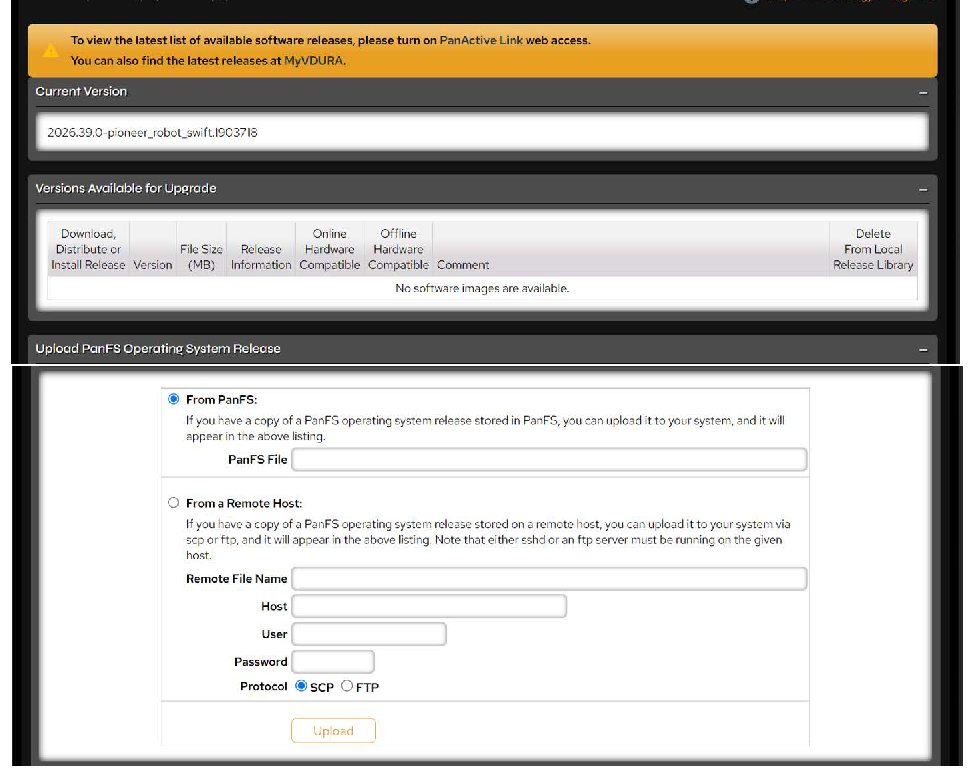 Figure 9-1. PanFS Operating System Upgrade page.
If PanActive Link is enabled, the Versions Available for Upgrade table will automatically be populated with available upgrades. Pay particular attention to the columns that indicate compatibility with your hardware. If the upgrade is not compatible with existing hardware, the column provides a link to a table of software versions that are compatible.
If PanActive Link is disabled, either enable it from the Configuration > Notification > PanActive Link page or go to the Downloads page of support.VDURA.com, download a compatible software version to the VDURA system or a remote host. Use the Upload PanFS Operating System Release options on the PanFS Operating System Upgrade page to upload the software. The new version will then appear in the Versions Available for Upgrade table.
NOTE: Remote access via FTP or SCP requires that the remote system be running an FTP or SSH service.
Install the Upgrade
Once you have identified a compatible software upgrade in the Versions Available for Upgrade table, click its Download button to download it to a single node in the system. This step can be completed while the system is online.
When the download is successfully completed, the Download button becomes a Distribute button. Click the Distribute button to distribute the upgrade package to all other nodes in the system.
If the distribution is unsuccessful, an error is displayed on the PanFS Operating System Upgrade page and a control appears in the Versions Available table allowing you to redistribute the software to all nodes or specific ones identified by IP address. Select the nodes to which you want the software redistributed, then click Redistribute to Selected at the bottom of the list.
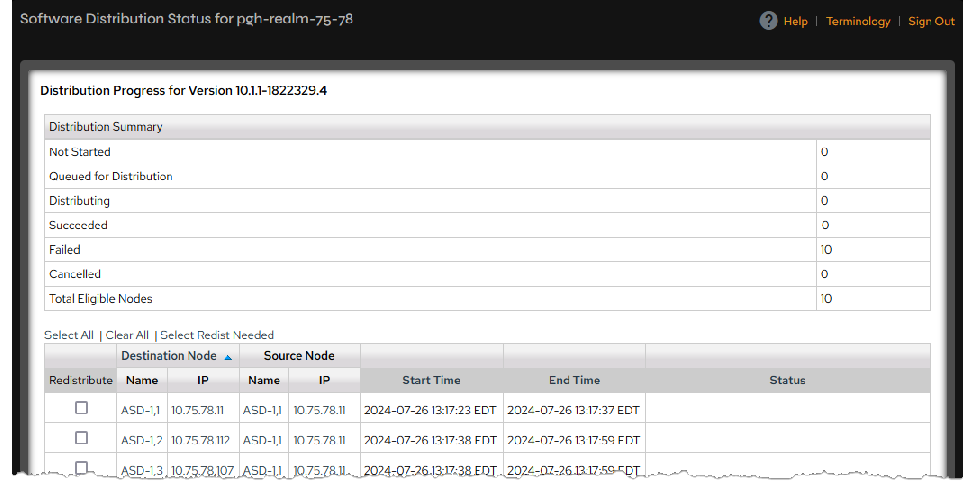 Figure 9-2. Software Distribution Status with Redistribute boxes.
You can also go to the Distribution Status page to view the status of the nodes and select ones to redistribute. This step can be completed while the system is online.
Once the image has successfully been distributed, the Distribute button becomes an Install button. You are now ready to unpack, verify, and install the software. This step requires the system to be offline.
When the installation is successful on all nodes, the system will reboot and all nodes will come back online. If the installation fails, the system will revert to the current version of the software.
Check Upgrade Status
The status of the software distribution can be checked from Advanced Tools > Software Management > Distribution Status.
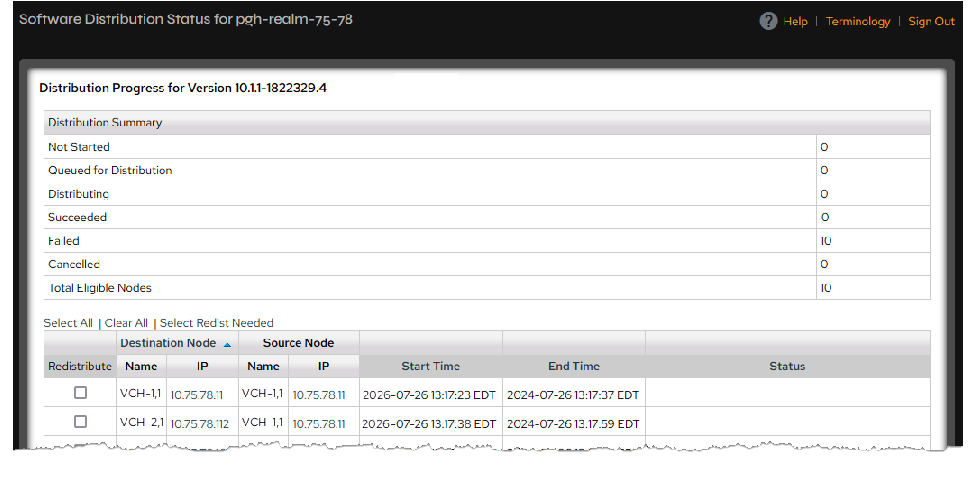 Figure 9-3. Software Distribution Status page with Distribution Summary at top.
View Upgrade History
Click Advanced Tools > Software Management > Version History to see the recent history of software upgrades and installation dates.
 Figure 9-4. PanFS Operating System Version History page.
Roll Back to a Previous Version
The previous version of the VDURA software is retained on the system in the event a problem requires you to back out of an upgrade. This version will be listed in the Versions Available for Upgrade table on the PanFS Operating System Upgrade page. In general, VDURA supports downgrading by one release. However, always check with VDURA for any limitations or exceptions before initiating a downgrade.
To roll back to an earlier version, follow the same instructions used to upgrade to a newer version. Since the software is already on the system, start with the distribution step.
Upgrade Times
Upgrade and downgrade times will vary, but in general, the following holds true:
- The download and distribute phases take time, but the system is fully online during these steps. Since both download and distribution are just single-click steps, there is also practically no administrative time required.
- The time it takes to download a release depends on the method. Downloading to each node directly from the VDURA support portal takes longer than copying the file (downloaded from the support portal separately) into a volume, then downloading from that volume.
- Distribution time depends on the number of nodes in the system. VDURA uses an exponential distribution method to hasten this process: one node gets the image and sends it to two other nodes, then each of those three nodes send a copy to two additional nodes, then those nine nodes each then send to two additional nodes, etc.
When the install button is pushed, the system does some work to validate packages, etc., before it goes offline and reboots. At this point, clients will experience the system hanging. This step will take about ten minutes to complete before coming back online.
9.2 Upgrade and Uninstall DirectFlow Client Software
For instructions on installing and configuring the DirectFlow Client, see DirectFlow Client Support.
9.2.1 Upgrade DirectFlow Client Software
Complete the following steps to upgrade the DirectFlow Client software while retaining your current /etc/fstab entries for VDURA mount points. This procedure is for RPM files only. Customers with Debian-based systems are advised to create a backup copy of /etc/fstab prior to reinstalling or upgrading the DirectFlow Client.
Download the appropriate RPM for the client from support.VDURA.com and copy the RPM to the client. If you are unsure of the exact name of your RPM file, contact VDURA Technical Support before upgrading the DirectFlow Client.
Run umount /panfs to unmount the VDURA file system.
Run rmmod /panfs to unload the DirectFlow kernel module.
Run rpm -ivh [panfs*.rpm], where [panfs*.rpm] is the name of the RPM file. For example, using the command with a file named panfs-5.14.0-
570. 12.1.el9_6.x86_64-11.1.1-1853317.62.rhel_9_x86_64.rpm** looks like this:
 ```
 rpm -ivh panfs-5.14.0-570.12.1.el9_6.x86_64-11.1.1-
 1853317.62.rhel_9_x86_64.rpm
 ```
This updates the DirectFlow Client software and re-installs the VDURA kernel module.
- Use mount to mount your VDURA mount points.
Uninstall DirectFlow Client Software
If you have a previous version of the DirectFlow Client software on your system, you can uninstall it with the following procedure:
- Run umount /panfs to unmount the VDURA file system.
- Run rmmod /panfs to unload the DirectFlow kernel module.
- Run rpm -e [panfs*.rpm], where [panfs*.rpm] is the name of the old version, to uninstall the DirectFlow Client software.