
3. PanActive Manager
This chapter introduces PanActive Manager, the browser-based GUI that enables you to monitor and manage the performance of your VDURA system. It contains the following topics:
NOTE: You can also use a command-line interface to perform monitoring and management procedures. For information on the VDURA command-line interface (PanCLI), see the online help or the VDURA PanCLI Reference Guide, available at vdura.com/resources/documentation.
NOTE: VPOD (Virtualized Object Storage Device) is VDURA’s replacement for OSD (Object Storage Device). In this guide, you will notice that the terms OSD and VPOD are used interchangeably throughout PanActive Manager. For the purposes of the UI, they are interchangeable.
3.1 Connect to PanActive Manager
Network access is configured when the VDURA system is initially installed, as described in the VDURA V5000 Certified Platform Installation and Service Guide. To change these settings with PanActive Manager, see Configure System Settings.
NOTE: PanActive Manager supports HTTPS protocols and NIS restrictions.
You can connect to PanActive Manager using any current major browser. Configure browser preferences as follows:
- Enable cookies.
- Enable JavaScript.
- Disable caching. Because information changes frequently on some PanActive Manager status pages, your browser’s cache may cause out-of-date data to be displayed. If you choose to enable caching, configure your browser to retrieve the fresh page from the HTTP server whenever you want current data.
- Download and import the CA certificate. To ensure a secure connection to VDURA realms, download the CA certificate and import the certificate file into your browser to avoid having to manually set an exception in your browser. At the PanCLI command line, do one of the following:
- Enter cacert to display the CA certificate information. Next, copy and paste the information into a text editor and save it as cacert.pem on the local machine. Finally, refer to your browser’s help instructions to import the file.
- Enter cacert ?[user]@?[host]:[file] to download the CA certificate file to a remote machine using scp. Refer to your browser’s help instructions to import the file. When saving your file, be aware that the system does not support Unicode.
Enter the IP address for PanActive Manager in your browser. This is the IP address you assigned the VDURA system during installation. PanActive Manager opens, displaying the Home page.
In the Sign In box, enter admin for the user name and the password you set when you initially configured your VDURA system, then click Sign In.
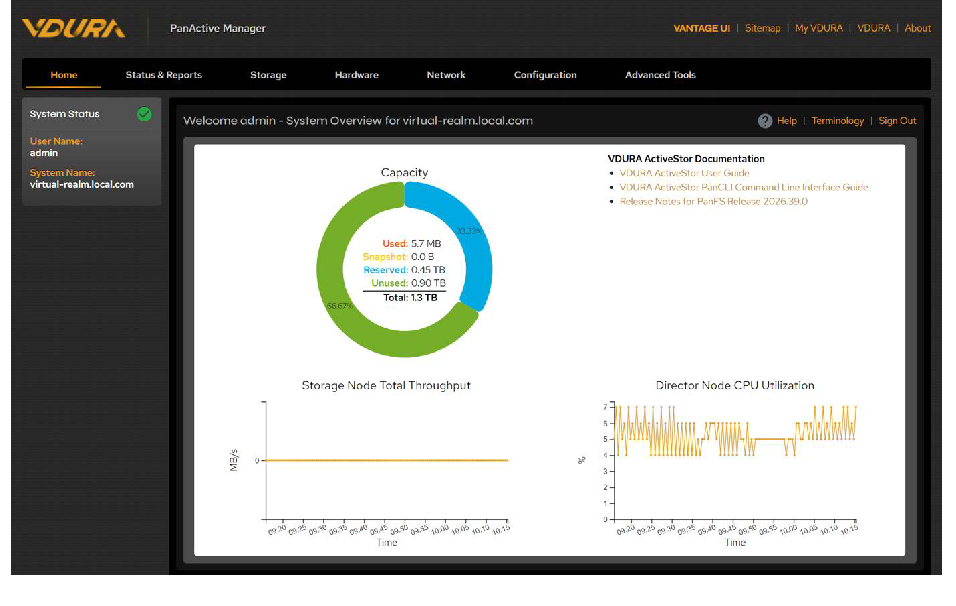 Figure 3-1. PanActive Manager Home page.
3.2 Navigate PanActive Manager
The Home page summarizes the current status of your system, including capacity and charts of storage node throughput and Director CPU utilization, and provides links to VDURA documentation.
3.2.1 Important Links
PanActive Manager contains several sets of links that provide a variety of information.
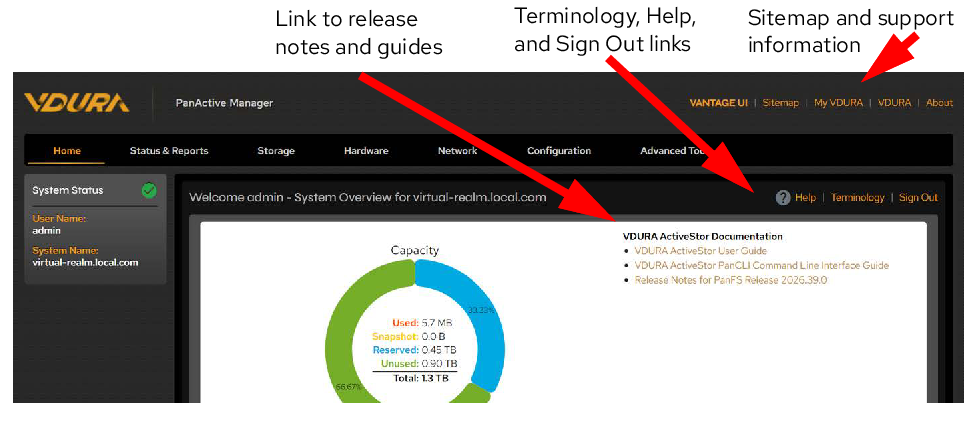 Figure 3-2. Helpful links.
Sitemap and Support Information
Links at the top right of most pages take you to the Vantage UI, a site map of PanActive Manager, support pages for VDURA products, and software version information.
- VANTAGE UI: Switch to the Vantage UI for this system.
- Sitemap: Open a clickable map of the main pages in PanActive Manager.
- My VDURA: Access product documentation, submit a service request, and download software releases.
- VDURA: Go to the VDURA corporate website.
- About: Display version information and your Customer ID.
Terminology and Sign Out Links
The following links appear in the right corner of each page below the menu tabs:
- Help: Click to display help topics relevant to the current page you are viewing.
- Terminology: Click to display a glossary of commonly used system terms.
- Sign Out: Click to end your session.
Documentation
The full customer documentation set for VDURA products is available at vdura.com/resources/documentation.
3.2.2 Tabs, Menus, and Pages
The tabs across the top of every page allow you to navigate PanActive Manager. Each tab displays left menu options for the tasks you can perform from that tab. Many of the left menu items contain additional subsets of links to particular screens.
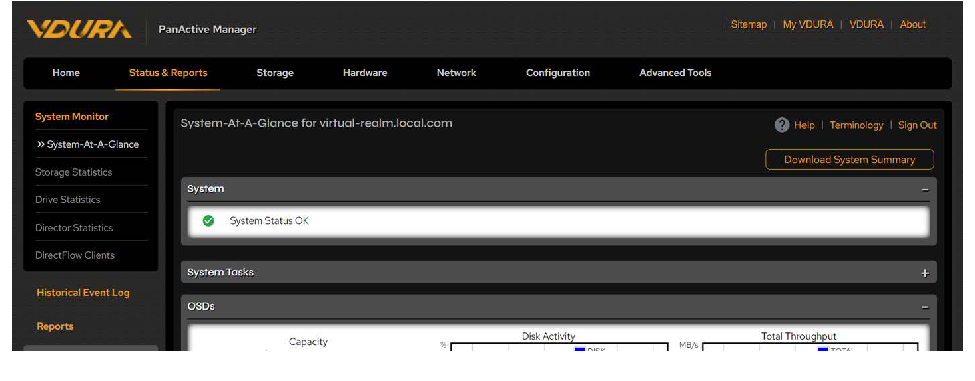 Figure 3-3. Tabs, menus, and pages.
The following table describes the navigation tabs that appear on each page.
| Tab | Function |
|---|---|
| Home | Display the Welcome page containing System Status, System Overview, and VDURA documentation links, as well as total throughput and CPU utilization for the system. |
| Status and Reports | Display status summaries, event listings, and reports regarding your VDURA system. See Monitor Performance. |
| Storage | Configure StorageSets, volumes, user and group quotas, DirectFlow exports, and Netgroups. See Configure Storage Data and Network Access. |
| Hardware | Display system-, enclosure-, and node-level reports and controls for VDURA hardware; configure realm management; and display hardware diagnostics. See Manage Storage Hardware and Configure Storage Data. |
| Network | Configure IP ranges, static routes, aliases, routers, and subnets; monitor NIC status and perform network diagnostics; enable storage network failover; configure enclosure- and node-level network settings; set NTP servers and timezones, DNS servers, and services; and configure name services, NIS, and LDAP. See Network Access. |
| Configuration | Configure network and administrator security settings, SSH keys, notification recipients, SNMP, and system registration. See Network Access. |
| Advanced Tools | Check version history, upgrade software, view file lock management, and perform diagnostic tracing. See Upgrade VDURA Software, Lock Management, and Troubleshoot Your System. |
3.2.3 Additional Links and Tools
A System Status box appears on every page in the left pane. Click the status icon to view system status information.
If the system is locked, a link will appear to unlock the system.
On some pages, a System Tasks heading appears with a plus icon. Click the plus icon to display any tasks currently in progress.
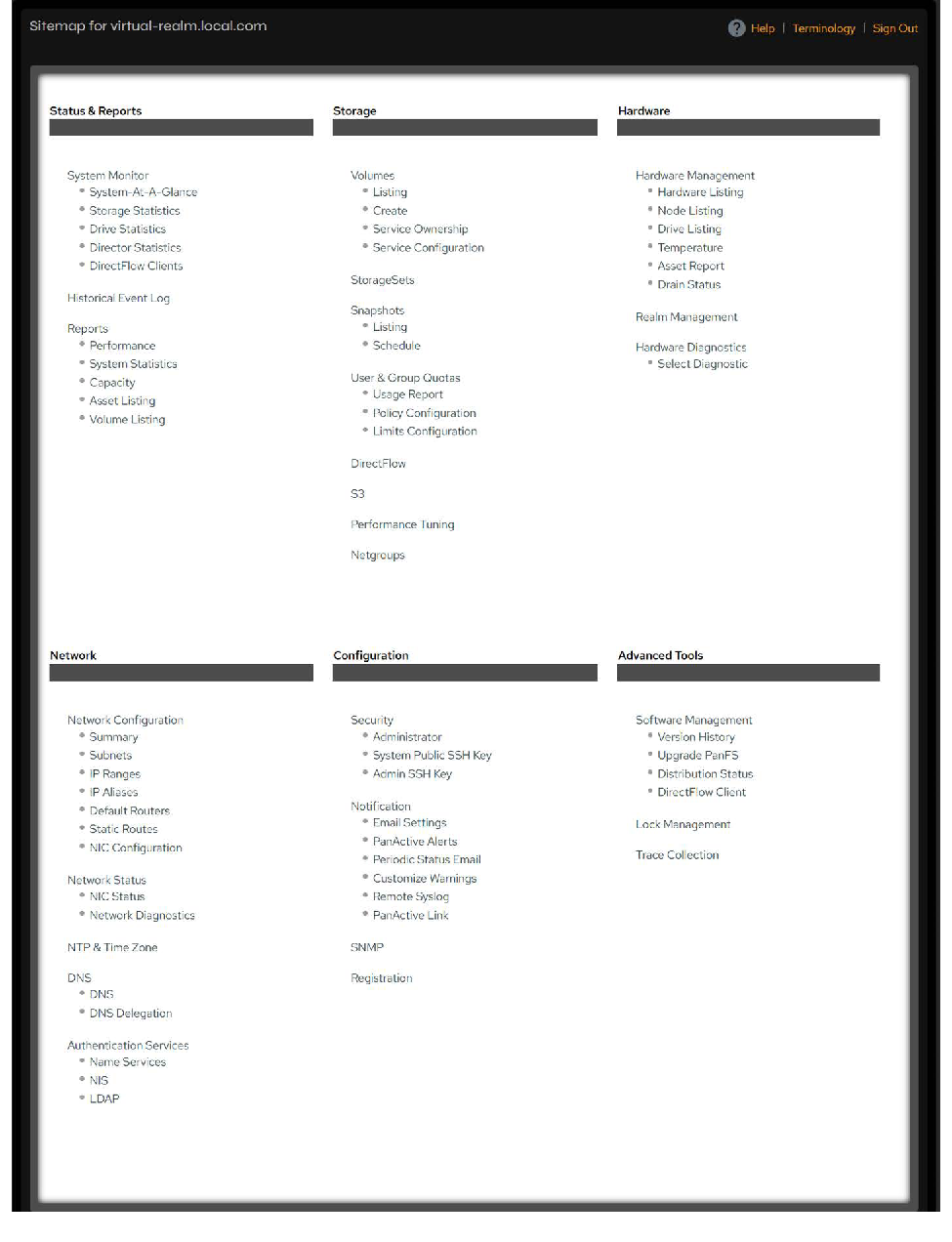 Figure 3-4. Sitemap page.