
2. Getting Started
2.1 Accessing the UI
Vantage is served directly from the realm over HTTPS; there is nothing to install. Point a browser at the realm’s address (an IP address or hostname), e.g.:
https://<realm-address>/Certificate warning on first visit: VDURA realms ship with a self-signed TLS certificate by default. The first time any browser visits a given realm’s UI, it will show a certificate-trust warning. This is expected; click through it (or add a permanent exception) to proceed. You will not see this warning again on subsequent visits from the same browser.
2.2 Signing In
Visiting the realm address without a valid session redirects to a dedicated Login page.
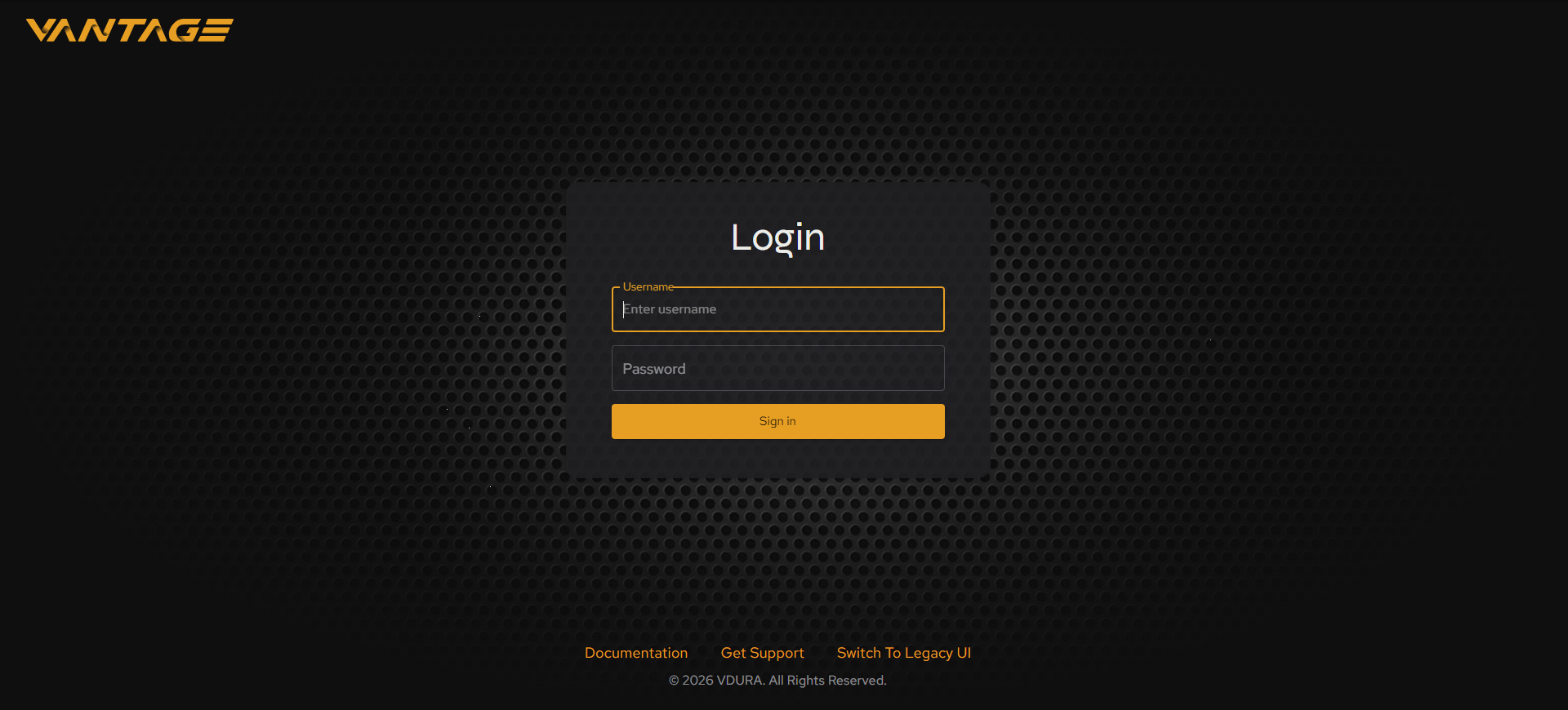 Figure 2.1. The Login page: Vantage wordmark, centered Username/Password form, Sign in button, and footer links.
Vantage uses the same credentials as panctl and PanAPI: the username and password of a platform user, such as the admin account. The page shows the Vantage wordmark top-left and a centered card with Username and Password fields and a Sign in button. The Username field is selected when the page loads: its label moves up onto the field’s border and the prompt “Enter username” appears inside it.
Three links run along the bottom of the page, above the copyright line:
| Link | Description |
|---|---|
| Documentation | Opens the VDURA documentation page on vdura.com. |
| Get Support | Opens the VDURA technical support page on vdura.com. |
| Switch To Legacy UI | Opens PanActive Manager, the legacy UI, at the same realm address (see 11.5). |
If an existing session expires, you’re returned to this same page.
Note: PanActive Manager, the legacy UI (see 11.5), maintains a separate session from Vantage. Signing in to one does not sign you in to the other.
2.3 Layout Overview
Every page in Vantage shares the same frame:
Links at the top right of each page provide basic realm and user information.
- Status icon: Displays overall realm health (a green checkmark or a warning/error icon). Click it to navigate to Status Center and view a full list of alerts and events. Its tooltip reads “All systems healthy · Click to view Status Center” when nothing is wrong.
- Realm name: Displays the name of the realm you are viewing (e.g.
virtual-realm.local.com). - User dropdown menu: Displays the username currently logged in (e.g. “AD” for the built-in
adminuser). Click the dropdown menu to access links to your account information (see 11.1) or to sign out. - System time: Displays the current system time, shown in UTC.
Left sidebar: a collapsible icon rail. By default it shows icons only; clicking any icon (or the rail itself) expands it to show text labels. The items, top to bottom, are:
| Icon | Function |
|---|---|
| Vantage logo | Click to expand/collapse the left menu horizontally to view icons only or icons with names. |
| Dashboard | Click to display overall realm health and performance (see 4). |
| Status Center | Click to display realm alerts and events (see 5). |
| File System | Click to select from two categories (see 6): StorageSets (view, create, modify, and delete StorageSets) or Volumes (view, create, modify, and delete volumes). |
| Realm Nodes | Click to display all Director and Storage Nodes in the realm (see 7). Click a node name to view its details. |
| Hardware | Displays realm hardware details on physical VDURA hardware; disabled in a virtual realm (see 8). |
| Tenants | Click to view, create, modify, and delete realm tenants (see 9). |
| Identity & Access | Click to select from two categories (see 10): Users (view, create, modify, and delete several types of realm admin and observer users) or Service Accounts (view, create, modify, and delete the accounts that scripts and integrations use to authenticate). |
| Get Help | Click to access help resources (see 11.3). |
| About | Click to view information such as Vantage version and links to the VDURA website, software terms and conditions, and third-party licenses (see 11.4). |
| UI Mode | Click to toggle light or dark UI mode (see 11.2). |
| Switch to Legacy UI | Click to switch to the PanActive Manager legacy UI (see 11.5). |
Navigating to a new top-level page collapses the sidebar back down to icons; expand it again as needed.
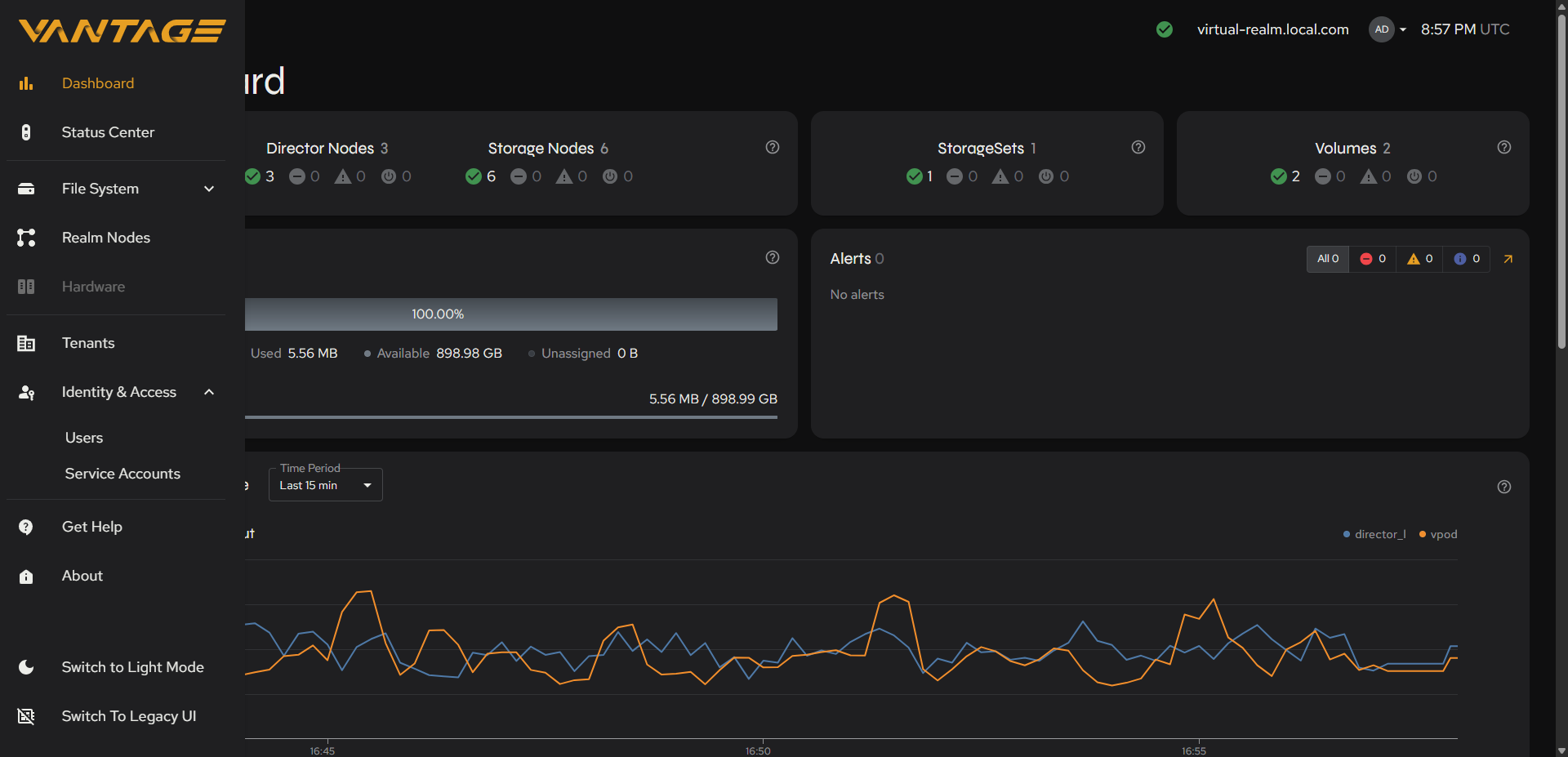 Figure 2.2. Full left sidebar expanded with text labels, including the greyed-out Hardware item and the open Identity & Access menu.