
8. Hardware
On physical VDURA hardware, the Hardware sidebar entry is active and opens a list of the realm’s chassis. In a virtual realm, this same entry is greyed out and non-interactive instead; see 8.4 for that state.
8.1 Hardware List Page
This page lists every chassis in the realm in a single table.
| Column | Description |
|---|---|
| Name | The chassis model name, e.g. VCH-5050-S1N (Storage) or VCH-5100-D1N (Director). Links to chassis detail |
| Product Type | The kind of chassis, e.g. “VCH-5050 Storage Node” or “VCH-5100 Director Node” |
| Status | The chassis’s health/operational status (see 3.2) |
| Identify Hardware | A Blink LED button that blinks a physical LED on that chassis, to help locate it in a rack |
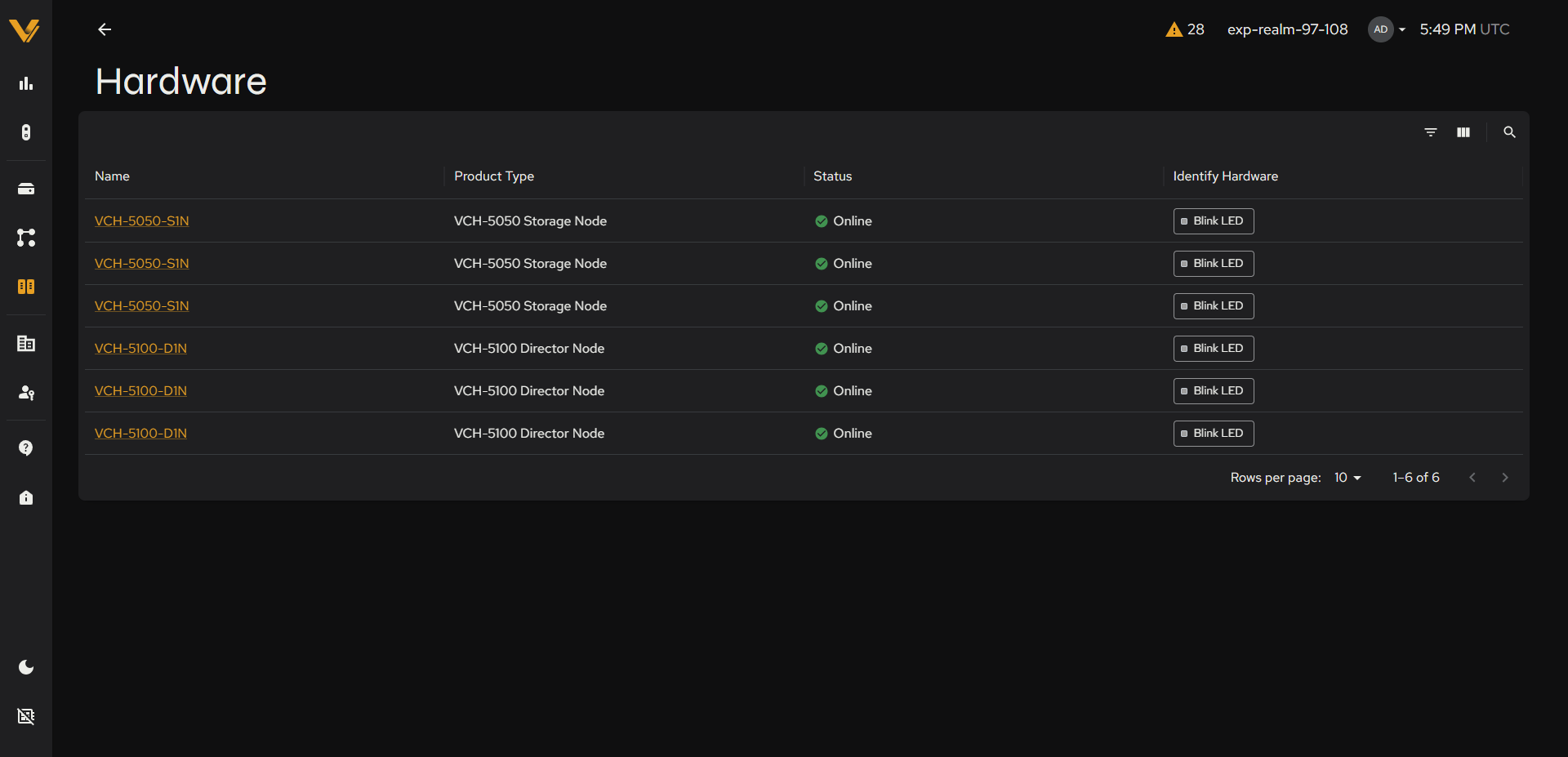 Figure 8.1. Hardware list showing Storage and Director chassis rows.
Above the table are filter, column and search icons; below it are a Rows per page control and a page counter.
8.2 Chassis Detail Page
Clicking a chassis Name opens its detail page. From top to bottom it shows two cards (Specifications and Linked Node), a row of three temperature cards, a NIC Info card, and a tabbed table.
| Card | Fields |
|---|---|
| Specifications | System Vendor, Variant, System Model, Product Type, Hardware Serial, CPU, Cores/Threads, Memory, BIOS Version, BIOS Date |
| Linked Node | Role (e.g. Director or VDP), Node (links to that node’s Realm Node detail page, 7.3), StorageSet (a link; shown only when the node belongs to a StorageSet, so never on a Director chassis and not on a Storage chassis whose node is Not Activated), Node Status, Activation Status (Activated or Not Activated) |
| Internal Temp, CPU Temp, Incoming Air Temp | Three cards in a row below the Specifications and Linked Node cards. Each shows one temperature in both Celsius and Fahrenheit. |
| NIC Info | A summary line naming the primary bond (e.g. its mode and member interfaces), plus a table with the columns Interface, Type, Mode and Status. Rows include bonds, physical interfaces and unused interfaces; Status shows Up, Disabled or Unknown. If no interfaces are detected, the card instead shows a warning titled “No Network Interfaces detected”, with the text “This usually indicates a configuration issue; a Storage Node normally has network interfaces.” |
Below the cards, three tabs (each with a count badge):
| Tab | Contents |
|---|---|
| Base Elements | The individual node board(s) inside this chassis: Base Elements name, Identify Hardware (Blink LED), Status, Software Version, SKU, IP, Model, Serial. A Director chassis shows one row. A Storage chassis shows its VDP node plus one row per VPOD; a Storage chassis whose node is not yet activated shows only the VDP row. Clicking a Base Elements name opens that node’s existing Realm Node detail page (7.3) rather than a separate Hardware-specific page. |
| Power Supplies | The chassis’s power supply units, when present |
| Drive Assets | Every drive in the chassis, one row each, with the columns Name, Identify (a Blink LED button per drive), Status, Type (SSD or HDD), Model, Vendor, Serial, FW Version, Drive Number, Bytes Read, Bytes Written and Node Name (the base element the drive belongs to). The Node Name, Drive Number, Name and Serial headers carry sort-order markers (1 to 4). The table has filter, column and search icons and shows 25 rows per page. |
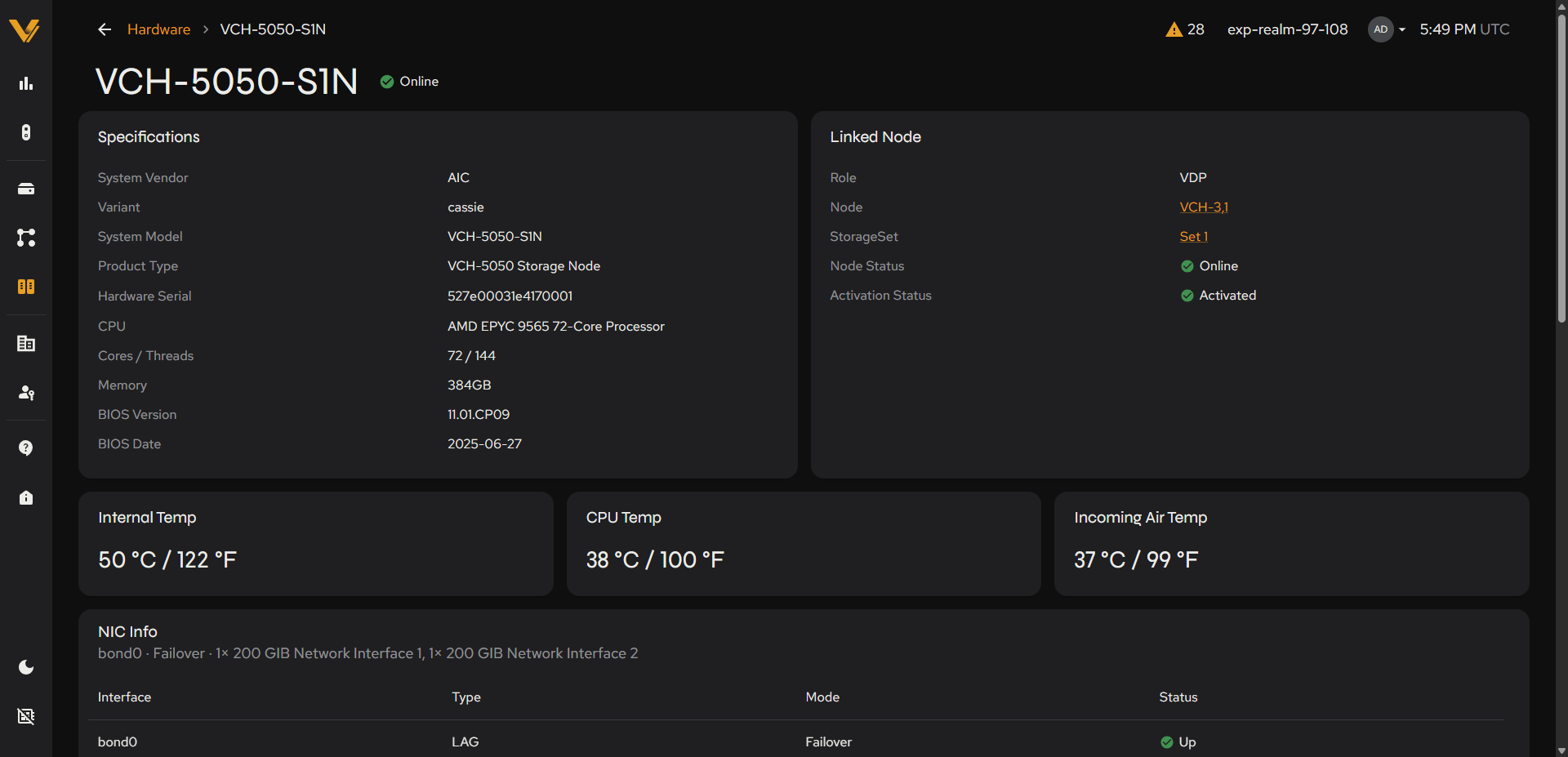 Figure 8.2. Storage chassis detail page (VCH-5050-S1N), top of the page: Specifications, Linked Node, the three temperature cards and the start of the NIC Info table.
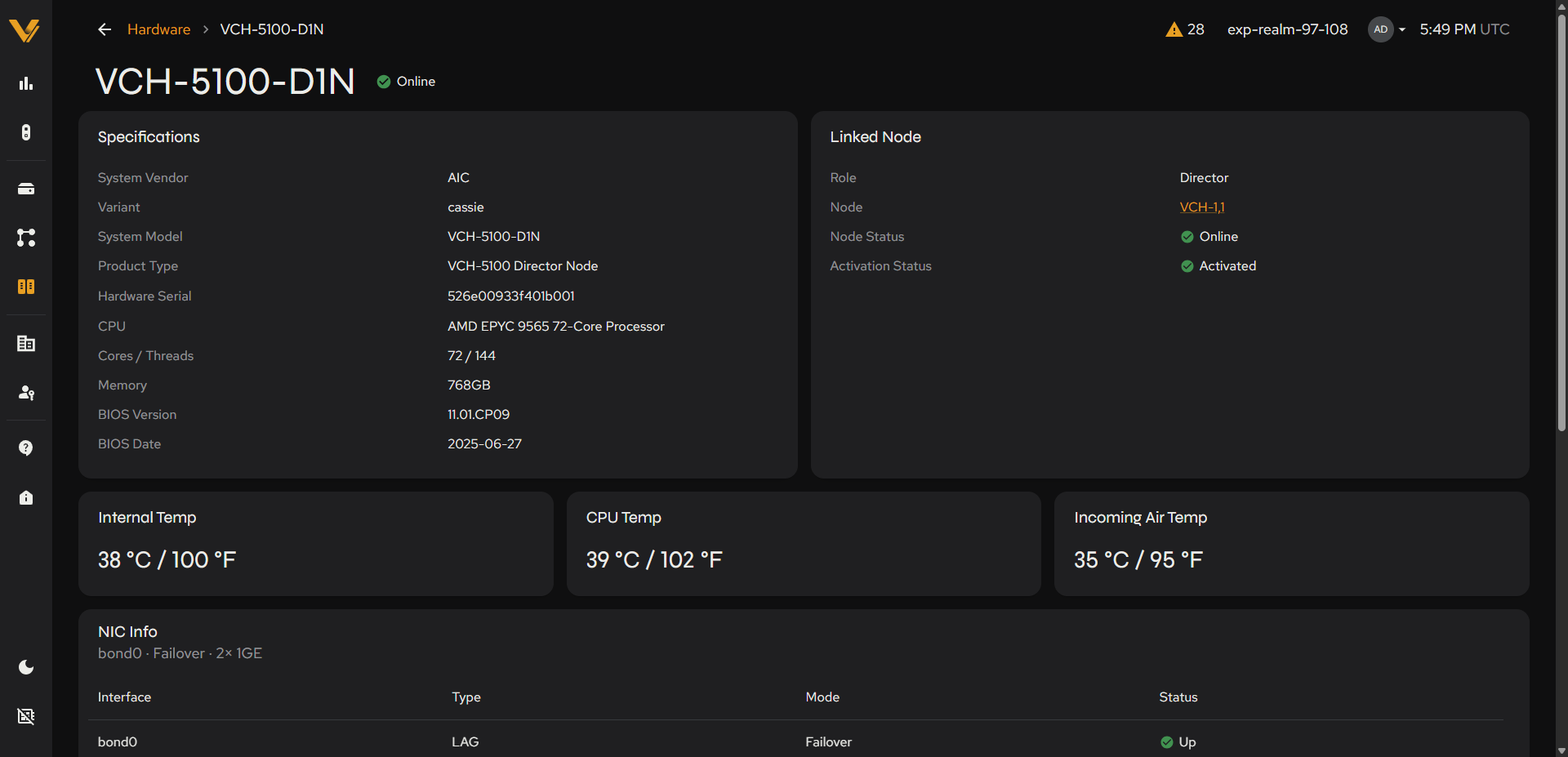 Figure 8.3. Director chassis detail page (VCH-5100-D1N), top of the page. A Director’s Linked Node card has no StorageSet row.
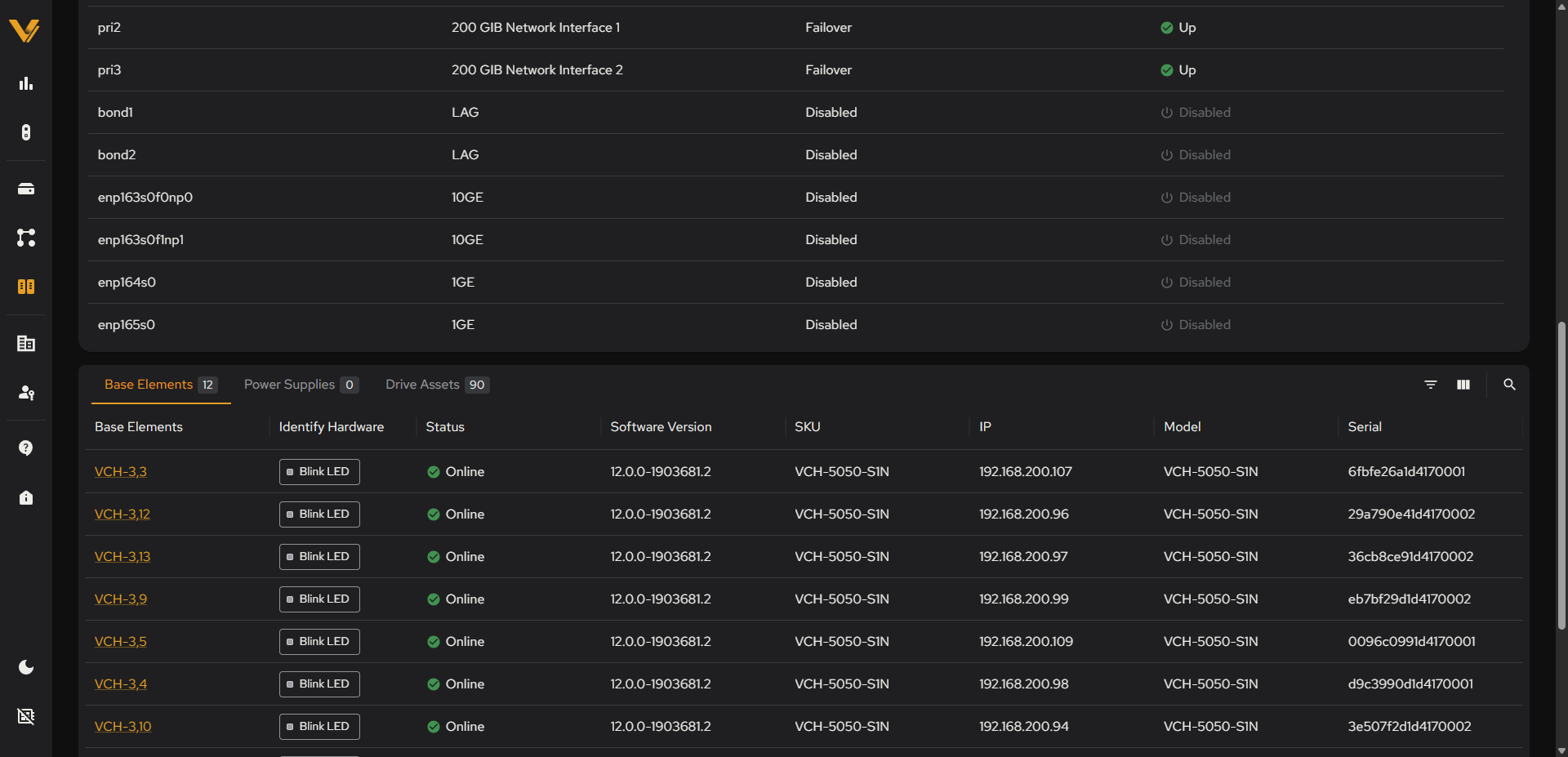 Figure 8.4. Storage chassis detail page scrolled down to the tabs, with the Base Elements tab open below the NIC Info table.
When a tab has nothing to show, it displays a plain text message instead of an empty table, e.g. “No power supplies to show.” / “No drive assets to show.”
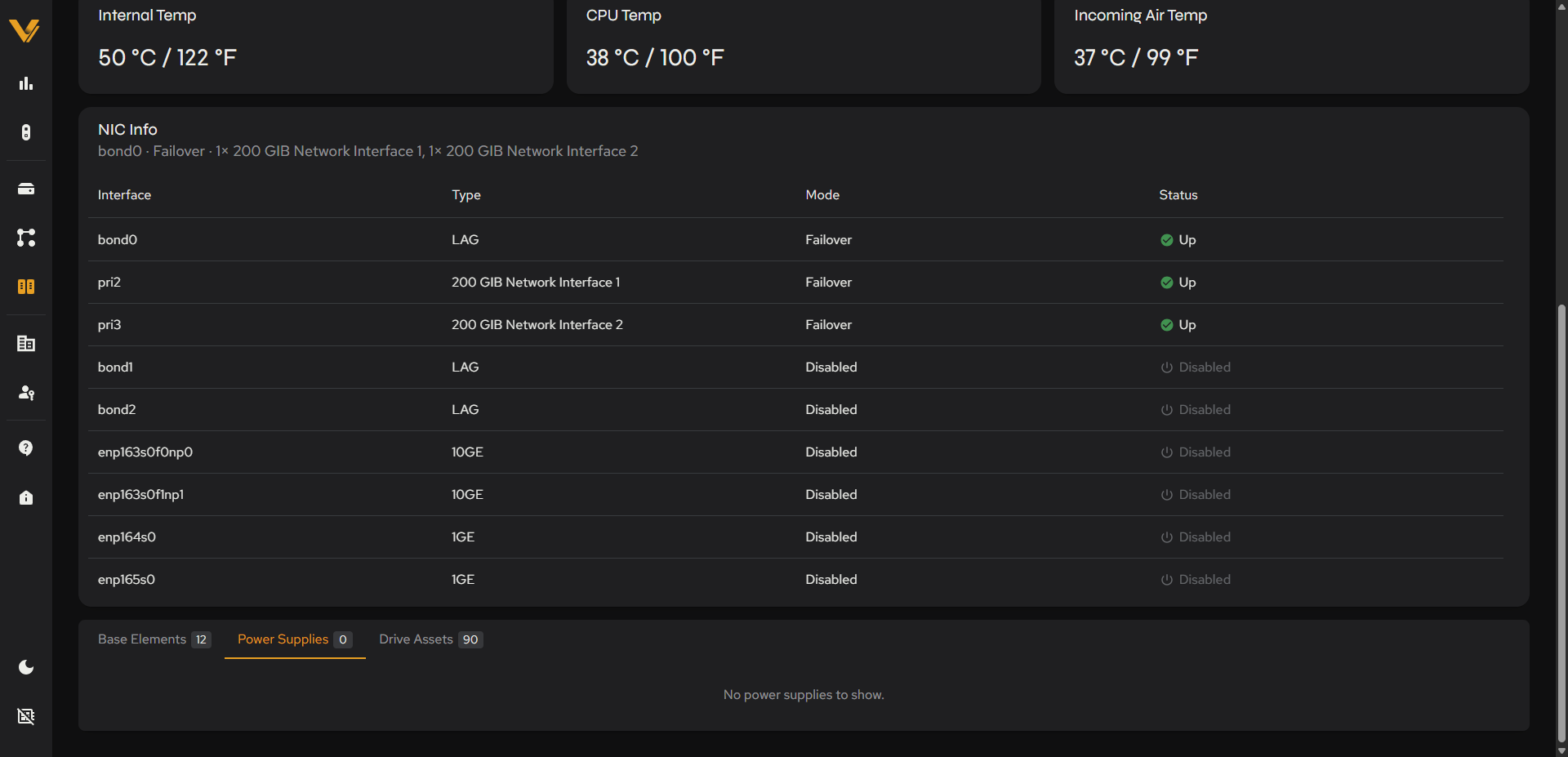 Figure 8.5. Power Supplies tab in its empty state, below the NIC Info table.
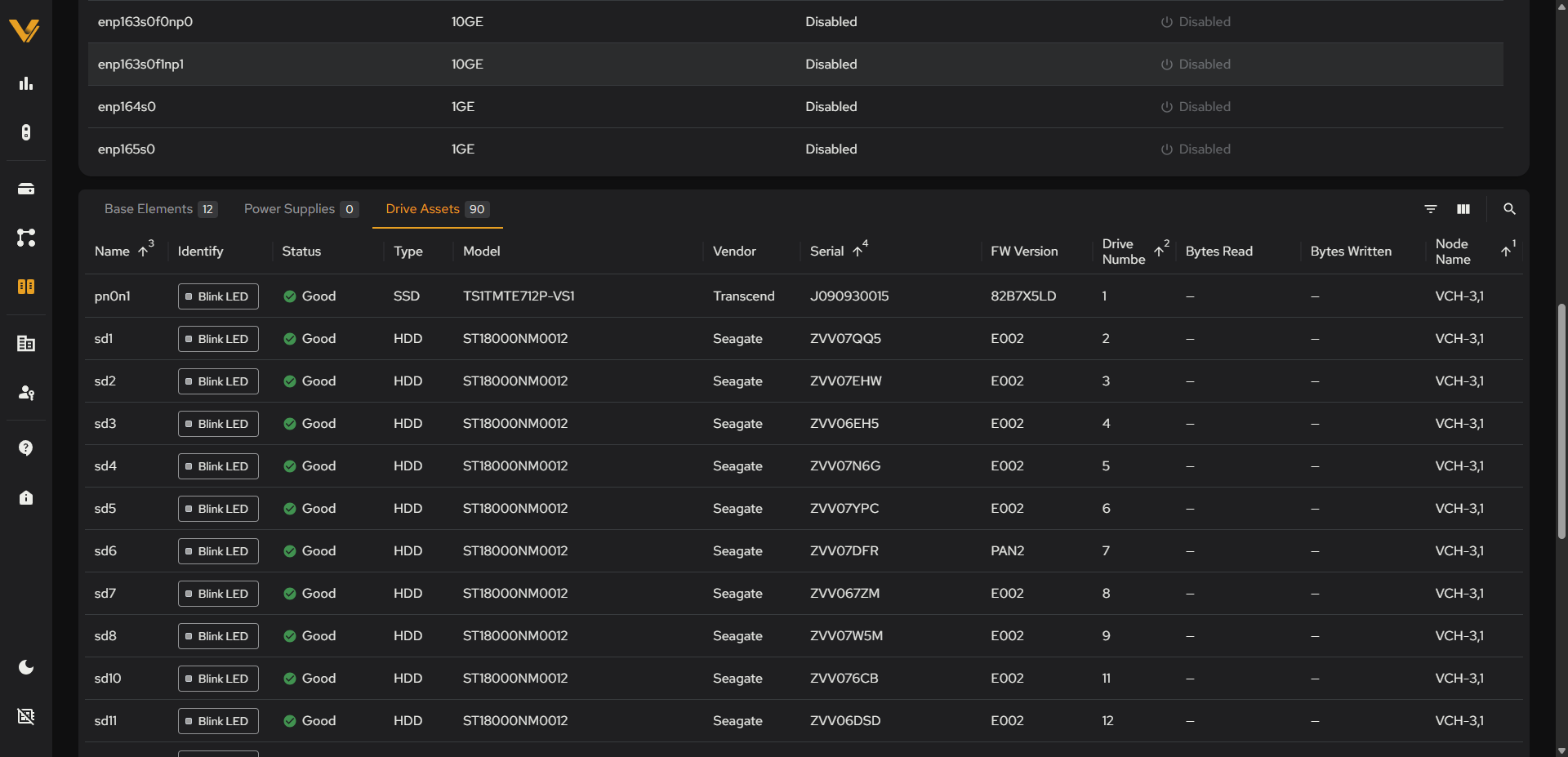 Figure 8.6. Drive Assets tab of a Storage chassis, showing the table’s columns and sort-order markers.
8.3 Parent Field on Realm Node Detail
On physical hardware, a Storage Node (VPOD)’s Realm Node detail page (7.3) shows an additional Parent field in the Identity card, directly after Type. It links to the VDP node that runs on the same chassis, and the breadcrumb trail grows a level to match, e.g. Realm Nodes > VCH-3,1 > VCH-3,3. Director nodes have no Parent field and keep the plain Realm Nodes > <name> breadcrumb. Neither appears on a virtual realm, since there’s no physical chassis.
To get from a node back to its chassis, use the Open hardware reference arrow in the System Details card on the Director or VDP node’s page; it opens that chassis’s detail page (see 8.2).
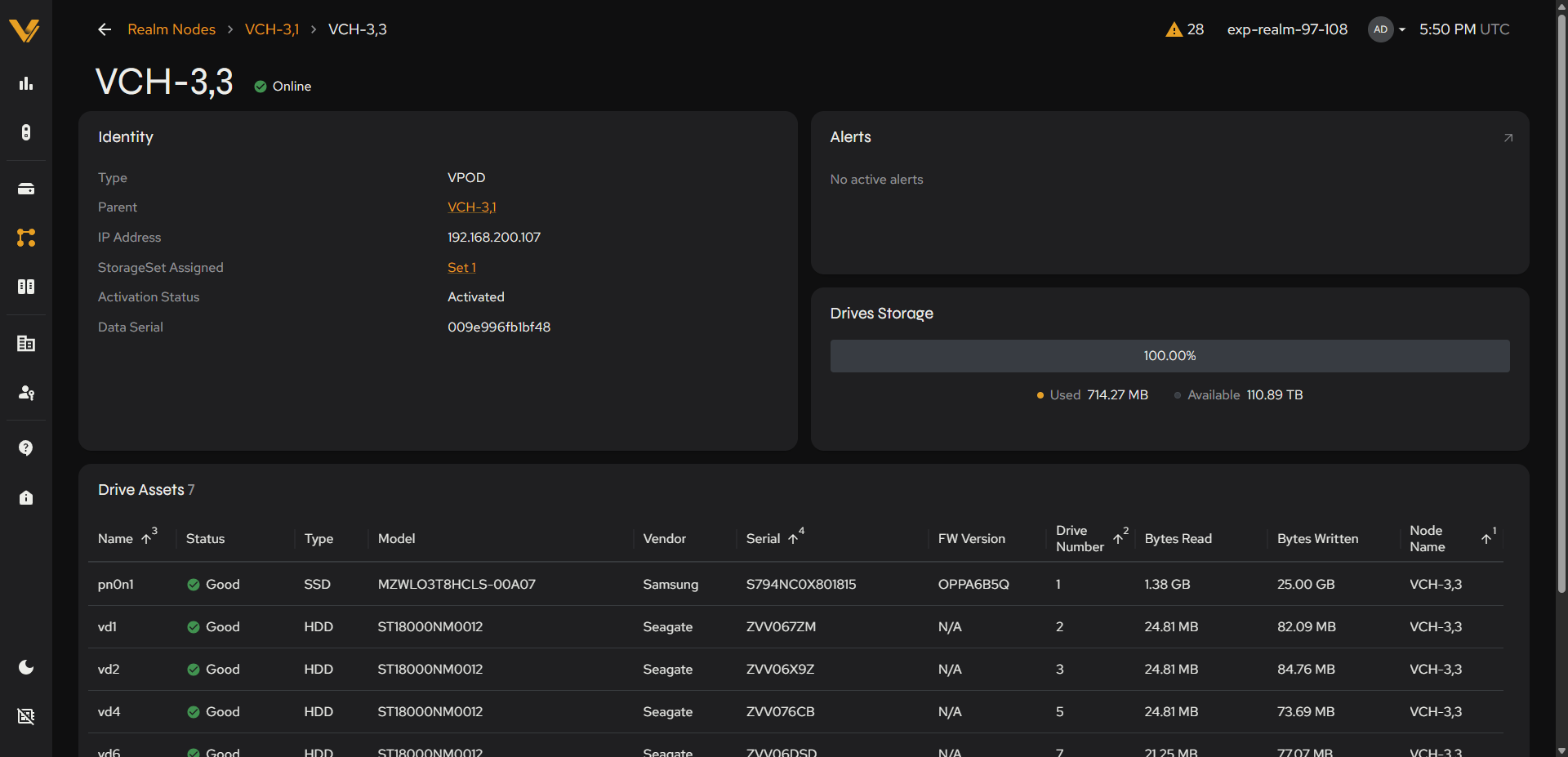 Figure 8.7. Realm Node detail page showing the Parent field and chassis-level breadcrumb.
8.4 Hardware on Virtual Realms
In a virtual realm, the Hardware sidebar entry is present but greyed out and non-interactive. Hovering it shows the tooltip “Hardware is unavailable for virtual realms”, and clicking it does nothing (no navigation occurs).
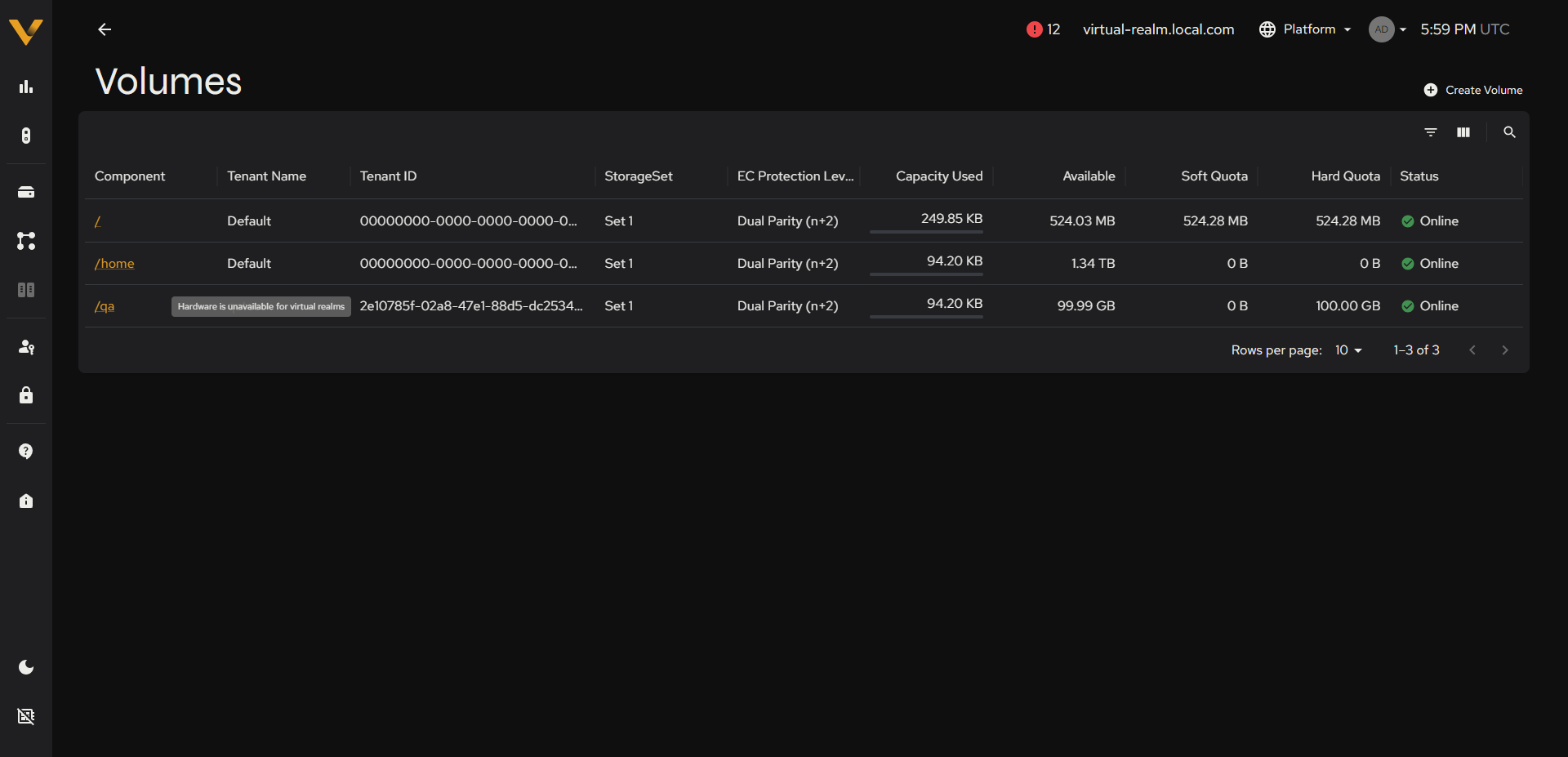 Figure 8.8. Sidebar expanded with the Hardware item’s disabled tooltip visible.