
7. Realm Nodes
This page has two summary tiles (Director Nodes, Storage Nodes) with the same 4-icon breakdown as elsewhere, followed by two tables.
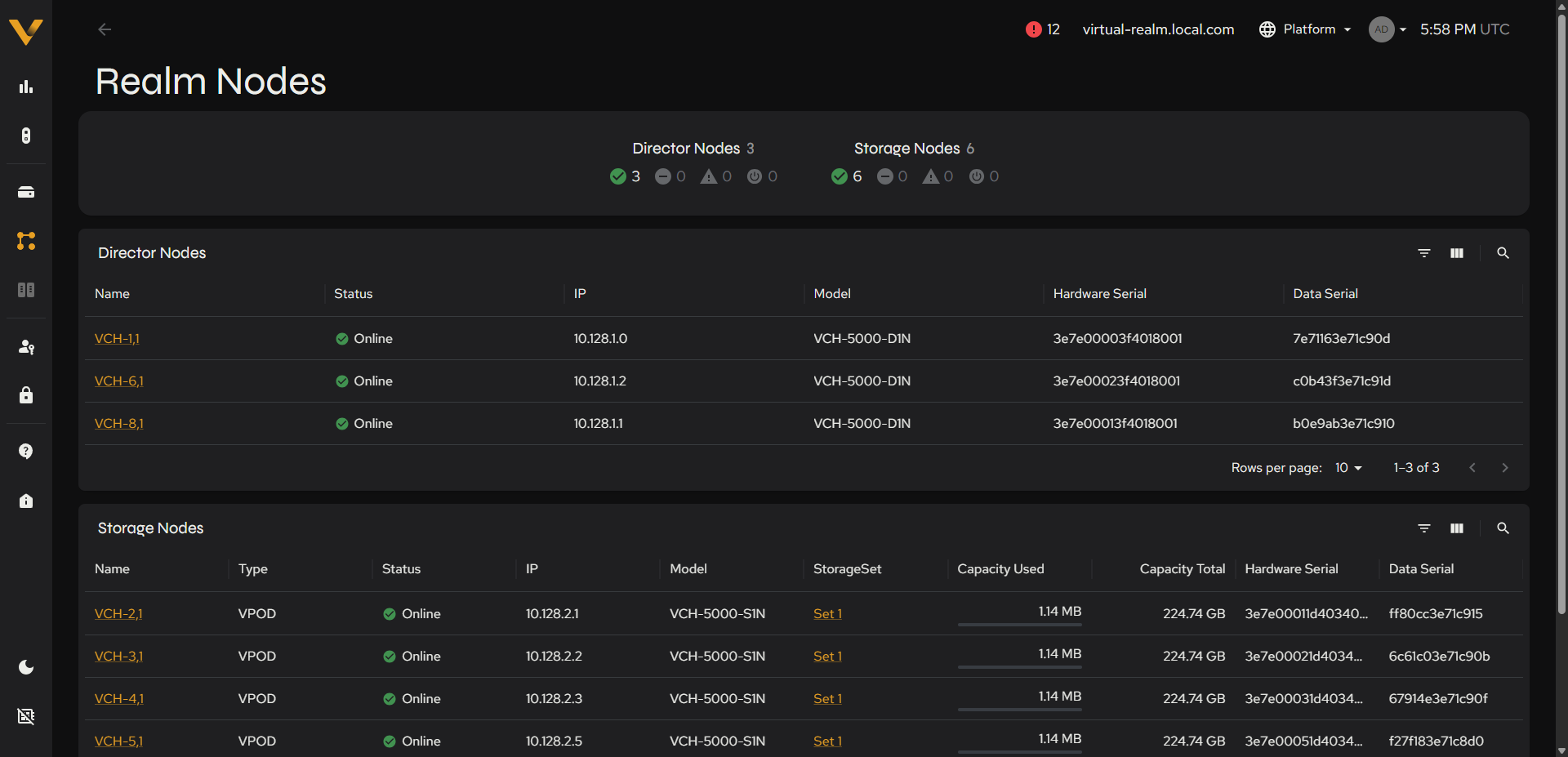 Figure 7.1. Realm Nodes page displaying both the Director Nodes and Storage Nodes tables.
7.1 Director Nodes Table
| Column | Description |
|---|---|
| Name | Links to node detail |
| Status | The node’s health/operational status (see 3.2) |
| IP | The node’s IP address |
| Model | e.g. “VCH-5000-D1N” |
| Hardware Serial | The node’s hardware serial number |
| Data Serial | Matches the dataserial identifier used by panctl nodes |
7.2 Storage Nodes Table
| Column | Description |
|---|---|
| Name | Links to node detail |
| Type | e.g. “VPOD” |
| Status | The node’s health/operational status (see 3.2) |
| IP | The node’s IP address |
| Model | e.g. “VCH-5000-S1N” |
| StorageSet | Links to the owning StorageSet |
| Capacity Used | Amount of capacity currently used on this node |
| Capacity Total | Total capacity of this node |
| Hardware Serial | The node’s hardware serial number |
| Data Serial | Matches the dataserial identifier used by panctl nodes |
On a freshly initialized realm, every Storage Node shows – in the StorageSet column until storage is assigned to a StorageSet. This is a reliable way to confirm a node is genuinely unassigned, rather than just showing 0 capacity.
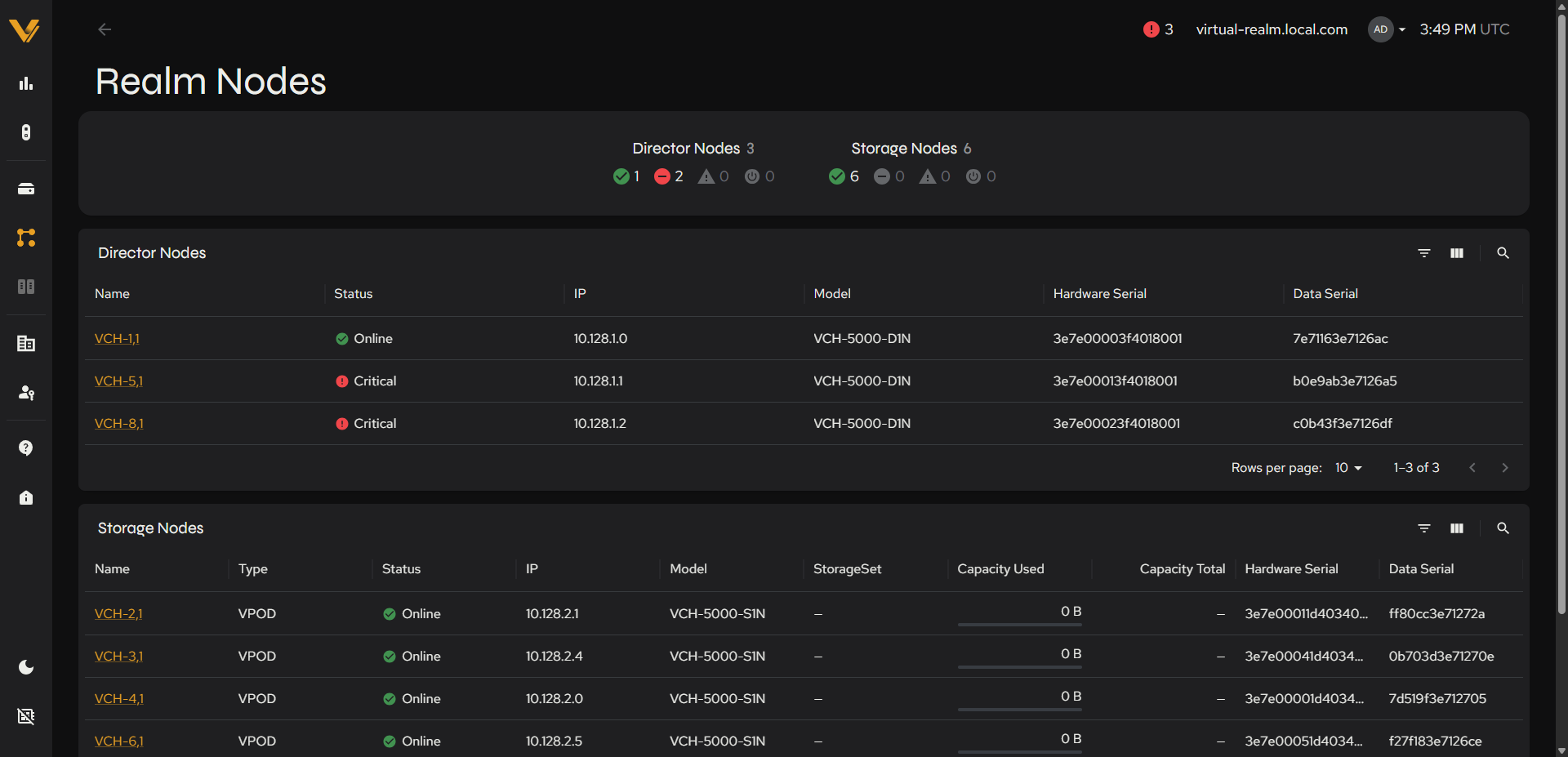 Figure 7.2. Realm Nodes’ Storage Nodes table with every StorageSet column showing a dash.
This example also shows what alerts look like; two of the three Director Nodes show a Critical status (see 3.2), while the Storage Nodes are all Online.
7.3 Node Detail Page
This page shows full details for a single node. The breadcrumb trail Realm Nodes > <name> is on the left. Content differs by node type: Director nodes, Storage Nodes (VPODs) and, on physical hardware, VDP nodes.
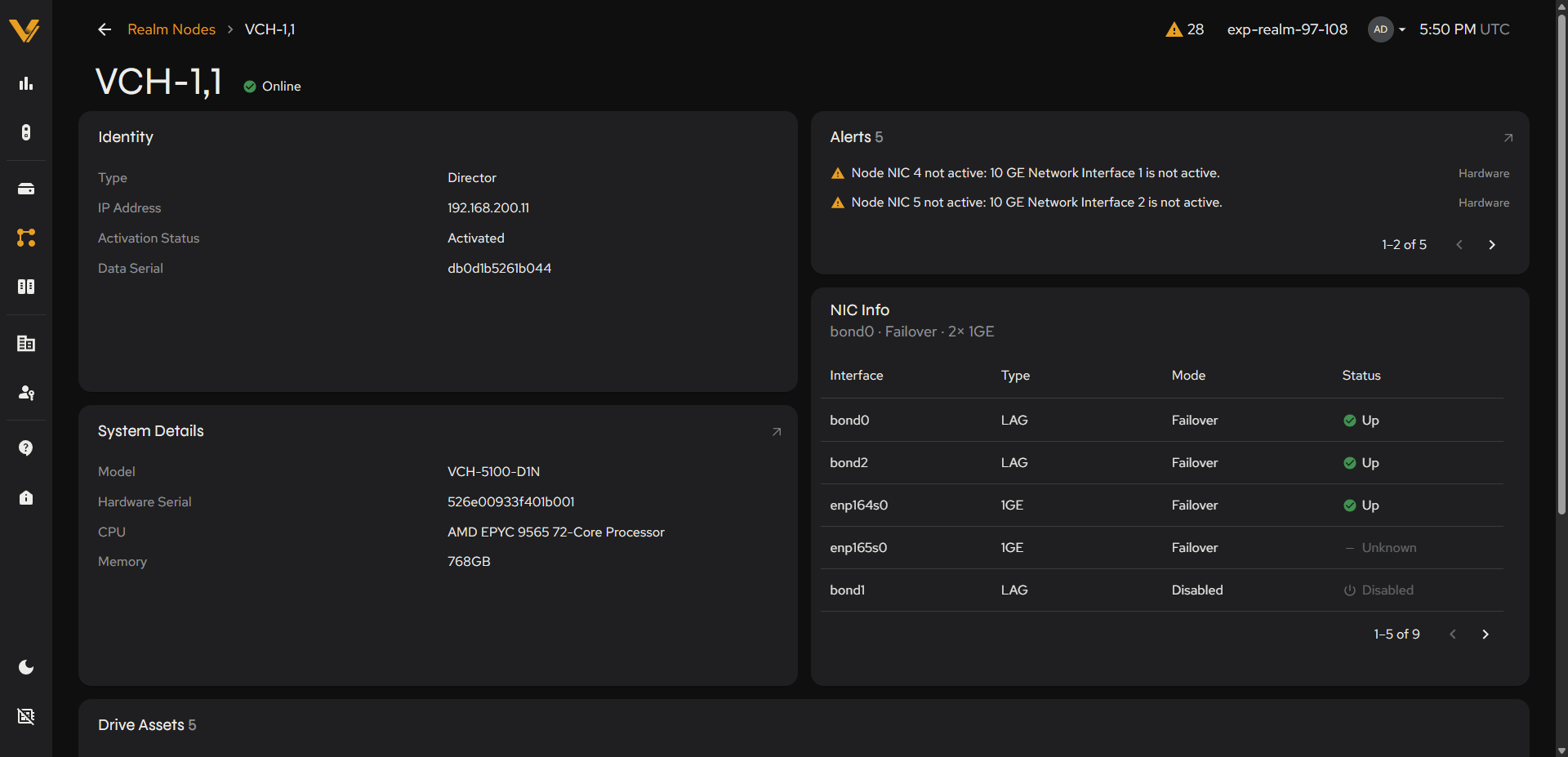 Figure 7.3. Detail page for a Director Node (Identity/System Details/Alerts/NIC Info, with Drive Assets below).
Director Node:
| Card | Fields |
|---|---|
| Identity | Type (Director), IP Address, Activation Status (whether the node is configured to be part of the realm’s replication set), Data Serial |
| System Details | Model, Hardware Serial, CPU, Memory. On physical hardware, an arrow in the card’s corner (Open hardware reference) opens that node’s chassis detail page (8.2). |
| Alerts (right column) | Expand icon jumps to Status Center |
| NIC Info (right column) | Summary line (e.g. “eth0 · Physical · 1× 10GE, 1× Network Interface 1, 1× Network Interface 2, 1× Network Interface 3”) plus a table: Interface, Type, Mode, Status. A primary physical interface like eth0 typically shows Up; unused bonded interfaces (bond0/bond1/bond2) show Unknown until configured. |
| Drive Assets (below the cards) | A table of the node’s own drives with the columns Name, Status, Type (SSD or HDD), Model, Vendor, Serial, FW Version, Drive Number and Node Name. The drive count appears beside the card title. |
Storage Node (VPOD):
| Card | Fields |
|---|---|
| Identity | Type (VPOD), IP Address, StorageSet Assigned (link), Activation Status (whether the node is configured and available to be used as part of a StorageSet), Data Serial |
| Alerts (right column) | Expand icon jumps to Status Center |
| Drives Storage (right column) | Capacity bar with Used/Available legend |
| Drive Assets (below the cards) | A table of the node’s drives with the columns Name, Status, Type, Model, Vendor, Serial, FW Version, Drive Number, Bytes Read, Bytes Written and Node Name. The drive count appears beside the card title. |
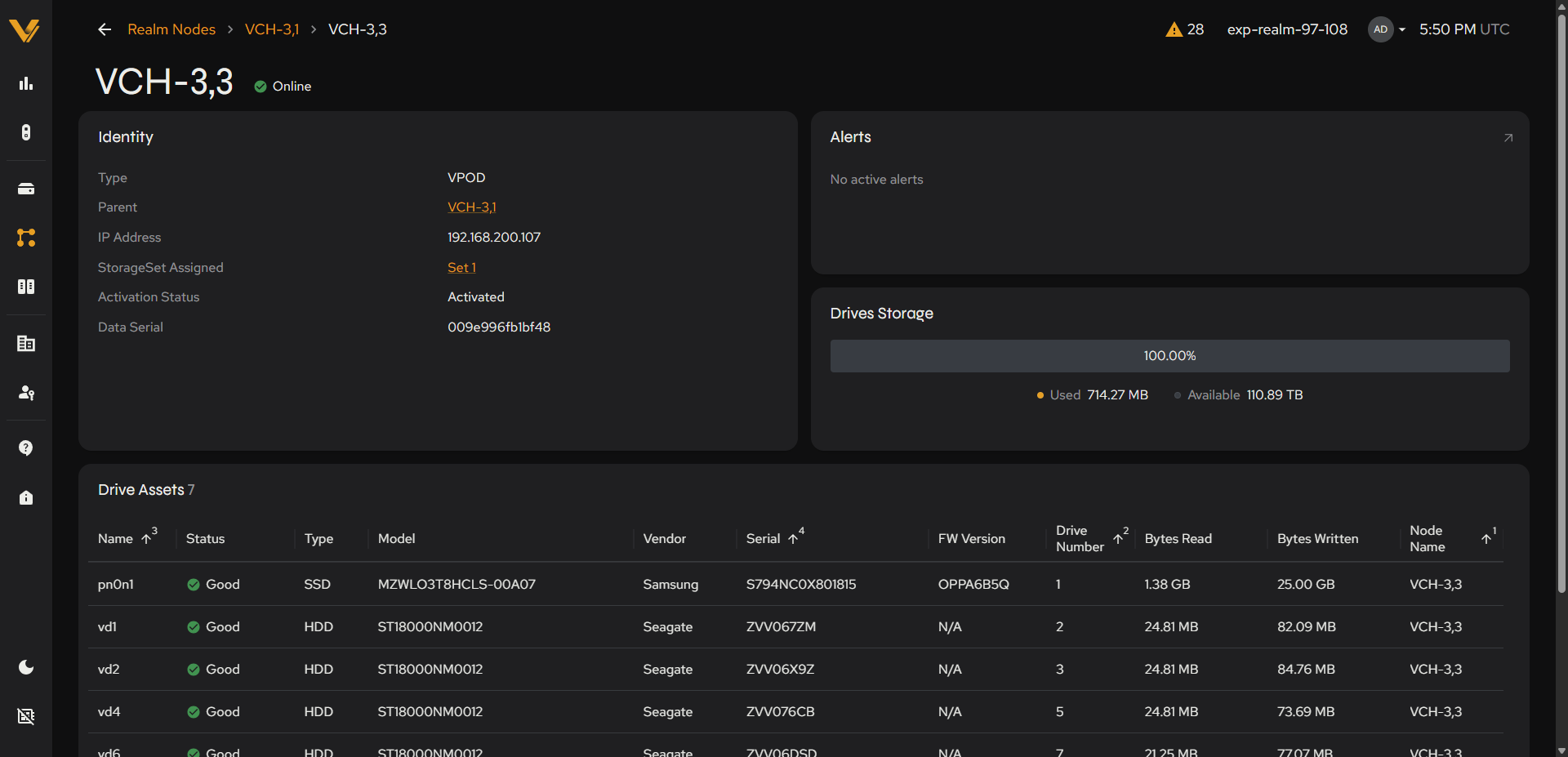 Figure 7.4. Detail page for a Storage Node/VPOD (Identity/Alerts/Drives Storage/Drive Assets).
Note: On physical hardware, a VPOD’s Identity card shows an additional Parent field, and the breadcrumb grows a level to match. See 8.3.
VDP Node (physical hardware):
Each Storage chassis also runs one VDP node, the chassis’s main node. It is reached from the chassis’s Linked Node card (8.2) or from the Parent field of one of its VPODs (8.3).
| Card | Fields |
|---|---|
| Identity | Type (VDP), IP Address, StorageSet Assigned (link), Activation Status, Data Serial |
| System Details | Model, Hardware Serial, CPU, Memory, with the same Open hardware reference arrow as a Director node |
| Alerts (right column) | Expand icon jumps to Status Center |
| VPODs Storage (right column) | Capacity bar with Used/Available legend for the chassis’s VPODs |
| NIC Info (right column) | Summary line plus a table: Interface, Type, Mode, Status |
| VPODs (below the cards) | A table of the chassis’s VPOD nodes with the columns Name, Status, Used Capacity and Total Capacity |
| Drive Assets (below the cards) | A table of the VDP node’s own drives with the columns Name, Status, Type, Model, Vendor, Serial, FW Version, Drive Number and Node Name |
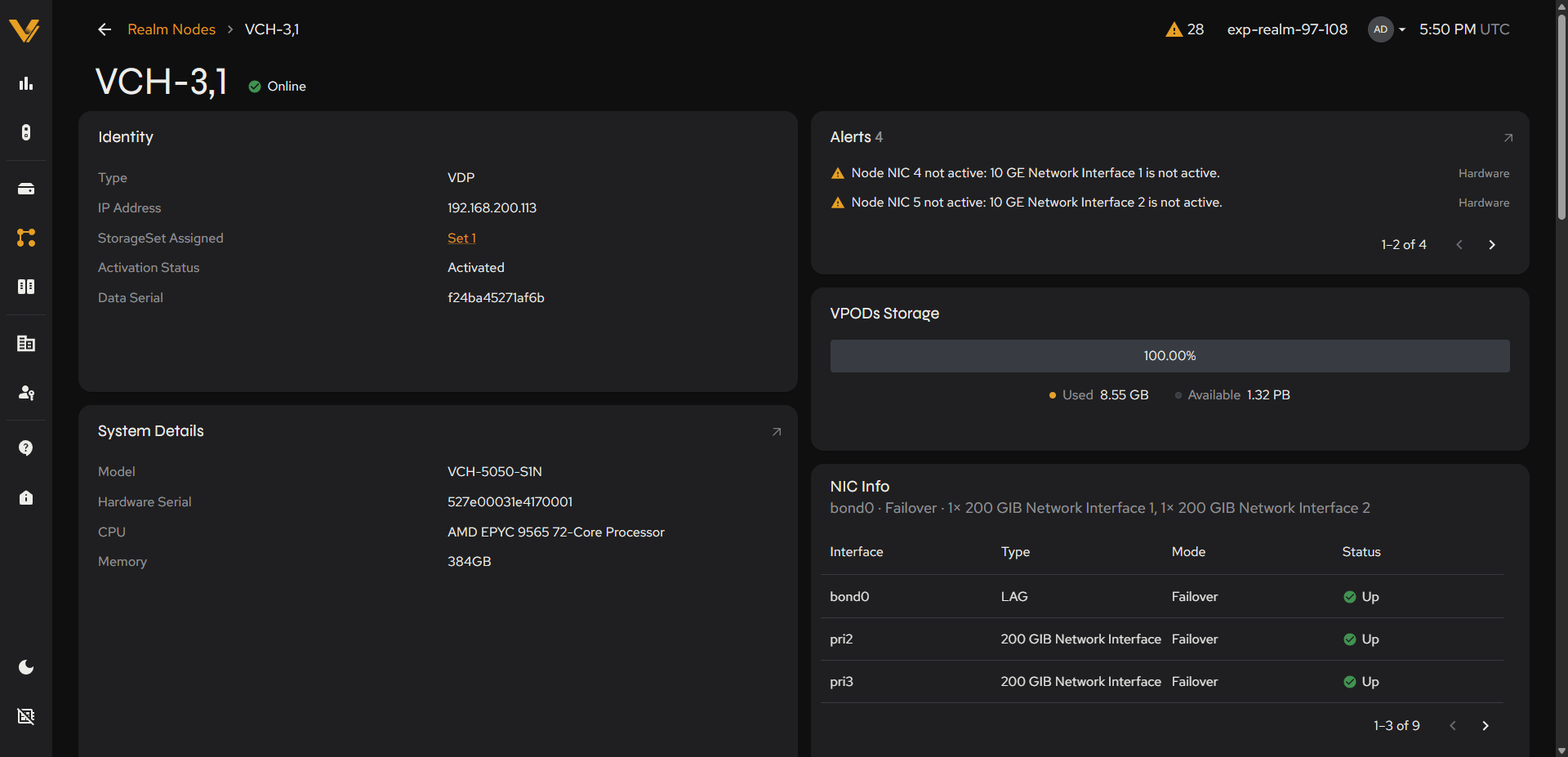 Figure 7.5. Detail page for a VDP Node (Identity/System Details/Alerts/VPODs Storage/NIC Info, with the VPODs and Drive Assets tables below).