
5. Status Center
Status Center repeats the same node/StorageSet/volume summary cards from the Dashboard and adds two full-width panels: Alerts, and a tabbed panel whose tabs are Events Log and Audit Log.
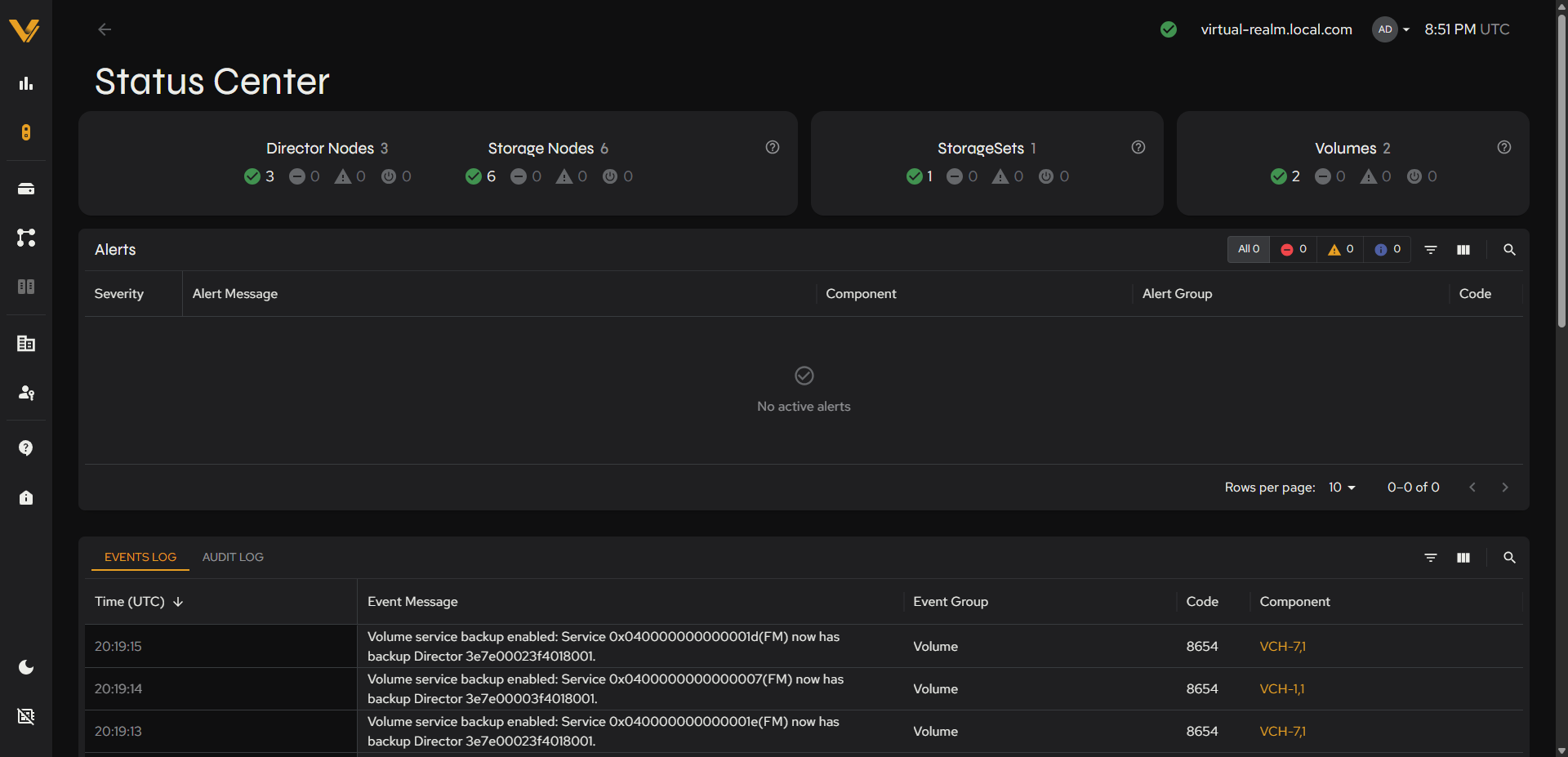 Figure 5.1. Full Status Center page: summary cards + Alerts panel + Events Log/Audit Log panel.
5.1 Alerts Panel
| Column | Description |
|---|---|
| Severity | Icon-coded severity of the alert |
| Alert Message | Human-readable description |
| Component | The realm component the alert concerns |
| Alert Group | Logical grouping/category |
| Code | Machine-readable alert code |
Additional columns available via the column picker but hidden by default: Alert Rule, IP Address.
Toolbar (top-right of the panel): severity filter chips (All/Critical/Warning/Info, each with a count), a filter-builder icon, a column-visibility icon, and a search icon. See 3.1 for how these work; the same pattern is reused on every table in the product.
Column headers add their own controls: an up/down arrow sorts the table by that column, ascending or descending, and a three-dot menu offers sort order, pin, filter, hide-column, and manage-all-columns options.
When nothing is active, the panel shows a checkmark and “No active alerts”.
5.2 Events Panel
The Events Log tab is the default view of the bottom panel.
| Column | Description |
|---|---|
| Time (UTC) | Sortable; defaults to newest-first |
| Event Message | Human-readable description |
| Event Group | Logical grouping/category |
| Code | Machine-readable event code |
| Component | The realm component the event concerns |
This panel uses the same toolbar pattern as Alerts (filter, column-visibility, and search icons). Once the realm has done anything (brought a volume online, enabled a backup service, etc.), this panel populates with real rows: a timestamp, a human-readable message (e.g. “Volume online: Volume /home has been brought online.”), an Event Group, a numeric Code, and the Component it concerns.
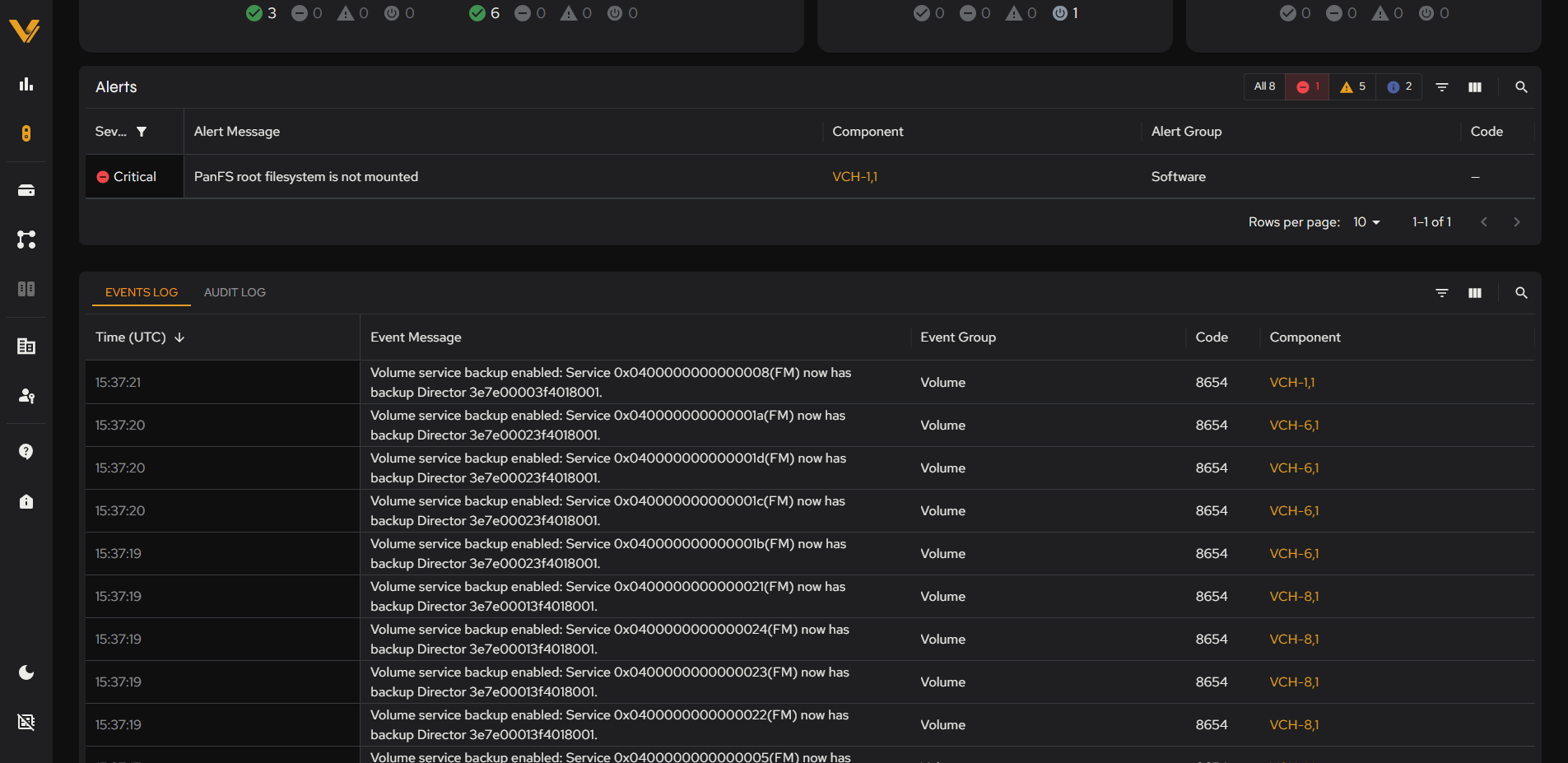 Figure 5.2. Alerts panel filtered to a Critical alert, with the Events Log tab beneath it populated with Volume-component rows.
Note: On a realm with no activity yet (e.g. immediately after a fresh reset), this panel instead shows a perpetual loading skeleton with no rows, even after waiting. Elsewhere in the product (the Tenant detail page, 9.2) the equivalent Events tab shows the same empty/loading behavior under the same no-activity-yet condition, while the Audit Log tabs and panels (5.3, and on the Tenant and User detail pages, 9.2 and 10.2) populate immediately since simply viewing a page is itself an audited action. This is a property of having nothing to show yet, not a broken control.
5.3 Audit Log Panel
The Audit Log tab, next to Events Log, lists the actions users and service accounts have taken in the realm, newest first. Because viewing a page is itself an audited action, this tab has rows as soon as anyone has signed in.
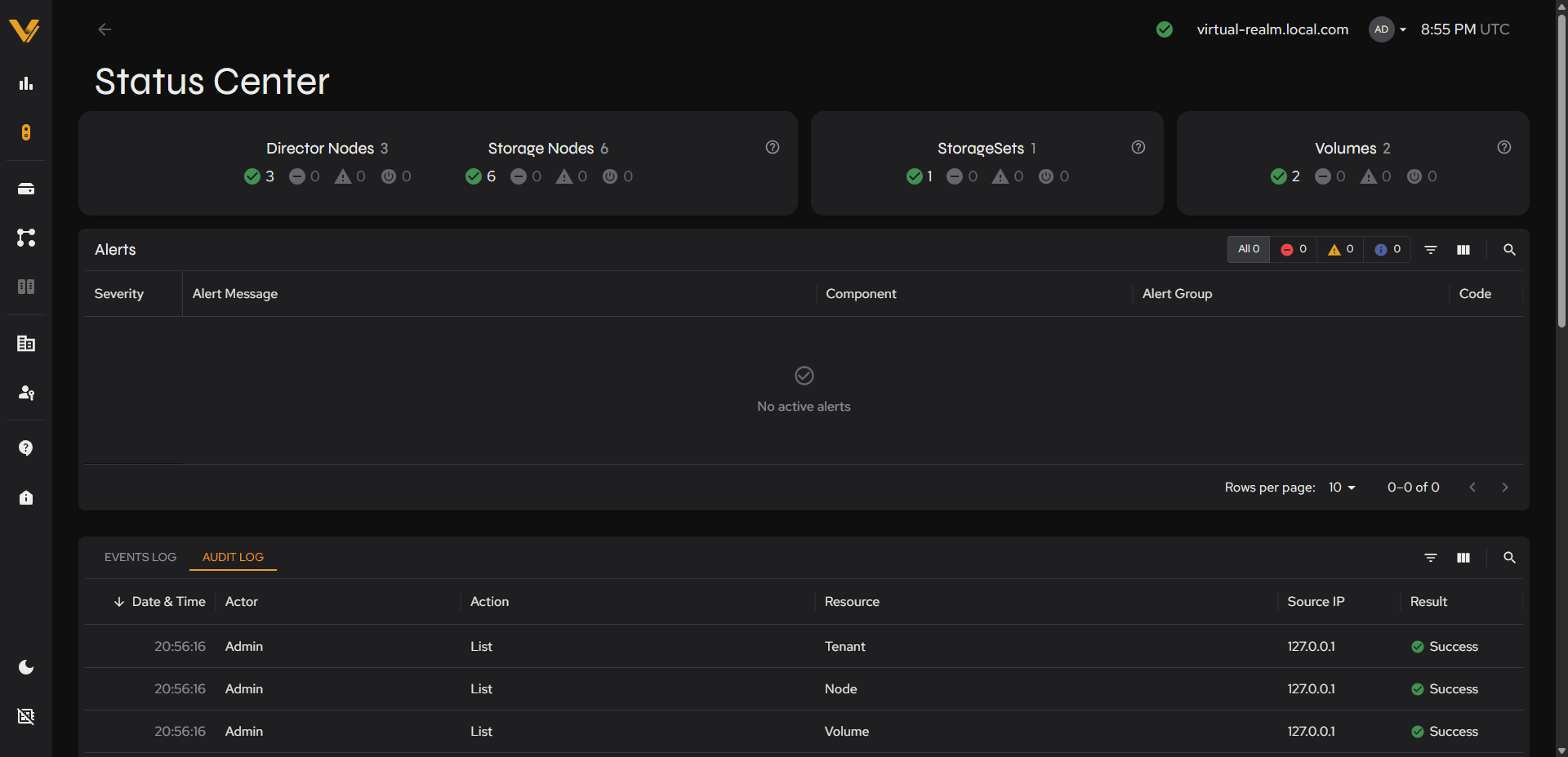 Figure 5.3. The Audit Log tab of the Status Center bottom panel.
| Column | Description |
|---|---|
| Date & Time (UTC) | Sortable; defaults to newest-first |
| Actor | Who performed the action, e.g. “admin” |
| Action | e.g. “View”, “List” |
| Resource | What the action was performed on, e.g. “Volume”, “Tenant”, or a linked ID |
| Source IP | The IP address the action originated from |
| Result | e.g. “Success” |
This panel uses the same toolbar pattern as Alerts (filter, column-visibility, and search icons). It shows the same records as panctl audit list.