
3. Common UI Features in Vantage
Two sets of features recur across nearly every page.
3.1 Table Toolbar
Every data table in Vantage (Alerts, Events, Audit Log, Volumes, Storage Nodes, etc.) shares the same toolbar, typically in the top-right corner of the panel:
| Icon | Function |
|---|---|
| Funnel | Opens a filter builder: pick a Column, an Operator (e.g. “is”), and a Value, with a “+ Add filter” link to add more conditions and a “Remove all” link to clear them. |
| Three vertical bars | Opens a column-visibility picker: a checkbox per column, plus “Show/Hide All” and “Reset” controls. |
| Magnifying glass | Expands into an inline free-text search box. |
Pagination sits at the bottom of each table: a Rows per page dropdown, an x–y of z counter, and previous/next arrows.
3.2 Status Icons
The same four status icons recur on every summary tile and status badge:
| Icon | Meaning |
|---|---|
| ✅ green check | Healthy/active/online |
 red circle red circle |
Critical (something is broken) |
| ⚠ amber triangle | Warning |
| ⏱ gray clock | Pending/not yet provisioned/no storage assigned |
An icon is gray while its count is zero and takes its color when something is in that state. For example, a realm with two failed Director Nodes shows a red circle with the count 2 on the Director Nodes tile, and a healthy realm shows it gray with 0.
3.3 Required Fields and Tooltips
Required form fields are marked with a trailing gold asterisk (*). Fields with extra context have a small (?) icon next to their label; clicking it opens a short tooltip explanation (these do not appear on hover in this build; you must click them).
3.4 Confirm Before Destroy
Every destructive action in Vantage (deleting a StorageSet, a volume, a user, or a service account) requires a confirmation modal that restates the action and explicitly warns it cannot be undone. None of them require re-typing the resource’s name to confirm; a single click on the modal’s own confirm button executes the action immediately, so don’t treat the modal as a safety net against a mis-click.
3.5 Page Not Found
If you open an address that does not match a Vantage page, for example a mistyped URL or an old bookmark, Vantage shows a “404” page reading “Page not found” with the message “The page you’re looking for doesn’t exist or has been moved.” Click Back to Dashboard to return to the Dashboard, then navigate with the sidebar.
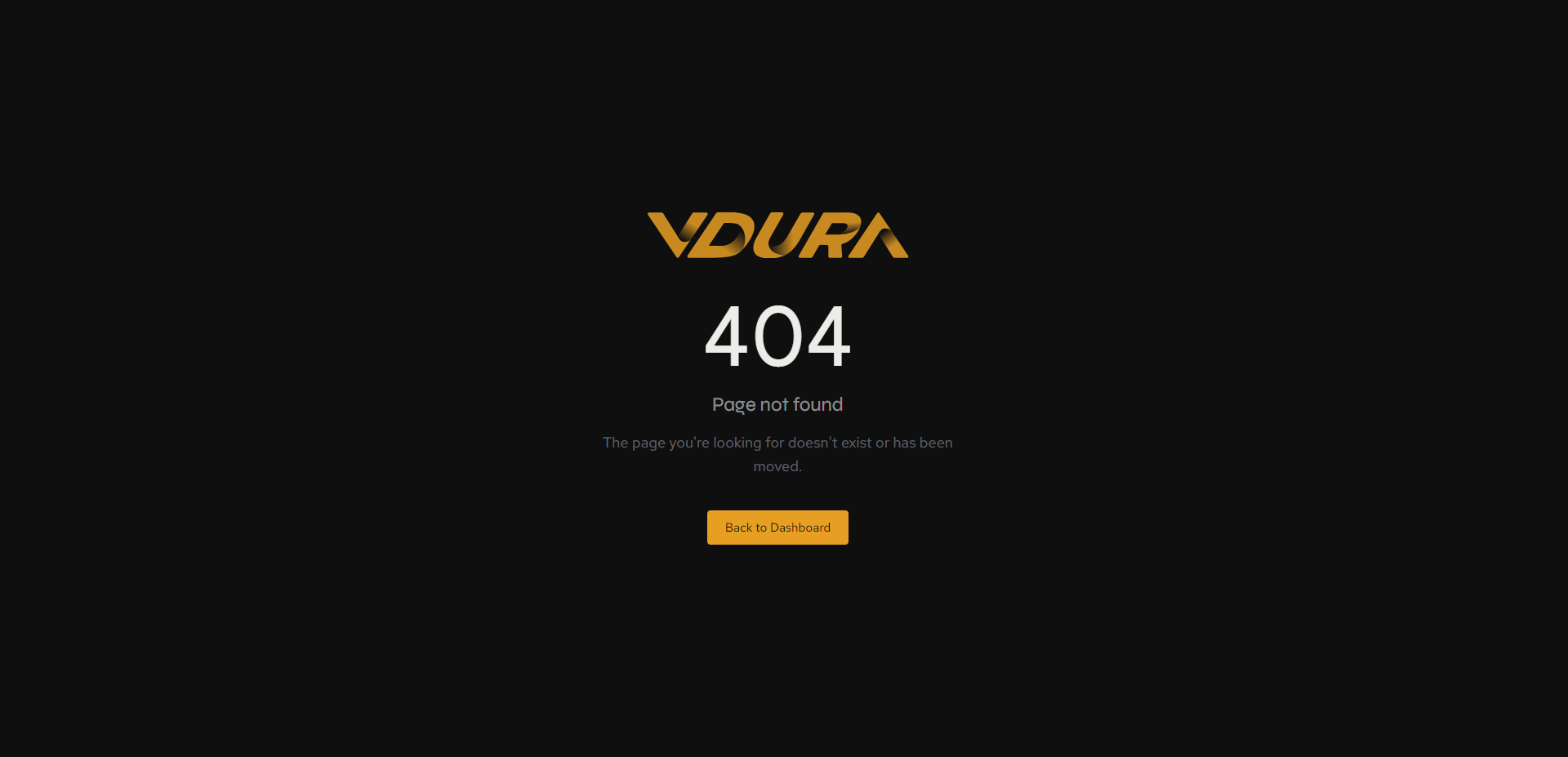 Figure 3.1. The Page not found screen.