
4. Dashboard
The Dashboard is Vantage’s landing page and the first thing a user sees upon logging in. It gives a realm-wide, at-a-glance health summary and is laid out as a grid of cards.
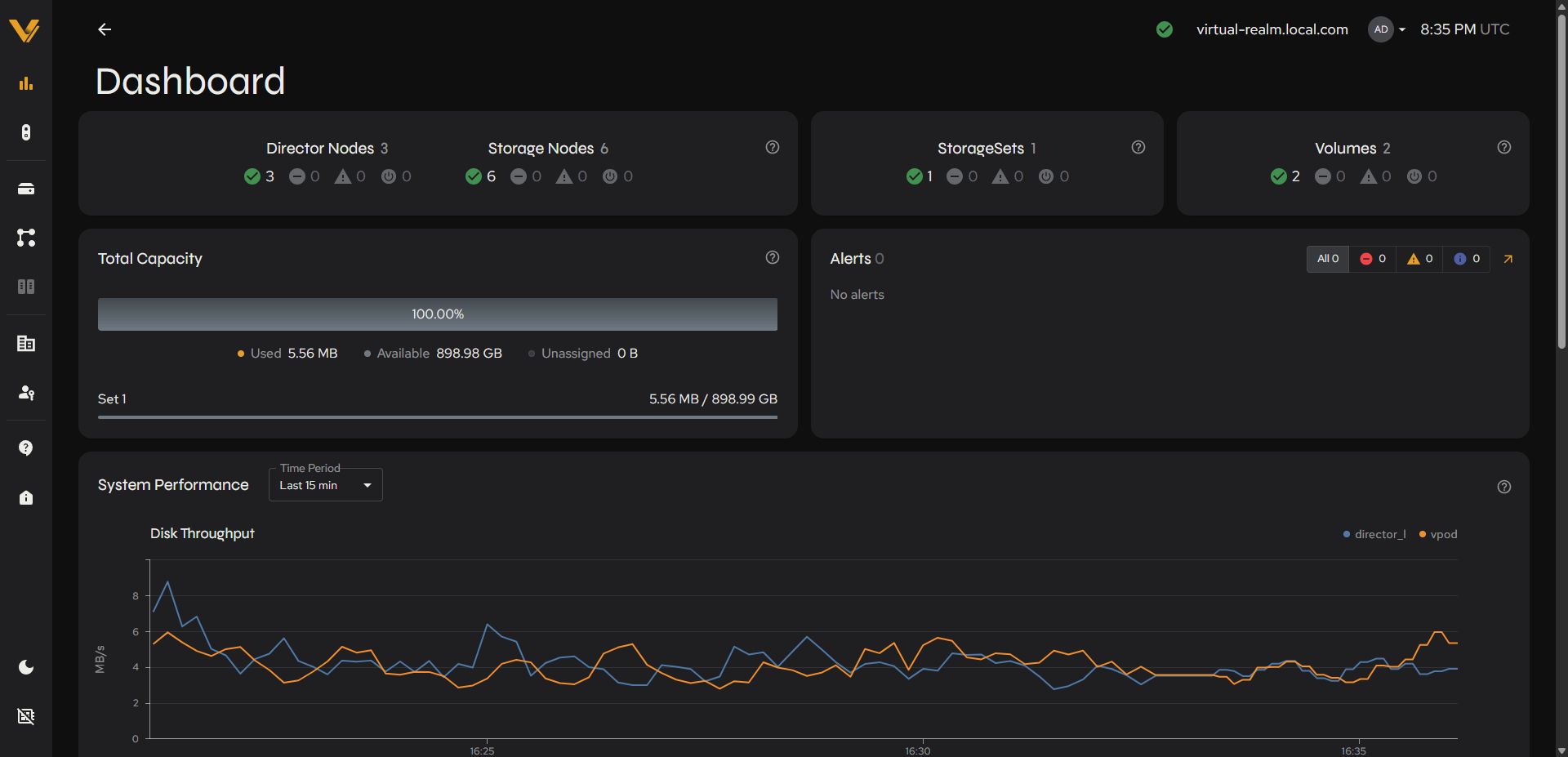 Figure 4.1. The whole Dashboard page, with all four card rows visible.
4.1 Node/StorageSet/Volume Summary Cards
The top row has three cards:
| Card | Contents | (?) Tooltip |
|---|---|---|
| Director Nodes/Storage Nodes | Combined card with two counts side by side, each broken into 4 status buckets (see below) | “Status overview of director and storage nodes in the realm. VDPs are counted separately on the Realm Nodes page.” |
| StorageSets | Total count + 4 status buckets | “Status overview of storage sets in the realm.” |
| Volumes | Total count + 4 status buckets | “Status overview of volumes in the realm.” |
Each count row uses four consistent status icons, used throughout Vantage (see also 3.2):
| Icon | Meaning |
|---|---|
| ✅ green check | Healthy/active/online |
 red circle red circle |
Critical (something is broken) |
| ⚠ amber triangle | Warning |
| ⏱ gray clock | Pending/not yet provisioned/no storage assigned |
Freshly initialized realm example: Before any storage is provisioned, the StorageSets card shows a single pending StorageSet (clock icon, not a green check), Volumes reads 0, and Total Capacity shows the realm’s full raw capacity as Unassigned.
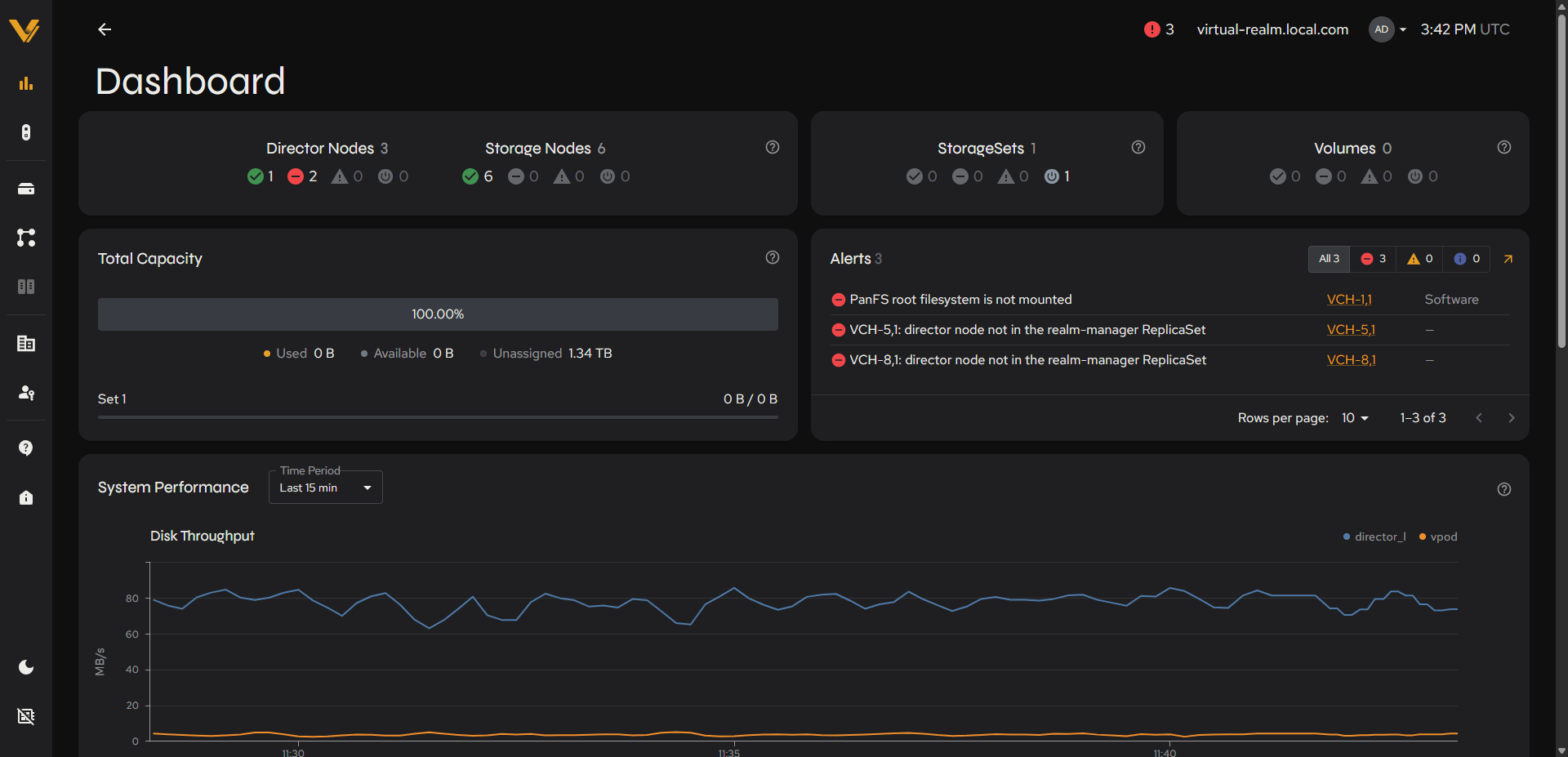 Figure 4.2. Dashboard on a freshly initialized realm: StorageSets pending, Volumes 0, capacity fully Unassigned.
This example also shows what alerts look like; two of the three Director Nodes are Critical (red), the top bar shows a red alert badge with a count of 3, and the Alerts panel lists three critical alerts (for example “PanFS root filesystem is not mounted” and “director node not in the realm-manager ReplicaSet”). See 3.2 for the status icons.
4.2 Total Capacity
A card showing realm-wide storage capacity as a horizontal bar plus a legend:
| Legend item | Meaning |
|---|---|
| Used | Occupied space on StorageSets |
| Available | Free space on StorageSets |
| Unassigned | Capacity on Storage Nodes that are not part of any StorageSet yet, still usable for a new StorageSet or to grow an existing one |
Below the bar, each StorageSet gets its own row with a mini progress bar and a used / total value (e.g. Set 1: 5.60 MB / 898.99 GB).
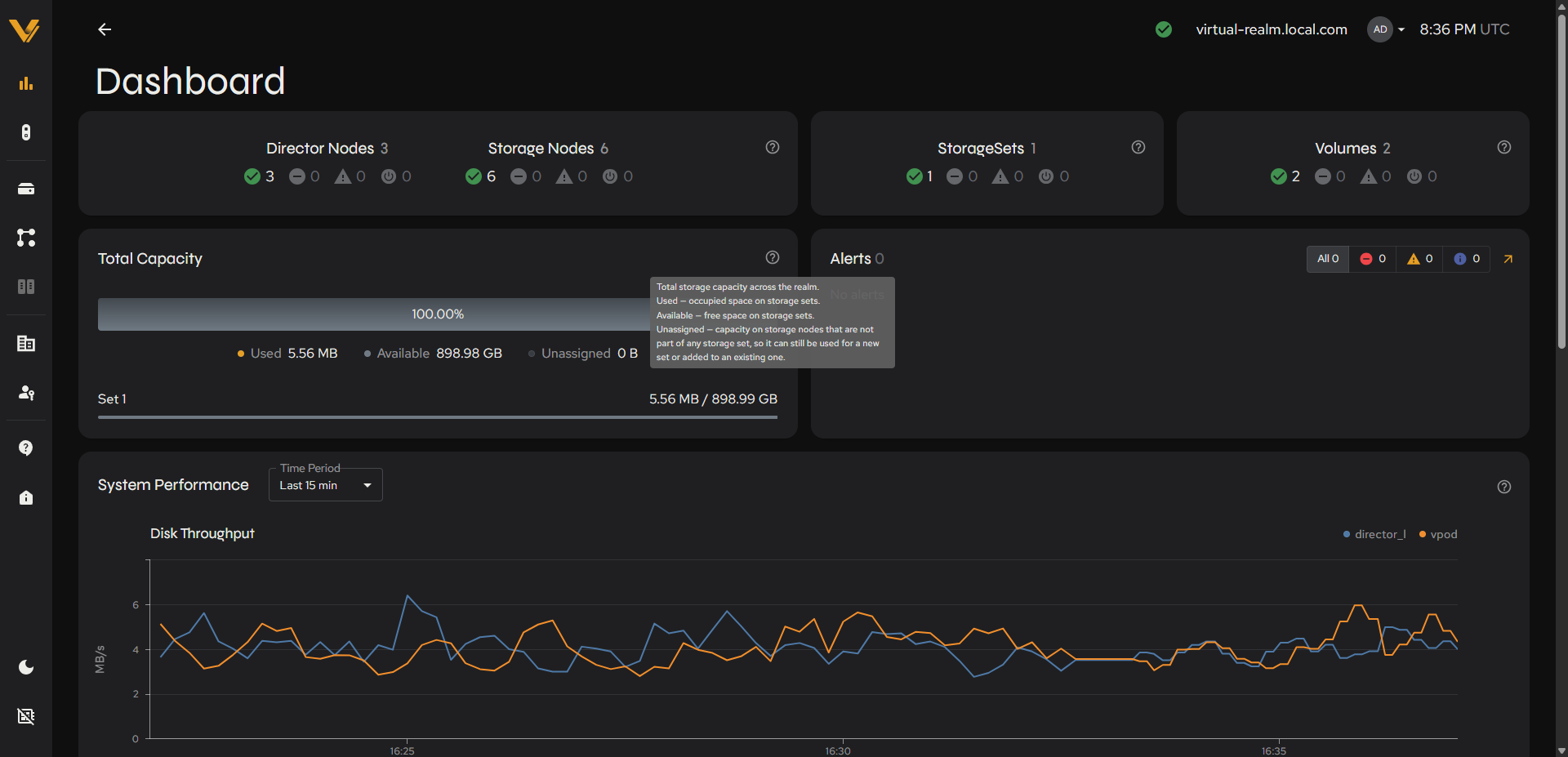 Figure 4.3. Dashboard with the Total Capacity (?) tooltip open.
4.3 Alerts
A card headed Alerts with a count, four filter chips (All/Critical/Warning/Info, each showing its own count), and an external-link icon that jumps to the Alerts table in Status Center. When there is nothing active it simply reads “No alerts” (plain text, no icon); this is distinct from the fuller Alerts table on the Status Center page itself, which shows a checkmark icon plus “No active alerts” when clear (see 5.1).
4.4 System Performance
A full-width card with a Time Period dropdown (Last 15 min [default], Last 1 hour, Last 6 hours, Last 24 hours) and a chart area. Its tooltip reads: “Disk throughput, IOPS, metadata capacity, and free capacity trends over the selected time period.” With real workload history available, it renders four line charts stacked vertically. Disk Throughput (MB/s) and Total IOPS each have one line per active node/component (e.g. a Director Node and a VPOD), color-coded with a small legend in the chart’s top-right corner. Metadata Capacity (GiB) and Metadata Free Capacity (GiB) follow, each plotted as a single line with no legend.
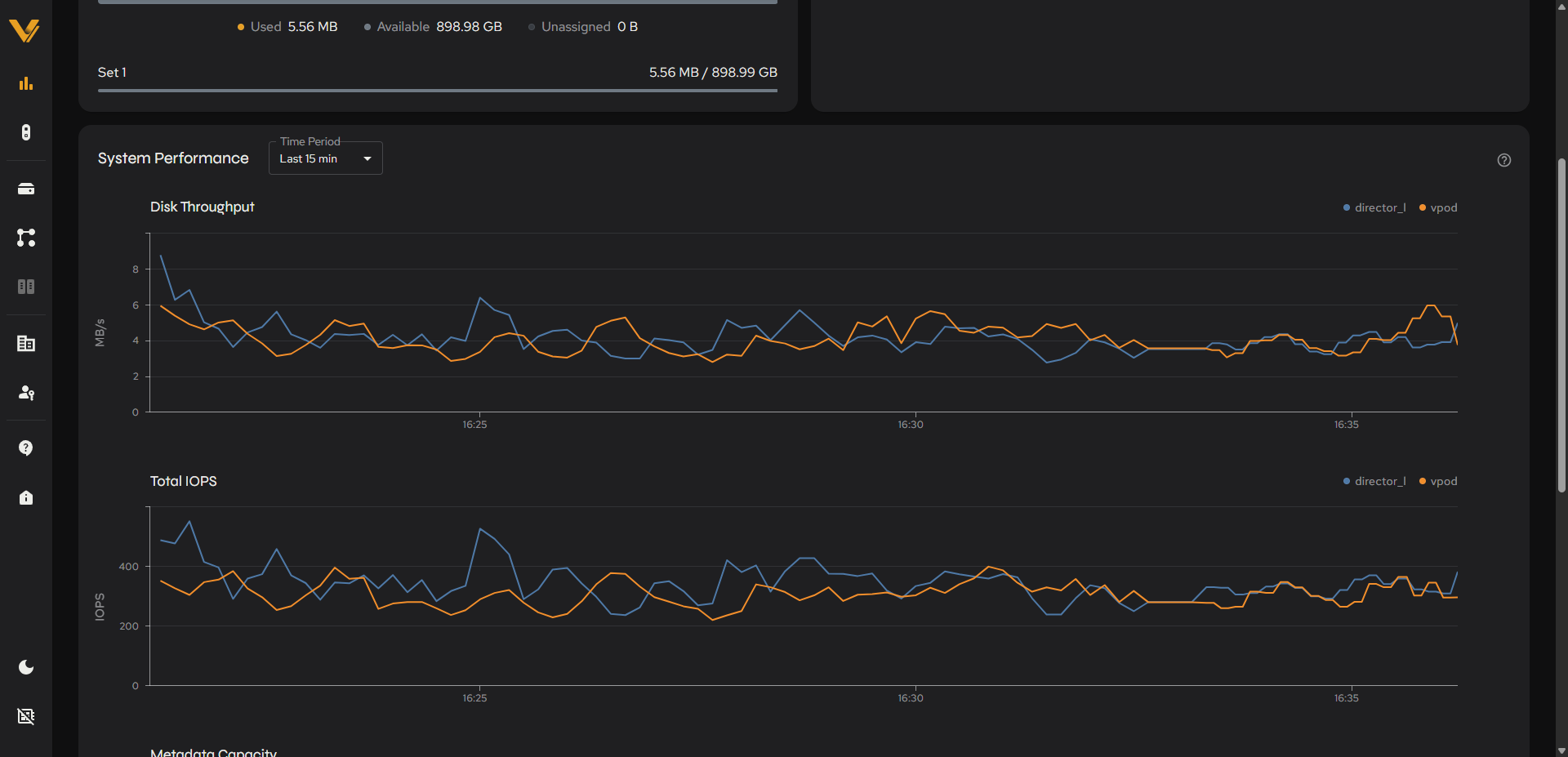 Figure 4.4. System Performance card showing real Disk Throughput and Total IOPS line charts.
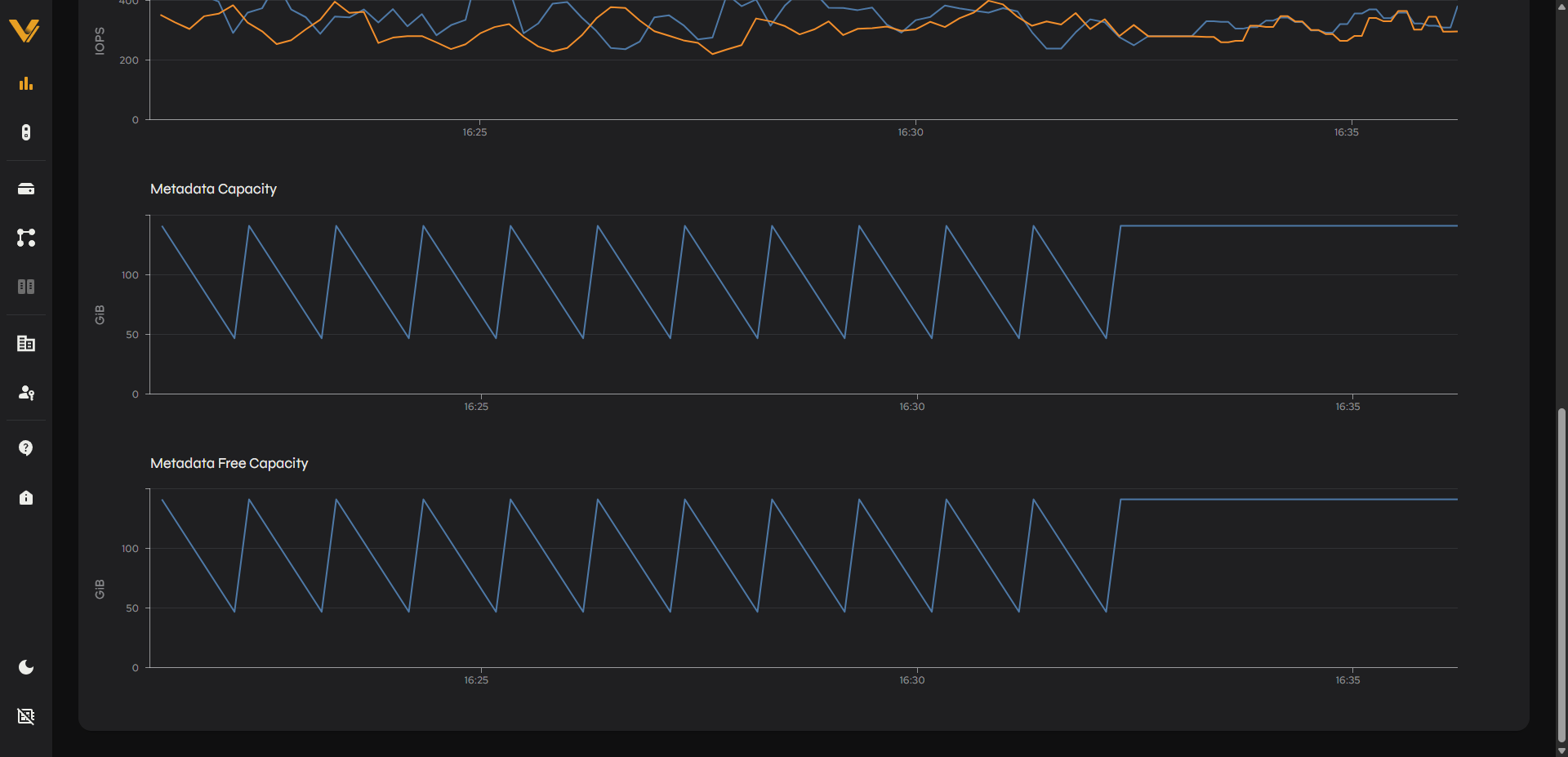 Figure 4.5. The Metadata Capacity and Metadata Free Capacity charts at the bottom of the System Performance card.
Note: On a realm with no historical performance telemetry yet (e.g. immediately after a fresh reset, before any workload has run), this chart instead shows a perpetual loading spinner regardless of the selected time period. This is a property of having no data to plot, not a UI defect.