
11. Account, Preferences, and Help
11.1 Account Menu and My Account
Clicking the user dropdown menu in the top bar opens a small dropdown.
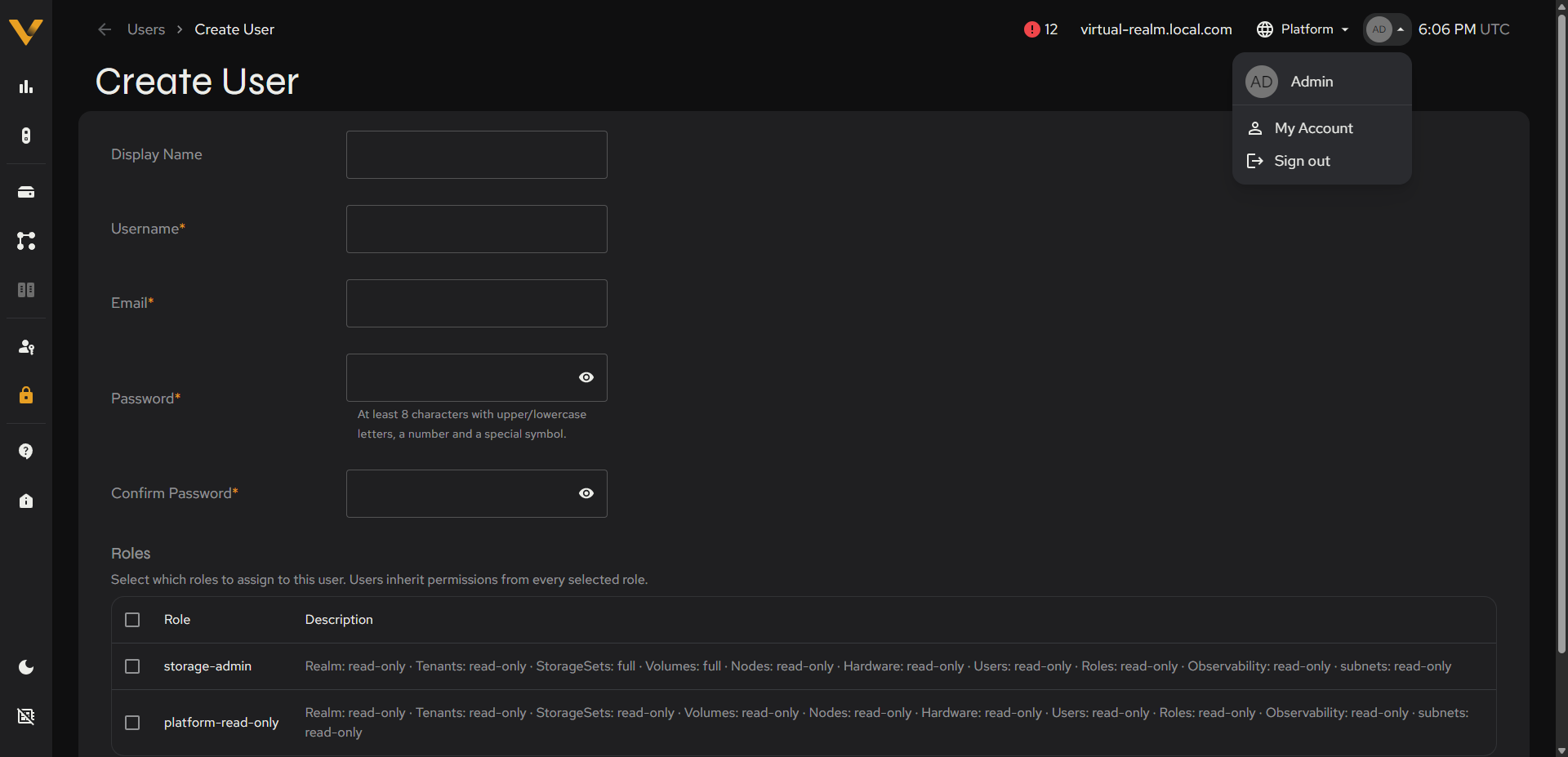 Figure 11.1. The account dropdown open (Admin/My Account/Sign out).
The dropdown shows your display name (e.g. “Admin”), My Account, and Sign out.
My Account shows your own account details. The page has two tabs, Profile and API Tokens, and the top-right contains an Issue Token action.
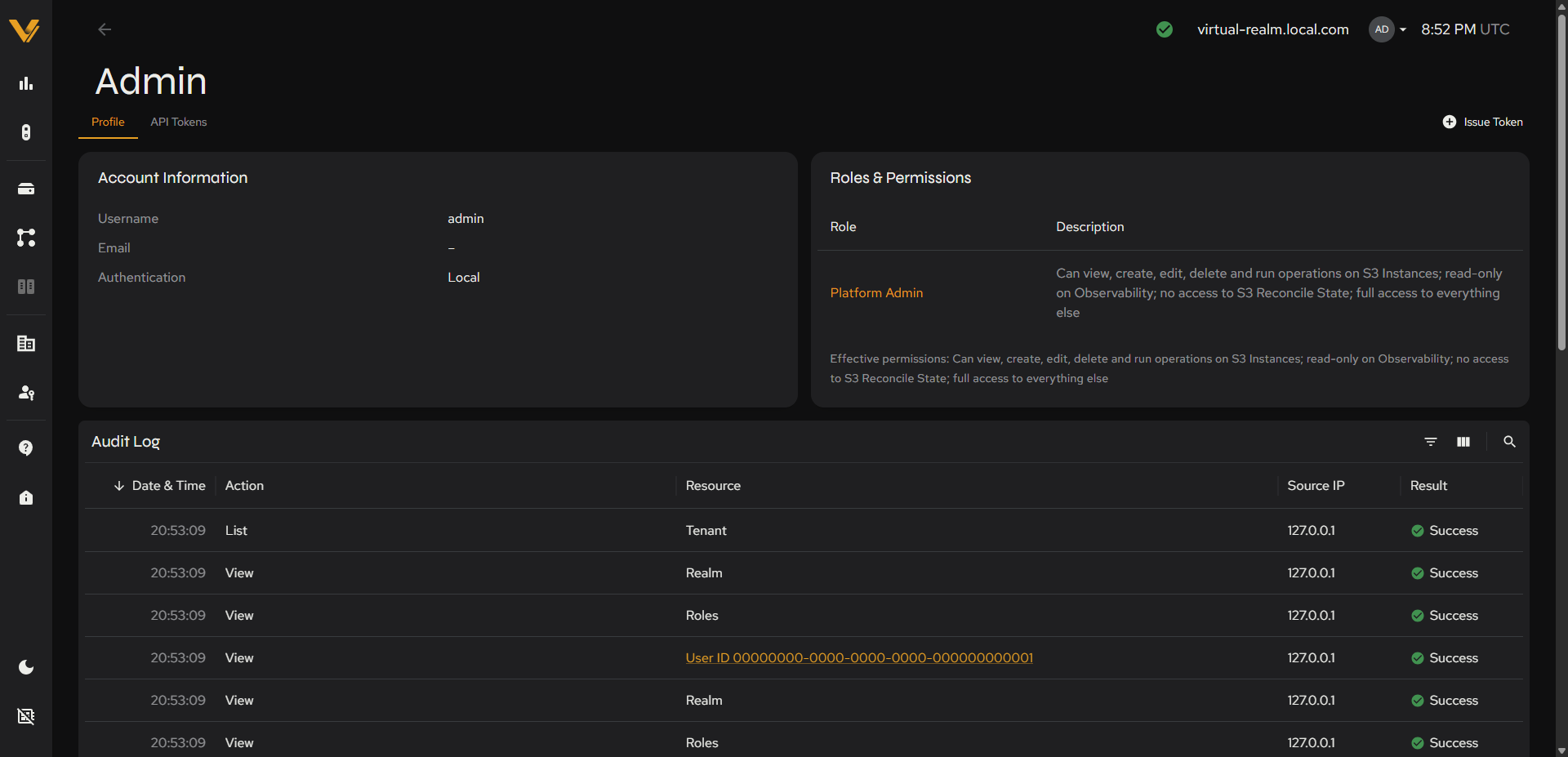 Figure 11.2. The full My Account page.
| Card | Fields |
|---|---|
| Account Information | Username, Email, Authentication (e.g. “Local”) |
| Roles & Permissions | Role + Description (e.g. Role “Platform Admin”, with a plain-language description of what the role allows), followed by an “Effective permissions” line summarizing what your roles allow together. The role name links to its detail. |
The Audit Log panel has the same toolbar pattern as Status Center scoped to your own activity.
| Column | Description |
|---|---|
| Date & Time (UTC) | Sortable |
| Action | e.g. “View”, “List” |
| Resource | e.g. “User” or a linked ID |
| Source IP | The IP address the action originated from |
| Result | e.g. “Success” |
The API Tokens tab lists the personal API tokens you have issued, with the same columns, Issue Token modal, and token-shown-once behavior as a service account’s tokens (see 10.6.1 through 10.6.3). Until you issue one, it shows a “No API tokens yet” empty state: “Issue a token so scripts and integrations can authenticate as you.”
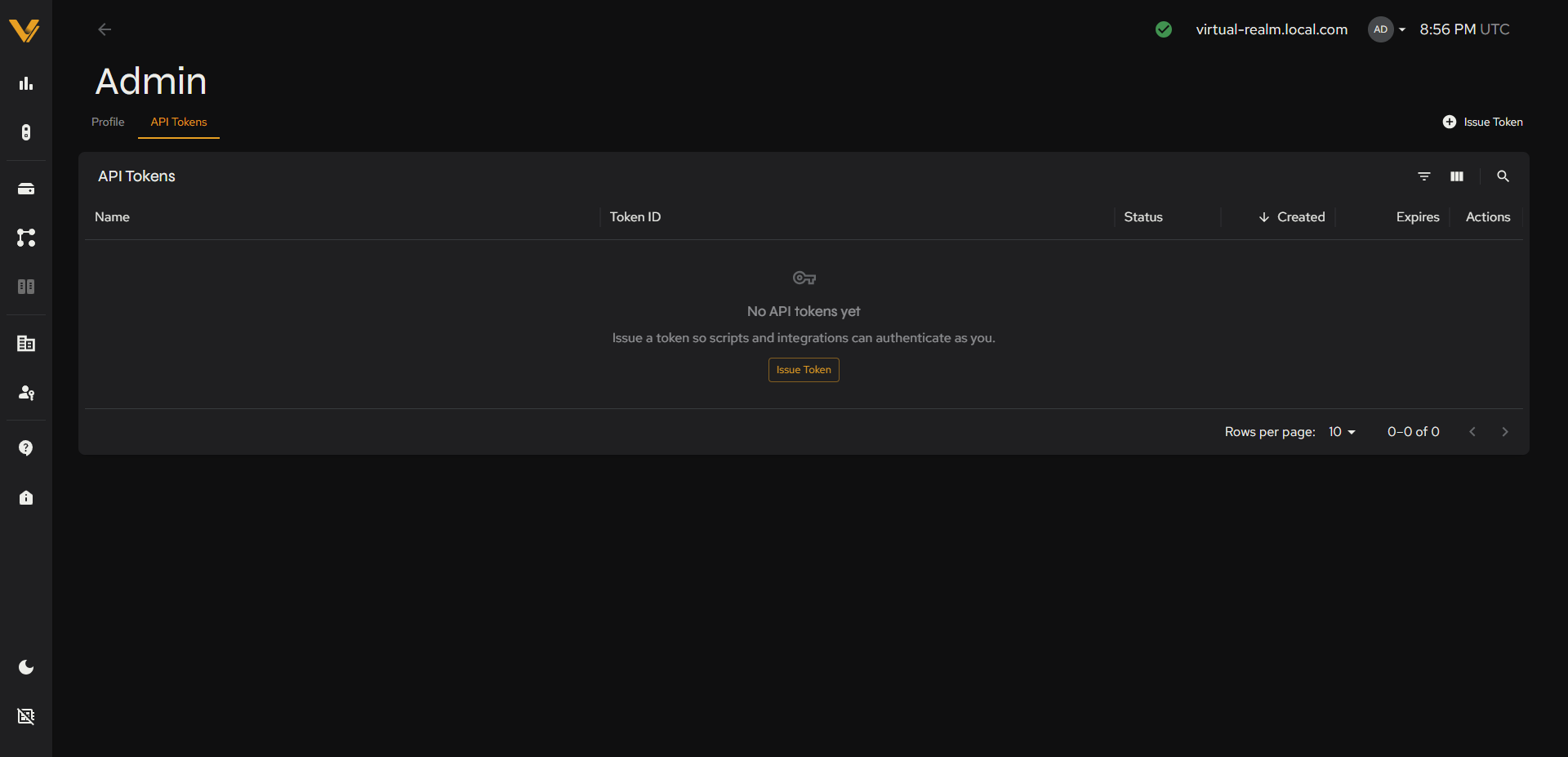 Figure 11.3. The My Account API Tokens tab.
11.2 Theme
The bottom of the sidebar has a Switch to Light Mode/Switch to Dark Mode toggle. It re-themes the entire UI instantly.
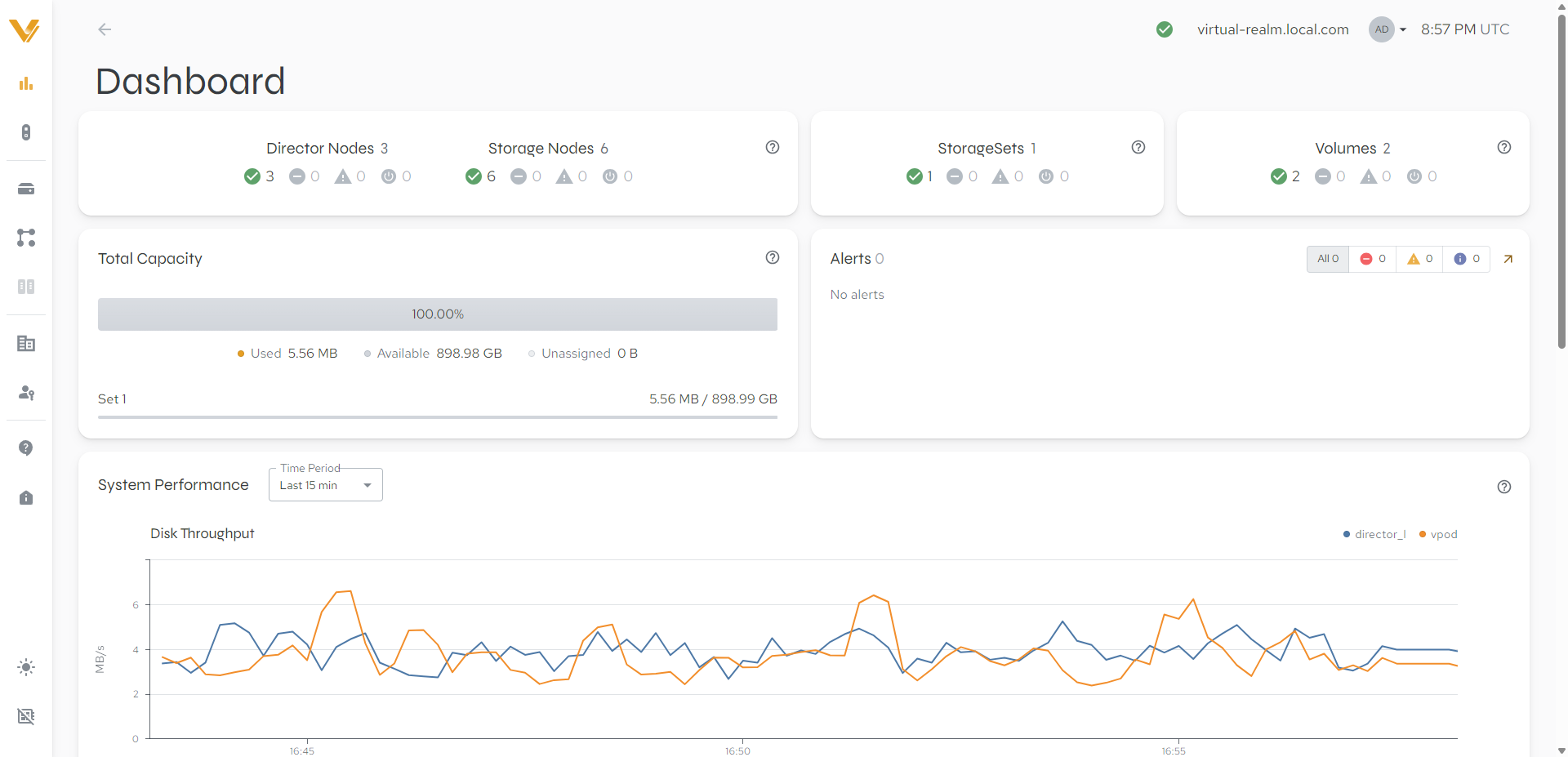 Figure 11.4. The Dashboard (or any page) rendered in light mode, for comparison.
11.3 Get Help
This page collects documentation links and ways to contact VDURA support.
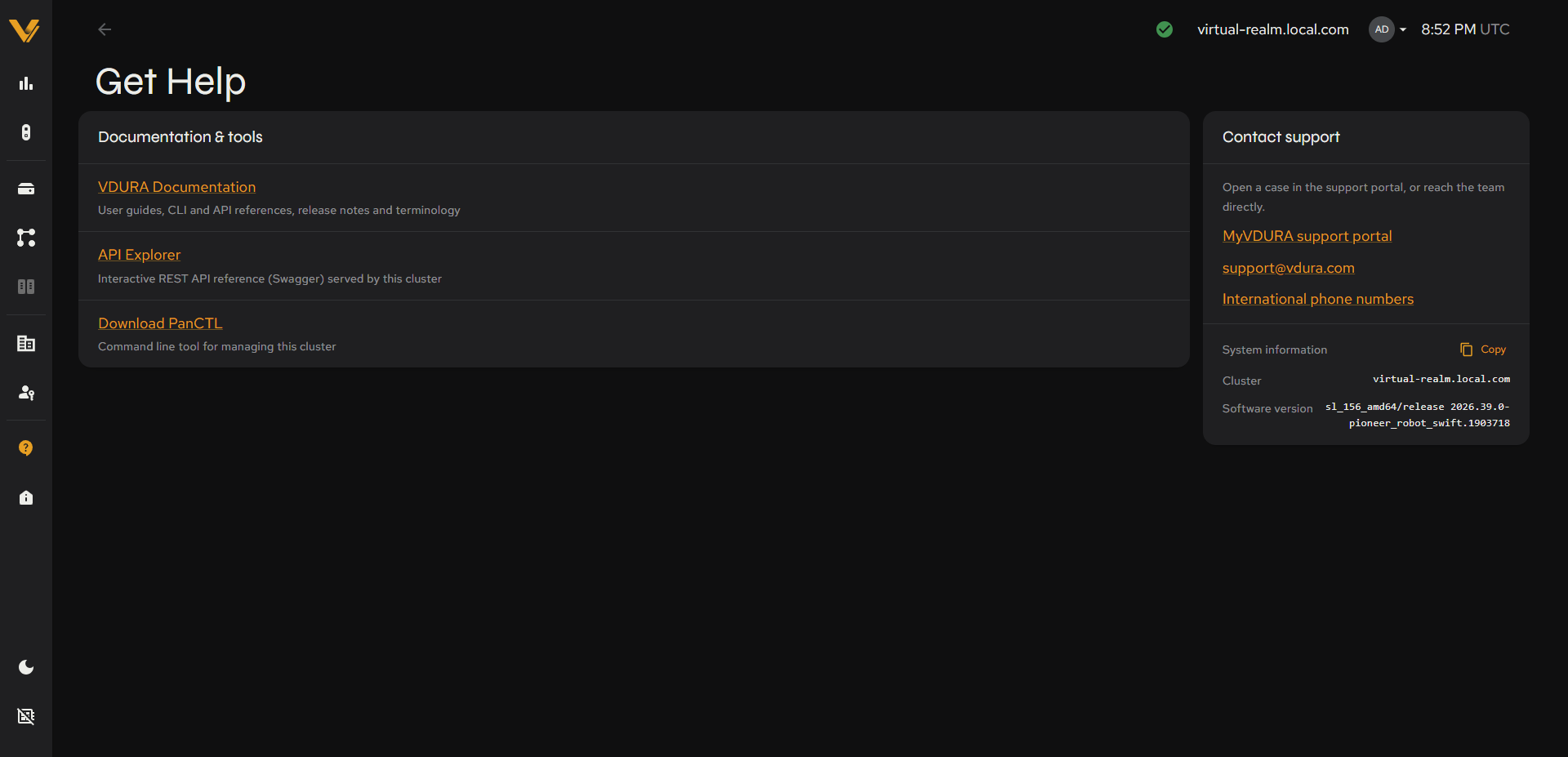 Figure 11.5. The Get Help page.
The Documentation & tools card contains:
| Link | Description |
|---|---|
| VDURA Documentation | Opens the VDURA documentation page on vdura.com: user guides, CLI and API references, release notes, and terminology. |
| API Explorer | Opens the interactive REST API reference (Swagger) served by this cluster. |
| Download PanCTL | Opens the page for downloading PanCTL, the command line tool for managing this cluster (see the PanCTL guide). |
The Contact support card contains:
| Item | Description |
|---|---|
| MyVDURA support portal | Opens the support portal, where you can open a case. |
| technical-support@vdura.com | Opens an email to the support team. |
| International phone numbers | Opens the list of VDURA support phone numbers by region. |
| System information | The cluster name and the software version of the realm. Click Copy to copy both to the clipboard so you can paste them into a support case. |
11.4 About
This page shows information about this Vantage build, titled “About Vantage”.
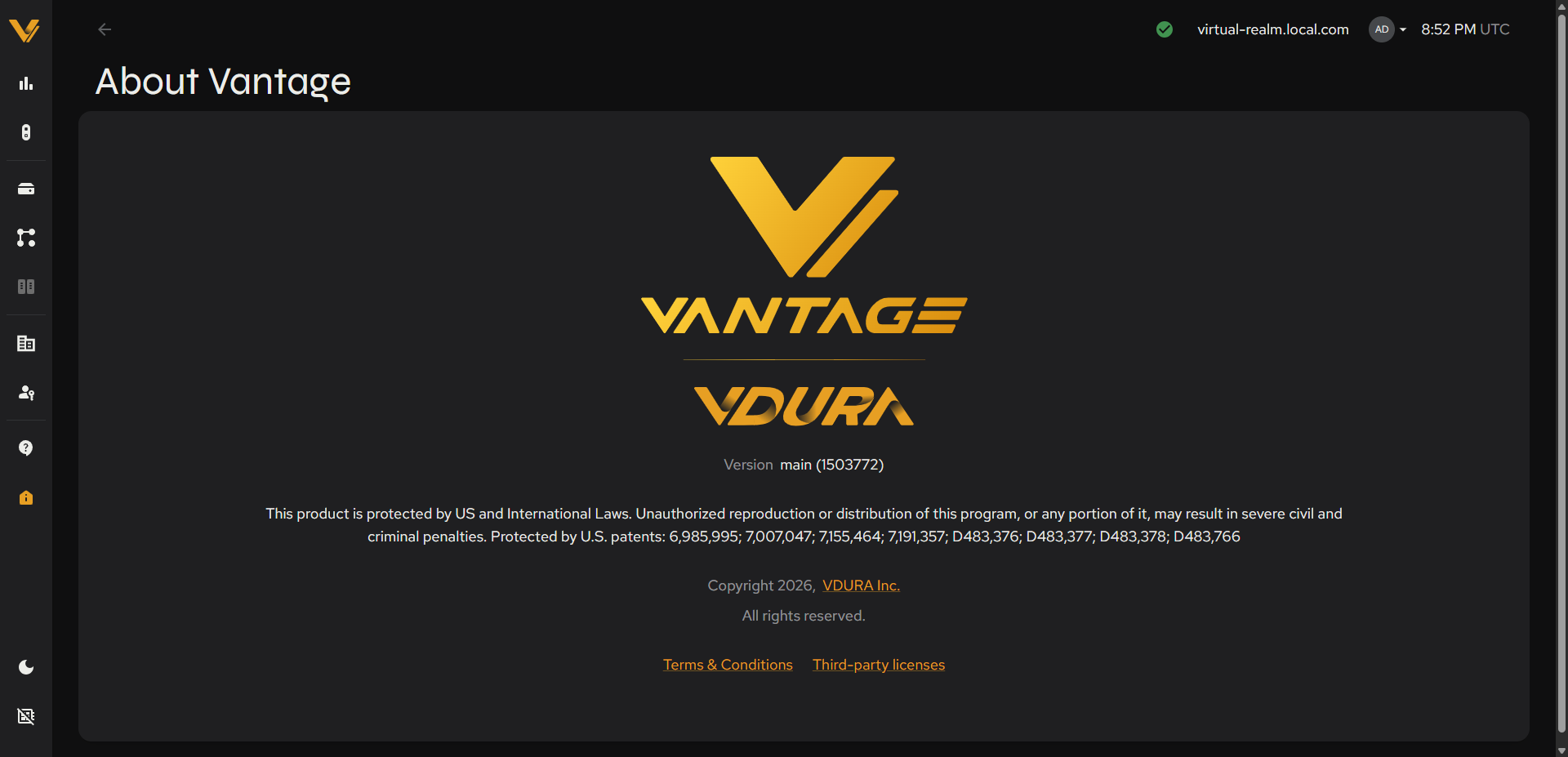 Figure 11.6. The About page.
| Item | Description |
|---|---|
| Logos | The Vantage and VDURA logos |
| Version | The Vantage UI build version, e.g. main (1503772) |
| Legal notice | The product protection notice and the list of U.S. patents |
| Copyright | “Copyright 2026, VDURA Inc.”; the company name links to the public VDURA website |
| Terms & Conditions | A link to the software terms and conditions |
| Third-party licenses | A link to the third-party license information |
11.5 PanActive Manager
Switch To Legacy UI, at the bottom of the sidebar, leaves Vantage entirely and loads the older classic interface at the same realm address.
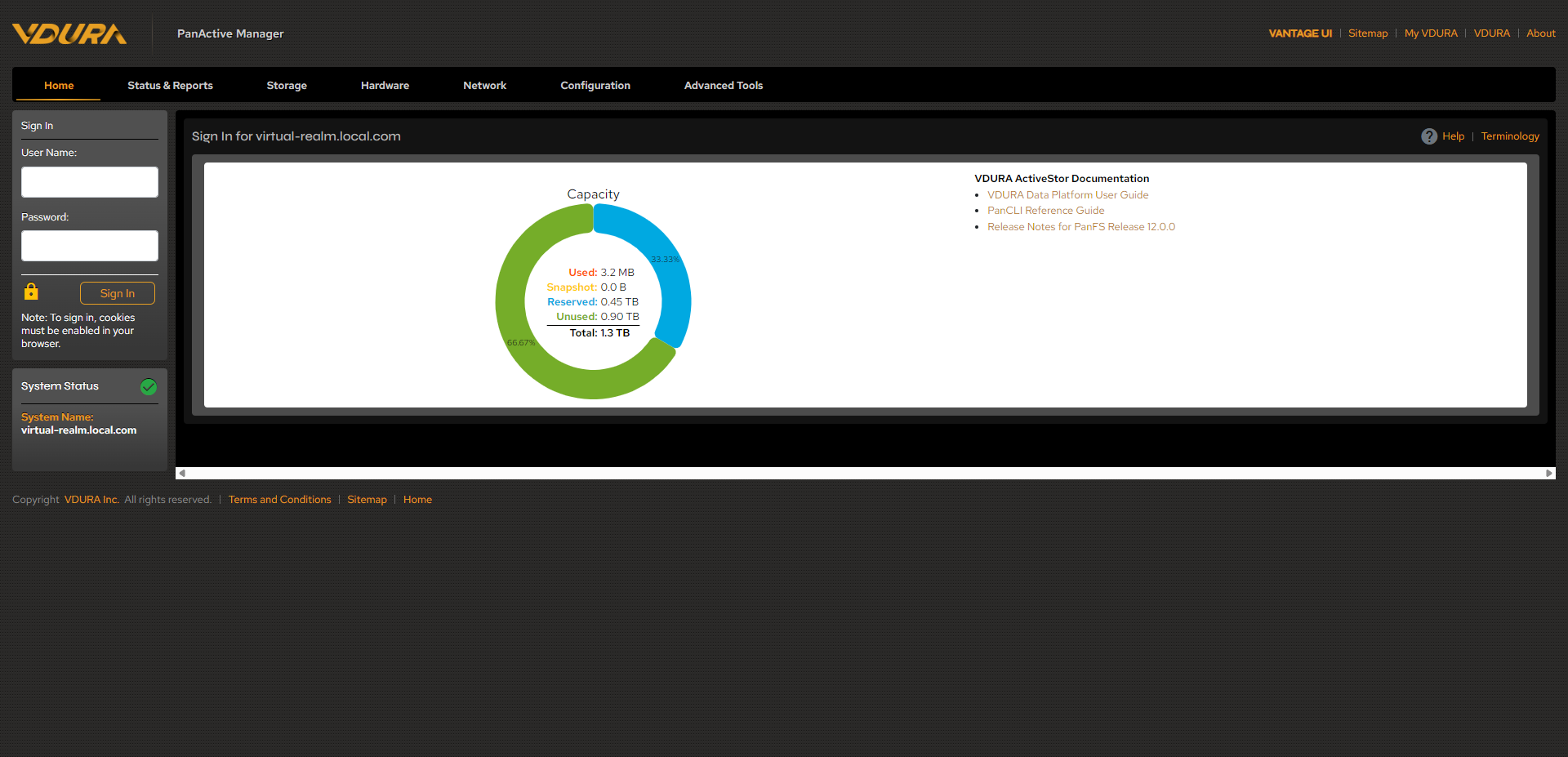 Figure 11.7. PanActive Manager’s landing/sign-in page, showing its own top nav and Sign In form.
It has its own top navigation (Home, Status & Reports, Storage, Hardware, Network, Configuration, Advanced Tools) and its own separate sign-in form; it does not share the new UI’s session, so you must log in again there with your credentials. A VANTAGE UI link in its top bar returns you to the new interface, and your original Vantage session remains intact when you do.
Because it requires separate authentication, this guide does not document PanActive Manager’s internal pages beyond its landing/sign-in screen. For full coverage of that interface, see the VDURA Data Platform User Guide.