
9. Tenants
Note: Multi-tenancy is not supported on InfiniBand. Tenants require an Ethernet network, because tenant isolation is carried by VLAN or VXLAN encapsulation and InfiniBand cannot carry either one. A realm whose clients connect over InfiniBand cannot have tenants created on it. Realms that run only the platform tenant are not affected.
9.1 Tenants List Page
This page lists every tenant in the realm as its own card. The top-right contains a search icon and a + Create Tenant button.
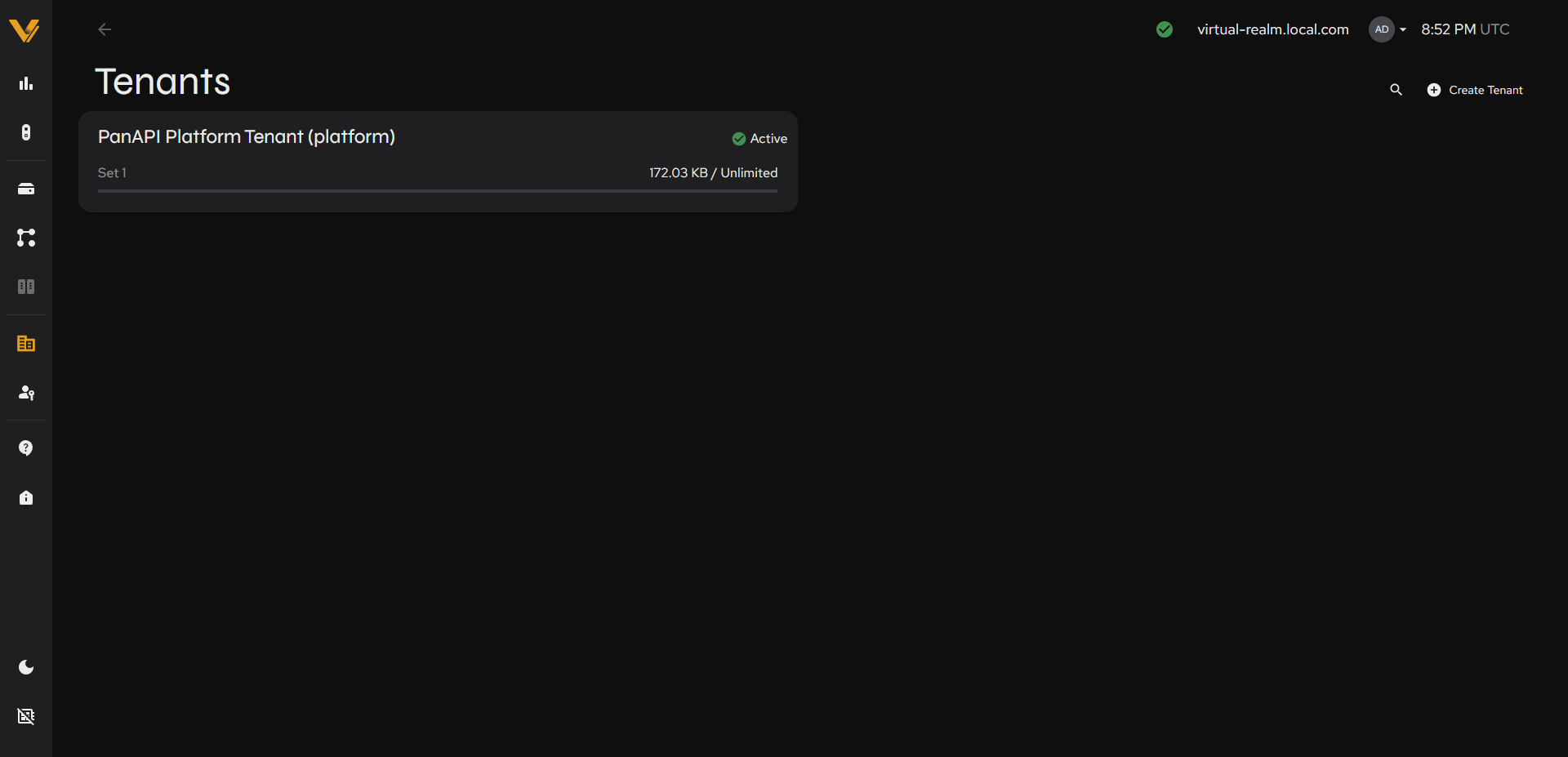 Figure 9.1. The Tenants list with at least one tenant card.
Each card shows:
| Card element | Description |
|---|---|
| Name | e.g. “PanAPI Platform Tenant (platform)” |
| Status badge | e.g. Active or Setup Incomplete for a tenant that does not yet have everything it needs to serve data (see 9.2.2) |
| Subtext | A capacity summary: one line per StorageSet the tenant can use, showing the StorageSet name, a mini progress bar, and the tenant’s capacity used / Hard Quota (e.g. “Set 1 172.03 KB / Unlimited”). A tenant with no assigned StorageSets reads “No StorageSet assignments” instead. |
Note: The built-in platform tenant has implicit access to every StorageSet in the realm, so its card shows an “Unlimited” quota against each one (see 9.2). Any other tenant lists only the StorageSets it has been explicitly assigned.
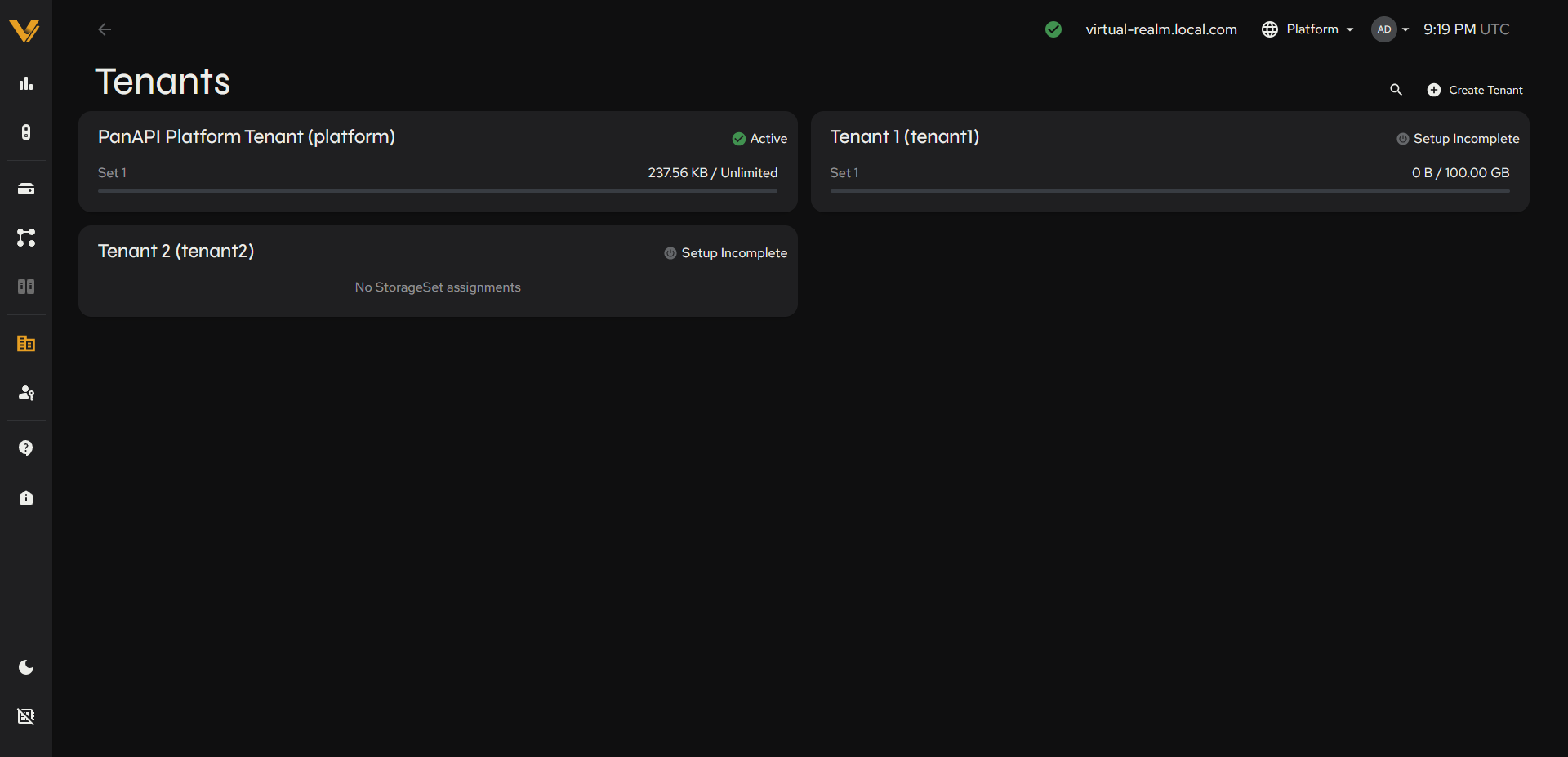 Figure 9.2. The Tenants list with the platform tenant and two newly created tenants.
In this example, one new tenant has been assigned a StorageSet and shows its usage against the 100.00 GB quota, while the other has no StorageSets yet and reads “No StorageSet assignments”. Both show Setup Incomplete.
9.2 Tenant Detail Page
This page shows full details for a single tenant. The tenant’s name is shown as an inline-editable title, and the top-right contains a 🗑 Delete Tenant action (not shown for the built-in platform tenant, which cannot be deleted). A tenant you created also shows a status chip beside its name (Setup Incomplete until setup is finished, see 9.2.2) and two tabs: Overview, described here, and Networking (see 9.2.3).
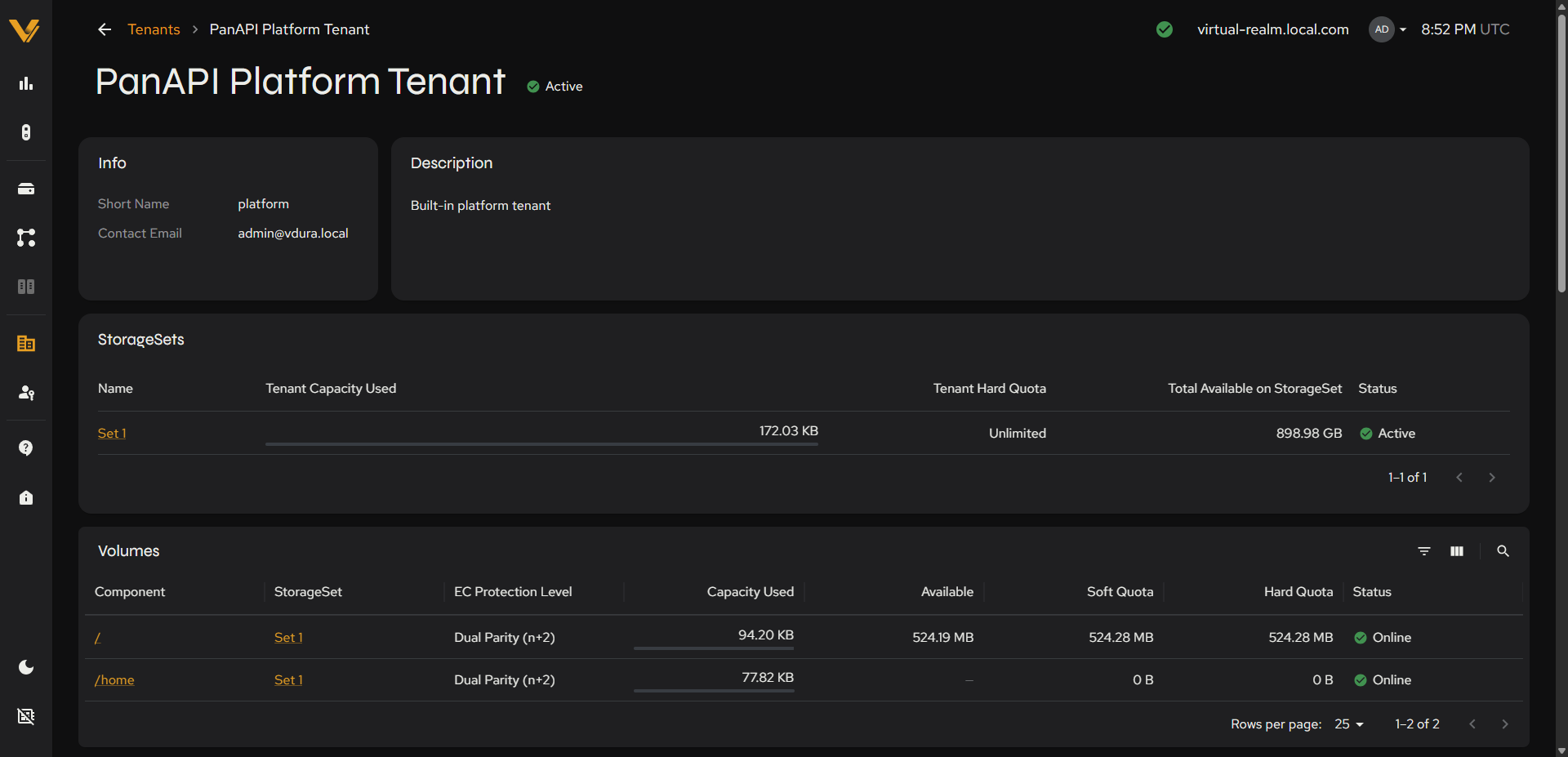 Figure 9.3. Info/Description/StorageSets/Volumes cards.
| Card | Fields |
|---|---|
| Info | Short Name, Contact Email |
| Description | Free-text description. The built-in platform tenant shows a fixed “Built-in platform tenant”; a tenant you created yourself instead shows an inline-editable placeholder, “No description. Click to add.” |
StorageSets table:
| Column | Description |
|---|---|
| Name | Link to the StorageSet |
| Tenant Capacity Used | Value + mini bar |
| Tenant Hard Quota | e.g. “Unlimited” (platform tenant) or a specific size (any tenant you explicitly assigned a quota to, e.g. “100.00 GB”) |
| Total Available on StorageSet | The space still available on the StorageSet, not the tenant’s quota |
| Status | The StorageSet’s status (e.g. “Active”) |
| Actions | Only present once a StorageSet has been explicitly assigned to the tenant (see below): pencil (edit quota) and trash (remove assignment) icons |
The built-in platform tenant gets implicit, unlimited access to every StorageSet in the realm with no assignment step required. Any other tenant starts out with “No StorageSets assigned” and must be given access explicitly before it can place volumes on a StorageSet.
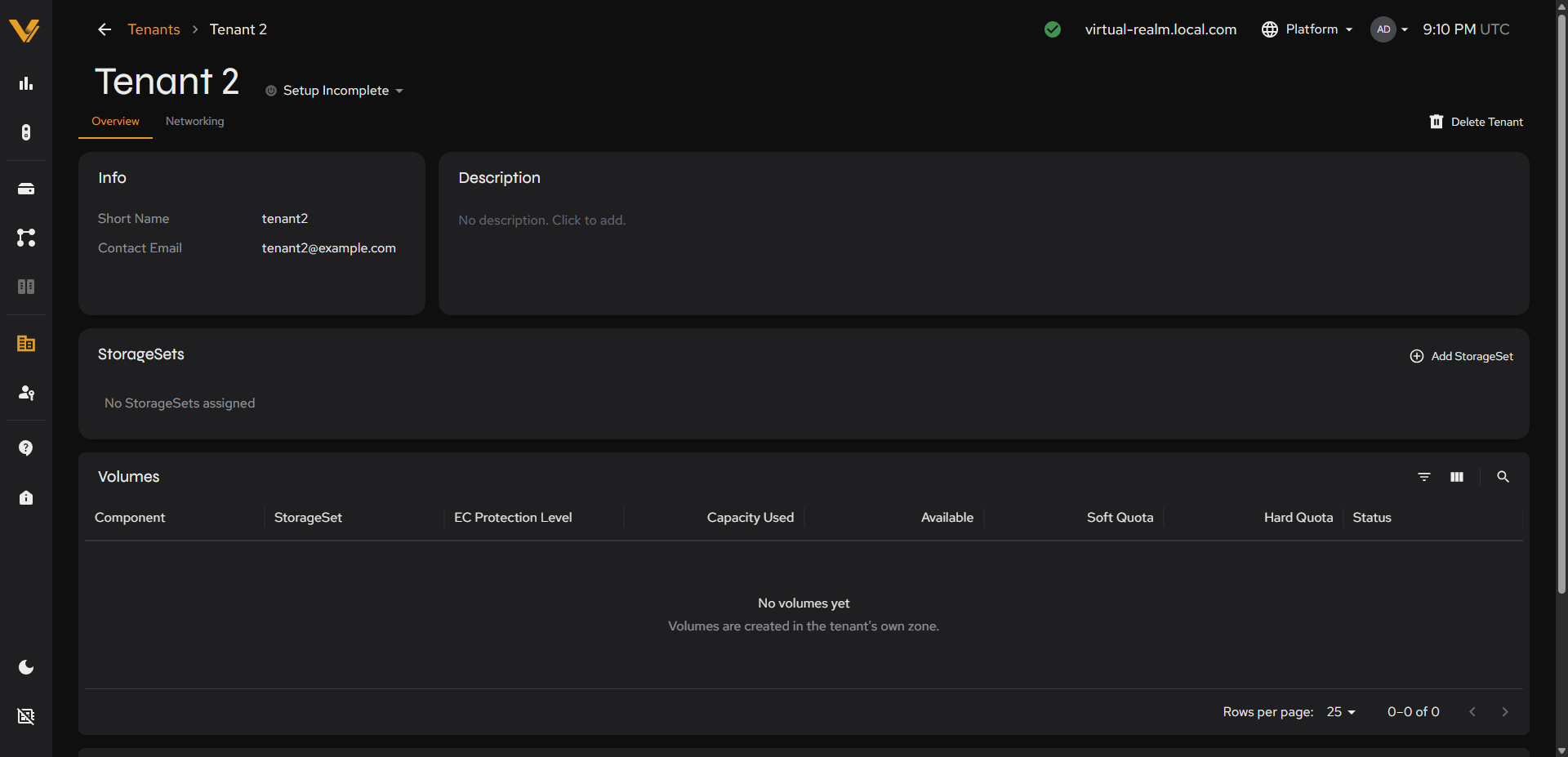 Figure 9.4. A brand-new tenant’s detail page: ‘No StorageSets assigned’ + the + Add StorageSet button.
This card’s header carries a + Add StorageSet button for any tenant other than the built-in platform one, opening an “Add StorageSet” modal. The button is greyed out when every StorageSet in the realm has already been assigned to the tenant.
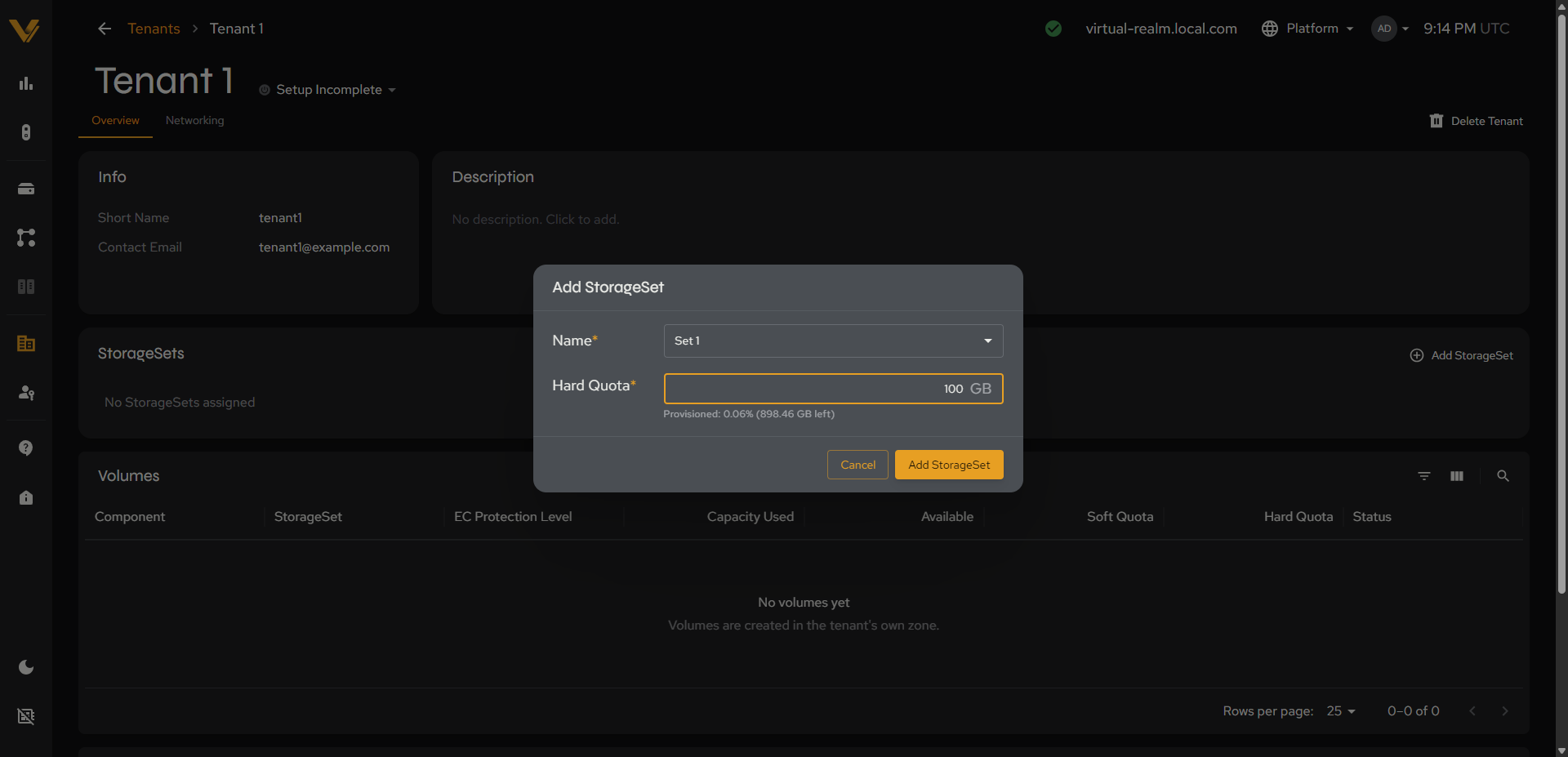 Figure 9.5. The ‘Add StorageSet’ modal: Name dropdown (with capacities) + required Hard Quota.
| Field | Notes |
|---|---|
| Name* | Dropdown listing every StorageSet in the realm, each annotated with its total capacity (e.g. “Set 1 — 1.34 TB”) |
| Hard Quota* | Required numeric + GB. Once a StorageSet is selected, a helper line shows how much of it is still unprovisioned, e.g. “Provisioned: 0% (1.34 TB left)”. |
Once assigned, the StorageSets table shows the tenant’s specific quota (not “Unlimited”) against the StorageSet’s full total, along with the edit/delete Actions icons.
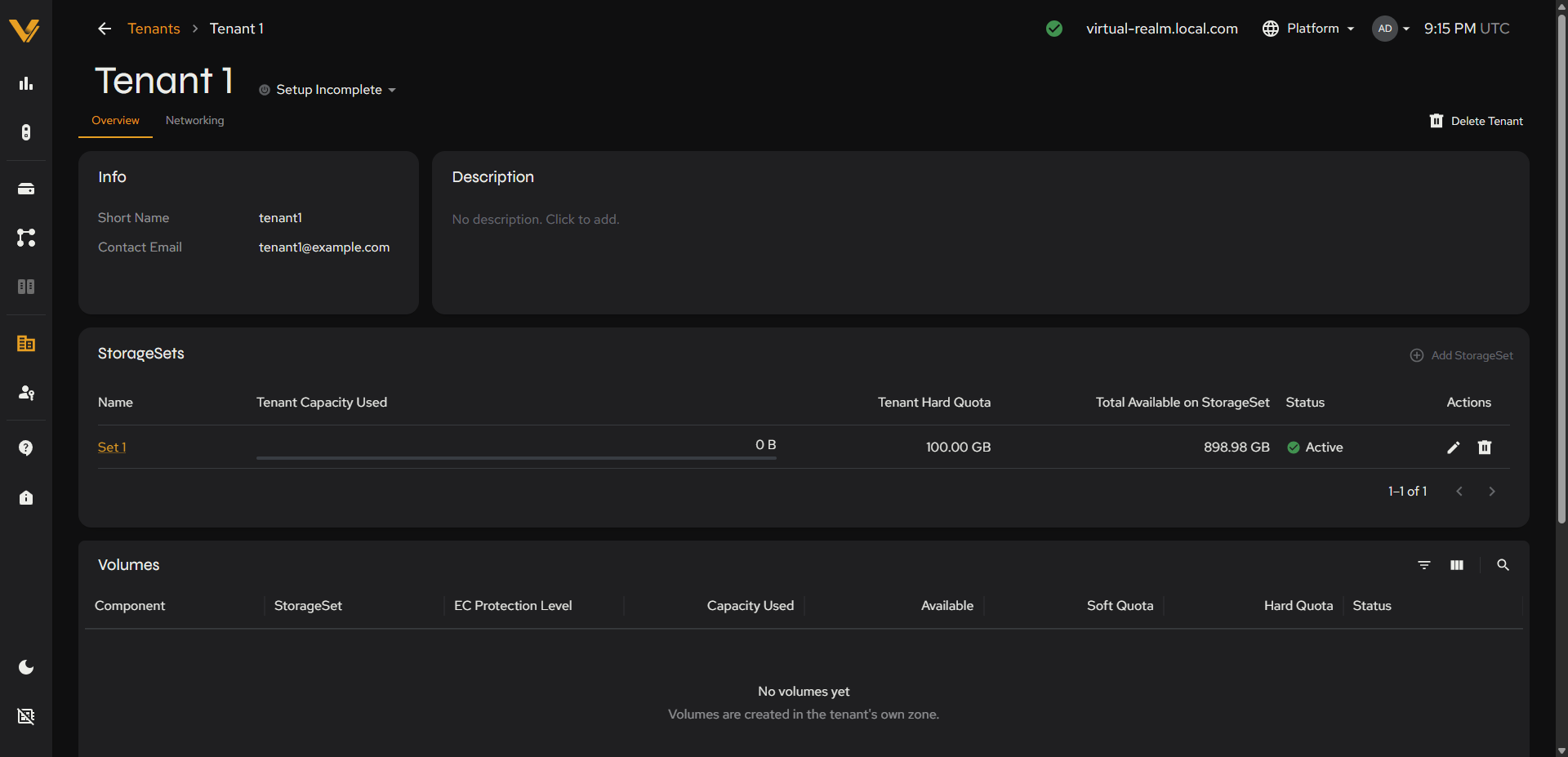 Figure 9.6. The tenant’s StorageSets table after assignment: quota shown, plus edit/delete Actions icons.
Volumes table:
| Column | Description |
|---|---|
| Component | Volume path (e.g. /, /home); links to volume detail |
| StorageSet | Links to the owning StorageSet |
| EC Protection Level | e.g. “Dual Parity (n+2)” |
| Capacity Used | Amount of capacity currently used by the volume |
| Available | Amount of capacity still available to the volume |
| Soft Quota | The soft quota for the volume, if set. |
| Hard Quota | The volume’s hard quota, if set: the maximum capacity the volume can consume |
| Status | The volume’s status (e.g. “Online”) |
This table is the same as the global Volumes list (see 6.3.1), minus the Tenant Name column, since this table is already scoped to the current tenant. A tenant with no volumes shows “No volumes yet”, with the note “Volumes are created in the tenant’s own zone.”
Bottom tabbed panel: Audit Log/Events
This table has the same toolbar pattern as Status Center:
| Audit Log column | Description |
|---|---|
| Date & Time (UTC) | Sortable |
| Actor | e.g. “admin” |
| Action | e.g. “View”, “List” |
| Resource | e.g. “Tenant” or a linked ID like “Volume ID 2” |
| Source IP | The IP address the action originated from |
| Result | e.g. “Success” |
| Events column | Description |
|---|---|
| Time | When the event occurred |
| Category | The event’s category/type |
| Event Message | Human-readable description |
| Code | Machine-readable event code |
| User Name | The user associated with the event |
| IP Address | The IP address associated with the event |
The Audit Log tab populates immediately, since simply viewing a page is itself an audited action. The Events tab follows the general behavior described in 5.2.
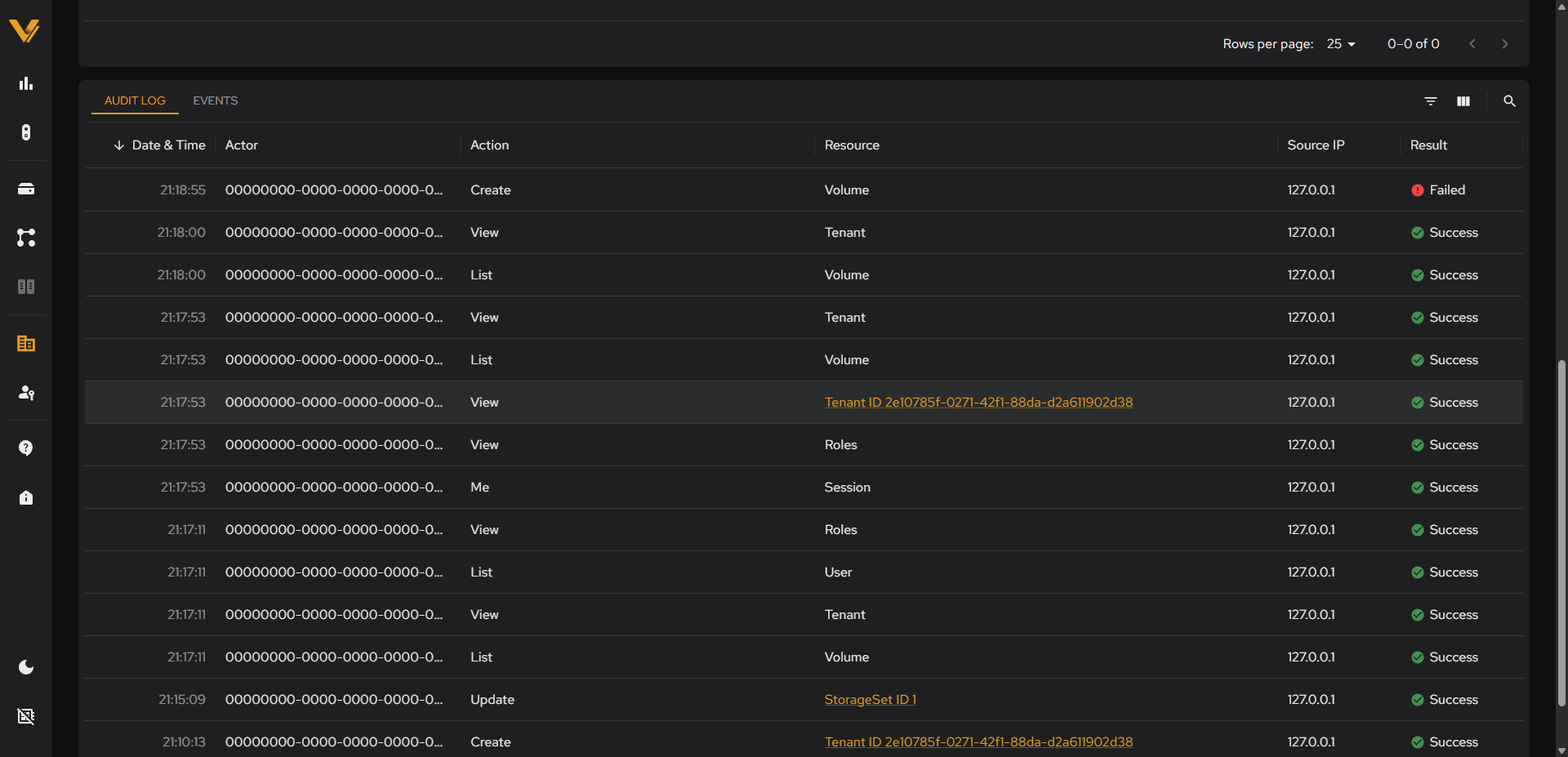 Figure 9.7. The bottom Audit Log tab, populated with rows.
9.2.1 Delete Tenant Confirmation
This modal confirms deletion of a tenant. It reads, for example, “Delete”Tenant 1”? This action will permanently remove tenant and all its data. This cannot be undone. Ensure there are no active jobs or users.” and offers No, Keep It and Yes, Delete Tenant buttons.
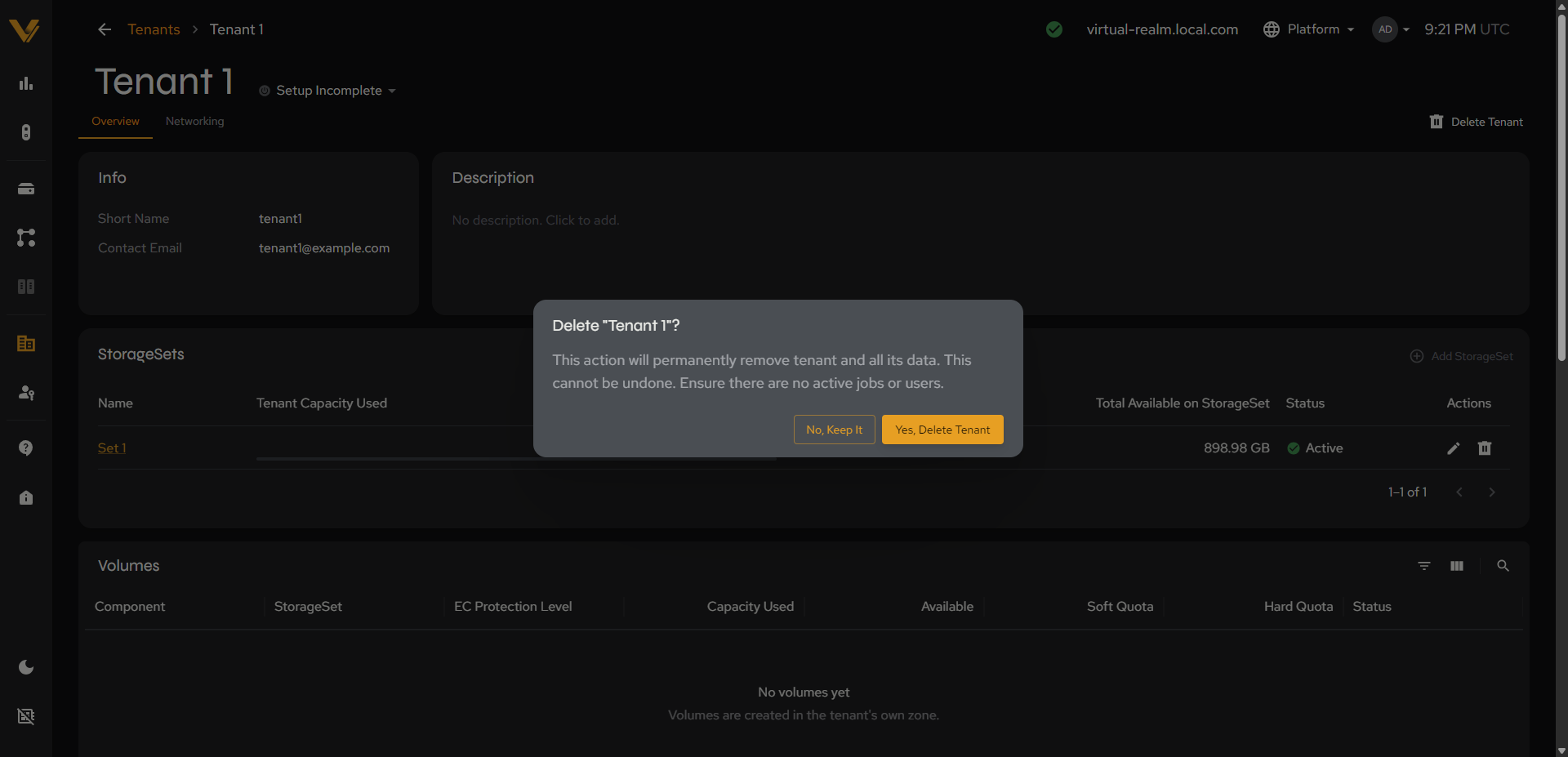 Figure 9.8. The delete confirmation modal for a tenant.
A tenant that still has a network configuration cannot be deleted. Vantage shows an error banner reading “Failed to delete tenant: Cannot delete tenant while it still owns subnets: <name>”, with a Contact Support button and a close (X) button. Delete the tenant’s network configuration first (see 9.2.3), then delete the tenant.
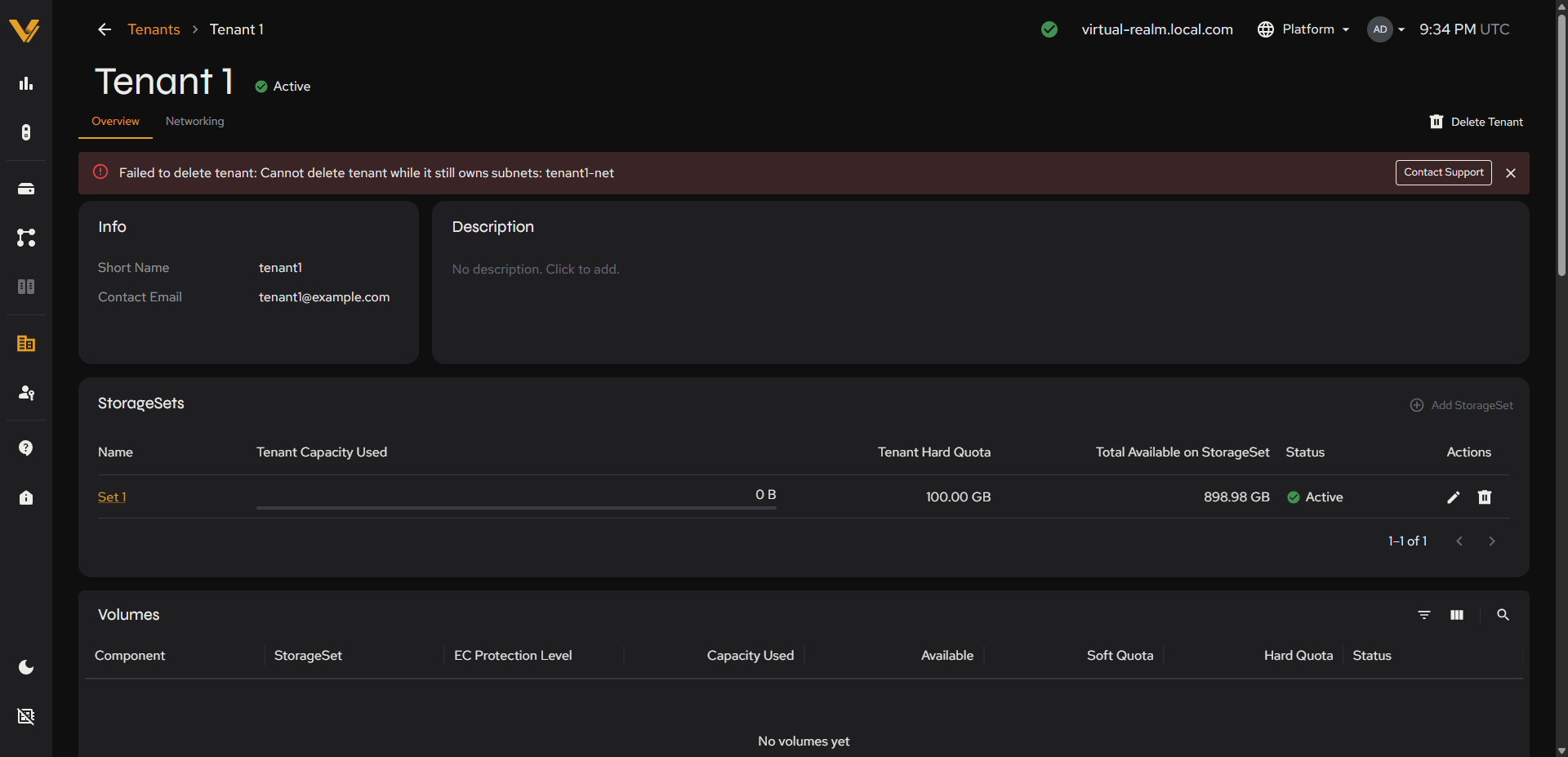 Figure 9.9. The error shown when deleting a tenant that still owns a network configuration.
9.2.2 Finishing Tenant Setup
A tenant you create does not serve data right away. Until it is set up, its status chip reads Setup Incomplete, both beside the tenant name on its detail page and on its card in the Tenants list. Click the chip to open a Finish setup checklist of the steps the tenant still needs:
| Step | Link | Description |
|---|---|---|
| StorageSet assignment | Add StorageSet | Gives the tenant a StorageSet and a Hard Quota (see 9.5.2). |
| Network configuration | Configure network | Defines the subnet the tenant’s clients use to reach storage (see 9.2.4). |
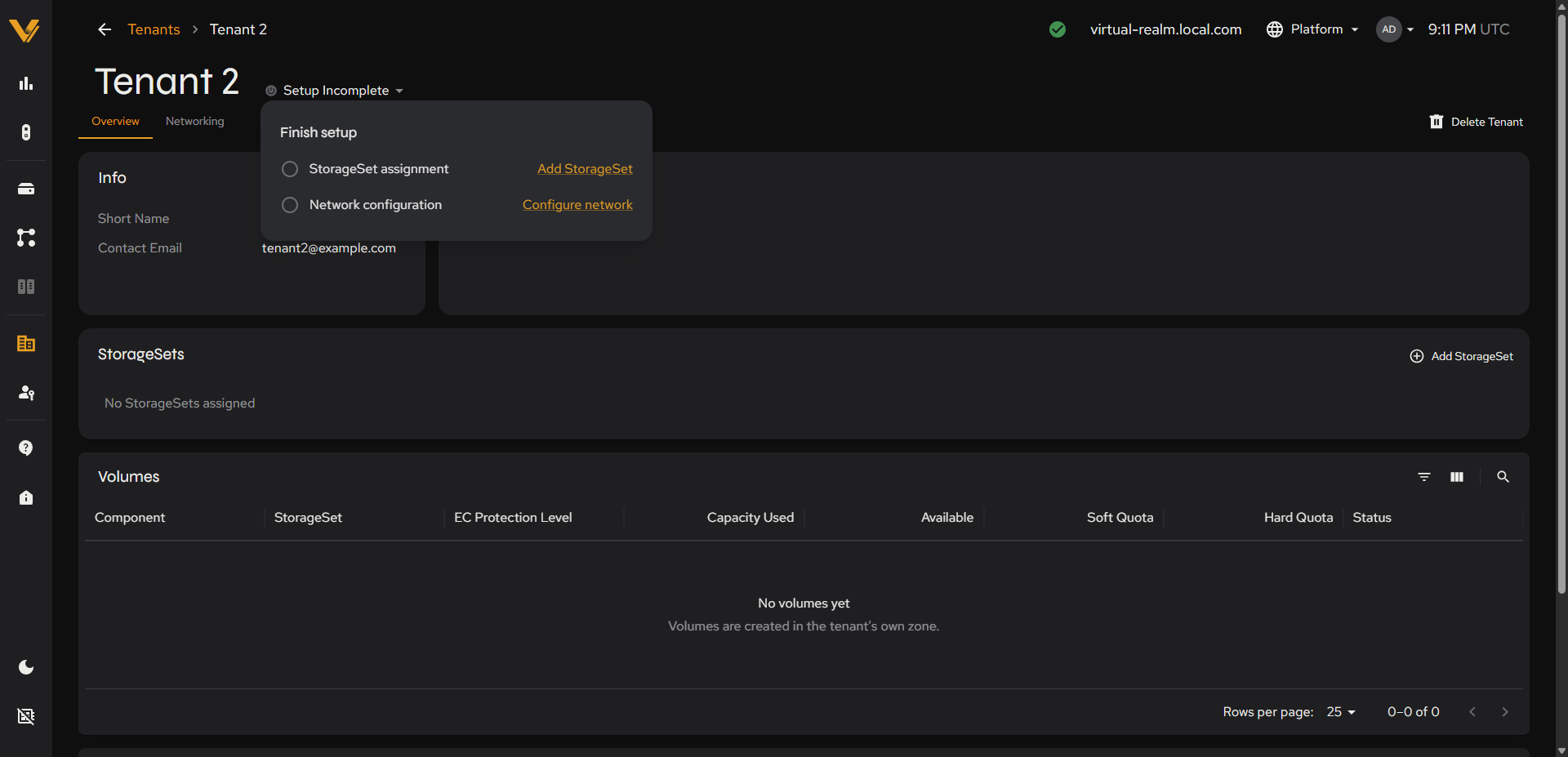 Figure 9.10. The Finish setup checklist opened from the Setup Incomplete chip.
Once both steps are done, the chip changes to Finishing Setup… while the realm brings the tenant’s network online, and then to Active, usually within a minute or two. Reload the page if the chip does not update on its own. A tenant must be Active before it can hold volumes. If you delete the tenant’s network configuration later, the chip returns to Setup Incomplete.
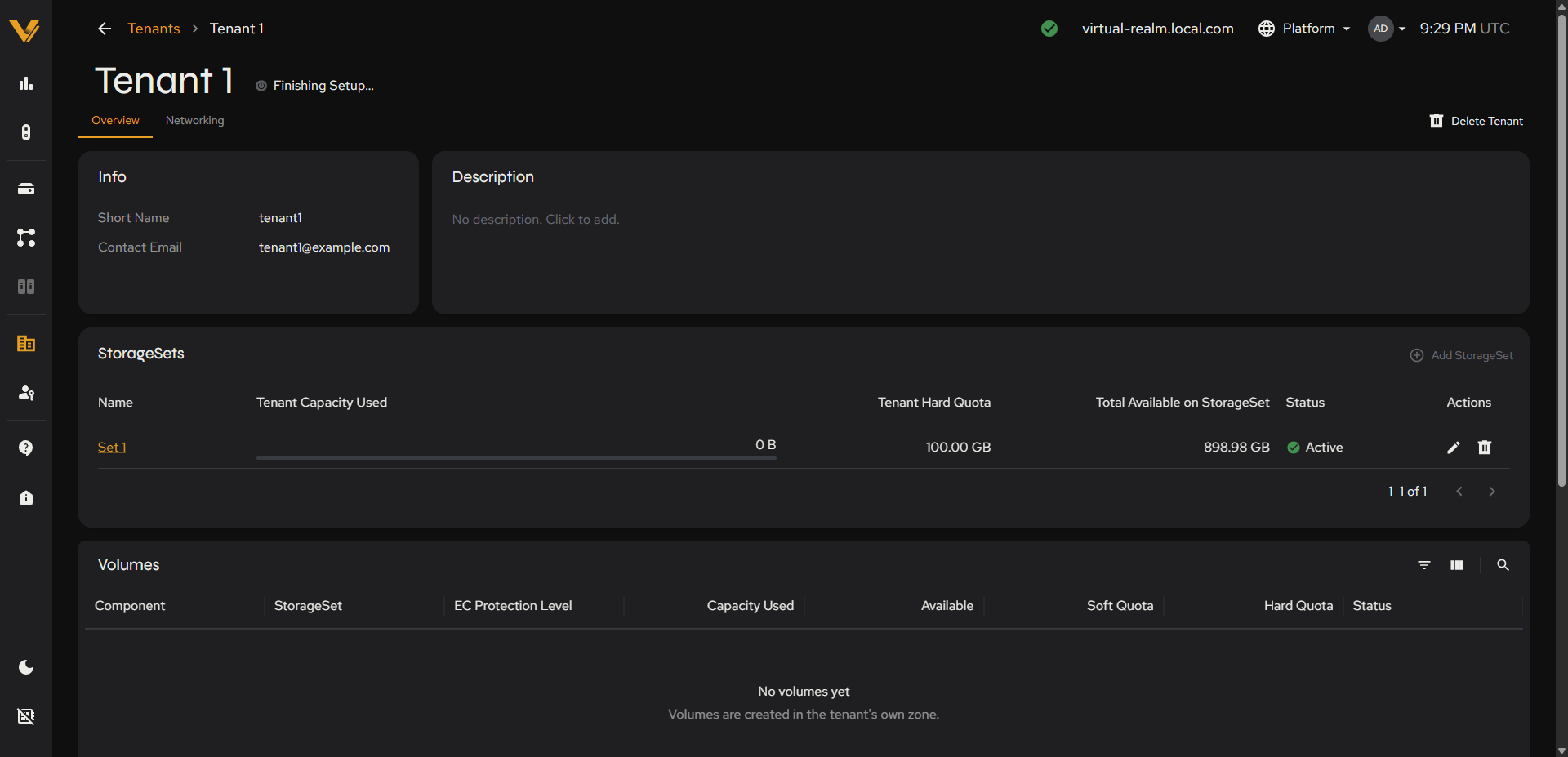 Figure 9.11. A tenant in the Finishing Setup… state.
9.2.3 Networking Tab
The Networking tab lists the tenant’s network configurations. A network configuration defines the subnet this tenant’s clients use to reach storage; a tenant has one network configuration. A tenant with none shows “No network configurations yet” with a Create Configuration button, which is also available in the top-right of the tab.
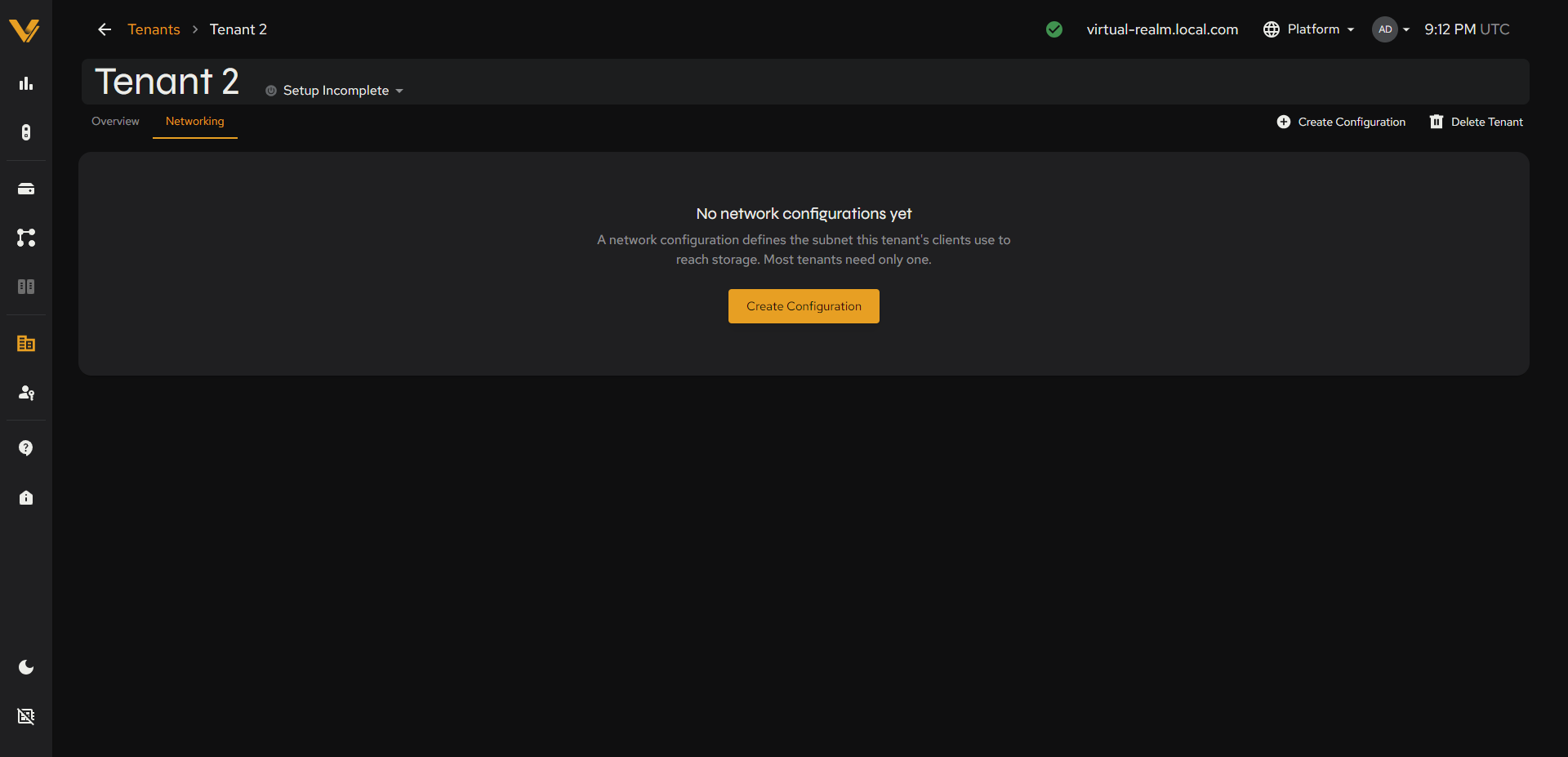 Figure 9.12. The Networking tab of a new tenant, with no network configurations.
Once a network configuration exists, the tab shows it as a card titled with the configuration’s name, and Create Configuration is greyed out (a tenant has one network configuration). The card has Edit and Delete actions and three groups of read-only fields:
| Group | Fields |
|---|---|
| Addressing | Network (CIDR), Gateway, Address Range (first and last usable address) |
| Network Segment | Segment Type (e.g. “VXLAN”), Segment ID, Tunnel UDP Port (shows “Realm default” when you left it empty) |
| Advanced | MTU (shows “Platform default” when you left it empty), Address Allocation (e.g. “System”), ID |
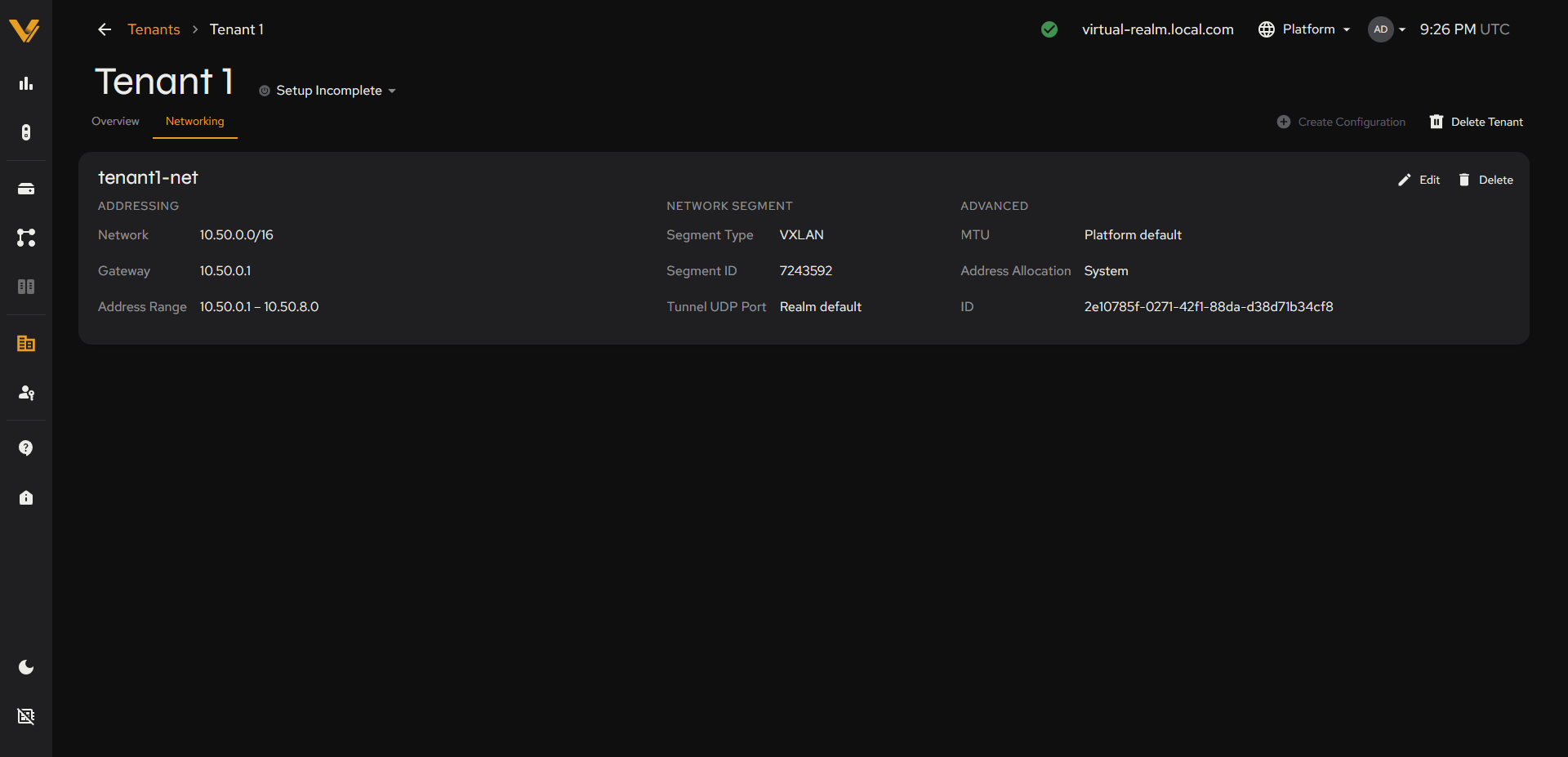 Figure 9.13. The Networking tab showing a network configuration.
Edit opens an “Edit Network Configuration” dialog. The Network is shown for reference but cannot be changed; you can change the Name, Gateway, Address Range, and MTU, then click Save Changes (or Cancel).
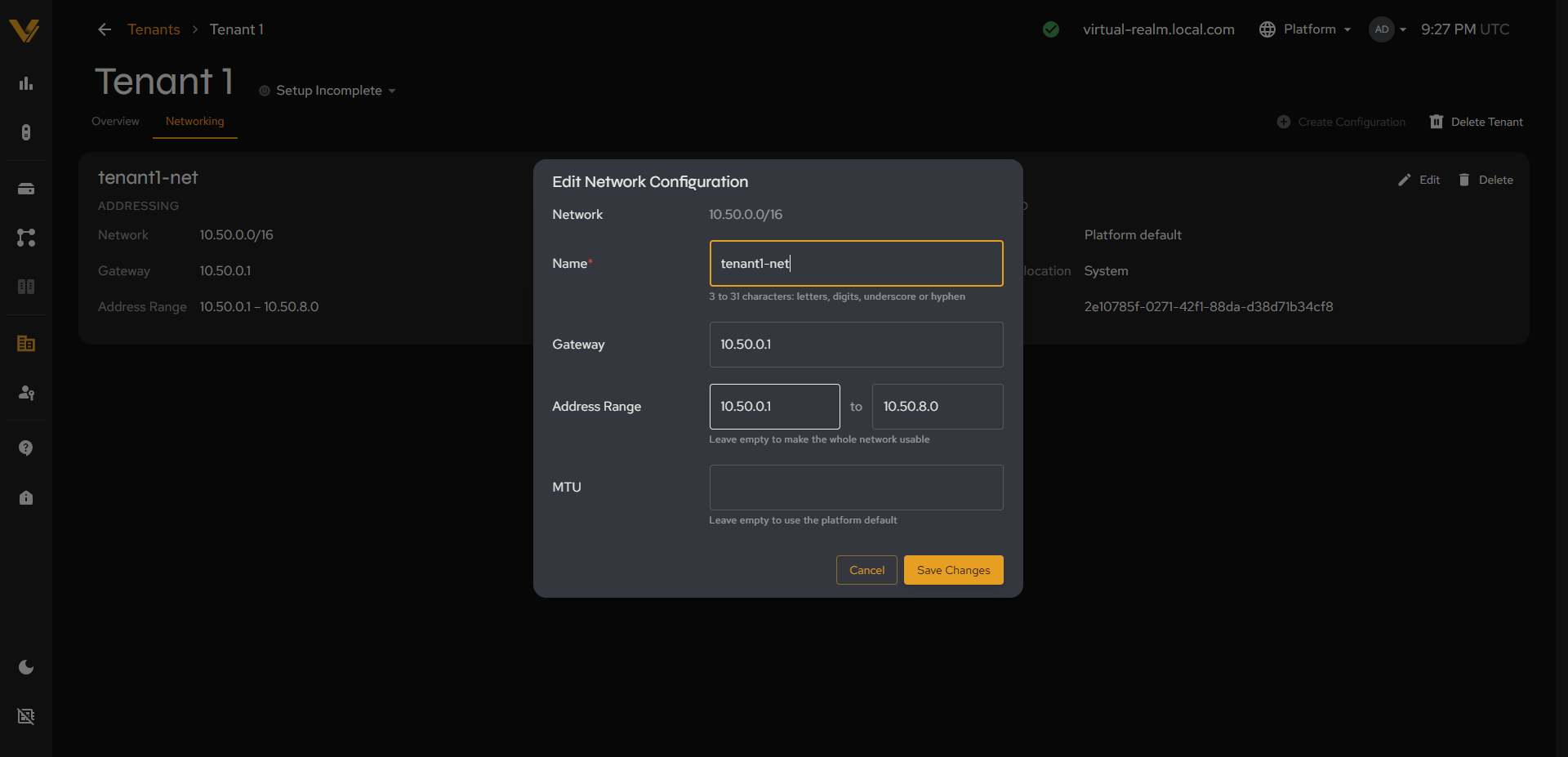 Figure 9.14. The Edit Network Configuration dialog.
Delete opens a confirmation reading, for example, “Delete tenant1-net (10.50.0.0/16)? This cannot be undone.” with Cancel and Delete buttons.
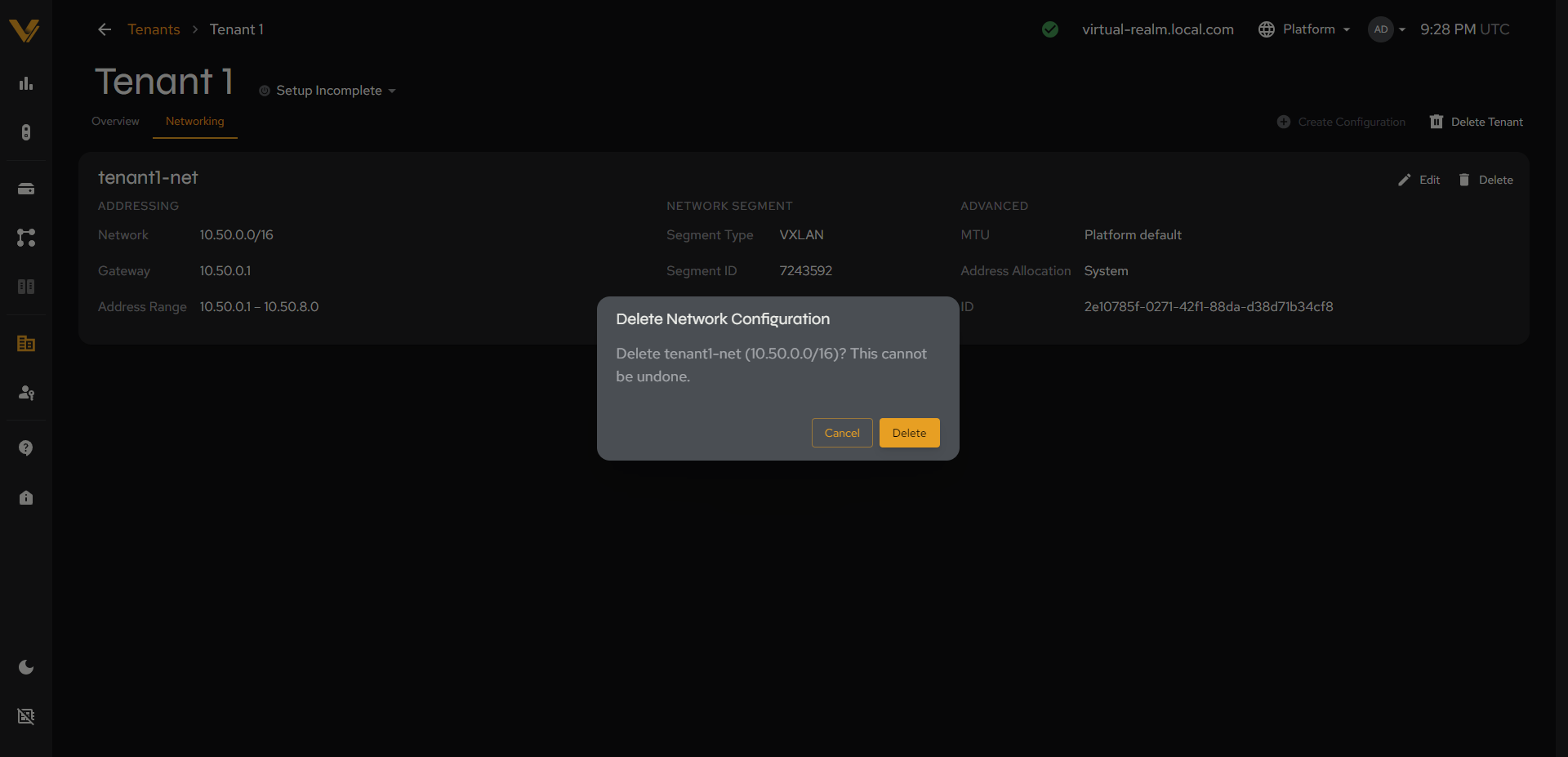 Figure 9.15. The Delete Network Configuration confirmation.
9.2.4 Create Network Configuration Page
This page is the form for creating a tenant network configuration. When the realm has no network configuration yet, a banner at the top reads “Realm segment type: VXLAN. This is the first network configuration on the realm. After you create it, the segment type is fixed at VXLAN. Changing the realm to VLAN requires deleting all network configurations first.”
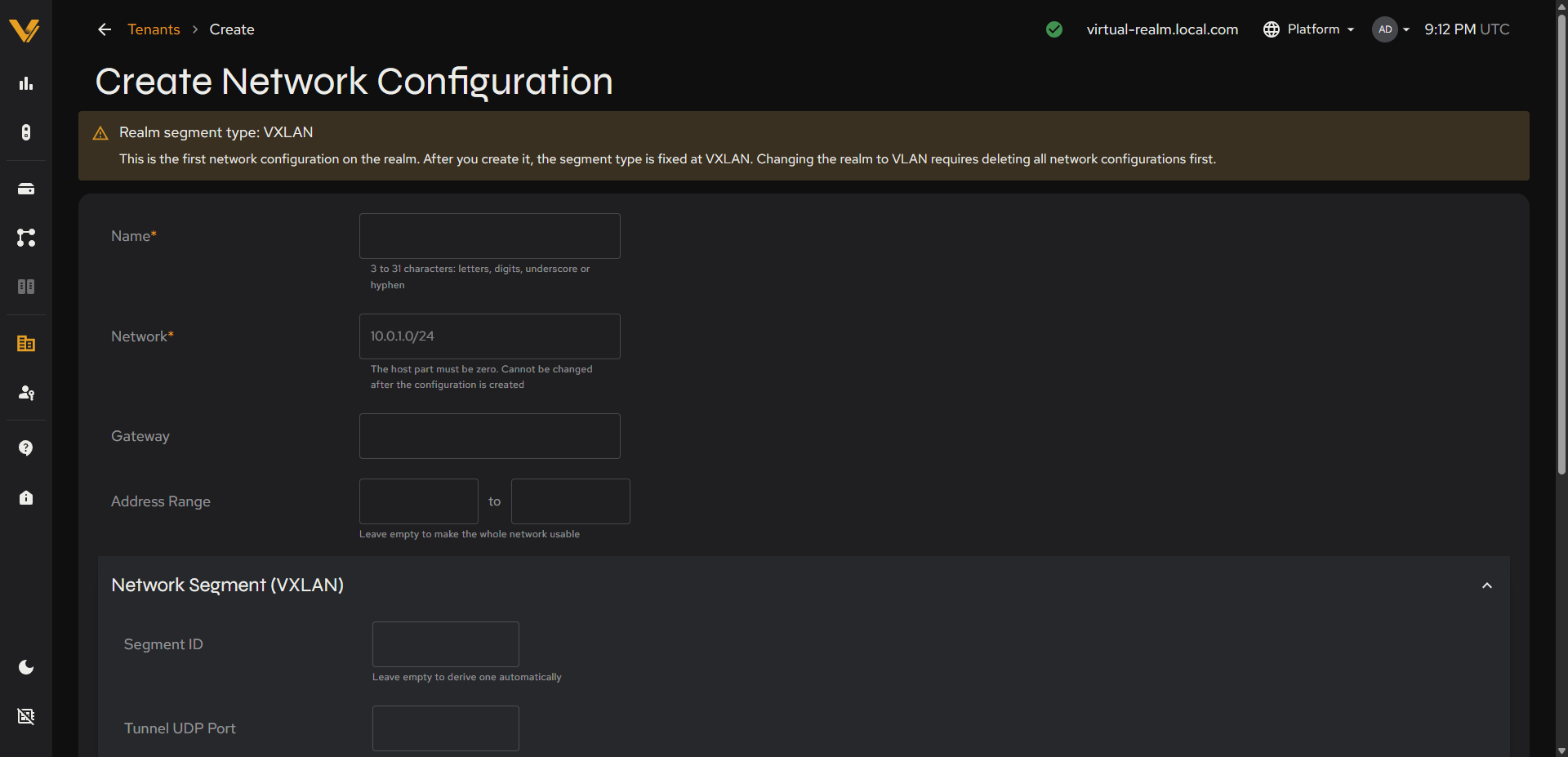 Figure 9.16. The top of the Create Network Configuration form, with the realm segment type banner.
| Field | Notes |
|---|---|
| Name* | Text, 3 to 31 characters: letters, digits, underscore or hyphen |
| Network* | The subnet in CIDR notation, e.g. 10.0.1.0/24. The host part must be zero. Cannot be changed after the configuration is created. |
| Gateway | Optional |
| Address Range | Optional from and to addresses. Leave empty to make the whole network usable. |
| Segment ID | In the Network Segment (VXLAN) section. Leave empty to derive one automatically. |
| Tunnel UDP Port | In the Network Segment (VXLAN) section. Leave empty to use the standard port 4789. |
| MTU | In the Advanced section. Leave empty to use the platform default. |
| Address Allocation | In the Advanced section. Choose System (the system assigns each address itself; the default) or External allocator (an outside DHCP server assigns addresses and the system only records them). Cannot be changed after the configuration is created. |
Segment settings cannot be changed after the configuration is created. Cancel/Create Network Configuration.
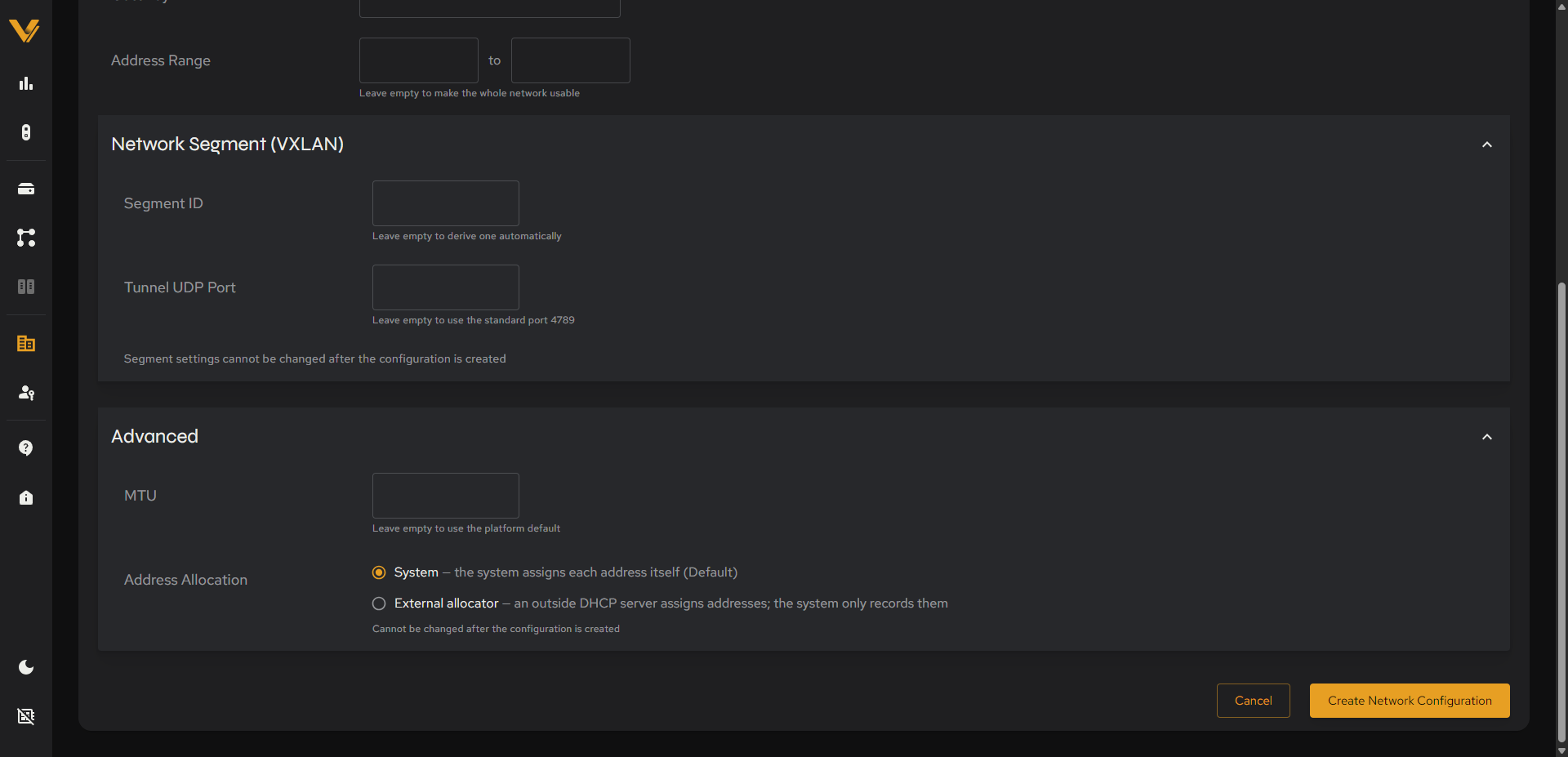 Figure 9.17. The Network Segment and Advanced sections of the Create Network Configuration form.
The network must be large enough for the realm’s nodes. If it is not, Vantage shows an error banner above the form, for example “Failed to create the network configuration: The usable-address window holds fewer addresses than the realm primary pool, so some nodes would get no address. Widen the CIDR, or range_start and range_end”. Widen the Network (for example, use a /16 instead of a /24) or the Address Range and click Create Network Configuration again.
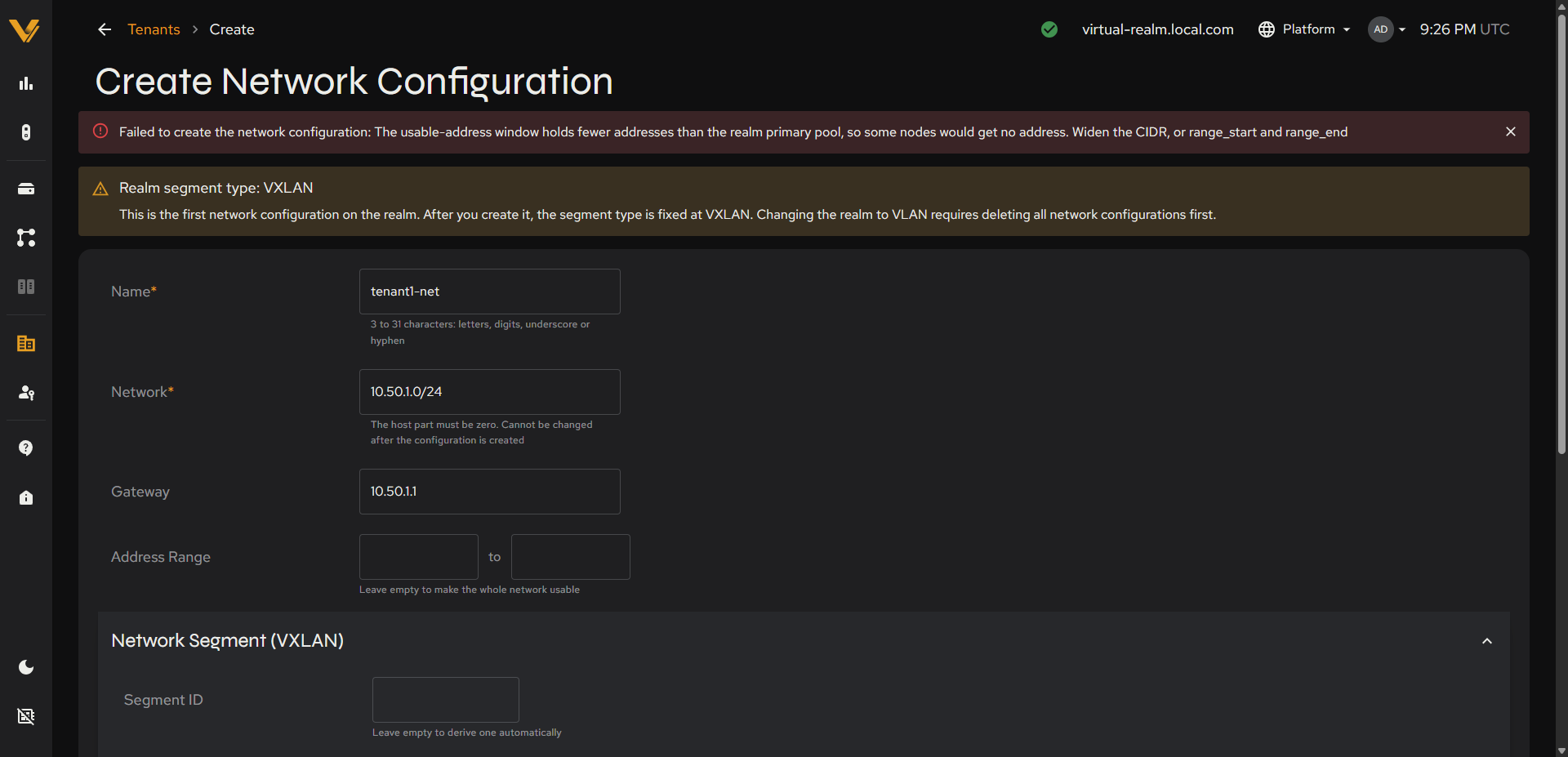 Figure 9.18. The error shown when the network is too small for the realm.
9.3 Create Tenant Page
This page is the form for creating a new tenant.
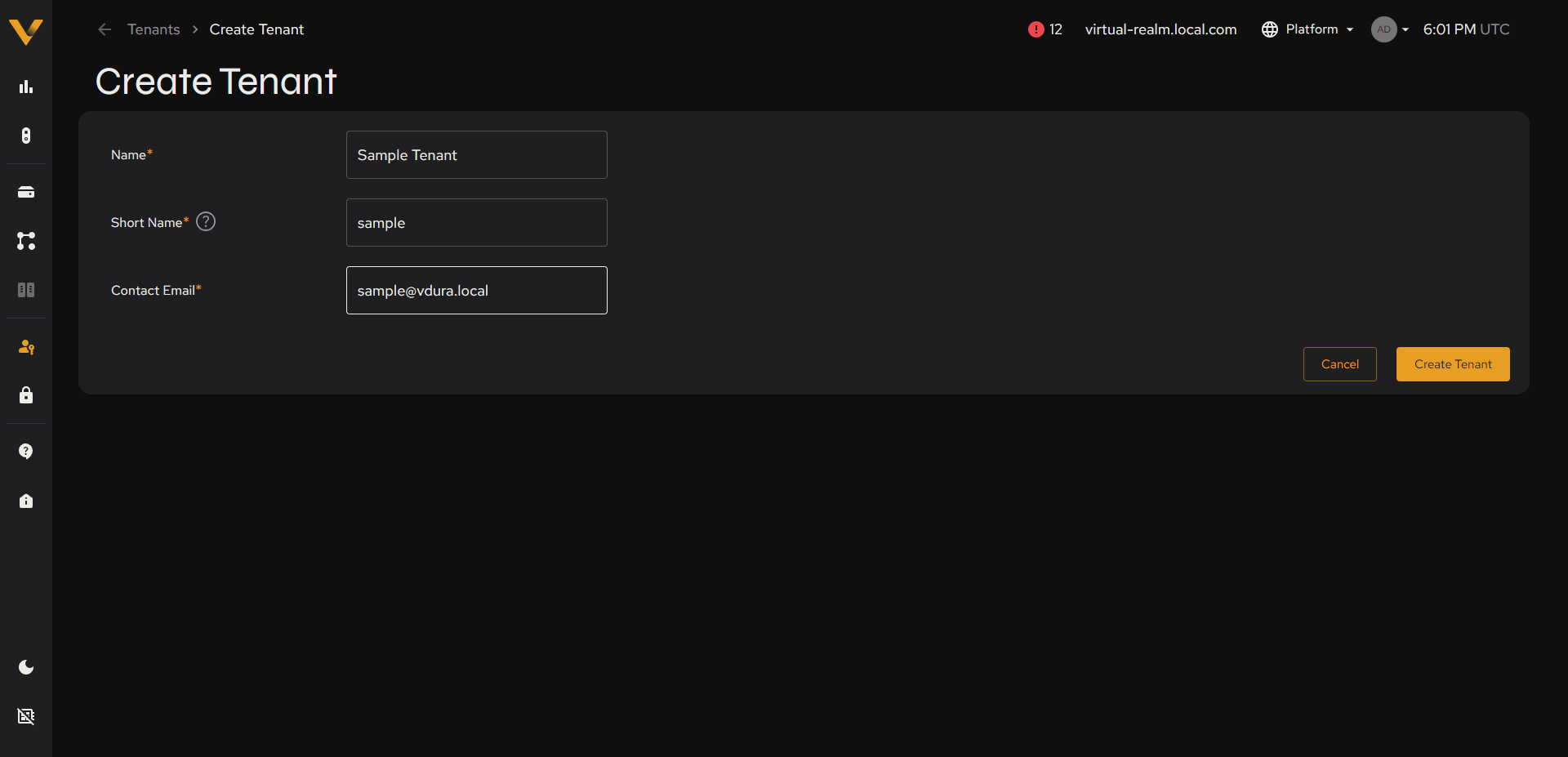 Figure 9.19. The Create Tenant form.
| Field | Notes |
|---|---|
| Name* | Text |
| Short Name* | Text, with a (?) tooltip explaining the naming rule: 3 to 10 lowercase alphanumeric characters. Used for volume mount paths. Cannot be changed after creation. |
| Contact Email* | Contact Email address of tenant. |
Cancel/Create Tenant.
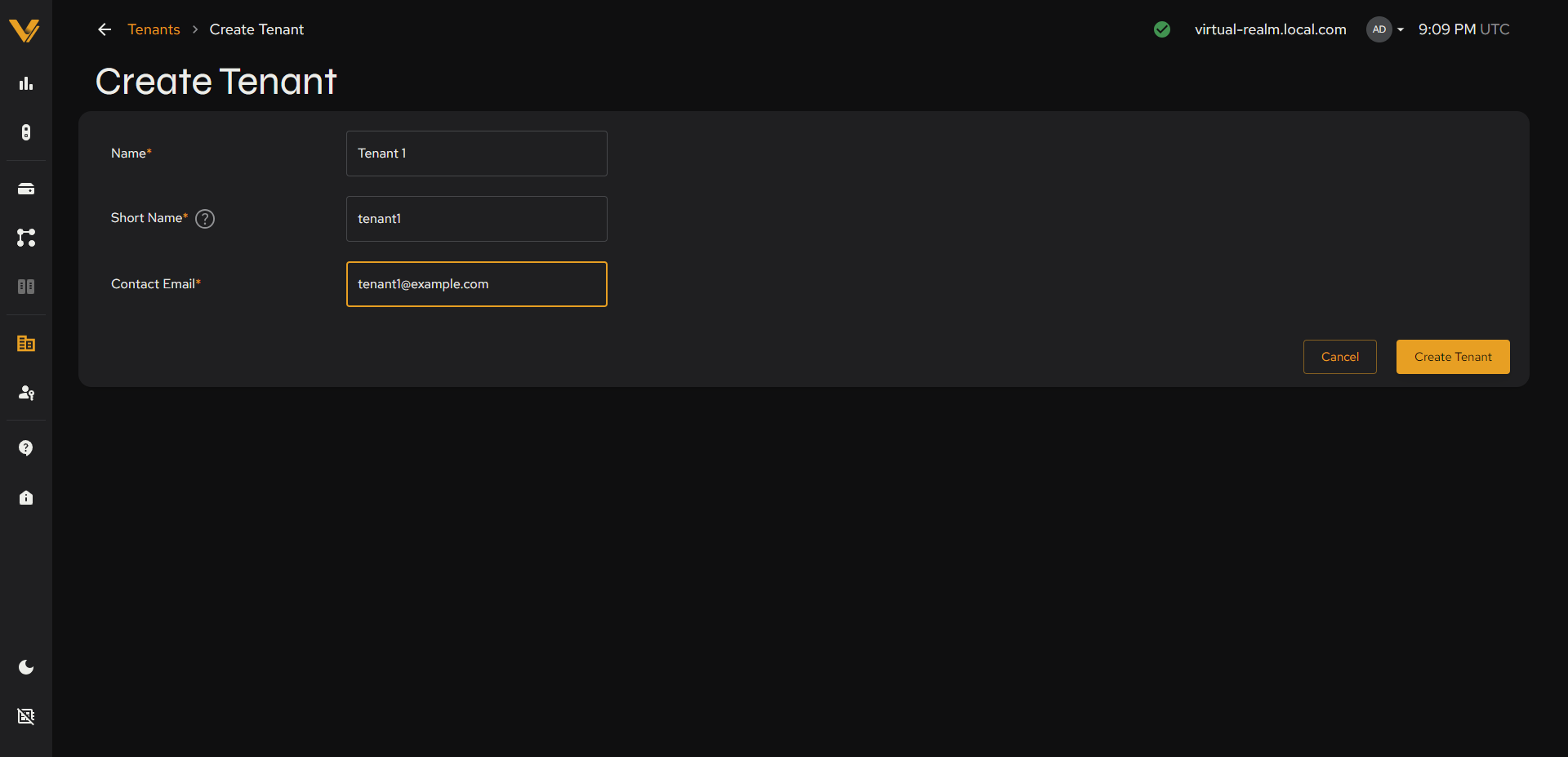 Figure 9.20. The Create Tenant form filled in before submitting.
9.4 Acting as a Tenant (Context Switching)
This control only appears once the realm has more than one tenant. With only the built-in platform tenant present, there is nothing to switch to and the top bar looks exactly as described in 2.3. As soon as a second tenant exists, a new Platform ▾ dropdown appears in the top bar, between the status icon and the user dropdown menu.
Clicking it opens a menu with the current context (“Platform”) at the top and a “Switch to Tenant” list underneath, one entry per tenant (by short name, e.g. “tenant1”). Selecting a tenant re-scopes the entire session to that tenant, with several visible effects:
| What changes | Platform (admin) context | Inside a tenant |
|---|---|---|
| Top bar | Normal | A banner reading “Acting inside tenant <name> as Platform Admin” appears above the normal top bar, with a Back to Platform button. The Platform dropdown and the status icon are no longer shown. |
| Sidebar | Full: Dashboard, Status Center, File System, Realm Nodes, Hardware, Tenants, Identity & Access | Reduced to only what a tenant would see: Dashboard, Volumes, Get Help, About |
| Volumes list columns | Includes Tenant Name | Tenant Name column dropped (scope is implicit) |
| Create Volume’s Hard Quota | Optional (“leave empty for unlimited”) if the tenant’s own StorageSet quota is Unlimited | Required, with a Max link that fills in the tenant’s remaining quota on that StorageSet |
| StorageSet Placement dropdown label | Shows the StorageSet’s plain name (e.g. “Set 1”) | Shows the StorageSet name labeled with the tenant’s own quota (e.g. “Set 1 100.00 GB”) rather than the StorageSet’s full capacity |
Click Back to Platform (in the banner) to return to the full administrative view; your platform-admin session is unaffected by having visited a tenant’s context.
Inside a tenant, the Dashboard shows only what the tenant owns: a Volumes status tile, a Total Capacity card (Used, Available, and Unprovisioned capacity, with a usage bar against the tenant’s quota for each StorageSet), the Alerts panel, and a bottom panel with Audit Log and Events tabs.
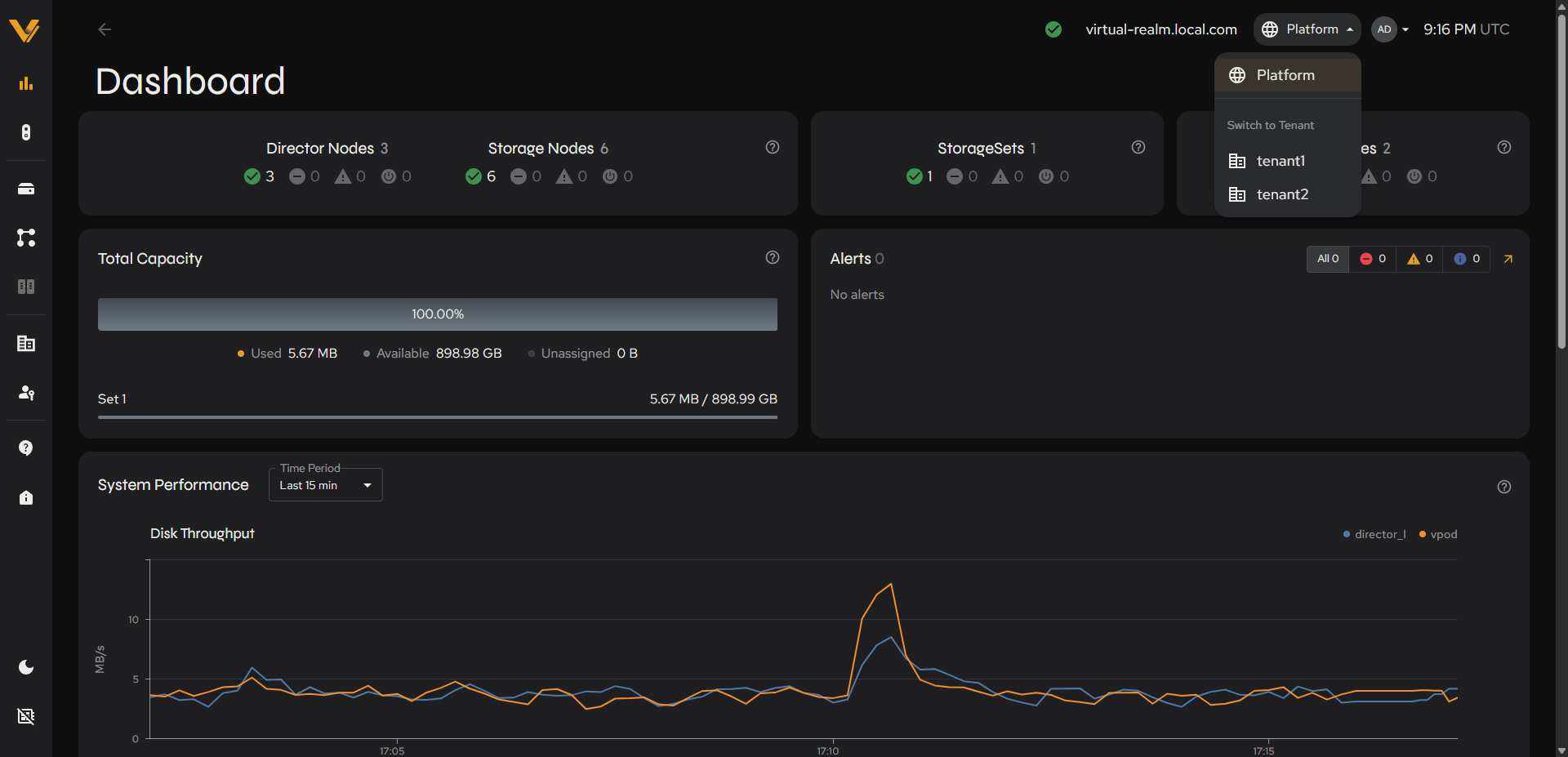 Figure 9.21. The Platform ▾ dropdown open, showing Platform plus a Switch to Tenant list.
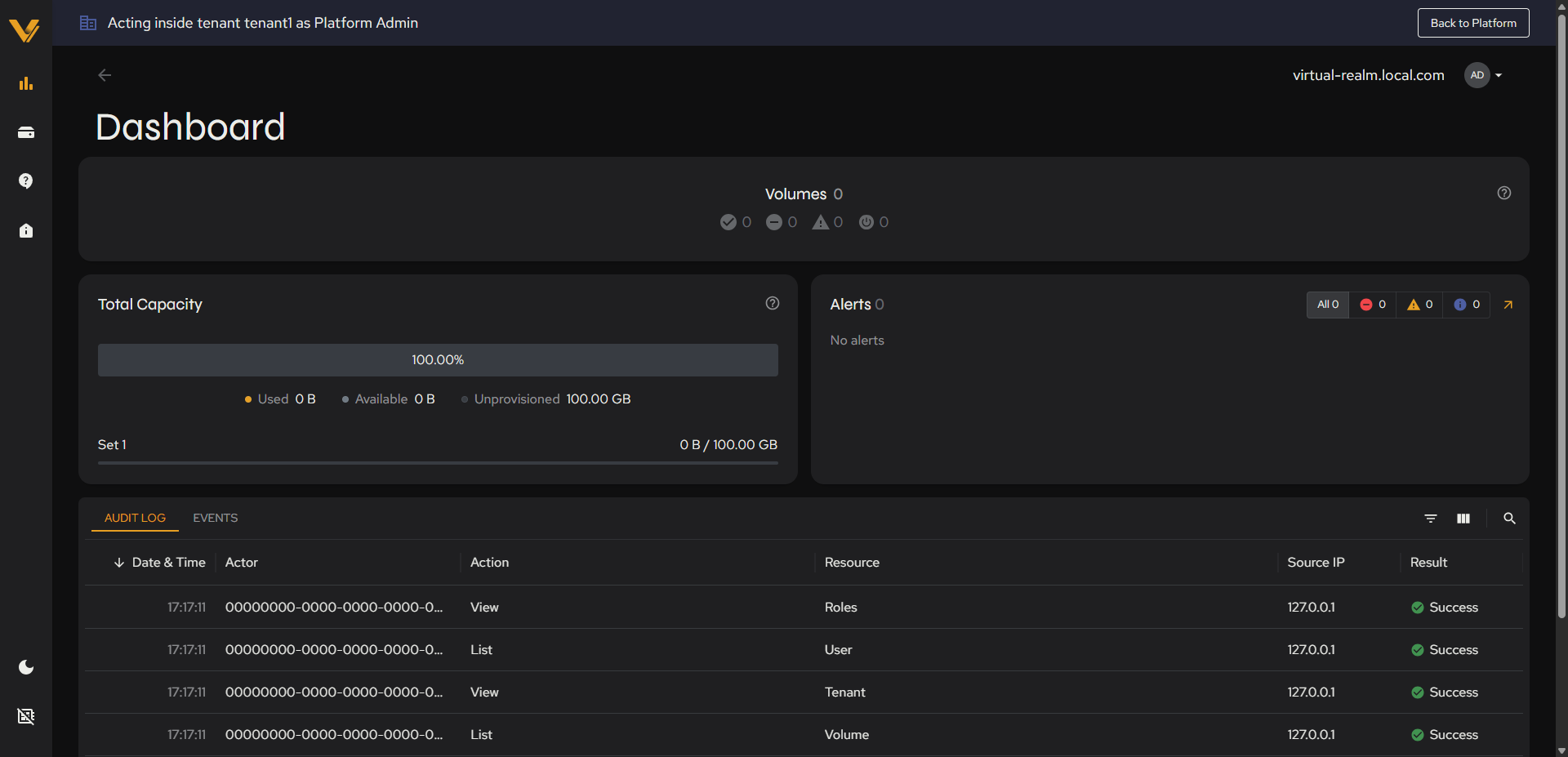 Figure 9.22. The Acting inside tenant
 <name> as Platform Admin banner and reduced sidebar.
Inside a tenant’s context, Create Volume shows its tenant-scoped variant: StorageSet Placement lists only the StorageSet(s) available to this tenant, labeled with the tenant’s own quota rather than the StorageSet’s full capacity, and Hard Quota is required with a Max link that fills in the tenant’s full remaining allowance in one click.
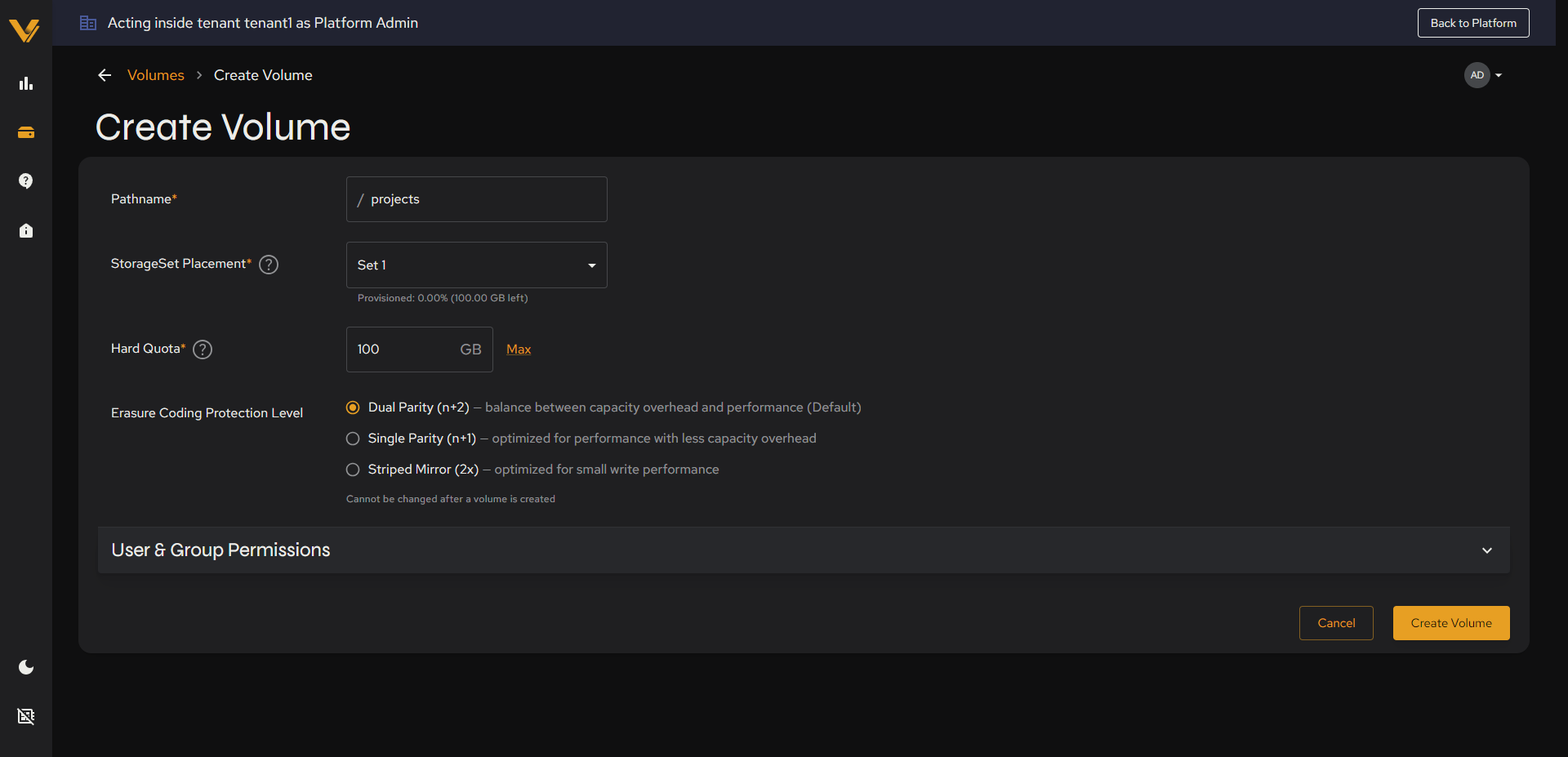 Figure 9.23. Create Volume while acting inside a tenant: required Hard Quota with the Max link, StorageSet labeled with its quota.
A tenant must also be Active, with a network configuration (see 9.2.4), before its volumes can be reached. If you click Create Volume for a tenant that does not, Vantage shows an error banner reading “The tenant holds no issued subnet address, so a volume created for it could not be reached. Create a subnet for the tenant and let one of its nodes report an address into it first”, and the volume is not created.
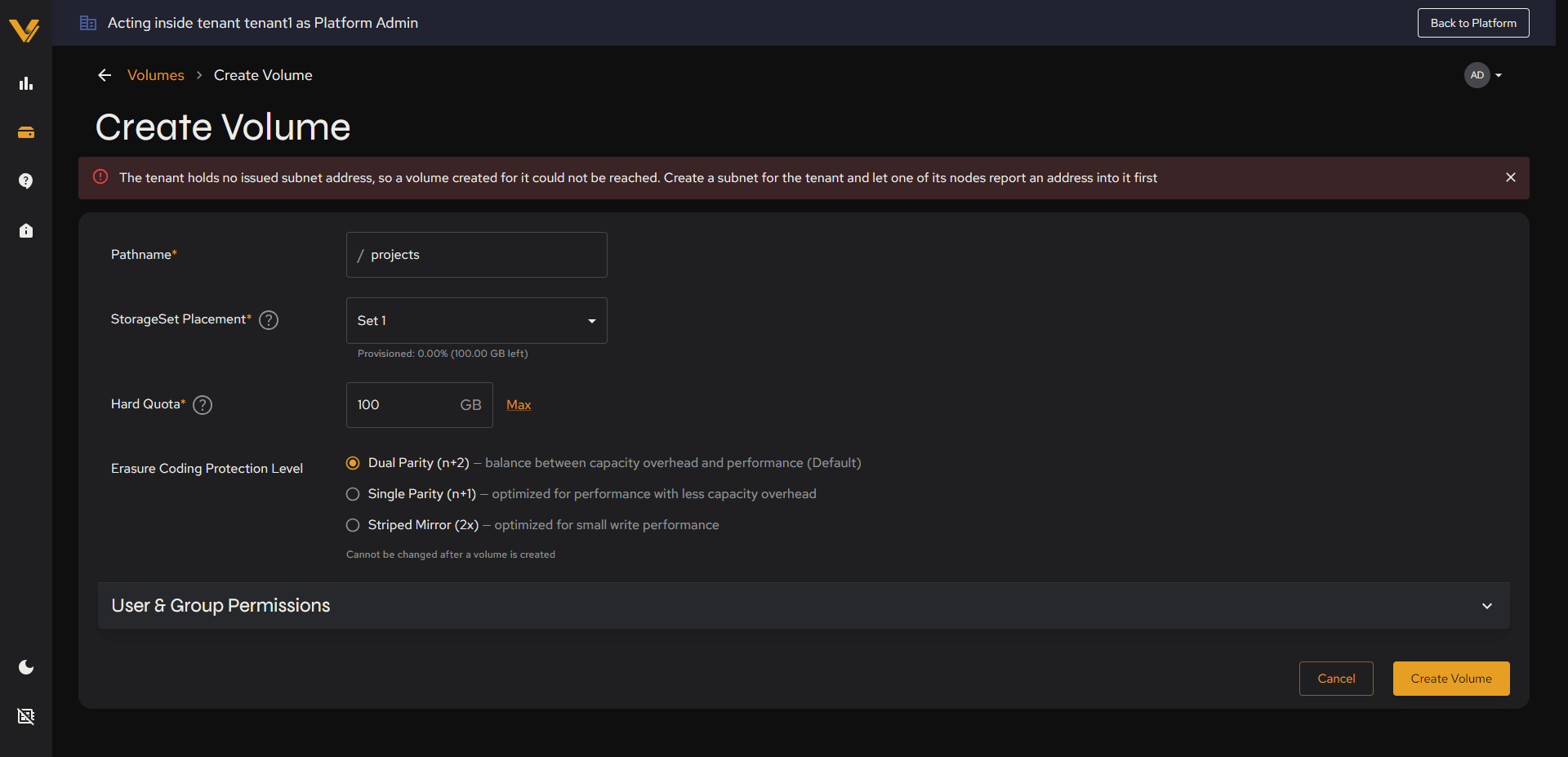 Figure 9.24. The Create Volume error for a tenant with no network configuration.
Volume detail pages also depend on the context. Inside a tenant, a volume’s page shows a simpler layout: a Storage Details card (StorageSet, Status, Provisioned), a Data Protection card (Erasure Coding Protection Level, EFSA Mode), the Soft Quota and Hard Quota tiles, and an Available Capacity card (Used, Available, and the Hard Quota).
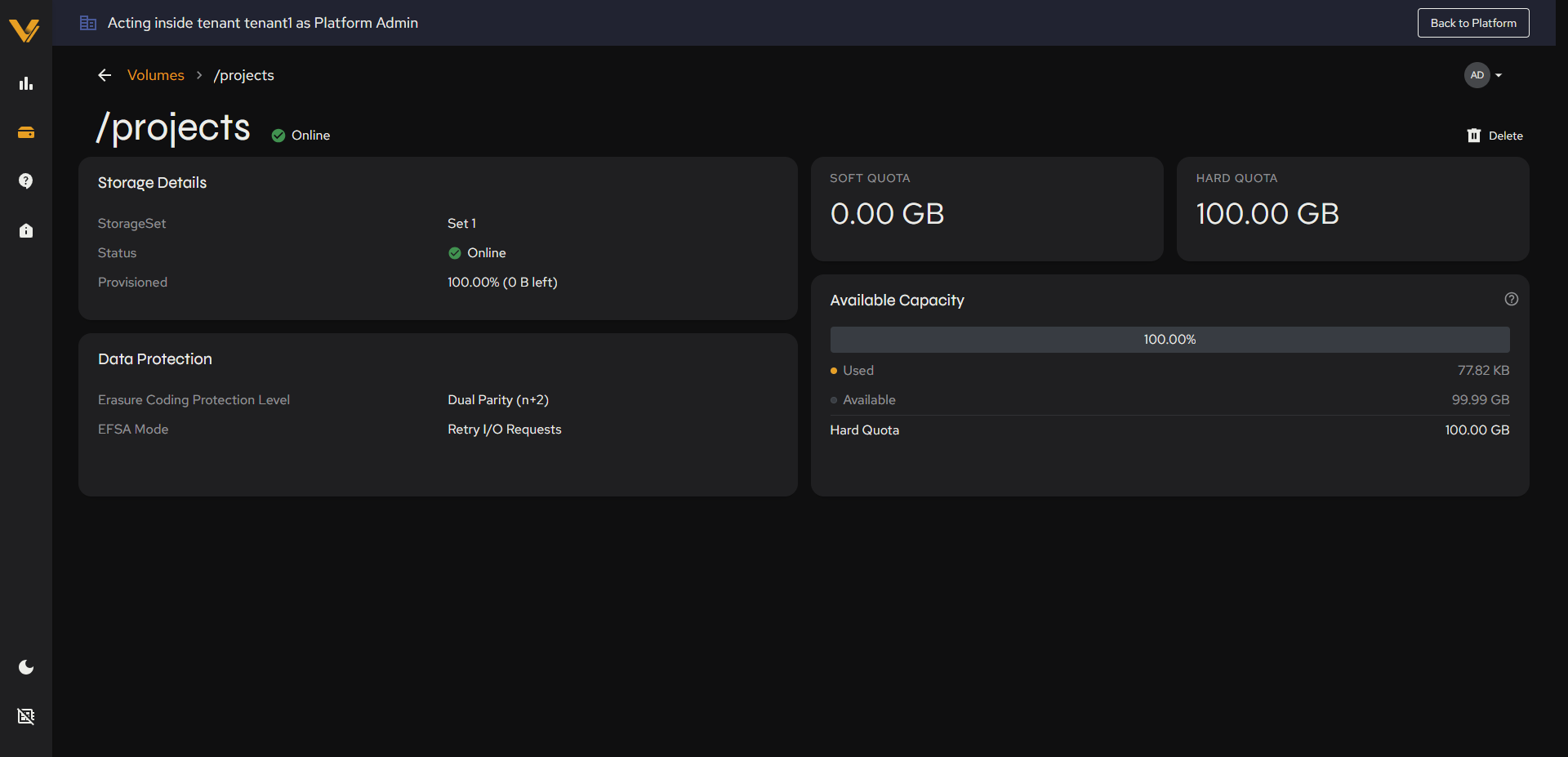 Figure 9.25. A volume’s detail page while acting inside its tenant.
From the Platform context, you can open any tenant’s volume to look at it (from the realm-wide Volumes list, see 6.3.1), but not change it. The page shows a banner reading “This volume belongs to another tenant. Switch to”<name>” tenant to edit or delete it.” and the Delete action is not offered. Switch into the owning tenant to edit or delete the volume.
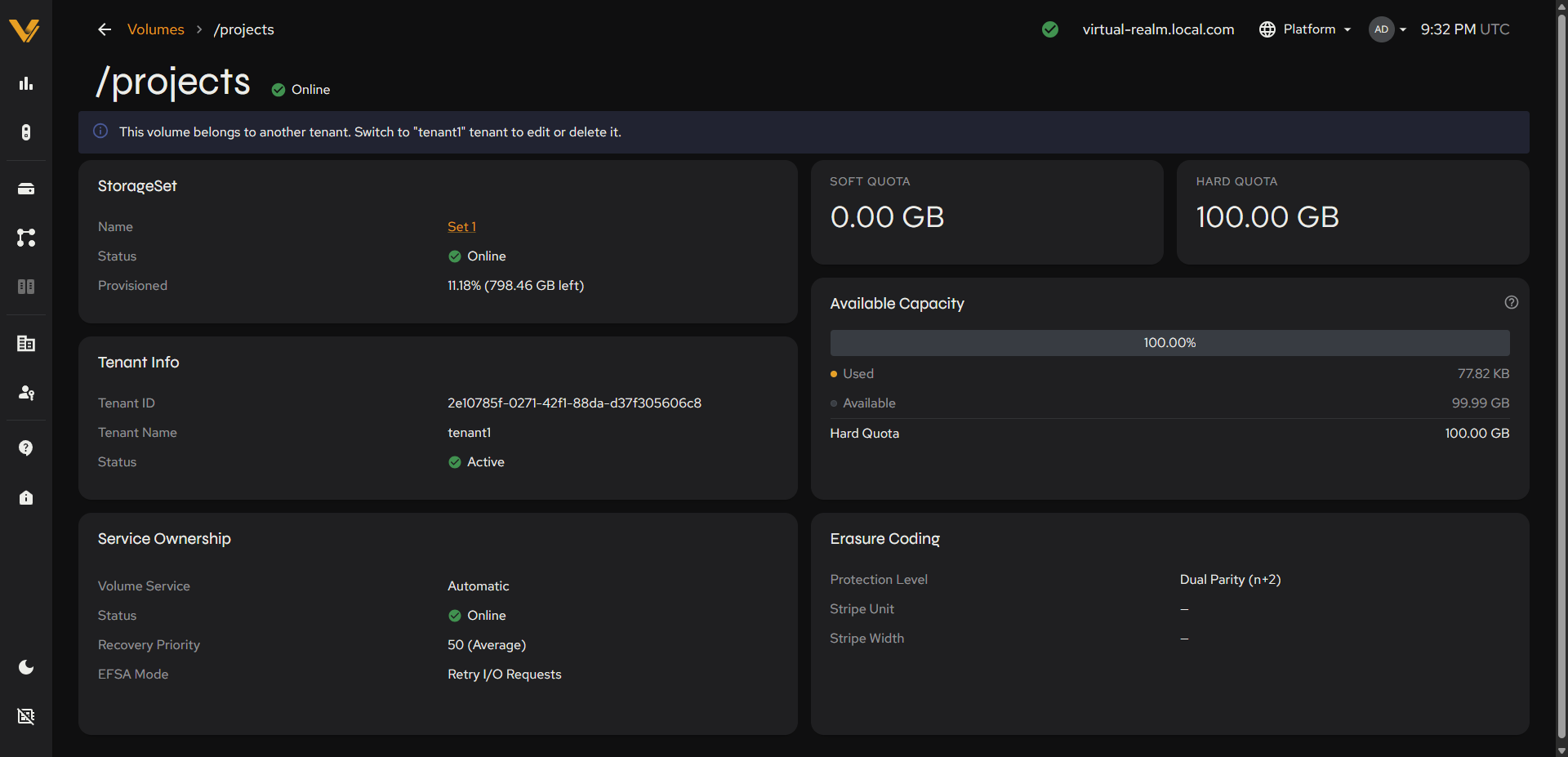 Figure 9.26. A tenant’s volume opened from the Platform context, with the belongs-to-another-tenant banner.
9.4.1 Give a Tenant Its Own Isolated Storage
- Create a StorageSet (see 6.1.6) if one doesn’t already exist as an empty shell; decide spare-VPOD reservation and Multi-Level Erasure Coding up front, since neither can be loosened or changed the same way later.
- Add Storage to it (see 6.1.4): requires unassigned realm nodes. Expect transient alert noise while VPODs activate; it clears on its own within a minute or two.
- For the built-in platform tenant, stop here:
/and/homevolumes appear automatically. For any other tenant, create the tenant (see 9.3), assign it a StorageSet with a Hard Quota (see 9.5.2), and create a network configuration for it (see 9.2.4) before it can hold any volumes. - Wait until the tenant’s status is Active (see 9.2.2); a tenant cannot hold volumes before then. Then switch into that tenant’s context (see 9.4) and create a volume (see 6.3.4); Hard Quota is required here, and the Max link is the fastest way to use the tenant’s full allowance.
9.5 Creating and Managing Tenants
Use Vantage to create a new tenant when you need to isolate storage and volumes for a project, team, or customer.
9.5.1 Create a Tenant
- Click + Create Tenant on the Tenants list page (see 9.1).
- Enter a Name and Short Name for the tenant; the Short Name is immutable once the tenant is created.
- Enter a Contact Email.
- Click Create Tenant (see 9.3). The new tenant starts with no StorageSets assigned and no network configuration, shows
Setup Incomplete, and must be given both before it can hold any volumes (see 9.2.2). If the realm serves its clients over InfiniBand, the realm refuses to create the tenant. See the Note at the start of this chapter.
9.5.2 Assign a StorageSet to a Tenant
- Open the tenant’s detail page (see 9.2).
- Click + Add StorageSet.
- Select a StorageSet from the Name dropdown, which lists every StorageSet in the realm along with its total capacity.
- Enter a Hard Quota. A helper line shows how much of the StorageSet’s capacity is still unprovisioned.
- Click Add StorageSet.
9.5.3 Modify a Tenant’s StorageSet Assignment
- To change the quota: click the pencil icon on the StorageSet’s row in the StorageSets table.
- To remove the assignment: click the trash icon on the StorageSet’s row in the StorageSets table.
9.5.4 Modify a Tenant
- To rename it: click the tenant’s name, enter the new name, and click Save.
- To add or change its description: click the Description card’s placeholder text, enter a description, and click Save.
To act on behalf of a tenant, see 9.4.
9.5.5 Delete a Tenant
- If the tenant has a network configuration, open its Networking tab and delete the configuration first (see 9.2.3); a tenant that still owns one cannot be deleted. Delete the tenant’s volumes as well: switch into the tenant’s context (see 9.4), delete each volume (see 6.4.2), then switch back to the Platform context.
- Open the tenant’s detail page (see 9.2).
- Click 🗑 Delete Tenant (see 9.2.1).
- Click Yes, Delete Tenant in the confirmation prompt.
9.5.6 Create a Network Configuration for a Tenant
- Open the tenant’s detail page (see 9.2) and select the Networking tab (see 9.2.3).
- Click Create Configuration.
- Enter a Name and the Network in CIDR notation. Optionally enter a Gateway and an Address Range.
- Optionally expand Network Segment and Advanced to set the Segment ID, Tunnel UDP Port, MTU, and Address Allocation. Leave them empty to accept the defaults.
- Click Create Network Configuration (see 9.2.4). The network, the segment settings, and the address allocation mode cannot be changed afterward. If Vantage reports that the usable-address window holds fewer addresses than the realm primary pool, widen the Network or the Address Range and try again.
- Wait for the tenant’s status to change from Setup Incomplete to Finishing Setup… to Active (see 9.2.2). Once it is Active, you can create volumes for it.