
10. Identity and Access
Identity and Access groups the two kinds of accounts that can authenticate to the realm: Users, who sign in to Vantage with a username and password, and Service Accounts, which let scripts and integrations authenticate with API tokens. Both are reached from the Identity & Access item in the sidebar (see 2.3), and both are assigned the same roles.
A user is an account for signing in to Vantage, panctl, and PanAPI. It does not give access to PanFS data. Its main use is to replace the default admin account: create a dedicated user and give it full or limited permissions. Users exist only in the Platform area. Tenant-level users are not supported in this release, because a tenant has no sign-in of its own; the only way into a tenant is the tenant switcher (see 9.4).
10.1 Users List Page
This page lists every user in the realm. The top-right contains a + Create User button; the table toolbar has filter/column/search icons.
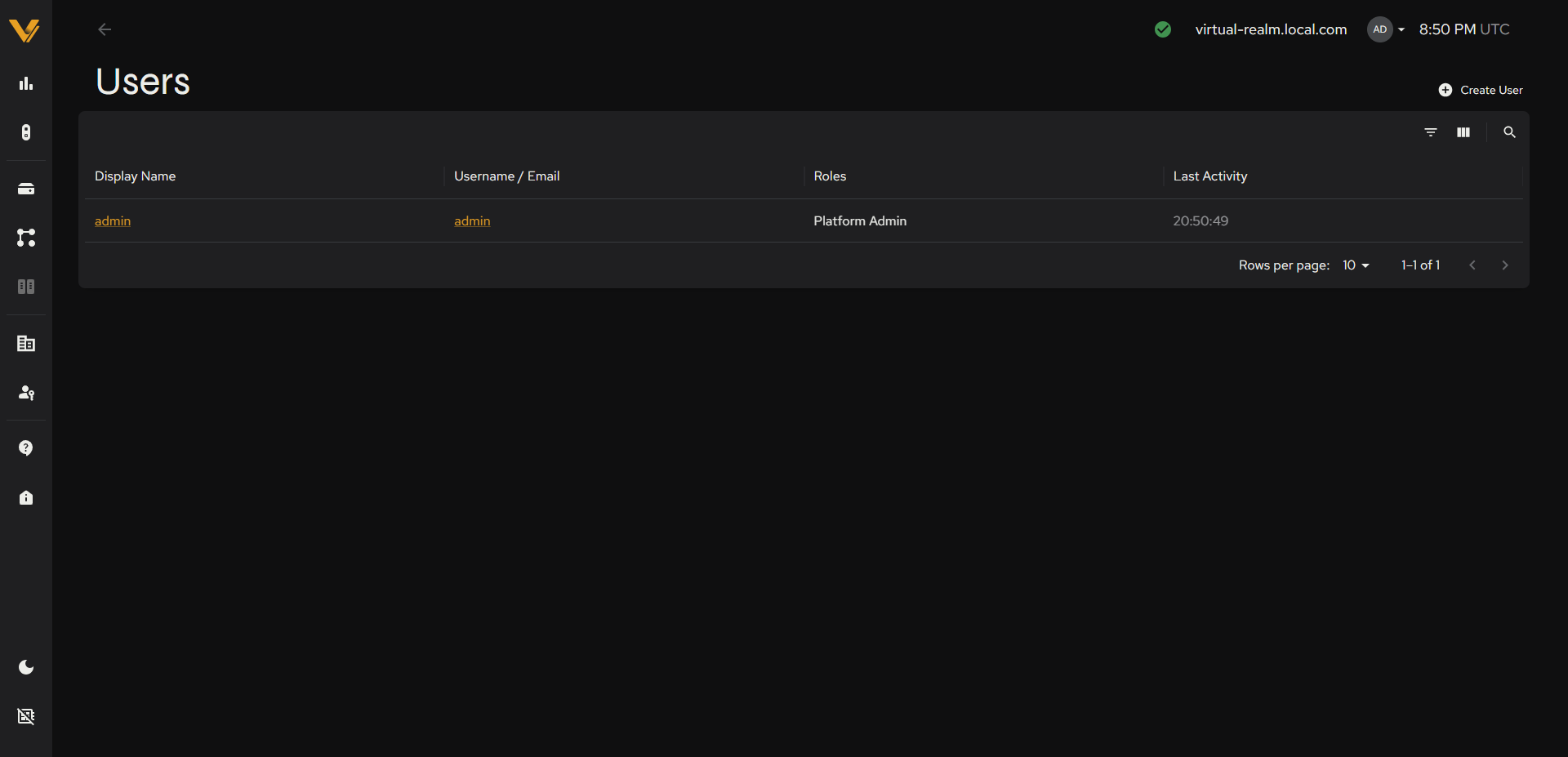 Figure 10.1. The Users table.
| Column | Description |
|---|---|
| Display Name | Link to user detail |
| Username/Email | Link to user detail |
| Roles | The role names assigned to the user, e.g. “Platform Admin” |
| Last Activity | Timestamp of the user’s most recent activity |
10.2 User Detail Page
This page shows full details for a single user. The header shows the username, and the top-right contains the Reset Password and Delete User actions.
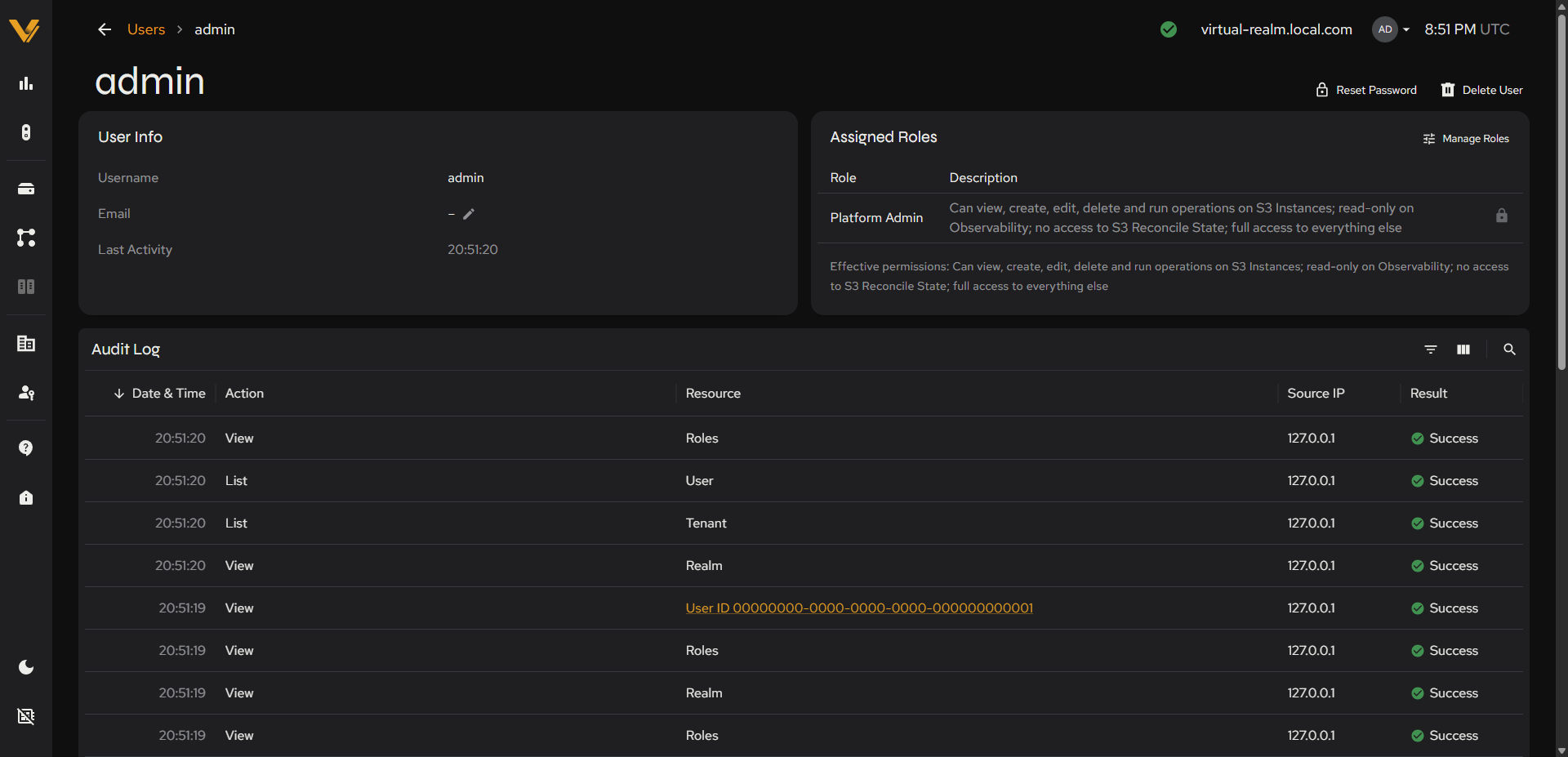 Figure 10.2. Full user detail page (User Info/Assigned Roles/Audit Log).
| Card | Fields |
|---|---|
| User Info | Username, Email (with a pencil icon that opens the Edit Email modal), Last Activity |
| Assigned Roles | Table of Role + Description, plus a Manage Roles action. An “Effective permissions” line beneath the table summarizes what the user’s roles allow together. A role shown with a lock icon is required and cannot be removed (for example, Platform Admin on the built-in admin account). |
The Audit Log panel has the same toolbar pattern as Status Center scoped to this user’s own activity.
| Column | Description |
|---|---|
| Date & Time (UTC) | Sortable |
| Action | e.g. “View”, “List” |
| Resource | e.g. “User” or a linked ID |
| Source IP | The IP address the action originated from |
| Result | e.g. “Success” |
10.2.1 Edit Email Modal
This modal changes a user’s contact email. It opens when you click the pencil icon beside the Email field in the User Info card, and is titled “Edit Email for <username>”. It contains a single Email field (described as the contact email for this user), with Cancel and Save buttons.
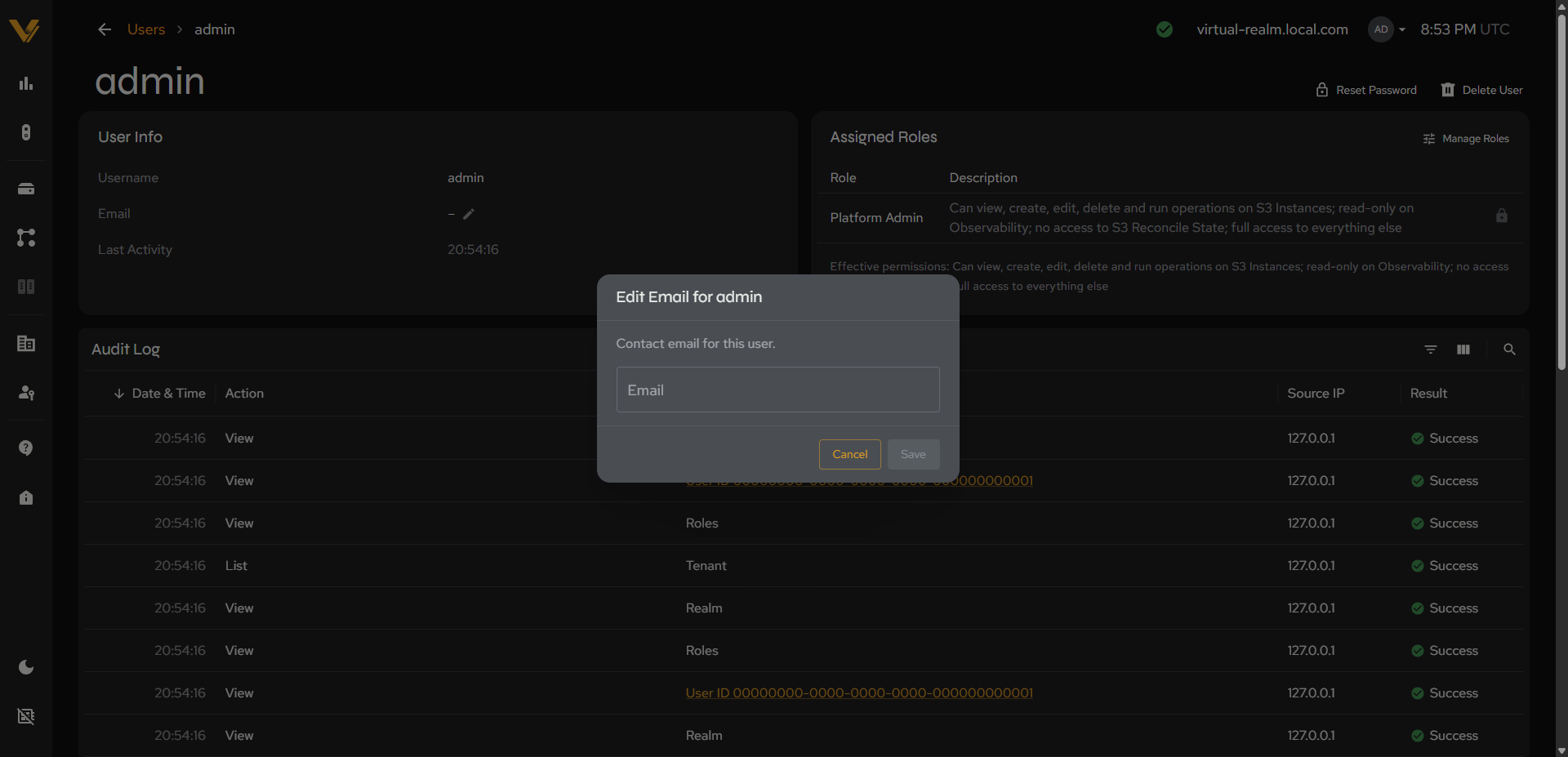 Figure 10.3. The Edit Email modal.
10.2.2 Reset Password Modal
This modal resets a user’s password.
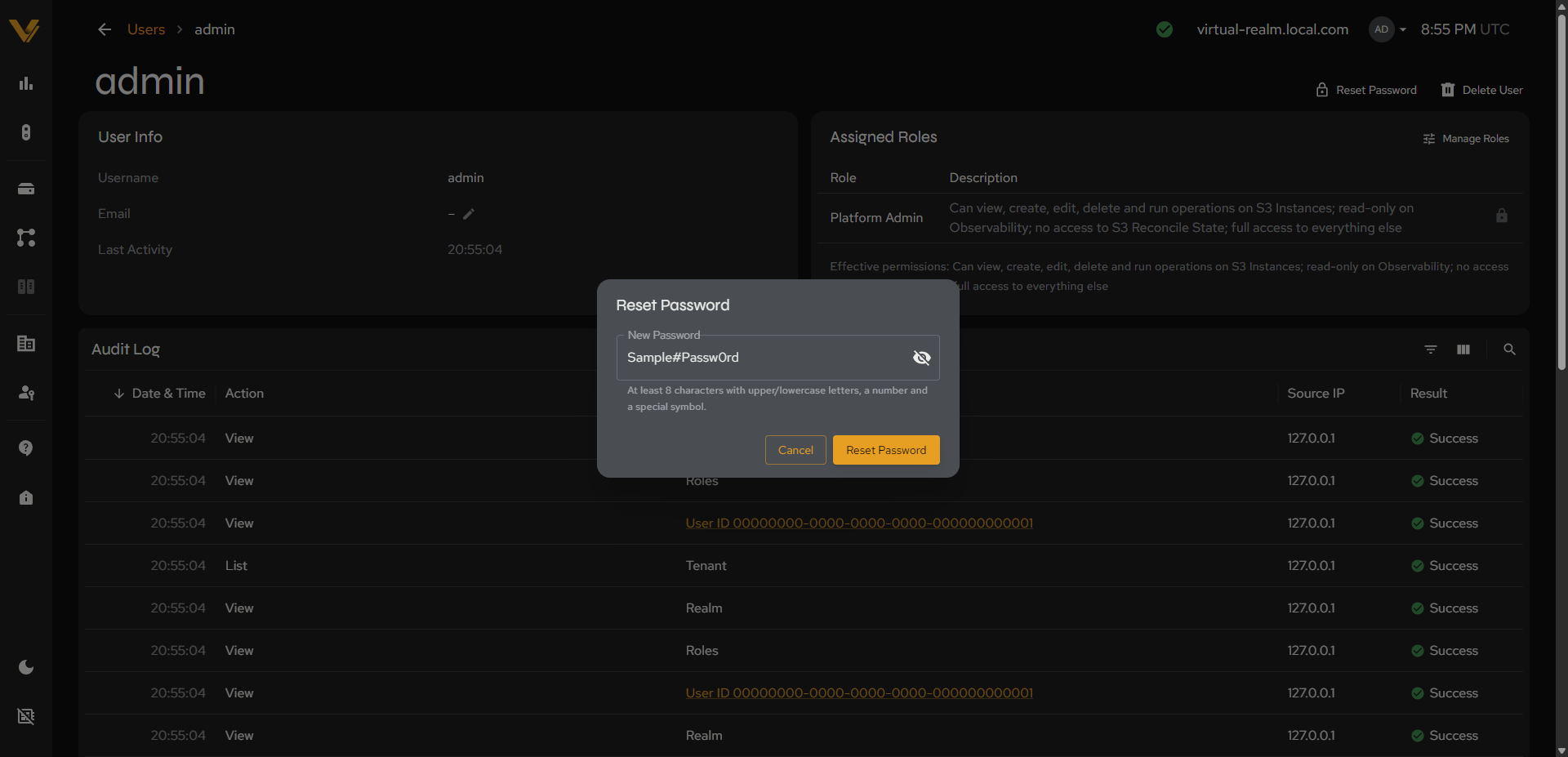 Figure 10.4. The Reset Password modal, with the password field’s show/hide toggled on.
| Field | Notes |
|---|---|
| New Password* | Required, hidden with a show/hide toggle. A hint beneath the field reads “At least 8 characters with upper/lowercase letters, a number and a special symbol.” |
Cancel/Reset Password.
10.2.3 Manage Roles Modal
This modal changes the roles assigned to a user. It opens when you click Manage Roles in the Assigned Roles card.
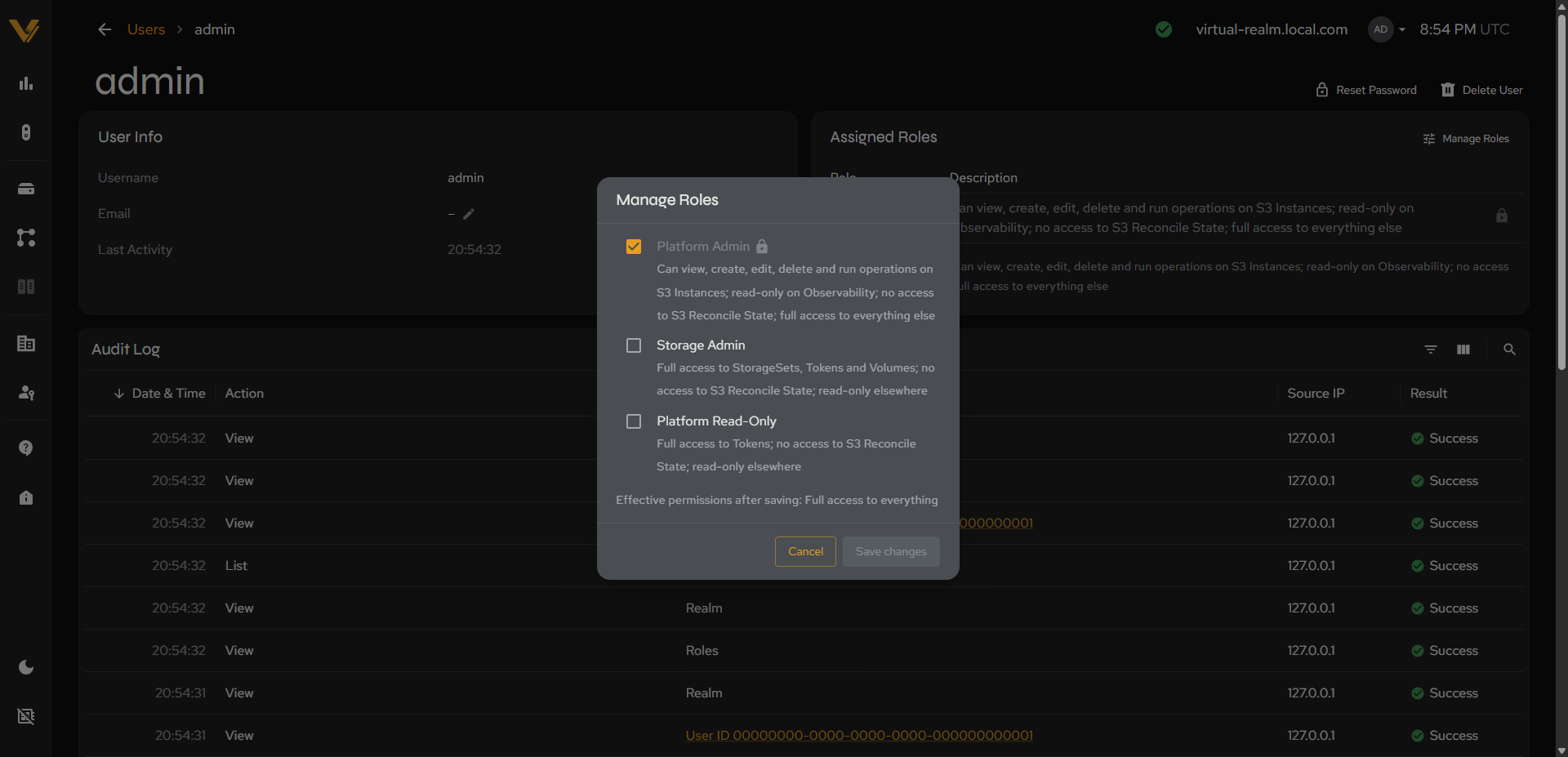 Figure 10.5. The Manage Roles modal for a user.
It lists every assignable role as a checkbox, each with a plain-language description of what the role allows. Roles the user already holds are checked. A line at the bottom, “Effective permissions after saving”, updates as you check and uncheck roles. Click Save changes to apply or Cancel to discard.
| Role | Description |
|---|---|
| Platform Admin | Can view, create, edit, delete and run operations on S3 Instances (see 14); read-only on Observability and Observability Realm; no access to S3 Reconcile State; full access to everything else. The checkbox is locked (checked and unchangeable) on the built-in admin account. |
| Storage Admin | Full access to StorageSets, Tokens and Volumes; no access to S3 Reconcile State; read-only elsewhere. |
| Platform Read-Only | Full access to Tokens; no access to S3 Reconcile State; read-only elsewhere. |
The roles listed here apply across the platform; there are no tenant-scoped roles. Users exist only in the Platform area; tenant-level users are not supported in this release.
10.2.4 Delete User Confirmation
This modal confirms deletion of a user. It reads, for example, “Are you sure you want to delete user”admin”? This action cannot be undone.”
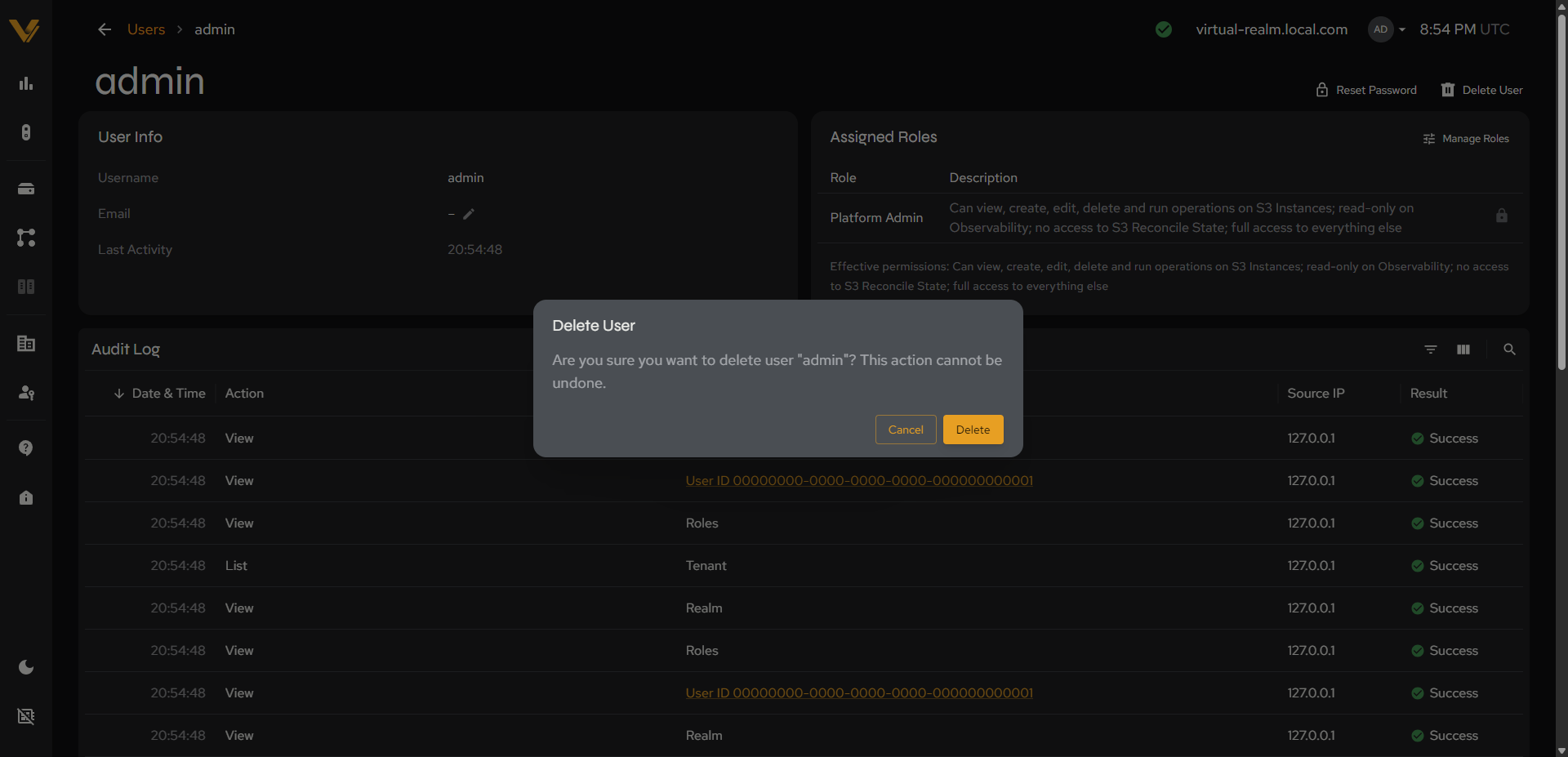 Figure 10.6. The delete confirmation modal.
10.3 Create User Page
This page is the form for creating a new user:
| Field | Notes |
|---|---|
| Display Name | Optional text |
| Username* | Required text |
| Email* | Required text |
| Password* | Required, hidden with a show/hide toggle. A hint beneath the field reads “At least 8 characters with upper/lowercase letters, a number and a special symbol.” |
| Confirm Password* | Required, hidden with a show/hide toggle |
| Roles | A checkbox table (Role, Description) with a select-all checkbox in the header. The offered roles are Platform Admin, Storage Admin, and Platform Read-Only (see 10.2.3). Users inherit permissions from every selected role. |
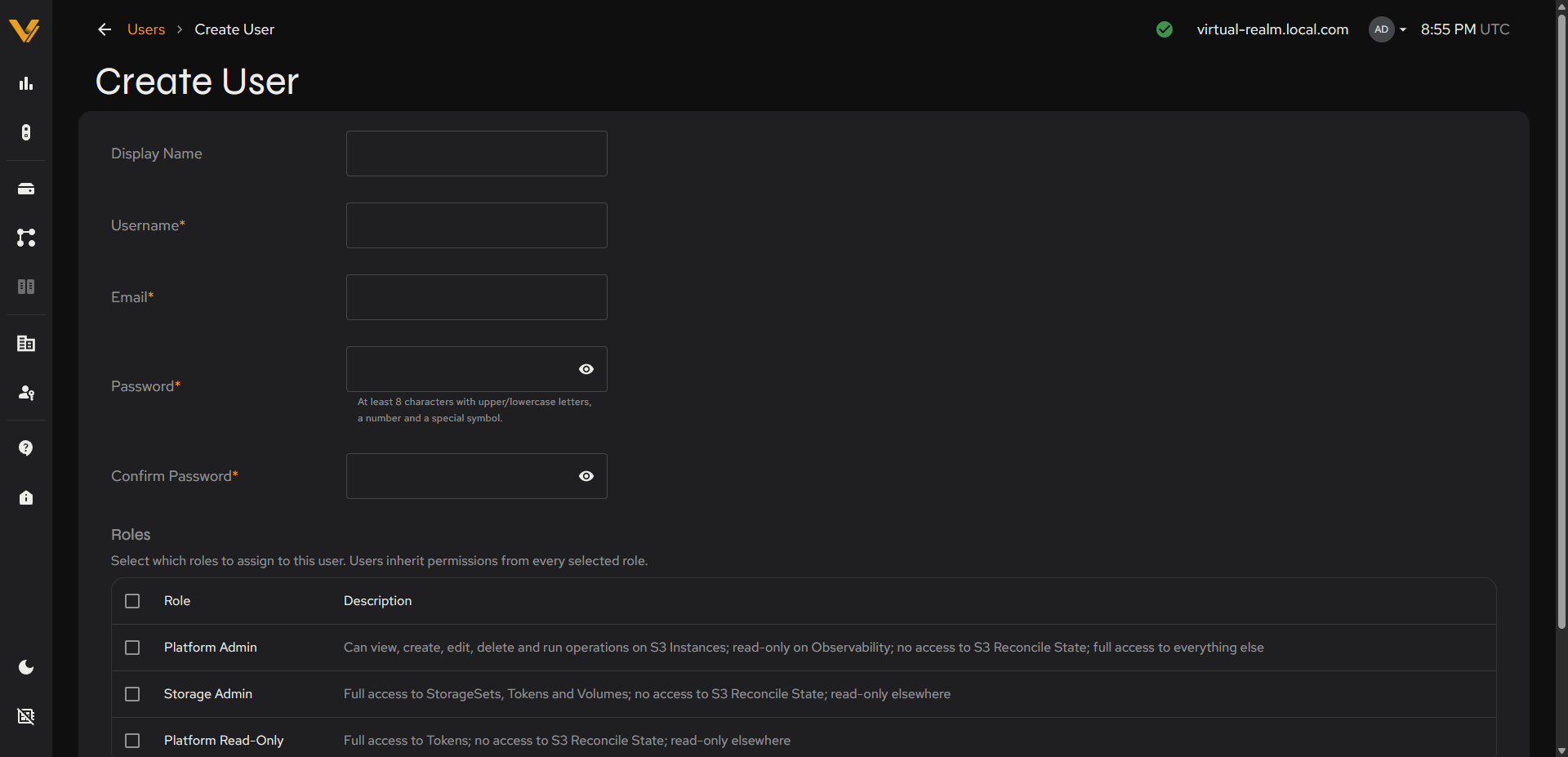 Figure 10.7. The full Create User form, including the Roles checkbox table.
10.4 Creating and Managing Users
Use Vantage to create new realm admin and observer users and manage their roles.
10.4.1 Create a User
- Click + Create User on the Users list page (see 10.1).
- Enter a Username and Email; a Display Name is optional.
- Enter a Password and confirm it. Passwords require at least 8 characters with upper/lowercase letters, a number, and a special symbol.
- Select one or more Roles to assign to the user. Users inherit permissions from every selected role.
- Click Create User (see 10.3).
10.4.2 Change a User’s Email
- Open the user’s detail page (see 10.2).
- Click the pencil icon beside Email in the User Info card (see 10.2.1).
- Enter the new Email and click Save.
10.4.3 Reset a User’s Password
- Open the user’s detail page (see 10.2).
- Click Reset Password (see 10.2.2).
- Enter a New Password meeting the same complexity requirement, then click Reset Password.
10.4.4 Change a User’s Roles
- Open the user’s detail page (see 10.2).
- Click Manage Roles in the Assigned Roles card (see 10.2.3).
- Check the roles the user should hold and uncheck any they should not. The “Effective permissions after saving” line shows the combined result.
- Click Save changes.
10.4.5 Delete a User
- Open the user’s detail page (see 10.2).
- Click Delete User (see 10.2.4).
- Click Delete in the confirmation prompt.
10.5 Service Accounts List Page
A service account is a non-human identity for scripts and integrations. It has no password; it authenticates by presenting an API token (see 10.6.1), and it can do only what its assigned roles allow. This page lists every service account in the realm. The top-right contains a + Create Service Account button; the table toolbar has filter and search icons.
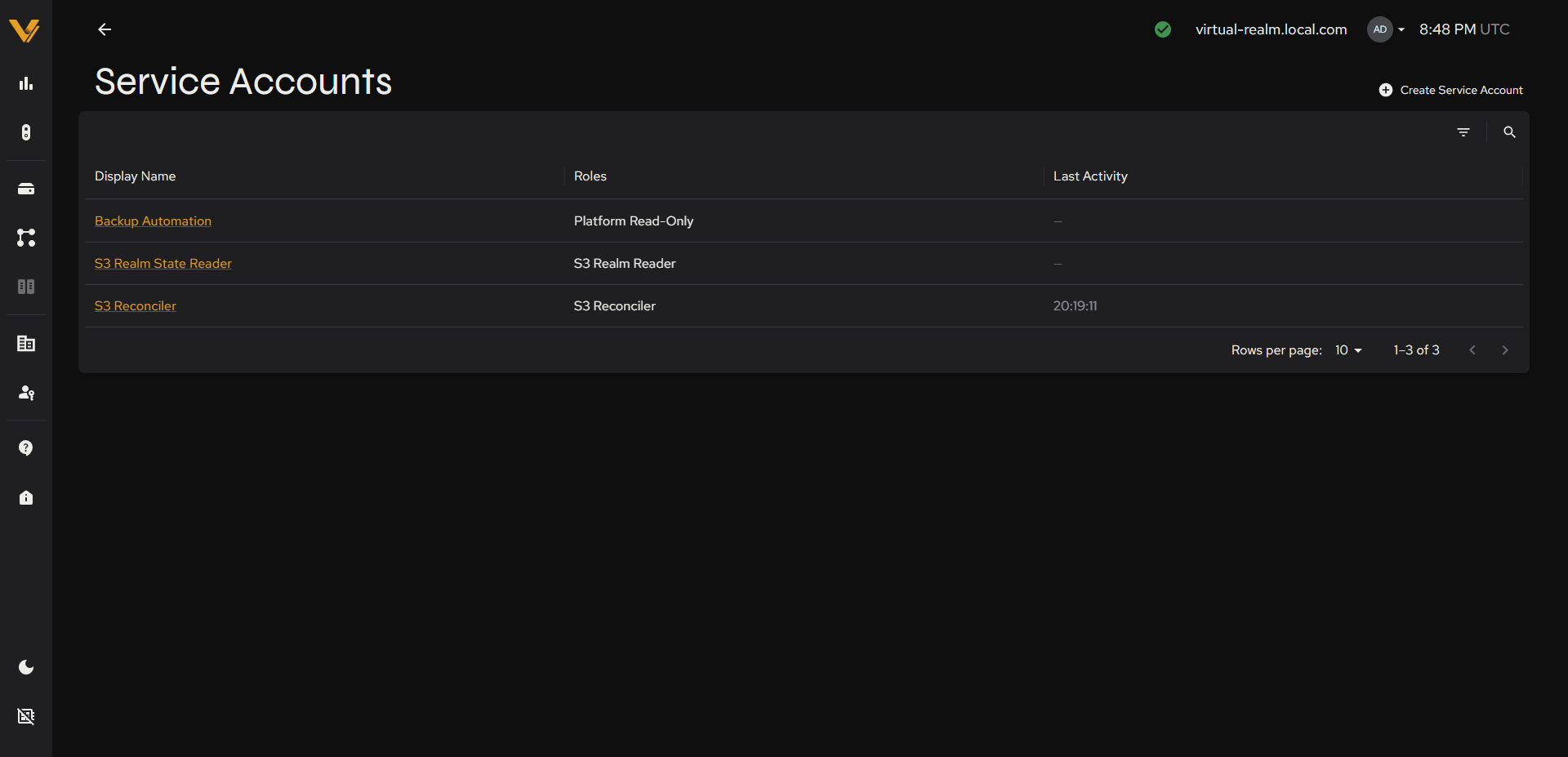 Figure 10.8. The Service Accounts table.
| Column | Description |
|---|---|
| Display Name | Link to service account detail |
| Roles | The role names assigned to the service account |
| Last Activity | Timestamp of the service account’s most recent activity or “-” if it has never been used |
The realm includes built-in service accounts used by VDURA services (for example, “S3 Reconciler” and “S3 Realm State Reader”). These carry system roles that are not offered for any account you create. For S3, see 14.
10.6 Service Account Detail Page
This page shows full details for a single service account. The header shows the display name, and the top-right contains the Issue Token and Delete actions. The page has two tabs, Overview and API Tokens.
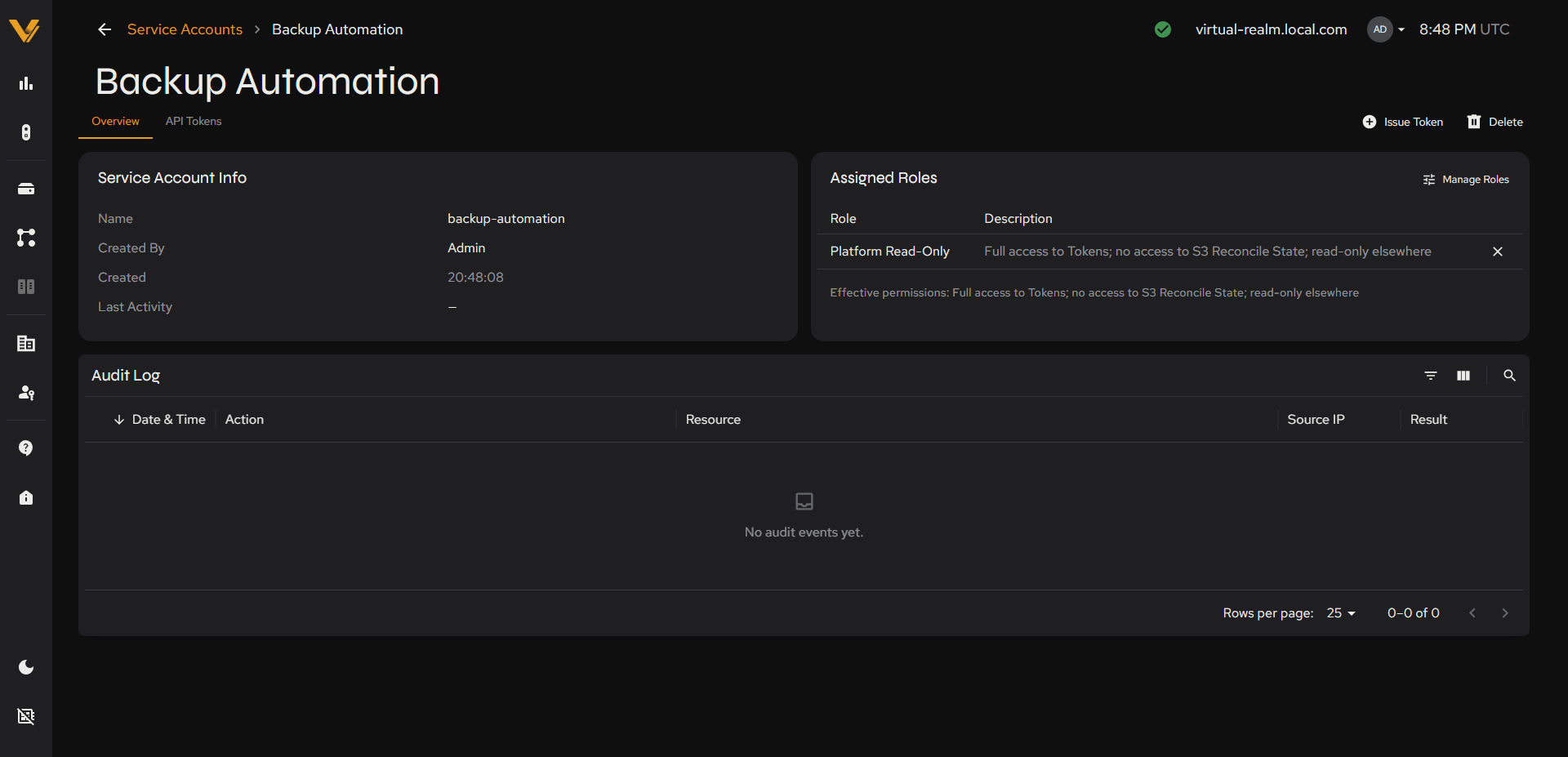 Figure 10.9. Service account detail page, Overview tab (Service Account Info/Assigned Roles/Audit Log).
| Card | Fields |
|---|---|
| Service Account Info | Name (the immutable identifier), Created By, Created, Last Activity |
| Assigned Roles | Table of Role + Description, plus a Manage Roles action. An “Effective permissions” line beneath the table summarizes what the account’s roles allow together. |
The Audit Log panel has the same toolbar pattern as Status Center scoped to this service account’s own activity.
| Column | Description |
|---|---|
| Date & Time (UTC) | Sortable |
| Action | e.g. “View”, “List” |
| Resource | The resource acted on or a linked ID |
| Source IP | The IP address the action originated from |
| Result | e.g. “Success” |
10.6.1 API Tokens Tab
This tab lists the API tokens issued to the service account. Until a token is issued it shows an empty state.
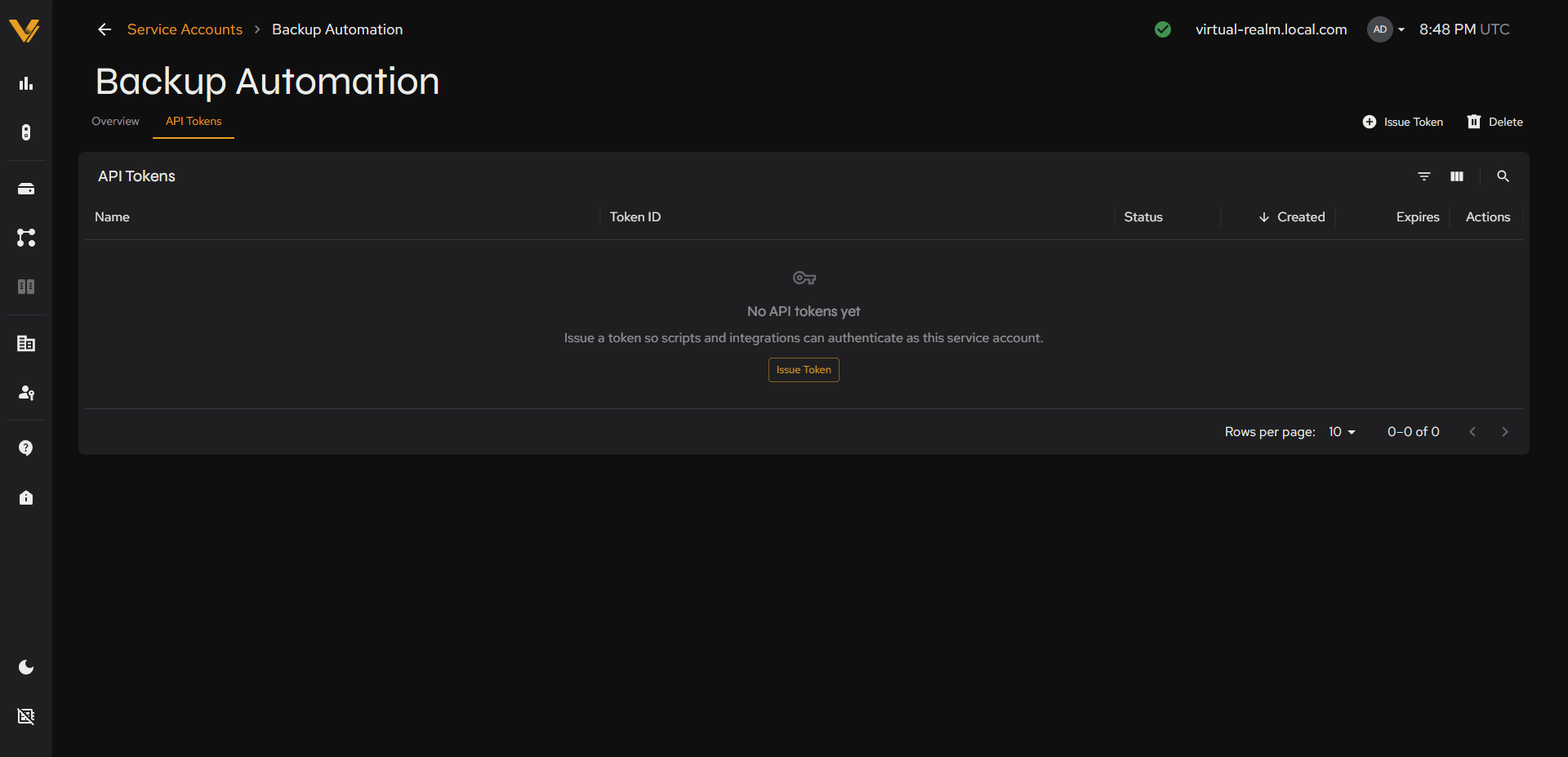 Figure 10.10. The API Tokens tab with no tokens issued.
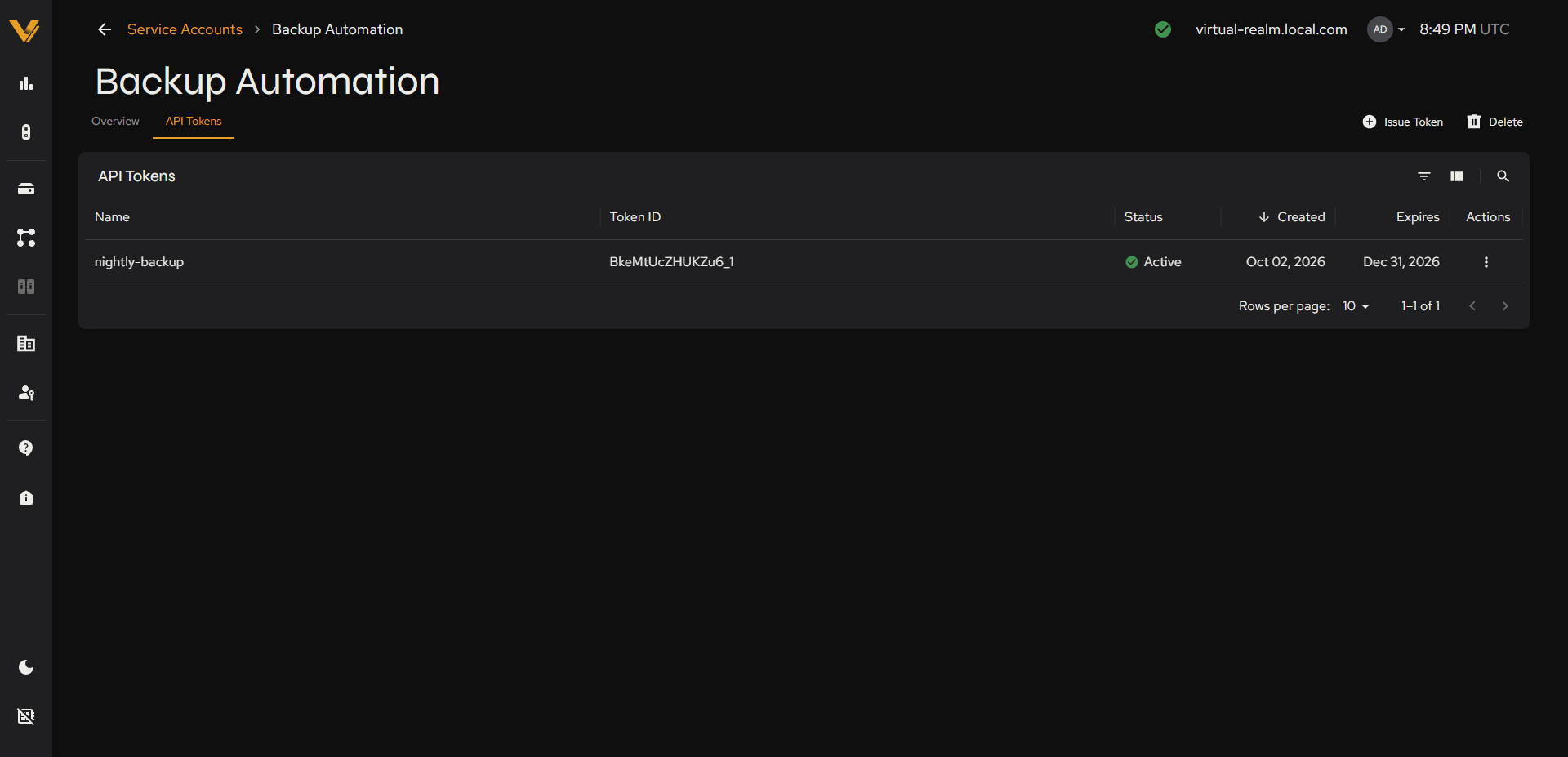 Figure 10.11. The API Tokens tab after a token has been issued.
| Column | Description |
|---|---|
| Name | The name given to the token when it was issued |
| Token ID | The token’s identifier (not the secret token value) |
| Status | “Active”, or “Revoked” once the token has been revoked |
| Created | When the token was issued |
| Expires | When the token stops working |
| Actions | A kebab menu whose only action is Revoke |
10.6.2 Issue Token Modal
This modal issues a new API token. It opens when you click Issue Token.
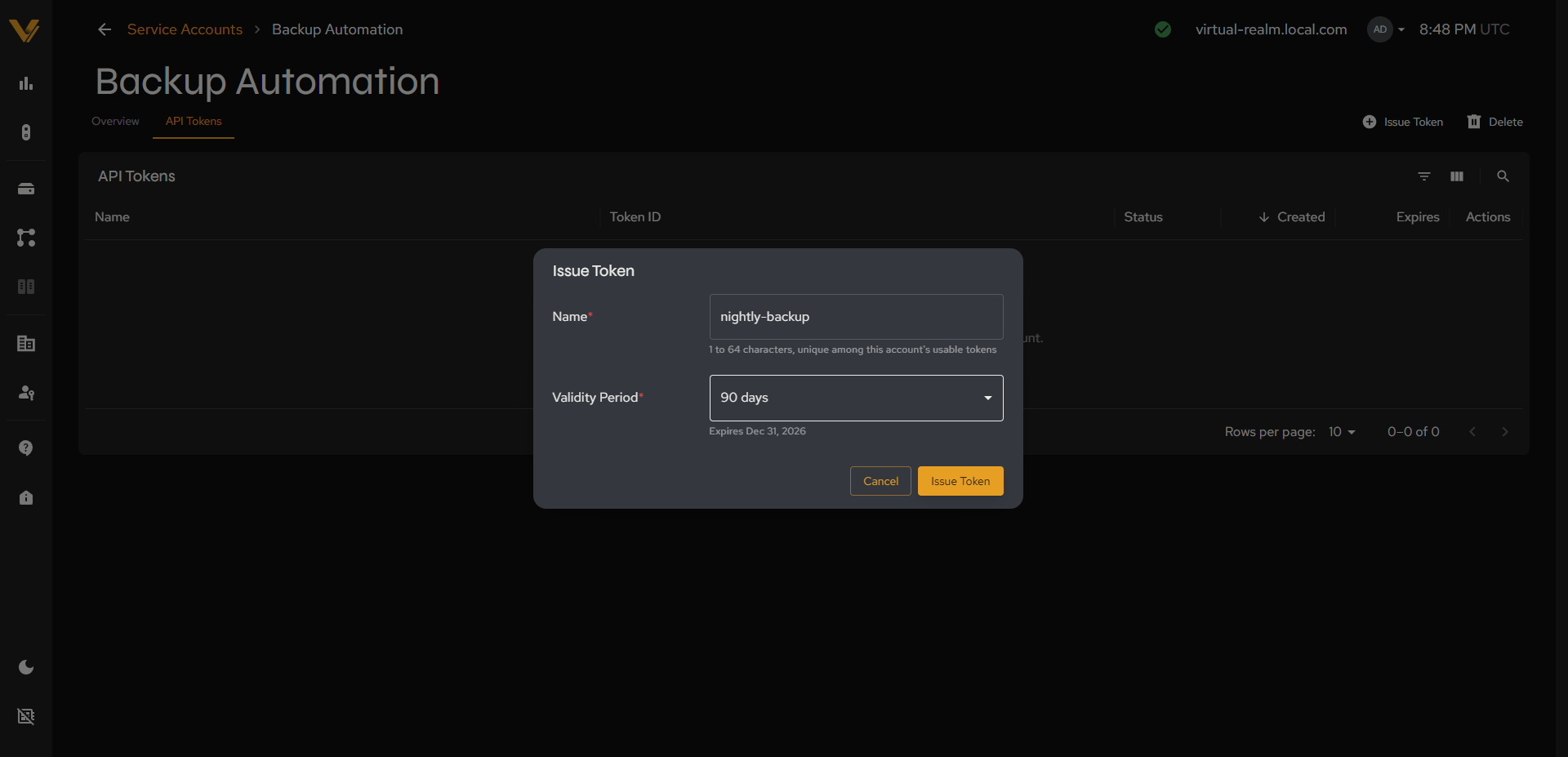 Figure 10.12. The Issue Token modal.
| Field | Notes |
|---|---|
| Name* | Required text, 1 to 64 characters, unique among the account’s usable tokens |
| Validity Period* | Dropdown of 30, 90, 180, or 365 days; the default is 90. A helper line shows the resulting expiration date, e.g. “Expires Dec 31, 2026”. |
Cancel/Issue Token.
10.6.3 Token Issued Modal
After you click Issue Token, a “Token Issued” modal shows the new token once. It reads “This token is shown only once. Copy it now and store it securely.” The token is masked by default; click the eye icon to reveal it, and click Copy to copy it to the clipboard. The expiration date appears beneath the token. Click Done to close the modal.
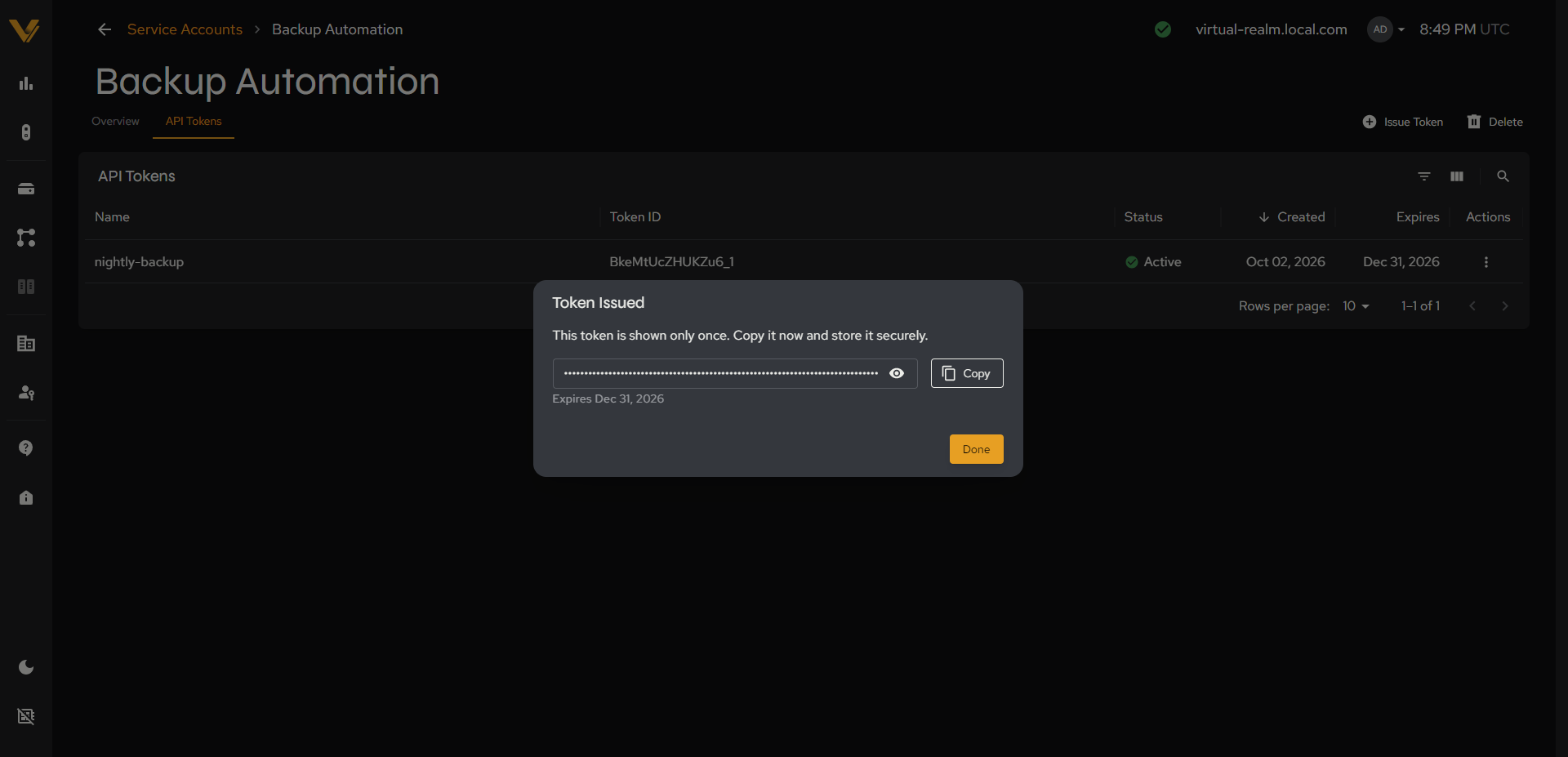 Figure 10.13. The Token Issued modal.
Important: Vantage cannot display the token again after you close this modal. If it is lost, revoke the token and issue a new one.
10.6.4 Manage Roles Modal
This modal changes the roles assigned to a service account. It works the same way as the user version described in 10.2.3: a checkbox per assignable role (Platform Admin, Storage Admin, Platform Read-Only), a live “Effective permissions after saving” line, and Cancel/Save changes buttons.
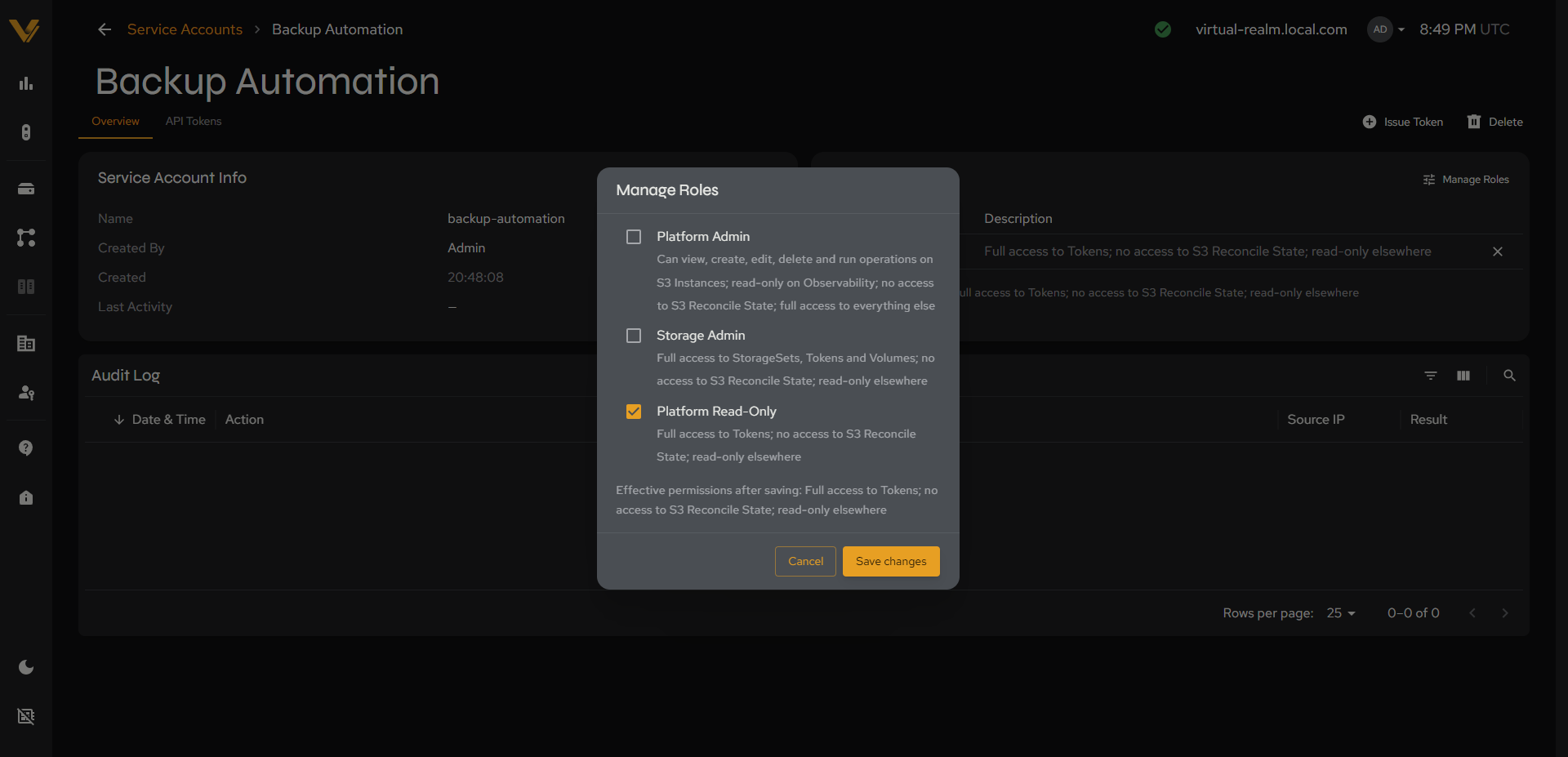 Figure 10.14. The Manage Roles modal for a service account.
10.6.5 Delete Service Account Confirmation
This modal confirms deletion of a service account. It reads, for example, “Are you sure you want to delete service account”Backup Automation”? Its tokens stop working immediately. This action cannot be undone.”
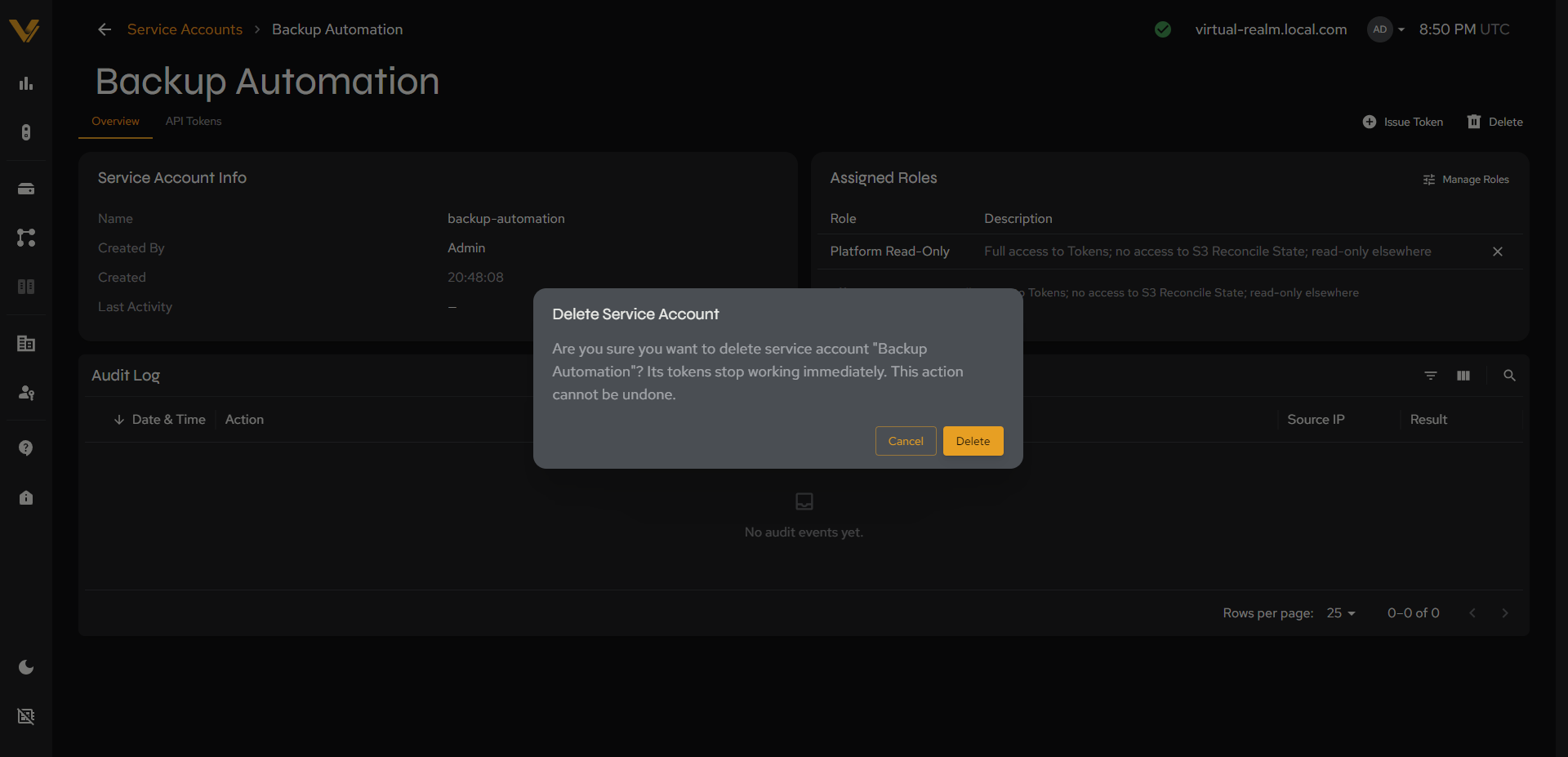 Figure 10.15. The delete confirmation modal for a service account.
10.7 Create Service Account Page
This page is the form for creating a new service account:
| Field | Notes |
|---|---|
| Display Name | Optional text |
| Name* | Required. Lowercase letters, digits, and hyphens only. It cannot be changed later. |
| Roles | A checkbox table (Role, Description) with a select-all checkbox in the header. The offered roles are Platform Admin, Storage Admin, and Platform Read-Only. An “Effective permissions” line below the table updates as you select roles and reads “No access” when none are selected. |
Cancel/Create Service Account.
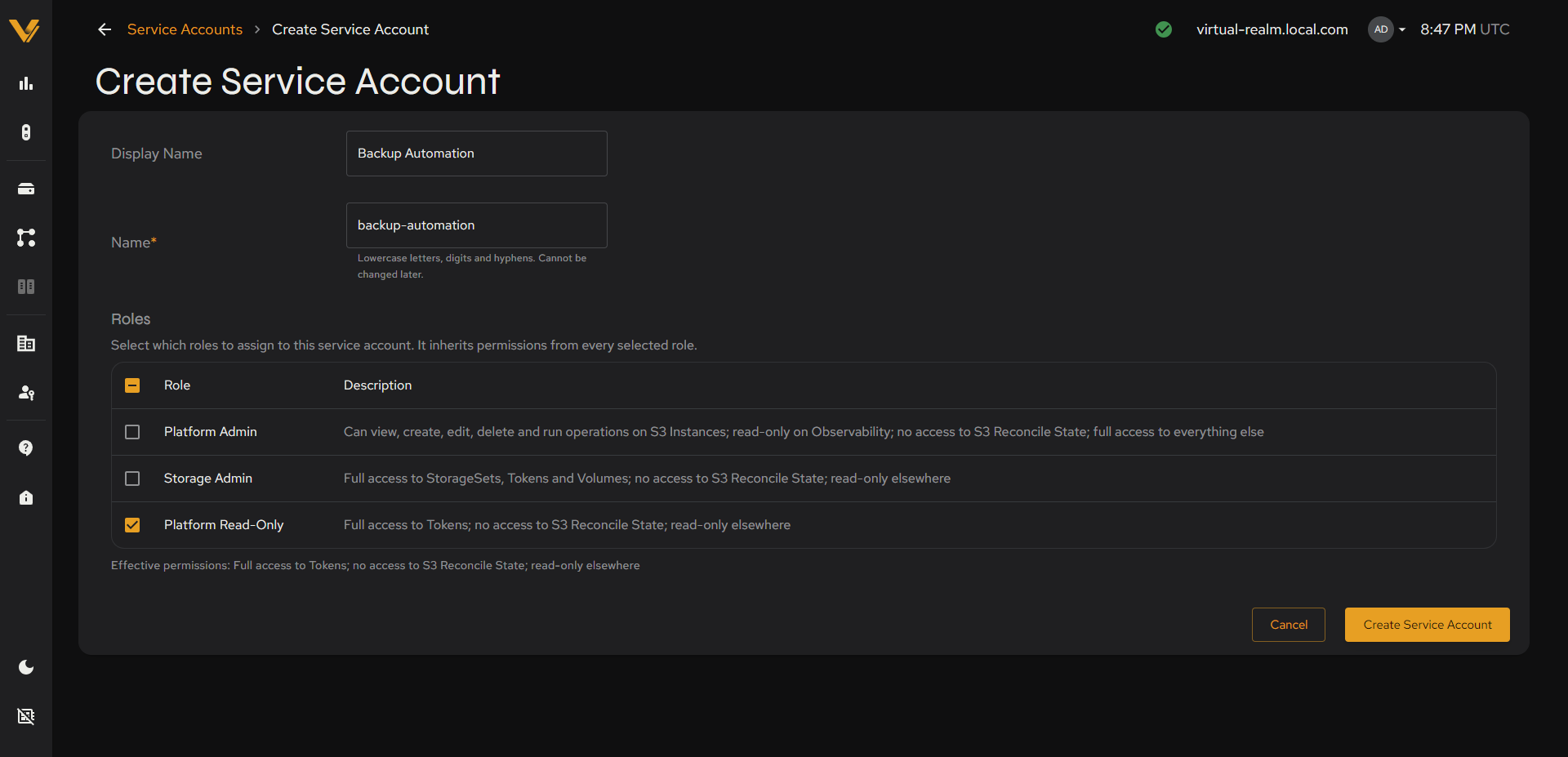 Figure 10.16. The Create Service Account form.
10.8 Creating and Managing Service Accounts
Use Vantage to create service accounts for automation, and to issue and revoke the API tokens those scripts use.
10.8.1 Create a Service Account
- Click + Create Service Account on the Service Accounts list page (see 10.5).
- Enter a Name using lowercase letters, digits, and hyphens; it cannot be changed later. A Display Name is optional.
- Select the Roles to assign. Grant only what the automation needs.
- Click Create Service Account (see 10.7).
10.8.2 Issue an API Token
- Open the service account’s detail page (see 10.6).
- Click Issue Token (see 10.6.2).
- Enter a Name for the token and choose a Validity Period.
- Click Issue Token.
- In the Token Issued modal, click Copy and store the token securely (see 10.6.3), then click Done.
10.8.3 Revoke an API Token
- Open the service account’s detail page and select the API Tokens tab (see 10.6.1).
- Click the kebab menu in the token’s Actions column.
- Click Revoke.
- Click Yes, Revoke Token in the confirmation prompt. The prompt reads “Revoke
<token name>? This action will permanently revoke the token. Any client still using it will start failing immediately. This cannot be undone.” The token stays in the list with the status Revoked.
10.8.4 Change a Service Account’s Roles
- Open the service account’s detail page (see 10.6).
- Click Manage Roles in the Assigned Roles card (see 10.6.4).
- Check and uncheck roles as needed, then click Save changes.