
6. File System
The File System sidebar item expands to two sub-sections: StorageSets and Volumes.
6.1 StorageSets
6.1.1 StorageSets List Page
This page lists every StorageSet in the realm as its own card. The top-right contains a search icon and a + Create StorageSet button.
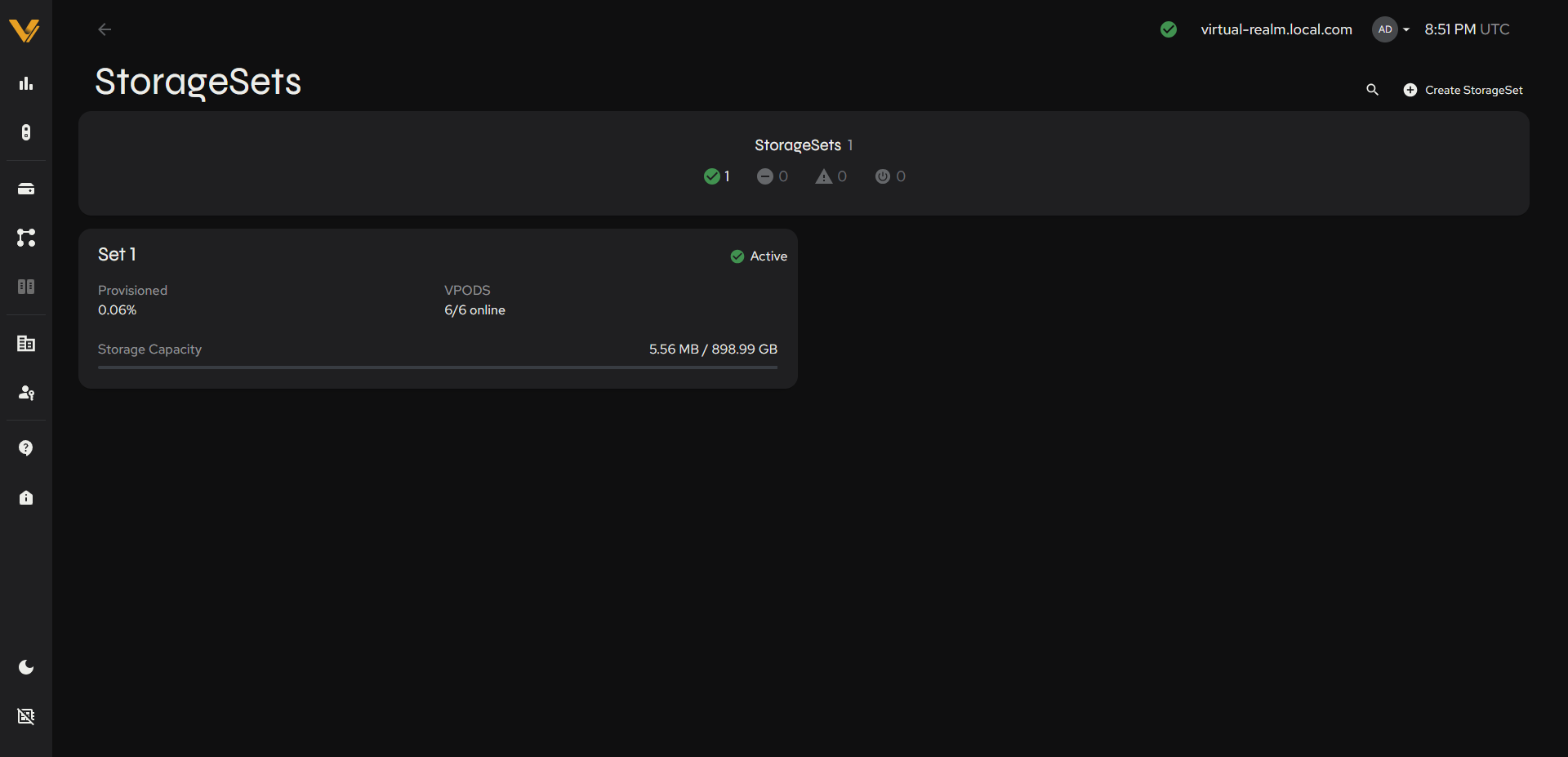 Figure 6.1. StorageSets list page with a single active StorageSet card.
Below a summary strip (count + the same 4-icon status breakdown described in 4.1), each StorageSet card shows:
| Card element | Description |
|---|---|
| Name | e.g. “Set 1” |
| Status badge (top-right) | Active (green) or No Storage Assigned (gray clock) |
| Provisioned | Percentage of capacity provisioned |
| VPODS | x/y online |
| Storage Capacity | used / total with a mini progress bar |
Clicking a card opens its detail page.
On a freshly initialized realm with no storage provisioned anywhere yet, this list shows a single empty shell and no active StorageSets.
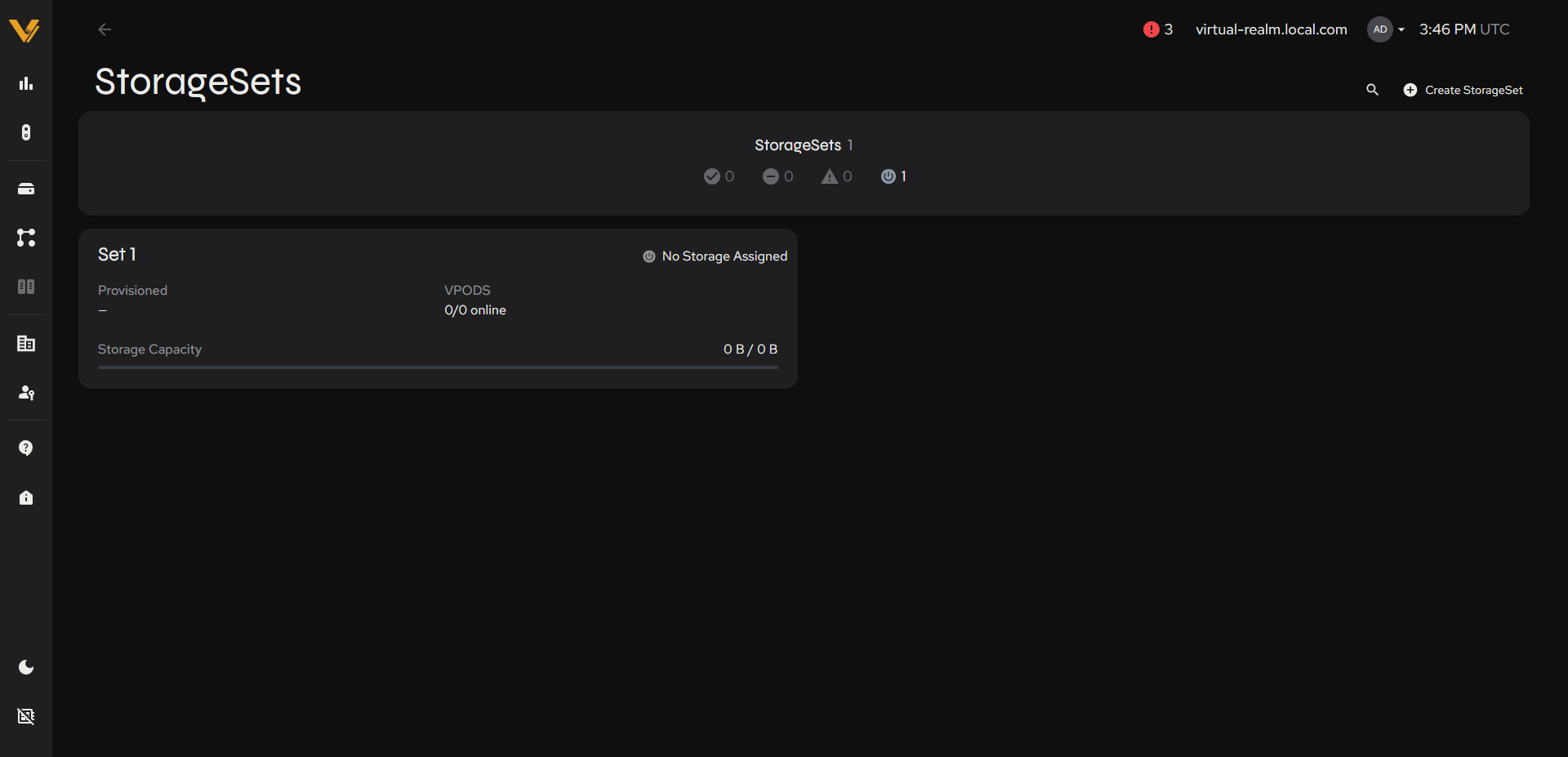 Figure 6.2. StorageSets list on a freshly initialized realm: a single empty shell, no active StorageSets yet.
6.1.2 StorageSet Detail Page
This page shows full details for a single StorageSet. The breadcrumb trail StorageSets > Set N is on the left, with the StorageSet’s health status icon beside its name. The name is shown as an inline-editable title; see 6.2.3 to rename it. The top-right contains the + Add Storage and 🗑 Delete actions.
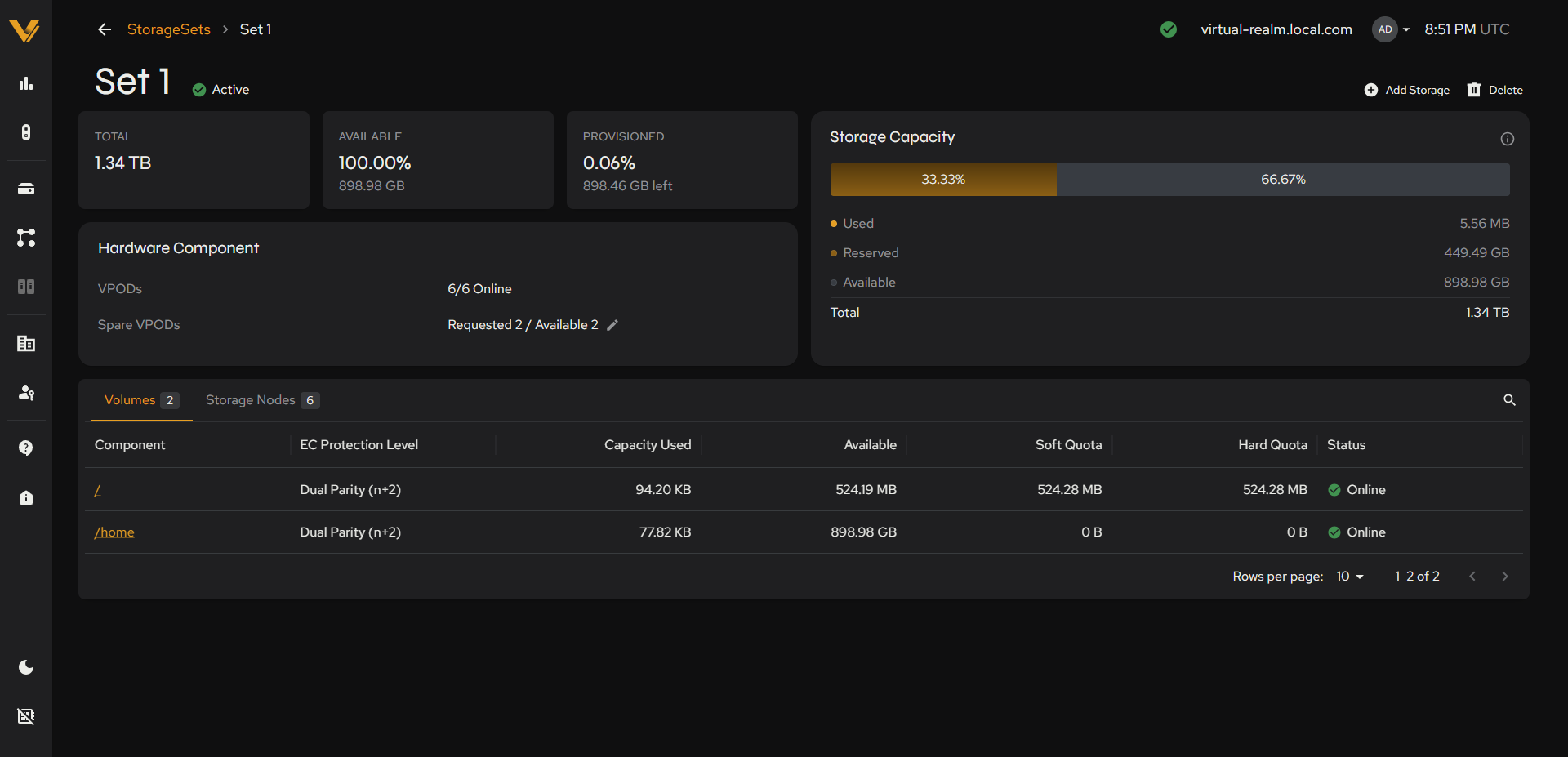 Figure 6.3. Full detail page for the active StorageSet, Volumes tab selected.
Left column:
| Card | Field | Meaning |
|---|---|---|
| Summary Tiles | TOTAL | Total storage capacity of the StorageSet |
| Summary Tiles | AVAILABLE | Free space on the StorageSet (% + amount) |
| Summary Tiles | PROVISIONED | Percent of the StorageSet’s storage that has been provisioned (% + amount left) |
| Hardware Component | VPODs | Number of VPODs in the StorageSet that are online (x/y Online) |
| Hardware Component | Spare VPODs | OSDs requested and available for reconstruction (Requested N / Available N), with an inline pencil-icon edit to increase this number: see 6.1.3 |
Right column:
| Card | Field | Meaning |
|---|---|---|
| Storage Capacity | Used | Utilized capacity of the StorageSet (% of total, with an (i) info icon) |
| Storage Capacity | Reserved | Capacity reserved for use by reconstruction (% of total) |
| Storage Capacity | Available | Capacity ready to be consumed by growth in Used capacity, for any volume (% of total) |
| Storage Capacity | Total | The StorageSet’s overall total capacity, shown in the legend alongside the three segments |
Warning: Avoid filling any StorageSet to more than 90 percent of capacity.
Vantage issues warnings if a Storage Node or StorageSet exceeds 90 percent of capacity. Should the data on a VPOD or StorageSet approach 90 percent of capacity, consider adding storage capacity to your StorageSet or removing unneeded data.
Bottom table:
| Tab | Column | Meaning |
|---|---|---|
| Volumes (n) | Component | Volume path (e.g. /, /home); links to volume detail |
| Volumes (n) | EC Protection Level | e.g. “Dual Parity (n+2)” |
| Volumes (n) | Capacity Used | Amount of capacity currently used by the volume |
| Volumes (n) | Available | Amount of capacity still available to the volume |
| Volumes (n) | Soft Quota | The soft quota for the volume, if set. |
| Volumes (n) | Hard Quota | The volume’s hard quota, if set: the maximum capacity the volume can consume |
| Volumes (n) | Status | The volume’s status (e.g. “Online”) |
| Storage Nodes (n) | Name | Links to node detail under Realm Nodes |
| Storage Nodes (n) | IP | The node’s IP address |
| Storage Nodes (n) | Capacity Total | Total capacity of this node |
| Storage Nodes (n) | Status | The node’s health/operational status (see 3.2) |
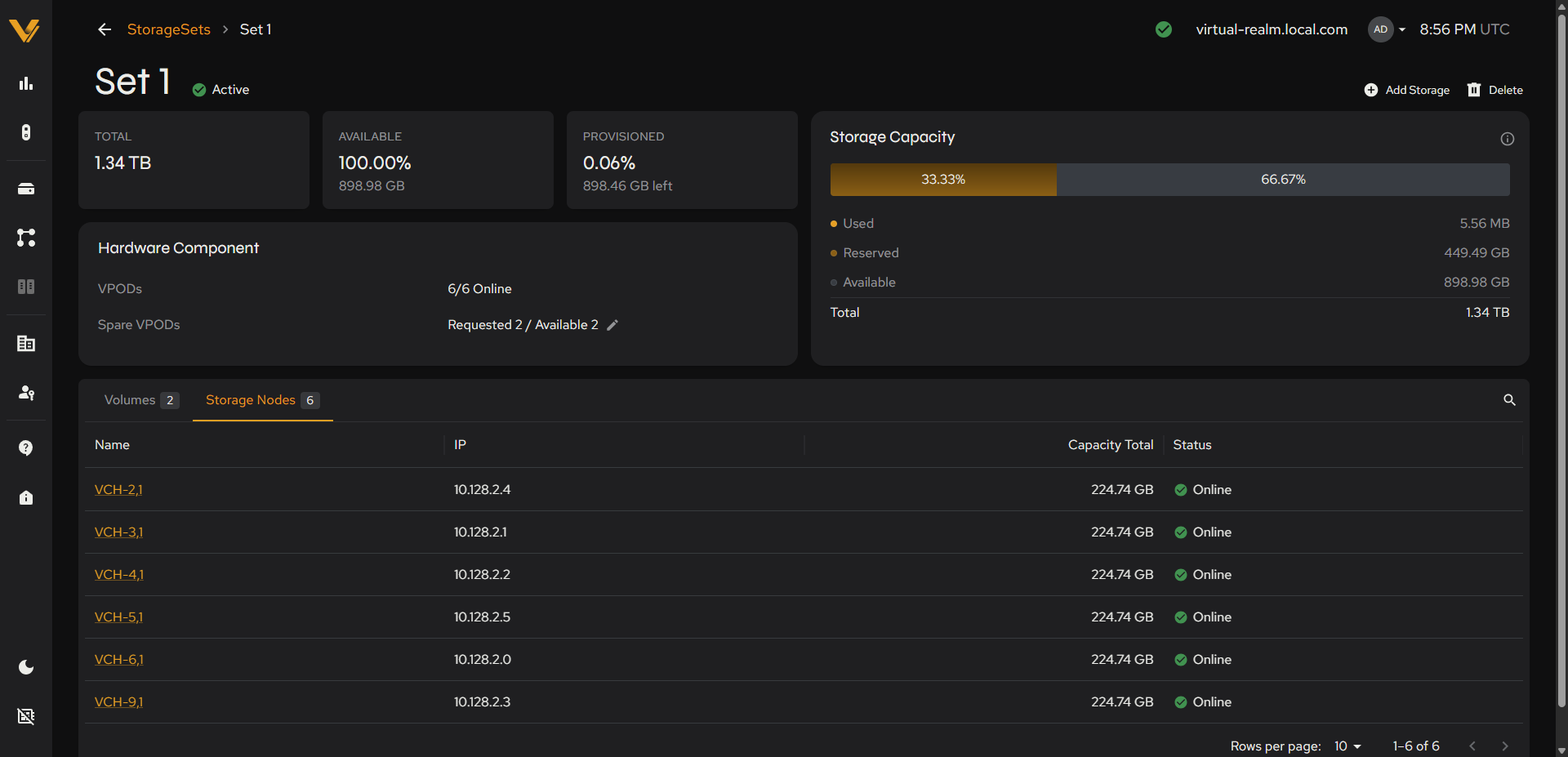 Figure 6.4. Same page with the Storage Nodes tab selected.
Empty StorageSet example: A StorageSet that exists but has no storage assigned yet shows status badge No Storage Assigned, VPODs 0/0 Online, capacity 0 B / 0 B, and both the Volumes and Storage Nodes tabs read “No rows”. This is the expected appearance of a StorageSet shell before any nodes have been added to it.
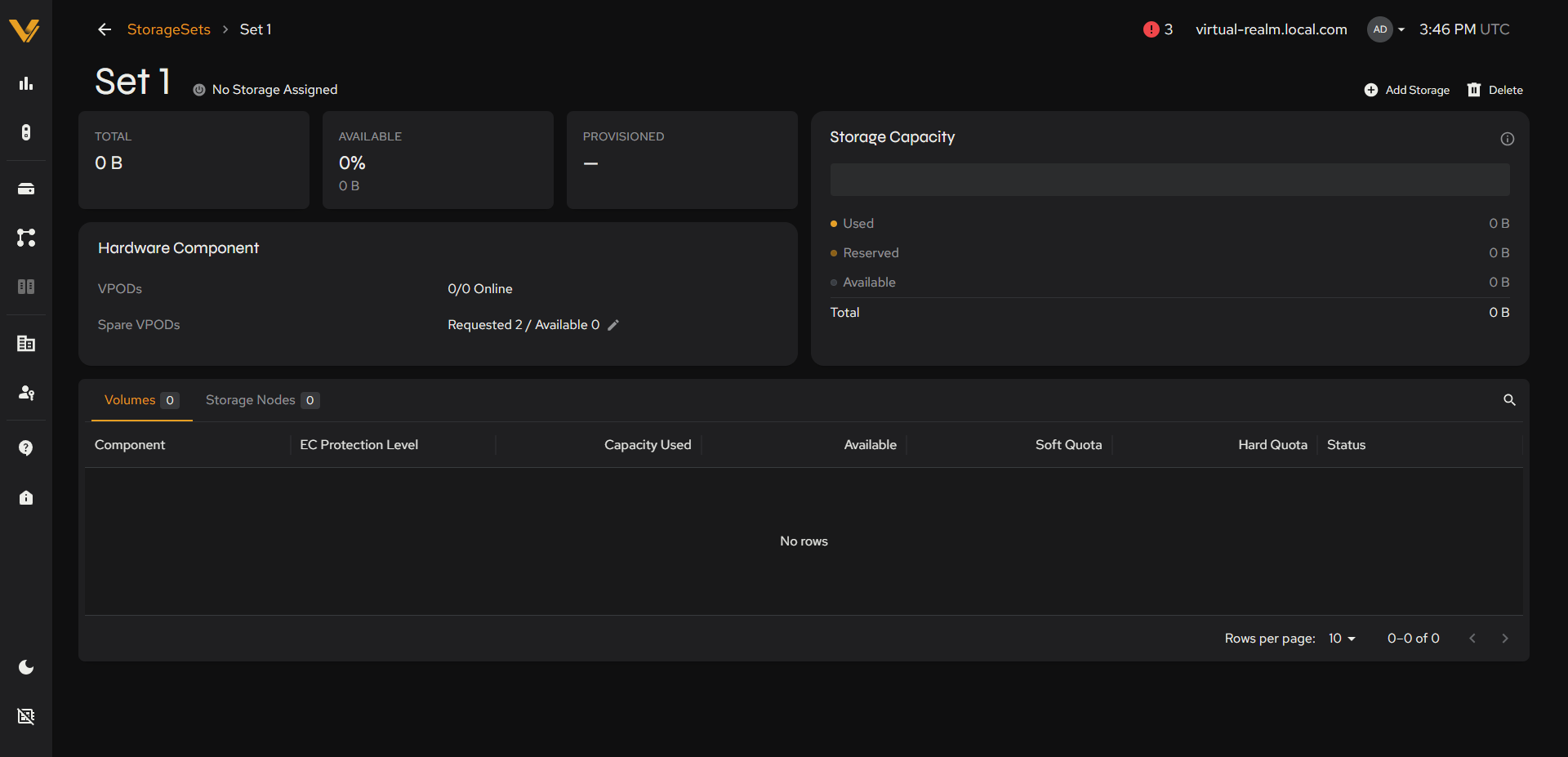 Figure 6.5. Detail page for the empty StorageSet (‘No Storage Assigned’, 0/0 VPODs).
6.1.3 Edit Spare VPODs Modal
Opened via the pencil icon next to Spare VPODs, this modal changes the number of spare VPODs reserved for reconstruction.
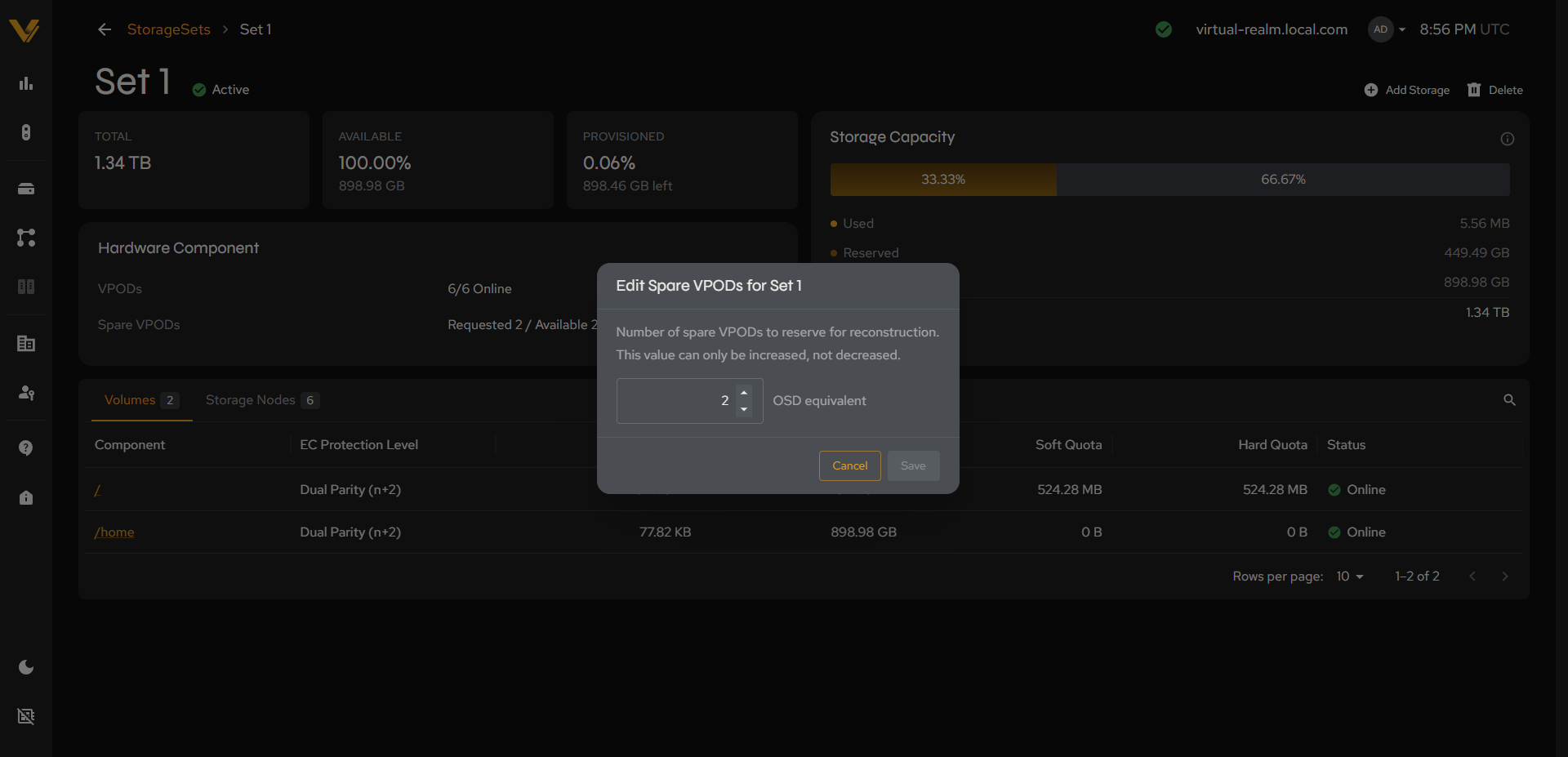 Figure 6.6. The Edit Spare VPODs for Set N modal open.
To open it, click the pencil icon on the Spare VPODs line in the Hardware Component field. Title: “Edit Spare VPODs for Set N”. Body text: “Number of spare VPODs to reserve for reconstruction. This value can only be increased, not decreased.” A numeric stepper labeled “OSD equivalent”, then Cancel/Save.
6.1.4 Add Storage Modal
This modal adds storage to a StorageSet.
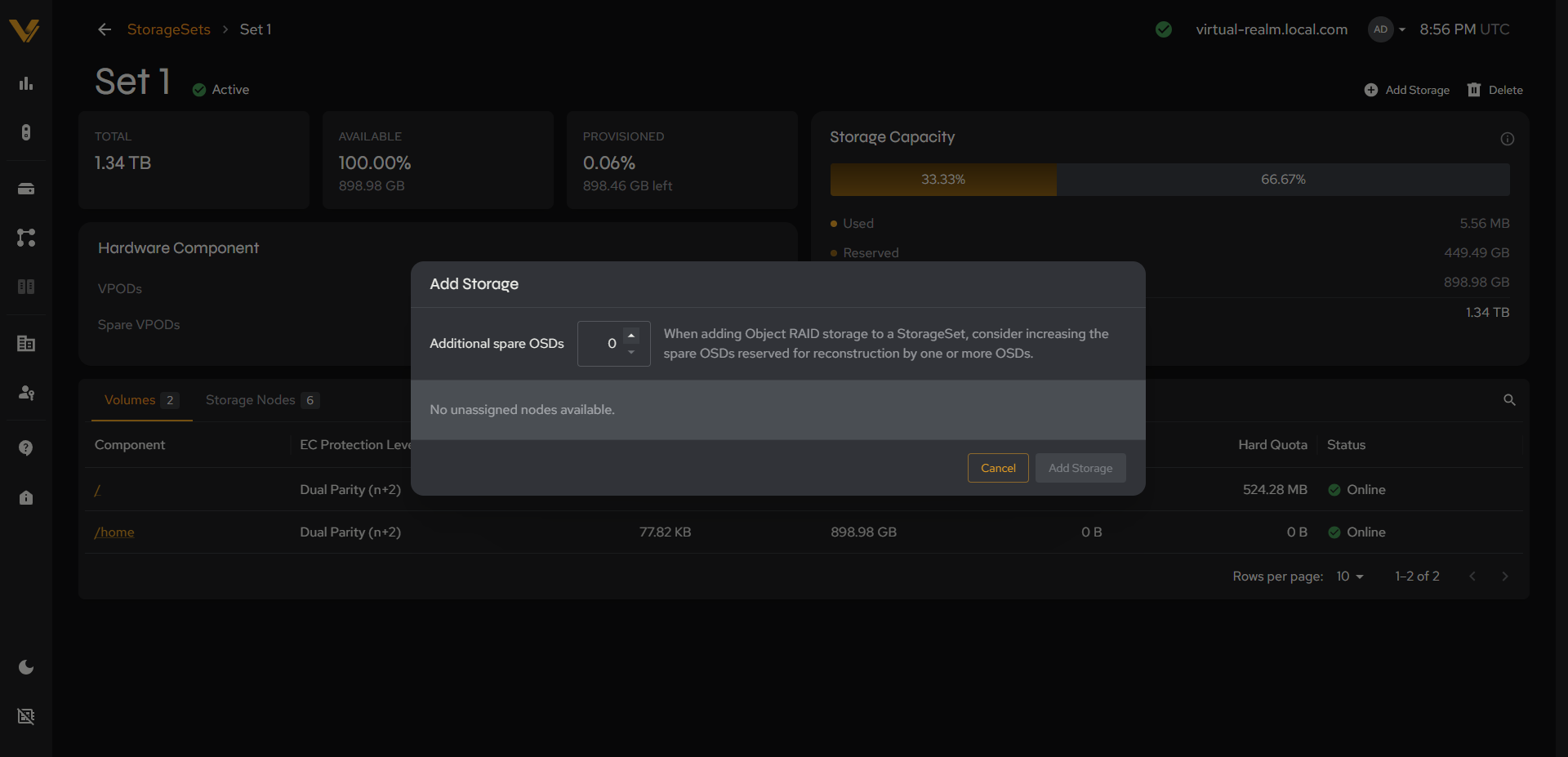 Figure 6.7. The Add Storage modal showing that there are no unassigned nodes available.
This modal has an Additional spare OSDs field at the top (described below) and, under it, a Component list: every unassigned Storage Node in the realm as a checkbox row, with Component and Status columns and its own search box. Select the nodes to add and confirm. If the realm has no unassigned nodes, it displays “No unassigned nodes available.” instead of the node picker.
When adding storage, the value in the Additional spare OSDs field is added to the StorageSet’s existing spare reservation (originally set by Space Reserved for Reconstruction on the Create StorageSet page, see 6.1.6). Leaving it at zero keeps the current reservation unchanged; it cannot reduce it. The amount of space reserved for reconstruction determines the number of consecutive VPOD failures the StorageSet can withstand while still providing data redundancy.
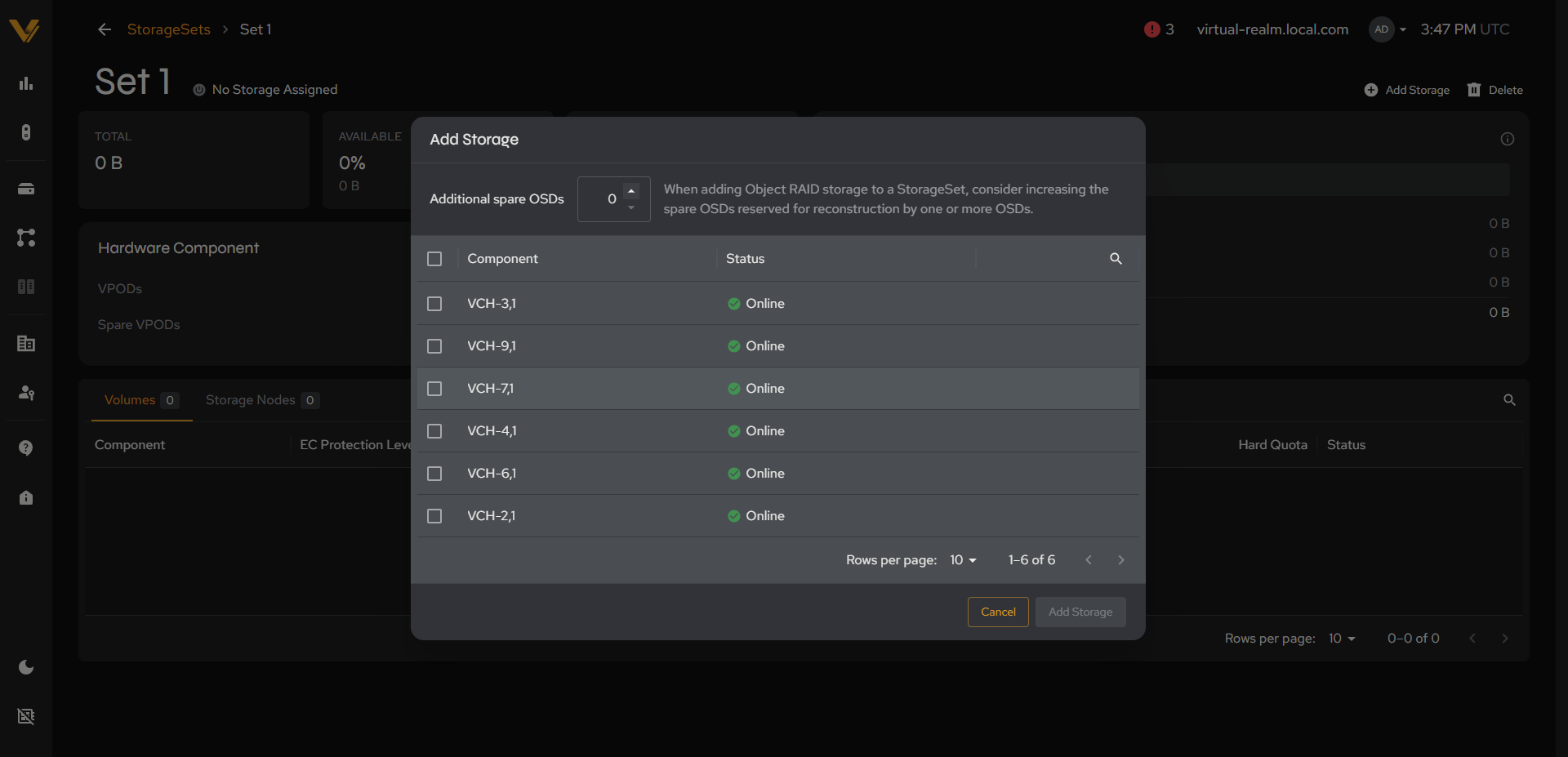 Figure 6.8. The Add Storage modal’s node picker populated with unassigned Storage Nodes.
Once confirmed, the StorageSet’s status flips to Active, its VPODs come online, and Total Capacity updates accordingly. Expect a brief burst of critical/warning alerts in the top bar while this happens, clearing on its own within a minute or two; see Troubleshooting if it doesn’t.
Note: Adding storage to a StorageSet automatically provisions the built-in platform tenant’s
/and/homevolumes on it; no separate Create Volume step is needed for those two. Create Volume (see 6.3.4) is for anything beyond them: additional paths or any volume belonging to a tenant other than the built-in default.
6.1.5 Delete StorageSet Confirmation
Click Delete in the delete StorageSet confirmation prompt window to confirm and delete the StorageSet.
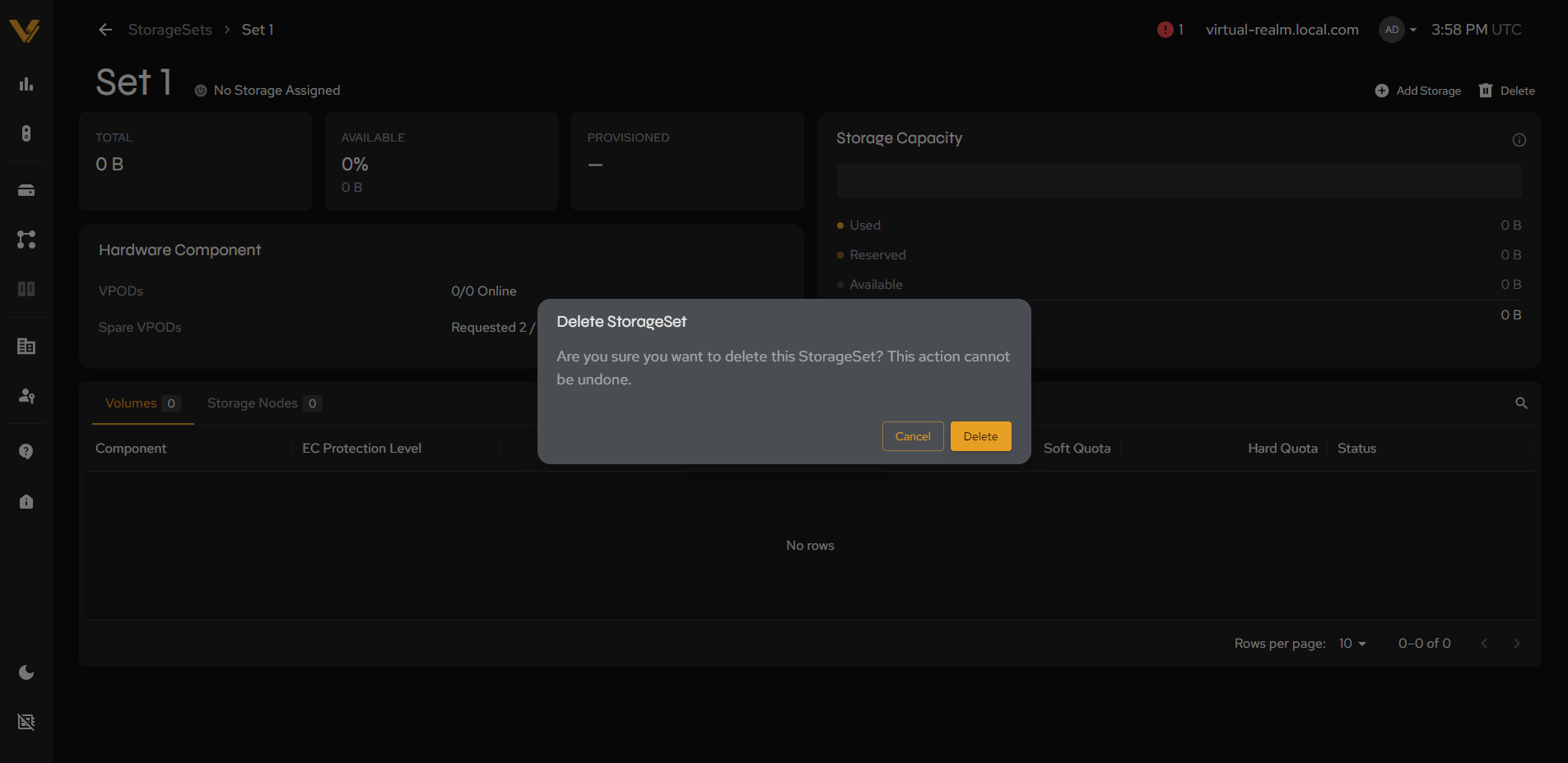 Figure 6.9. The delete confirmation modal for a StorageSet.
6.1.6 Create StorageSet Page
Use this page to create a new StorageSet.
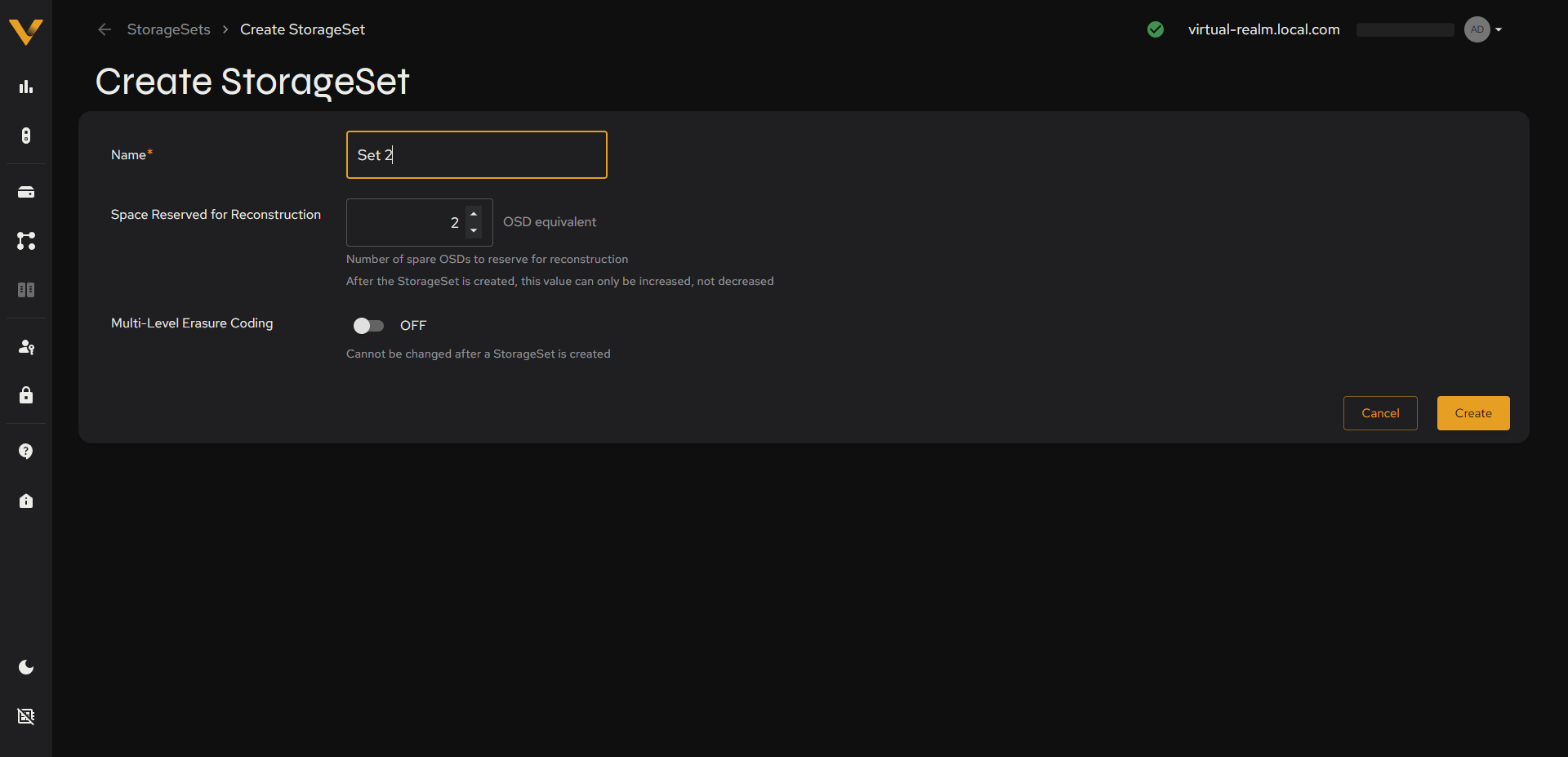 Figure 6.10. The full Create StorageSet form.
| Field | Notes |
|---|---|
| Name* | Required text field |
| Space Reserved for Reconstruction | Numeric stepper, “OSD equivalent”, default 2. Helper: “Number of spare OSDs to reserve for reconstruction. After the StorageSet is created, this value can only be increased, not decreased.” |
| Multi-Level Erasure Coding | This feature provides a second layer of erasure coding and reconstruction inside VPODs. Note that this cannot be turned off once the StorageSet is created. |
| Buttons | Cancel/Create |
6.2 Creating and Managing StorageSets
Use Vantage to create a new StorageSet when new storage devices are added to the system. After the StorageSet is created, you can still increase the number of spares (but never decrease it), either with the pencil icon on the StorageSet Detail page (see 6.1.3) or when you add storage (see 6.2.2). You can also increase the capacity of an existing StorageSet by adding new, unassigned components to it.
Note: For information on configuring and managing StorageSets using the command-line interface, see the
storagesetcommand in the VDURA Data Platform CLI Reference Guide.
6.2.1 Create a StorageSet
- Click + Create StorageSet on the StorageSets list page (see 6.1.1).
- Enter a descriptive name for the StorageSet, up to 30 ASCII characters, in the Name field.
- Enter the number of spare VPODs to reserve for reconstruction or use the default of two. The amount of space reserved for reconstruction determines the number of consecutive VPOD failures the StorageSet can withstand while still providing data redundancy, so reserve sufficient space now. After the StorageSet is created, this value can only be increased, not decreased, either with the pencil icon on the StorageSet Detail page (see 6.1.3) or when additional storage is added (see 6.2.2).
- If desired, turn on Multi-Level Erasure Coding for a second layer of erasure coding and reconstruction inside VPODs. This cannot be turned off once the StorageSet is created.
- Click Create (see 6.1.6). The new StorageSet appears on the StorageSets list page.
6.2.2 Add Storage to a StorageSet
- Click the StorageSet’s card on the StorageSets list page (see 6.1.1) to open its detail page. A newly created StorageSet has no storage assigned to it until storage is added.
- Click + Add Storage (see 6.1.4).
- Select the available storage to add from the Component list.
- Enter the number of spare OSDs to add to the StorageSet’s reservation in the Additional spare OSDs field. Leave it at zero to keep the current reservation. As at creation, the total reservation determines how many consecutive VPOD failures the StorageSet can withstand while still providing data redundancy.
- Click Add Storage to return to the StorageSet Detail page.
6.2.3 Modify a StorageSet
See 6.1.2 for the StorageSet Detail page.
- To rename it: click the StorageSet’s name, enter the new name, and click Save.
- To change the spare VPOD reservation: click the pencil icon on the Spare VPODs line of the Hardware Component card (see 6.1.3).
6.2.4 Delete a StorageSet
- Open the StorageSet’s detail page (see 6.1.2).
- Click Delete (see 6.1.5).
- Click Delete again in the confirmation prompt.
6.3 Volumes
6.3.1 Volumes List Page
This page lists every volume in the realm. The top-right contains a + Create Volume button; the table toolbar has filter, column-visibility, and search icons (see 3.1).
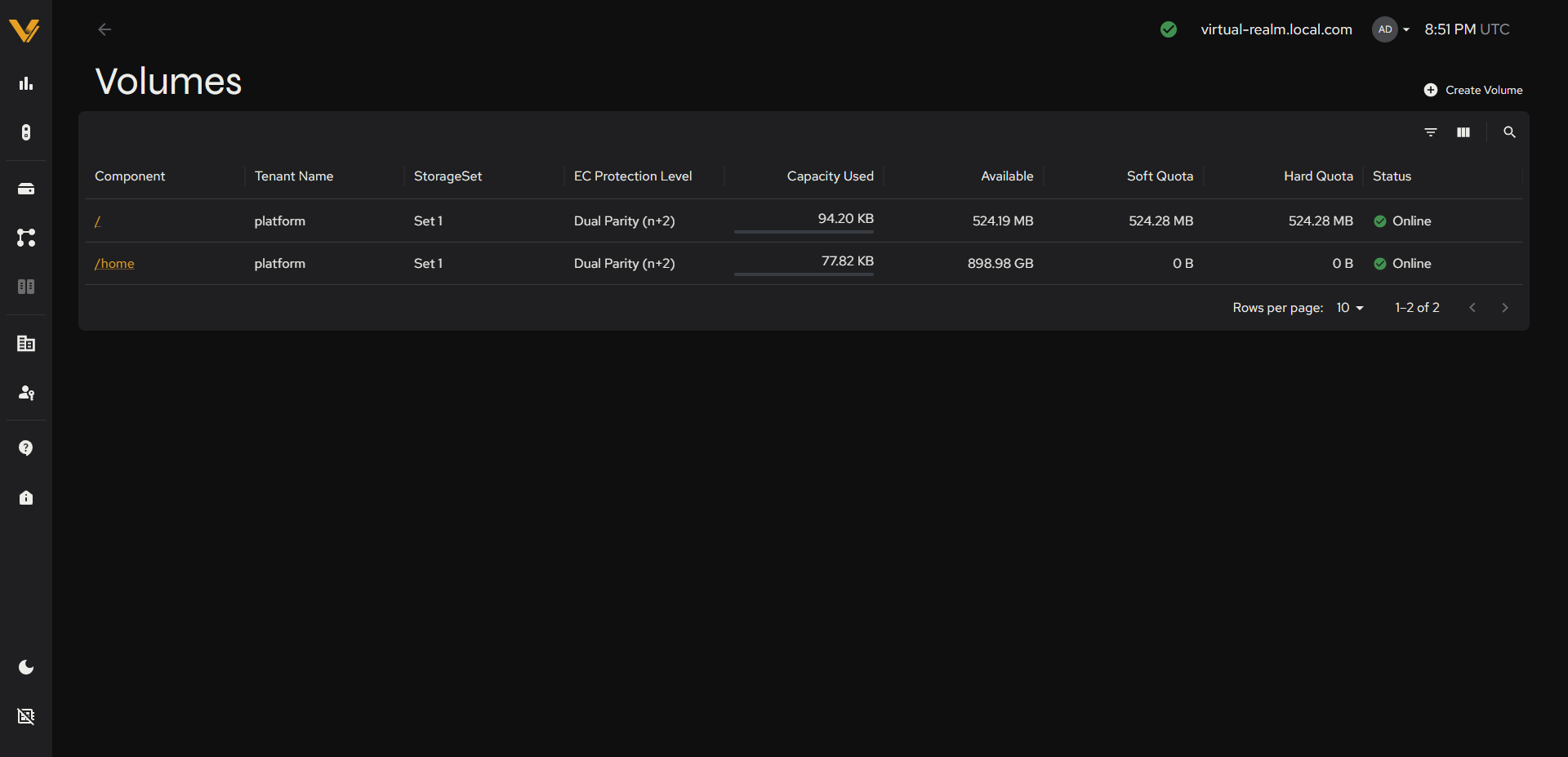 Figure 6.11. The Volumes table with at least two rows.
| Column | Description |
|---|---|
| Component | volume path (e.g. /, /home); links to volume detail |
| Tenant Name | e.g. “platform” |
| StorageSet | Links to the owning StorageSet |
| EC Protection Level | e.g. “Dual Parity (n+2)” |
| Capacity Used | Amount of capacity currently used by the volume |
| Available | Amount of capacity still available to the volume |
| Soft Quota | The soft quota for the volume, if set. |
| Hard Quota | The volume’s hard quota, if set. This is the maximum capacity the volume can consume. |
| Status | The volume’s status (e.g. “Online”) |
In a realm with more than one tenant, this list shows every tenant’s volumes side by side, distinguished by the Tenant Name column.
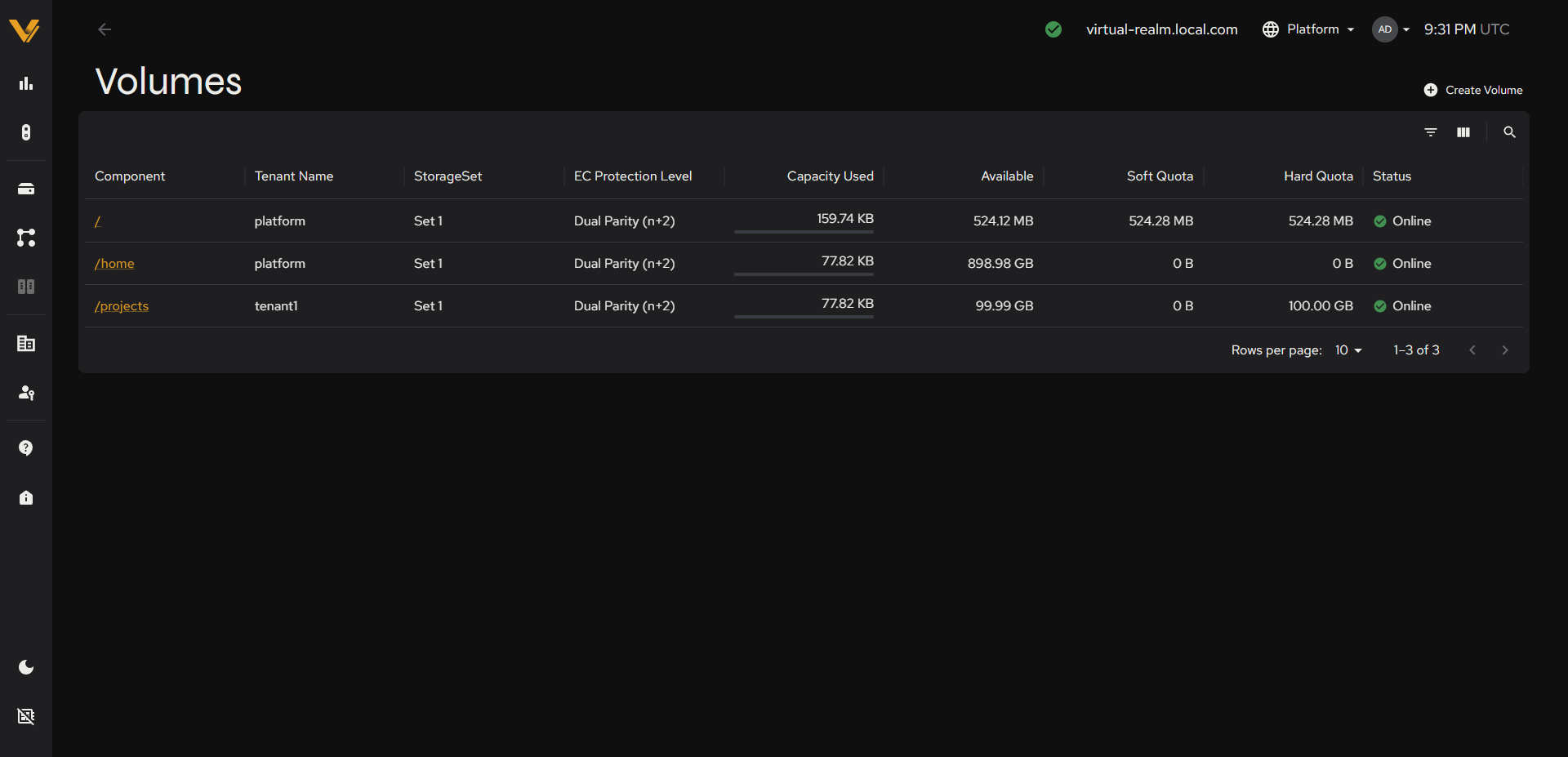 Figure 6.12. The realm-wide Volumes list showing volumes from more than one tenant side by side.
6.3.2 Volume Detail Page
This page shows full details for a single volume. The header shows the path and status badge, and the top-right contains a 🗑 Delete action.
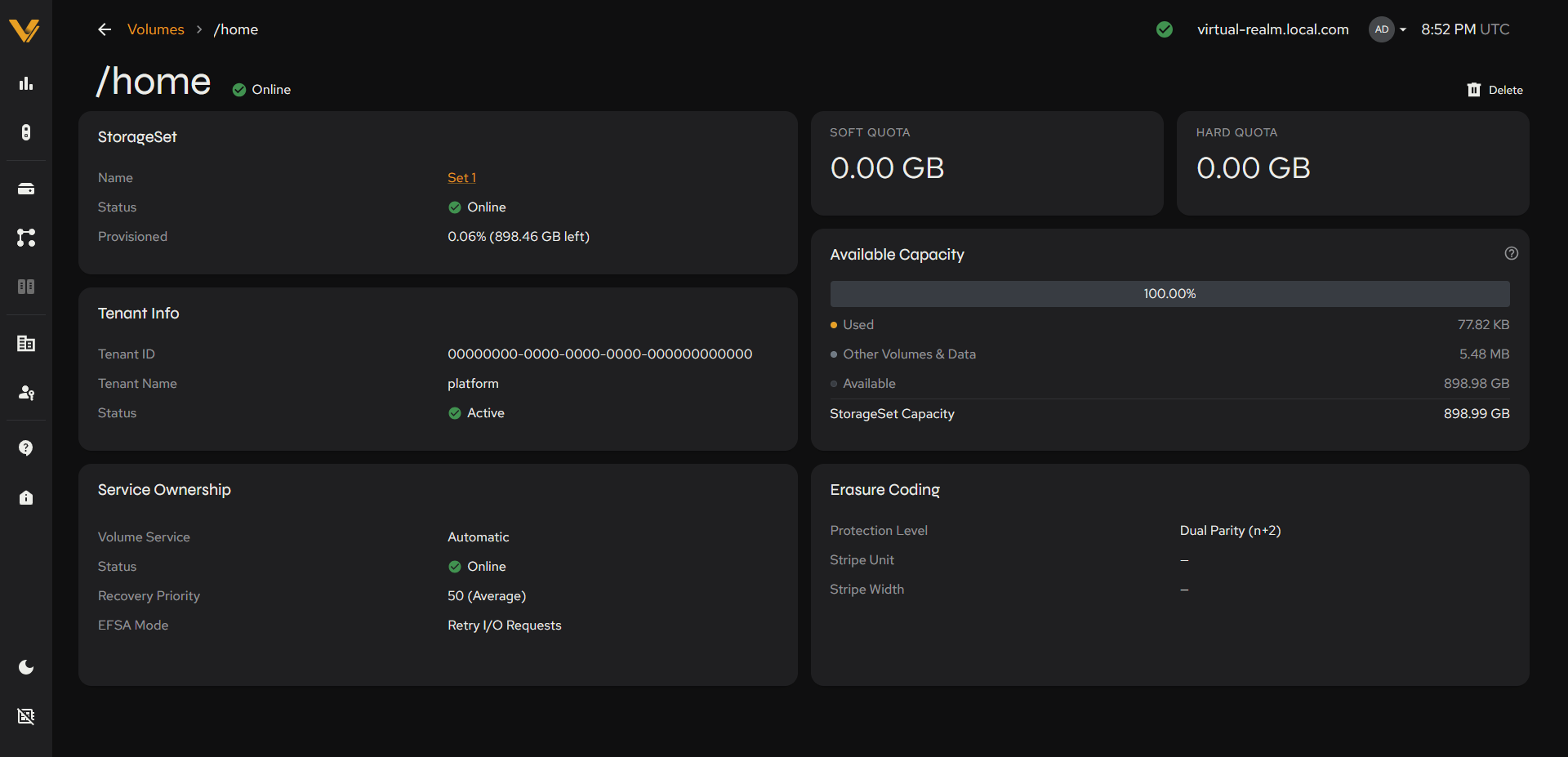 Figure 6.13. Full detail page for one volume.
| Card | Field | Meaning |
|---|---|---|
| StorageSet | Name | Link to the owning StorageSet |
| StorageSet | Status | Health status of the owning StorageSet |
| StorageSet | Provisioned | Percent of the StorageSet’s capacity provisioned (% + remaining) |
| Tenant Info | Tenant ID | The owning tenant’s UUID |
| Tenant Info | Tenant Name | The owning tenant’s name |
| Tenant Info | Status | The owning tenant’s status (e.g. “Active”) |
| Service Ownership | Volume Service | Which Director’s metadata service manages this volume. Provides some control over volume-management load balancing across Directors. Each Director runs a metadata service that manages one or more volumes, and responsibility for a given volume is not spread across multiple Directors. On a realm with several Directors, defining a like number of volumes helps ensure all Directors are assigned some of the metadata workload, which improves performance (e.g. “Automatic”). |
| Service Ownership | Status | Status of the volume’s service assignment (e.g. “Online”) |
| Service Ownership | Recovery Priority | Any integer from 1 to 100; a lower number is a higher priority, with 1 the highest. Defaults to 50 if left unchanged (e.g. “1 (High)”). |
| Service Ownership | EFSA Mode | Extended File System Availability Mode: the path pursued when an object has exceeded its fault-tolerance level. retry blocks and retries I/O requests until the needed storage devices are back online; file-unavailable returns I/O errors instead. The system default is retry (e.g. “Retry I/O Requests”). |
| Erasure Coding | Protection Level | The volume’s erasure-coding scheme: Dual Parity (n+2), a balance between capacity overhead and performance (the default); Single Parity (n+1), optimized for performance with less capacity overhead; or Striped Mirror (2x), optimized for small write performance. |
| Right Column | SOFT QUOTA | The volume’s soft quota, if set. |
| Right Column | HARD QUOTA | The volume’s hard quota, if set: the maximum capacity the volume can consume. |
| Right Column | Available Capacity | A card with a bar %, a legend of Used, Other Volumes & Data, and Available, the StorageSet Capacity total beneath it, and a help (?) icon. |
6.3.3 Delete Volume Confirmation
This modal confirms deletion of a volume.
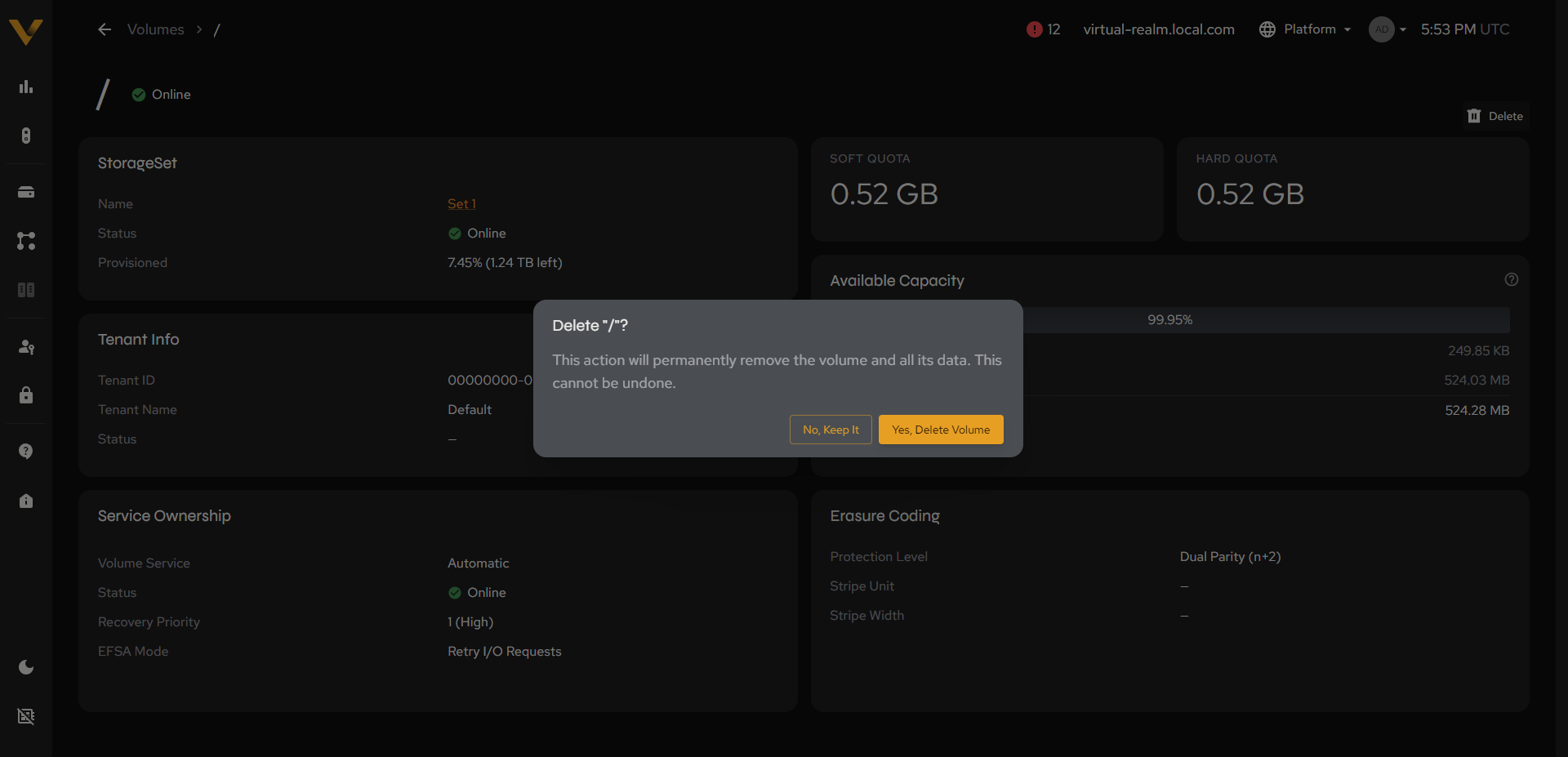 Figure 6.14. The delete confirmation modal.
6.3.4 Create Volume Page
This page is used for any volume beyond the platform tenant’s automatically-provisioned / and /home (see 6.1.4) or for any volume belonging to another tenant.
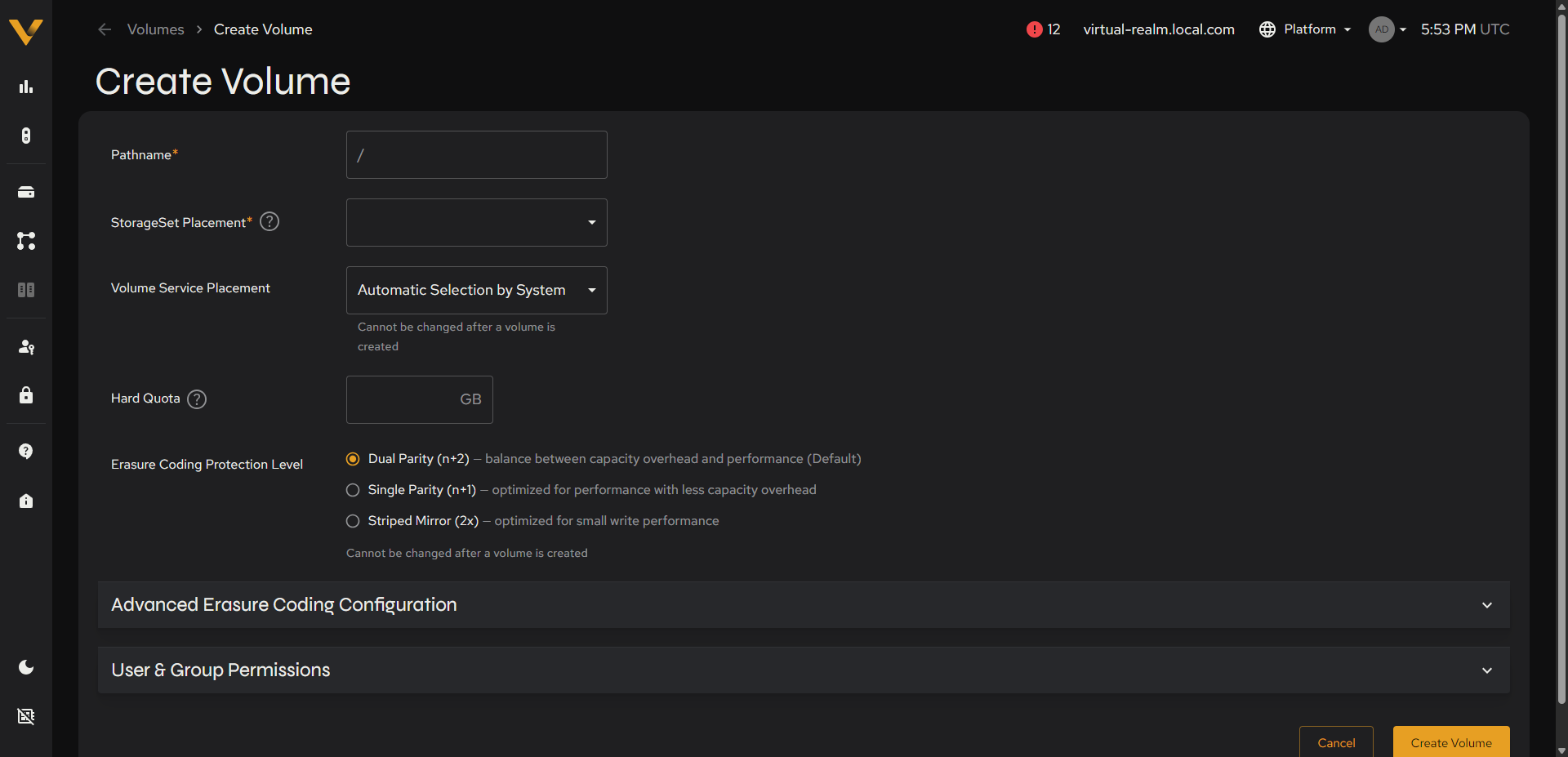 Figure 6.15. Top of the Create Volume form: Pathname through Erasure Coding Protection Level radios.
| Field | Notes |
|---|---|
| Pathname* | Text, e.g. /data. The leading / shown in the field is fixed UI chrome, not something to type yourself. A value that already includes / is rejected (“Only letters, numbers, dashes, and underscores are allowed”). |
| StorageSet Placement* | Required dropdown. Lists every StorageSet with its available capacity, e.g. Set 1: 898.47 GB, Set 2: 0.00 GB (a StorageSet with no assigned storage is still listed, just with 0 GB available). Shows “Storage set is required” if left empty. |
| Volume Service Placement | Controls which Director’s metadata service manages this volume, giving some control over volume-management load balancing across Directors. Each Director runs a metadata service that manages one or more volumes, and responsibility for a given volume is not spread across multiple Directors. On a realm with several Directors, defining a like number of volumes helps ensure all Directors are assigned some of the metadata workload, which improves performance. Dropdown, default “Automatic Selection by System”; a specific Director can be selected manually instead. |
| Hard Quota | Numeric + GB unit. Optional when acting as Platform Admin against a tenant with an Unlimited StorageSet quota (the platform tenant, see 9.2); required (with a “Max” quick-fill link next to the field) once you’re acting inside a tenant that has a finite Hard Quota on the StorageSet, see 9.4. |
| Erasure Coding Protection Level | Radio buttons (see table below). |
Erasure Coding Protection Level options:
| Option | Description |
|---|---|
| Dual Parity (n+2) | Balance between capacity overhead and performance (Default) |
| Single Parity (n+1) | Optimized for performance with less capacity overhead |
| Striped Mirror (2x) | Optimized for small write performance |
Two collapsible sections follow:
Advanced Erasure Coding Configuration
| Field | Notes |
|---|---|
| Stripe Unit | Numeric + unit dropdown (KB/MB). |
| Stripe Width | Integer. |
User & Group Permissions
User and group can be specified as either a UNIX name, UNIX ID, or Windows SID (e.g. 0).
| Row | Name field (default) | Permission dropdown (default) |
|---|---|---|
| User | root |
all |
| Group | wheel |
read-execute |
| Others | (none, implicit) | read-execute |
Each of the fields above contains the following permission dropdown options: none, read-only, write-only, execute-only, read-write, read-execute, write-execute, all.
Cancel/Create Volume.
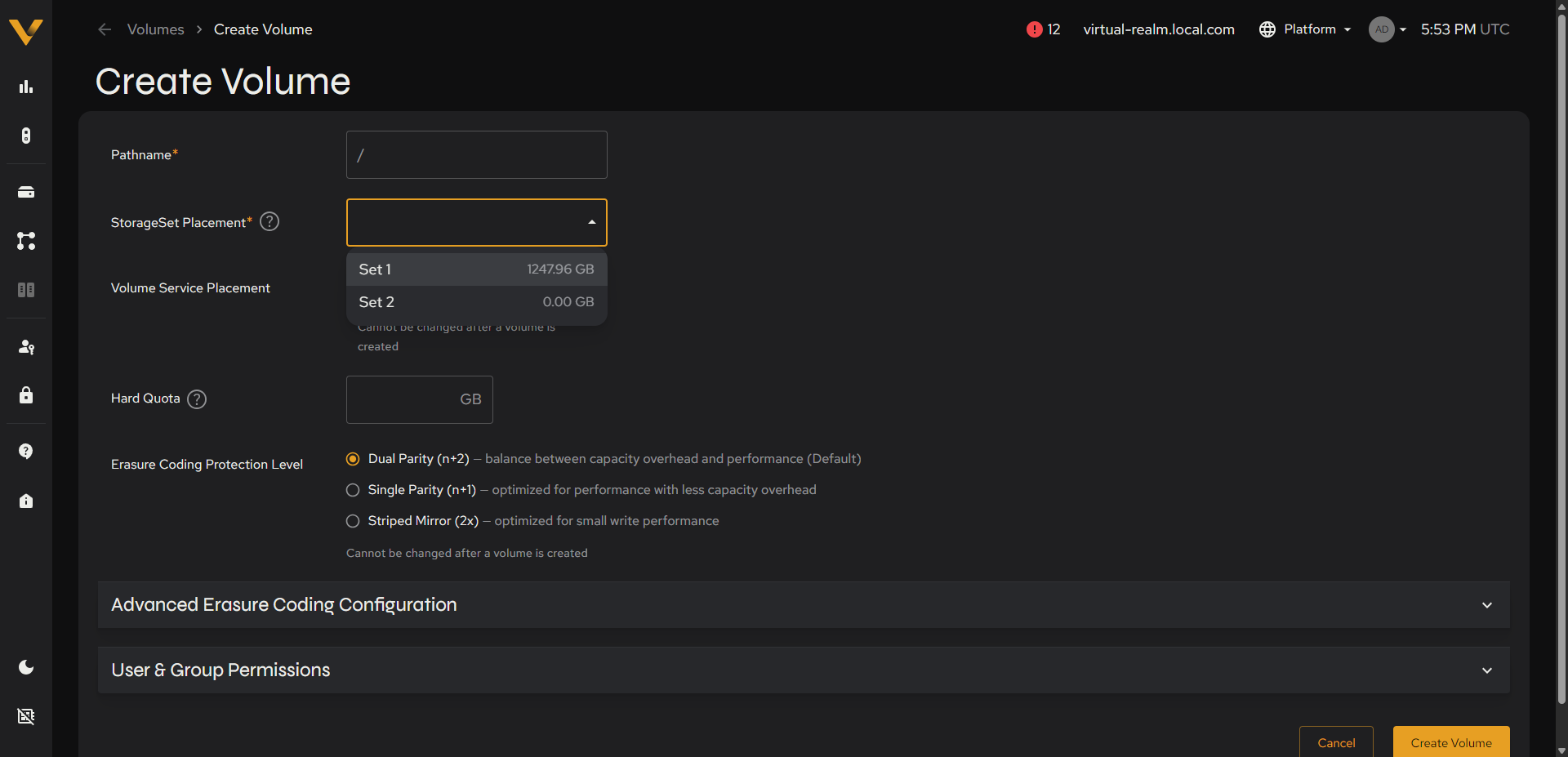 Figure 6.16. The StorageSet Placement dropdown open, showing each StorageSet with its available capacity.
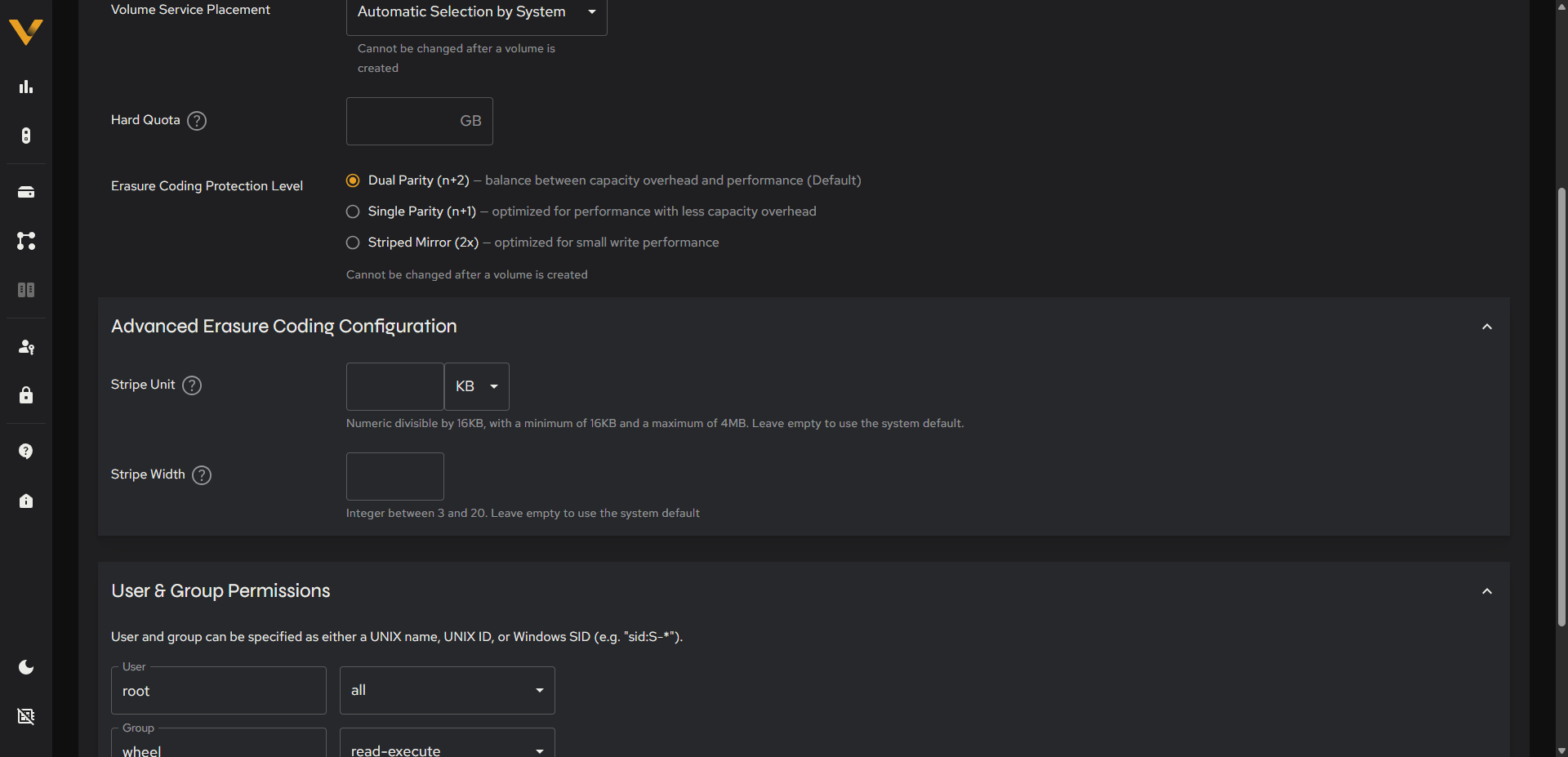 Figure 6.17. Advanced Erasure Coding Configuration section expanded (Stripe Unit/Stripe Width).
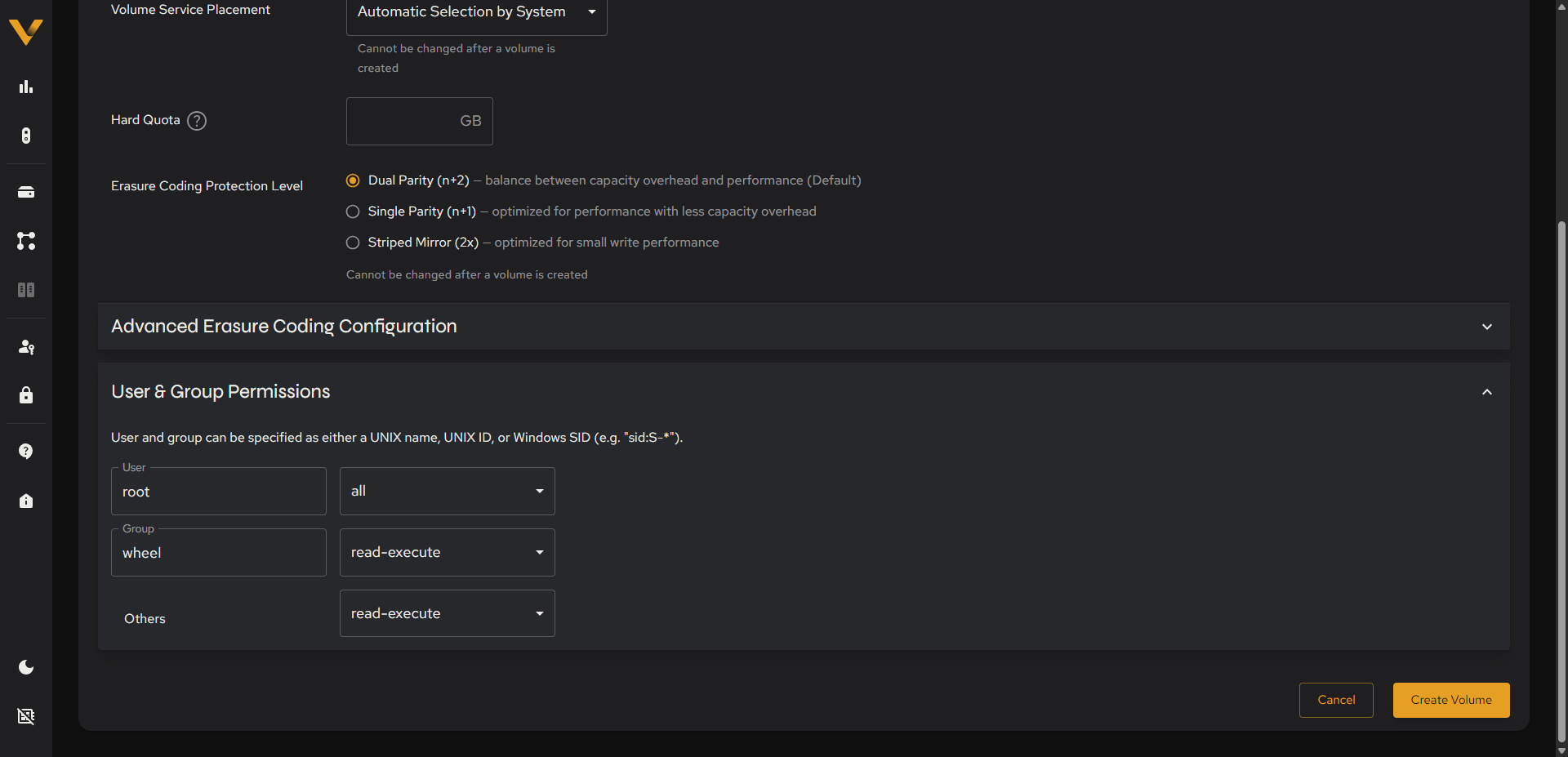 Figure 6.18. User & Group Permissions section expanded, with a permission dropdown open.
6.4 Creating and Managing Volumes
Use Vantage to create a new volume for any path beyond the platform tenant’s automatically-provisioned / and /home or for any volume belonging to another tenant. This build does not provide an in-place way to edit a volume’s settings after creation.
Note: For information on configuring and managing volumes using the command-line interface, see the
volumecommand in the VDURA Data Platform CLI Reference Guide.
6.4.1 Create a Volume
This procedure uses the Create Volume page; 6.3.4 describes every field on that page in detail.
- Click + Create Volume on the Volumes list page (see 6.3.1).
- Enter the volume’s path in the Pathname field. The leading
/shown in the field is fixed UI chrome; type only the rest of the path. - Select the StorageSet Placement. Every StorageSet in the realm is listed with its available capacity, even one with none.
- If desired, choose a specific Volume Service Placement instead of the default automatic selection; this cannot be changed after the volume is created.
- Enter a Hard Quota if required (mandatory when acting inside a tenant with a finite StorageSet quota; optional otherwise). Use the Max link to fill in the tenant’s full remaining allowance in one click.
- Choose an Erasure Coding Protection Level; this cannot be changed after the volume is created.
- Optionally expand Advanced Erasure Coding Configuration to set a custom Stripe Unit/Stripe Width, and User & Group Permissions to set ownership and access beyond the defaults.
- Click Create Volume (see 6.3.4).